
comfyui-immich
ComfyUI custom nodes for Immich integration — upload, metadata, album management
Nodes (1)
comfyui-immich
Custom nodes for ComfyUI that integrate with Immich — the self-hosted photo management platform.
Features
- Save to Immich — Upload generated images directly to your Immich server
- Full workflow and prompt metadata embedded in PNG (drag-drop back into ComfyUI to reproduce)
- ComfyUI-viewable local preview written before upload, so a down Immich does not eat the render (the UI and API clients both read this file)
- Optional character label, album assignment, and description tagging
- Immich v3-compatible upload payloads
- End-to-end archive and recovery proofs against a real Immich, with receipts (see Evaluation)
- Per-image error handling — one failure doesn't crash the batch
- Zero extra dependencies — uses only packages already in ComfyUI (PIL, numpy, torch)
Install
From ComfyUI-Manager: open Custom Nodes Manager, search for Save to Immich, install, and restart ComfyUI. It is published on the Comfy Registry as comfyui-immich.
With comfy-cli: comfy node install comfyui-immich
Manually: clone into your ComfyUI custom_nodes directory and restart ComfyUI:
cd /path/to/ComfyUI/custom_nodes
git clone https://github.com/sourceblender/comfyui-immich.git
The node appears under image/immich in the node menu. It needs no packages beyond what ComfyUI already ships.
Configure
In ComfyUI (recommended). Open Settings (the gear, bottom left) → Immich, then fill in:
- Immich URL: the address you open Immich at, without
/api(for examplehttps://photos.example.com). - API key: write-only. It is saved on the server and never shown again; type a new one to replace it, or Clear key.
Click Save, then Test connection, which checks only the saved settings. Changing the URL asks for confirmation and clears the saved key unless you enter a new one with it, so your key is never sent to a server you did not choose. Settings are stored in <ComfyUI user directory>/comfyui-immich.env, so they survive updating or reinstalling the node.
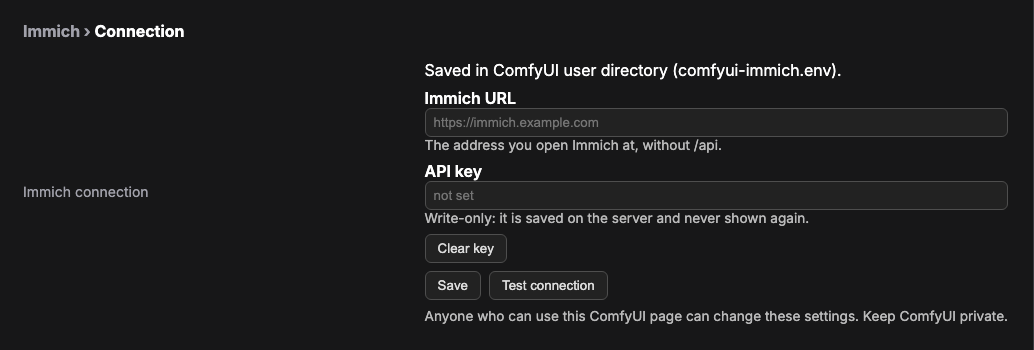
Anyone who can use your ComfyUI page can change these settings. ComfyUI has no login by default, so keep it private. The key is never sent back to the browser.
- Behind an HTTPS reverse proxy? The panel only accepts saves from ComfyUI's own origin. Add a line to
<ComfyUI user directory>/comfyui-immich.envby hand, for exampleIMMICH_ALLOWED_ORIGINS=https://comfy.example.com(comma-separated, exact origins). Otherwise saving is refused withcross_origin. The panel never writes this setting. - Upgrading from a node-folder
.env? An older.envin this node's folder is still read as a deprecated fallback. Save the URL and key in the panel to move them over. While the key still lives in that file, the panel won't change the URL or clear the key (key_outside_panel), so a key can never follow a new URL behind your back. Remove the key from the old file first.
Environment variables are not read (since 0.6.0). IMMICH_URL and IMMICH_API_KEY in ComfyUI's environment are ignored, and the panel is the one place the node is configured. Precedence: <ComfyUI user directory>/comfyui-immich.env (what the panel writes), then the node folder's legacy .env.
Status from the node
Right-click the Save to Immich node:
- Immich: connection status shows the server URL, whether an API key is set (never the key itself), and where each came from.
- Immich: test connection makes one request to the saved server with the saved key and tells you whether it works (for example "key rejected" or "server unreachable").
Getting an Immich API key
- Open your Immich instance in a browser.
- Go to Account Settings (click your avatar).
- Scroll to API Keys → New API Key.
- Give it a name (for example "ComfyUI") and create it.
- Paste the key into Settings → Immich → API key and click Save.
Try the example
Open examples/immich-save-example-api.json in ComfyUI (Workflow → Open, or drag the file onto the canvas). It is two nodes: Load Image feeding Save to Immich. It uses example.png, which ComfyUI ships in its input folder, so no image model is needed. Configure the connection above, then Queue. The image appears in Immich with the description "comfyui-immich example upload", and the node's receipt shows in the queue history.
Nodes
Save to Immich
Category: image/immich
An output node that uploads images to Immich at the end of a workflow.
Inputs
| Input | Type | Required | Default | Description |
|-------|------|----------|---------|-------------|
| images | IMAGE | Yes | — | Image tensor from the pipeline |
| character | STRING | No | "" | Who this render is of. Prefixed onto the Immich description as Character: …. Automation that drives ComfyUI through its API can fill it; in the UI, type it by hand. Not an Immich people/face tag. |
| description | STRING | No | "" | Description visible in Immich UI. Empty means auto-build from the graph (character, checkpoint/UNET, sampler, seed, prompt). |
| album_id | STRING | No | "" | Immich album UUID to add the image to |
| filename_prefix | STRING | No | "ComfyUI" | Prefix for the uploaded filename. May include subfolders (portraits/nova) within ComfyUI's output directory; absolute paths, .., and escaping symlinks are refused. |
Hidden Inputs (automatic)
| Input | Description | |-------|-------------| | prompt | Full node/prompt data — embedded in PNG metadata | | extra_pnginfo | Workflow JSON — embedded in PNG metadata |
What Gets Saved
Each uploaded image includes:
- PNG metadata: Full ComfyUI workflow + prompt data (same format as the built-in SaveImage node). You can drag the image back into ComfyUI to load the exact workflow that created it.
- ComfyUI preview: A local output copy written before the upload. The UI and API clients download this file from history even if Immich is unreachable.
- Immich description: The
descriptionfield if you filled it, otherwise an auto-built caption from the graph. A filledcharacteris always prefixed. - Album placement: If
album_idis provided, the image is added to that album immediately after upload.
Usage
Wire it as a terminal node — connect the image output from your VAE Decode, Detailer, or any image-producing node:
KSampler → VAE Decode → Save to Immich
Use it instead of SaveImage when you want one copy. Running both publishes the same picture twice (re-encoded) because each output node writes its own history entry, so anything reading the history sees two files.
The node works the same whether a graph is run by hand or queued by a script
through ComfyUI's API. A script typically fills only character (and
optionally description / album_id). A graph with those fields left blank
still archives: the node reads the prompt, checkpoint or UNET, sampler, and
seed itself.
Archive receipts and recovery
Local preview delivery and Immich archiving have separate outcomes. History
contains ui.images for previews and ui.archive for per-image upload,
description, and album results. Each archive receipt includes an asset ID
when available and stage-specific errors. A preview alone does not confirm
archiving. Missing archive configuration also preserves the local preview.
The two directions are independent: a rejected filename_prefix or an
unwritable output directory is reported as a preview stage error while the
image still reaches Immich. One failed image never cancels the rest of the
batch, so receipts for images already uploaded are never lost.
The node prints one summary line per batch, so a working archive is never
silent. Failures name the file — that name is the argument retry_archive
takes — and a retry hint appears whenever the local PNG still exists.
Receipt values worth knowing:
| Field | Value | Meaning |
|-------|-------|---------|
| upload | ok / reused / failed | reused means an existing asset ID was supplied and nothing was uploaded |
| description | ok / failed / not_requested / not_attempted | not_attempted means an earlier stage failed first |
| album | ok / unconfirmed / failed / not_requested / not_attempted | unconfirmed means Immich returned success with no per-asset body to verify |
Filename prefixes may include subfolders within ComfyUI's output directory. Absolute paths, parent components, and symlinks escaping that directory are refused. History reports the correct basename and subfolder for retrieval.
Retry an existing PNG without another GPU render from this node's directory:
/path/to/ComfyUI/.venv/bin/python -m immich_nodes.retry_archive /path/to/original.png
This uploads the unchanged PNG and reads its embedded archive description and
album. If upload already succeeded, add --asset-id <id> to retry only metadata.
Results are JSON; a non-zero exit code indicates at least one stage errored
(an errors entry in the report). unconfirmed album states are not
treated as errors and produce exit code 0 — they signal "check whether a
proxy is stripping the response body" rather than a failed archive.
Recovery needs the original file. A PNG with no embedded graph, an unreadable one, or one holding several archive nodes is refused with a message on stderr and exit code 1 rather than archiving with no metadata.
Evaluation
Two mechanical proofs live in evals/. Each run writes a JSON receipt with its input and runner hashes, every check, and its limits. Receipts never include keys or server URLs.
- Archive proof, 8/8 checks passed (
archive-v0.5.0.json). A frozen, GPU-freeEmptyImage→ Save to Immich graph was queued on a live ComfyUI host running the released v0.5.0 (9d17e03). ComfyUI's history reported one upload and one preview. The preview and the original PNG that Immich stored were byte-identical, and the embedded graph, dimensions, asset ID and description all matched. - Recovery proof, 6/6 checks passed (
recovery-v0.5.0-source.json). An upload failure was induced against a refused endpoint, then the same PNG bytes were retried against a real Immich without re-rendering. The retry created a distinct asset whose original bytes and description matched. This proof exercises theretry_archivemodule from the v0.5.0 source, not a deployed node.
Scope: one synthetic image and one induced failure. These runs show the archive path works end to end on a real server; they do not measure a success rate. Earlier v0.3.0 and v0.4.2 receipts remain in evals/results/ as dated comparisons.
Updating
Update from ComfyUI-Manager, or with comfy node update comfyui-immich, or git pull in the node folder for a manual install. Settings saved from the panel live in the ComfyUI user directory, so updates and reinstalls keep them.
Privacy and security
- Your workflow travels with every image. Each uploaded PNG embeds the full ComfyUI workflow and prompt, exactly like the built-in SaveImage node. Anyone who can download the original from Immich (for example through a shared album or link) can read your prompts and reload your graph.
- The API key is never stored in a workflow. It lives in the settings
file (or a legacy node-folder
.env), never in a node input, so it does not end up in saved workflows or in PNG metadata. The settings panel never sends it back to the browser. - Your key does not follow a redirect. The node refuses any redirect from Immich instead of following it, so the key is never forwarded to another host. Save the final address as the URL.
- Use a dedicated key. Create a key just for ComfyUI so you can revoke it on its own. If your Immich version lets you restrict a key, it needs to upload assets, read and update them (for the description), and add them to albums.
- Network scope. The node sends requests only to your saved Immich URL
(through your system proxy, if
HTTP(S)_PROXYis set), and its timeouts apply only to its own requests. It does not change networking for other nodes.
Compatibility
- Python 3.10 or newer (the same as ComfyUI)
- Immich with the v3 upload API
- No dependencies beyond what ComfyUI already ships (Pillow, NumPy)
Troubleshooting
| Symptom | Likely cause |
|---|---|
| IMMICH_URL not set / IMMICH_API_KEY not set | Nothing is configured. Open Settings → Immich, save the URL and key, and click Test connection. |
| Saving in Settings says cross_origin | You reach ComfyUI through a reverse proxy. Set IMMICH_ALLOWED_ORIGINS (see Configure). |
| Saving in Settings says key_outside_panel | The key is still in the node folder's legacy .env. Remove it there, then save the URL and key in the panel. |
| Upload fails with a redirect error | Immich (or a proxy) redirected the request. Save the final address as the URL, for example https:// instead of http://. |
| Upload fails with HTTP 401 or 403 | The key is wrong, revoked, or missing a permission (see Privacy and security). |
| Upload fails with a connection or timeout error | The Immich URL is unreachable from the machine running ComfyUI. Open it in a browser on that machine. The local preview is still saved. |
| album receipt is unconfirmed | Immich returned success without a per-asset body, often because a proxy strips it. Check the album in Immich. |
| Image in Immich but no description | Check the description stage in the receipt, then use retry_archive with --asset-id to retry only the metadata. |
Tests
The offline suite runs without ComfyUI or a live Immich. With uv:
uv run --extra dev pytest
Or with pip: pip install -e ".[dev]", then python -m pytest. The settings-route tests serve the real handlers over HTTP and need aiohttp (part of the dev extra, and already provided by ComfyUI).
Releasing (maintainers)
Merging to main never publishes. To release, bump [project].version in pyproject.toml in a pull request, then publish a GitHub release tagged v<version> on main. The release workflow runs the full CI, refuses a tag that does not match the version, and publishes to the Comfy Registry. A pre-release does not publish.
License
MIT