
ComfyUI-SweepGrid
Sweep ComfyUI parameters and combine labeled frame batches into one comparison video.
Nodes (7)
Audition every audio result in your sweep without leaving the canvas
The grid node for when your VRAM taps out
The Cartesian product that makes parameter grids worth it
The contact sheet, but every cell is a video
Stop hand-queuing the same workflow five times
The unboxer that makes each sweep value usable
Per-combination timing and a progress bar that actually means something
ComfyUI-SweepGrid
Sweep ComfyUI parameters, compare labeled audio results, and combine frame batches into one comparison video.

Contents
- Installation
- Workflow
- Nodes
- Define Parameter Sweep
- Labels
- Sweep combinations
- Sampling Timer
- Build Video Grid
- Build Streaming Video Grid
- Audio Waveform Player
- Demos
- Complete MiniMax H3 workflow
- Regenerate media
- Tests
Installation
Registry
In ComfyUI Manager, search Node Pack for ComfyUI-SweepGrid, select it, and click Install.
Alternatively, with comfy-cli:
comfy node install sweepgrid
Restart ComfyUI after installation.
ComfyUI-Manager (legacy)
Open Manager → Install via Git URL, enter https://github.com/embedding-shapes/ComfyUI-SweepGrid, and restart ComfyUI.
Git
From ComfyUI/custom_nodes, run git clone https://github.com/embedding-shapes/ComfyUI-SweepGrid.git, then restart ComfyUI.
Workflow
Create the four nodes, then connect from the target back to the sweep:
- Blend Images
blend_modeinput → Get Parameter From Combination output - Get Parameter From Combination input → Build Sweep Combinations output
- Build Sweep Combinations
parameter1input → Define Parameter Sweep output
The final link completes the path. Define Parameter Sweep changes from Integer to Choice and loads the available blend_mode choices.

Nodes
Install this directory under custom_nodes, restart ComfyUI, and find the nodes under SweepGrid.
| Node | Purpose |
| --- | --- |
| Define Parameter Sweep | Create integer, float, boolean, string, or choice lists. |
| Build Sweep Combinations | Create the Cartesian product of one to ten sweeps. |
| Get Parameter From Combination | Extract one parameter for a downstream input. |
| Sampling Timer | Measure each Sampler Custom Advanced guider call and optionally show sweep progress. |
| Build Video Grid | Arrange frame-aligned IMAGE batches in a fixed-cell grid. |
| Build Streaming Video Grid | Encode the same grid one frame at a time and output a file-backed VIDEO. |
| Audio Waveform Player | Audition mapped AUDIO results and optionally synchronize one video-grid preview. |
| Node | Screenshot |
| --- | --- |
| Define Parameter Sweep | 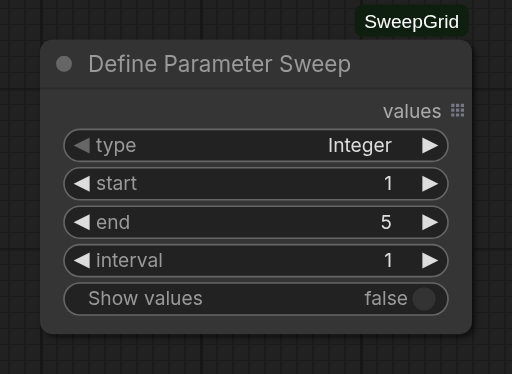 |
| Build Sweep Combinations |
|
| Build Sweep Combinations | 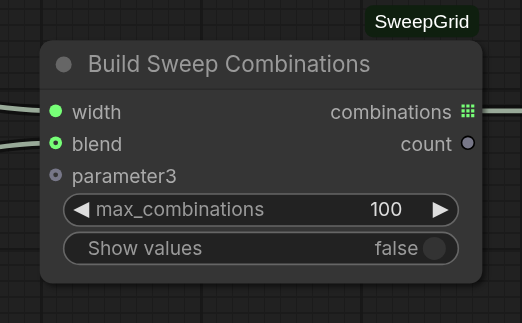 |
| Get Parameter From Combination |
|
| Get Parameter From Combination | 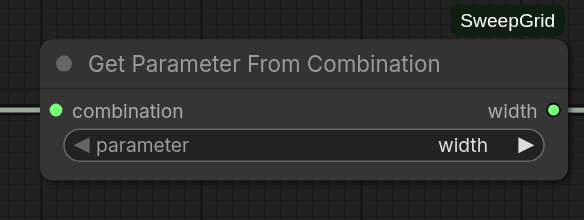 |
| Build Video Grid |
|
| Build Video Grid | 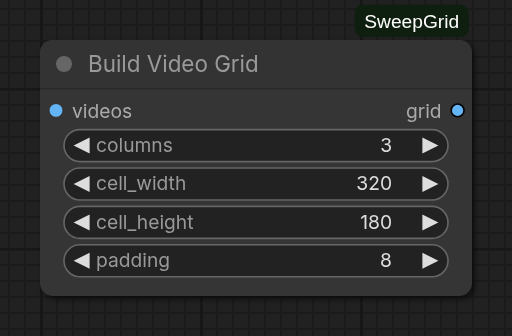 |
| Build Streaming Video Grid |
|
| Build Streaming Video Grid | 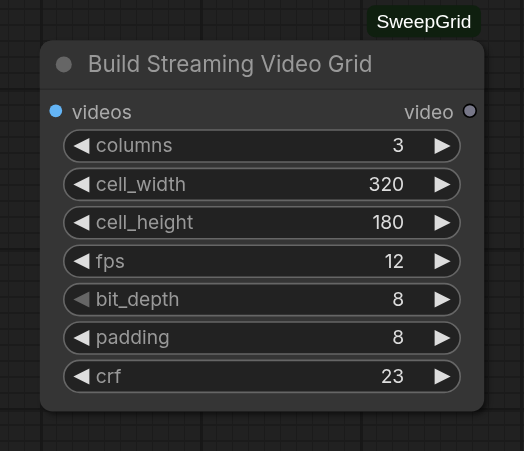 |
| Audio Waveform Player |
|
| Audio Waveform Player | 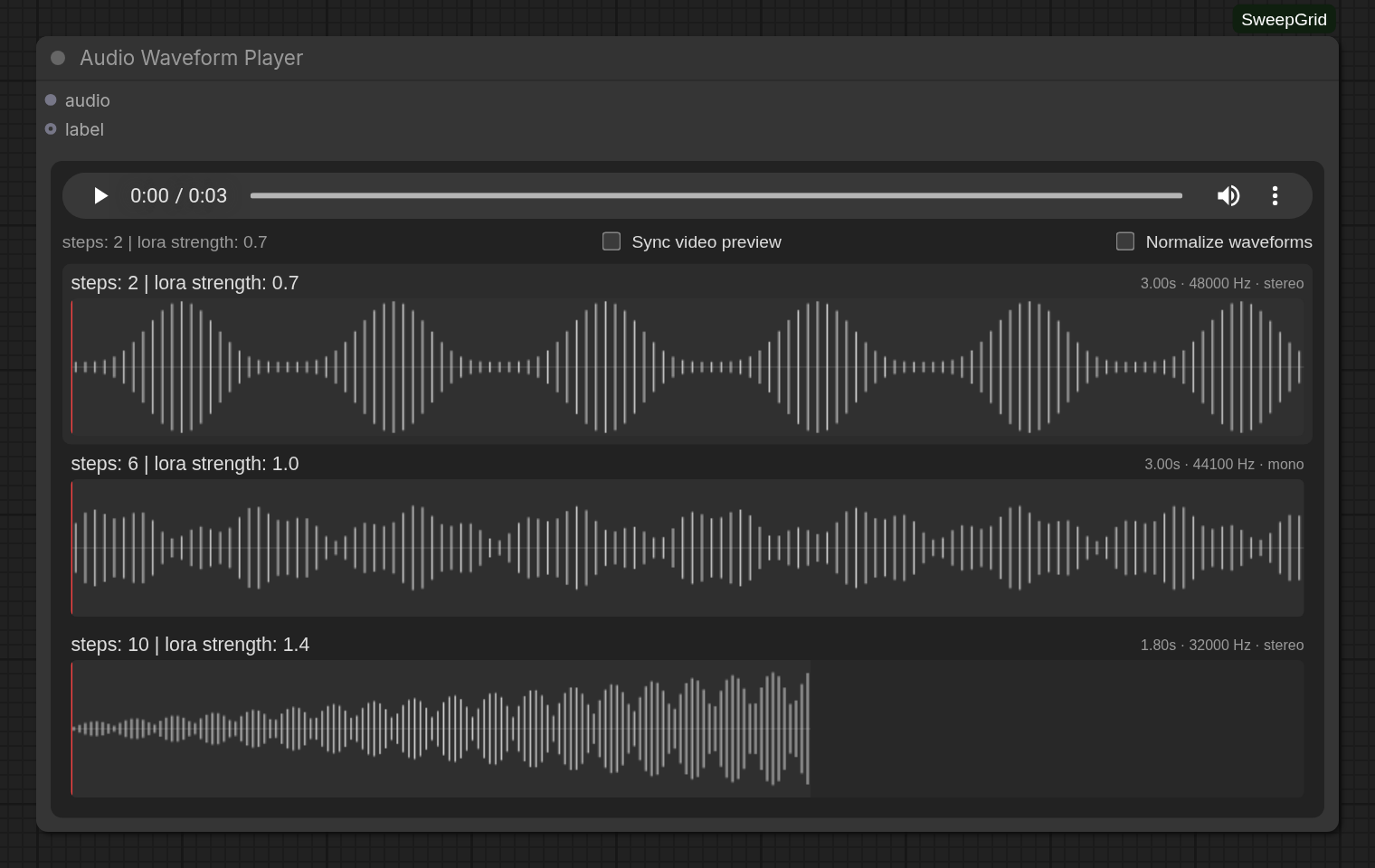 |
| Sampling Timer: Start |
|
| Sampling Timer: Start | 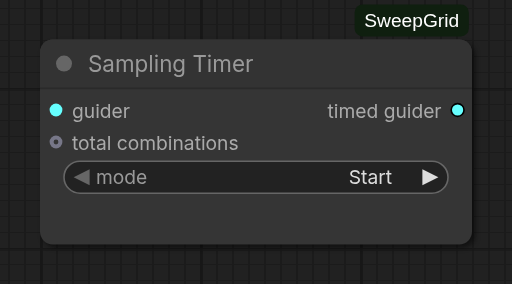 |
| Sampling Timer: Stop |
|
| Sampling Timer: Stop | 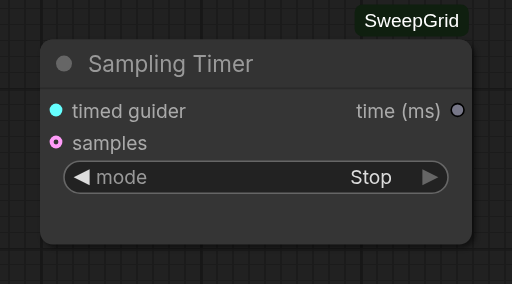 |
|
SweepGrid uses ComfyUI list execution: connecting a sweep to a normal input runs that path once per value. The grid collects the mapped results in sweep order.
Define Parameter Sweep
The type selector follows a connected INT, FLOAT, BOOLEAN, STRING, or combo input. This works with a direct connection or through Build Sweep Combinations and a matching Get Parameter From Combination. Select the type manually until the path is connected.
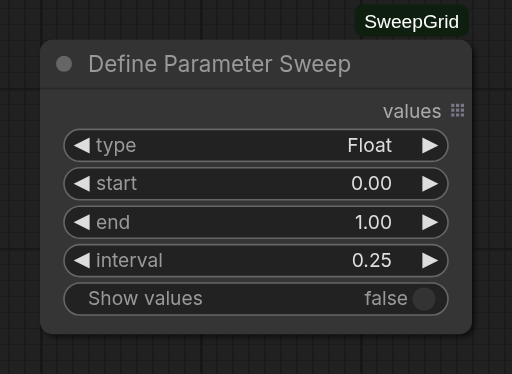
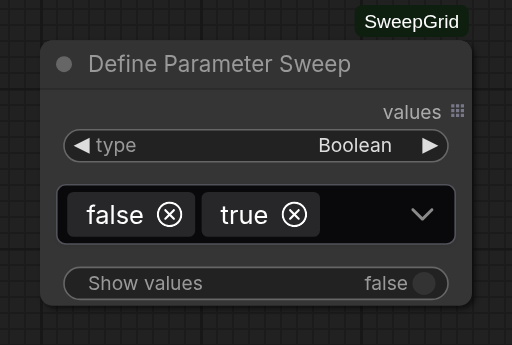
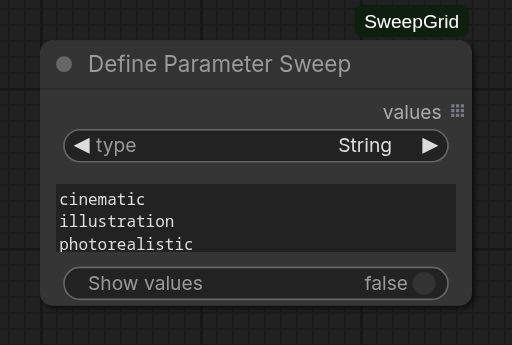
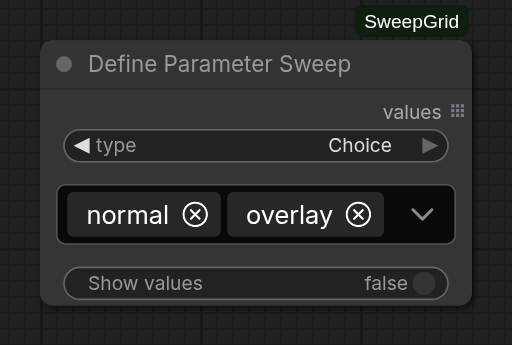
- Integer and Float:
start,end, andinterval. - Boolean:
false/truemultiselect; both are selected initially. - String: one value per non-empty line; whitespace within lines is preserved.
- Choice: multiselect populated from the final combo input's current options.
| Integer | Float |
| --- | --- |
| |  |
| Boolean | String |
|
|
| Boolean | String |
|  |
|  |
| Choice | |
|
|
| Choice | |
|  | |
| |
Numeric end is included only when interval lands on it:
- Integer
5to10by1:5, 6, 7, 8, 9, 10 - Integer
10to5by-2:10, 8, 6 - Float
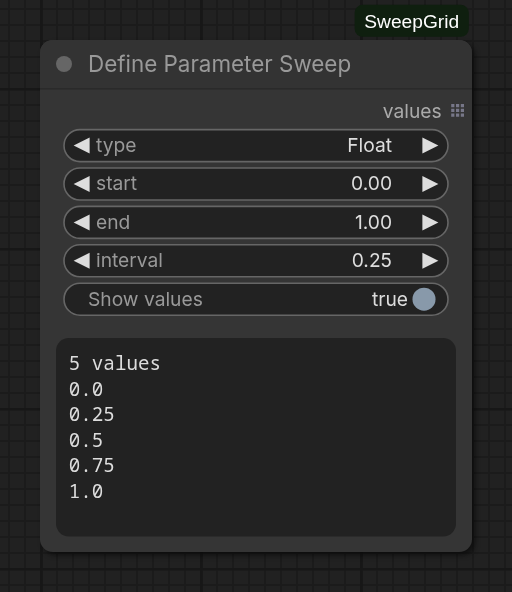
0.0to1.0by0.25:0.0, 0.25, 0.5, 0.75, 1.0 - Float
0.0to1.0by0.3:0.0, 0.3, 0.6, 0.9
interval must be non-zero and point toward end. A sweep may contain at most 10,000 values. Saved workflows retain discovered types and choices; API-authored workflows must set the type and values explicitly.
Show values
Enable Show values to display the values the node will emit directly beneath its controls. This provides a quick check of the generated sequence before running the workflow.
Labels
Draw labels before building the grid with the core Format Text and Draw Text Overlay nodes:
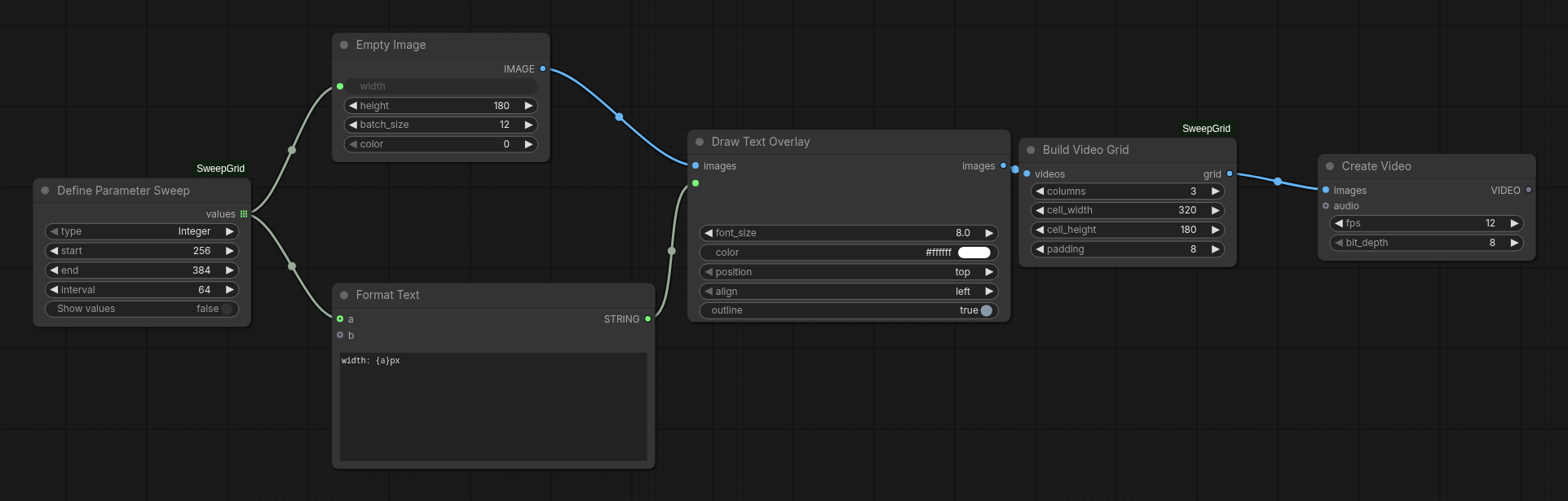
For steps, connect the sweep to the sampler's steps input and a on Format Text, then use steps {a}.
Draw Text Overlay creates a full image batch per variant. This keeps label formatting and styling outside the grid but can use substantial memory for long or high-resolution videos.
Sweep combinations
Multiple lists connected directly to one node are zipped by index. Use Build Sweep Combinations to run every combination.
Connect the first sweep to parameter1. Connecting the trailing empty input exposes the next one, up to parameter10. parameter1 changes slowest; the last connected parameter changes fastest.
Name each sweep after its target, such as steps or megapixels. Its title appears on the combination input and the matching Get Parameter From Combination selector and output. Internal names remain parameter1, parameter2, and so on.
Connect the combinations output to one Get Parameter From Combination per parameter. Select its parameter, then route the result to the tested input and Format Text:
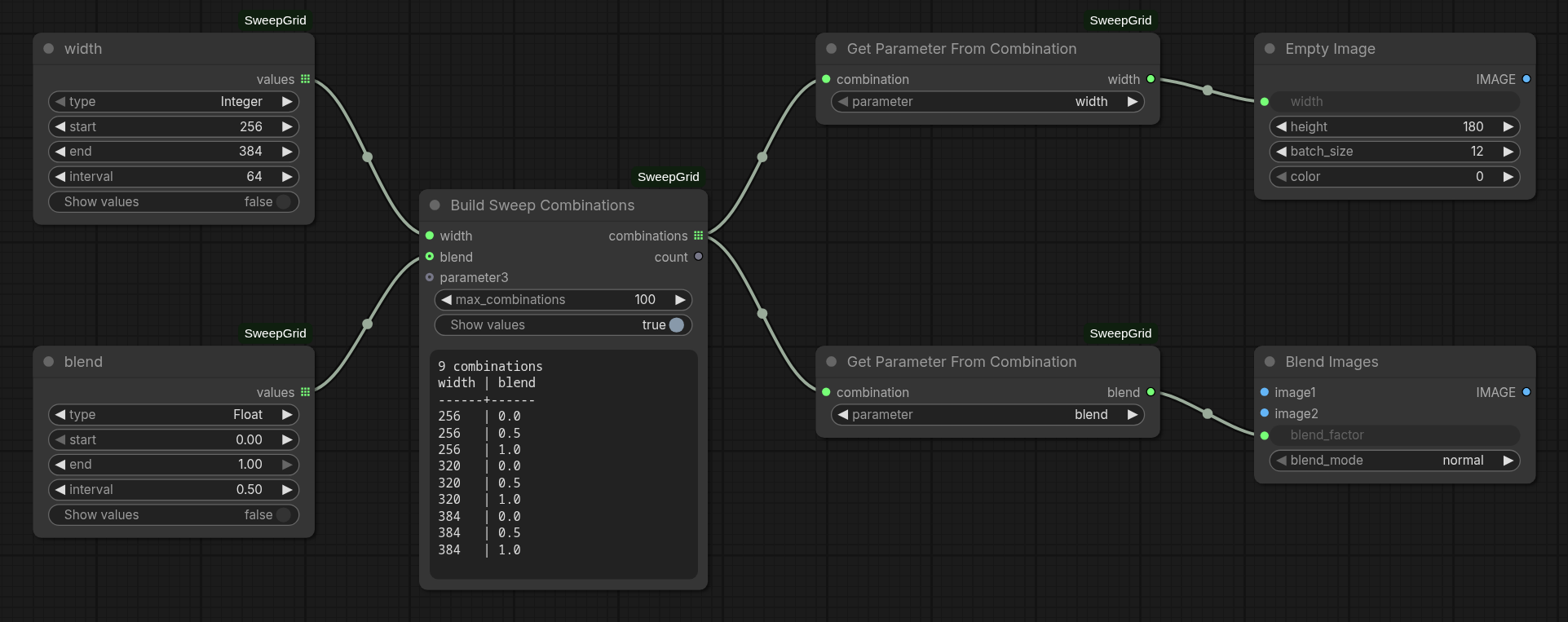
When inputs move, matching selectors move with them. Removing an input leaves its selector Unassigned instead of silently selecting another parameter. Select it again after reconnecting. Parameter sweep, combination, and extraction nodes cannot be muted or bypassed because they have no valid pass-through behavior.
The advanced max_combinations setting defaults to 100 and rejects larger products before generation. Three values across three sweeps produce 27 combinations. The count output is the exact product size and can drive aggregate sampling progress.
Sampling Timer
For aggregate progress, connect Build Sweep Combinations count to a Start timer's total combinations input:
Build Sweep Combinations.count -------> Sampling Timer (Start).total combinations
guider --> Sampling Timer (Start) ----> Sampler Custom Advanced.guider
The Start node shows ComfyUI's native progress bar and text such as 2 / 10 combinations sampled. It advances after each successful, device-synchronized guider.sample call and counts each mapped combination once. The sampler keeps showing its own per-step progress. This measures completed sampling combinations, not downstream VAE decoding, interpolation, grid construction, or saving.
No Stop timer is required when only aggregate progress is needed. Leave total combinations disconnected to keep timing-only behavior. To also use each combination's measured duration, add a Stop timer:
guider --> Sampling Timer (Start) --+--> Sampler Custom Advanced.guider
                                    +--> Sampling Timer (Stop).timed guider

Sampler Custom Advanced.output --------> Sampling Timer (Stop).samples
Sampling Timer (Stop).time (ms) --------> Format Text
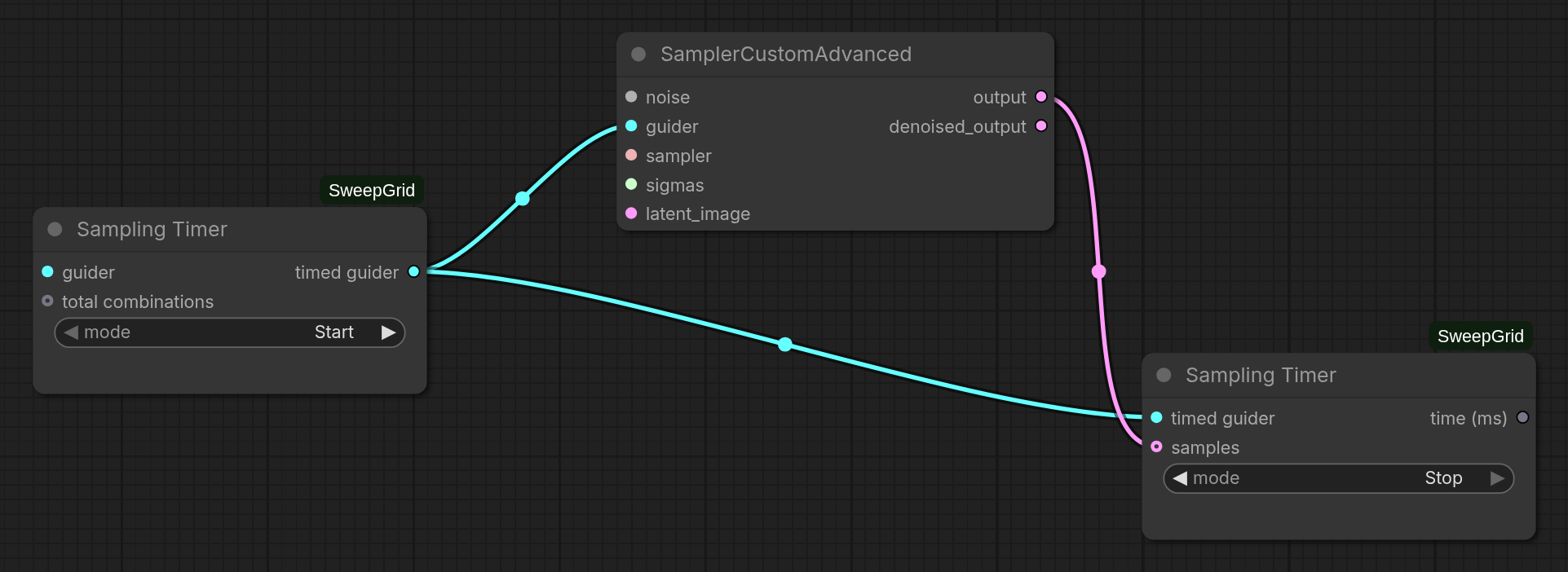
Start wraps the guider without changing its result. Stop uses the sampler output to run afterward and match each ComfyUI list item, then returns rounded integer milliseconds. Connect the sampler output directly and use one Start/Stop pair per sampler.
Timing covers the complete guider.sample call: model preparation/loading, sampler wrappers, sampling, and guider cleanup. It excludes work before and after that call, including noise and latent setup, VAE decode, interpolation, grid construction, and saving. The timer calls ComfyUI's device synchronization helper immediately before and after measurement.
This supports core and custom SAMPLER implementations used through Sampler Custom Advanced, including samplers whose wrappers replace the underlying sampler call. It does not instrument KSampler, KSampler Advanced, or other monolithic sampling nodes.
ComfyUI caching is unchanged. A cached sampler keeps its recorded duration and does not advance progress because no new sampling runs.
Build Video Grid
The node arranges videos; it does not draw labels. Its input is a list of ComfyUI IMAGE tensors, one frame batch per video. Videos must share frame count, channel count, dtype, and device. Resolutions may differ.
Each video is fitted without cropping or stretching. Empty space, padding, and unused cells in the final row are black. The output is one IMAGE batch that connects directly to Create Video. Audio mixing and frame synchronization are out of scope.
Build Streaming Video Grid
Use Build Streaming Video Grid when the complete grid is too large to keep in memory. It uses the same IMAGE list and layout rules as Build Video Grid, but renders and encodes one grid frame at a time:
labeled IMAGE batches --> Build Streaming Video Grid --> Save Video
The output is a silent, file-backed H.264 VIDEO, so Create Video is not used. Set frame rate, bit depth, and the advanced H.264 crf quality value on the streaming node. Leave Save Video on its default auto format and codec settings so it copies the encoded stream without another lossy encode.
This removes the complete grid tensor and full-video resize temporary. All source IMAGE batches still exist before the node runs, so it reduces grid-construction memory rather than making the entire sweep one-video-at-a-time. Connecting the output to Get Video Components or another node that loads every frame will materialize the grid again.
The encoded backing file uses ComfyUI's temporary directory and disk space approximately proportional to the compressed grid video. ComfyUI clears temporary files on restart. RGB is encoded directly; RGBA is composited over black because H.264 has no alpha channel. The final grid width and height must be even for H.264.
Audio Waveform Player
Connect the ordinary AUDIO output produced once per sweep result to Audio Waveform Player. The node collects ComfyUI's mapped executions in sweep order, so no list-building node or custom audio type is needed. Optionally connect the same Format Text output used for video overlays to label.
The node displays the results as horizontal waveforms in a vertical list and uses one native browser audio player. Resize the node horizontally to widen the shared time axis or vertically to divide the available height equally between waveforms; the list scrolls when their minimum heights cannot fit. Click a waveform to select that result, seek to the clicked absolute time, and play it. Click a label to play that result from the beginning.
All rows use the longest clip as their time axis and the largest peak across all clips as their amplitude scale. This makes timing, duration, and raw level differences visible. Normalize waveforms scales each drawing independently for inspecting quieter shapes; it never changes the audio sent to playback. Only one source plays at a time, and browser source changes may briefly buffer.
Enable Sync video preview to synchronize play, pause, seeking, and the native Loop setting with exactly one Save Video fed directly by Build Streaming Video Grid, or by Build Video Grid through Create Video. Synchronization automatically reconnects when that Save Video preview is refreshed and turns off if the eligible path becomes missing, ambiguous, or rewired. While active, it mutes the video and mirrors either player's Loop setting to the other. Disabling sync restores both players' prior loop and playback-rate settings and the video's mute setting. The shorter media duration is the shared range. This is browser audition synchronization, not sample-accurate media analysis.
Each input must be one mono or stereo [1, channels, samples] waveform with a positive integer sample rate. The node rejects audio batches, mismatched label counts, empty audio, unsupported channel counts, and more than 100 results instead of silently discarding data. It creates temporary FLAC previews through ComfyUI's audio preview helper and has no graph output. It does not mix audio or alter levels.
Demos
Model-free grid
Load example_workflows/demo_workflow.json for a model-free example. One queue creates three widths × three blend values, labels all nine results, and saves a silent 3×3 grid video.

Streaming grid
Load example_workflows/streaming_demo_workflow.json for the same example using Build Streaming Video Grid. It connects the node's file-backed VIDEO output directly to Save Video and writes to a separate filename prefix.

Boolean switches
Load example_workflows/boolean_switch_demo_workflow.json for a model-free example with two Boolean sweeps. It creates all four on/off combinations, routes each value through a switch, labels the result, and collects the images into a 2×2 grid.

Sampling timer
Load example_workflows/sampling_timer_demo_workflow.json for a minimal Sampler Custom Advanced timing example. Select a compatible checkpoint, queue once, and Preview as Text shows the sampling time in milliseconds.

Complete MiniMax H3 workflow
Parameter and LoRA sweep
Load example_workflows/complete_h3_workflow.json for a complete MiniMax H3 Turbo sweep. In addition to SweepGrid and ComfyUI 0.31.0 or newer, it requires ComfyUI-KJNodes, ComfyUI-Spectrum-MiniMax-H3, the model files linked in the workflow, and minimax_h3_fl2v_lightx2v_turbo_4step_v0.1_comfy.safetensors under ComfyUI/models/loras/.
The SweepGrid nodes run every combination of 2–6 sampling steps and 0.7–1.0 LoRA strength, producing 20 MiniMax H3 videos for comparison. They track sampling progress and duration, reuse each label in the audio player, and stream the labeled frames into a four-column grid video without holding the complete grid in memory.

Feature toggle sweep
Load example_workflows/h3_feature_toggle_workflow.json for an eight-way comparison of Turbo LoRA, Spectrum, and SageAttention enabled and disabled. It uses four sampling steps, applies the LoRA at strength 1.0 when enabled, labels every result with all three states and its sampling time, and saves a 2×4 streaming grid. It has the same requirements as the complete workflow above.

Regenerate media
With ComfyUI running and its queue empty:
python3 -m pip install playwright pillow
python3 scripts/generate_screenshots.py
The script runs Chromium headlessly, loads every example workflow without executing it, and updates docs/screenshots. Install every custom node pack referenced by the workflows before running it; the MiniMax H3 model files are not required for graph-only captures. Override the defaults with --url or --chromium when needed.
Tests
From the ComfyUI directory:
.venv/bin/python -m pytest -q --import-mode=importlib custom_nodes/ComfyUI-SweepGrid/tests