
Prompt History
ComfyUI custom node for saving, searching, and reusing prompts across sessions.
Nodes (2)
comfyui-PromptHistory
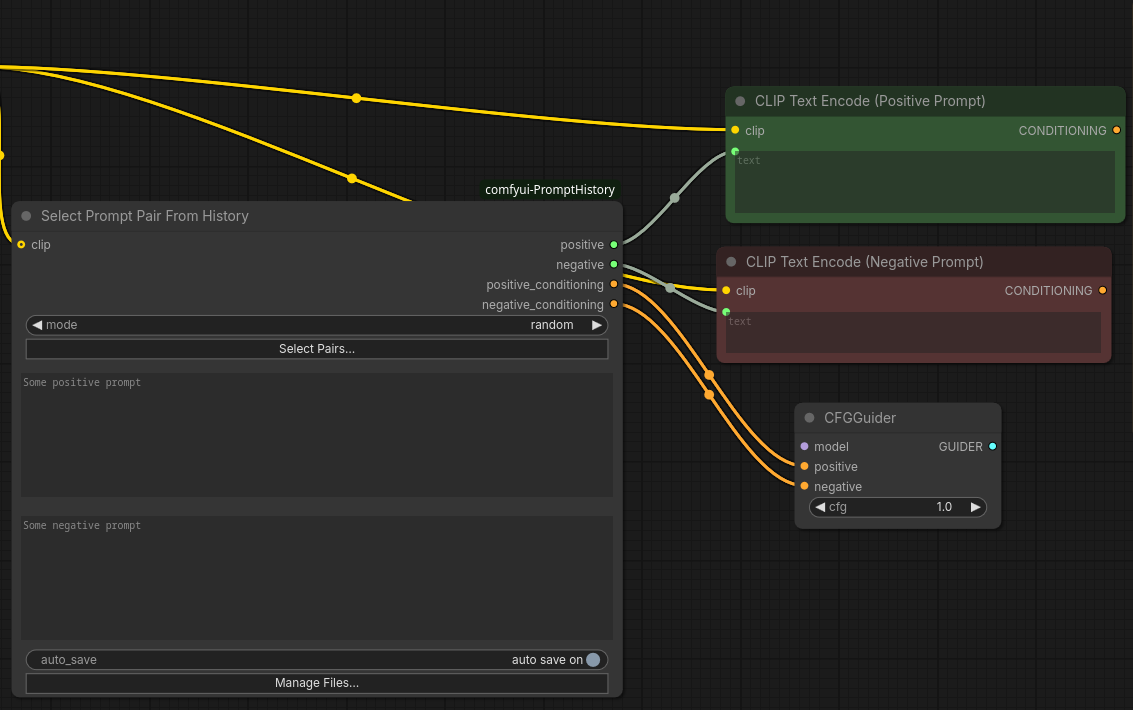
Never lose a good prompt again. This extension adds two Select Prompt From History nodes that saves every prompt you use to plain JSON files — then lets you search, reuse, randomize, cycle, and batch-queue them straight from the node.
Features
- Persistent history — prompts are saved to JSON files and survive restarts
- Multiple history files — manage separate collections (e.g. per-project or per-style)
- Text search — real-time search with case-sensitive, whole-word, and regex modes
- Three operating modes — edit a prompt manually, pick one randomly, or cycle sequentially
- Deduplication — identical prompts are merged; reusing one bumps its hit counter so favorites surface
- Batch queue — tick several prompts and queue them as separate runs in one click
- Optional CLIP encoding — connect a CLIP model and the node outputs conditioning directly, replacing a CLIP Text Encode node
Installation
ComfyUI Manager (recommended)
Search for Prompt History in the ComfyUI Manager custom node browser and install.
Manual
cd ComfyUI/custom_nodes
git clone https://github.com/dawncreatescode/comfyui-PromptHistory
Restart ComfyUI. No extra Python packages are required.
Quick start
-
Add the node: Add Node → Prompt Tools → Select 'Prompt From History' or 'Prompt Pair From History'
-
Wire it in one of two ways:
A — Drop-in replacement for CLIP Text Encode (simplest):
[Checkpoint Loader] ──clip──→ [Select Prompt (Pair) From History] ──conditioning──→ [KSampler positive/negative]B — Text source for your existing setup: leave
clipunconnected and feed thetextoutput into your CLIP Text Encode node (right-click it → convert its text widget to an input). -
Type a prompt in the
textwidget and run the workflow. Withauto_saveon (the default), it's now in your history. -
Next session, click Select Prompts… on the node, type a few words in the search box, and click the prompt to load it. Done.
The three modes
| Mode | What happens each run |
|---|---|
| edit | Uses whatever is in the text widget — normal prompting; new prompts get saved to history |
| random | Picks a random prompt from your active history files — great for revisiting old ideas overnight |
| sequential | Steps to the next prompt in order — walk through an entire collection run by run |
For random and sequential, which files are drawn from is can be toggled in the history panel (see below).
The history panel
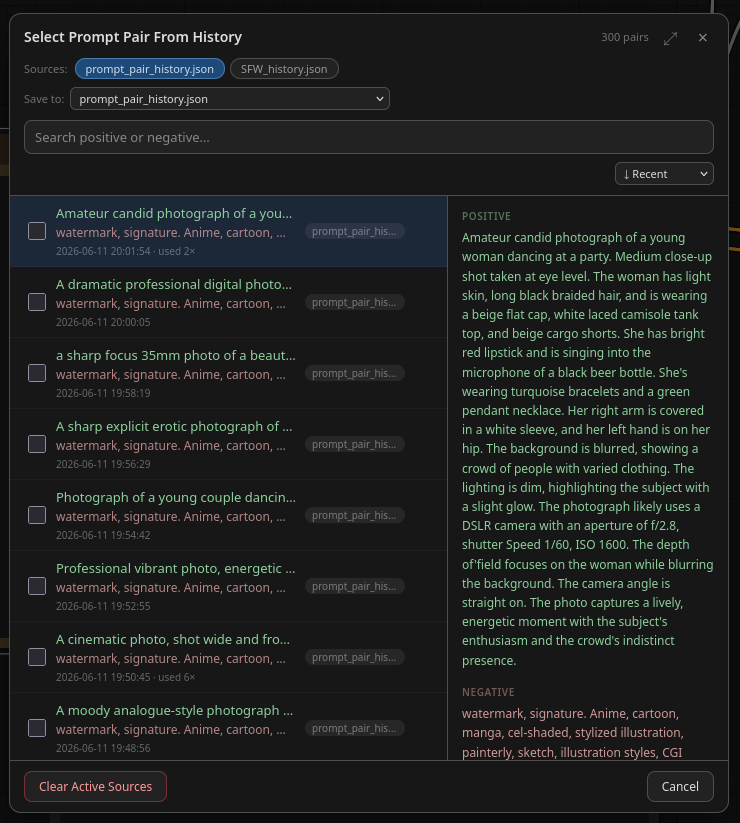
Click Select Prompts… on the node to open it.
- Search filters as you type, with case-sensitive, whole-word, and regex toggles.
- Search scope (pair node only) — a dropdown next to the search toggles chooses whether the query matches the positive prompt (default), the negative prompt, or both.
- Click a prompt to load it into the node's
textwidget. - Checkboxes + Queue N queue each checked prompt as its own workflow run — an easy way to render a shortlist of candidates back-to-back.
- Manage Files… adds, removes, or discovers history files, and selects which file new prompts are saved to.
Files and paths — which field does what
The node exposes three path-related fields. Only the first two are meant to be edited by hand:
| Field | Purpose |
|---|---|
| history_paths | Every history file the node knows about — one path per line |
| save_to_path | The single file that receives newly saved prompts |
| active_paths | Which files random/sequential draw from; set via the panel's checkboxes |
Paths can be absolute or relative to the ComfyUI root. The default file is created at:
ComfyUI/custom_nodes/comfyui-PromptHistory/history/prompt_history.json
History file format
History is a plain JSON array — trivial to back up, sync between machines, hand-edit, or share:
[
  {
    "key": "abc123def456abcd",
    "text": "a futuristic city at dusk, neon reflections, cinematic",
    "ts": "2026-03-12 14:05:00",
    "hits": 7
  }
]
hits counts how often a prompt has been reused. Duplicate prompts are never stored twice — saving an existing prompt just increments its counter. max_entries (default 500 000) caps file size.
Note: prompts are stored as plain text on disk. Keep that in mind before committing history files to a public repo or sharing them.
Node reference
Category: Prompt Tools
Inputs
| Name | Type | Description |
|---|---|---|
| mode | dropdown | edit · random · sequential (see modes) |
| text | string | Prompt text (active in edit mode) |
| clip | CLIP | Optional — enables the conditioning output |
| auto_save | boolean | Save used prompts automatically (default: on) |
| history_paths | string | Newline-separated list of history file paths |
| save_to_path | string | File that receives new prompts |
| active_paths | JSON | Managed by the panel — files used for random/sequential |
| max_entries | integer | Max prompts per file (default: 500 000) |
Outputs
| Name | Type | Description |
|---|---|---|
| text | STRING | Selected or edited prompt |
| conditioning | CONDITIONING | CLIP-encoded output (requires clip input) |
FAQ
Where is my history stored? In the JSON file(s) you configure — by default inside this node's history/ folder. They're just files: copy them to back up or move machines.
Can I share a prompt library with someone? Yes — send them the JSON file; they add its path via Manage Files….
I saved the same prompt twice — where did it go? Duplicates are merged automatically; the existing entry's hits counter went up instead.
Does updating ComfyUI or this node delete my history? No — but since the default location is inside the node folder, prefer a path outside custom_nodes/ if you reinstall from scratch often.
License
MIT — see LICENSE.