
Valhalla Multi-Angle Camera
Interactive reference-image orbit camera, LoRA prompt profiles, batch angle selections and suggested sampling steps for ComfyUI.
Valhalla Multi-Angle Camera
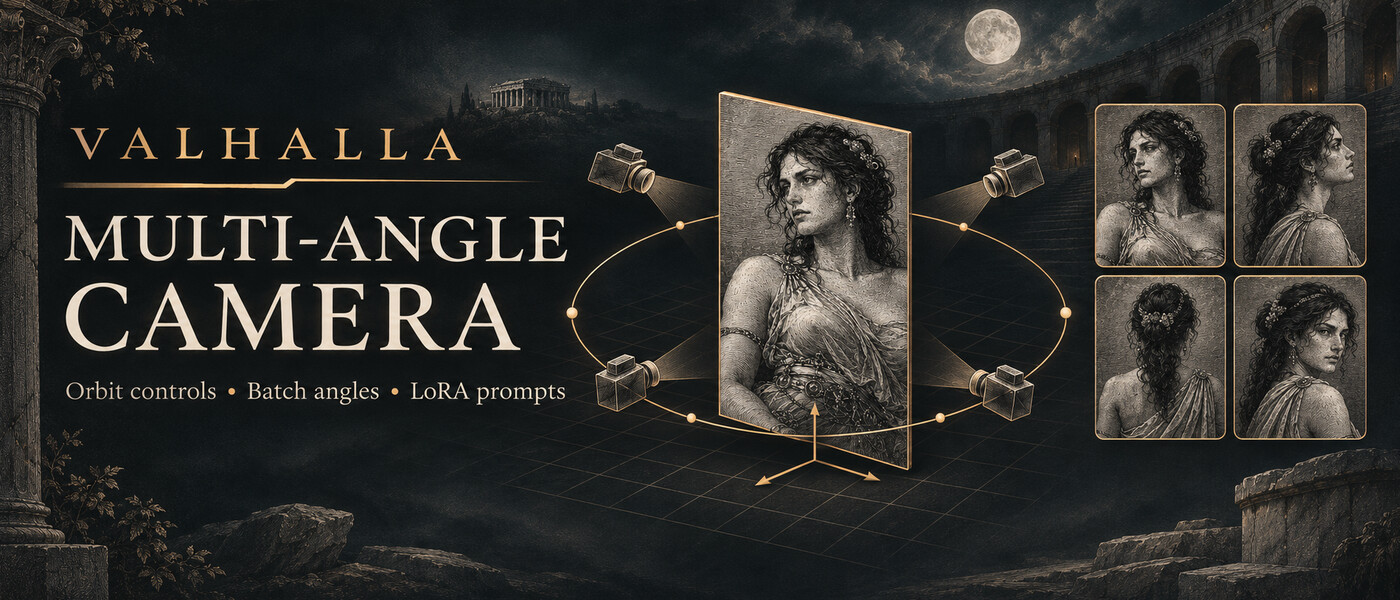
Official production repository for Valhalla Multi-Angle Camera. Free to use under MIT, created by Werner de Jong (Darkvalley / Valhalla's Calling). This repository is the installable node root, production release source and ComfyUI Registry distribution.
Download v1.7.9 · Comfy Registry · Wiki · Illustrated guide · Report an issue · Valhalla house style
Version 1.7.9 — standalone ComfyUI custom node.
The node provides an image-based, model-independent orbit camera editor. It does not load or apply LoRAs, nor reconstruct unseen sides of a subject. It produces the camera prompt for the selected LoRA protocol.
Install
- From
ComfyUI/custom_nodes, clone the standalone repository:
Alternatively, extract the official v1.7.9 release ZIP so thatgit clone https://github.com/darkvalley/Valhalla-Multi-Angle-Camera.git Valhalla_Multi_Angle_CameraComfyUI/custom_nodes/Valhalla_Multi_Angle_Camera/__init__.pyexists. Install only one copy; remove any duplicate camera installation before restarting. - Restart the ComfyUI backend and refresh its browser/desktop frontend.
- Search for Valhalla Multi-Angle Camera (category
Valhalla/Camera). - Connect an IMAGE (e.g. Valhalla Load Image (Local Folder) or Load Image).
- Load the matching LoRA separately with your own LoRA Loader.
- Connect the node's
promptandimageoutputs to the image-edit workflow.
There are no new pip, npm, CDN or GPU dependencies. The preview uses Canvas 2D with a 3D perspective projection instead of shipping a separate Three.js bundle. The node uses the standard ComfyUI frontend DOM-widget API.
Use
Click ⓘ Info in the toolbar for the in-node help dialog, controls, output port summary and license.
- Select the LoRA using the native
lora_profilemenu at the top of the node. - Without a batch selection, left-drag in either viewport changes the shared camera azimuth/elevation. Both views and the prompt update. In the orbit viewport, cyan AZ controls azimuth only; magenta EL controls elevation only.
- With one or more selected batch poses, Orbit Batch View and Camera Look share a free inspection orientation. Left-drag in either viewport rotates both together without changing the active pose, prompt or batch selections. Their wheel zoom levels remain independent.
- The Lock orbit checkbox at the top-right of Orbit Batch View resets its rotation to the schematic home view (35° AZ, 22° EL) and holds it there. Camera Look can still rotate independently; wheel zoom remains available in both viewports. Unchecking immediately links the orbit to Camera Look again. This preference is saved in the workflow and only applies in batch mode.
- The mouse wheel zooms the respective viewport independently. Orbit zoom gives a close-up of the camera editor; camera-look zoom only magnifies the preview. Neither changes the prompt, camera rotation, framing or batch.
- New nodes start at 960 × 680 graph units (approximately 1.4:1).
Factory and initial DOM layout use the intended geometry instead of a narrow
provisional node size; startup reflows are corrected for three animation
frames. Resize freely after startup: the native workflow
sizestores both dimensions. Reloading, duplication and import preserve saved geometry (within the frontend's minimum layout constraints). Right-click the node and use Reset camera node size to repair a previously stretched node without changing the camera, profile, batch, connections or workflow values. - The framing dropdown changes the prompt only. The two canvases consume the remaining node height; their side-by-side width ratio remains 1.3:1. In v1.7.7 the DOM widget width tracks the rendered node width during resize, restore and draw, so both panes expand/shrink horizontally with the node, retaining their 1.3:1 width split. Both projections are uniformly rescaled, with no image stretching or change to the saved zoom, angles or framing.
- In single-camera mode, Alt+drag (or middle mouse drag) rotates the orbit inspection view without changing the output camera.
- The gold point is the camera target. The Set pivot toolbar button is removed, but saved normalized pivot coordinates remain compatible.
- Reset camera resets pose, framing and pivot; it preserves selections and independent wheel zoom. Clear batch clears the active profile's selection and performs the same camera reset.
- Source previews are refreshed automatically from upstream standard or Valhalla Local Image Browser previews when available. For arbitrary IMAGE-producing nodes execute the node once (partial execution to this output node if available). The true incoming IMAGE is then displayed; an initial upstream preview may be only approximate when the upstream source performs its own image processing.
- The compact toolbar places Reset camera, Batch angles, Info, AZ/EL readouts and framing together; Suggested steps remains available and wraps to the next line if needed on narrow nodes.
- Suggested steps shows the selected profile's default sampling steps. Edit the value to override it for the node. Reset returns to Auto. Switching profiles restores the new profile's recommendation. The override is saved in the workflow and applies to every selected batch angle; it does not change the camera prompt. Since v1.6.1, loading a legacy workflow automatically repairs empty, null or invalid hidden steps values to the integer 0 (Auto) and converts valid numeric strings to integer overrides. The queue serializer independently guarantees an INT value. The display-only camera editor no longer persists a placeholder in workflow widget values. No workflow recreation is needed.
- Click the Copy button to copy the live prompt.
- Native technical widgets (azimuth, elevation, framing, pivot, snapping and batch JSON) are hidden but remain serialized. Framing is controlled by the editor dropdown.
With the internal snap_to_lora setting on (default), a free drag previews continuously and the camera snaps to the nearest supported angle on release. With it off the visual pose stays at the selected angle; the prompt is still mapped to the nearest trained/described option. Equidistant choices use the lower degree value. Azimuth wraps at 360°.
The X (red) and Y (green) axes lie in the reference image plane; Z (blue) is perpendicular. When viewed exactly edge-on a visible thin edge and independent axes preserve orientation. Axis labels at an end-on axis are shown as a dot symbol. The rear face is naturally mirrored by the projection and rendered as a blue-grey ghost with adjustable opacity (default 65%) and a dashed edge. Toggle XYZ, grid, outline, labels, frustum and mirrored backside independently. By default only Mirror back is enabled. Back opacity uses a 0–100% slider with no numeric readout.
The orbit view is schematic. View magnification is independent of the LoRA framing choice and not a calibrated camera intrinsic. The actual LoRA must imagine anything absent from the source image. The original image tensor is passed through unchanged, including all batch items, dimensions and channels. For a batch only the first image is shown in the editor.
Batch angles
Click Batch angles to open the AZ × EL matrix. Choose the framing filter and click the desired cells; each selected cell is one prompt. The same angle can be selected with different framings where the profile supports them. Unavailable combinations are disabled. Click a cell to toggle it, or hold the left mouse button and drag diagonally across the grid to select an inclusive rectangular range. Starting on an empty cell selects every valid cell inside the rectangle; starting on a checked cell deselects them. While dragging, checkmarks and the preview count update without drawing a selection rectangle, changing the serialized batch or moving either viewer. Shrinking or reversing the drag restores cells outside the current rectangle. Releasing the button commits the range in one operation and, for newly added entries, activates the last valid newly added angle in drag order. A one-cell click also activates that angle on release. Deselecting any range, including the final cell, never changes the current pose, inspection orientation or prompt. Pointer cancellation restores the original selection. Other framings and profiles are unaffected; previously selected entries retain their order and unsupported combinations are skipped. Add current activates a newly added pose; Select all shown activates the last newly selected legal pose. Clear batch clears the selected profile's poses and resets the camera to that profile's default pose and framing.
Whenever the current profile has a nonempty batch (even with the matrix closed), the regular orbit ring and drag handles disappear. Instead, each selected camera position is projected as a translucent camera glyph on the orbit view. Multiple framings at the same AZ/EL share a glyph with a count. Dragging either viewport rotates both inspection views together unless Lock orbit is checked. All batch camera positions remain fixed relative to the reference image, and the active prompt does not change. Removing the final individual selection restores the normal orbit controls without moving either view; the last inspection angle is retained in Camera Look until the next deliberate camera change or reset. Clear batch instead resets the camera.
Selections are stored per LoRA profile in the hidden JSON widget
batch_angles, in the order they were selected. If no cells are selected,
batch_prompt returns a one-item list containing the current prompt.
prompt always returns only the current angle, regardless of the batch.
Connect batch_prompt (STRING, ComfyUI list output) directly to the native
Qwen 2.1 Edit node's prompt input. The encoder receives each string
separately; upstream single-item inputs are repeated automatically by ComfyUI.
The downstream sampler/decode/save nodes process all list items. This is
one queued workflow with per-node list processing, not separate queue jobs
and not a single GPU tensor batch. Independent branches may remain cached.
Use the same seed for controlled comparisons, or manage a seed list separately.
Start with a small number of angles; conditioning and intermediate results
may accumulate in RAM/VRAM for large lists.
Reference: https://docs.comfy.org/custom-nodes/backend/lists
Profiles
On backend startup the node scans web/camera_lora_profiles.json and
versioned files such as web/camera_lora_profiles_v1.3.0.json (two-part
versions such as v1.3 are also accepted). The highest valid numeric
version wins, independent of file modification time. For a versioned
filename, the filename defines the version; for the default filename the
optional JSON field profile_version defines it. An unversioned default
file ranks below explicitly versioned files. At equal versions, a named
sidecar wins over the default; equal-version sidecars use modification
time then filename as tiebreakers. Invalid catalogs are skipped with a
warning; if none is valid, node import fails with an explicit diagnostic.
The backend serves its validated catalog snapshot through a ComfyUI API route, so the native LoRA selector, prompt editor, steps, batch selections, and execution share one catalog. The editor displays the active filename, version and number of profiles; hover for warnings. The backend logs the selection; internal execution metadata includes the selected file and version. The bundled catalog is version 1.3.0; node code is version 1.7.9. Restart ComfyUI and refresh the frontend after adding or editing catalogs. Do not install just the JavaScript or just the JSON: upgrade the Python and web files together. Versioned custom catalogs may stay in the directory.
| Profile | Trigger | Selectable prompt combinations | Default steps |
|---|---|---:|---:|
| Qwen 2.1 — Akhaliq MVA v1/v2 | <mva> | 96 | 40 |
| Qwen 2.1 — Gribbliest QMA | <qma> | 96 | 30 |
| Qwen Edit 2511 — FAL SKS | <sks> | 96 | 40 |
| Qwen Edit 2509 — DX8152 Multi-Angles | none | 60 | 4 (Rapid-AIO / matching 4-step Lightning) |
| Qwen Edit 2509 — RunningHub Camera Scheduling | none | 36 independent commands | 40 (base-model fallback) |
| Qwen 2.1 — ML-Intern RGBA Orbit | <orbit> | 23 | 40 |
| FLUX.2 Dev — Lovis93 Multi-Angles v2 | <sks> | 216* | 50 (base-model fallback) |
| FLUX.3 Klein Base — Akhaliq MVA | <mva> | 80 | 50 |
| FLUX.3 Klein — Sint Angle (experimental) | <ref_image_1> | 6 independent commands | 16 (distilled) |
*These counts are 709 addressable prompt combinations, not verified training coverage. The Akhaliq Qwen model card lists 12 azimuths, 4 elevations and 2 framings while reporting 72; the Lovis93 FLUX.2 card describes 72 poses but lists 8 azimuths, 9 elevations and 3 distances, giving 216 syntactic combinations. The actual training coverage is not confirmed. The latter's degree-to-label mapping comes from the author's historical model card. Where models specify qualitative elevations only, displayed degrees are schematic proxies, not a guarantee of exact geometry.
Every profile records a source model card, base model, exact prompt grammar, steps provenance, and relevant limitations in the JSON. For Qwen 2.1 Akhaliq the v1 and recommended v2 checkpoint share a prompt protocol; no duplicate profile is necessary. The user must load matching LoRA weights separately.
Profile-specific notes
- DX8152: no fixed trigger; the Hugging Face demo composes bilingual rotation, tilt, and framing instructions. The selectable yaw range is limited to the documented demo's 0°, ±45°, and ±90°. The demo uses Rapid-AIO at 4 steps; this is not a recommendation to run the unaccelerated base at 4.
- RunningHub: independent direction, elevation, and framing commands.
Pose combinations not explicitly documented are disabled. Commands for
translation, pan, roll, and first-person perspective are recorded under
additional_commandsbut are not mapped onto orbit. - ML-Intern: source should be a transparent RGBA reference, and the documented 23 relative camera commands use an absolute elevation and a transparency suffix. The adapter is marked non-commercial by its author. The node never manufactures an alpha channel or changes the source tensor.
- FLUX.2 Dev: not a Klein adapter; steps use the official base-model example (50, with 28 suggested as a speed/quality trade-off).
- FLUX.3 Klein Base MVA: undistilled Base, not the FLUX.2 architecture. The author uses 50 steps and disabled prompt upsampling.
- Sint Angle: the original Civitai page was unavailable; the creator's archived description documents six independent camera commands, tested with distilled Klein at 16 steps and CFG 1. A profile-specific Subject description text field appends an optional user-written sentence to each prompt (provide one for the recommended usage). Portrait/square source images are recommended by its creator.
Other camera-control adapters
The catalog's external_control_profiles records two related adapters that
cannot be supported by a 2D reference image plus an angle prompt alone:
- Qwen 2.1 AnyAngle (lilylilith): 20+ steps, CFG 3; requires a separately rendered target viewpoint from a 3D mesh or Gaussian splat, plus the original image.
- Krea 2 Anygles (yijunwang2): 8 steps, Euler/simple, CFG 1; requires SAM 3D Body, an aligned target normal image, and its dedicated spatial Control-LoRA model patch.
They are intentionally not selectable in the prompt-only node, as the existing flat reference preview cannot supply the required spatial control. Exact copies, weight conversions, non-camera next-scene adapters, video camera motion adapters, single-angle-only adapters, and sprite-sheet LoRAs are not separate orbit profiles.
Adding profiles
Duplicate an object in profiles, choose a unique ID and name, define
the angle/label dictionaries, framing objects and default framing, trigger,
prompt template, integer suggested_steps, optional sources and notes.
Templates can use {trigger}, {azimuth}, {elevation} and {framing}.
Missing steps in older user profiles use a generic fallback of 40.
For sparse profiles use optional pose_prompts, an object mapping
azimuth|elevation|framing to the exact model command. Only its keys
are valid batch cells. On drag or framing change, the selected pose snaps to
the nearest available command in that framing; optional default_pose
specifies the Reset camera pose. requires_subject_description shows the
conditional text field. requires_rgba and profile_note identify
special input requirements. Restart ComfyUI and refresh its frontend after
editing the JSON.
Ports
- INPUT:
image(IMAGE), profile selector, azimuth, elevation, framing, pivot X/Y, snap to LoRA, batch selection, and optionalsteps_override(INT; 0 = Auto),subject_description(STRING; used by eligible profiles only). - OUTPUT (top to bottom):
image(IMAGE)prompt(STRING)batch_prompt(STRING list)suggested_steps(INT)
- Connect
suggested_stepsto KSampler →steps. It is a single integer, repeated automatically for every item ofbatch_prompt. - Breaking change in v1.7.0: the output indices have changed. The
azimuth,elevationandcamera_jsonoutputs have been removed. v1.7.6 fixes workflow validation and the duplicate ports that could reappear after restarting ComfyUI (public issue #2). It recognizes both the older six/seven-port layout and the mixed layout with four current outputs followed by obsolete/duplicate sockets. Retained links are remapped by output name and type; duplicate sockets are collapsed. The graph-load and native node-configuration paths both repair the saved data before LiteGraph can retain trailing slots. The current four-port order and types do not change. Links to retired azimuth, elevation or camera_json ports are not guessed or deleted: reconnect or remove those manually. Raw API prompts and unknown layouts still require manual reconnection. Restart ComfyUI, refresh the frontend and reopen the saved workflow. Camera metadata remains internal.
Tests
Run from the parent directory of the checkout named Valhalla_Multi_Angle_Camera:
python -m unittest discover -s Valhalla_Multi_Angle_Camera/tests -v
node Valhalla_Multi_Angle_Camera/tests/test_core.mjs
node Valhalla_Multi_Angle_Camera/tests/test_batch_renderer.mjs
node Valhalla_Multi_Angle_Camera/tests/test_batch_range.mjs
node Valhalla_Multi_Angle_Camera/tests/test_camera_info.mjs
node Valhalla_Multi_Angle_Camera/tests/test_workflow_ports.mjs
node Valhalla_Multi_Angle_Camera/tests/test_widget_width.mjs
node Valhalla_Multi_Angle_Camera/tests/test_node_size.mjs
The Python tests use a test tensor substitute (NumPy/Pillow) and validate unchanged object identity, temp preview metadata, output contract, prompts, and numeric catalog selection (including invalid-file fallback). JavaScript tests cover angle/prompt mapping, sparse command eligibility, subject descriptions, and camera projection. Rendering was exercised on a local Canvas test harness for front, quarter, side, back and top-down views. Mocked editor interaction tests verify independent wheel zoom, resizing, batch persistence, hidden inputs, defaults and opacity range, sparse batch selection, and drag-to-rotate in both views. Batch regression tests verify exact selection jumps, unchanged deselection, translucent projected cameras, duplicate-framing counts, fixed 3D camera positions during inspection, orbit-lock projection stability, independent front inspection, and restoration of single-camera handles. Range tests cover 6 + 10 selections, live-preview shrinking, reverse deselection, stable order, other framings and disabled poses. Step migration tests cover empty, null, invalid and numeric-string overrides, workflow restore, and API prompt serialization. A live ComfyUI/ROCm installation and actual LoRA inference were not available during development.
License and attribution
Conceived and created by Werner de Jong (Valhalla's Calling).
Free to use — MIT License. © 2026 Werner de Jong. See LICENSE for the full license terms. Separately downloaded LoRAs and models retain their own licenses.
Feature requests
Have an idea for a new feature, an improvement or a custom node? Submit a request on Ko-fi. Requests are optional and handled separately from the free MIT-licensed node. The same link is available in the Info popup.