
OLED Auto Black
Auto-detects the background haze in dark images and crushes it to true 000000 for OLED wallpapers, while protecting faint detail like smoke, hair and anti-aliased edges.
OLED Auto Black for ComfyUI
Turns the "almost black" background that diffusion models leave behind into true #000000, automatically, per image. Made for OLED phone wallpapers, where a pixel at 0 is switched off and a pixel at 15 glows a visible grey in the dark.
It also protects what a plain threshold destroys: faint smoke wisps, hair, rim light and anti-aliased edges.
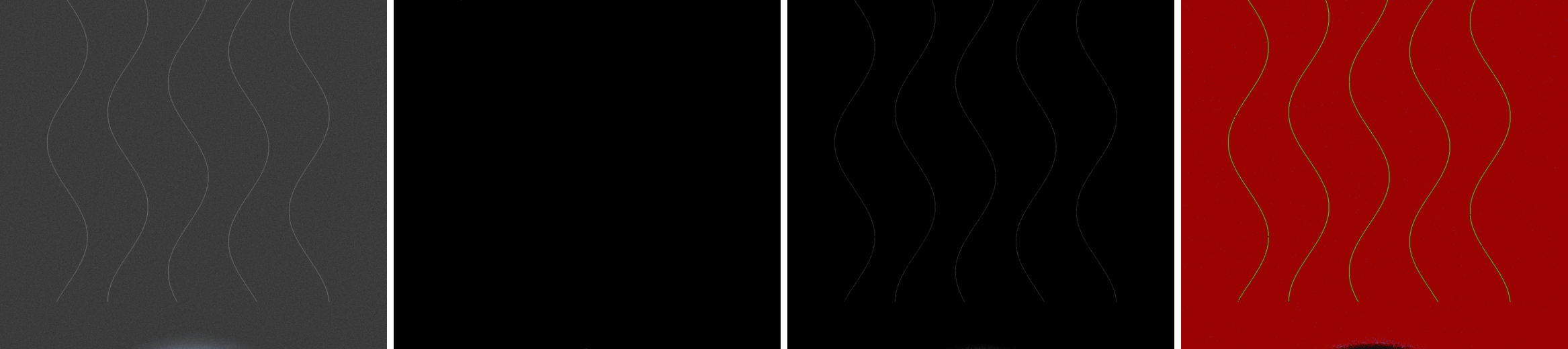 Brightened 4× so the near-blacks are visible: input · plain threshold · OLED Auto Black · debug view
What it does
- Finds the haze. Reads the histogram of the dark pixels, locates the background peak, and measures its noise (median absolute deviation).
- Sets the black point for you.
black_point = haze + k·σ, where the preset picksk(gentle 2, balanced 3, aggressive 5). - Tells detail from noise. Local standard deviation in a small window: flat haze only varies by σ, real detail varies far more.
- Two tone curves. Flat haze fades smoothly to zero. Detected detail gets a linear stretch instead, so it keeps its contrast against the new black.
- Optionally keeps soft glow. Diffuse light like the Milky Way looks like noise pixel by pixel, but its average over a large area stays above the haze while noise averages out. With
keep_soft_glowraised, those areas keep their light. Off by default. - Despeckles. Removes isolated 1–2 px dots, keeps thin lines and genuinely bright stars.
- Keeps colour. Darkness is judged by
max(R,G,B)and applied as one gain per pixel, so hue never shifts and deep reds/blues survive. - Dithers the fade so soft glows don't band when saved as 8-bit.
An animated walkthrough of the maths is in docs/explainer.html.
Install
ComfyUI-Manager: search for OLED Auto Black and install.
Comfy CLI:
comfy node install comfyui-oled-auto-black
Manual:
cd ComfyUI/custom_nodes
git clone https://github.com/danielphingston/ComfyUI-OLED-Auto-Black
Restart ComfyUI. The node is under image → postprocessing → OLED Auto Black. An example workflow is in example_workflows/.
No extra dependencies beyond what ComfyUI already ships (numpy, torch).
Inputs
| Input | Default | What it does |
|---|---|---|
| enabled | on | Pass-through when off. |
| mode | auto | auto measures each image. manual uses the two manual values below. |
| preset | balanced | How far above the detected haze the black point sits: gentle / balanced / aggressive. |
| detail_protection | 1.0 | Strength of the detail-vs-noise protection. 0 turns it off. |
| shadow_dehaze | 0.5 | Removes the grey veil from the subject's shadows. Fades out by mid-grey. |
| despeckle | on | Removes isolated noise dots in black areas. |
| dither | on | Prevents banding in the fade-to-black. Turn off if an upscaler follows, on for the final save. |
| protect_color | on | Uses max(R,G,B) instead of luminance, so deep saturated colours are kept. |
| max_black_point | 40 | Safety cap for auto mode (0–255 scale). |
| manual_black_point, manual_range | 8, 10 | Used only in manual mode. |
| keep_soft_glow | 0.0 | Off by default for the deepest black. Raise it to keep diffuse light just above the haze, like the Milky Way, fog, a nebula or a coloured gradient fading to black. |
Outputs
| Output | Type | |
|---|---|---|
| image | IMAGE | The processed image. |
| black_mask | MASK | 1 where the pixel is now exactly zero. |
| debug_view | IMAGE | Red = crushed, green = detail or soft glow protected, blue = speck removed. |
| report | STRING | e.g. haze≈15.5 σ≈2.1 → black_point=22 … pure black 87.2% |
| black_point | INT | The black point chosen (median across a batch). |
Tips
- Run it again after an upscaler: upscalers can lift blacks and add ringing.
- Prompts work best when they describe the black space explicitly ("pure black void background, extreme negative space").
- If wisps disappear, use
gentle. If the sky isn't black enough on a noisy render, useaggressive; detail protection still applies. - Images that aren't mostly dark are detected and left nearly untouched.
License
MIT