Prompt Composer
Build, organize, and randomize prompts from a disk-backed, drag-and-droppable library of reusable prompt entries, with sections, presets, and queue-time randomization.
Prompt Composer — ComfyUI Custom Node
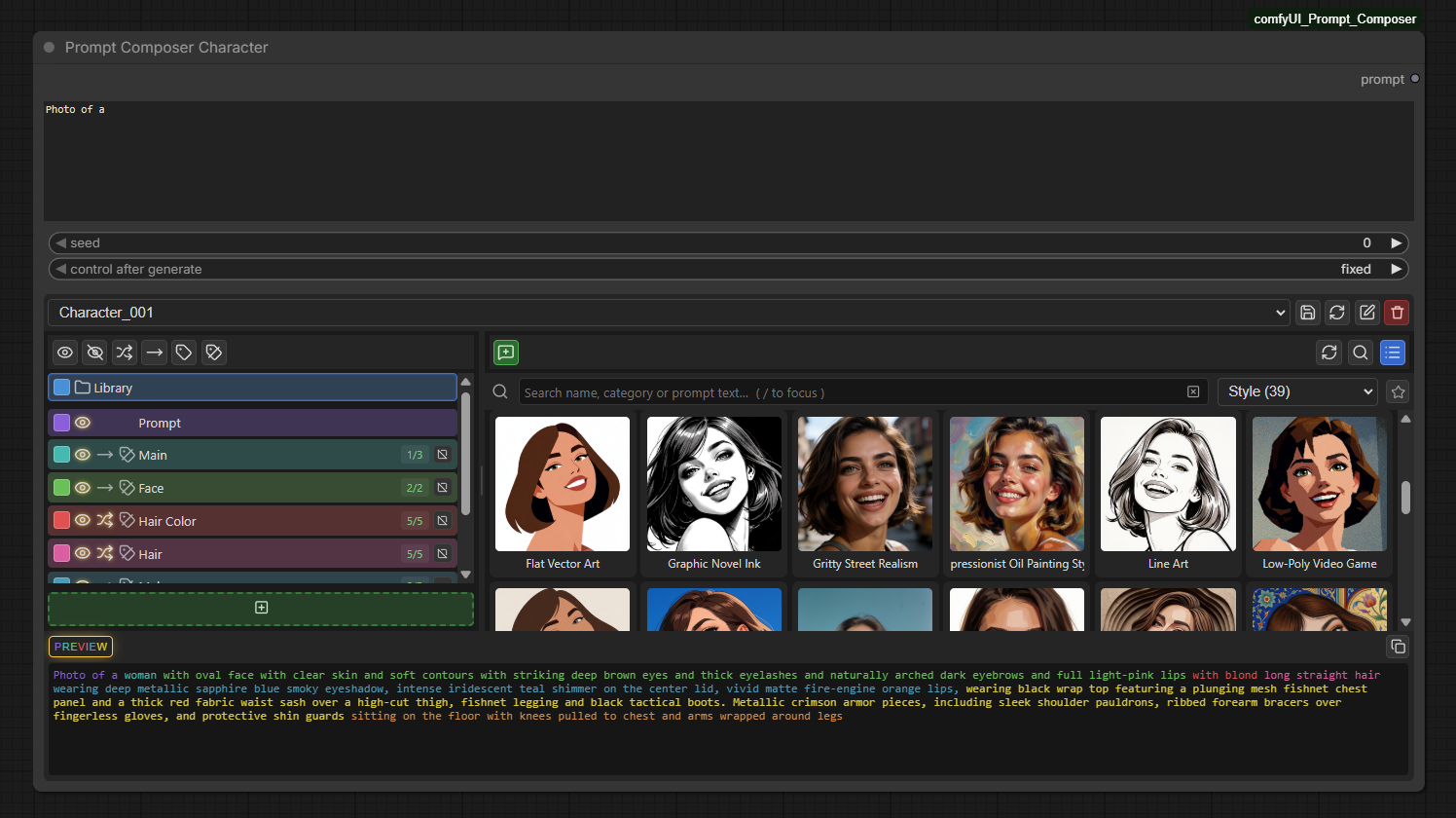
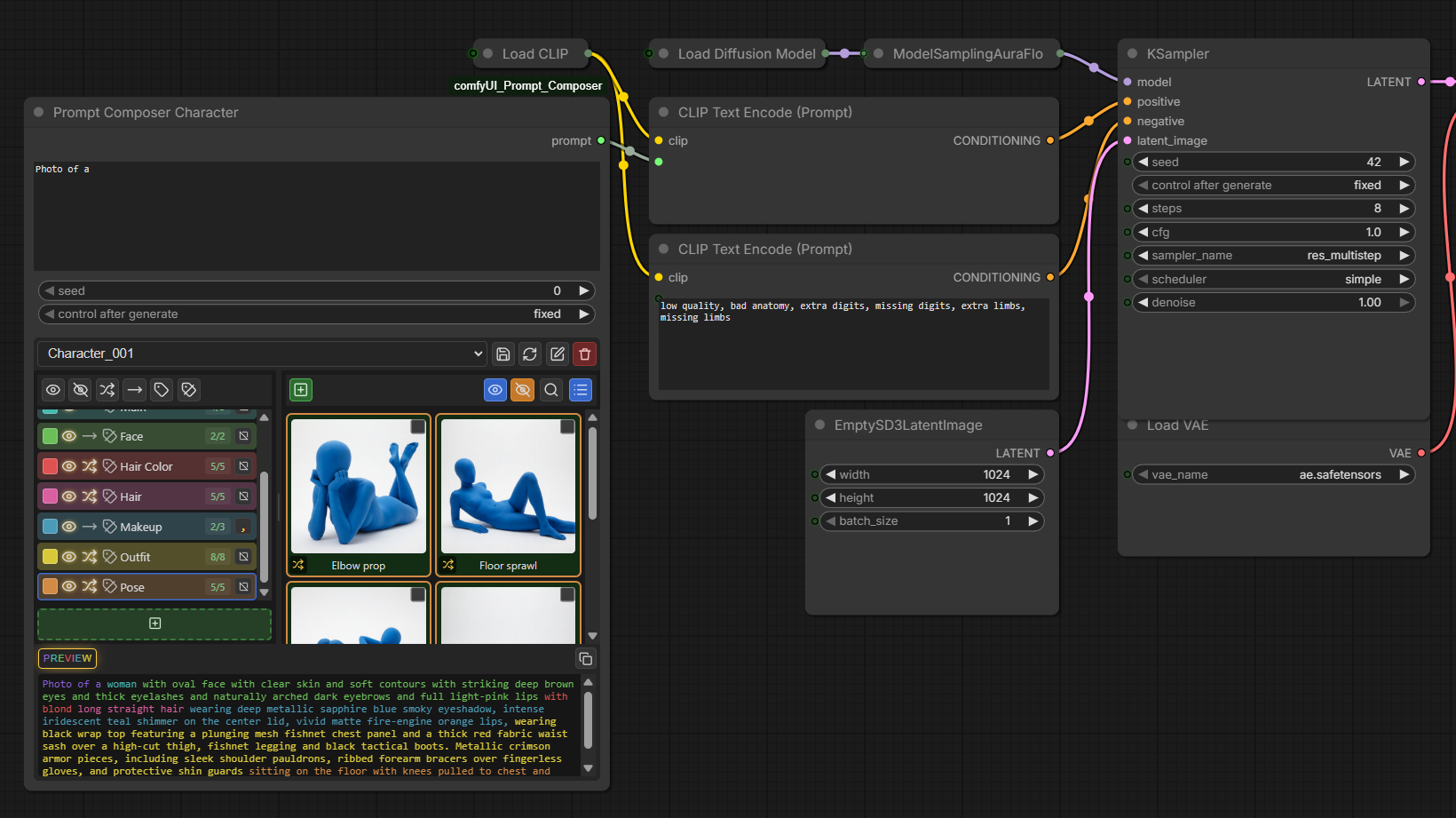
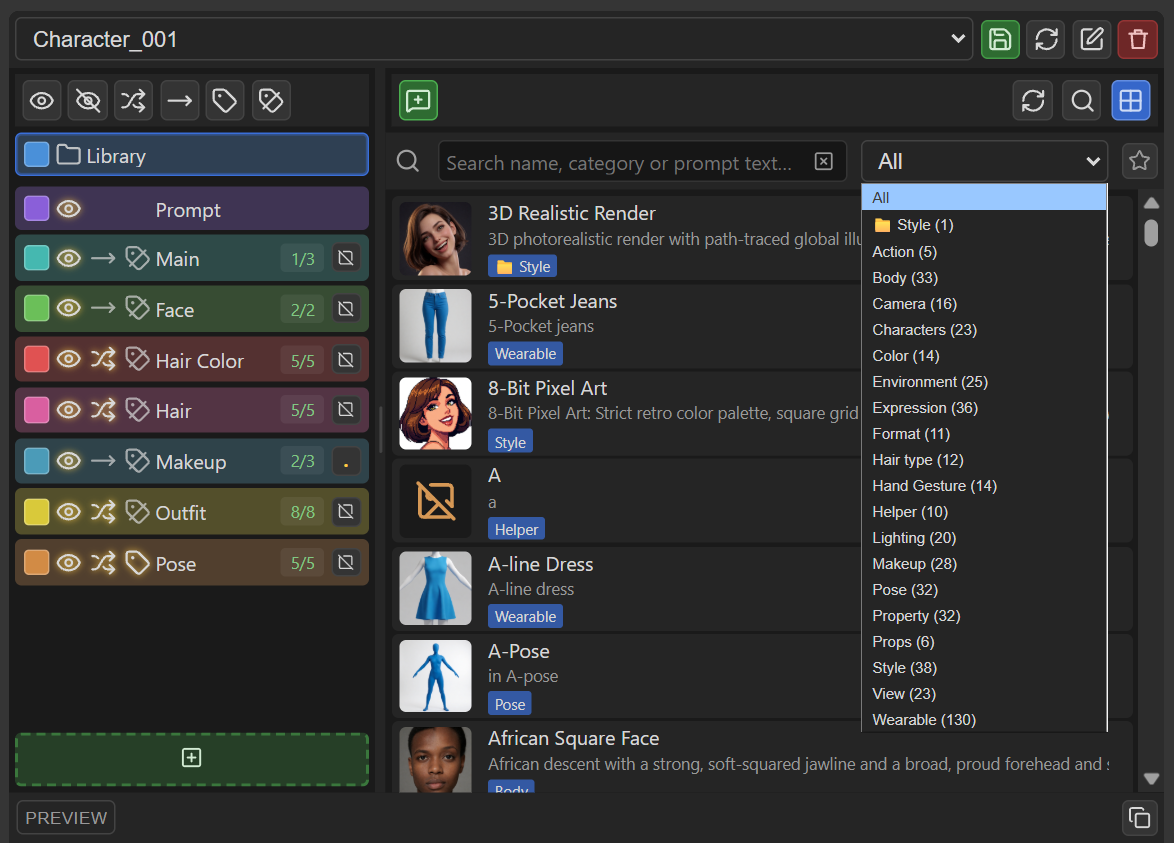
Prompt Composer helps you build prompts out of reusable pieces instead of retyping them every time. You keep a personal library of prompt snippets (characters, styles, outfits, lighting setups, whatever you reuse often), each with its own name and optional thumbnail. Inside the node, you drop those snippets into sections, arrange them, and the node stitches everything into one final prompt string — with optional randomization, saved presets, and a live preview of exactly what will be generated.
Every library prompt is saved as its own small PNG (or text file), so it's fully portable: drag it out of ComfyUI to back it up or share it, drag it back in and it just works.
Table of Contents
- Building a Prompt: Sections & Entries
- The Prompt Library
- Randomization
- Live Preview
- Presets & Saving Your Work
- Categories, Folders & Favorites
- "What Actually Ran" Tracking
- Library Browsing Quality-of-Life
- Limitations & Things to Know
- Requirements
1. Building a Prompt: Sections & Entries
This is the main editing experience inside the node.
1.1 Sections
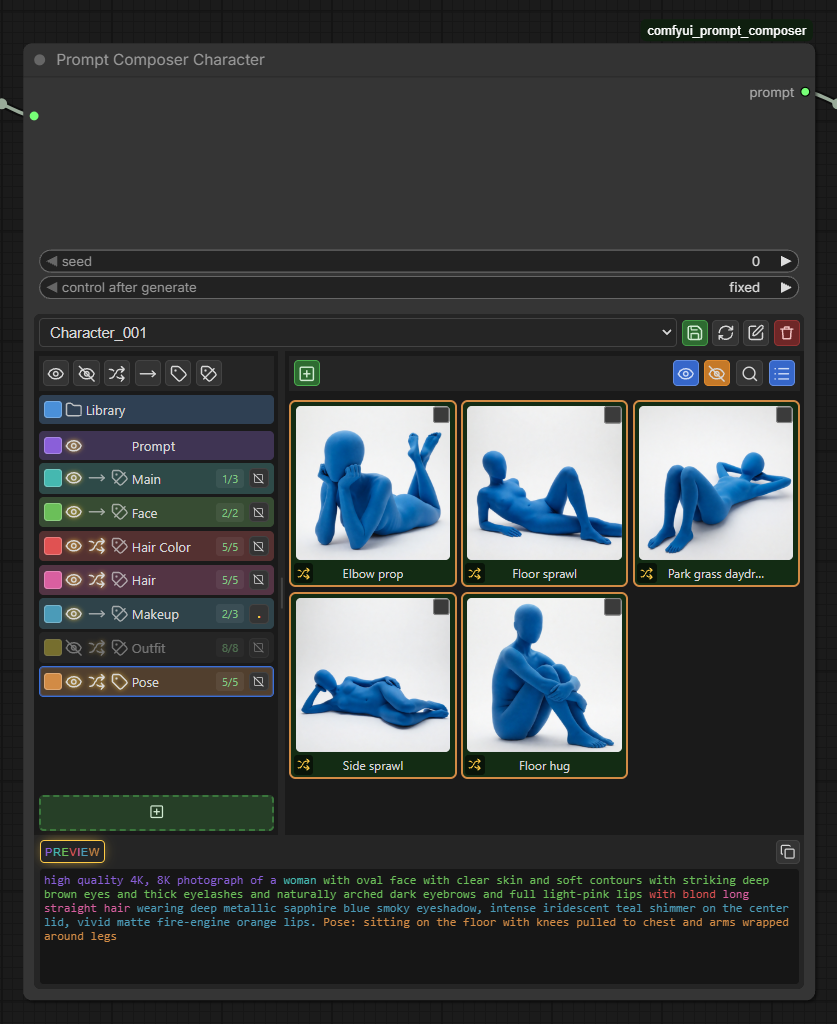
A section is a labeled group of prompt pieces (e.g. "Character," "Style," "Lighting"). You can:
- Add, rename, delete, and drag-reorder sections.
- Give each section its own accent color, for readability.
- Enable/disable a section — a disabled section contributes nothing to the output, without you having to delete it.
- Choose an end separator for the section: nothing, a trailing comma, or a trailing period, added once at the very end of that section's text.
- Turn on "show label" to prefix the section's output with its name (e.g.
Style: soft lighting, oil painting).
There is one special, permanent section called "Prompt" — this is where your free-typed text (the main user_prompt box on the node) gets inserted. It can't be deleted, but you can move it anywhere in the section order.
1.2 Entries
An entry is one prompt snippet placed inside a section, picked from your library.
- Add opens the Library panel so you can pick an existing snippet — you don't type prompt text directly into a section; you type it once in the Library, then reuse it everywhere.
- Duplicate an entry to use the same snippet twice (e.g. in two different sections).
- Replace an entry with a different library snippet without losing its position or settings.
- Show/Hide (the eye icon) — toggles whether that entry is included in the output right now. Hidden entries stay in the section for later, they just don't contribute.
- Separator — click to cycle each entry's own trailing separator: nothing, comma, or " and". This controls how that one entry joins onto the next.
- Randomize pool toggle — see Randomization.
- Drag entries to reorder them, including dragging between sections.
1.3 Grid or list view
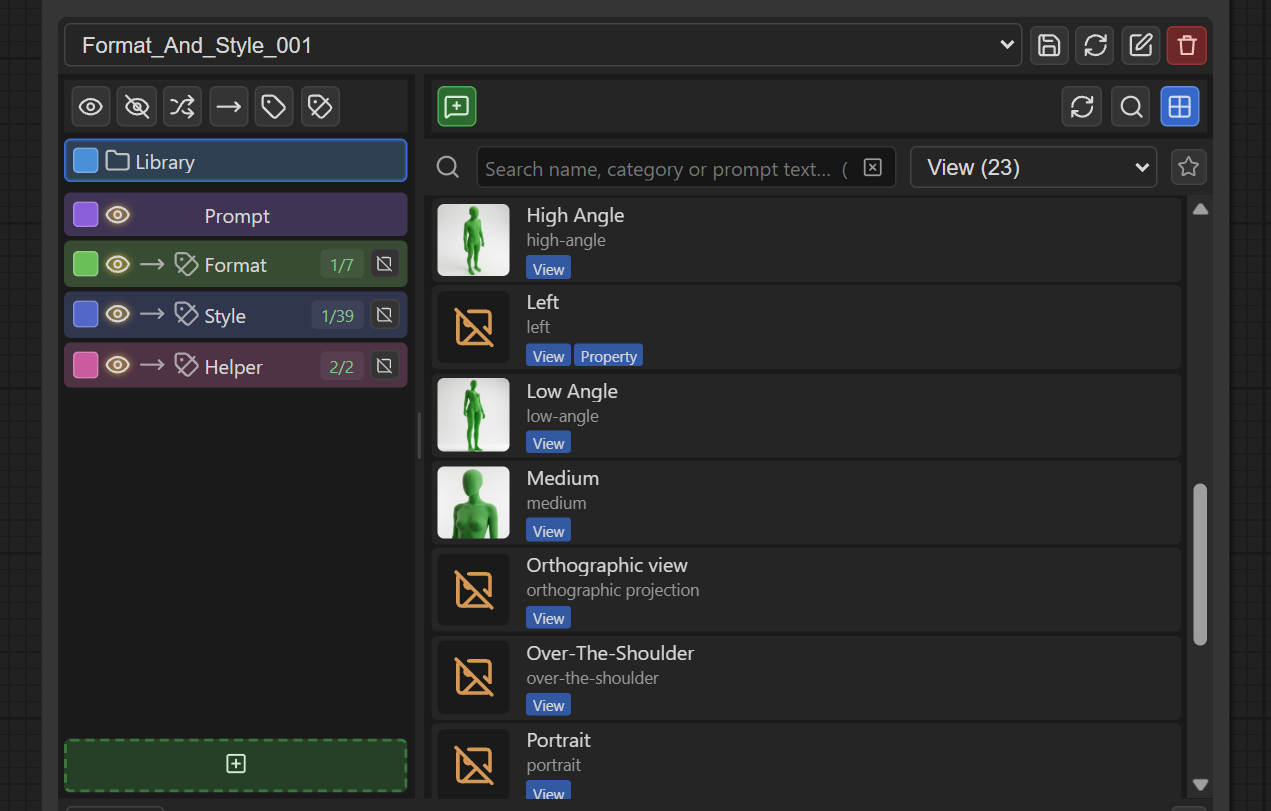
Switch each panel between a card grid (with thumbnails) and a compact list view, whichever you prefer for browsing.
1.4 Searching within a section
Each section has its own search box to quickly filter its entries by name, category, or text — useful once a section has a lot of pieces in it.
1.5 Bulk actions
Select multiple entries at once to copy, cut, paste, move, or delete them together, instead of one at a time. Section-level "Show all" / "Hide all" buttons toggle every entry in a section in one click.
1.6 Broken-reference warnings
If an entry points at a library prompt that's since been deleted or renamed, the section shows a small warning indicator instead of silently producing a gap in your output — so you notice before you queue a broken prompt.
2. The Prompt Library
Your reusable collection of prompt snippets, shared across every Prompt Composer node and every workflow.
2.1 What a library prompt is
Each library prompt has:
- A name (shown throughout the UI).
- The prompt text itself.
- An optional thumbnail image, for recognizing it at a glance.
- Optional category tags.
2.2 Fully portable, drag-and-drop files
Every library prompt is stored as its own file — a PNG (if it has a thumbnail) or a plain text file (if it doesn't). Because a thumbnail PNG has a tiny one-node workflow embedded in it (the same way ComfyUI embeds workflows in generated images), you can:
- Drag a prompt's thumbnail out of the library folder to back it up, move it to another machine, or share it with someone.
- Drag that same file back into ComfyUI's canvas and it opens as a little workflow containing just that prompt's text.
2.3 Creating and editing prompts
From the Library panel you can create a new prompt (name, text, optional image, optional categories) or edit an existing one. If you try to save a prompt whose name and text already match something in your library exactly, the node blocks the save and tells you it already exists, rather than creating a confusing duplicate.
2.4 Renaming is safe everywhere
If you rename a prompt or edit its text, every preset and every node that already uses that prompt is automatically updated to keep pointing at it — you won't end up with "missing" entries in old presets just because you tidied up a name.
2.5 Organizing with folders
You can create subfolders inside your library (e.g. "Outfits," "Poses") to keep a large library tidy. Folders show up as filters in the library search, separate from category tags. Renaming a folder moves every prompt inside it along automatically.
2.6 Handles large libraries gracefully
If you have a very large library, it loads in progressively rather than freezing the interface while it scans your whole collection.
2.7 Where your library lives
Your library and presets are stored in ComfyUI's own user data folder — not inside the Prompt Composer node's install folder. This matters because it means updating the node (through git or ComfyUI Manager) will never delete or overwrite your saved prompts. If you're upgrading from an older version that stored data inside the node folder, your existing library and presets are moved automatically the first time you run the new version.
3. Randomization
Optional, per-section randomization, resolved fresh every time you queue a prompt.
3.1 Turning it on
Flip a section's "randomize" toggle on. Which entries in that section are eligible to be randomly picked is controlled per-entry with the randomize pool toggle:
- Entries in the pool: one is chosen at random each time you queue.
- Entries not in the pool (but still visible/shown): always included, every time, alongside whichever pool entry gets picked.
If a section's randomize pool has fewer than 2 eligible entries, there's nothing to actually randomize between, so whatever is there is simply included as-is.
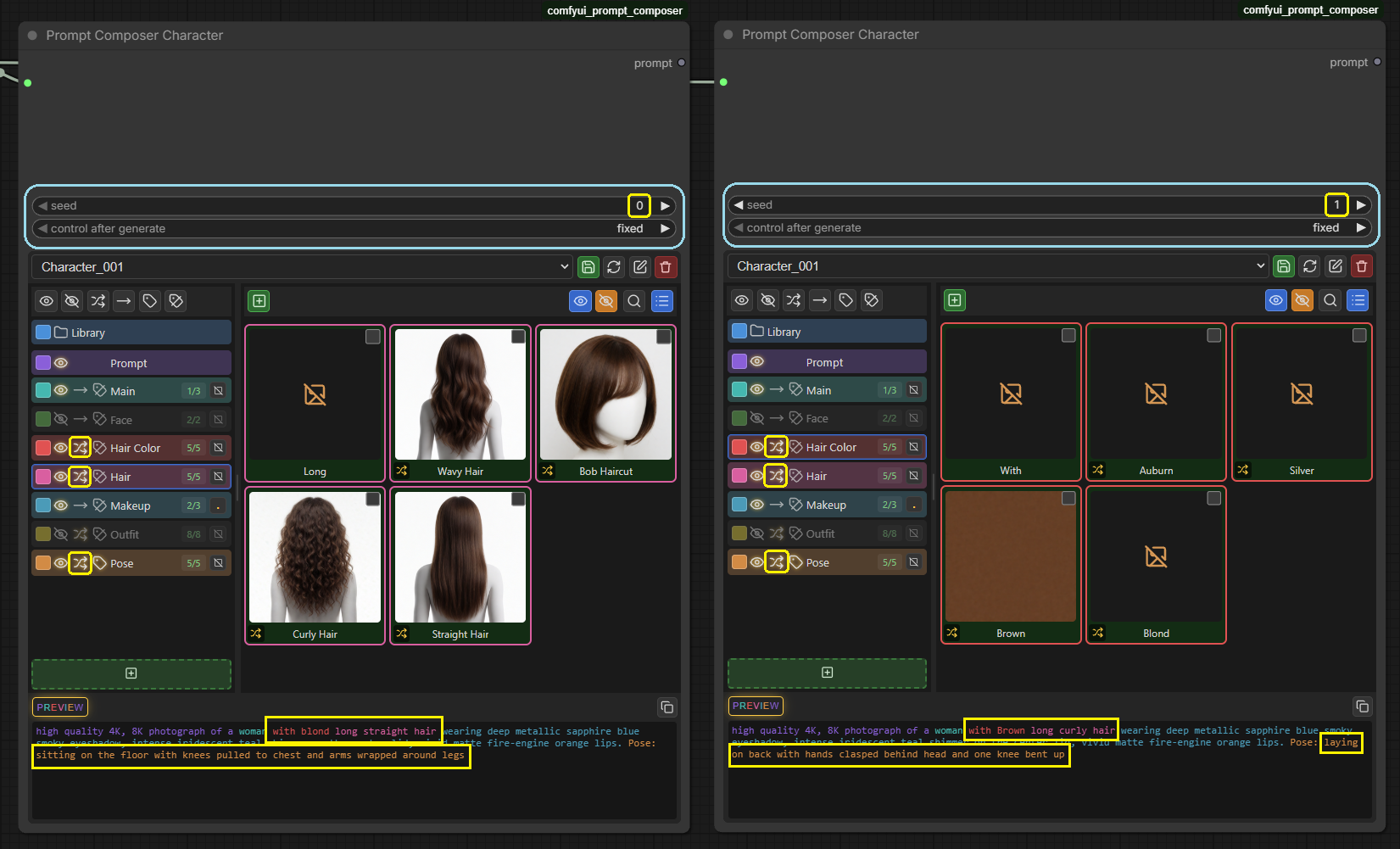
3.2 Reproducible with the seed
Randomization is driven by the node's seed value. The same seed always picks the same entries in the same sections, so a result is reproducible — and changing one section's contents or randomize settings won't reshuffle any other section's pick.
3.3 Seed widget behavior
The seed control defaults to "fixed" rather than "randomize" mode. This is deliberate: if no section has randomization turned on, changing the seed on every queue wouldn't change your output at all — it would just force ComfyUI to needlessly re-run the node (and everything downstream of it) for no reason. You can still switch the seed's own control mode to "randomize," "increment," etc. from its dropdown at any time if you want a fresh pick on every queue.
4. Live Preview
A read-only text box that shows you exactly what the node will output, updated as you edit.
4.1 Always accurate
The preview isn't a guess — it's generated using the exact same logic the node uses when it actually runs, including resolving your library prompts and picking randomized entries. What you see in the preview is what you'll get.
4.2 Stays responsive while editing
Typing or rearranging entries updates the preview instantly. If a section has randomization on, the preview briefly shows a placeholder pick and then settles on the authoritative one a fraction of a second later — this keeps rapid edits from feeling laggy, at the cost of the random section's exact preview text sometimes updating a beat after everything else.
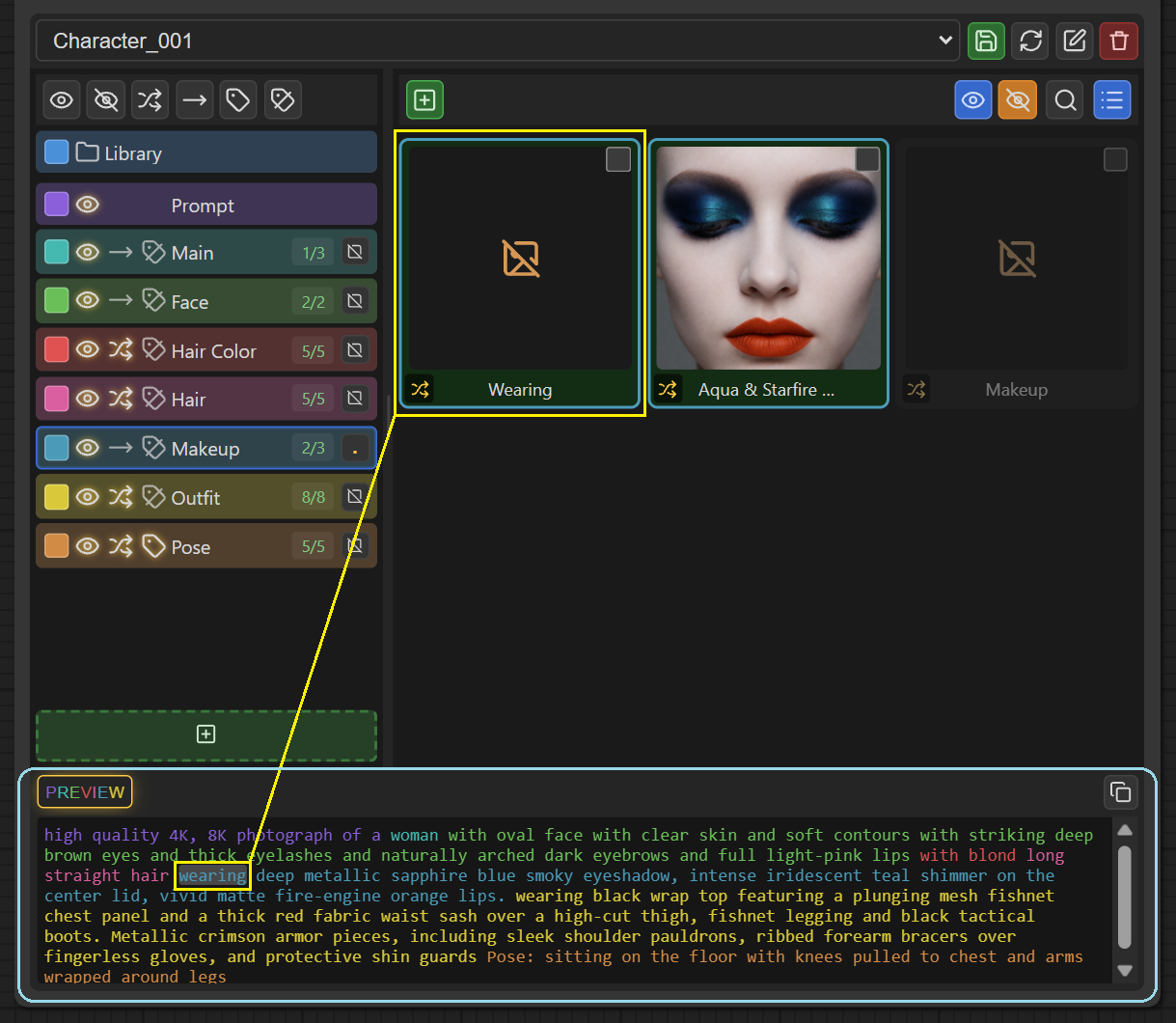
4.3 Color-coded and hoverable
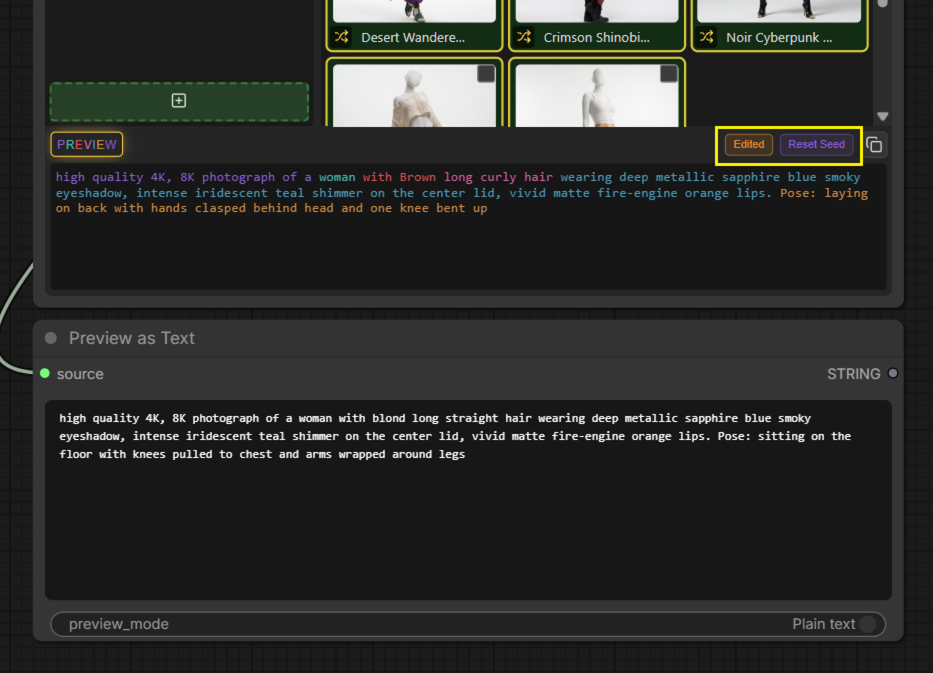
Preview text is tinted using each section's own accent color, so you can visually tell which section produced which part of the output, and hovering over the text can highlight the entry it came from.
5. Presets & Saving Your Work
Save and reload entire compositions (which sections, which entries, in what order and settings).
5.1 What a preset stores
A preset remembers your section/entry structure and pointers to which library prompts are used — not copies of the prompt text itself. This means a preset always reflects the current version of your library prompts; if you edit a prompt's text later, every preset using it picks up the change automatically.
5.2 Preset toolbar
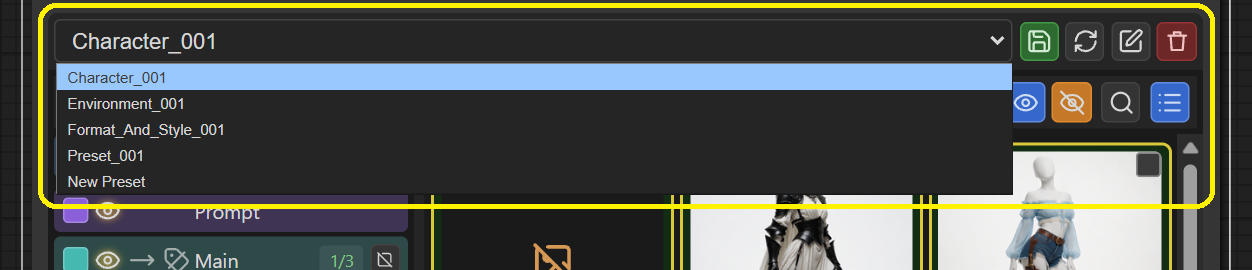
- Create, load, save, rename, and delete presets from a dropdown at the top of the node.
- The Save button visually indicates when you have unsaved changes.
- "New Preset" clears the composition to a blank slate (keeping your work recoverable if you cancel).
5.3 Workflows remember your composition
Saving your ComfyUI workflow (as a .json file or a generated PNG) also saves a snapshot of your composition inside it — including a fallback copy of the prompt text it used. That means if you send your workflow to someone else (or open it on another machine) who doesn't have your library prompts installed, the composition still shows the right text instead of coming up blank.
5.4 Opening a saved workflow doesn't lose your place
Loading a workflow correctly restores exactly the composition it was saved with, rather than accidentally reverting to whatever preset happens to be first in your list.
5.5 Unsaved compositions are recognized
If you load a workflow whose composition doesn't match any preset you've saved, the toolbar shows it as an unsaved ("virtual") preset named after the workflow — clicking Save turns it into a real, permanent preset.
6. Categories, Folders & Favorites
Ways to tag and organize your library beyond a flat alphabetical list.
6.1 Category tags
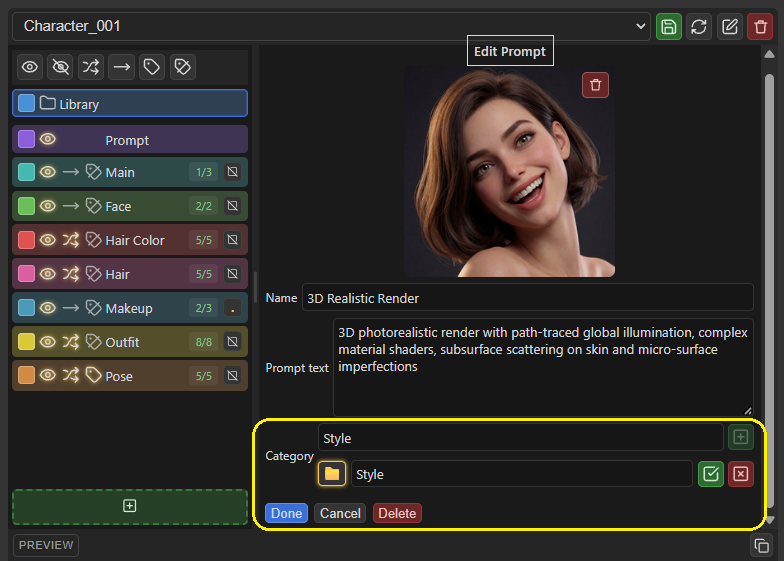
Assign one or more category tags to any prompt (e.g. "Portrait," "Anime," "Landscape") and filter your library by them. Tags travel with the prompt file itself, so they survive being dragged out and back in.
6.2 Managing categories
Create, rename, or delete categories from the library UI. Renaming a category updates every prompt that uses it automatically. A category can exist even with nothing tagged into it yet.
6.3 Favorites
"Favorite" is a special, built-in category — star any prompt to mark it, and it always sorts first and shows a star icon instead of a regular tag badge. It can't be renamed or deleted.
6.4 Folders as filters
Subfolders you create (see 2.5) also appear as filter options in the search dropdown, so you can narrow the library view to just one folder.
7. "What Actually Ran" Tracking
Helps you tell the difference between "what the preview currently shows" and "what was actually generated the last time you queued this node."
7.1 The "Edited" indicator
If you keep tweaking your composition after queuing a prompt, a small "Edited" chip appears showing you the exact text that was used in that last run — even though the preview has since moved on. Click it to copy that text, or press and hold it for a second to tell the node "treat my current edits as the new baseline."
7.2 The "Reset Seed" indicator
Similarly, if you change the seed after a run, a chip lets you jump back to the seed that was actually used — or hold it to accept the current seed as the new baseline.
7.3 Saved into your workflow
The last-executed prompt and seed are also saved into your workflow file when you save it, so this history isn't lost when you close and reopen ComfyUI.
8. Library Browsing Quality-of-Life
Smaller conveniences that make working with a large library pleasant.
8.1 Smart search
Typing multiple words in the library search finds prompts that contain all of those words anywhere in their name, tags, or text — not just as one exact phrase — and ranks name/tag matches above matches buried in the prompt text.
8.2 Hover to preview full-size
Hover over any thumbnail for a moment to see it at full resolution in a floating preview, positioned next to your cursor.
8.3 Smooth even with many prompts
Scrolling, favoriting, editing, and searching stay responsive even with large libraries — the interface only updates what actually changed rather than redrawing everything on every small action.
8.4 Tidy category badges
When a prompt has more tags than fit on one line, the extra ones collapse into a single "+N" badge instead of overflowing or wrapping messily.
9. Limitations & Things to Know
A few practical constraints worth knowing before you rely on this node heavily:
- Thumbnails are always squared and shrunk to 256×256. Any image you attach is center-cropped to a square and resized down — there's no way to keep a non-square or higher-resolution thumbnail.
- Thumbnail images must be at least 32×32 pixels and no larger than 20 MB / roughly 8000×8000 pixels going in; anything outside that range is rejected with an error rather than silently resized.
- Thumbnails don't keep any original metadata. Every image is re-saved from scratch when it's added to the library, so any EXIF data, color profile, or other metadata from the original file is stripped. Only the visible pixels are kept.
- Prompt names are capped at 128 characters. Longer input is trimmed.
- A preset file is capped at 5 MB. This is very unlikely to matter in normal use (presets don't store prompt text or images, only structure), but an enormous number of entries in one preset could theoretically hit it.
- Deleting a library prompt doesn't ask "are you sure this isn't used anywhere." If a prompt is referenced by sections or presets, those references will simply stop resolving (see 1.6) — deletion itself isn't blocked or warned about beyond the section-level indicator.
- Randomized preview text can lag slightly behind other edits by a fraction of a second (see 4.2) — this is a deliberate tradeoff for keeping the rest of the UI responsive, and it always catches up before you queue.
- Folder names and prompt names can't use characters that aren't valid in a filename (like
\ / : * ? " < > |) — these are automatically replaced with spaces rather than rejected outright. - The "Prompt" section can be moved but not deleted, renamed, or disabled independently of your free-typed
user_prompttext — it's a fixed anchor point for that text box.
10. Requirements
- ComfyUI (a reasonably recent build).
- Python 3.10 or newer.
- Pillow — used for thumbnail image processing.
No browser extensions, external accounts, or additional JavaScript dependencies are required — everything runs locally, inside ComfyUI.
11. Known Issues
- Panels scroll in Node2 mode is not working properly.