
comfyui-cyberdelia-z-engineer
LLM-powered prompt engineering node for Z-Image Turbo workflows. By Cyberdelia AI Lab.
Nodes (8)
The Danbooru translator your anime checkpoint actually understands
One prompt, five LLM passes — chaining system prompts without the drift
An LLM prompt enhancer for workflows that never touch CLIP
Type your prompt once, wire it everywhere
Shrink the photo before your vision model ever sees it
Cyberdelia Z-Engineer, no API key required
A tiny pass-through that keeps your prompts in one place
One random prompt per run, no LLM involved
Cyberdelia Prompt Engineer
<p align="center"> <img src="assets/icon.png" alt="Cyberdelia Prompt Engineer icon" width="200"> </p>

Model-independent text, vision, wildcard, and Danbooru prompt engineering for ComfyUI. Generate a reusable prompt string, filled prompt templates, validated anime tags, or CLIP-encoded sampler-ready conditioning.
The package and repository retain the legacy name comfyui-cyberdelia-z-engineer so existing installations and update paths remain compatible.
By Cyberdelia AI Lab · github.com/cyberdeliaAI
What it does
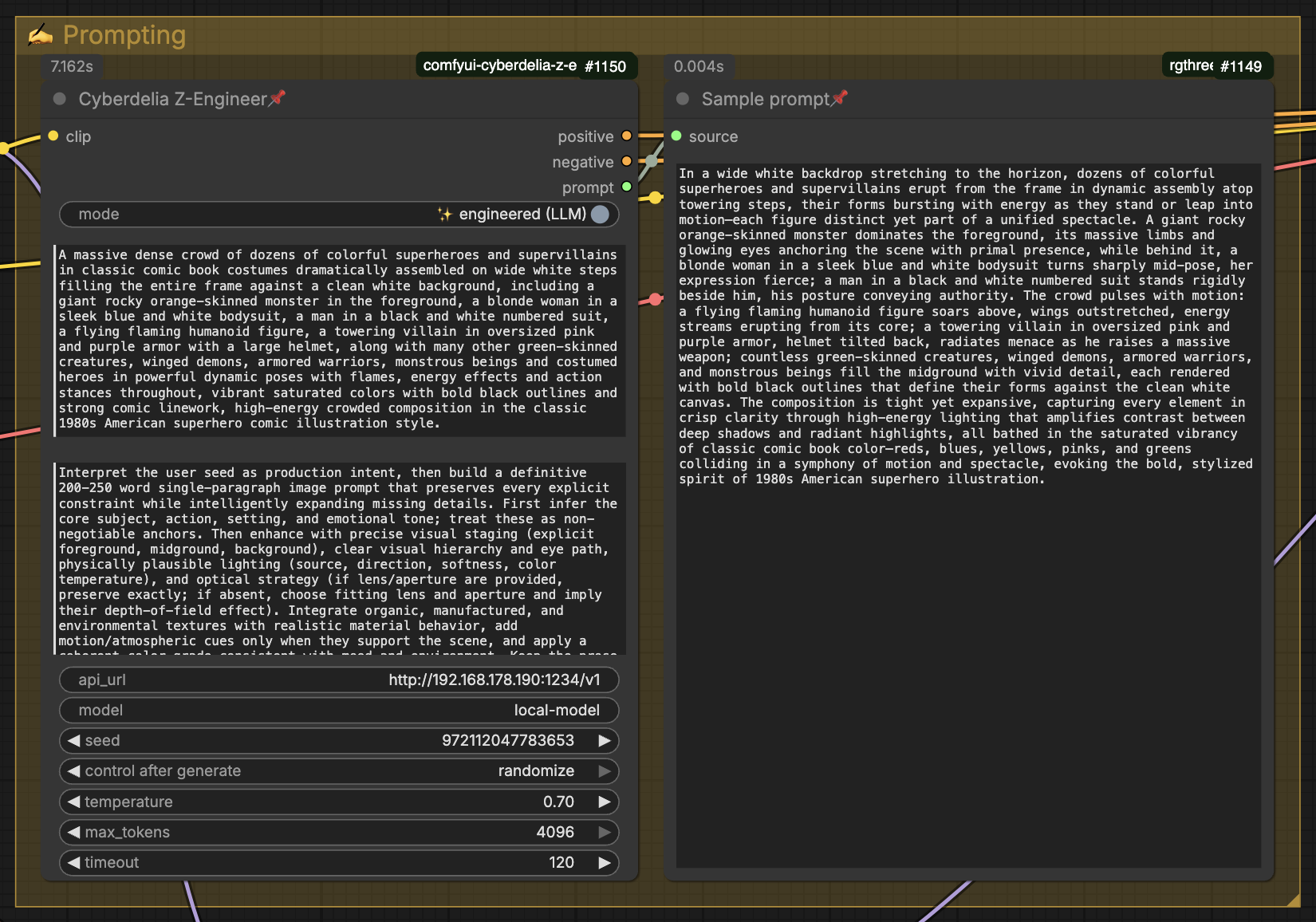
Cyberdelia Prompt Engineer sends text, or an optional image plus instructions, to LM Studio, Ollama, or another OpenAI-compatible server. Its prompt nodes share the same generation pipeline:
| Node | CLIP required | Outputs | Best for |
| --- | --- | --- | --- |
| Prompt Engineer — Text | No | Prompt STRING | Krea2, Flux, external encoders, metadata, image-to-prompt |
| Prompt Engineer — Conditioning | Yes | Positive, negative, prompt | Workflows that use normal CLIP conditioning directly |
| Prompt Engineer — Chain | No | Final prompt plus five stage previews | Applying multiple system prompts sequentially |
| Danbooru Prompt | No | Prompt, tags, dropped tags | Anime checkpoints trained on booru-style captions |
| Wildcard Prompts | No | Prompts, preview, prompt count | LoRA testing with editable templates and random or sequential prompts |
Existing workflows can bypass the LLM with the built-in passthrough toggle.
The separate Cyberdelia Danbooru Prompt node converts a normal scene description into real Danbooru tags, validates them against a bundled local vocabulary, and optionally wraps them in an editable prompt template.
Release 1.10.0
- Sequential prompt mode sends one prompt in file/text order per queued workflow, so each prompt completes the generation, upscale and save chain before the next queued run.
- Repeat list defaults to off. With 20 prompts and 30 runs, the final 10 skip the dependent generation chain; turning it on repeats prompts 1–10 for those runs.
- Reset sequence restarts at prompt 1. The zero-based
sequence_indexadvances after each successful frontend queue submission and is saved in the workflow. - Regression tests cover sequential ordering, skipped runs, repeat/reset behavior, frontend queue advancement, and existing workflow compatibility.
Existing node IDs, widget positions, output indices, random/all-prompts modes and wildcards-off passthrough remain compatible. New controls are appended. Restart ComfyUI and refresh the browser after updating. End-of-list skipping requires ComfyUI's ExecutionBlocker support.
Release 1.9.0
- Random
{option|option}choices in wildcard prompts, tag values, search/replace replacement text, and prefixes, controlled byprompt_seed. OPENAI_API_BASEandOPENAI_API_KEYenvironment-variable fallbacks, with precedence for the existing Cyberdelia configuration and preserved endpoint security.
Existing node IDs, widget order, and output indices remain unchanged. Restart ComfyUI after updating.
Features
- Prompt-only Text node — text and Vision generation without loading or connecting CLIP
- Wildcard Prompts — load a
.txtor paste templates, fill editable tags, replace text, add a trigger prefix, and choose random or sequential prompts per run - Wildcard on/off switch — keep the node connected and send one unchanged normal prompt when disabled
- Sequential Prompt Chain — process one prompt through one to five system prompts and inspect every intermediate result
- Optional direct CLIP encoding — use the Conditioning variant when sampler-ready conditioning is wanted
- Two companion Controls nodes — choose the original compact controls or preset-aware controls
- Image-to-prompt vision input — use ComfyUI's Load Image or the dedicated Vision Image Loader to describe an image with a vision model
- Vision Image Loader — upload, preview, refresh, safely delete the selected input image, and optionally downscale it without cropping
- Automatic LM Studio model discovery — loaded LLMs are marked in a model selector
- Safe
automodel selection — only chooses when one model is unambiguous - Separate system and Vision presets — bundled defaults plus user-authored
.txtpresets - Visible preset content — selecting a preset fills its normal, editable prompt field
- Keep terms — preserve LoRA triggers, names, or phrases verbatim
- Optional constraint preservation — conservatively retains quoted text, counts, colors, codes, and lens/aperture details
- Output cleaning — strips reasoning blocks, ChatML, Markdown fences, prompt labels, negative-prompt sections, and excess whitespace
- Configurable error handling — fall back to input, stop the workflow, or return an empty result
- Targeted retries — retries transient connection, timeout, HTTP 429, and HTTP 5xx failures
- Secure API-key authentication — reads an optional Bearer token from the host environment without storing it in workflows
- Extended output limit —
max_tokenscan be configured up to 262,144 when the selected model and server support it - Metadata-friendly runtime output — publishes the actually encoded text to compatible metadata extensions
- Danbooru Prompt node — converts natural language into validated booru-style tags
- 140k-tag local vocabulary — resolves canonical tags, aliases, common word forms, and recoverable sub-phrases
- Spaces or underscores — output
blue eyes, long hairorblue_eyes, long_hair - Danbooru ordering and filtering — sort categories, exclude categories, filter rare tags, and inspect dropped candidates
Requirements
- A recent ComfyUI version
- A running OpenAI-compatible chat-completions endpoint when using LLM generation
requests
The Conditioning variant additionally requires a CLIP input with clip.encode_from_tokens_scheduled.
LM Studio is recommended because it also exposes loaded-model information through its native model API. Other OpenAI-compatible servers remain supported through the manual model field and /v1/models fallback.
Image-to-prompt additionally requires a vision-capable chat model. Pillow and PyTorch are already provided by ComfyUI.
Danbooru Prompt is most useful with anime checkpoints trained on booru tags. Its bundled vocabulary contains Danbooru terminology, including NSFW tags, and is a static snapshot rather than a live connection to Danbooru.
Installation
Via ComfyUI Manager, search for Cyberdelia and install the node.
Manual installation:
cd ComfyUI/custom_nodes
git clone https://github.com/cyberdeliaAI/comfyui-cyberdelia-z-engineer.git
pip install -r comfyui-cyberdelia-z-engineer/requirements.txt
Restart ComfyUI after installation or updating.
Wildcard Prompts for LoRA testing
Add Cyberdelia Wildcard Prompts from Cyberdelia/Prompt. Paste prompt templates or click Load .txt. The prompt_file field can instead read a UTF-8 .txt file on the ComfyUI computer; relative paths start in ComfyUI/input. A non-empty path overrides pasted text. Loading a file with the button clears that path and stores its text in the workflow.
Set prompt_separator to blank line for prompts that can span several lines, or one per line for one prompt on each non-empty line. Define editable tags in extra_tags, one name=value per line:
hair=blonde
type=mature
trigger=my_lora_keyword
Use {hair}, {type}, or any other tag name in the templates. Empty or missing tags are removed, with surrounding spacing cleaned. For example, A portrait of a {type} woman. becomes A portrait of a woman. when type is empty or omitted.
Random choices
Use {option|option|...} to choose arbitrary words or phrases. Choices work directly in prompt templates, in extra_tags values, in search/replace replacement text, and in prefix. For example:
Prompt: A {small|large} portrait of an adult {type} woman with {hair} hair.

extra_tags:
hair={red|brown|black}
type={young adult|middle-aged|older adult}

search_replace:
straight hair={red|brown|black} hair
Each tag value is chosen once per node execution, so repeated {hair} references use the same value, including in the prefix and across all prompts. Each replacement rule is also chosen once and uses that replacement for all its matches. Direct choice groups in prompt templates are drawn separately for each occurrence. Search text stays literal. Use flat choice groups; nested groups are not supported, and tag values are not recursively substituted.
prompt_seed controls both these choices and prompt-block selection. A fixed seed with the same inputs repeats the result; randomize draws again each run, including in all prompts mode. Choice draws do not change which prompt block a seed selects. A new draw can repeat a previous result.
Optional controls:
search_replace: onesearch=replacementper line, such aswoman=male. Rules run after filling tags. Whole-word matching and case-insensitive matching are the defaults; both can be changed.prefix: text or a LoRA trigger to prepend, such as{trigger}. A blank prefix is ignored. The prefix is added after search/replace.mode: random prompt sends one randomly selected prompt per run. sequential prompt sends one prompt in file/text order per queued workflow. all prompts preserves the existing list output: every prompt in one workflow, processed per node rather than completing the entire chain for each prompt first.prompt_seed: selects the prompt and fills choice groups independently of the image seed. Use randomize to draw again each run, or fixed to repeat the result. A random draw can repeat a previous prompt or choice.
Connect prompts to the text input of Prompt Engineer — Text or Conditioning. For Krea2, use the Text variant and connect its prompt output to the model's text encoder. Use preview only for a text preview: in all-prompts mode it contains all selected prompts joined together.
Run a complete workflow for each prompt
Choose sequential prompt, set sequence_index to 0 (or click Reset sequence), and set the Run count to the number of prompts. With 20 prompts and 20 runs, each queued workflow receives one prompt and completes its generation, upscale and save chain. Use an image/latent batch size of 1 for one image per prompt.
repeat_listdefaults to off. With 20 prompts and 30 runs, the first 20 use prompts 1–20; the final 10 silently skip nodes dependent on the prompt outputs. They remain queue entries; independent workflow branches may still execute.- Turn
repeat_liston to wrap around: runs 21–30 use prompts 1–10 again. sequence_indexis zero-based and advances after each successful queue submission in the ComfyUI frontend, including each entry in Run's count. It records the next index to queue and is saved in the workflow. Reset it before starting a fresh sequence or after editing the prompt source; loading a file with Load .txt resets it automatically.- Random/all-prompts modes and wildcards-off passthrough do not advance the index.
prompt_seedcontrols choices independently and can still randomize between runs. - Already queued entries retain their submitted index. Resetting does not rewrite the queue; canceled or failed runs do not rewind the index. Set it to the desired prompt index to retry.
- API clients must supply and increment
sequence_indexthemselves. End-of-list skipping requires ComfyUI'sExecutionBlockersupport. Older ComfyUI installations retain random/all-prompts behavior, but must be updated to use skipping.
Turn wildcards on or off without reconnecting
enabledon: send the filled wildcard prompt(s).enabledoff: sendfallback_promptexactly once, unchanged. Files, tags, replacements, prefix, separator, and selection mode are ignored, including during file-change checks.
Enter your normal prompt in fallback_prompt. Alternatively, convert fallback_prompt to an input and connect the prompt output of Cyberdelia Prompt Controls. This lets you keep your normal prompt in the Controls node. Turning wildcards off with an empty fallback sends one empty prompt.
The wildcard switch is independent of Prompt Engineer's LLM/passthrough switch. Leave Prompt Engineer in passthrough (raw) to test the selected prompt directly without an LLM. Enable its LLM mode when you want it to rewrite either the wildcard or normal prompt.
An example with normal Prompt Controls, the wildcard switch, and the Text variant is included in examples/wildcard-z-engineer.json. Example templates are in examples/wildcard-prompts.txt.
When moving from the standalone comfyui-wildcard-lora package, remove that old package from ComfyUI/custom_nodes after installing this version, then restart ComfyUI and refresh the browser. The current wildcard node ID is preserved, so its existing workflows still load. Earlier legacy wildcard node IDs are not registered.
Danbooru Prompt node
- Add Cyberdelia Danbooru Prompt from
Cyberdelia/Prompt. - Describe the desired scene in normal language.
- Choose the desired mode, select the local LLM when using engineered (LLM), and choose
spacesorunderscoresfor tag output. - Keep validation enabled to remove candidates that are not in the bundled Danbooru vocabulary.
- Connect
promptto the checkpoint's text encoder. Usetagsfor custom wrapping or metadata, anddropped_tagsto inspect filtered candidates.
The three modes are:
| Mode | Pipeline |
| --- | --- |
| engineered (LLM) | Natural or tag-like description → LLM candidates → validation → formatting → template |
| validate tags | Existing comma-separated tag prompt → validation → formatting → template; no LLM call |
| raw positive | Existing positive prompt → exact passthrough; no LLM, validation, sorting, formatting, or template |
Use validate tags to check an existing Danbooru prompt and convert accepted multi-word tags to spaces or underscores. Each comma-separated item is checked as one complete tag, preventing an invalid phrase from surviving as an unrelated single-word fragment. Unknown tags and model-specific anchors that are absent from the Danbooru database appear in dropped_tags; add intentional quality anchors with the prompt template. Use raw positive when the entered prompt must remain completely unchanged.
The editable prompt_template field is the only template control. Keep it as {prompt} for tags only, or add the desired model anchors manually, for example masterpiece, best_quality, {prompt}. If {prompt} is omitted, the validated tags are appended to the entered template text.
The node uses the same API URL normalization, automatic model discovery, retries, and visible error handling as Prompt Engineer. Fuzzy matching is disabled by default because approximate matches can change meaning; values of 0.85 or higher are the safest starting point when it is needed.
The default system instruction is tuned for Illustrious-based SDXL models. It asks the LLM for visible content tags only; quality, resolution, score, and rating anchors are left to the separate prompt template so they are not filtered, reordered, or duplicated.
Danbooru outputs
| Output | Description |
| --- | --- |
| prompt | Validated tags wrapped in the editable prompt_template text |
| tags | Validated tags only, rendered with spaces or underscores |
| dropped_tags | LLM candidates removed or only partially recovered by validation |
tag_format=spaces produces 1girl, blue eyes, long hair. tag_format=underscores produces 1girl, blue_eyes, long_hair. Template text is left unchanged, so fixed model syntax such as Pony's score_9 remains intact.
Strict validation can recover a known sub-tag while removing an unknown modifier from a compound phrase. Such partial recovery is reported in dropped_tags; disable strict validation when retaining every LLM candidate intact is more important than vocabulary precision.
Text node — no CLIP
- Add Cyberdelia Prompt Engineer — Text from
Cyberdelia/Prompt. - Enter a seed prompt, or connect Load Image or Cyberdelia Vision Image Loader and enable Vision.
- Choose a system-prompt preset or edit the visible prompt instructions.
- Set the API URL and select a model.
- Connect
promptto Krea2, another text encoder, a preview node, or an image saver.
For a Krea2 workflow, the intended separation is:
Vision Image Loader (optional) → Prompt Engineer — Text → Krea2 encoder → Krea2 conditioning
Krea2's model-specific hidden-state conditioning remains the responsibility of its encoder; Prompt Engineer supplies the reusable text.
Prompt Chain node
Cyberdelia Prompt Engineer — Chain applies between one and five system
prompts in sequence. Stage 1 receives the original prompt, stage 2 receives the
output of stage 1, and so on. stage_count determines how many stages are used;
an empty system-prompt field skips that stage without changing the text.
Each stage has its own normal-prompt preset selector. Selecting a preset copies
the complete instructions into that stage's visible system_prompt field, so
the workflow remains reproducible if the preset file later changes.
handoff_mode controls the context sent to stages 2–5:
| Mode | Next stage receives |
| --- | --- |
| previous output only | Only the result of the preceding stage |
| original + previous output | The untouched seed prompt plus the preceding result, clearly labelled |
The first output is always final_prompt. The five additional outputs expose
the result after each stage for debugging or alternate workflow branches.
Inactive stage outputs are empty. With fallback_input, a failed stage keeps
the last successful result and the chain continues; stop aborts immediately,
and empty replaces the failed stage with an empty string.
For image-to-prompt chaining, run the image through Prompt Engineer — Text in Vision mode first and connect its prompt output to the Chain node. This keeps image analysis separate from the subsequent text-only refinements.
Conditioning node
- Add Cyberdelia Prompt Engineer — Conditioning.
- Connect the
CLIPoutput from the model or LoRA loader. - Connect
positiveandnegativeto the sampler. - Configure text/Vision, prompt instructions, API, and model as above.
The internal ID remains CyberdeliaZEngineer, so workflows created with older versions continue to load with the same inputs and output indices.
Prompt Controls nodes
Cyberdelia Prompt Controls is the original compact node. It retains exactly the same widgets and three outputs as before, keeping existing workflows and their layout unchanged.
| Output | Type | Connect to Prompt Engineer |
| --- | --- | --- |
| mode | BOOLEAN | mode |
| prompt | STRING | text |
| use_vision | BOOLEAN | use_vision |
Convert the corresponding widgets to inputs using ComfyUI's Convert Widget to Input action, then connect the desired controls.
Cyberdelia Prompt Controls — Presets adds preset selection and a fourth output:
| Output | Type | Connect to Prompt Engineer |
| --- | --- | --- |
| mode | BOOLEAN | mode |
| prompt | STRING | text |
| use_vision | BOOLEAN | use_vision |
| active_system_prompt | STRING | active_system_prompt |
The frontend preset selector follows use_vision automatically: normal-text mode lists system presets, while Vision mode lists Vision presets. Selecting one copies its complete text into the visible active_system_prompt field, which is stored in the workflow. Connect that output directly to the matching active_system_prompt socket on either Prompt Engineer node.
When the connected value is non-empty, it overrides the Prompt Engineer node's local system_prompt or vision_system_prompt, depending on use_vision. Leave it disconnected or empty to keep using the local fields. Convert the other corresponding widgets to inputs using ComfyUI's Convert Widget to Input action, then connect them as above.
Model selection
The frontend model selector is a convenience control that updates the existing model field, so the selected model remains stored in the workflow.
auto follows conservative rules:
- If exactly one LLM is loaded, use it.
- If nothing is loaded and exactly one LLM is available, use it.
- If multiple choices are possible, report an ambiguity instead of choosing arbitrarily.
Loaded models are shown first and marked [loaded]; models that report image-input support are marked [vision]. Embedding models are excluded. Use ↻ Refresh models after changing models in LM Studio. If discovery is unavailable, type a model ID in the existing model field.
The node does not call LM Studio's model-management endpoints and never unloads or evicts models. A normal chat request can still trigger LM Studio's own JIT loading if that option is enabled in LM Studio.
Image to prompt
The optional image input accepts the IMAGE output from ComfyUI's standard Load Image node or the included Cyberdelia Vision Image Loader:
- Add either image-loader node and select or upload an image.
- Connect its
IMAGEoutput to Prompt Engineer'simageinput. - Enable
use_vision. - Choose a Vision preset or enter image-specific instructions in
vision_system_prompt. - Select a model marked
[vision], or useauto. - Enable engineered (LLM) and queue the workflow.
Vision Image Loader
Cyberdelia Vision Image Loader is a compact alternative intended for Prompt Engineer workflows. It provides:
- the normal ComfyUI image selector and upload control;
- Refresh images to reload the current contents of the ComfyUI input folder;
- Delete selected image, protected by a confirmation dialog;
vision_sizechoices of 512, 768, 1024, or 1536 pixels on the longest edge, plusoriginal;- proportional downscaling without cropping or upscaling;
- an optional
filenameoutput for previews, notes, or metadata.
The default 1536 max (recommended) matches Prompt Engineer's internal Vision limit. Smaller values reduce the image payload and memory use but may remove fine detail. The deletion button removes only the explicitly selected file from ComfyUI's input directory; it cannot delete output files, temporary files, arbitrary paths, or the complete image list.
| Main mode | use_vision | Behavior |
| --- | --- | --- |
| passthrough | either | Return text unchanged; do not call the LLM |
| engineered | off | Use system_prompt for normal text-to-prompt enhancement |
| engineered | on | Require image and use vision_system_prompt for image-to-prompt |
With use_vision enabled, Prompt Engineer requires an image and uses vision_system_prompt instead of the normal system_prompt. The text field is optional: leave it empty for a direct image-to-prompt conversion, or use it to request changes, for example Make it a night scene in Tokyo.
With auto, Prompt Engineer considers only models that LM Studio explicitly reports as vision-capable. A manually entered model ID remains available for other OpenAI-compatible servers whose model list does not expose capability metadata.
With use_vision enabled, the first image in a vision batch is resized to a maximum dimension of 1536 pixels, encoded locally, and sent as a base64 image content block.
With use_vision disabled, the normal system_prompt and text-to-prompt path are used, even if an image remains connected. The image is also ignored in passthrough mode.
System and Vision presets
The bundled system preset is Cyberdelia Detailed 200–250. The bundled Vision preset is Cyberdelia Faithful Image Caption. Custom remains the default for both selectors and uses the corresponding visible prompt value unchanged.
The requested 200–250-word range is an instruction to the selected model; the node does not mechanically rewrite or pad the result to enforce that length.
To add a personal preset, create a UTF-8 .txt file in:
ComfyUI/user/z_engineer/presets/
For a personal Vision preset, use:
ComfyUI/user/z_engineer/vision_presets/
If ComfyUI was started with a custom user directory, both folders are created under that directory instead. The filename becomes the dropdown label and the complete file content becomes the corresponding system or Vision prompt.
Choose ↻ Refresh presets or ↻ Refresh vision presets after adding or editing a file. Selecting a preset copies its full text into system_prompt or vision_system_prompt; editing that field switches only its own selector back to Custom. Because the actual text is stored in the workflow, old workflows stay reproducible if a preset file later changes.
Presets intentionally contain no model or sampling settings.
Preservation and cleaning
keep_terms accepts terms separated by commas, semicolons, or line breaks:
m4rty style, OHWX woman, neon_glow
The node asks the LLM to retain them and deterministically appends any missing terms with their original casing.
preserve_constraints is off by default. When enabled, it applies the same two-stage instruction and post-check to conservative constraints extracted from the seed:
- quoted text;
- counts up to twenty or numeric counts;
- color/object phrases;
- code-like identifiers such as
RX-78; - lens/aperture strings such as
24-70mm f/2.8.
It does not add model-specific instructions, force a target word count, or pad short prompts.
clean_output is on by default. It removes technical model artefacts but does not remove camera brands or rewrite the prompt style.
Error handling and retries
error_mode controls what happens after the request ultimately fails:
| Mode | Result |
| --- | --- |
| stop | Show a clear error on the node and stop the workflow (default) |
| fallback_input | Continue with the original seed prompt |
| empty | Return an empty prompt; the Conditioning node also encodes empty conditioning |
retries defaults to 1, meaning one initial attempt plus one retry. Retries are limited to connection errors, timeouts, HTTP 429, and HTTP 5xx responses, with a short backoff. Permanent request errors are not retried.
The LLM connection is only used and checked in engineered mode. Passthrough returns the input directly without model discovery or any network request. Fallback and passthrough text are never cleaned or modified.
Parameters
| Parameter | Description |
| --- | --- |
| clip | CLIP model used only by the Conditioning node |
| mode | Enhanced LLM mode or raw passthrough |
| text | Input concept or seed prompt |
| system_prompt | Visible instructions sent to the LLM |
| api_url | Allowlisted OpenAI-compatible base URL; defaults to OPENAI_API_BASE when no Cyberdelia allowlist is configured, otherwise http://localhost:1234/v1 |
| model | Manual model ID or auto |
| seed | Sampling seed sent to the API |
| temperature | Sampling temperature sent to the API |
| max_tokens | Maximum output tokens sent to the API; configurable up to 262,144, subject to the model and server limits |
| timeout | Request timeout in seconds |
| keep_terms | Exact terms that must survive generation |
| preserve_constraints | Enable conservative seed-constraint preservation |
| clean_output | Remove technical LLM output artefacts |
| error_mode | fallback_input, stop, or empty |
| retries | Number of transient-error retries, from 0 to 3 |
| use_vision | Switch between normal text enhancement and image-to-prompt |
| vision_system_prompt | Separate system instructions used only in vision mode |
| image | Optional ComfyUI image sent to a vision model for image-to-prompt generation |
top_p, top_k, and min_p are deliberately not sent; configure them in LM Studio or your chosen server.
LLM endpoint security
Prompt Engineer accepts http://localhost:1234/v1 by default, including the
equivalent 127.0.0.1 and IPv6 loopback forms. Imported workflows cannot make
the node contact arbitrary network services, and LLM HTTP redirects are not
followed.
To use another trusted local or remote OpenAI-compatible endpoint, the machine owner must allow its complete base URL before starting ComfyUI:
export CYBERDELIA_Z_ENGINEER_ALLOWED_API_URLS="http://127.0.0.1:11434/v1"
Multiple URLs can be separated with commas. The URL entered in the node must normalize to one of these complete allowlisted base URLs.
For an endpoint that requires OpenAI-compatible Bearer authentication, set the API key before starting ComfyUI. The key is deliberately not a node widget, so it cannot be saved in a workflow, execution history, or image metadata:
Windows batch file:
set "CYBERDELIA_Z_ENGINEER_ALLOWED_API_URLS=http://192.168.178.92:8000/v1"
set "CYBERDELIA_Z_ENGINEER_API_KEY=your-api-key"
macOS or Linux:
export CYBERDELIA_Z_ENGINEER_ALLOWED_API_URLS="http://192.168.178.92:8000/v1"
export CYBERDELIA_Z_ENGINEER_API_KEY="your-api-key"
The optional key is sent as Authorization: Bearer ... for both model
discovery and chat-completion requests.
OpenAI environment variables
OPENAI_API_BASE and OPENAI_API_KEY are supported as fallbacks:
export OPENAI_API_BASE="http://127.0.0.1:11434/v1"
export OPENAI_API_KEY="your-api-key"
- A non-empty
CYBERDELIA_Z_ENGINEER_API_KEYtakes precedence overOPENAI_API_KEY. - A non-empty
CYBERDELIA_Z_ENGINEER_ALLOWED_API_URLStakes precedence overOPENAI_API_BASE. It retains the existing allowlist behavior; the first URL in the list is not automatically selected. - When the Cyberdelia allowlist is unset or blank,
OPENAI_API_BASEsupplies the defaultapi_urlfor new nodes and for empty URL inputs. It also authorizes that one normalized base URL, alongside the existing localhost defaults. - Existing workflows keep their explicit
api_url; the environment does not overwrite it. That URL must still pass the allowlist check.
Blank or whitespace-only values count as unset. URL validation and rejection of HTTP redirects apply to both configurations. Neither API-key variable becomes a node widget or is stored in workflows. Restart ComfyUI after changing these environment variables.
Outputs
Prompt Engineer — Text
| Output | Type | Description |
| --- | --- | --- |
| prompt | STRING | Final generated, cleaned, or passthrough prompt |
Prompt Engineer — Conditioning
| Output | Type | Description |
| --- | --- | --- |
| positive | CONDITIONING | CLIP-encoded final prompt |
| negative | CONDITIONING | CLIP-encoded empty string |
| prompt | STRING | Exact text used for positive conditioning |
Prompt Engineer — Chain
| Output | Type | Description |
| --- | --- | --- |
| final_prompt | STRING | Result of the last active stage |
| stage_1 … stage_5 | STRING | Intermediate result after each active stage |
For guaranteed metadata capture, connect prompt directly to the prompt-text input of your image saver. Compatible metadata extensions may also receive the Conditioning node's resolved runtime text through its metadata cache integration.
Testing
Run the standalone unit tests from the custom-node directory:
python -m unittest discover -s tests -v
License
MIT — see LICENSE.
Credits
Built by Cyberdelia AI Lab · github.com/cyberdeliaAI
Based on ComfyUI-Z-Engineer by BennyDaBall930 (MIT licensed).
Danbooru validation is adapted from ComfyUI-NeuralBooru. The bundled tag data is derived from a1111-sd-webui-tagcomplete. See THIRD_PARTY_NOTICES.md.