
External LoRA Loader
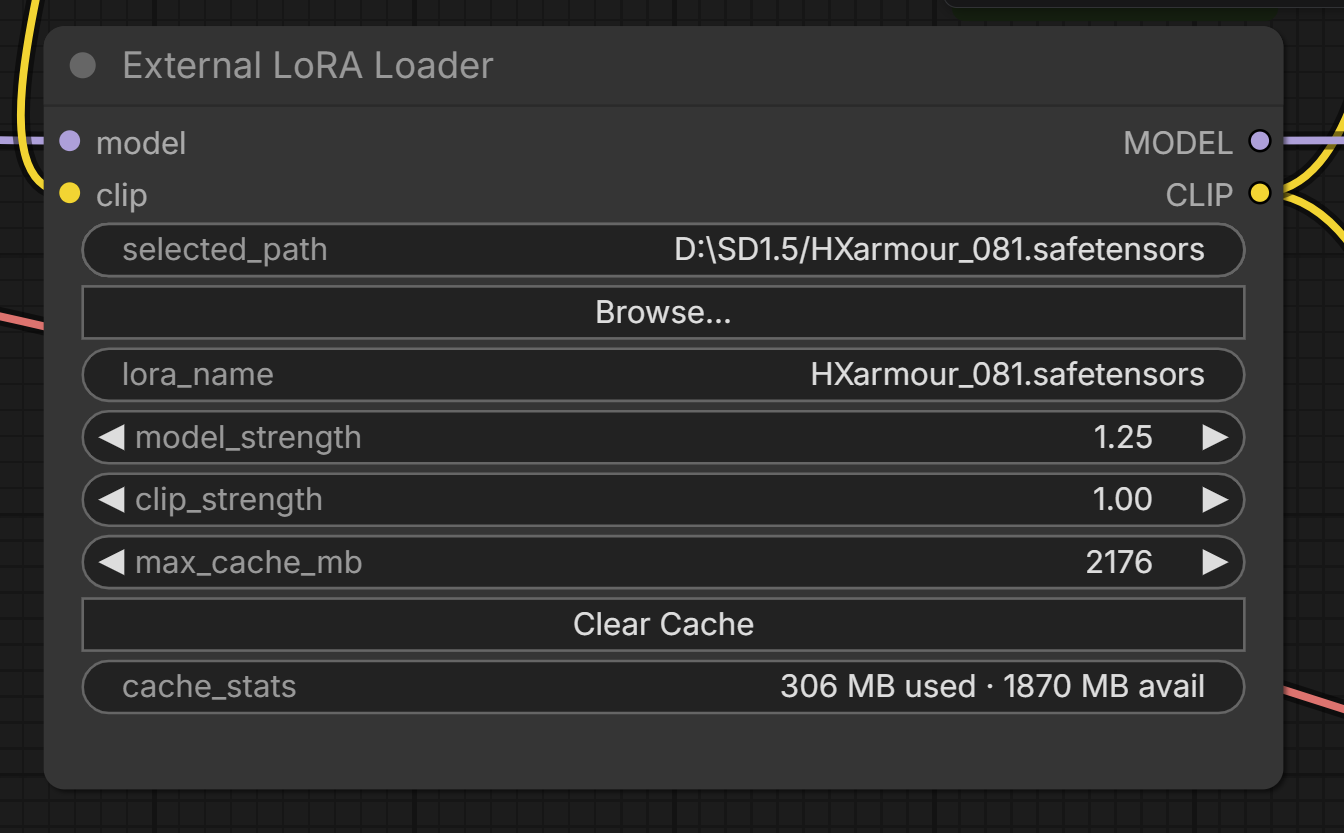
Load LoRA files from any path on any mounted drive, with a tree-style file browser and LRU RAM cache.
Nodes (1)
ComfyUI External LoRA Loader



A ComfyUI custom node that lets you load LoRA files from any path on any mounted drive — no server restarts, no manual config edits, no symlinks.

The Problem
ComfyUI's built-in Load LoRA node only reads from the models/lora/ folder inside your ComfyUI installation. If your LoRA library lives on an external hard drive, a NAS, or a second internal drive, your only options are to copy files, create symlinks, or edit config files and restart the server every time you switch locations.
External LoRA Loader solves this by letting you browse to any path directly from the node UI.
Features
- Drive auto-detection — Automatically detects all mounted drives on Windows, macOS, and Linux at startup
- Tree-style file browser — Click Browse to open a modal with a full expandable drive/folder tree; navigate to any location without typing paths
- Extension filter — Filter the browser to Safetensors only, all LoRA types, PyTorch files, or all files
- LoRA metadata popup — Single-click any
.safetensorsfile to open a tabbed info panel showing base model, rank/alpha, training stats, trigger tags, and author notes without loading the file - Draggable and resizable modal — Drag the browser by its header; resize from the bottom-right corner
- Keyboard navigation — Press Enter to confirm a selection, Escape to close
- System RAM caching — LoRAs are loaded into memory on first use; subsequent runs skip disk I/O entirely
- LRU eviction — Configurable cache size cap (per node, per workflow); oldest-used LoRAs are evicted automatically when the limit is reached
- Cache stats display — Shows current usage and available headroom, live-updating as LoRAs load
- Independent strength sliders — Separate
model_strengthandclip_strengthcontrols, matching ComfyUI's native Load LoRA node - Clear Cache button — Flush cached LoRAs directly from the node; shows freed memory in the button label
- Cross-platform — Windows (
D:\), macOS (/Volumes/MyDrive), and Linux (/mnt/nas) path formats all work
Requirements
- ComfyUI (any recent version)
- Python 3.8+
psutil(auto-installed by ComfyUI Manager; orpip install psutil)
Installation
Via ComfyUI Manager (recommended)
- Open ComfyUI Manager → Install Custom Nodes
- Search for External LoRA Loader
- Click Install and restart ComfyUI
Manual
cd ComfyUI/custom_nodes
git clone https://github.com/comfyuiattic-989/ComfyUI-External-Lora-Loader
pip install -r ComfyUI-External-Lora-Loader/requirements.txt
Restart ComfyUI. The node will appear under Add Node → loaders → External LoRA Loader.
Usage
1. Add the node
Right-click the canvas → Add Node → loaders → External LoRA Loader
Connect it between your checkpoint loader and sampler, the same way you would use the built-in Load LoRA node:
Load Checkpoint ──► External LoRA Loader ──► KSampler
                         │
                    CLIP output ──► CLIP Text Encode
2. Browse for a LoRA
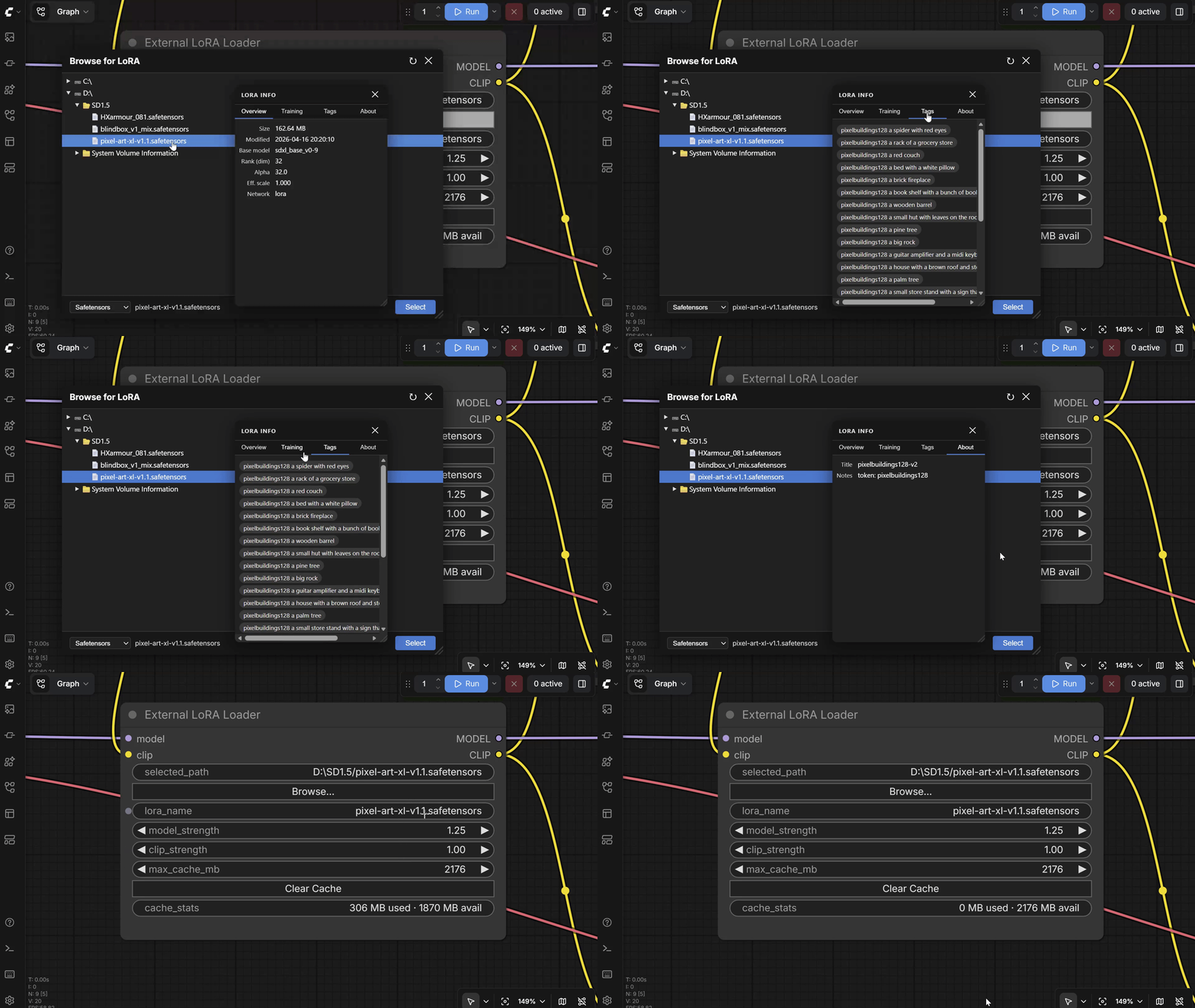
Click the Browse… button on the node. A file browser modal opens, showing all detected drives.
- Click a drive or folder to expand it and see its contents
- Use the extension filter dropdown (bottom-left of the modal) to narrow results:
- All LoRA types —
.safetensors,.ckpt,.pt,.pth,.bin - Safetensors —
.safetensorsonly - Checkpoint —
.ckptonly - PyTorch —
.ptand.pth - All files — every non-hidden file
- All LoRA types —
- Click a LoRA file to select it and open the metadata popup (see below)
- Click Select, double-click the file, or press Enter to confirm
- Press Escape or click ✕ to cancel
The modal is draggable (grab the title bar) and resizable (drag the bottom-right corner). It remembers its position and size for the session. When reopened, it automatically navigates to the folder of the currently selected LoRA and highlights the file.
Metadata popup
Single-clicking any .safetensors file opens a floating info panel to the right of the browser. It reads the file's embedded header without loading the full model into memory and displays four tabs:
| Tab | Contents |
|---|---|
| Overview | File size, last modified, base model version, LoRA rank (dim), alpha, effective scale (alpha ÷ dim) |
| Training | Step count, epochs, number of training images, resolution, UNet and text-encoder learning rates |
| Tags | Top trigger tags extracted from ss_tag_frequency, sorted by frequency and shown as chips |
| About | Title, author, license, and training notes / trigger-word hints left by the creator |
Files without embedded metadata (non-safetensors formats, or safetensors files that omit __metadata__) still show filesystem info in the Overview tab; the remaining tabs display a "No embedded metadata" message.
The popup is draggable (grab its title bar) and resizable (drag the bottom-right corner). Its position and size are remembered for the session.
The popup closes when you click a folder, confirm a selection, or close the browser.
After confirming, the selected path is shown in the selected_path display on the node canvas.
3. Set strength
Adjust:
- Model Strength — how strongly the LoRA affects the U-Net (diffusion model)
- Clip Strength — how strongly the LoRA affects text conditioning
Both range from −10.0 to 10.0 (default 1.0, step 0.01). Set lora_name to none to pass the model through unchanged.
4. Cache management
The Max Cache MB widget controls how much system RAM this node may use for caching. Default is 2048 MB (2 GB). When the limit is reached, the least-recently-used LoRA is evicted.
The cache stats line below the Clear Cache button shows current usage and available headroom (e.g., 512 MB used · 1536 MB avail). It updates whenever Max Cache MB changes and polls every 10 seconds while ComfyUI is running.
Click Clear Cache at any time to free all cached LoRAs. The button briefly shows how much memory was freed (e.g., Freed 1.4 GB).
Node Reference
| Input | Type | Default | Description |
|---|---|---|---|
| model | MODEL | — | Incoming diffusion model |
| clip | CLIP | — | Incoming CLIP model |
| lora_name | String | none | LoRA filename; set by the file browser. none passes through unchanged |
| model_strength | Float | 1.0 | U-Net patch strength (−10 → 10) |
| clip_strength | Float | 1.0 | CLIP patch strength (−10 → 10) |
| max_cache_mb | Int | 2048 | Maximum RAM to use for caching (128–32768 MB) |
| Output | Type | Description |
|---|---|---|
| model | MODEL | Patched diffusion model |
| clip | CLIP | Patched CLIP model |
driveandsub_pathare also serialized in the workflow JSON (they store the browsed location) but are hidden on the canvas and managed automatically by the file browser.
How Caching Works
The first time you queue a workflow with a given LoRA path, the file is read from disk and stored in system RAM. Every subsequent run with the same path skips disk I/O entirely — the tensors are returned directly from memory.
The cache persists for the entire ComfyUI session. LoRAs stay cached across multiple queued prompts and workflow changes until you click Clear Cache or restart ComfyUI.
LRU eviction: When the total size of cached LoRAs would exceed max_cache_mb, the least-recently-used entry is removed to make room for the new one. If a single LoRA is larger than the cache limit, it loads and runs normally but is not cached (a warning is printed to the ComfyUI console).
Platform Notes
| OS | Drive format | Detection method |
|---|---|---|
| Windows | C:\, D:\ | psutil.disk_partitions() |
| macOS | /, /Volumes/Name | Scans /Volumes/ |
| Linux | /, /mnt/name, /media/name | Scans /mnt/ and /media/ |
Drive detection runs once at ComfyUI startup. Drives mounted after startup will not appear in the browser until ComfyUI is restarted.
Troubleshooting
Browser shows a drive as inaccessible / greyed out
- The drive is detected but cannot be listed — check that the drive is mounted and accessible to the user running ComfyUI
LoRA Name stays none after selecting a file
- This should not happen with the file browser; if it does, click Browse again and re-select
Node doesn't appear in ComfyUI
- Confirm
psutilis installed:pip install psutil - Check the ComfyUI startup console for import errors
LoRA loads but has no effect
- Try increasing
model_strengthandclip_strength - Verify the LoRA was trained for the checkpoint you are using
License
MIT — see LICENSE