
Comfyless: run ComfyUI on cloud GPUs
Run ComfyUI workflows on cloud GPUs in your own Modal account, straight from your local ComfyUI. Sign in, deploy and run without a terminal.
Comfyless
Run your ComfyUI workflows on a cloud GPU, from the ComfyUI you already use.
Comfyless adds a Local / Cloud switch next to ComfyUI's Run button. With Cloud on, your workflow runs on a fast GPU (L40S, A100 or H100) in your own Modal account, and the results appear in ComfyUI as if they ran on your computer. No server to manage, no terminal, and nothing runs (or costs) while you're not generating.
This repository is a mirror of the
comfyless/folder in byvfx/comfy-serverless, where development, the design spec and issues live. Please open issues and pull requests there.
Quickstart
You need ComfyUI (0.44 or newer) and about 10 minutes. A Modal account is free to create.
1. Install
In ComfyUI, open Manager → Custom Nodes Manager, search for Comfyless, click Install, and restart ComfyUI.
If the search finds nothing (new versions wait for a Comfy Registry review), use Manager → Install via Git URL with https://github.com/byvfx/comfyless instead, then restart.
2. Set up
After the restart, the Modal Cloud setup window opens by itself. Everything Comfyless does is in the Modal Cloud tab: click the cloud icon in ComfyUI's left sidebar. Reopen setup there any time with Set up. (The same commands are also in the main menu under Extensions → Modal Cloud.)
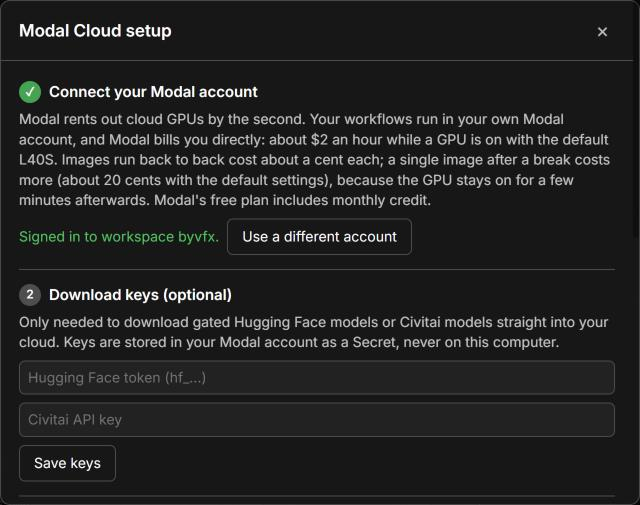
- Connect your Modal account. Click Sign in to Modal and approve the sign-in in the browser tab that opens. If Modal asks for a code, it's shown in the window. No account yet? Use the Sign up free link first.
- Download keys (optional). A Hugging Face token or a Civitai API key. You only need them for gated Hugging Face models or Civitai downloads. They're stored in your Modal account, never on your computer.
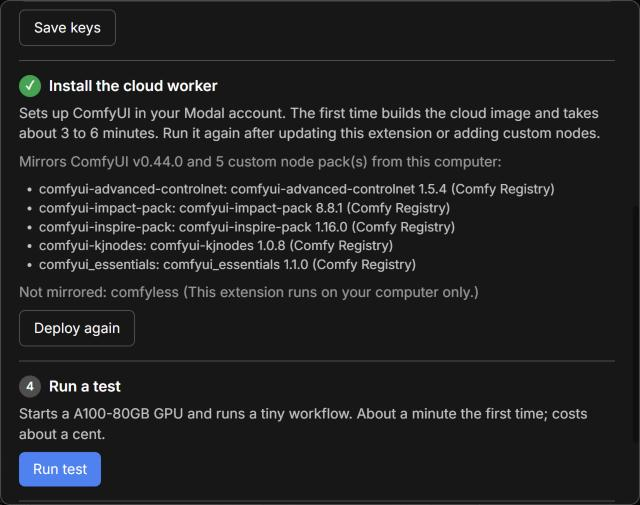
- Install the cloud worker. Click Deploy. This sets up ComfyUI in your Modal account and copies your custom node packs. The first time takes 3 to 6 minutes, with the progress shown in the window.
- Run a test. This starts a cloud GPU and runs a tiny workflow. It takes about a minute, and the run itself costs a few cents. Afterwards the GPU stays on for the Keep GPU warm for time (5 minutes by default, about 16 cents on the L40S). If you're not going to run anything soon, click Stop now in Check setup to switch it off.
Then set a monthly spending limit in Modal's dashboard (how) and click Finish.
3. Add models
Your cloud has its own model storage, separate from your computer. Open the Modal Cloud tab (cloud icon on the left) and click Cloud models:
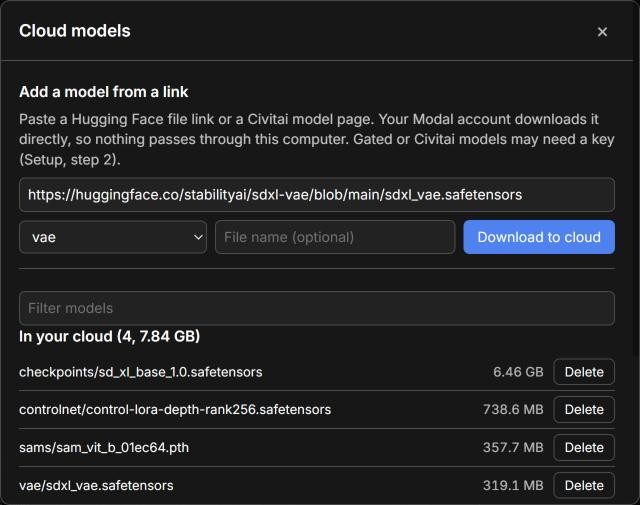
- Add from a link: paste a Hugging Face file link or a Civitai model page, pick the folder (checkpoints, loras, vae, ...), and click Download to cloud. Modal downloads it directly, so it's fast and doesn't use your internet connection. You don't need a copy on your computer.
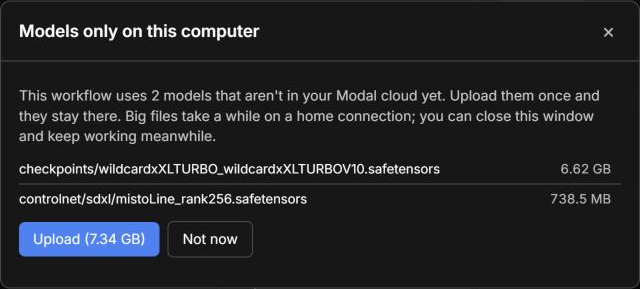
- Upload: in the Only on this computer list, click Upload next to a model you already have. This uses your own connection, so big checkpoints take a while.
- Delete removes a model from the cloud (click twice to confirm). A copy on your computer stays.
Cloud models appear in ComfyUI's model lists as soon as a transfer finishes.
If you skip this step, a workflow that needs a model the cloud doesn't have stops before anything is sent, and offers to upload just those models:
4. Run
Click Local next to the Run button so it says Cloud, then press Run as usual.

Progress, live previews, errors and images show in ComfyUI as normal, and outputs are saved to your local output/ folder. Input images are uploaded automatically, and Cancel works as usual. Each finished run shows roughly what it cost.
Partner nodes (Nano Banana, Qwen, Kling, OpenAI and the other nodes under partner) work on the cloud too. They use your Comfy account exactly as they do locally, so sign in to Comfy (the account button in the top-right) or add your API key first. They bill your Comfy account, not Modal.
Choose the GPU in Settings → Modal Cloud:
- L40S (default): good for most image work.
- A100-80GB or H100: for big video models, or anything that runs out of memory. The H100 is about twice the price and faster.
The same page sets Keep GPU warm for: how long the GPU stays on after a run.
What it costs
You pay Modal directly, by the second, only while a cloud GPU is on. Measured with SDXL (1024×1024, 30 steps):
- L40S (default): about $1.95 an hour while on. A warm image takes about 5 seconds, roughly a cent.
- Starting a GPU after a break takes 30 to 45 seconds.
- After a run, the GPU stays on for a few minutes (5 by default, adjustable) so your next run starts instantly. That idle time is billed too and is usually most of the cost of a single image: one image on its own costs about 20 cents with the 5-minute default, or about 7 cents with 1 minute. Ten images in a row cost about a cent each.
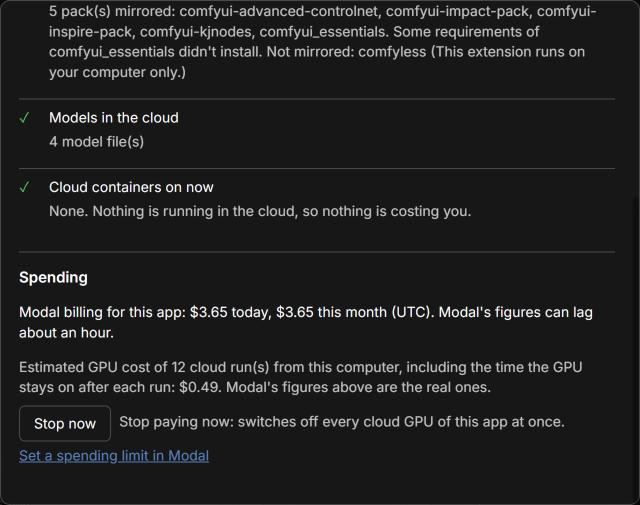
Modal's free plan includes monthly credit. Check setup and spending in the Modal Cloud tab shows what Modal billed this app today and this month, and whether any cloud GPU is on right now:
How to stop paying
- Right now: click Stop now in Check setup, or click Stop cloud GPUs now in the Modal Cloud tab. This cancels running cloud jobs and cloud model downloads, and switches every cloud GPU off at once, instead of waiting out the idle time. A cancelled download has to be started again. Your deployed cloud worker and the models already in your cloud stay as they are, and your next run starts the GPU again.
- Day to day: nothing to do. GPUs switch off by themselves after the Keep GPU warm for time. A shorter time costs less per image, and a longer one makes back-to-back runs faster.
- For good: in the Modal dashboard, stop the app
comfy-modal-bridge. Then, under Storage, delete the volumescomfy-models(your cloud models) andcomfy-io. Uninstall Comfyless from ComfyUI-Manager if you no longer want the switch.
How to update
- In Manager → Custom Nodes Manager, update Comfyless and restart ComfyUI.
- Open the Modal Cloud tab, click Set up, then Deploy again. Check setup also tells you when the cloud needs it.
Deploy again after adding or updating custom node packs too.
Custom nodes
Your packs in custom_nodes/ are mirrored to the cloud when you deploy:
- Packs from the Comfy Registry or git are installed at the same version; others are uploaded from your computer.
- Packs that don't install in the cloud are listed in the deploy log and in Check setup.
- A workflow that needs one of them is stopped before it runs, with the node highlighted.
Troubleshooting
| You see | What to do |
|---|---|
| "Not signed in to Modal, or the sign-in has expired" | Open Setup and click Sign in to Modal (shown as Use a different account if you were signed in before) and approve the sign-in again. |
| "Can't reach your Modal app" or "The cloud backend isn't deployed" | Open Setup and click Deploy. |
| "Some models are only on this computer" | Click Upload in the window that opens, or add the model in Cloud models. |
| "Some nodes aren't available in the cloud" | Deploy again. If the node's pack failed to install, Check setup says why; run that workflow locally for now. |
| "The cloud GPU ran out of memory" | Pick A100-80GB or H100 in Settings → Modal Cloud, or lower the resolution or batch size. |
| "Modal has no free GPUs of this type right now" | Try again in a moment, or pick another GPU. |
| "...billing or spending limit" | Check your Modal billing page; you may have hit your spending limit. |
| A download says it was refused (401/403) | The model needs a key (Setup, step 2), or you need to accept its license on the model's page first. |
| "That link opened a web page, not a file" | Use the file's download link. On Hugging Face, open the file in the Files tab and copy the link from there. |
| The first run after a break is slow | Starting a GPU takes 30 to 45 seconds. Later runs are fast while it stays warm. |
| Comfyless isn't in Manager's list | Wait a moment for the list to finish loading and search again. Or use Install via Git URL with https://github.com/byvfx/comfyless. |
| Installing from Manager fails with CERTIFICATE_VERIFY_FAILED | Common on a brand-new Windows, which adds a site's certificate only when Windows itself visits it. Open https://cdn.comfy.org once in Edge, then click Install again. |
| ComfyUI won't start: "Visual C++ Redistributable is not installed" or an error loading c10.dll | ComfyUI needs Microsoft's Visual C++ runtime, which a brand-new Windows doesn't have. Install it from https://aka.ms/vs/17/release/vc_redist.x64.exe and start ComfyUI again. |
| Anything else | Open Check setup and spending: each row says what's wrong and how to fix it. |
Limitations for now: cloud jobs don't appear in the queue panel, and packs that need system software the cloud doesn't have may not install.
Privacy and security
- Your workflows, images and models stay in your own Modal account.
- Your Modal sign-in is stored where Modal's own tools keep it (
~/.modal.toml), and download keys only in your Modal account. - When a workflow uses partner nodes, your Comfy sign-in token travels with the job to your Modal container, as it does to your local ComfyUI, and is used there only to call Comfy's API. It isn't stored anywhere in the cloud.
- Setup can only be changed from the computer running ComfyUI.
License
GPL-3.0, the same as ComfyUI. See LICENSE.