
ComfyUI ACES EXR Toolkit
Professional ACES and EXR workflow nodes with OCIO 2.1 support and sequence loading.
Nodes (12)
The sequence loader hiding behind a single-file name
The loader you'll actually use
Get float EXRs out of ComfyUI, passes and all
Make HDR look like a picture (AgX is the good one)
Speak OCIO without leaving ComfyUI
Pull the beauty, depth, or normal pass out of a multi-layer file
The 10-second 'what's in this file' node
Fake exposure brackets, honestly
Debevec HDR merging inside ComfyUI
The whole node is one multiply
Turn SDR AI images into scene-linear light
Actually see what your EXR is doing
ComfyUI ACES EXR Toolkit
Professional ACES and EXR workflow nodes for ComfyUI.
This extension adds practical OpenEXR loading/saving, ACES Studio 1.3 OCIO color transforms, alpha-aware previews, and simple HDR tone mapping for image pipelines that need float EXR support.
Features
- Multi-Layer EXR Export: Save multi-channel EXRs containing beauty, depth, normal, mask, diffuse, specular, and emission passes into a single file for Nuke/Resolve VFX workflows.
- EXR Layer & Metadata Inspection: Extract named channels/layers from multi-layer EXRs, and read complete header metadata JSON.
- Advanced Tone Mapping: Includes AgX (Blender standard), Filmic, DaVinci, ACES fitted, and Reinhard curves.
- Fast OCIO Processing: Native bulk-pixel processing via PyOpenColorIO for lightning-fast ACES transformations.
- Load EXR Sequences: Auto-detects and loads numbered EXR sequences (
render.0001.exr) directly into ComfyUI batch tensors. - 16-bit & 32-bit Export: Save half-float (16f) or float (32f) EXRs with standard compression codecs (ZIP, PIZ, DWAA) via
OpenEXR. - HDR WebGL Viewer: A GPU-accelerated viewer with real-time Exposure, Gamma, False Color (ARRI-style), and Channel isolation for true 32-bit float inspection inside ComfyUI.
- HDR Generation Tools: Includes Synthetic Highlight Expansion to generate HDR from SDR AI outputs, and Exposure Bracket Merging.
- Path Security Containment: Full containment protecting against path traversal, while supporting custom render drives configured via
extra_model_paths.yaml.
Nodes
| Node | Purpose |
| --- | --- |
| Load EXR | Load .exr files from ComfyUI input, with optional path override |
| Load EXR From Path | Load an EXR sequence from any allowed path or drive |
| Load EXR Layer | Extract specific named layers (beauty, depth, normal, mask, etc.) from multi-layer EXRs |
| EXR Metadata Reader | Inspect EXR header attributes, dimensions, channels, and compression |
| ACES Color Transform | Transform between ACES, camera, sRGB, and utility color spaces |
| ACES Tone Map | Tone map HDR float tensors with AgX, Filmic, DaVinci, ACES fitted, or Reinhard curves |
| Save EXR (Multi-Layer) | Save float EXRs with optional multi-layer passes (depth, normal, mask, diffuse, etc.) |
| Nodex HDR Viewer 🎨 | GPU-accelerated (WebGL) 32-bit float viewer with Exposure, Gamma, False Color, and sRGB toggles |
| Synthetic HDR Expansion 🚀 | Reconstructs a scene-linear HDR tensor from a standard display-referred (SDR) AI generation |
| Exposure Bracket Merge 📸 | Merges a batch of SDR images at varying EV values into a single 32-bit HDR tensor |
| HDR Exposure Adjust 💡 | Mathematically adjusts exposure by multiplying tensor RGB values by 2.0 ^ EV |
Nodes appear under:
image/ACES + EXR
Installation
Clone this repository into your ComfyUI custom_nodes folder:
cd D:\Ai\ComfyUI_windows_portable\ComfyUI\custom_nodes
git clone https://github.com/azhagurajpandians/ComfyUI-ACES-EXR-Toolkit.git
Install the optional OpenColorIO dependency into the Python environment used by ComfyUI:
D:\Ai\ComfyUI_windows_portable\python_embeded\python.exe -m pip install -r D:\Ai\ComfyUI_windows_portable\ComfyUI\custom_nodes\ComfyUI-ACES-EXR-Toolkit\requirements.txt
Restart ComfyUI after installation.
Dependencies
Required runtime packages are normally already included with ComfyUI:
numpytorchopencv-pythonoropencv-python-headless
Recommended for ACES Studio 1.3:
opencolorio(The pip package is namedopencolorio; the Python module it provides isPyOpenColorIO.)
Recommended for 16-bit Float and Compression export:
openexr
ACES Studio 1.3
The default OCIO config is:
ocio://studio-config-v1.0.0_aces-v1.3_ocio-v2.1
That is the OpenColorIO built-in URI for:
studio-config-v1.0.0_aces-v1.3_ocio-v2.1.ocio
Use ACES Color Transform with:
engine:ACES Studio 1.3 OCIOocio_config:ocio://studio-config-v1.0.0_aces-v1.3_ocio-v2.1source: the source color space, for exampleACEScgtarget: the target color space, for examplesRGBorUtility - Linear - sRGB
You can also point ocio_config to a local .ocio file, or set the OCIO environment variable.
Loading EXR Files
For most EXR work, use Load EXR From Path and paste the absolute file path:
D:\shots\render\beauty.exr
For ComfyUI input-folder workflows, copy EXRs into:
ComfyUI\input
Then restart or refresh ComfyUI and use Load EXR.
Alpha Preview
ComfyUI Preview Image does not display the separate mask output as transparency. For RGBA EXRs, choose an alpha mode that composites RGB for preview:
composite checkercomposite blackcomposite graycomposite white
The alpha is still exposed separately as the MASK output.
Common Workflows
Preview an ACEScg EXR
Load EXR From Path -> ACES Color Transform -> Preview Image
Recommended transform:
source:ACEScgtarget:sRGBclamp_output:true
If the image is still too bright, insert ACES Tone Map before Preview Image.
Convert Linear sRGB EXR to Display sRGB
Load EXR From Path -> ACES Color Transform -> Preview Image
Recommended transform:
source:Linear sRGBtarget:sRGBclamp_output:true
This will automatically reverse the color space before writing the final .exr file.
The output is written to your selected output directory or ComfyUI's output folder as a 16-bit or 32-bit float EXR.
Nodex HDR Workflow (Synthetic HDR)
If you are generating standard [0,1] AI images (e.g., FLUX or SDXL) and want true High Dynamic Range lighting for post-processing or 3D environment maps:
AI Generator -> Synthetic HDR Expansion 🚀 -> Nodex HDR Viewer 🎨 -> Save EXR
- Route your SDR image into Synthetic HDR Expansion 🚀 to mathematically reconstruct lost highlights without multi-prompt ghosting.
- Plug the output into the Nodex HDR Viewer 🎨 to visually inspect the true dynamic range. Try dropping the EV slider or enabling False Color to see the reconstructed highlight data roll off naturally instead of clamping to flat gray!
- Save the result as a 32-bit
.exrusing Save EXR.
Verified Round-trip Workflow
For professional VFX work, you often need to go ACES -> sRGB -> ACES. This toolkit provides a dedicated reverse toggle to make this setup easy and accurate.
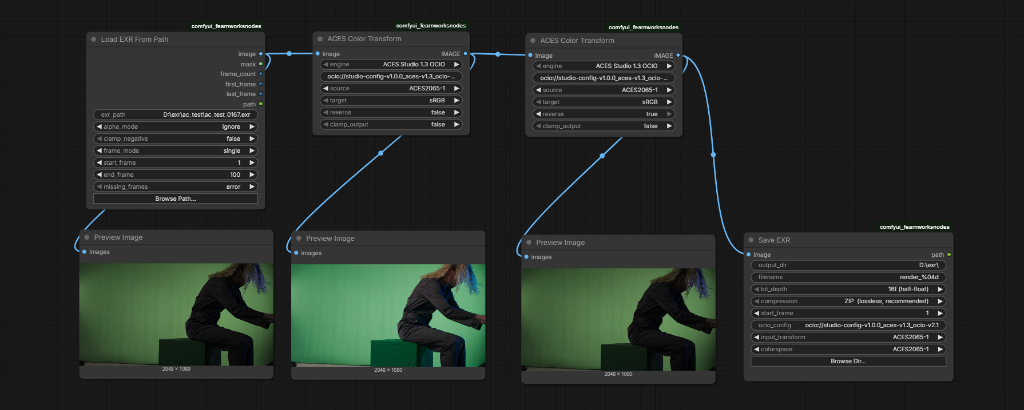
Key settings for a perfect round-trip:
- Node 2 (Forward):
source: ACES2065-1,target: sRGB,clamp_output: false. - Node 3 (Backward):
source: ACES2065-1,target: sRGB,reverse: true,clamp_output: false. - IMPORTANT: Always set
clamp_outputto false on intermediate nodes to preserve high-dynamic-range data for the reverse transform.
Troubleshooting
EXR does not show in file picker
Use Load EXR From Path. ComfyUI's upload widget is image-centric and can be unreliable for .exr.
Preview is white
Your EXR likely has transparency and white RGB in transparent pixels. Set alpha_mode to composite checker or composite black.
OCIO mode fails
Install OpenColorIO:
python -m pip install opencolorio
For portable ComfyUI, use its embedded Python:
D:\Ai\ComfyUI_windows_portable\python_embeded\python.exe -m pip install opencolorio
Built-in matrix mode limitations
Built-in matrices supports only:
sRGBLinear sRGBACEScgACES2065-1
Use ACES Studio 1.3 OCIO for camera spaces and full ACES config transforms.
License
MIT License. See LICENSE.