
Workflow Vault
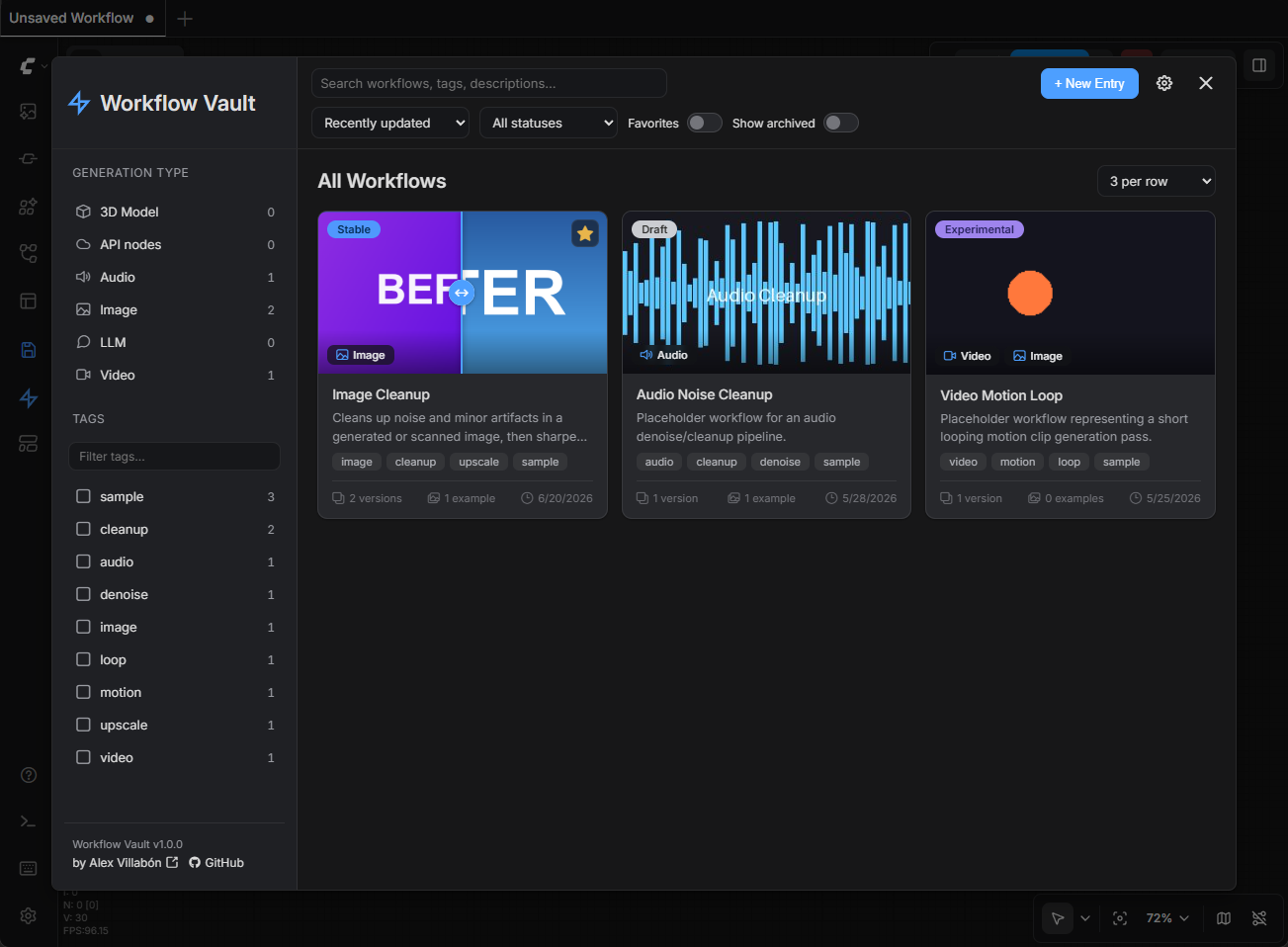
A local, single-user workflow library inside ComfyUI: save workflows as structured entries with versions, example media, and Markdown docs, then browse, tag, search, and reopen them.
ComfyUI Workflow Vault
A local, single-user workflow library built into ComfyUI. Save workflows as structured "vault entries" with versions, example media, and Markdown documentation — then browse, search, and reopen them later.
Everything is stored as plain files (JSON, Markdown, images/video/audio) in a folder you choose on disk. No database, no account, no cloud sync.
Installation
ComfyUI Manager (recommended)
- Open ComfyUI Manager → Custom Nodes Manager (the "Manager" button, then "Custom Nodes Manager" / "Install Custom Nodes").
- Search for Workflow Vault and click Install.
- Restart ComfyUI.
Manual
- Copy (or clone) this folder into your ComfyUI
custom_nodesdirectory, so you end up withComfyUI/custom_nodes/ComfyUI_Workflow_Vault/. - Restart ComfyUI.
Dependencies
The backend uses the standard library plus aiohttp and Pillow, both already
bundled by ComfyUI. The only extra dependency is imageio-ffmpeg, which ships a
self-contained ffmpeg binary used to convert videos (for thumbnails and
compare images) into animated WebP previews — many setups already have it (e.g.
VideoHelperSuite depends on it). Everything degrades gracefully: without Pillow,
image compression is skipped; without ffmpeg, you can still pick a still frame
from a video.
First run
Two Workflow Vault buttons appear in the left sidebar rail:
- ⚡ Vault (lightning-bolt logo) — opens the vault to browse and manage your saved workflows.
- 💾 Save (save icon) — saves the current canvas to the vault. The Save wizard lets you create a new entry or update an existing one (overwrite the current version, or add a new version). If the canvas was opened from a vault entry, Save defaults to updating that entry.
The first time you open the vault, you'll be asked to choose a folder on disk to use as your vault root. This folder is remembered for future sessions, and becomes your first vault, named "Default" (see Multiple vaults to add more, such as separate work and personal vaults).
If you just want to explore the UI without setting anything up, click
"Use included sample vault" on that screen — it points the vault at the
sample_vault/ folder bundled with this extension, which contains a few
example entries (image, video, and audio workflows) with versions, docs, and
example media already filled in. You can switch to your own folder later from
Vault Settings → Vaults (⚙), or add your own as a second vault and keep the
sample alongside it.
Features
Browse & search
- Grid view with search, status filter, Favorites and Show-archived toggles, sort controls (by name, created date, or last updated), and a card size selector (Small, Medium, Large, or Extra large) on the breadcrumb line. Cards scale with the window: the size sets the narrowest a card gets, cards stretch to fill the row, and another column appears as soon as there's room for one.
- Adapts to your screen — the vault window grows in steps as the screen gets larger (about 1400 → 1640 → 2000 → 2400 px wide) and never past 92% of the viewport. Pick a fixed maximum instead under Settings → General → Window size (Auto, Compact, Comfortable, Wide, Ultra-wide). Each option is a tile showing a miniature of the window, its maximum width, and what it gives on your screen (real width and about how many cards per row). It applies instantly and is saved with the vault, so it follows the vault to any browser. In a narrow window the sidebar filters collapse into a drawer opened from the filter button in the top bar.
- Sidebar filters with live counts:
- Generation Type (Image, Video, Audio, 3D Model, LLM, API Nodes). An entry can carry more than one type and shows up under each.
- Tags — a multi-select list of every tag in the vault, each with its usage count. Pick several to narrow to entries that carry all of them (combined with AND); selected tags float to the top, a Filter tags… box finds a specific one in large vaults, and a Clear button drops the whole selection. Active tags also appear as removable chips next to the title, and tag pills on the grid cards are clickable to add/remove a filter.
- Favorites — star any entry from the grid card or detail view; favorites pin to the top in "last updated" sort order.
- Grid cards show the thumbnail, entry name, status, generation type badge(s), favorite toggle, and a one-click "open workflow" button (shown on hover) that opens the workflow in ComfyUI and closes the vault. Thumbnails can be static images or animated (when made from a video) and loop automatically in the grid. Optional card fields (description, tags, version count, example count, date) are individually toggleable in settings for a cleaner look.
- Before/after compare thumbnails — give an entry an optional second "compare image" and its card shows a hover-to-wipe compare slider: move the cursor left/right across the card to reveal the thumbnail ("after") versus the compare image ("before"). The compare image accepts the same formats as the thumbnail (image or video, animated or a captured still). Entries without one fall back to the normal hover-zoom thumbnail.
- Accent color — a single color tints all icons and the logo throughout the UI. Choose from preset swatches or a custom color picker under Settings → Vaults; changes preview live before saving. Each vault keeps its own accent.
Entry detail
Five tabs, each with a count badge where it applies:
- Overview — a read-only summary (description, tags, status, generation type, and the thumbnail with Open folder and Export (.zip) buttons — the latter downloads the whole entry as a zip) followed by a full gallery of example media. The Versions and Examples tiles are shortcuts to those tabs. When the entry has a compare image, the Overview thumbnail itself becomes the same hover-to-wipe compare slider used on the grid card. Each example supports a before/after compare slider for image input/output pairs, a "reveal in folder" button per media item, and per-example notes.
- Notes — one or more Markdown notes per entry. Add note is always at the top; once there are two or more, they appear as sub-tabs you can rename and delete. Notes render as Markdown with a toggle for in-place editing.
- Versions — full version history: add a new version, overwrite the current one, promote a past version, and edit per-version notes.
- Examples — add, edit, delete, and reorder examples and their input/output media, with live previews and drag-to-move between Inputs and Outputs. Media can be dropped, browsed, or pasted (Ctrl+V / Paste from clipboard) into either the Inputs or the Outputs zone.
- Details — edit name, description, tags (with autocomplete), status, generation type, favorite toggle, and thumbnail (image or video, same as the Save wizard), plus read-only stats (created/updated dates, current version). Save changes and Discard stay pinned to the bottom of the tab while the form scrolls, and are disabled until something changes.
- More actions (⋯) in the entry header, available from every tab: Duplicate an entry into a new one (copies the thumbnail, tags, generation types, examples, and notes, plus only the current version), Archive / Restore, and Delete (sent to the OS Recycle Bin / Trash where supported). Actions that would drop unsaved edits ask first.
Save wizard
- Save the current canvas as a new entry or as a new version / overwrite of an existing one, with notes, examples (input/output media), favorite toggle, and a thumbnail — all in one step.
- A new entry requires a name, a status, at least one tag, and at least one generation type before it can be saved; anything missing is flagged inline. Status starts unset, so it's always a deliberate choice.
- Thumbnails accept an image or a video. Images are client-side
downscaled to 512 px max (WebP at 0.8 quality; JPEG fallback). Dropping a
video (MP4/MOV/WebM) offers two choices in the same slot:
- Animated — the clip is converted server-side to a looping animated WebP preview (fit within 512 px, 18 fps, first 5 s).
- Static frame — scrub to a frame and capture it as a still WebP, entirely in the browser (no ffmpeg needed). The untouched original (image or video) is kept as a separate archival source either way, and original file dates are preserved. A × on the preview clears the pick, here and in the entry's Details tab.
- Paste from the clipboard — every media box takes the clipboard as well as drops: the thumbnail, the compare image, and each example's Inputs / Outputs section. Press Ctrl+V with the box focused or under the cursor, or click Paste from clipboard. A paste lands in exactly one box (focus wins over the cursor), example pastes keep the input/output role of the section they land in, and text on the clipboard is left alone. Screenshots come in as images; files copied in Explorer/Finder arrive with their own names, so a copied video still offers the animated-vs-frame choice and several copied files land in one go. Firefox adds its own confirmation popup to the button — that prompt is the browser's, so Ctrl+V is the one-gesture route there.
- Compare image (optional) — a second media slot with the exact same picker and behavior as the thumbnail (image or video, animated or captured still). When set, it becomes the "before" layer of the hover compare slider on the grid card and Overview preview. Its untouched original is archived too, and a × clears it. Also editable later from the entry's Details tab.
Organization (tag-first)
- The vault is tag-first: organize and filter with tags, plus status, favorites, generation type, and full-text search. A workflow is multi-dimensional (e.g. Flux, portrait, upscaler, client-ready, heavy-vram), so tags fit it better than forcing a single folder "home."
- Tags are added per entry in the Save wizard and the entry editor, filtered on from the sidebar Tags facet (multi-select, AND), and managed vault-wide in Settings → Organization (rename, merge, delete across all entries).
- Legacy folders: vaults created before folders were deprecated keep their
folder data untouched. Settings → Organization shows a one-time conversion
that turns folder-path names into plain tags (e.g.
Image / Cleanup→image,cleanup). It lists each folder name with a checkbox and a count, so you choose which to keep and untick any junk folders before converting. Nothing is deleted —folders.jsonand the entries' folder assignments are preserved, so it's safe to re-run.
Image compression (Pillow)
- Example images are automatically re-encoded on upload to a smaller WebP or JPEG (WebP by default — keeps transparency and the embedded ComfyUI workflow so images stay drag-droppable into ComfyUI). Toggle on/off per vault.
- Thumbnail source — for image thumbnails, the full-resolution archival original is saved as a smaller WebP that keeps transparency and the same resolution, with the ComfyUI workflow still embedded — so it stays drag-droppable into ComfyUI. (Video sources are archived as-is, untouched.)
- Batch compression — a single action in Settings re-encodes all existing example images and thumbnail sources across the vault. Idempotent (files already compressed are skipped) and shows a completion summary (files converted, bytes before/after, percentage saved).
- Original file dates (modified and created) are always preserved on converted files.
Global vault settings
Vault Settings (⚙) is organized into four tabs:
- General
- Defaults — show archived entries by default, and the placeholder-vs-blank behavior when an entry has no thumbnail.
- Card display — toggle individual grid-card fields (Description, Tags, Version count, Example count, Date) on or off for a minimal look.
- Window size — Auto, Compact, Comfortable, Wide, or Ultra-wide (see "Adapts to your screen" above).
- Organization
- Tags — rename, merge (rename to an existing tag), or delete tags across all entries.
- Legacy folders — appears only if the vault still has folder assignments from before folders were deprecated; offers a one-time conversion of folder paths into tags, with a checkbox per folder name so you choose which to apply. Folder data is preserved, never deleted.
- Storage
- Footprint — a breakdown of disk usage: total on disk, a bar splitting space across example media / thumbnails / workflows, and counts of workflows, versions, examples, and tags.
- Compression — example/thumbnail-source compression toggles and format choice (WebP/JPEG), plus a batch re-encode action.
- Backup — download the entire vault (entries, media, versions, settings)
as a single
.zip. - Health — check the vault for interrupted saves, orphan entry folders,
and missing referenced media/workflows. The same panel can clean
.wv_staging_*interrupted-save folders by moving them to the OS Trash/Recycle Bin where supported.
- Vaults — add, rename, switch, and remove vaults, and set the active vault's folder and accent color (see Multiple vaults below).
Multiple vaults
Keep separate vaults — say Work and Personal — and switch between them without leaving ComfyUI. Each vault is its own folder with its own entries, tags, and settings (including its accent color).
- Switch from the Vault dropdown at the top of the sidebar. Filters and any open entry reset so nothing from one vault leaks into another.
- Add, rename, and remove vaults in Settings → Vaults. Adding takes a name plus a folder: an empty one starts a fresh vault, an existing vault folder is reused as-is. The active vault's folder and accent color are edited on the same tab.
- Removing a vault only forgets it — the folder and everything in it stay on disk, and you can add it back later. The active vault can't be removed.
- When you have more than one vault, the save wizard shows which one it is saving into.
- Existing installs upgrade automatically: your current vault is listed as "Default" (rename it any time). Nothing is moved or copied.
- If a vault's folder has gone missing (an unplugged drive, a moved install), switching to it reports that instead of silently creating an empty one.
Quality of life
- Keyboard shortcuts — press ? (or click the ⚡ button between New Entry and Settings) for the list. In the grid: / focuses search, the arrow keys, Home and End move between workflows (↓ from the search box jumps into the results), Enter opens the focused workflow's details, O opens it in ComfyUI, and N starts a new entry from the current canvas. With a tab focused inside an entry, ← / → switch tabs. Single-key shortcuts are ignored while you're typing in a field.
- ComfyUI shortcuts stay out of the way — while the vault is open, keystrokes no longer reach ComfyUI (pressing N or M used to pop its node or model library open behind the vault).
- Opening a workflow returns you to where you were — every "open" action (grid card, entry header, a version's Open in Graph) opens the workflow in a new ComfyUI tab and closes the vault. Reopen it and you land back on the same entry (or the grid, if that's where you started). If an entry form has unsaved edits, you're asked before the vault closes.
- Fast on large vaults — entries are found by an in-memory index that is checked against the files on every use, and each entry's loaded state is cached against a fingerprint of its files. Both re-verify against the disk, so editing or moving folders by hand stays safe; they just avoid re-reading every entry for every thumbnail and every click.
- Loading skeleton — the window opens at its final shape with a shimmering placeholder grid instead of a text line, and cards ease in once the vault has loaded or you switch vaults (both respect "reduce motion").
- One consistent entry layout — every entry tab (Overview, Notes, Versions, Examples, Details) sits in the same centered page width, which grows with the window. On wide windows the Overview puts the summary and the examples side by side as matching panels (tops and bottoms aligned), and Versions flow into two columns.
- Version number, author credit, and link to GitHub repo in the sidebar footer.
- Sidebar rail icons and the vault logo are tinted by the accent color.
- Thumbnails use lazy loading for snappy grid performance at any library size.
On-disk layout
<vault root>/
  vault_settings.json
  folders.json             ← legacy (folders are deprecated; preserved if present)
  entries/
    <entry_slug>/
      manifest.json
      notes.json
      thumbnails/
        cover.<ext>          ← display thumbnail (image, animated WebP, or still)
        source.<ext>         ← archival original (image or video)
        compare.<ext>        ← optional compare "before" image (animated WebP or still)
        compare_source.<ext> ← archival original of the compare image
      versions/
        v001/{version.json, workflow.json}
        ...
      examples/
        example_001/{example.json, inputs/, outputs/}
        ...
Recovery and backups
- The vault is plain files, so the best backup is a copy of the whole vault folder or the Settings → Storage → Export vault (.zip) action.
- Whole-entry deletes, example deletes, individual example-media deletes, and interrupted-save cleanup use the OS Trash/Recycle Bin where supported. If the OS has no usable trash mechanism, deletion falls back to permanent removal.
- New entries are written into hidden
.wv_staging_*folders first, then moved into place only after the manifest and related files are complete. If ComfyUI exits during a save, the Storage tab's Health panel can detect and clean those staging folders. - Health checks are read-only. Cleanup only targets
.wv_staging_*folders; it does not delete complete entries. - Before running batch compression or large cleanup work, make a vault export or copy the vault folder.
- The selected vault location and your list of vaults are stored beside the
extension in
vault_config.json, not inside the vault. Moving a ComfyUI install may require pointing Workflow Vault at the vault folder again.
Troubleshooting
A video shows "Can't play this video" with a Save an H.264 copy button
The browser reported it can't decode that file's format at all. The usual cause
is H.265/HEVC: Firefox on Windows plays it only through a hardware decoder
and has no software fallback, so an HEVC output plays fine in Chrome and shows
nothing in Firefox. 10-bit HEVC (yuv420p10le) is what ComfyUI writes when a
Video Combine node is set to h265-mp4.
Click Save an H.264 copy on the failed player. The vault re-encodes the clip to 8-bit H.264 — the one profile every browser decodes — and points the entry at the copy. The conversion:
- keeps the original file on disk next to the copy (
clip.mp4→clip_h264.mp4), because re-encoding is lossy and drops 10-bit to 8-bit; - preserves the embedded ComfyUI workflow byte-for-byte, so the converted file is still drag-droppable onto the canvas;
- keeps the original's modified/created dates, so sorting doesn't change.
It needs ffmpeg (bundled via imageio-ffmpeg). To avoid the problem at the
source, set your Video Combine node's format to h264-mp4 rather than
h265-mp4.
Example videos show playback controls but won't play (stuck at 0:00 / 0:00)
This is the other video failure, and Convert won't help — the format is fine, decoding just never starts. Videos load but never show a frame: blank player, black thumbnails in the example filmstrip, no error message. Images in the same entry load fine, and the same vault plays normally in Chrome or Edge.
This is a browser video-decoding problem, not a vault problem. It shows up on machines that have a virtual display adapter installed — Parsec, Sunshine / Moonlight, RDP, or a VM — which is common for a headless ComfyUI box you drive remotely. Firefox picks one adapter for hardware video decoding, and if it lands on the virtual one (which has no decoder) it doesn't reliably fall back to software decoding.
Fix, in Firefox:
- Open
about:configand accept the warning. - Search for
media.hardware-video-decoding.enabled. - Double-click it to set it to
false. - Fully quit and restart Firefox — not just the tab.
This forces software decoding, which handles typical example clips comfortably.
It's fully reversible. If that doesn't help, check about:support → Graphics to
see which adapter Firefox chose, or point Firefox at the real GPU via Windows
Settings → System → Display → Graphics → Add desktop app → firefox.exe →
Options → High performance.
Manual smoke checklist
Before calling a build release-ready, test it in a live ComfyUI session:
- ComfyUI starts and both Save/Vault sidebar buttons appear.
- Create a new entry with a thumbnail, compare image, notes, and example media.
- Rename that entry and verify its versions, thumbnail, compare image, and examples still open.
- Open the saved workflow, then save back as a new version and as an overwrite.
- Add, reorder, rename, and delete example media; deleted media should go to the OS Trash/Recycle Bin where supported.
- Export a single entry and the full vault.
- Run Settings → Storage → Health → Check vault and confirm the report is clean for the test vault.
- Add a second vault under Settings → Vaults, switch between them from the sidebar, and confirm entries, tags, and accent color stay separate.
- Try each Window size and Card size; resize the browser and confirm cards fill the row and a column is added when one fits. Below about 900 px wide the sidebar should collapse into a drawer opened from the filter button.
- Click Open on a card and from an entry's header: the workflow opens in a new tab, the vault closes, and reopening lands where you were.
- Press ? for the shortcuts list, then try /, the arrow keys, O, and N — and confirm ComfyUI's own shortcuts (N, M, W) don't fire behind the vault.
Notes
All vault data is plain files on disk, so it's easy to back up, move, or
inspect. The bundled sample_vault/ is just example data — your own entries
live in whichever vault root you choose, separate from this extension.
License
Released under the GNU General Public License v3.0 (see LICENSE). You're free to use, study, modify, and share it; derivative works must remain open under the same license. GPL-3.0 is compatible with ComfyUI (itself GPL-3.0).