
Pose & Outfit Reference
Browse local pose and outfit references, output images, and compose an editable positive prompt.
Pose & Outfit Reference for ComfyUI
Pick a pose. Pick an outfit. Send the reference images and a ready-to-edit positive prompt into your ComfyUI workflow.
Credit where it belongs
This is a ComfyUI adaptation of an existing gallery project. I did not create the original gallery/tool or its reference assets, and I do not claim them as my work. My contribution is this small, independent ComfyUI integration.
Huge thanks to ギア / @giaaibusi for the original pose and outfit galleries, and to Anhao for the Chinese gallery project, its localization, organization, and generous work making these references easier to explore. Their work is the reason this adaptation exists. Please visit the original projects and give their creators the recognition and support they deserve.
The aim here is simply to make this wonderful reference workflow convenient inside ComfyUI, with English descriptions and editable prompt text. This is an independent adaptation, with no claim of endorsement or affiliation. If a creator or rights holder would prefer this adaptation or any referenced material removed, I will gladly take it down. Full credits and image terms.
What it does
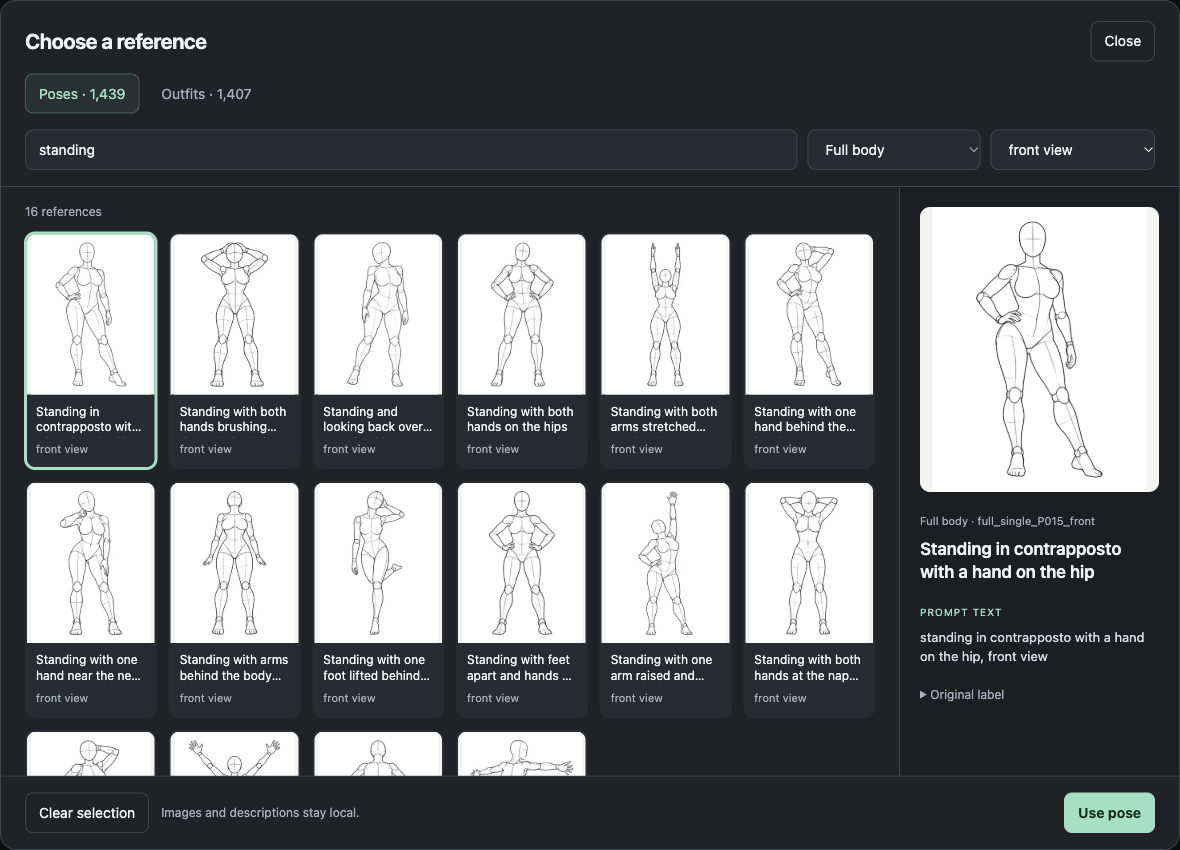
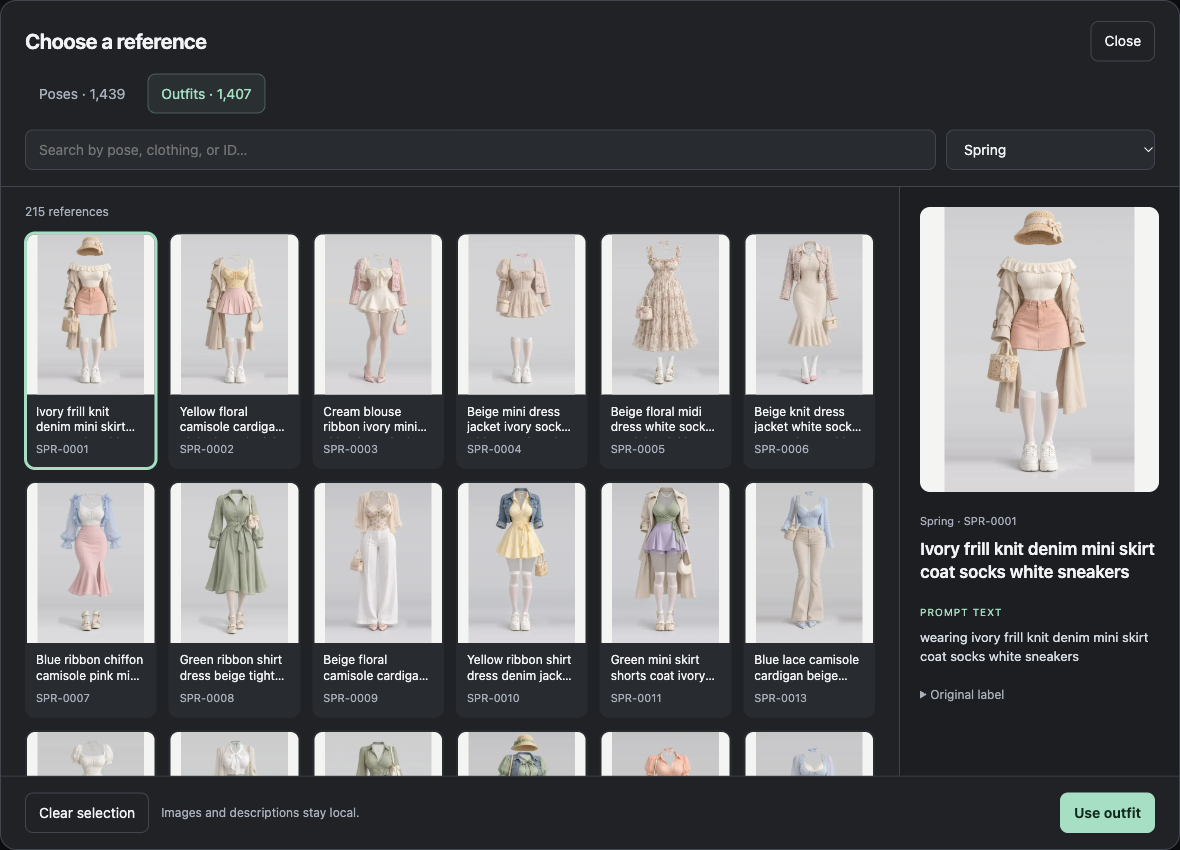
- Switch pose galleries on the node and filter thumbnails by saved tags, category, camera angle, or search.
- Choose pose and outfit references independently.
- Compose a positive prompt with a simple text template.
- Override either description without changing its reference image.
- Preview images and prompt text directly on the canvas.
- Run locally without a model or an API key.
The node provides reference images; connect them to the image-conditioning nodes you already use. It does not generate a finished image by itself.
<!-- Screenshot insertion point: docs/screenshots/workflow-overview.png. Captures stay local pending permission for the depicted gallery images. See docs/screenshots/README.md for captions and insertion snippets. -->Install
Clone this repository into ComfyUI/custom_nodes/ComfyUI_PoseGenerator. Using
ComfyUI's Python environment, install the requirements and restart ComfyUI:
python -m pip install -r requirements.txt
Add Pose & Outfit Reference from image → reference.
Two pose galleries come with the pack: Instagram Poses (28 poses) and OF poses (22 poses), each pose with a saved depth map. Both are mannequin drawings made with Pose Studio from the publisher's own photos. Pick them from the node's Pose gallery dropdown; no setup needed. Outfits are separate (below).
94 outfits ship too, in assets/shipped/Outfits/: original ghost-mannequin outfits in 15 styles, with tags by body zone, colour, fabric and season that you can filter by. How to add outfits.
Bring references you have permission to use. Put your images and a
catalog.json in assets/gallery, or point POSE_GENERATOR_ASSETS to your own
library folder. Library setup and catalog example.
The public source and registry package do not bundle the original gallery images (poses or outfits). The original pose and outfit sites currently prohibit bulk downloading and redistribution, including modified copies. Gallery distribution and automated setup remain on hold pending the rights holder's permission. The local research catalog contained 1,439 poses and 1,407 outfits; these are not included downloads.
Use
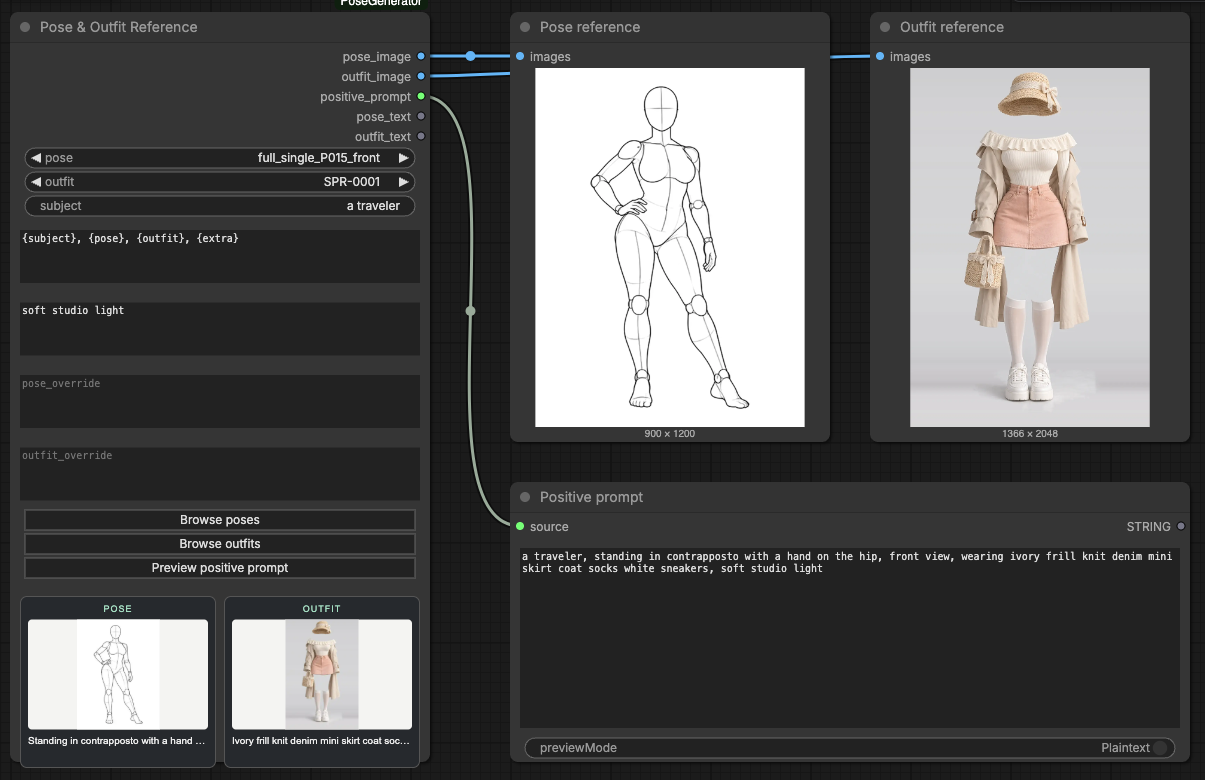
- Click Browse poses or Browse outfits, choose a thumbnail, then click Use pose or Use outfit.
- Enter a subject, optional extra details, and any description overrides.
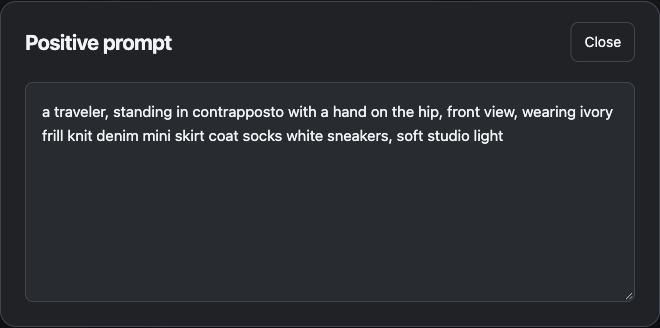
- Click Preview positive prompt to inspect the composed text.
- Connect the image outputs to your reference-image workflow and
positive_promptto CLIP Text Encode (Prompt) or your preferred encoder. Convert the encoder's text widget to an input if needed.
| Output | Type | Use |
| --- | --- | --- |
| pose_image | IMAGE | Selected pose at its source dimensions |
| outfit_image | IMAGE | Selected outfit at its source dimensions |
| positive_prompt | STRING | Composed text for your positive prompt |
| pose_text | STRING | Pose description on its own |
| outfit_text | STRING | Outfit description on its own |
| picture_1 … picture_4 | IMAGE | The subject photo, pose, outfit and location picture that exist, in prompt order |
| width, height | INT | Size of picture_1 (0 without pictures) |
Choose None or Clear selection to omit a reference from the prompt. An omitted image output is a black 1×1 placeholder; leave it unconnected.
Edit a photo of a person
Connect a photo to the optional subject_image input to put that person in the chosen pose and outfit with an image-edit model such as MiniMax H3 Image.
- Wire
picture_1,picture_2,picture_3,picture_4to the model's image 1, 2, 3, 4, in that order, andpositive_promptto its prompt. Wire them straight into the model: a missing reference leaves its output empty. - Wire
widthandheightto the model's size inputs.
The node numbers the pictures and writes the prompt to match, so you never type picture numbers yourself.
| Input | What it does |
| --- | --- |
| picture_tag | How the prompt names a picture. <Picture {n}> for MiniMax H3, image {n} for Qwen Edit, Kontext or Seedream. Empty gives a plain text prompt. |
| edit_target | Which picture is picture_1, the one the model edits. Pose keeps the drawing's pose, framing and camera angle. Subject keeps the photo's scene and is looser on the pose. |
| location_image | Optional picture of a place. The result is set there (setting, background and lighting, not the people in it). It is the last numbered picture. |
| location | From the location image uses the connected location_image; a connected one also takes over from the subject photo without changing this setting. Otherwise, with the pose as the edited picture: From the subject photo takes the photo's place and lighting, Plain studio gives a white background and the tightest pose match, Custom leaves it to extra. |
| megapixels | Resizes picture_1 to about this area. 0 leaves it as it is. |
| reference_text | Adds the pose and outfit descriptions alongside the pictures, or points at the pictures only. |
With no outfit selected, the person keeps the clothes from their photo. MiniMax H3 Image example.
Prompt templates
{edit} {subject}, {pose}, {outfit}, {location}, {extra}
For example, with your own descriptions:
a traveler, standing with one hand on the hip, front view, wearing a blue jacket, soft studio light
Supported fields: {edit}, {subject}, {pose}, {outfit}, {location}, {extra},
{pose_name}, {outfit_name}, and {angle}. {edit} and {location} are empty
unless picture_tag is set and there is a picture to refer to. A template that leaves
them out still gets both: the opener at the start and the location before {extra}.
Set location to Custom to leave the location out. Outfit text already begins with “wearing”.
Use pose_override and outfit_override to refine the text.
Prompt weights such as ({pose}:1.2) and line breaks work. Use {{ and }} for
literal braces. Templates perform literal substitution; they do not execute code.
Example workflow
Download the four-node preview workflow, then drop it onto ComfyUI. Select references from your own installed library and click Run to see both images and the composed text. No checkpoint, GPU, or additional node packs are required. Example instructions.
Documentation
- Local libraries and optional WebP optimization
- Registry publishing and GitHub social preview setup
- Development and pre-upload checks
- Credits, source terms, and removal requests
The integration software is MIT licensed. That license grants no rights to the original gallery images, metadata, or derived descriptions.