
Artfat MOSS BBox
Box layouts for MOSS-Image: draw boxes on a canvas to generate a frame where every box holds what you wrote, or to edit only the boxes of an existing picture (outside the boxes stays pixel-identical). Canvas + Sampler, built to sit around an LLM prompter.
ComfyUI-Artfat-MOSS-BBox
Box layouts for MOSS-Image in ComfyUI. Draw boxes on a canvas and write in each box what must be there.
<img src="images/bbox_node.png" alt="Artfat BBox Canvas: draw boxes and write what must be inside each" width="420">- Generate: a new frame where every box holds what you wrote — a sign with exact words, an object, a character.
- Edit: redraw only the boxes of an existing picture. Everything outside the boxes stays pixel-identical, and the soft edge leaves no seam.
Two nodes do the work, so an LLM prompter can sit between them (plus Frame Hold to edit a frame you have just generated):
Artfat BBox Canvas ──brief──► LLM prompter ──prompt──► Artfat BBox Sampler ──► image
        │  └─ image ─────────► (sees the picture)          ▲
        └──── layout + mask + size ───────────────────────┘
The canvas tells the prompter what the boxes must hold, the prompter writes the prompt for the whole frame, the sampler draws it. It works just as well without an LLM: type the prompt yourself.
Examples
Edit: a sign and a floor redrawn, the rest untouched
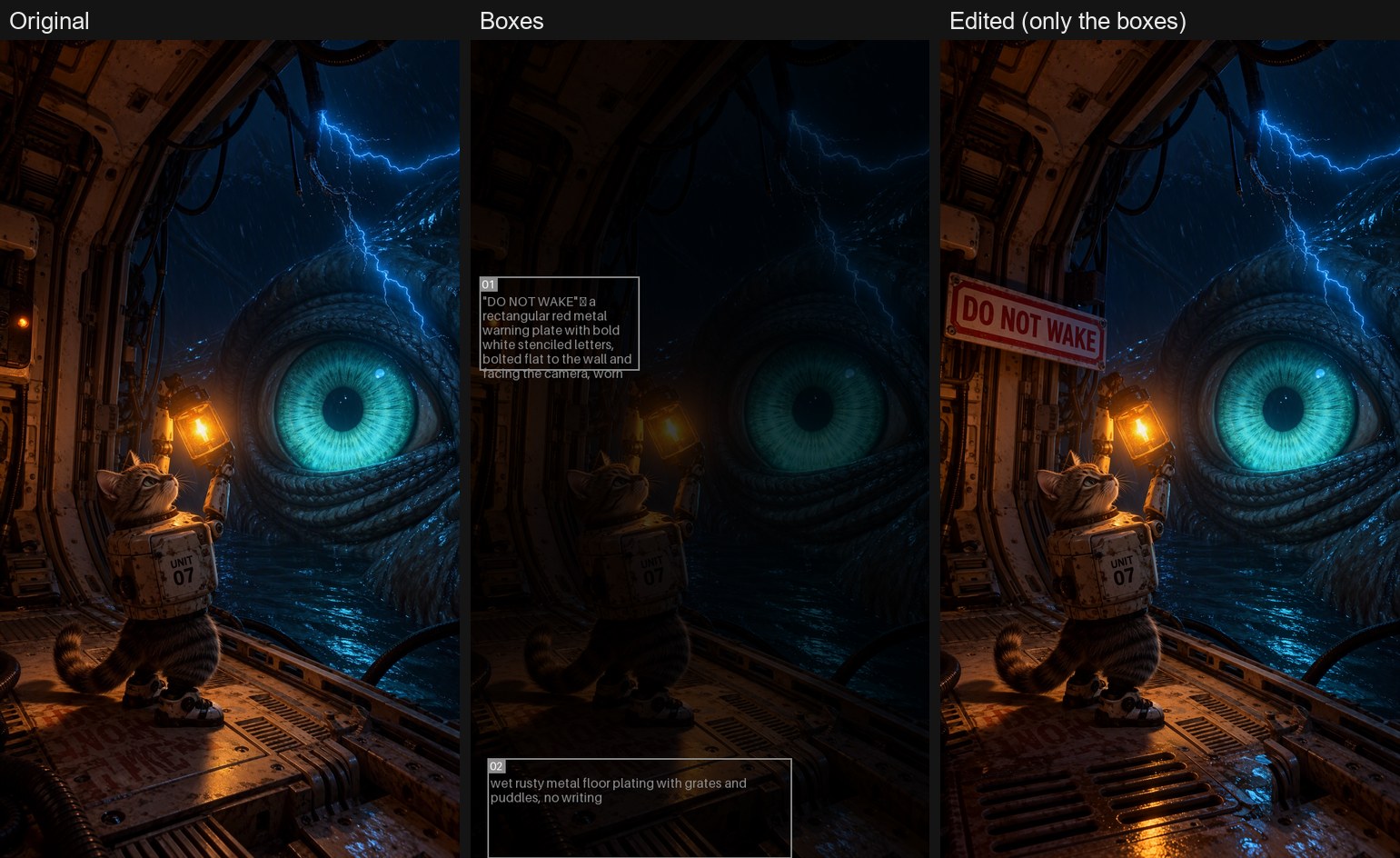
Generate: every box holds what was written in it
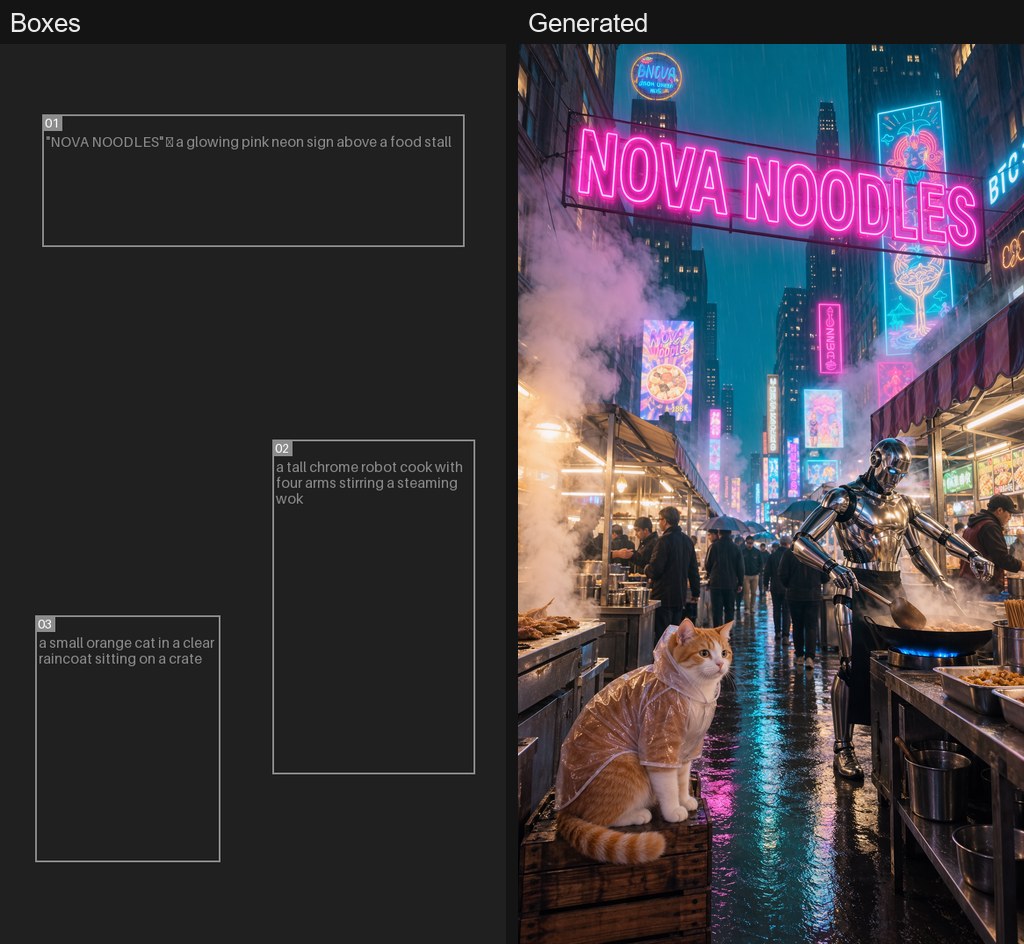
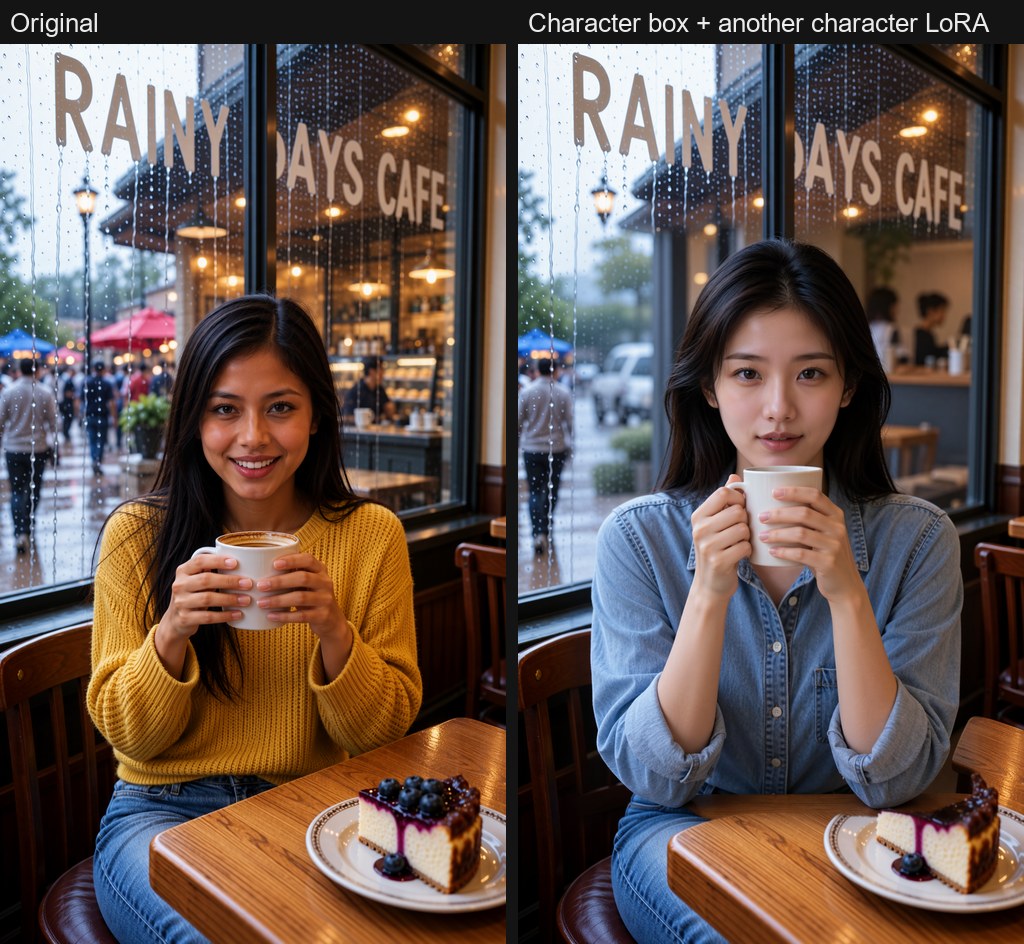
Edit with a character box: another character LoRA in the same scene
Boxes together with depth control
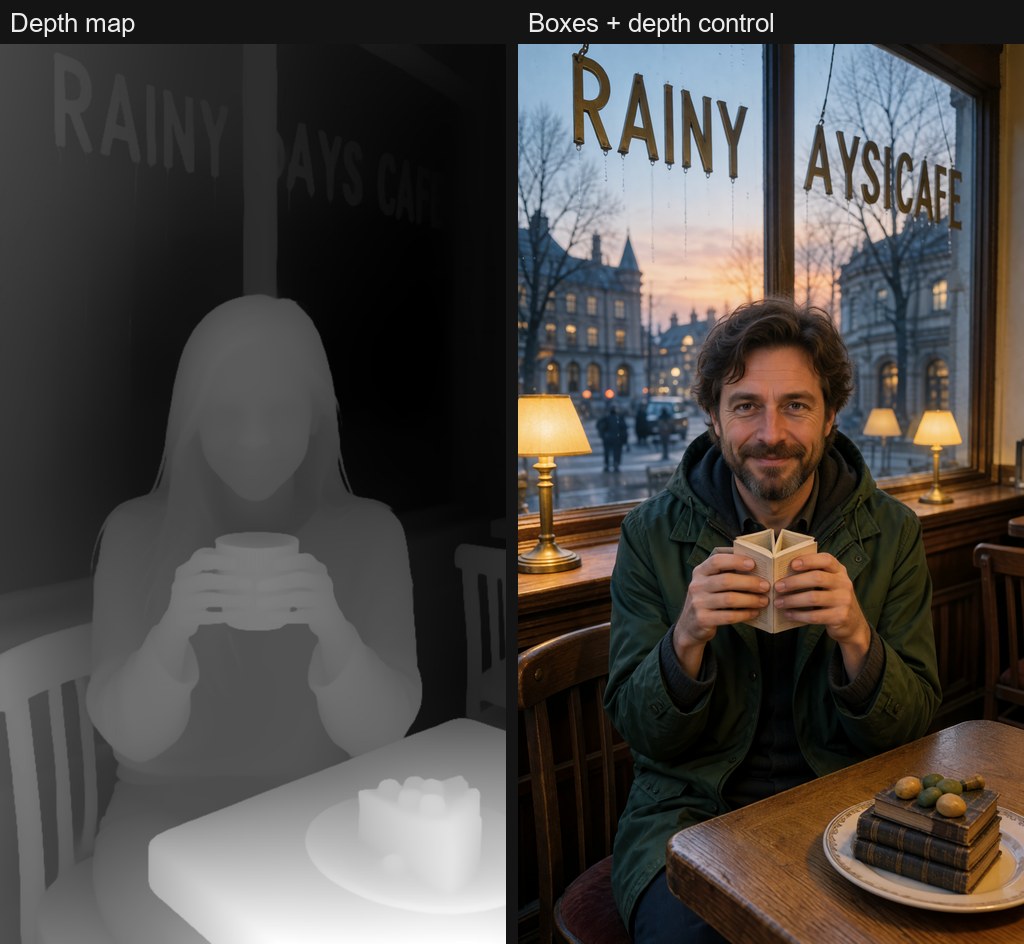
Requirements
- ComfyUI v0.42.0 or newer (MOSS-Image support; the box canvas itself is in ComfyUI since v0.27.0). On an older ComfyUI the pack loads empty and prints one line asking you to update.
- Nodes 2.0 turned on: Settings → Modern Node Design (Nodes 2.0). The box canvas is a Nodes 2.0 widget; with the classic node design it shows only "Bounding Boxes: Node 2.0 only".
- A MOSS-Image model (SFT or Base), the
moss_imagetext encoder and the Flux 2 VAE, loaded with the standard ComfyUI loaders. - RES4LYF for the sampler
res_6sand schedulerbong_tangentthe defaults are tuned for. Without it the sampler falls back toeuler/simple, but the example workflow is saved withres_6sand stops with "Value not in list" until RES4LYF is installed (ComfyUI Manager → search RES4LYF). After a manualgit clone, also runpip install -r requirements.txtin the RES4LYF folder with ComfyUI's Python (it needs PyWavelets). - Optional: Artfat LLM Prompter v2 for automatic prompts (task preset BBox layout: whole frame with the [BOXES]).
- Optional, for depth control: ComfyUI v0.42.2+ (
MOSS-Image Color/Depth Control).
Install
ComfyUI Manager → Custom Nodes → search Artfat → Artfat MOSS BBox → Install. If the search does not find it: ComfyUI Manager → Install via Git URL → https://github.com/artfat-creator/ComfyUI-Artfat-MOSS-BBox. Or:
cd ComfyUI/custom_nodes
git clone https://github.com/artfat-creator/ComfyUI-Artfat-MOSS-BBox
No extra Python packages. Restart ComfyUI, then open example_workflows/MOSS_BBox_generate_and_edit.json.
Quick start
Edit a picture
- Connect a Load Image to the canvas
imageinput. The picture appears under the boxes. - Draw a box over each part to change. In the box editor pick object or text, write what must be there (for a text box: the exact words, plus what they are printed on).
- Write the prompt for the whole frame as it must look after the change, or let the prompter do it.
- Run. Only the boxes are redrawn and pasted back.
Generate a new frame
- Bypass the Load Image (Ctrl+B) or leave the canvas
imageinput empty. - Set
width/heighton the canvas and draw where each thing goes. - Write your idea in
briefand run.
Nodes
Artfat BBox Canvas
The drawing canvas (ComfyUI's own bounding-box editor) plus everything the other nodes need.
| Input / widget | What it does |
|---|---|
| image (optional) | The picture to edit. Connected = edit mode, empty = generate mode. |
| bboxes (optional) | Boxes to start the canvas from. |
| width, height | Frame size in generate mode. In edit mode they follow the picture. |
| canvas | Draw the boxes; per box: object or text, the words, a description. |
| brief | Your idea for the whole frame. Sent on together with the box list. |
| character_boxes | Numbers of the boxes that hold your LoRA character, e.g. 1 or 1, 3. |
| megapixels | Edit size: the picture is scaled to this many megapixels (multiple of 16). Default 2.0. |
| grow | Edit: how far past each box the redraw reaches, px. Default 16. |
| feather | Edit: soft edge past the grown box, px. Default 64. 0 = hard edge and a visible seam. |
| Output | What it carries |
|---|---|
| image | The scaled picture (edit) or nothing (generate). |
| mask | The redraw area with the soft edge. |
| brief | Your brief + a [BOXES] list: number, kind, place in the frame and size, content. Wire it into the prompter's brief. |
| layout | The boxes for the sampler. |
| width, height | The frame size the sampler must use. |
| preview | The boxes drawn over the frame. |
| bboxes | The boxes in pixels (for other box nodes). |
Artfat BBox Sampler
Builds the MOSS layout prompt from your prompt + the boxes, samples and, in edit mode, pastes the result back through the mask (Differential Diffusion for the soft edge).
| Input / widget | What it does |
|---|---|
| model, clip, vae | The MOSS-Image model with your LoRAs already applied, its text encoder, the Flux 2 VAE. |
| prompt | The whole frame as it must look in the end. |
| layout, image, mask, width, height | From the canvas. |
| seed, steps, cfg, sampler_name, scheduler | Defaults: 8 steps, CFG 1, res_6s / bong_tangent when installed (RES4LYF), otherwise euler / simple. |
| start_step | Edit only. 0 = full redraw of the boxes. Higher keeps more of the old box content but weakens the change. |
| positive, negative (optional) | Your own conditioning, e.g. after depth control. Replaces the built-in encode. |
| Output | |
|---|---|
| IMAGE | The result. |
| LATENT | The sampled latent, for a second pass. |
| layout_prompt | The exact text the model received (layout JSON). |
Artfat Edit Source
Put it in front of the canvas image input, with your Load Image wired into it. One switch, source:
| source | What goes to the canvas |
|---|---|
| new image (default) | nothing: a new frame is generated. The Load Image is not read. |
| my photo | the picture from your Load Image, to edit it with boxes. |
| edit last result | the frame the BBox Sampler drew last, to box and edit what you just generated. See Edit what you just generated below. |
The Load Image must still point at a file that exists (ComfyUI checks it before every run), so the example workflow uses example.png, which ships with ComfyUI. Workflows saved before 1.2.2 are converted on load: the old switch ON becomes edit last result, OFF becomes my photo (or new image when the Load Image was bypassed).
Artfat Frame Hold
hold OFF: passes the generated frame through and remembers it. hold ON: returns the remembered frame and skips the generation. See Generate, then edit the same frame below.
Artfat BBoxes to Mask
Pixel boxes (bboxes) → a mask with a soft edge (feather). For your own edit graphs built from core nodes.
Tips
- Describe the frame after the change. In edit mode a prompt that still describes the old content (a description of the original picture) pulls the old thing back into the box.
- Text boxes: short words work best; give the box room. If the text comes out on the wrong surface, describe the surface in the box (
a red metal plate bolted to the wall). - Moving text or an object: box the new place with the new content and box the old place with what should be there instead (
plain wet floor, no writing). - Hands and faces near a box edge can glue together: cover them completely or keep the box off them.
- Seam visible: raise
feather. Change too weak: keepstart_stepat 0. - Character boxes: mark the box number in
character_boxes; the prompter preset then leaves the look to your LoRA (no face or body description). In edit mode this puts a different character into the same scene: box the person, load the other character LoRA. - Box positions: the sampler places boxes by fractions of the frame, so a canvas drawn at one size works at any other size of the same aspect.
With depth control
Use the canvas layout with the core MOSS-Image Layout Prompt → CLIP Text Encode → MOSS-Image Color/Depth Control, and connect the result to the sampler's positive. The sampler then uses your conditioning as it is.
Depth wins over boxes where they disagree. Lettering in the depth source shows up in the depth map as relief, so a text box over that area renders the old letters, not yours. Keep text boxes where the depth source has no lettering, or lower the control strength / end_percent.
Edit what you just generated (Artfat Edit Source)
A wire from the sampler back into the canvas would be a loop, so the BBox Sampler remembers every frame it draws and Artfat Edit Source hands it back to the canvas.
source=new image: generate as usual.- Set
sourcetoedit last resultand run once with no boxes - the picture goes through untouched (about a second) and shows under the canvas. - Draw boxes over what to change and run. Only the boxes are redrawn; every next run edits the newest result.
With the Artfat LLM Prompter use the task preset User prompt -> edit: it keeps your own prompt word for word and changes only what the boxes list (no boxes = the prompt is passed on and the LLM is not called). A prompt that still names the old object pulls it back into the box.
Generate, then edit the same frame (Artfat Frame Hold)
To draw boxes on a frame you have just generated, put Artfat Frame Hold right after the VAE Decode of your generation and route every use of that frame through it (preview/save, the canvas image, the upscale).
holdOFF, run: the frame is generated and remembered.- Draw the boxes on it (it shows under the canvas), switch
holdON, run: the remembered frame is used and the generation is skipped, even with a random seed. Only the boxes are redrawn. - Switch
holdOFF for a new frame.
The input is lazy: while hold is on, ComfyUI does not run the sampler behind it, unless another node in the graph still takes the generation directly. The remembered frame lives in memory until ComfyUI restarts.
License
MIT