
Apixly Media
Create images and videos with apixly.ai. Resume tasks in ComfyUI; get API keys, models and usage at platform.apixly.ai.
Apixly Media for ComfyUI
Generate images, edit references and create videos through apixly.ai. Connect your own Apixly account, choose an owned Key and discover its current models. Shape lighting, viewpoint and camera instructions for free, then explicitly submit an exact model. Preview the result and pass images, URLs or video files to the next step.
15 nodes · 12 starter workflows · 中文说明
<p> <a href="#install"><strong>Install the nodes →</strong></a> · <a href="#2-connect-your-account"><strong>Connect your account →</strong></a> · <a href="https://platform.apixly.ai/keys">Manage API Keys</a> · <a href="https://platform.apixly.ai/models">Models & prices</a> · <a href="https://registry.comfy.org/publishers/apixly/nodes/comfyui-apixly">Comfy Registry</a> </p>MIT licensed · Python 3.10+ · No local GPU required for API generation
- Free creative controls: orbit diagrams, lighting presets and camera/lens instructions compose a prompt without an API call.
- More original Studixly tools: expression grid and face preview, lossless image-grid slicing, AI enhancement instructions and nine character-sheet plans. Five new nodes execute offline for free.
- Your account and models: authorize in your browser, choose the default Studixly Key or another owned Key, then open a live model picker.
- Images and reference edits: use a dedicated editing node and pass every image in a reference batch.
- Text and reference video: use explicit models and keep the resulting file or temporary URL.
- Task recovery: copy the task ID and retrieve an existing result without generating again.
The plugin is free. Generation requires your own Apixly account or server API key, access to the chosen model, and sufficient API balance. API charges are separate from Comfy credits and subscriptions. This package is maintained by Apixly and is not a Comfy Partner Node. Selected 1K image generation costs US$0.02 per image as checked on October 23, 2026; see current model prices for your model and settings.
Original tools, inside ComfyUI
<p align="center"> <a href="assets/screenshots/expression-compose-v2.png"><img src="assets/screenshots/expression-compose-v2.png" alt="Real free Expression grid connected to Compose V2, with a joyful expression instruction." width="48%"></a> <a href="assets/screenshots/image-grid-split.png"><img src="assets/screenshots/image-grid-split.png" alt="Real offline Grid Split: the source image, a 2 by 2 grid and four tile previews displayed as a mosaic." width="48%"></a> </p> <p align="center"> <a href="assets/screenshots/enhancement-prompt.png"><img src="assets/screenshots/enhancement-prompt.png" alt="Free Enhancement Prompt uses the connected image dimensions and outputs an exact model and 1K parameters." width="48%"></a> <a href="assets/screenshots/character-sheet-plan.png"><img src="assets/screenshots/character-sheet-plan.png" alt="Free Character Sheet Plan with one selected shot, beside the previously generated and saved character example." width="48%"></a> </p>These are actual offline utility nodes and stock previews. Click a capture to inspect it. Grid Split returns four separate tiles; the stock preview arranges them as a mosaic. The character picture is a saved example loaded separately, not an automatic output of the free planner. On small screens, use the host's Hide Minimap control if the map covers your nodes.
One planned shot, two reference edits
<p align="center"> <a href="assets/examples/character-neutral.jpg"><img src="assets/examples/character-neutral.jpg" alt="Original generated character: a neutral red-haired astronaut in a white and orange flight suit." width="32%"></a> <a href="assets/examples/character-smile.png"><img src="assets/examples/character-smile.png" alt="Expression and Compose V2 reference edit: the same character with a broad joyful smile." width="32%"></a> <a href="assets/examples/character-enhanced.jpg"><img src="assets/examples/character-enhanced.jpg" alt="AI redraw enhancement of the original neutral character, retaining the costume and scene." width="32%"></a> </p>Left: one explicitly selected character plan, generated with grok-imagine-image.
Center: Expression → Compose V2 → gemini-3.1-flash-image reference edit.
Right: Enhancement Prompt → the same Gemini model. Both edits used the saved
original on the left. These are unretouched original API files, with provider
metadata retained. The request used 2:3; actual outputs are 768 × 1152,
848 × 1264 and 843 × 1264. The first image omits the feet despite a full-body
instruction. AI redraw may alter fine details; this example does not establish
pixel-preserving upscaling or guaranteed improvement.
See it in ComfyUI
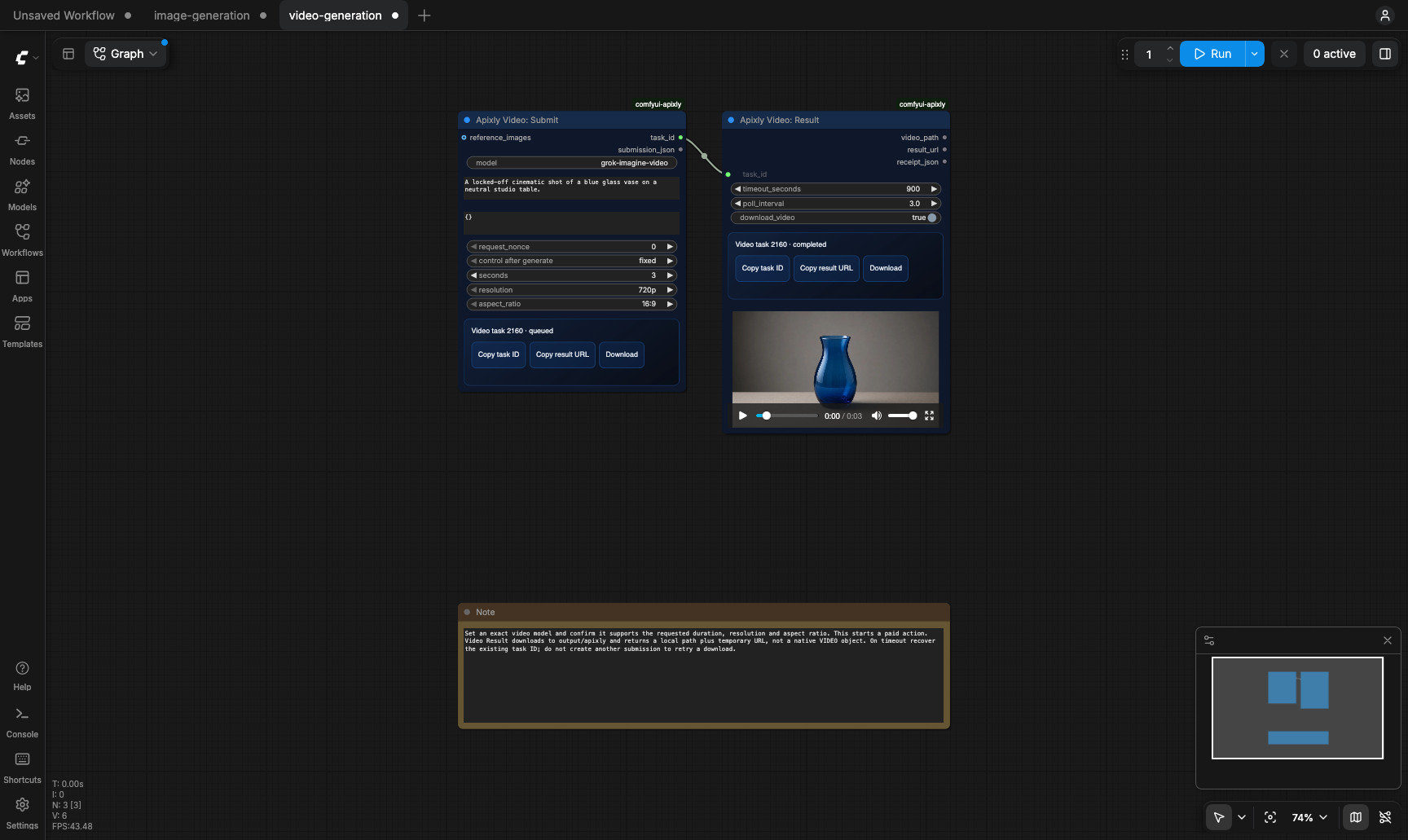
A real completed run in the official ComfyUI host. Submit and Result are separate nodes, so you can keep the task ID, stop local waiting and recover the same task. The result panel includes Copy task ID, Copy result URL and Download.
A real reference-to-video result
<p align="center"> <a href="assets/examples/edited-vase.png"><img src="assets/examples/edited-vase.png" alt="Real Gemini reference edit: a blue glass vase preserved against a warm beige studio background." width="48%"></a> <a href="assets/examples/reference-video.mp4"><img src="assets/examples/video-frame.png" alt="First frame of the real three-second reference video, retaining the blue vase and beige studio setting. Click to open the MP4." width="48%"></a> </p>Left: gemini-3.1-flash-image edited the original reference.
Right: a frame from the actual 3-second MP4
made with grok-imagine-video-1.5-preview. These are saved API results, without
retouching. The example video uses source framing and decodes to 960 × 960;
results and dimensions depend on the model and input.

Choose a starting workflow
Open Templates → comfyui-apixly or drag a linked JSON file onto the canvas.
| Start with | What it does | Qualified starting model |
| --- | --- | --- |
| Free creative prompt | Lighting + viewpoint + camera/lens → final prompt; no Key or model request | No model required |
| Expression + Compose V2 | Original 5×5 expression grid + the three existing controls; all Off initially | No model required |
| Lossless image grid | Local image → separate pixel-exact tiles + coordinates → preview | No model required |
| AI enhancement instruction | Free preservation prompt and model parameters; paid edit starts muted | No model required for preview |
| Character sheet plan | Nine templates; select one shot explicitly; no automatic generation | No model required |
| Creative → image | Free prompt preview → explicitly enabled image generation | grok-imagine-image |
| Creative → reference edit | Free edit prompt → your local reference → explicitly enabled edit | gemini-3.1-flash-image |
| Creative → video | Free prompt preview → explicitly enabled 3-second text video | grok-imagine-video |
| Image generation | Prompt → image preview | grok-imagine-image |
| Reference edit | Local image → reference edit → image preview | gemini-3.1-flash-image |
| Video generation | Prompt → 3-second, 720p, 16:9 clip | grok-imagine-video |
| Reference image → video | Local image → visible image edit → URL → video | Gemini image edit, then Grok 1.5 reference video |
The reference-to-video template contains two explicit paid actions. Use
model_default for resolution and aspect ratio on its Grok reference-video step;
this omits those API fields and uses source framing. The diagram is explanatory;
view the actual configured canvas.
These exact presets passed bounded live checks. They do not establish support
or output quality for every model or parameter combination.

The three Creative → media templates start with their media group muted (Mode: Never) and a fixed nonce. Running their free section only compiles a prompt. Review the final prompt, exact model and price, choose your reference if needed, then explicitly unmute the media group and queue a paid action.
Install
1. Add the nodes to ComfyUI
From your ComfyUI directory, with its Python environment activated:
git clone https://github.com/apixly-ai/comfyui-apixly.git custom_nodes/comfyui-apixly
python -m pip install -r custom_nodes/comfyui-apixly/requirements.txt
The package is also listed on Comfy Registry.
2. Connect your account
Start or restart ComfyUI, open the Apixly sidebar, and choose Connect / reconnect. The click prepares a new tab and opens the official apixly.ai approval page when the short-lived link is ready. Check the short code. If your browser blocks the new tab, use Open authorization page or Copy authorization link. These actions reuse the same pending connection; they do not create another request. If clipboard access fails, select the displayed read-only link and copy it manually. Cancelled, expired and completed links disappear from the sidebar. Sign in normally, review the requesting plugin and approve your own Studixly Key (default) or another active Key from your account. Return to ComfyUI to finish. Your website password and login JWT never enter the plugin.
The sidebar shows the selected Key's name and mask. Change it with the owned-Key dropdown, refresh its metadata, switch modes explicitly, or disconnect this connection. You can also revoke a lost connection from website connection settings. For a limited project budget, create a capped Key first and select it during approval or in the sidebar.
This is one server operator account, just like a server environment key. A Comfy browser client ID is not a separate authenticated user. Use separate ComfyUI instances for different users or billing accounts. Connect from the local ComfyUI UI; account changes require same-origin checks and a panel CSRF token.
3. Alternatively, use a server environment key
Choose Use server APIXLY_API_KEY in the sidebar if you prefer a Key supplied by your server launcher. No key entry is exposed to the browser. On macOS/Linux, read the key without putting it into shell history:
read -s APIXLY_API_KEY
export APIXLY_API_KEY
python main.py
$secret = Read-Host "Apixly API key" -AsSecureString
$env:APIXLY_API_KEY = [System.Net.NetworkCredential]::new("", $secret).Password
python main.py
Restart ComfyUI after installation. Search for Apixly in Add Node, or open one of the twelve templates above. With ComfyUI Desktop or a managed service, set the variable in the actual server launcher; another terminal's environment will not reach an already-running server. Never put a key in a prompt, node, workflow, screenshot or public issue.
No runtime package installation is performed. The HTTP client uses the small
httpx dependency; image nodes use ComfyUI's existing PyTorch, NumPy and Pillow.
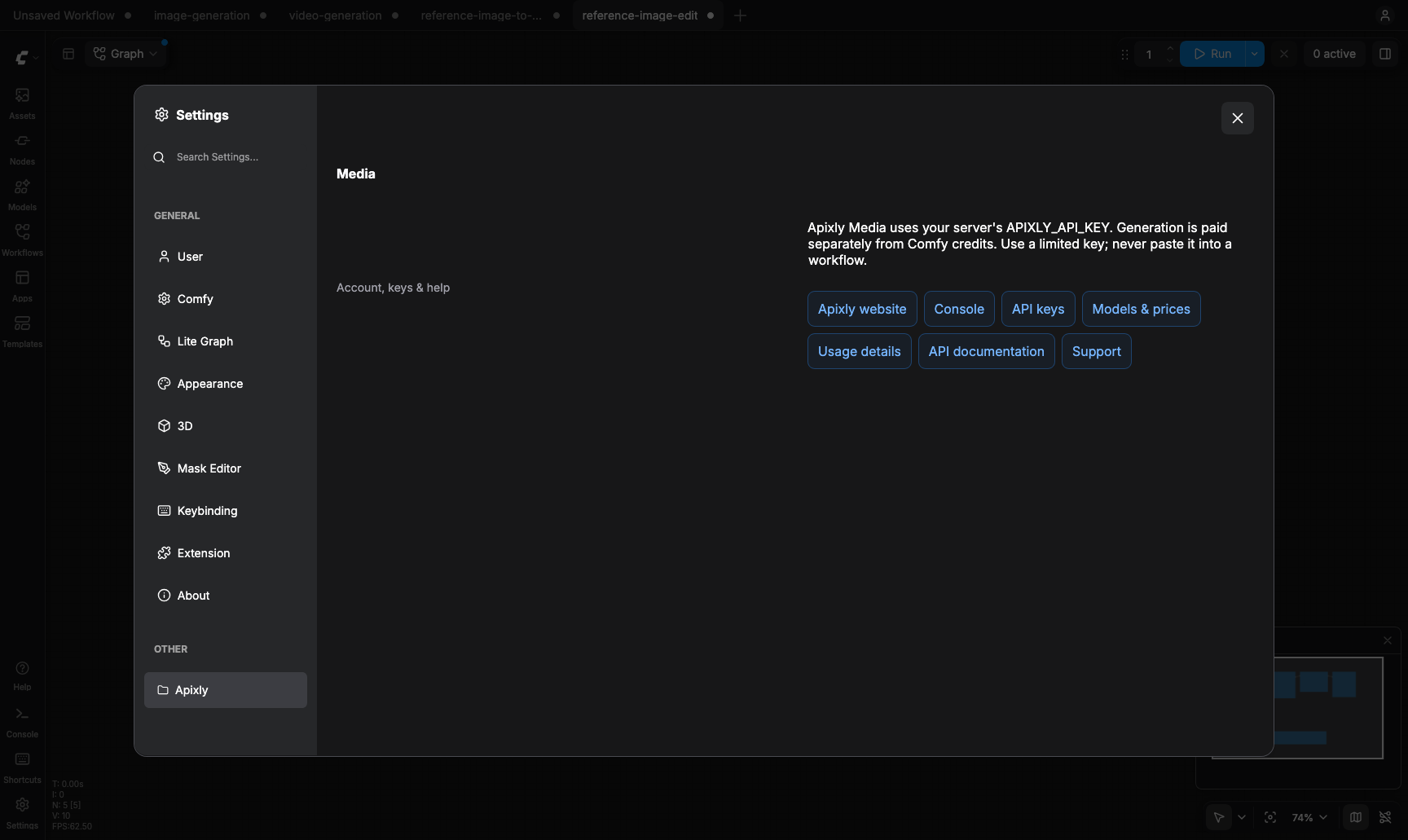
This capture shows the earlier Settings link panel. The new account controls live in the Apixly sidebar; service links remain in Settings → Apixly → Media: website, console, API keys, models & prices, usage details, API docs and support. View the narrow-screen settings capture.
</details>
Free creative controls
Add Viewpoint, Lighting and Camera & Lens, then connect their typed outputs to Compose Prompt. Each tool starts Off; when all are off, Compose keeps your base prompt exactly. Turning controls on changes instructions only. The final prompt is visible and can be copied before any generation.
- Viewpoint: choose a fixed direction preset or drag the orbit marker. Positive elevation means above the subject. The diagram and first drag use the effective preset angle; switching its viewing grid does not alter the instructions.
- Lighting: use a preset or adjust direction, brightness, a deliberate color, environment and optional free text. Turning it off preserves settings for later.
- Camera & Lens: choose camera/lens descriptions, framing and an optional explicit focal-length instruction. These are creative hints, not measured optics.
- Compose Prompt: use
generatefor a new scene oreditto ask the model to preserve the reference subject while changing the requested qualities.
The controls compose ordinary AI instructions. They do not add undocumented
provider fields or promise an exact 3D camera transform, physically simulated
lighting or identical subject preservation. The selected model determines the
result. They work without a Key, and preview/reset/copy never queue a generation.
Connect final_prompt to a Submit/Edit prompt only when you intend to generate.
Expression, image tools and character plans
The five new nodes execute without credentials, network requests, a submission journal or model calls. Prompt tools start Off; the character planner starts with Choose one shot. Running a free node does not queue a paid node.
- Expression: the original Studixly 5×5 grid and parameterized face show energy vertically and affinity horizontally. Warm is left, aloof is right. Target a named person if needed. Center and Off add no prompt fragment.
- Compose V2: combines viewpoint → lighting → expression → lens. It accepts
existing angle/lighting/camera outputs plus
APIXLY_EMOTION_V2. Original V1 nodes and contracts stay unchanged; when expression is Off or neutral, V2 preserves the V1 final prompt byte for byte. After changing older controls, click Refresh preview or execute the free node to confirm the final text. - Grid Split: Off passes the entire original IMAGE batch through as one
output item. On slices RGB/RGBA source pixels without resizing, padding or
dropping edges. The IMAGE list is ordered by input batch, row, then column;
coordinates_jsonrecords every tile. Equal splits use floor boundaries; normalized custom cuts use positive half-up pixel rounding. Duplicate or empty cuts and more than 144 total tiles are rejected. The diagram uses cut proportions; execute for actual pixel coordinates. Downstream nodes run once per list item. Connect Preview/Save unless you intend multiple paid requests. - AI Enhancement Prompt: copies the original preservation instruction and
offers known model parameter mappings. Connect its exact
model,promptandparameters_json, plus your reference image, to Image Edit. A connected reference supplies actual dimensions; otherwise set width/height. This is AI redraw enhancement, which can alter details and text. Its settings do not prove pixel preservation, real super-resolution or guaranteed improvement. - Character Sheet Plan: nine original templates include key visual,
turnaround, head closeups, expressions, poses, costume, color/material,
proportions and the Seedance pack. The pack is three independent front,
three-quarter and side shots.
plan_jsonpreviews the plan; only one explicitly chosenselected_promptandselected_aspectare output. The selected shot follows its identity if sheets are reordered; removing it clears selection and requires a new choice. The nativeshot_indexalso allows deliberate selection (-1means none). User text is inserted literally, including dollar signs and template-like braces. There is no hidden batch inference or promise of generated character consistency.
The enhancement starter keeps Image Edit, Image Result and Preview in Mode:
Never, with nonce 0 fixed. Choose a source, review the free output, exact
model and current price, then explicitly unmute and press Run once for a paid
edit. Keep the original nonce/task for recovery. The expression, grid and
character starters contain no paid submission node.
The four new starters open their primary tool at a 1:1 initial view and a 300px node width. Details scroll vertically; pan the canvas to the other nodes. The native Templates entry normally fits the entire graph, so an unchanged starter view is restored once after initial loading. Saved custom views and later user zoom or node resizing are retained; pointer/wheel input cancels a pending initial restore. Older workflows are unaffected.
Live model pickers
Image and video Submit/Edit nodes provide a picker for the current selected Key, plus an exact/custom model path that preserves your chosen ID. Opening a picker lazily reads the selected-key catalog. Options have a ten-minute cache, stale-while-revalidate behavior, one shared refresh per identity and a manual Refresh models action. Failure preserves same-identity saved options with a stale/error indicator; changing accounts or Keys discards old in-flight results. Refresh does not switch models or generate anything.
One limited-Key check on October 23, 2026 listed 14 image and 11 video options. These are observations for that Key, not permanent package counts or a promise that every listed model/mode is qualified. Exact permissions and video capabilities come from the live service.
Nodes
| Node | Behavior | Outputs |
| --- | --- | --- |
| Apixly Prompt: Viewpoint | Composes optional subject-relative angle instructions | typed angle, instruction text |
| Apixly Prompt: Lighting | Composes optional lighting and environment instructions | typed lighting, instruction text |
| Apixly Prompt: Camera & Lens | Composes optional camera/lens/framing instructions | typed camera, instruction text |
| Apixly Prompt: Compose | Combines your base prompt and enabled tools; never generates | final prompt, controls JSON |
| Apixly Prompt: Expression | Original 5×5 expression guidance with optional target person | APIXLY_EMOTION_V2, instruction text |
| Apixly Prompt: Compose V2 | Old three controls plus expression; nonbreaking V2 composition | final prompt, versioned controls JSON |
| Apixly Image: Grid Split | Offline lossless slicing; Off preserves the whole input batch | IMAGE list, coordinates JSON |
| Apixly Prompt: AI Enhancement | Free preservation instruction and known model parameter mapping | prompt, parameters JSON, aspect ratio, exact model |
| Apixly Prompt: Character Sheet Plan | Plan JSON plus one deliberately selected shot | plan JSON, selected prompt, selected aspect |
| Apixly Image: Submit | Starts one asynchronous text-to-image job | task_id, submission_json |
| Apixly Image: Edit | Requires reference images and explicitly suggests the qualified Gemini editing model | task_id, submission_json |
| Apixly Image: Result | Waits for an existing image task and decodes every result | IMAGE, result URL JSON, receipt JSON |
| Apixly Video: Submit | Starts a video task, with public reference URLs when the model supports them | task_id, submission_json |
| Apixly Task: Status | Performs one status GET for an existing task | status, result URL, receipt JSON |
| Apixly Video: Result | Waits for an existing video task and optionally downloads it | local video path, result URL, receipt JSON |
Drag a JSON file from example_workflows/ onto the canvas.
Set an exact model ID that your Apixly API key can use. Image generation suggests
grok-imagine-image; reference editing explicitly suggests
gemini-3.1-flash-image. The latter preserved the source vase and changed the
background in the initial live smoke test; this is a bounded sample, not a quality
guarantee. Grok reference editing is not qualified by that result. Video suggests
grok-imagine-video. Available models and permissions depend on your API key group.
Check your selected-key model catalog; GET https://apixly.ai/v1/models/list lists IDs and model types
and GET https://apixly.ai/v1/video/config exposes current video capabilities.
The plugin does not rename a model, select a fallback, or change requested fields.
Image generation and editing
Connect Image Submit → Image Result → Preview Image or Save Image. Typical
parameters_json for a model supporting these options is:
{"size":"1024x1024","quality":"high","n":1}
Use Apixly Image: Edit and connect Load Image to reference_images to edit an existing image. An IMAGE batch
is sent as separate PNG reference files. The selected model must support the
operation and fields. References are never silently discarded or duplicated.
Mixed-size result batches are reported instead of being resized without permission.
Temporary image results currently expire after about ten minutes. Download them promptly or connect Image Result → Save Image. The plugin's temporary preview files may be cleared when ComfyUI restarts; keep a saved local copy.
Masked inpainting is unavailable in this release. The public nodes do not expose a MASK input and reject explicit masks before a paid request. Low-level REST transport tests remain for future qualification. Ordinary reference-image editing and multiple references are separate, supported workflows.
Video generation
Connect Video Submit → Video Result. Model-specific options are flat JSON, for example, only when the selected model supports them:
{"seconds":5,"resolution":"720p","aspect_ratio":"16:9"}
Use reference_image_urls for public HTTPS reference images. It accepts Image:
Result's result_urls_json output, a JSON array of URLs, or one URL per line.
The reference-image-to-video template visibly connects Load Image → Gemini Edit
→ Image Result URLs → Grok image-to-video → Video Result. It contains two paid
actions, and does not silently upload a local file to a third-party host.
A free live
capability check rejects references for known text-only models before submission.
Choose an explicit image-to-video model, such as grok-imagine-video-1.5-preview,
for references; the plugin never drops references or switches models. Unknown
models remain subject to the gateway's validation. That Grok route currently
requires public URLs: local IMAGE/data-URL input is rejected before submission
with instructions for the visible image-result URL workflow. Other routes may
support local IMAGE tensors as inline PNGs, but this release does not claim
compatibility with every route. Choose one reference source, not both.
For grok-imagine-video-1.5-preview reference video, choose model_default for
both resolution and aspect ratio. This explicitly omits those API fields and
uses source framing. Explicit geometry for that route is not qualified and is
rejected before a paid request, including geometry in advanced JSON. Inspect
the decoded result for its actual dimensions; a square source can produce a
square video. The qualified text-video preset remains 3 seconds, 720p, 16:9.
Reference URLs are read once through bounded HTTPS GETs without an API key to
verify the image and hash its content. The original URLs are sent unchanged to
Apixly. Refreshing a signed URL for the same bytes therefore reuses the same
nonce/action; a source-download failure never starts a paid video. Do not put
private account credentials in these URLs. Reference limits, task modes, output
duration, resolution, and billing are model dependent; inspect current video
capabilities before choosing them. This initial version supports /v1/videos
generation, not the separate /v1/videos/edits video-edit endpoint.
Duration, resolution, and aspect ratio have dedicated video controls; conflicting values in advanced JSON are rejected before submission. The default is a 3-second 720p, 16:9 generation. Verify prices before running it.
The result node downloads a recognizable MP4/MOV/WebM body into
ComfyUI/output/apixly/ by default. Its video_path is a file path string, not
a ComfyUI VIDEO object; use a video-loader node that accepts a path if a later
workflow requires a native video object. The returned result_url is suitable
for URL-based workflow steps and is temporary. Save completed media promptly.
The current client download limit is 256 MiB per video and 32 MiB per image.
Results show native image/video previews. The node's result panel can copy the task ID or temporary result URL and download a saved file. Image previews use ComfyUI's temporary directory. Video progress uses the server-reported percentage when available; a running image task does not invent a completion estimate.
Paid actions, new runs, and recovery
request_nonce identifies an explicit generation action. A new nonce allows a
new paid job even with the same model and prompt. ComfyUI's after-generation
control can increment or randomize it for a new queue run. Select fixed while
diagnosing a submission. Changing the request contents also starts a new action.
A private local SQLite journal binds a key/account digest, request digest, and
nonce to the accepted task ID. Re-executing the same action returns that ID.
Public reference-image identity uses its content hash rather than the temporary
URL signature, so URL refreshes do not create another paid generation.
Only digests, task IDs/statuses, timestamps, and submission states are stored;
keys, prompts, reference bytes, and raw API responses are not stored there.
Account-mode request identity uses the account, selected Key and selection revision;
replacing a connection token alone does not turn the same paid action into a new one.
Its default location is ComfyUI/user/apixly/submissions.sqlite3 (the actual
ComfyUI user-directory setting is respected). APIXLY_STATE_DIR may select a
different server-owned directory. It must be writable by the ComfyUI user.
The client never automatically retries a paid POST. If a submission times out, loses its response, or receives an ambiguous server error, the nonce is guarded as unknown. Check your existing Apixly tasks/account activity before selecting a new nonce. A journal is a local recovery guard, not a gateway idempotency key: deleting it, moving machines, changing the key, or selecting another nonce does not cancel an accepted task and can create another charge.
For normal waiting, recover by copying the known task ID into Image Result, Video Result, or Task Status. These nodes only make reads. Temporary status errors are retried within the configured deadline. Waiting timeout, failed download, or expired URL never triggers a new generation. Refresh an existing task to obtain a fresh signed URL while its media remains available. If the media itself has expired, report that state instead of generating again. An image Result node can fail after Submit succeeded: do not increment the submit nonce just to retry downloading. Interrupted media downloads get at most three safe GET attempts; partial bodies are discarded and are never delivered as completed files.
Use trusted workflows and protect access to the ComfyUI server. Account connections and environment credentials apply to that server process: another person who can execute its nodes may spend the selected Key's balance. The plugin has no key widget or secret output, but prompts and returned signed result URLs can still appear in normal ComfyUI workflow/output metadata. See PRIVACY.md.
Account connection state is separate from the submission journal. It contains a
revocable connection token and short-lived pending proofs in a private JSON file:
~/.local/share/apixly/comfyui/connection.json by default on macOS/Linux, or under
LOCALAPPDATA on Windows. APIXLY_CONNECTION_DIR can select a server-owned
location. The directory is mode 0700 and the file 0600 on POSIX; it is never
stored in ComfyUI's browser-readable userdata or a workflow. Disconnect revokes
the connection, rather than deleting your underlying API Key.
Development and release checks
python -m pytest -q
node --test tests/*.test.mjs
python -m compileall -q apixly_media
python -m pip wheel --no-build-isolation --no-deps . --wheel-dir /absolute/path/to/artifacts
Version 0.3.0 passed 672 Python and 244 JavaScript checks, plus an official ComfyUI frontend 1.57.1 installation. Native template/JSON loading, desktop and 375px panel bounds, 44px panel controls, wheel scrolling, copy/reset and saved camera/node sizes were checked. Odd RGB/RGBA and batch tiles reconstructed the pixels entering Grid Split exactly. Three separately gated live image actions completed, and original API files plus native downloads were decoded and saved. The gallery describes their actual output limits. Physical touch/iOS was not tested by the headless browser checks.
Tests run offline with a fake HTTP transport, temporary journals, and real image
tensor conversion. Live model qualification and billing checks are separate and
must use a limited test key. Before publishing, verify PublisherId apixly is
owned by the publishing account, the public repository/icon/support URLs work,
and image generation/editing plus video terminal output have been verified
against the exact models advertised in release notes. Do not advertise untested
models or claim a completed live generation from offline tests.
Publishing follows the Comfy Registry guide.
Run comfy node publish from the standalone release checkout using its Registry
publishing key, not an Apixly inference key. Registry packages must contain the
root __init__.py, apixly_media/, license, docs, assets, and example workflows.
The wheel is for client packaging validation; ComfyUI loads the Registry/repository
custom-node package. All versions must meet the Registry quality and security
standards.
Support: [email protected]. When reporting a problem, include plugin version, exact model, task/request ID, status, and sanitized error text. Never send your API key or private media in a public issue.