
ComfyUI-Blender
Blender plugin to send requests to a ComfyUI server.
Nodes (19)
The checkbox that shows up in your Blender panel
A dropdown on your Blender panel, and the only input node with a list field
A float slider that follows you into Blender
A box to keep your Blender panel from looking like a dumpster fire
A number field on your Blender panel that doesn't make you open ComfyUI
Hand a 3D asset to the workflow from the input/3d folder
Pick your checkpoint from a Blender panel — same loader, new home
Load a standalone diffusion model from your Blender panel — the Flux-era loader
Feed an image into the workflow from your Blender panel
A LoRA dropdown on your Blender panel — and one you can chain
A mask picker that skips the image and reads alpha only
A sampler dropdown on your Blender panel — straight from the server's list
A seed spinner on your Blender panel — same seed every take, until you don't want it
A text field on your Blender panel, with path-formatting that actually saves you
The big text box — for prompts you actually want to read while you write them
The node that says 'send this 3D file back to Blender'
Save a GLB and hand it back to Blender
Where your renders land, and how Blender finds them
See what your workflow actually said — a text readout for the panel
ComfyUI-Blender


This respository contains both custom nodes to be installed on the ComfyUI server and the Blender add-on to send workflows to the ComfyUI server. They can be used as follow:
- Create a workflow in ComfyUI with the Blender nodes.
- Run the workflow to confirm it executes properly.
- Export the workflow in API format.
- Import the workflow in the Blender add-on
The Blender add-on UI is automatically composed according to the input and output nodes used in the workflow.
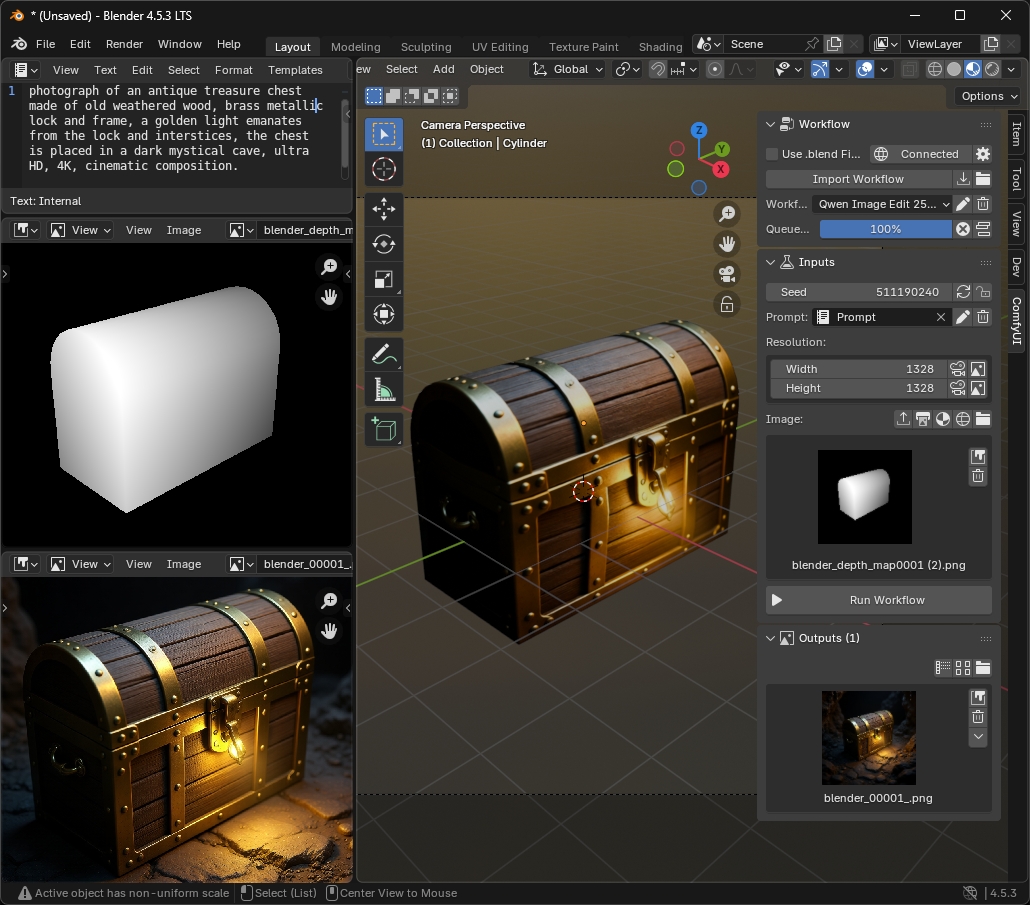
Getting Started
Setup
ComfyUI Setup
Download and install ComfyUI. If you are new to ComfyUI, refer to the original repository to get started. Make sure you have the latest version.
At the time of writing this, the latest version was ComfyUI v0.3.75. This version required to update some of the ComfyUI-Blender nodes to the custom node schema v3. Making them incompatible with earlier versions of ComfyUI.
Install the ComfyUI-Blender nodes from the ComfyUI-Manager or by cloning this repository in the custom nodes folder of ComfyUI:
cd ./ComfyUI/custom_nodes
git clone https://github.com/alexisrolland/ComfyUI-Blender.git
If the ComfyUI server runs on a different machine than the Blender client, it must be started with the argument --listen. See ComfyUI documentation: Setting Up LAN Access for ComfyUI.
Install Blender Add-on
Download the add-on package comfyui_blender_[...].zip from the LATEST RELEASE.
Make sure you have a recent version of Blender.
- The add-on has been updated to support Blender
v5.0from versionv4.0.0onward. - The last version of the add-on to support Blender
v4.5isv3.3.4.
In Blender, go to Edit > Preferences > Add-ons > Install from Disk > select the zip package.

Update the ComfyUI server address in the add-on preferences:

Usage
For complete details about the various features, refer to the DOCUMENTATION.
In a nutshell:
-
In ComfyUI, create a workflow using the Blender nodes (see workflow examples in this repository).
- The Blender nodes are used to define the inputs and outputs to be displayed in the Blender add-on.
- The title of the nodes are used as labels in the Blender add-on panel.
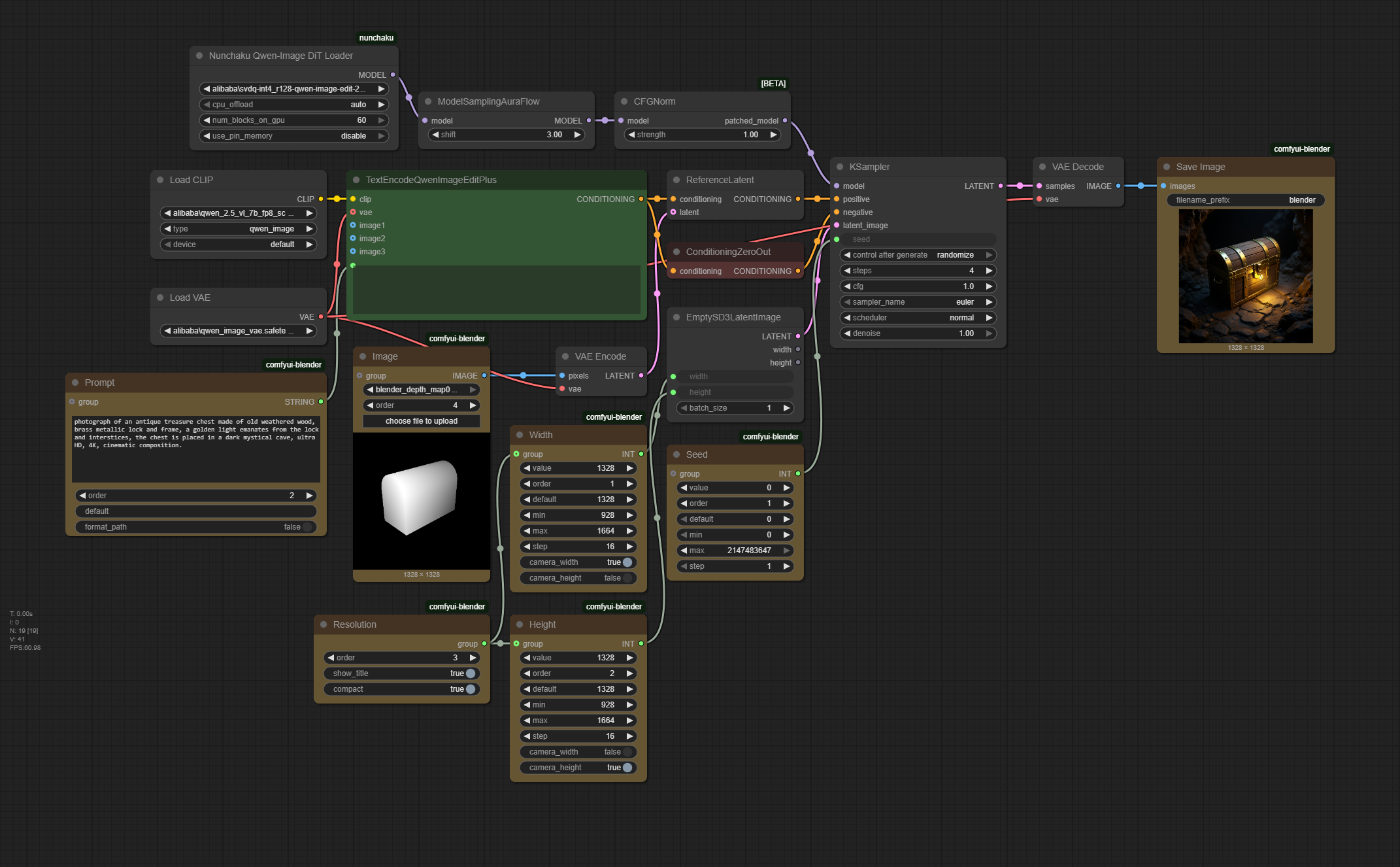
-
Run the workflow to confirm it executes properly.
-
Export the workflow JSON file in API format: Top Left Menu >
File>Export (API). -
In Blender, import the workflow JSON file (make sure it is in API format): Press
N>ComfyUI>Import Workflow. -
Update the inputs and click on Run Workflow.
Credits
Thank you to Seth A. Robinson for open-sourcing his code to convert ComfyUI workflows to API format: comfyui-workflow-to-api-converter-endpoint.
Thank you to Gerold Meisinger for open-sourcing his code to inspect values from a combo box widget: https://github.com/geroldmeisinger/ComfyUI-outputlists-combiner.