
comfyui-easy-llm-prompt
Convert a structured scene description into an optimised SDXL prompt via LLM
Nodes (1)
ComfyUI-EasyLLMPrompt
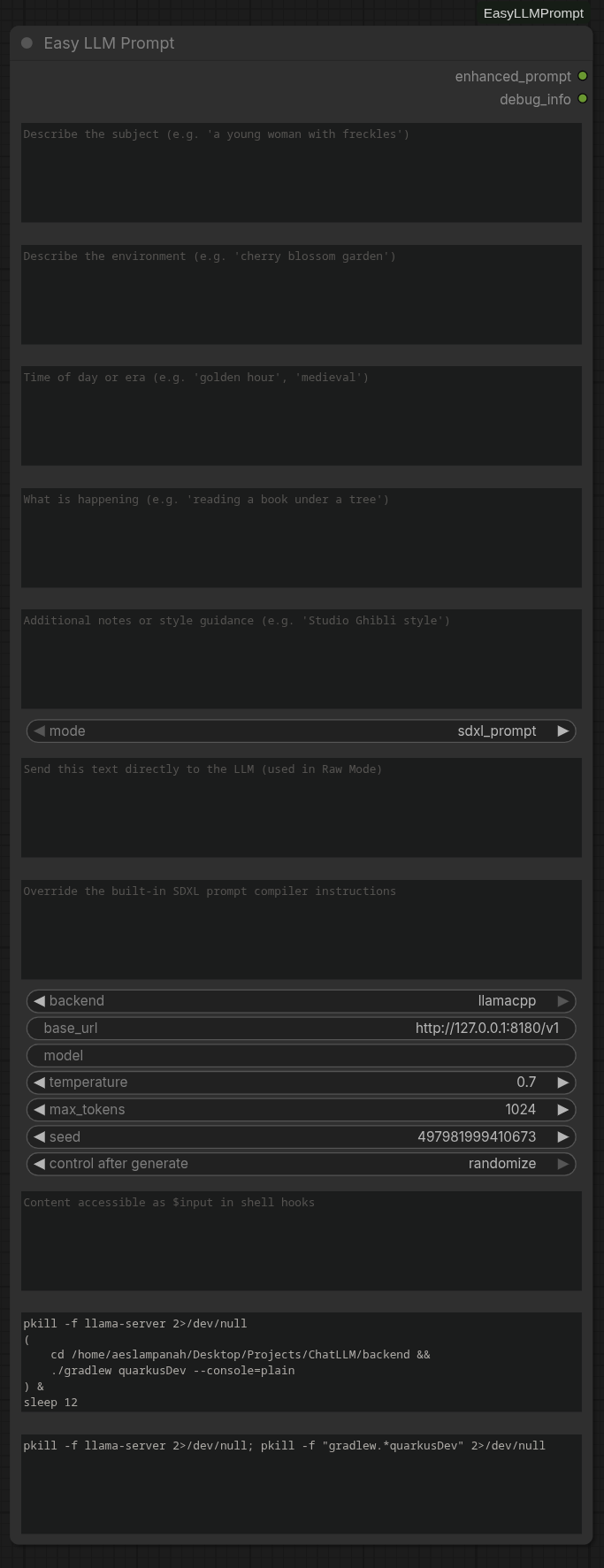
A ComfyUI custom node that converts a structured scene description into a single optimised Stable Diffusion XL positive prompt using a local LLM.
Zero prompt engineering required. Fill in Subject, Place, Time, Action, and/or Notes; the LLM does the rest.
Features
- Simple UI – Five text fields and a few optional settings.
- Two modes – Prompt Mode (SDXL prompt compilation) and Raw Mode (send arbitrary text to the LLM).
- Before/After Shell Hooks – Run arbitrary bash commands before or after the node executes (blocking).
- Shell Input – Pass text content to shell hooks via the
$inputvariable. - Multiple backends – Ollama, llama.cpp server, OpenAI-compatible (vLLM, LM Studio, LocalAI, etc.).
- Persistent config – Backend, URL, model, temperature, and other settings are saved across ComfyUI sessions.
- Fast – LRU cache deduplicates identical requests; configurable timeout prevents blocking.
- Non‑crashing – All errors are returned as descriptive text; ComfyUI never hangs or crashes.
- No external dependencies – Uses only the Python 3 standard library.
Installation
| Method | Command |
|--------|---------|
| ComfyUI Manager | Search for "Easy LLM Prompt" in the Manager |
| Comfy Registry | comfy node install easy-llm-prompt |
| Manual | git clone https://github.com/akumaburn/ComfyUI-EasyLLMPrompt.git |
Restart ComfyUI. The node appears in the prompt category (right‑click → Add Node → prompt → Easy LLM Prompt).
No pip install needed. The node uses only Python standard library modules.
Usage
- Add the Easy LLM Prompt node to your workflow.
- Fill in the scene description fields:
- Subject – who or what is the focus? (e.g. a young woman with freckles)
- Place – where does the scene happen? (e.g. cherry blossom garden)
- Time – time of day, era, or season (e.g. golden hour)
- Action – what is happening? (e.g. reading a book under a tree)
- Notes – style guidance or extra context (e.g. Studio Ghibli style)
- Optionally expand the optional section to configure the LLM backend.
- Switch between Prompt Mode and Raw Mode using the Mode dropdown in the optional section.
- Shell Hooks (optional) — see Shell Hooks below.
- Connect the enhanced_prompt output to your SDXL checkpoint/text encoder.
Example
| Field | Input |
|-------|-------|
| Subject | a majestic white wolf with heterochromatic eyes |
| Place | frozen tundra under the northern lights |
| Time | night, aurora borealis |
| Action | howling at the sky |
| Notes | photorealistic, cinematic lighting, detailed fur texture |
The LLM might produce:
a majestic white wolf with heterochromatic eyes, detailed fur texture, howling at the sky, frozen tundra under the aurora borealis at night, cinematic lighting, northern lights in the background, photorealistic, award-winning photography, 8K, sharp focus
Raw Mode
By default the node runs in Prompt Mode, which composes your scene fields (Subject, Place, Time, Action, Notes) into an SDXL-optimised prompt using the LLM.
Switch to Raw Mode (optional → Mode → raw) to bypass the prompt compiler and send any text you want directly to the LLM:
| Field | Raw Mode behaviour | |-------|--------------------| | System Prompt | Sent directly to the LLM as the system message | | User Message (new) | Sent directly to the LLM as the user message | | Subject / Place / Time / Action / Notes | Ignored |
Use this when you need the LLM's raw output for tasks other than prompt generation — summarisation, translation, classification, etc.
Backend Setup
Ollama (recommended for beginners)
- Download and install Ollama.
- Pull a model:
ollama pull llama3.2 - Leave the Base URL as
http://localhost:11434and set Model tollama3.2.
llama.cpp server
- Build or download llama.cpp and start the server:
./server -m path/to/model.gguf --host 0.0.0.0 --port 8080 - In the node, select llama.cpp, set Base URL to
http://localhost:8080, and enter your model name.
LM Studio
- Load a model in LM Studio and start the local inference server (default port
1234). - Select OpenAI Compatible, set Base URL to
http://localhost:1234, and enter the model name.
vLLM / LocalAI / other OpenAI-compatible
Start your server, then use the OpenAI Compatible backend with the correct base URL.
Shell Hooks
The Before-Run (Shell) and After-Run (Shell) optional fields let you execute arbitrary bash commands before or after the node's main logic runs. Execution is blocking — the node waits for the command to finish before proceeding.
Use cases
- Start/stop a server — launch an LLM backend, wait for it to be ready, then run the node.
- Pre-processing — download a model, prepare input data, or reset state.
- Post-processing — save results, send notifications, or clean up resources.
- Pass dynamic input — use the Shell Input field to pass text content to your shell commands.
Shell Input ($input)
The Shell Input optional field exposes its content to both shell hooks via the $input bash variable, which points to a temporary file containing the text. If the field is empty, $input is not set.
# Example: use the shell input as a prompt for another tool
cat "$input" | some-command

# Or pass it inline
text=$(cat "$input")
echo "$text"
You can connect an upstream node's output to Shell Input to chain data through your workflow, or type directly into the field.
Notes
- The command is written to a temporary file and executed with
bash, not/bin/sh. - Background processes (via
&) are supported — the foreground script still blocks. - Exit codes are not enforced (non-zero exits do not crash the node).
- The temp script and input file are deleted after execution.
Example
pkill -f llama-server 2>/dev/null
(cd /path/to/backend && ./gradlew quarkusDev --console=plain) &
sleep 10
Configuration
Settings are persisted in a JSON file at:
- ComfyUI user directory:
{ComfyUI}/user/easy_llm_prompt/config.json - Fallback:
~/.config/easy_llm_prompt/config.json
| Setting | Default | Description |
|---------|---------|-------------|
| default_backend | ollama | Backend to use by default |
| default_base_url | http://localhost:11434 | Default server URL |
| default_model | llama3.2 | Default model name |
| default_temperature | 0.7 | Default temperature |
| default_max_tokens | 512 | Default max output length |
| timeout | 60 | HTTP request timeout (seconds) |
| cache_size | 100 | Max LRU cache entries |
You can edit this file manually or change settings per-node through the UI (changes are not saved to the config file by the UI – only per‑workflow).
Outputs
| Output | Type | Description |
|--------|------|-------------|
| enhanced_prompt | STRING | The prompt generated by the LLM |
| debug_info | STRING | Backend, model, timing, and cache status |
Connect enhanced_prompt to your text encoder and debug_info to a ShowText node for diagnostics.
Error Messages
| Message | Likely cause |
|---------|-------------|
| ERROR: Connection refused | The LLM server is not running. |
| ERROR: Could not resolve hostname | The URL is incorrect. |
| ERROR: Request timed out | The server is too slow; increase the timeout in config. |
| ERROR: Authentication failed | The endpoint requires an API key. |
| ERROR: Endpoint not found | The URL path is wrong (e.g. missing /v1). |
| ERROR: Unexpected API response | The model is not a chat model or returned garbage. |
Troubleshooting
The node returns an empty or nonsensical prompt.
Try a different model. Small models (< 3B parameters) often struggle with instruction following.
The node is slow.
Reduce max_tokens to 256 or lower. Use a smaller/faster model. Ensure your LLM server runs on the same machine or a fast local network.
The output contains explanation text.
Make sure the System Prompt field is empty (the default instructs the LLM to output only the prompt). If you use a custom system prompt, include a "Do not explain anything" directive.
Settings don't persist.
The node reads the config file on startup but does not write back. To change defaults, edit the JSON file directly.
Project Structure
ComfyUI-EasyLLMPrompt/
├── __init__.py              # ComfyUI node registration
├── pyproject.toml           # Package metadata
├── requirements.txt         # No external dependencies
├── .gitignore
└── easy_llm_prompt/
    ├── __init__.py          # Package version
    ├── node.py              # EasyLLMPromptNode class (Prompt Mode, Raw Mode, Shell Hooks)
    ├── llm_backends.py      # LLM provider implementations
    ├── prompt_builder.py    # System prompt & user message assembly
    ├── cache.py             # LRU request cache
    ├── config.py            # Persistent settings
    └── utils.py             # HTTP helpers, URL normalisation, error handling
License
Apache 2.0