
ComfyUI Prompt Builder
Stop wasting hours tweaking prompt. This extension allows you to modularize your prompts into variables and assemble them using a powerful template-based approach.
Nodes (5)
Structured prompts for LLM-encoded models, without hand-typing JSON
Templates beat copy-paste for assembling ComfyUI prompts
The four-slot JSON aggregator that only speaks PROMPT_VAR
The four-slot original that still lurks in saved workflows
The one-node building block that ends prompt retyping
ComfyUI Prompt Builder
Stop wasting hours tweaking prompt. This extension allows you to modularize your prompts into variables and assemble them using a powerful template-based approach.
Features
- Building Blocks: Break your prompts into smaller pieces like Subject, Style, or Artist using separate nodes.
- Easy Templates: Combine these pieces using a simple "fill-in-the-blanks" system.
- Dynamic Inputs: Add as many variables as you need. The nodes automatically expand as you connect them.
- Mix and Match: Instantly swap out parts of your prompt to try new ideas without rewriting the whole thing.
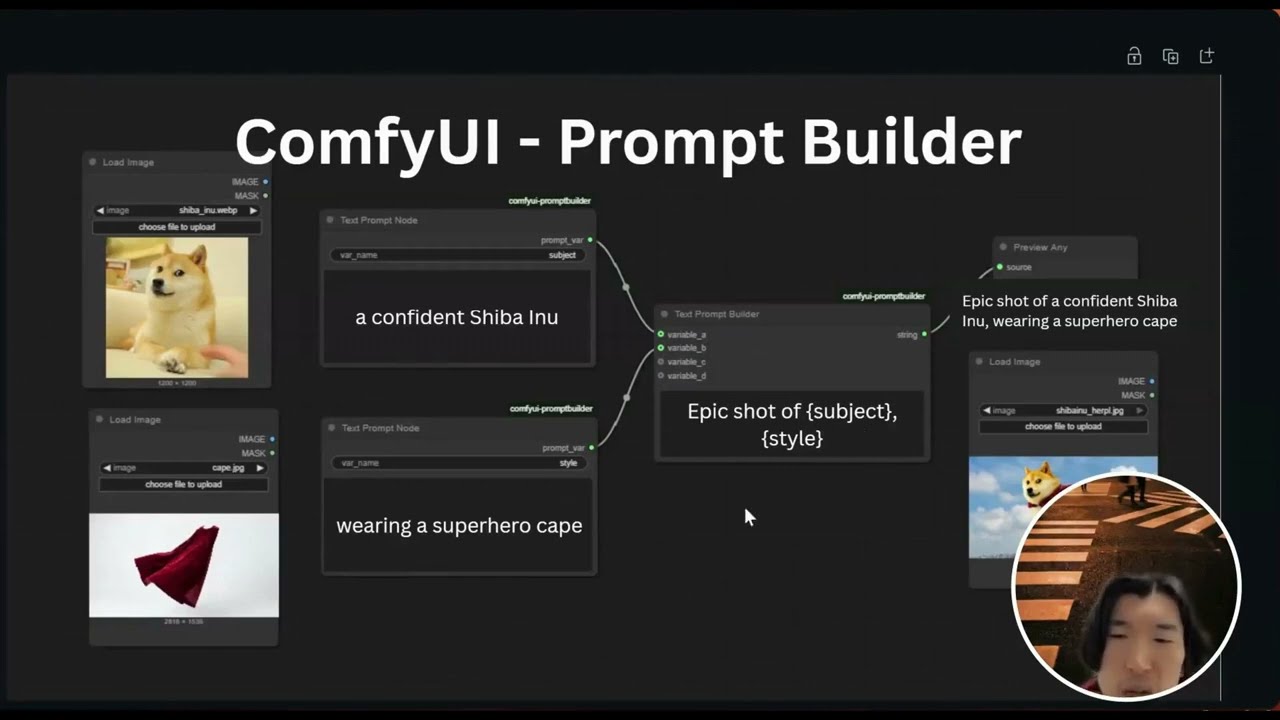
Watch Video
Installation
- Navigate to your ComfyUI
custom_nodesdirectory. - Clone this repository:
git clone https://github.com/AIMovieStudio/comfyui-promptbuilder.git - Restart ComfyUI.
Nodes
1. Text Prompt Node
Defines a single text variable.
- Inputs:
var_name: The name of the variable to be used in the template (e.g.,subject,style).text: The actual text content.
- Output: A special
PROMPT_VARtype containing both the name and the text.
2. Text Prompt Builder
Aggregates variables and combines them into a final string.
- Inputs:
template: The template string defining how to combine variables. Use{variable_name}syntax.variable_1,variable_2, ...: Dynamic inputs. Connect your Text Prompt Nodes or any string here. New slots appear automatically.- Output: The final constructed string.
3. Json Prompt Builder
Aggregates variables into a JSON object.
- Inputs:
variable_1,variable_2, ...: Dynamic inputs. Connect your Text Prompt Nodes here.
- Output: A formatted JSON string where keys are the
var_namefrom inputs and values are thetext.
Legacy Nodes
For backward compatibility, the following nodes are still available but marked as (Legacy):
- Text Prompt Builder (Legacy): Fixed inputs
variable_athroughvariable_d. - Json Prompt Builder (Legacy): Fixed inputs
variable_athroughvariable_d.
Usage Guide
-
Create Variables:
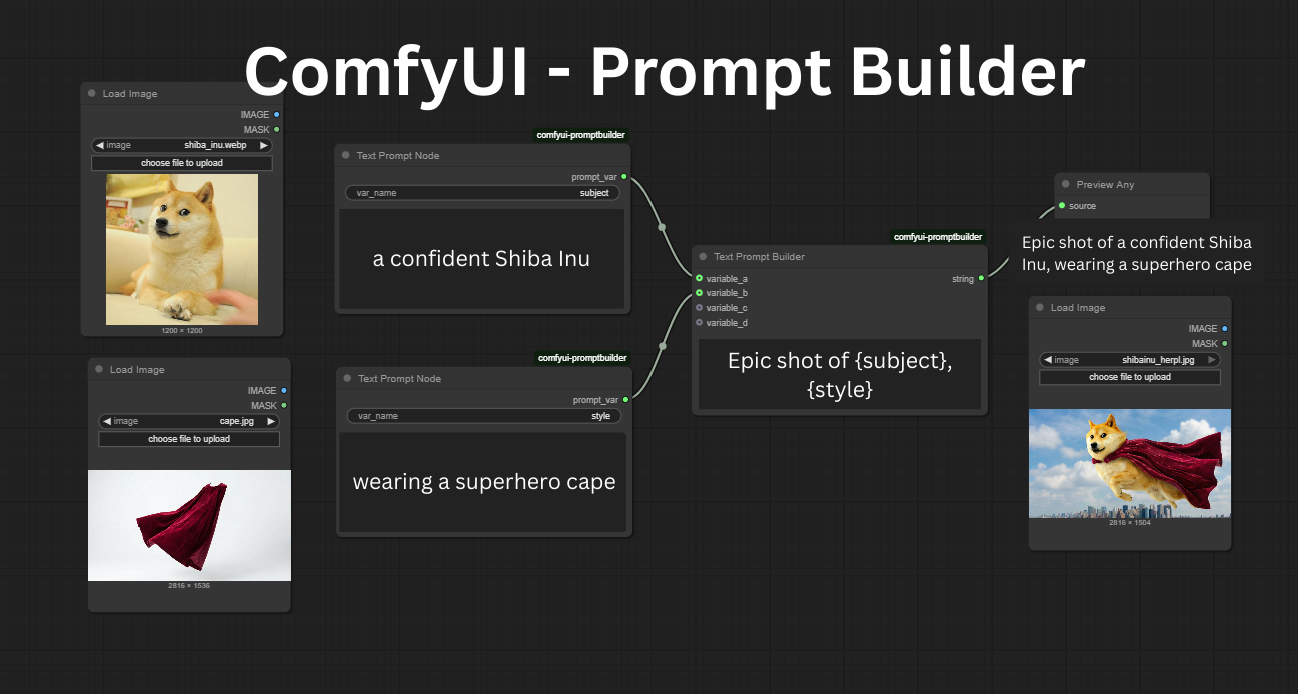
- Add a Text Prompt Node. Set
var_nametosubjectandtexttoa confident Shiba Inu. - Add another Text Prompt Node. Set
var_nametostyleandtexttowearing a superhero cape.
- Add a Text Prompt Node. Set
-
Connect:
- Connect the output of the first node to
variable_1on a Text Prompt Builder node. - A new slot
variable_2will automatically appear. Connect the output of the second node to it.
- Connect the output of the first node to
-
Build Template:
- In the Text Prompt Builder, set the
templatewidget to:Epic shot of {subject}, {style} - The node will automatically combine them into: "Epic shot of a confident Shiba Inu, wearing a superhero cape".
- In the Text Prompt Builder, set the
-
Build JSON (Optional):
- Connect the same Text Prompt Nodes to a Json Prompt Builder.
- The output will be:
{
  "subject": "a confident Shiba Inu",
  "style": "wearing a superhero cape"
}
Template Syntax
You can reference connected inputs in multiple ways in your template:
- By Name: Use the
var_namedefined in the source node (e.g.,{subject}). - By Input Slot: Use the input slot name (e.g.,
{variable_1},{variable_2}). - By Short Slot: Use the suffix of the slot (e.g.,
{1},{2}).