
ComfyUI-Metadata-Extractor
A powerful ComfyUI custom node that extracts workflow metadata from PNG images and video files generated by ComfyUI.
🔍 ComfyUI Metadata Extractor
A powerful ComfyUI custom node that extracts workflow metadata from PNG images and video files generated by ComfyUI. Never lose your prompts, settings, or generation parameters again!
✨ Features
- 📸 Dual Format Support: Extract metadata from both PNG images and video files (MP4, AVI, MOV, MKV, WebM)
- 🎯 9 Output Types: Access all metadata fields individually for maximum flexibility
- 🔄 Multiple Input Methods: File dropdown, manual path entry, or video tensor input
- 🎬 Video Metadata: Full support for ComfyUI-generated video files with embedded workflows
- 📊 Comprehensive Data: Extract prompts, workflows, models, parameters, and more
- 🖥️ Console Output: View formatted metadata directly in your console
- ⚡ Easy Integration: Works seamlessly with existing ComfyUI workflows
📸 Screenshot
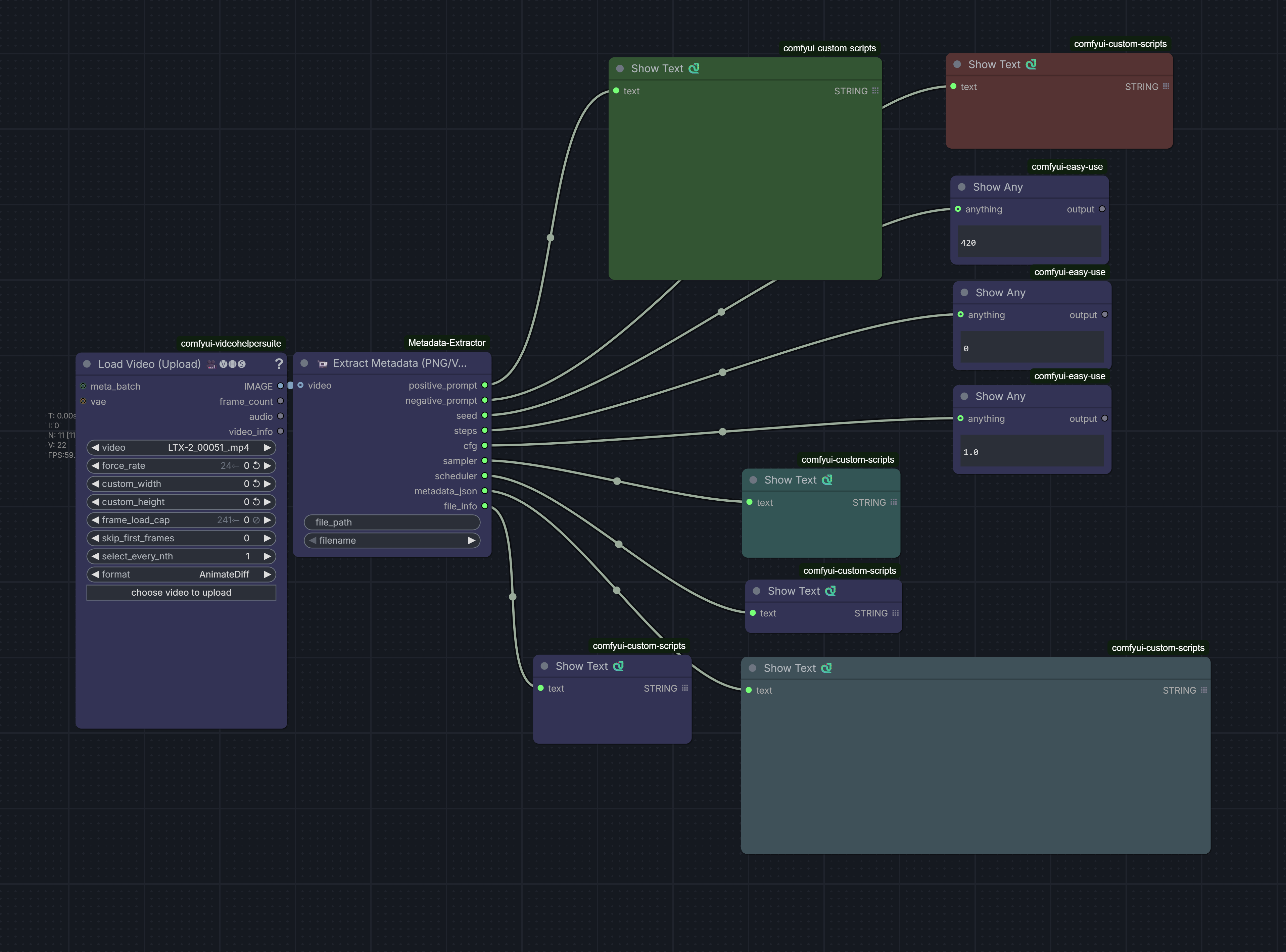
Example workflow showing the Metadata Extractor node in action
📦 Installation
Method 1: ComfyUI Manager (Recommended)
- Open ComfyUI Manager
- Search for "Metadata Extractor"
- Click Install
- Restart ComfyUI
Method 2: Manual Installation
cd ComfyUI/custom_nodes
git clone https://github.com/ai-joe-git/ComfyUI-Metadata-Extractor.git
cd ComfyUI-Metadata-Extractor
pip install -r requirements.txt
Method 3: ffmpeg Installation (Required for Video Support)
Windows:
# Using Chocolatey
choco install ffmpeg

# Or download from: https://ffmpeg.org/download.html
Linux:
sudo apt-get install ffmpeg
# or
sudo yum install ffmpeg
macOS:
brew install ffmpeg
🚀 Usage
Input Options
The node provides three ways to specify your file:
- File Dropdown: Select from files in your ComfyUI output folder
- Manual Path: Enter a custom file path directly
- Video Tensor: Pass a video tensor from another node (for video files)
Outputs
| Output | Type | Description |
|--------|------|-------------|
| prompt | STRING | The positive prompt used for generation |
| workflow | STRING | Complete workflow JSON |
| workflow_json | STRING | Parsed workflow as JSON object |
| all_text | STRING | All text fields combined |
| parameters | STRING | Generation parameters (steps, CFG, sampler, etc.) |
| model | STRING | Model name used |
| positive | STRING | Positive prompt text |
| negative | STRING | Negative prompt text |
| metadata_dict | DICT | All metadata as Python dictionary |
Example Workflow Structure
Load Image/Video
    ↓
Metadata Extractor
    ↓
├─ Use prompt output
├─ Use workflow output
├─ Use parameters output
└─ Use model output
💡 Use Cases
- Recreate Past Generations: Extract exact settings from your best outputs
- Organize Your Work: Automatically catalog prompts and settings
- Study Successful Prompts: Analyze what worked in previous generations
- Batch Analysis: Extract metadata from multiple files for comparison
- Workflow Recovery: Restore lost workflows from output images
- Video Metadata: Access generation data from ComfyUI video outputs
📋 Supported Formats
Images
- PNG (with embedded ComfyUI metadata)
Videos
- MP4
- AVI
- MOV
- MKV
- WebM
🔧 Technical Details
Metadata Sources
The node extracts metadata from multiple sources:
- PNG tEXt chunks: Standard ComfyUI metadata storage
- Video file metadata: Embedded in video container metadata
- Workflow JSON: Complete node graph and connections
- Parameters: Extracted from workflow nodes
Node Detection
The extractor automatically identifies common ComfyUI nodes:
- KSampler
- KSamplerAdvanced
- CLIPTextEncode (positive/negative prompts)
- CheckpointLoaderSimple (model names)
- And more...
🐛 Troubleshooting
"ffprobe not found" Error
Install ffmpeg using the instructions in the Installation section above.
"No metadata found" Error
- Ensure the file was generated by ComfyUI
- Check that the file contains embedded metadata
- For PNG files, verify the image has ComfyUI workflow data
- For video files, ensure they were rendered with metadata enabled
Empty Outputs
If specific outputs are empty:
- The metadata field may not exist in the source file
- Check the console output to see available metadata
- Verify the workflow used nodes that store that information
Video Tensor Input Not Working
- Ensure you're passing a valid video tensor
- Check that the video format is supported
- Verify ffmpeg is properly installed
📝 Console Output
When the node runs, it prints detailed metadata to the console:
=== METADATA EXTRACTION ===
File: output_video.mp4
Prompt: a beautiful landscape...
Model: sd_xl_base_1.0.safetensors
Parameters: steps: 20, cfg: 7.0, sampler: euler_ancestral
===========================
🤝 Contributing
Contributions are welcome! Please feel free to submit issues or pull requests.
📄 License
MIT License - feel free to use and modify as needed.
🔗 Links
⭐ Support
If you find this node useful, please consider:
- ⭐ Starring the repository
- 🐛 Reporting bugs
- 💡 Suggesting new features
- 🤝 Contributing improvements
Made with ❤️ for the ComfyUI community