
ComfyUI Inpaint Region Editor
A ComfyUI custom node for inpainting workflows with integrated Photopea editing and adjustable region selection. Features: adjustable reference region, integrated Photopea image editing, professional mask editing with feathering control, auto mask detection, multi-language support.
ComfyUI Inpaint Region Editor


A ComfyUI custom node for inpainting workflows with integrated Photopea editing and adjustable region selection.
Key Features
1. Adjustable Reference Region
ComfyUI's native inpainting nodes expand the reference region uniformly from the mask boundary. This fixed pattern has limitations:
- Edge Area Issues: When the reference region extends beyond image boundaries, invalid areas outside the image may cause suboptimal generation results
- Fixed Expansion Direction: The expansion direction is fixed to the normal of the mask boundary, unable to flexibly adjust based on image content
Our Solution: Manually drag and resize the reference region position and dimensions, allowing the model to reference the correct image context.
2. Integrated Photopea Image Editing
ComfyUI does not have built-in image editing capabilities. Modifying source images typically requires external tools.
Our Solution: Integrated Photopea online image editor, supporting professional editing operations such as liquefy, clone stamp, healing, and color adjustments directly in the browser. Edit results can be saved directly back to the node.
3. Professional Mask Editing with Feathering Control
ComfyUI's built-in mask editor is suitable for quick operations, but has limited functionality for drawing complex masks and precise feathering effects. Feathering is usually generated algorithmically.
Our Solution:
- Photopea dual-layer mask editing mode
- Manual drawing of masks with arbitrary shapes and feathering degrees
- User-controlled feathering effects, not algorithm-estimated
Features
- Reference Region Adjustment - Drag position, resize, constraint validation
- Photopea Image Editing - Liquefy, clone stamp, healing, filters, etc.
- Photopea Mask Editing - Dual-layer mode with precise feathering control
- Auto Mask Detection - Extract mask from PNG alpha channel automatically
- Multi-language Support - Chinese and English UI, auto-adapts to ComfyUI language settings
- Quick Paste - Support Ctrl+V to paste images directly
Installation
Method 1: ComfyUI Manager (Recommended)
Search for "Inpaint Region Editor" in ComfyUI Manager.
Method 2: Manual Installation
cd ComfyUI/custom_nodes
git clone https://github.com/abc-lee/ComfyUI-InpaintRegionEditor.git
Restart ComfyUI.
Usage
Node Interface
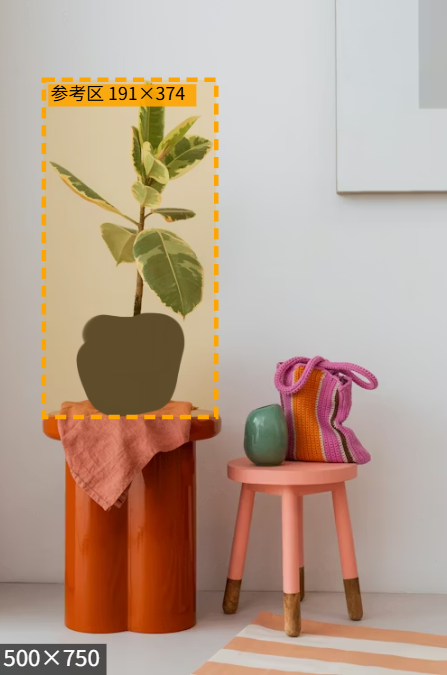
The node displays the image preview area, orange reference region box (with size annotation), and parameter controls.
Context Menu
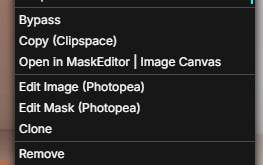
| Option | Description | |--------|-------------| | Edit Image (Photopea) | Edit the image in Photopea | | Edit Mask (Photopea) | Dual-layer mask editing mode |
Basic Workflow
- Add the Inpaint Region Editor node to your workflow
- Upload a PNG image with alpha channel (transparent areas = mask)
- The node automatically extracts the mask and calculates the initial reference region
- Edit image or mask as needed (context menu)
- Drag the reference region to the desired position
- Connect outputs to downstream nodes
Mask Effect
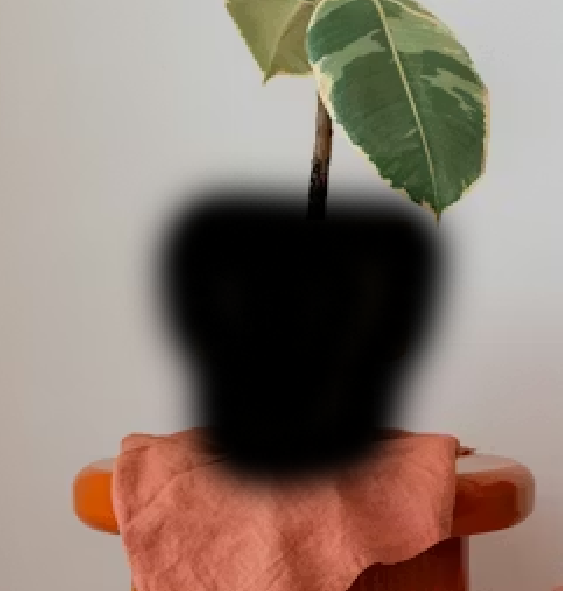
The black area in the image represents the mask, indicating the region to be repainted by the model.
Reference Region Adjustment
- Move Position: Drag inside the reference region
- Resize: Drag the edges or corners
- Constraint Rules: Reference region always contains the mask and stays within image boundaries
Node Parameters
Inputs
| Parameter | Type | Description |
|-----------|------|-------------|
| image | IMAGE | Input image (supports upload, paste) |
| padding | INT | Reference region expansion pixels (default: 64, range: 0-512) |
Outputs
| Output | Type | Description |
|--------|------|-------------|
| image | IMAGE | RGB image (without alpha) |
| mask | MASK | Mask extracted from alpha channel |
| region_top | INT | Reference region top Y coordinate |
| region_left | INT | Reference region left X coordinate |
| region_width | INT | Reference region width |
| region_height | INT | Reference region height |
Concepts
| Concept | Definition | Purpose | |---------|------------|---------| | Mask | Specifies the area to repaint | The model generates new content within this region | | Reference Region | The image area the model references | The model uses original pixels in this region for content generation |
Constraint: The reference region must fully contain the mask.
Calculation: Reference region boundary = Mask bounding box + padding (expanded in all directions)
Notes
-
Image Format: PNG images with alpha channel are required. If the image has no alpha channel, the node will prompt to create a mask.
-
Network Dependency: Photopea loads from CDN, approximately 10MB on first load, then uses browser cache.
-
Image Size: Images larger than 2048×2048 are not recommended, as they may cause Photopea performance issues.
-
Reference Region Constraints:
- Reference region always contains the mask area
- Reference region never exceeds image boundaries
- Reference region is automatically recalculated when mask changes
-
Feathering Control:
- Use semi-transparent brush in Photopea to draw gray areas for feathering
- Alpha values 1-254 produce gradual transparency transitions
Example Workflow
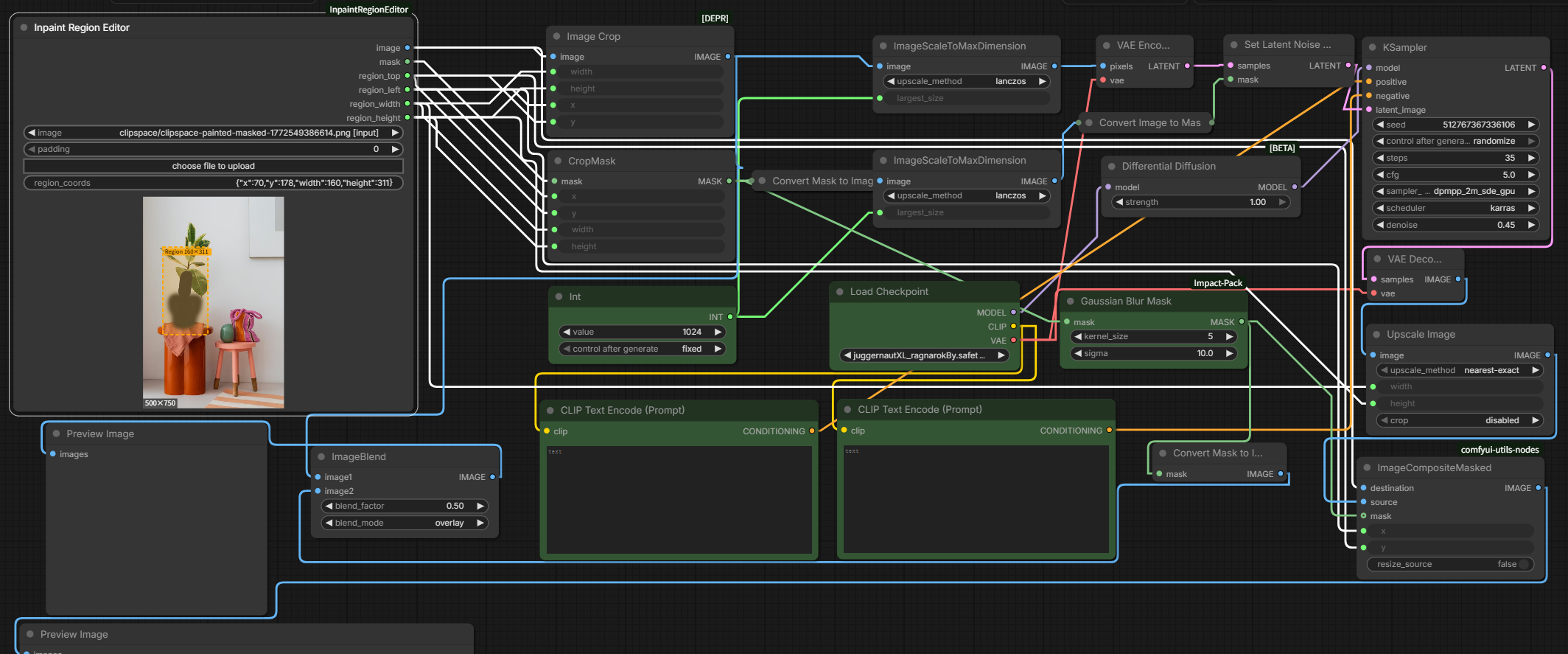
This node includes an example workflow file workflow.json demonstrating an efficient inpainting process:
Workflow Principle
- Region Cropping - Crop the reference region from the original image based on
region_*coordinates - Upscaling - Scale the cropped region to the model's optimal working size (e.g., 1024×1024)
- High-Resolution Inpainting - Sample at the upscaled size to ensure fine detail generation
- Downscaling - Scale back to original size after inpainting
- Compositing - Precisely composite the inpainted result back to the corresponding position in the original image
Advantages
- Finer Details - Inpainting is performed at high resolution, avoiding detail loss from small-size sampling
- Smoother Edges - Upscale before sampling, downscale after, resulting in smoother edge transitions
- Any Size Compatible - High-quality generation results regardless of how small the inpainting region is in the original image
Usage
Drag workflow.json into ComfyUI to load the complete workflow.
Credits
- Photopea by Ivan Kutskir
- ComfyUI
- ComfyUI-Impact-Pack
License
MIT License - See LICENSE file.
Photopea Terms of Use
- API is completely free for commercial use
- User retains full copyright of their work
- No attribution required