
ComfyUI-TemplateReference
Custom nodes for building reusable text, image, and prompt-template libraries directly inside ComfyUI.
Nodes (3)
Prompt templating with [bracket] variables — the node this pack is quietly built around
One dropdown that swaps your prompt AND its LoRA
Keep your text and image references inside the graph, not in a folder
ComfyUI Template Reference
ComfyUI Template Reference adds two custom nodes for building reusable text, image, and prompt-template libraries directly inside ComfyUI.
Notice
- May 31, 2026 - Update: Added the “Prompt Template LoRA” node, which adds LoRA application functionality to prompt templates.
Features
Template Reference Feature
- Create editable text reference blocks.
- Upload images and preview them as image reference blocks.
- Save and load each block list as a JSON file.
- Select a specific block from the Output dropdown and output the selected text or image to other ComfyUI nodes.
- Drag and reorder blocks.
- Collapse, expand, resize, copy, and delete blocks directly in the node UI.
- JSON data created by the user is saved in ComfyUI’s user directory.
Prompt Template Feature
- Create prompt templates and set a prompt title and prompt text for each block.
- Upload images to each prompt template block and preview them as image references.
- Save and load each block list as a JSON file.
- Select a prompt template from a specific block in the Output dropdown and output the selected prompt to other ComfyUI nodes.
- Drag and reorder blocks.
- Collapse, expand, resize, copy, and delete blocks directly in the node UI.
- JSON data created by the user is saved in ComfyUI’s user directory.
Prompt Template LoRA Application Feature
- In addition to the prompt template feature, LoRA application can be added to LoRA templates.
- JSON data created by the user is saved in ComfyUI’s user directory.
- JSON data saved using the prompt template feature is also loaded and applied.
Nodes
Template Reference
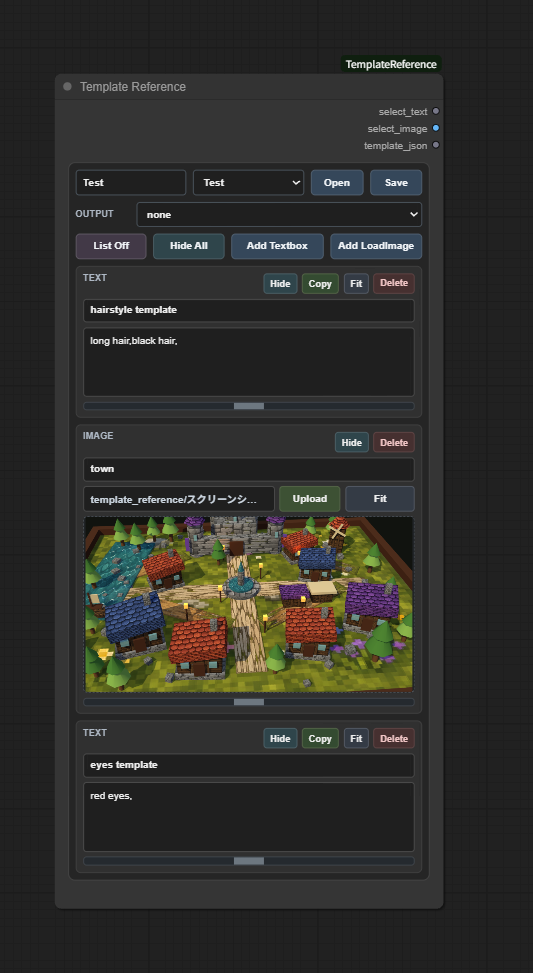
Use this node to collect mixed text and image references.
Outputs:
select_text: Text from the selected text block.select_image: Image from the selected image block.template_json: Full serialized node state.
Main controls:
Open/Save: Load or save the Template Reference JSON library.Output: Select the block to send to the output.List Off/List On: Turn each block off or on.Hide All/Show All: Hide or show all blocks.Add Textbox: Add a text reference block.Add LoadImage: Add an image reference block.Hide/Show: Hide or show the selected block.Copy: Copy the contents of the textbox to the clipboard.Fit: Adjust the block to fit the size of its text or image.Delete: Delete the block.Upload: Upload a reference image.
Prompt Template
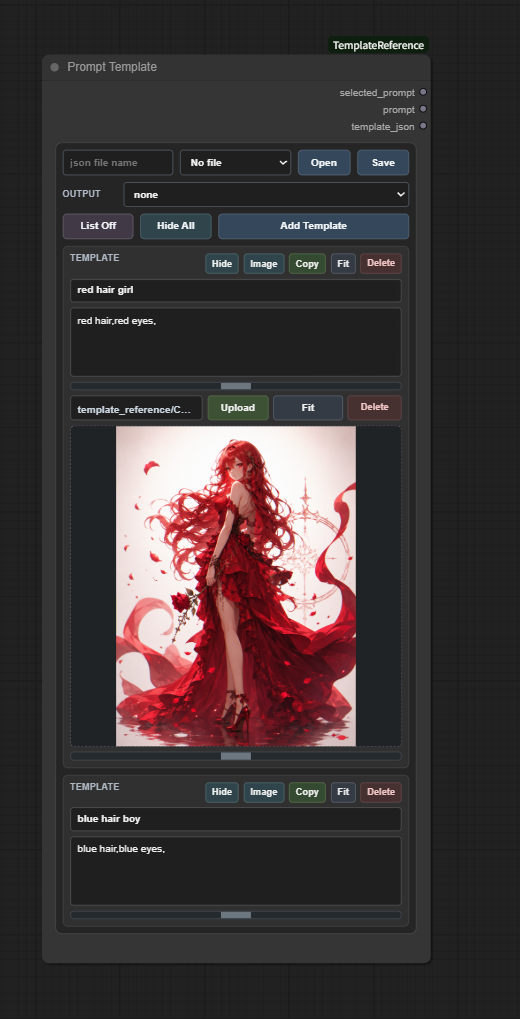
Use this node to collect reusable prompt templates.
Outputs:
selected_prompt: Text from the selected prompt block.prompt: Same selected prompt text, provided as a convenience output.template_json: Full serialized node state.
Main controls:
Open/Save: Load or save the Prompt Template JSON library.none: Output an empty prompt.Output: Select the template to send to the text output.List Off/List On: Turn each block off or on.Hide All/Show All: Hide or show all blocks.Add Template: Add a prompt template block.Hide/Show: Hide or show the selected block.Image: Show or hide the optional reference image area for each prompt block.Copy: Copy the contents of the prompt textbox to the clipboard.Fit: Adjust the block to fit the size of its text or reference image.Delete: Delete the block.Upload: Upload a reference image.
Prompt Template LoRA
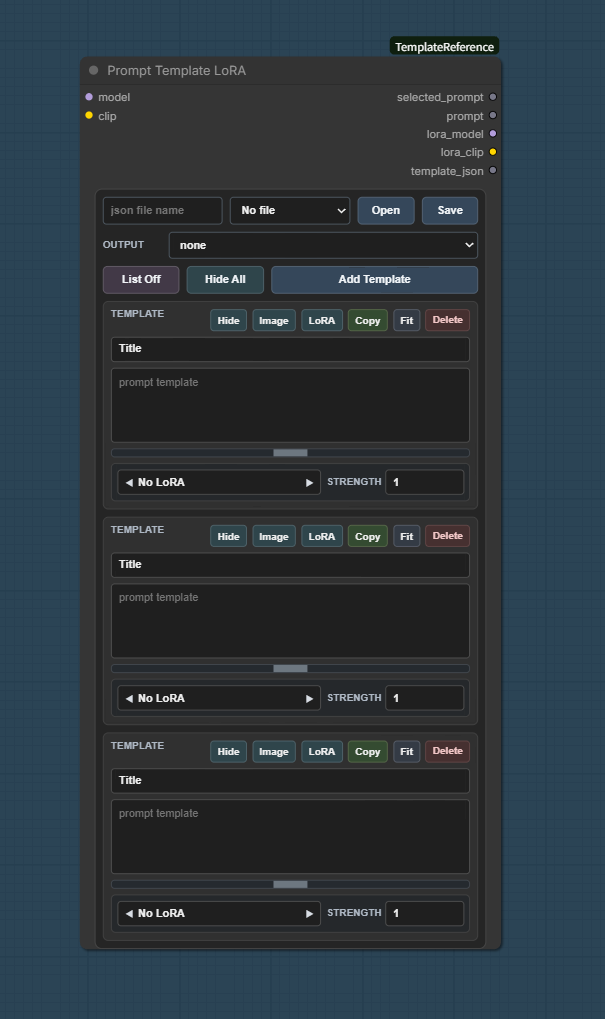
This node applies LoRA in addition to the “Prompt Template” functionality described above.
Inputs:
model: Model inputclip: CLIP input
Outputs:
selected_prompt: The text of the selected prompt block.prompt: The same selected prompt text. This output is provided for convenience.lora_model: Model output with LoRA appliedloraclip: CLIP output with LoRA appliedtemplate_json: The serialized state of the entire node.
Main operations:
Open/Save: Loads or saves the JSON library for Prompt Template LoRA or Prompt Template. The filename will have “lora” appended to the end.none: Outputs an empty prompt.Output: Selects the template to send to the text output.List Off/List On: Turns each block off/on.Hide All/Show all: Hides/shows each block.Add Template: Adds a prompt template block.Hide/Show: Hides/shows the target block.LoRA: Opens the LoRA screen.Image: Shows or hides the optional reference image area for each prompt block.Copy: Copies the contents of the prompt text box to the clipboard.Fit: Optimizes the block size to fit the text/reference image.Delete: Deletes the block.Upload: Uploads a reference image.LoRA screen: Selects the LoRA model to apply from ComfyUI’slorafolder.STRENGTH: Adjusts the strength value of the LoRA influence.
Installation
Clone this repository into your ComfyUI custom_nodes directory:
cd ComfyUI/custom_nodes
git clone https://github.com/Tsubasa109/ComfyUI-TemplateReference.git
Restart ComfyUI after installation.
Storage Location
The extension automatically creates local storage folders under ComfyUI's user directory:
ComfyUI/user/template_reference/prompt_templates/
ComfyUI/user/template_reference/prompt_templates/images/
ComfyUI/user/template_reference/reference_templates/
ComfyUI/user/template_reference/reference_templates/image/
ComfyUI/user/template_reference/prompt_templates_lora/
ComfyUI/user/template_reference/prompt_templates_lora/image/
These folders contain user-created JSON libraries and copied reference images.
Notes
- Reference images are not embedded into JSON files. The JSON stores image metadata and the extension copies uploaded images into its storage folders.
- If a saved image cannot be found, the node keeps the workflow running and returns a small placeholder image while logging a warning.
- Runtime storage folders are ignored by Git and should not be committed to the repository.
File Format
- All JSON template files are saved as UTF-8 without BOM.
- Non-ASCII characters (including Japanese) are stored as-is in the JSON, not as escape sequences.
- When opening saved JSON files in an external editor, make sure the editor is set to UTF-8 encoding.
Requirements
- ComfyUI
License
Apache License 2.0 (see LICENSE)