
Sidebar Gallery
A media browser for the ComfyUI sidebar that indexes the images, videos, and audio in your output folders and shows their embedded generation metadata in a searchable panel.
Sidebar Gallery
A customizable gallery that supports all metadata.
Gallery · Metadata · Customization · Search · Installation
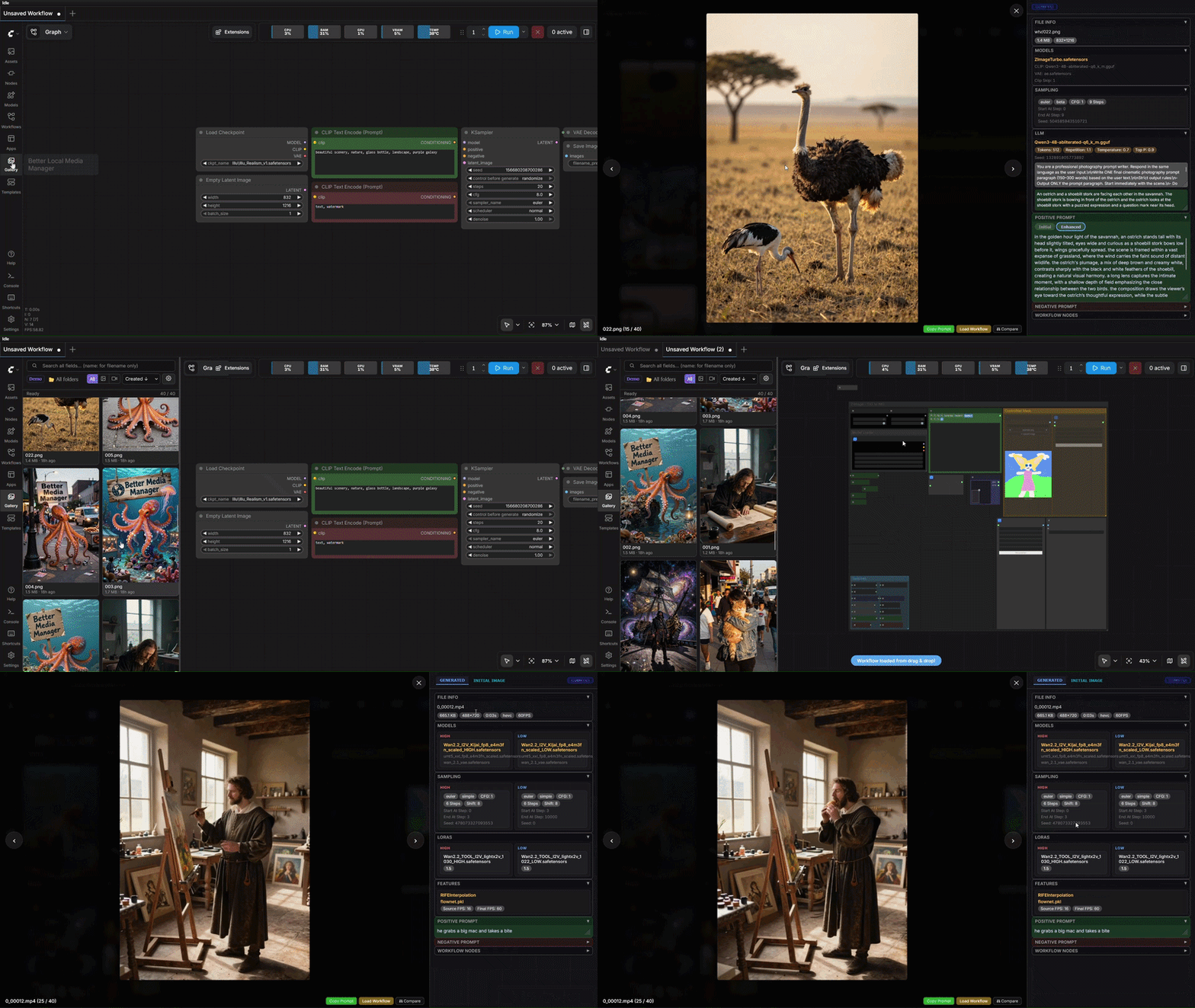
Sidebar Gallery is a ComfyUI extension that adds a media browser to the sidebar. It indexes the images, videos, and audio in your output folders, reads the generation metadata embedded in each file, and presents it as a structured, searchable panel. It supports images, videos, and audio made with ComfyUI, Automatic1111, Forge, SD.Next, Fooocus, and CivitAI's on-site generator.
Gallery
The gallery indexes your ComfyUI output folder, together with any other folders you add, into a grid backed by a SQLite database. Browsing and searching remain fast on libraries of tens of thousands of files. The first time the extension runs, it scans your library to build this index, which can take a few minutes if your collection is large. From then on, only new files are scanned. The index can also be rebuilt in full from the Diagnostics tab at any time.
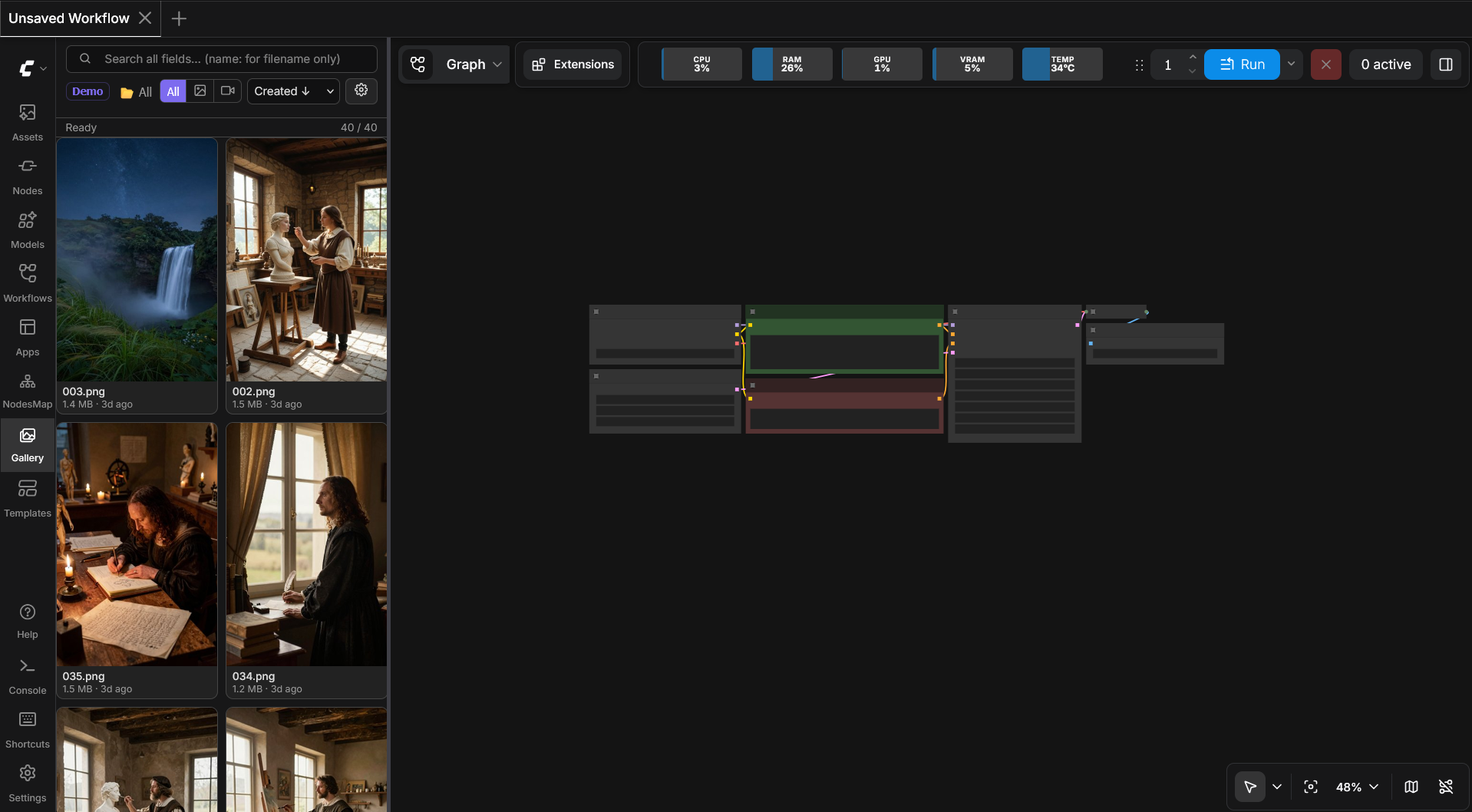
Files from a ComfyUI run show up as soon as it finishes, and other changes on disk when you come back to the page. The folder dropdown lists your folders as a tree, with a filter box, a pin for the folders you use most, and an eye button that sets whether files in subfolders are shown too. Click the star on a card to make it a favorite, and Favorites in the folder dropdown gathers a root folder's favorites in one view. You can filter by media type, set the sort order, and adjust both the thumbnail size and the number of items per row.
Thumbnails are generated on demand, and audio files show their embedded cover art if they have one (a waveform is drawn from the audio otherwise). The lightbox zooms with the scroll wheel and pans by dragging, on images and videos alike. Zoom keys, middle-click reset, the sensitivity, and keeping the zoom while browsing are all configurable. Audio plays in the lightbox with a waveform scrubber and playback controls.
Metadata
Selecting an item opens it at full size in the lightbox, alongside a panel describing how it was made. The panel reads metadata from ComfyUI, Automatic1111, Forge, SD.Next, Fooocus, and CivitAI, and labels each item with its source.
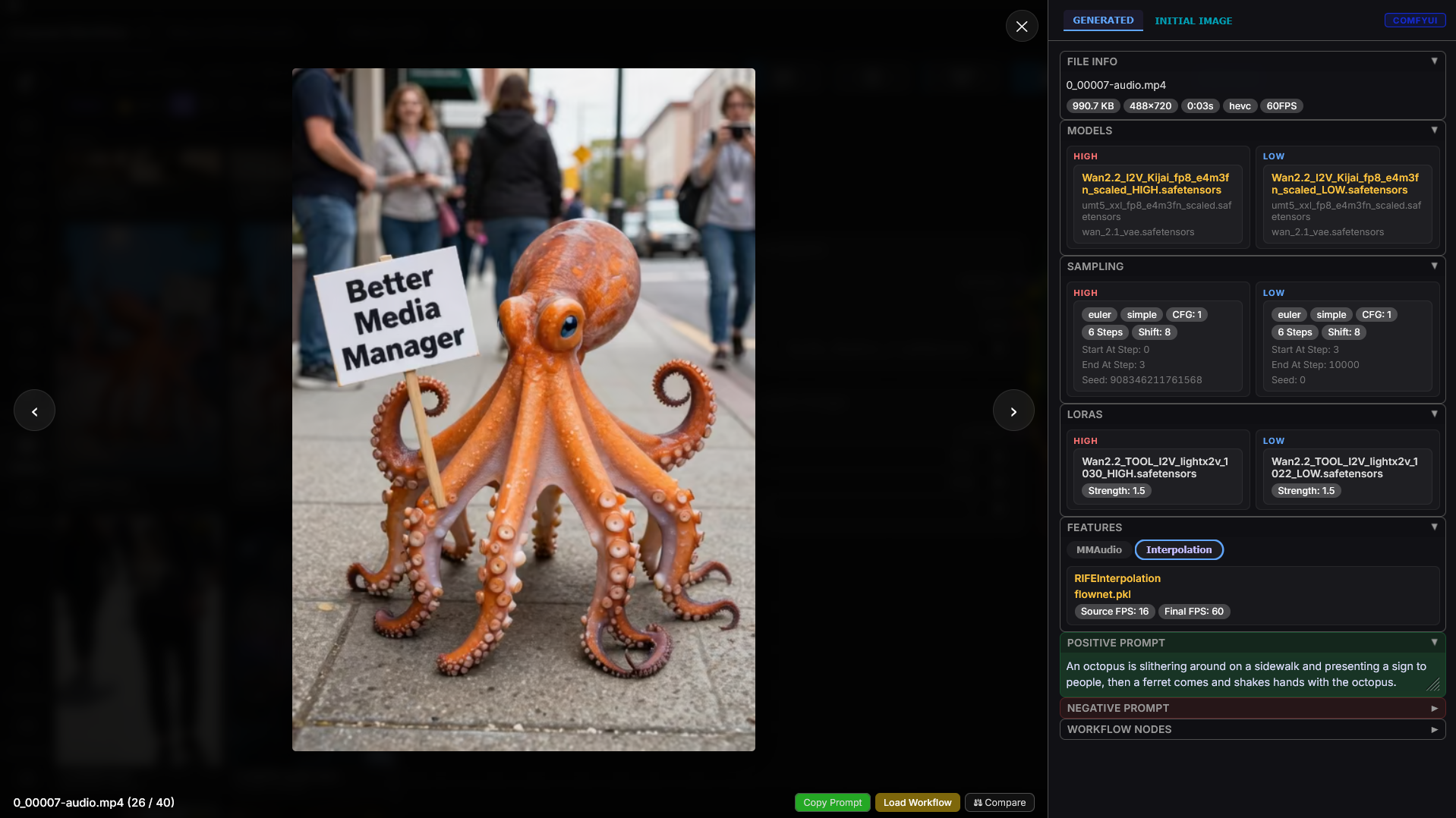
For ComfyUI files, the parser reads the workflow graph rather than a flat parameter string, so a value supplied by another node, such as a seed from a primitive or a step count from a math node, is resolved to the value that was actually used. The panel reports:
- Checkpoint, VAE, CLIP, and clip skip
- Each sampler pass, including custom samplers. Passes that perform no denoising, such as a disabled refiner, are omitted
- LoRAs, ControlNet, ADetailer, upscaling, frame interpolation, and MMAudio
- The original prompt and the version produced by a prompt-enhancement model, shown separately
- For a file made from another image or audio file, that source file on its own tab next to Generated. If the source was itself generated, its own metadata is shown there too
Every node and parameter found in a file is recorded, whether or not the panel shows it by default. Anything that was captured can be added to the panel from the Metadata tab, including parameters from custom nodes that no built-in layout covers.
Split MoE workflows, such as Wan 2.2, use separate high-noise and low-noise passes. Their models, LoRAs, and samplers are paired and shown side by side.
The lightbox's buttons are Favorite, Download, Copy Prompt, Copy Workflow, Load Workflow, Compare and Delete, and each card's right-click menu has all of them except Compare. Compare places two items next to each other and marks each section of the panel Same or Changed. The Delete button sends the file to the Recycle Bin on Windows or the Trash on macOS and Linux. If the drive has no bin, the file moves into a .sbg-trash folder at the top of its root folder instead, keeping its subfolder path.
Customization
Most of the interface is configurable through the settings panel, which is divided into tabs:
- Metadata rebuilds the lightbox's metadata panel in a two-pane editor (detailed below).
- Theme picks the colors. The built-in themes are Comfy (the default, ComfyUI's own greys with Comfy's yellow), ComfyUI (follows ComfyUI's palette), Obsidian, Coffee, Slate, Midnight, Synthwave, Retro, and Retro Dark. Editing a built-in makes your own copy of it, and a theme can be exported and imported as a file.
- Appearance sets up the grid, the cards, the toolbar, and which buttons the lightbox and the card menu show.
- Presets saves your setup under a name and switches between setups. A preset carries your layouts, settings, keybindings, and the theme in use. A backup is taken before every load, and any backup can be restored or undone.
- Keybindings assigns keyboard shortcuts. Bindings accept key combos and mouse buttons, with defaults for navigation, zoom, mute, and video frame stepping.
- General holds sorting, deleting, zoom, folders, and other settings for the gallery.
- Diagnostics shows file counts and holds the tools for when something looks wrong, such as rebuilding the index.
- Help helps.
The Metadata tab controls how the metadata panel is structured, with separate layouts for each source application and for images, videos, and audio. It shows your sections and fields on the left and a live preview on the right that renders the panel exactly as it appears in use.
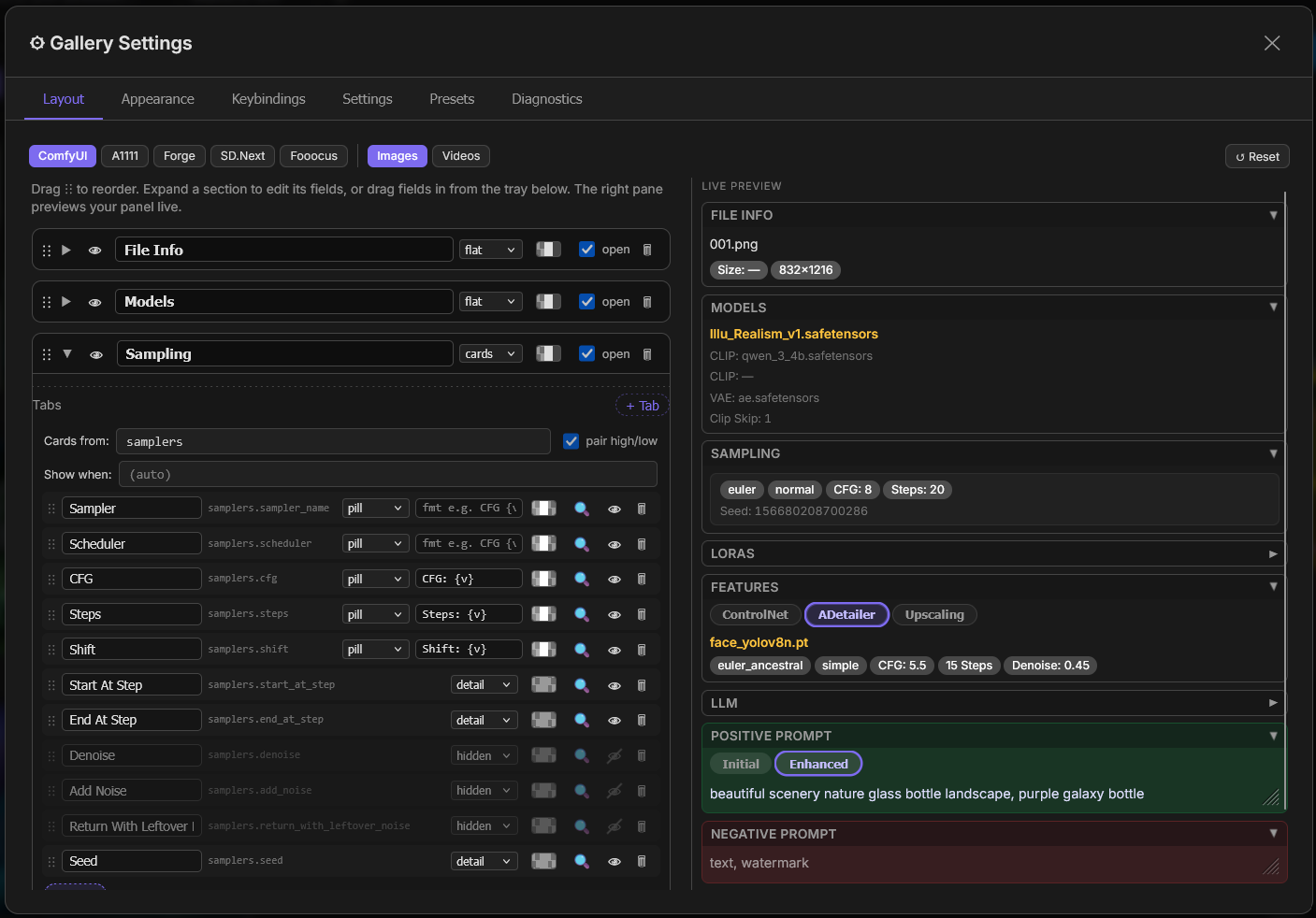
- Sections can be reordered by dragging, renamed, hidden, recolored, deleted, or added.
- Fields can be moved between sections, relabeled, and shown as a key/value row, a pill, a heading, or plain text. Their background, text, and border colors are set independently.
- All fields lists every metadata path found in your library, grouped and searchable. Dragging an entry onto a section adds it. Individual workflow nodes are listed by their titles.
- Cards display one card per entry in a list, such as one card per LoRA or per sampler, or a single card built from one node.
- Tabs split a section into pill-switchable sub-sections, such as the original and enhanced prompt.
- High and low pairing shows the two halves of an MoE workflow side by side.
- Copying between layouts duplicates or moves sections and tabs into another profile. Dragging also converts, so a tab dropped between sections becomes its own section, and a section dropped onto another joins it as a tab.
Settings, layouts, favorites, themes, and presets are saved by the extension's backend, the same local server that ComfyUI itself runs on, so they persist across browsers and sessions without anything being sent off your computer.
Search
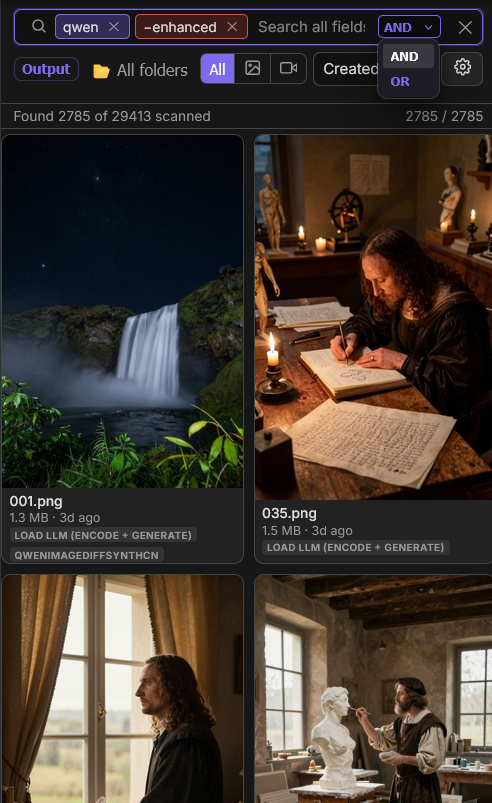
The search bar searches the metadata of your whole library. Type a term and press Enter. A term with no prefix matches file names, folder names, and all the metadata except the negative prompt: positive prompt, checkpoint, LoRAs, ControlNet, samplers, and so on. Adding a prefix restricts the term to a single field, for example model:flux or lora:detail, and a term starting with a minus leaves its matches out, for example -euler. As you type, a dropdown suggests field names, including sections you renamed or created on the Metadata tab. When several terms are combined, an AND or OR choice decides whether a result must match all of them or any of them. A search can be saved and picked again from the same dropdown. Each result lists the fields that matched beneath its thumbnail.
Loading workflows
Dragging a thumbnail onto the ComfyUI canvas loads its workflow. Dragging it onto an image-loading node, such as Load Image, loads the image into that node instead of the workflow. The same workflow can also be loaded from the lightbox with the Load Workflow button.
Installation
ComfyUI-Manager (recommended): open ComfyUI-Manager, search the custom-node list for Sidebar Gallery, install it, and restart ComfyUI.
Manual: clone into your ComfyUI custom_nodes folder, then restart ComfyUI:
cd ComfyUI/custom_nodes
git clone https://github.com/TokenSpender/ComfyUI-Sidebar-Gallery.git ComfyUI-sidebar-gallery