
comfyui_archviz_controller
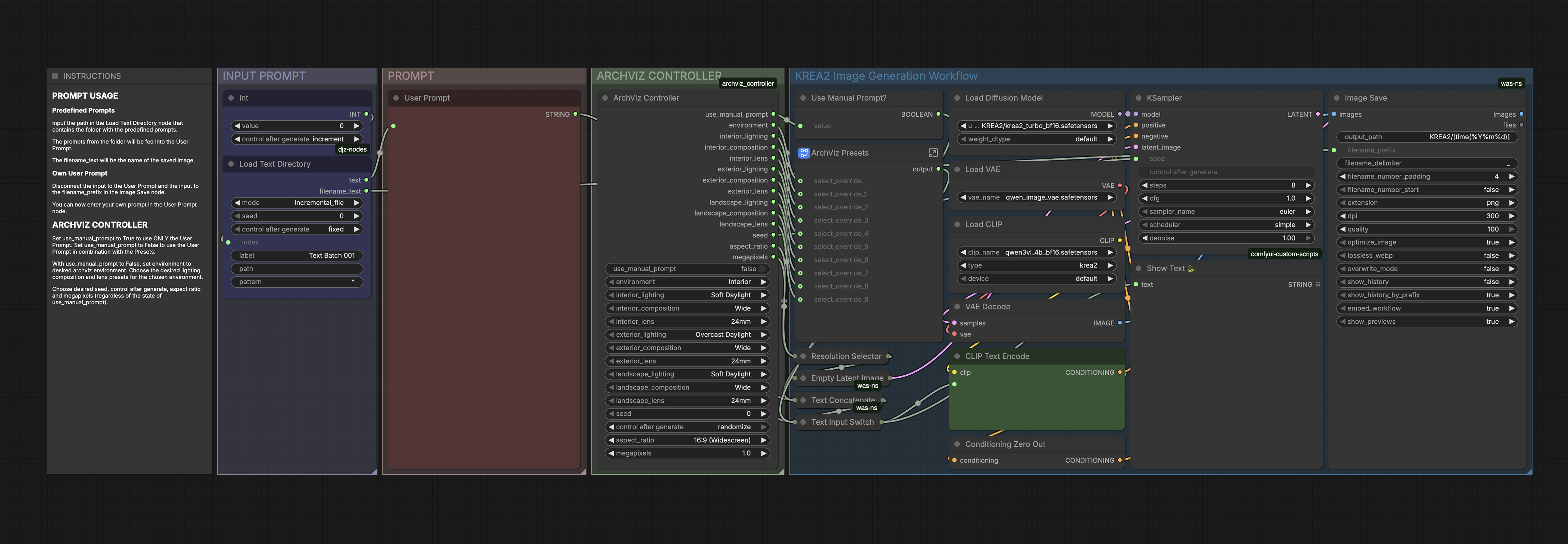
An architectural visualization controller node and Krea 2 Turbo workflow for ComfyUI.
Nodes (1)
ArchViz Controller for ComfyUI
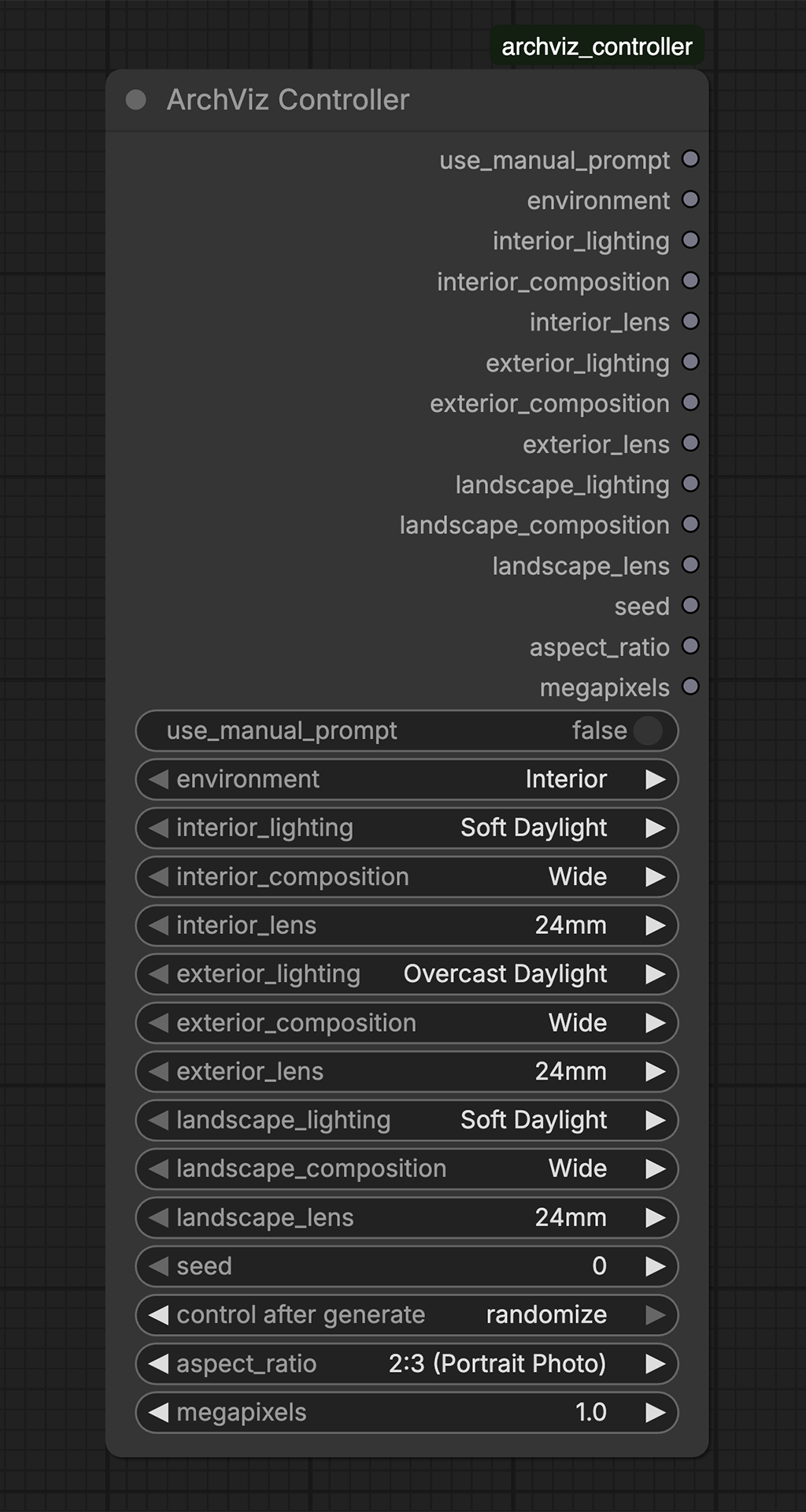
The ArchViz Controller is a custom ComfyUI node designed for the T2I_KREA2_ComfyUI_ArchViz_v1.0 workflow. It provides a single control panel for architectural interior, exterior, and landscape image generation with Krea 2 / Krea 2 Turbo.
The node exposes prompt mode, environment, lighting, composition, lens, seed, aspect ratio, and megapixel controls. It converts the selected preset options into selector values used by the workflow's DazzleNodes switches. The preset prompt text itself is stored in the workflow, not in the Python node.
Model Compatibility
The Archviz Presets & Controller were originally developed for the Krea2-Turbo master workflow and has also been tested successfully with Flux3-Klein and MOSS-Image workflows.
The controller and reusable presets can be integrated into compatible ComfyUI workflows, allowing users to apply a consistent control system across different image-generation models. Integration may require adapting the workflow to expose the appropriate inputs.
Features
- Manual prompt mode — use the supplied user prompt by itself.
- Preset-assisted prompt mode — combine the user prompt with the selected architectural presets.
- Three environments — Interior, Exterior, and Landscape.
- Environment-specific presets — choose lighting, composition, and lens settings.
- Generation controls — set the seed, aspect ratio, and target megapixels.
- Workflow included —
T2I_KREA2_ComfyUI_ArchViz_v1.0.json.
Screenshots
ArchViz Controller
Krea 2 Turbo Workflow with the ArchViz Presets & Controller
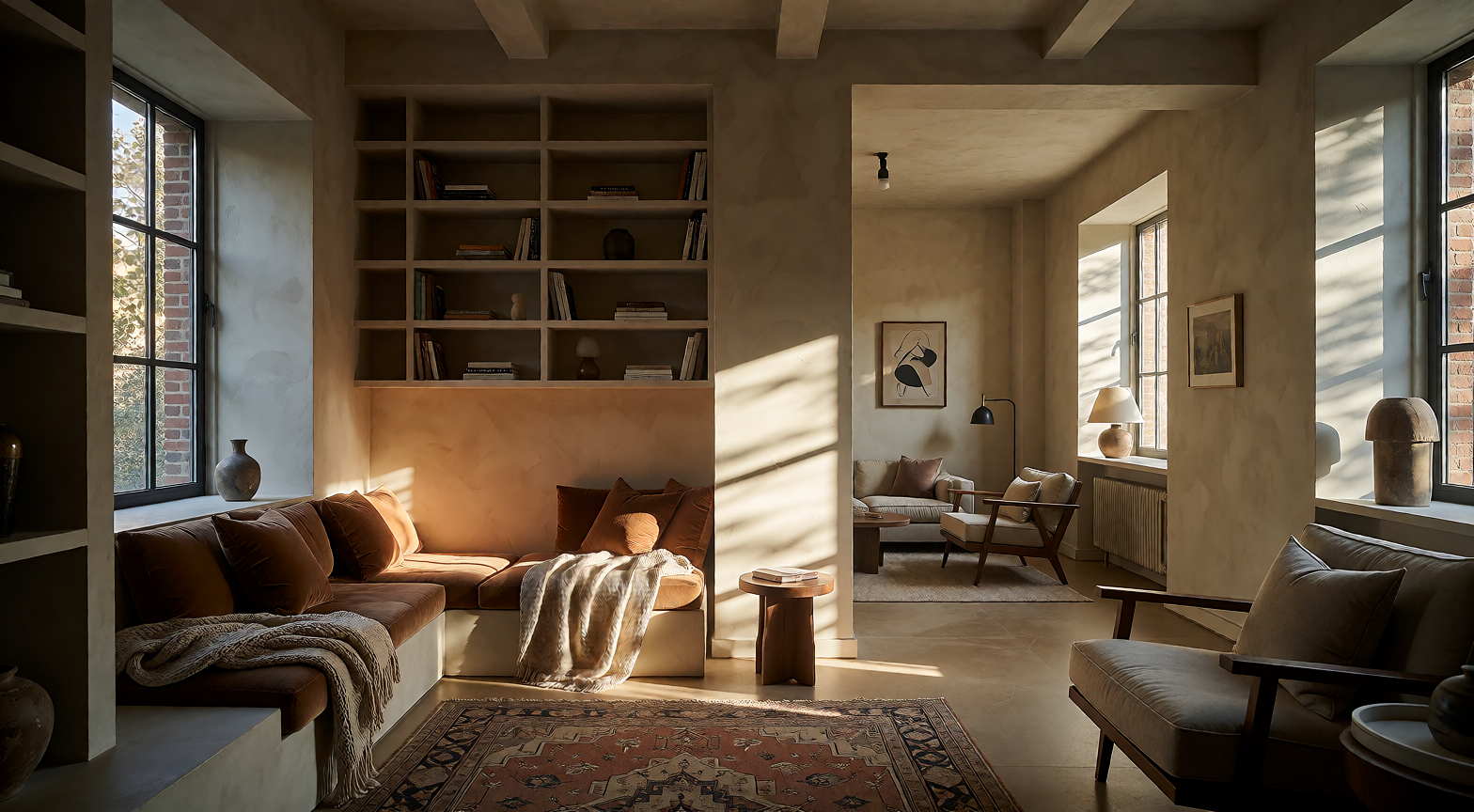
Example result
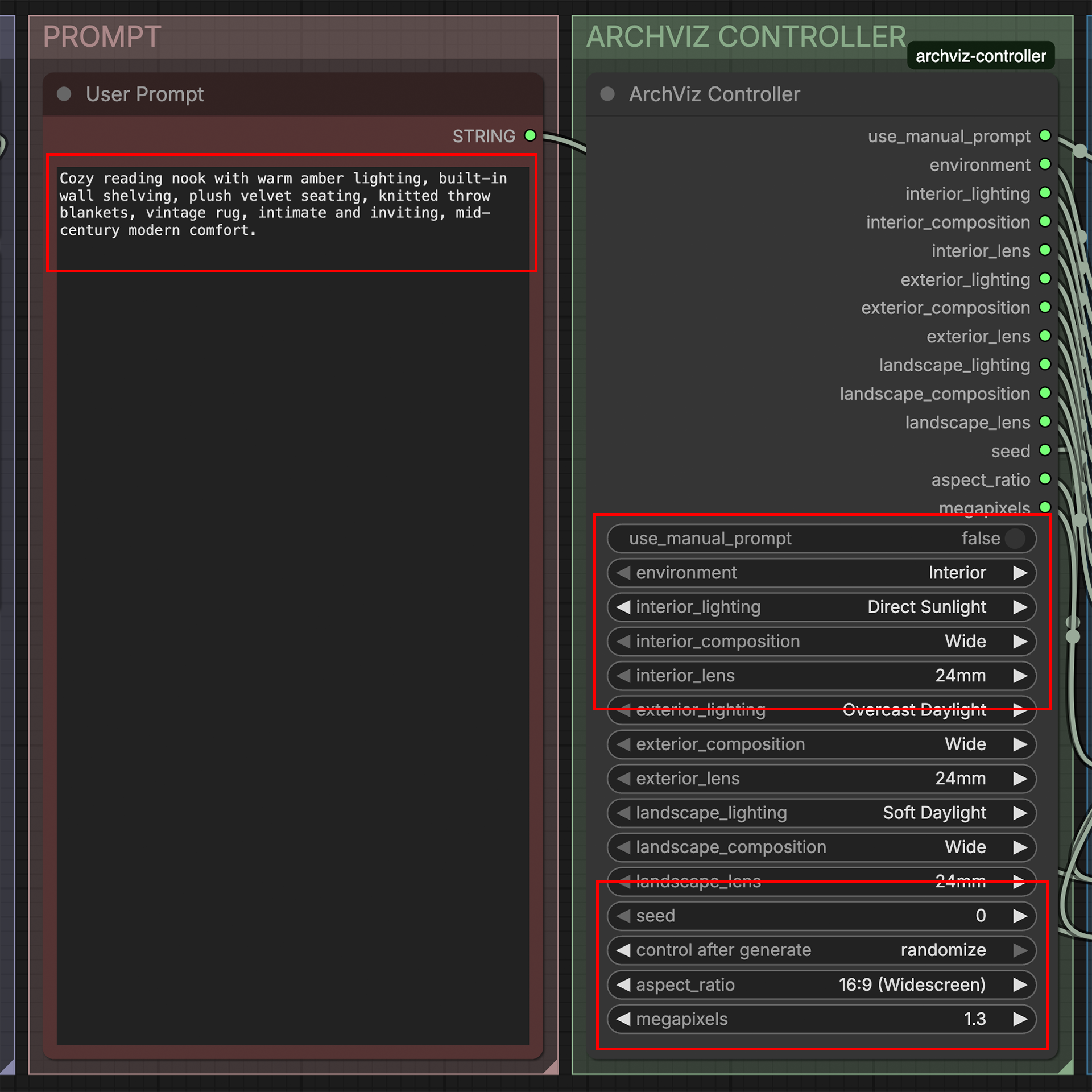
Example settings
Requirements
- ComfyUI Desktop or a compatible ComfyUI installation.
- A Krea 2 / Krea 2 Turbo model setup compatible with the included workflow.
- The following additional custom-node packs used by the workflow:
- ComfyUI-Custom-Scripts
- WAS Node Suite (Revised)
- DJZ-Nodes
- DazzleNodes Collection
Install these packs through ComfyUI Manager by searching for their names, and check each pack's current repository page for its own installation notes. The exact package/repository naming may differ from the display name.
The workflow uses nodes from ComfyUI core as well as the packs listed above. Install those dependencies separately; this repository only provides the ArchViz Controller node and the workflow.
Installation
Recommended: ComfyUI Manager / Registry
The ArchViz Controller is published on the ComfyUI Registry. To install it, open ComfyUI Manager, search for ArchViz Presets & Controller, and install the node pack. Restart ComfyUI if requested.
You can also find the package on the ComfyUI Registry and browse the source code in this GitHub repository.
Install the workflow's other required custom-node packs separately, then restart ComfyUI.
Manual installation from GitHub
If you prefer to install manually, follow the instructions below.
-
Open your ComfyUI
custom_nodesdirectory. -
Clone this repository into that directory:
git clone https://github.com/Timmy-ComfyUI/comfyui_archviz_controller.git -
Restart ComfyUI.
-
Open
T2I_KREA2_ComfyUI_ArchViz_v1.0.jsonin ComfyUI.
If you publish this project in a different GitHub repository, replace the clone URL above with that repository's URL.
No additional Python packages are required by the ArchViz Controller itself.
Using the workflow
1. Choose how to provide the prompt
- Use Manual Prompt? =
True: use only the text in theUser Promptnode. - Use Manual Prompt? =
False: combine theUser Prompttext with the selected presets.
For predefined prompts, set the path in the workflow's Load Text Directory node to the folder containing your prompt text files. The node's filename_text output is used as the saved image's filename prefix.
To enter a prompt directly instead, follow the workflow's on-canvas instructions: disconnect the User Prompt input and the filename_prefix input on the Image Save node, then enter your prompt in the User Prompt node.
2. Select the environment and presets
Choose one of the three environments:
- Interior — lighting: Soft Daylight, Direct Sunlight, Warm Evening, or Dramatic Directional; composition: Wide, Editorial, or Detail; lens: 24mm, 35mm, or 50mm.
- Exterior — lighting: Overcast Daylight, Direct Sunlight, Golden Hour, or Blue Hour; composition: Wide, Editorial, or Detail; lens: 24mm, 35mm, or 50mm.
- Landscape — lighting: Soft Daylight, Direct Sunlight, Golden Hour, or Mist & Atmosphere; composition: Wide, Layered, or Detail; lens: 24mm, 50mm, or 85mm.
The controller converts the dropdown selections to integer selector values. The prompt text for each preset remains in the workflow's ArchViz Presets subgraph.
3. Set image generation options
Use the controller's Seed, Aspect Ratio, and Megapixels controls to set the generation seed and output dimensions. These settings are independent of the manual-prompt toggle.
The workflow is configured for Krea 2 / Krea 2 Turbo model files. If your model files have different names or locations, select the matching files in the loader nodes.
Included files
__init__.py— exposes the node registration mappings to ComfyUI.archviz_controller.py— implements the ArchViz Controller node.T2I_KREA2_ComfyUI_ArchViz_v1.0.json— the example workflow.
Troubleshooting
- Missing node warning: install the required custom-node packs listed above and restart ComfyUI.
- Model not found: choose the installed Krea 2 model, text encoder, and VAE files in the loader nodes.
- Preset selection has no effect: check that the DazzleNodes switches in the
ArchViz Presetssubgraph are connected and that the workflow has loaded without missing nodes. - Prompt folder is empty or not found: verify the path configured in
Load Text Directoryand confirm that it contains text files matching the node's pattern.
License
This project is licensed under the MIT License. See LICENSE.
The included workflow depends on ComfyUI and third-party custom-node packs, which are distributed under their own respective licenses.