
Prettifier
Makes ComfyUI workflows readable and good looking: auto-layout by graph flow, compact packing, link straightening, reroute cleanup, variables for long links, resizing, grouping with custom rules, renaming, themes and a lint report, with lots of options.
ComfyUI Prettifier
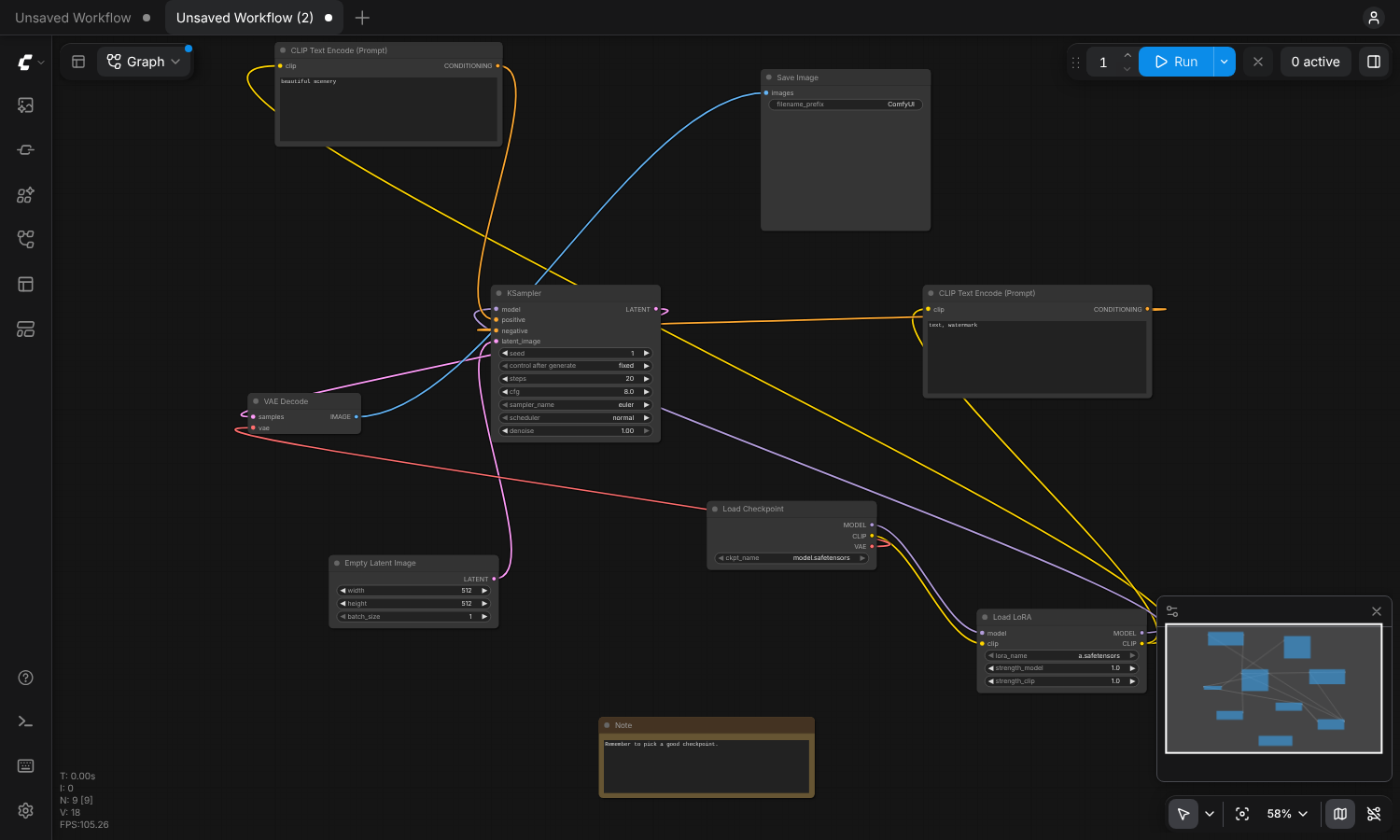
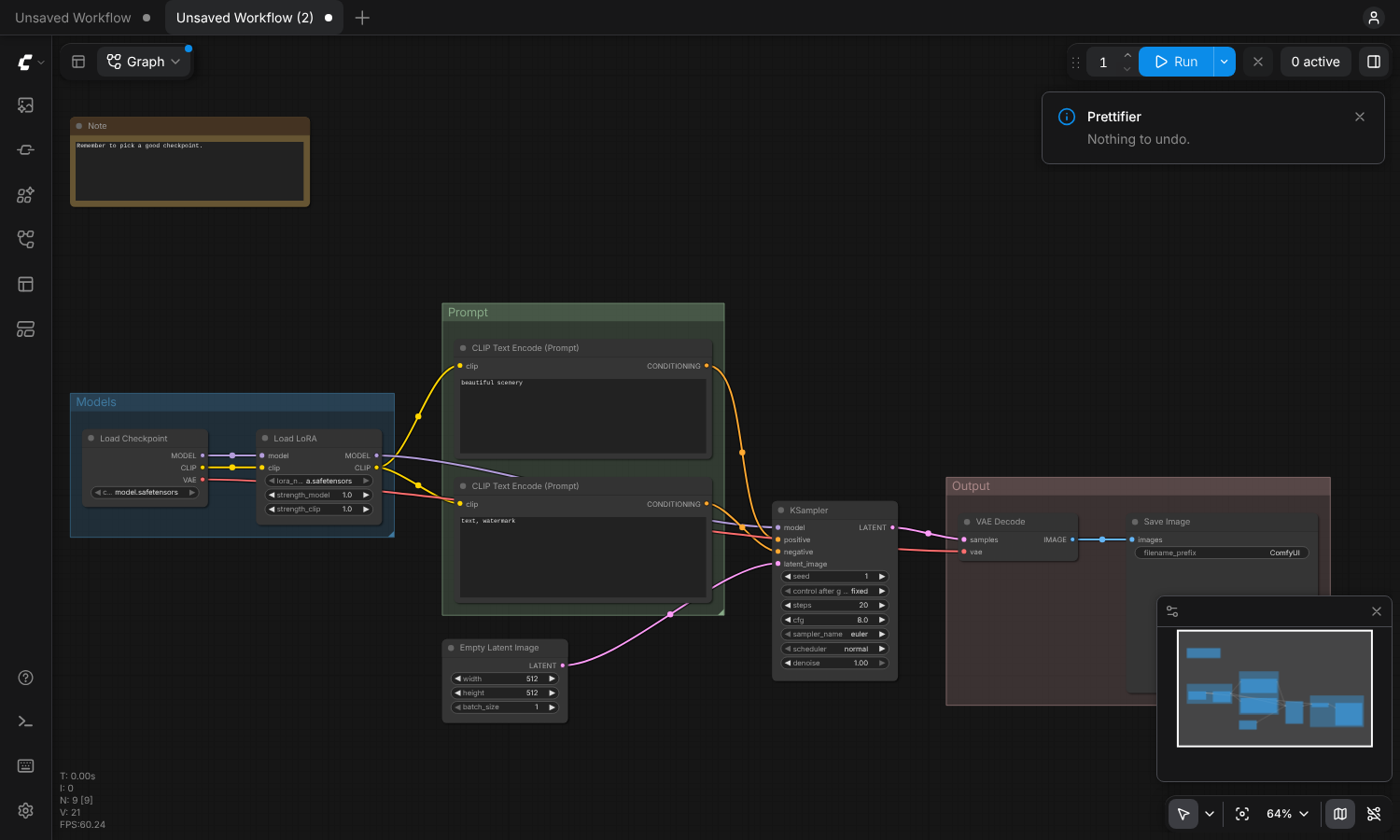
Turns a tangled ComfyUI workflow into a clean, readable one with a single shortcut. It lays nodes out along the flow of the graph, straightens links, resizes nodes, creates or tidies groups, and gives you a lot of knobs to make the result look the way you like.
| Before | After (default options) |
| --- | --- |
|  |
 |
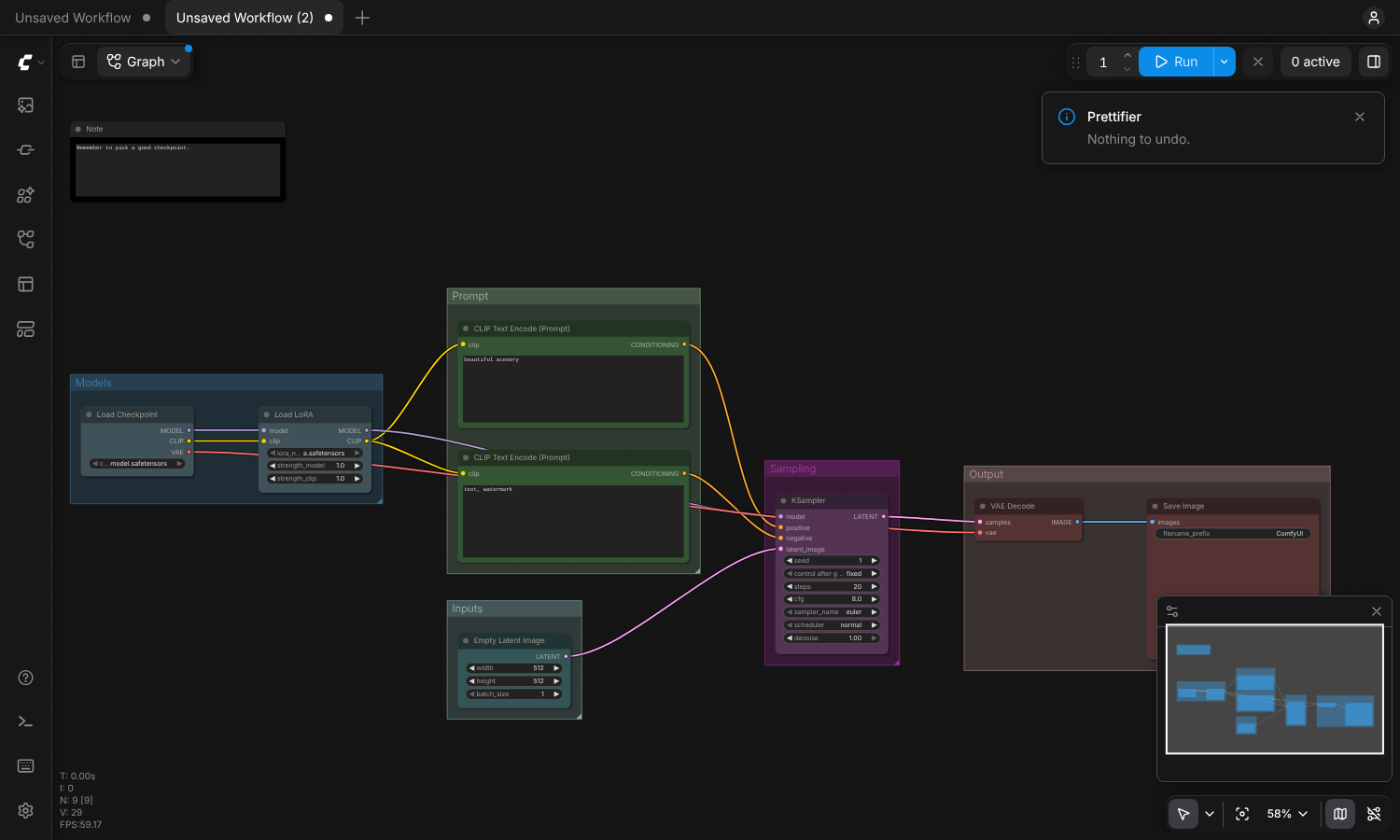
With the Presentation preset (stage groups and node colors):
Install
Copy (or clone) this folder into ComfyUI/custom_nodes/, so you have
ComfyUI/custom_nodes/comfyui-prettifier/__init__.py, then restart ComfyUI and
refresh the browser. It is frontend-only: no Python dependencies, no new nodes.
Use it
| How | What | | --- | --- | | Alt + P | Prettify (the selection if 2+ nodes are selected, otherwise the whole workflow) | | Alt + Shift + P | Open the options dialog with live preview | | Top menu → Extensions → Prettifier | All commands, plus an Align selected submenu | | Right-click the canvas → Prettifier | Same commands | | Settings → Prettifier | Every option, saved with your ComfyUI settings |
Prettify records an undo step with ComfyUI's normal history (Ctrl+Z), and also has its own Undo last prettify command.
The options dialog
The dialog shows every option grouped in tabs. With Live preview on, the canvas re-arranges as you change things; Apply keeps the result and Cancel (or Esc) puts everything back. Presets (Compact, Spacious, Presentation, Tidy only) set several options at once. Apply saves the options as your defaults; Cancel discards them.
What it does
Layout
- Columns by flow. Nodes are placed in columns following the links (a Sugiyama-style layered layout). Cycles are handled, and loaders can sit right next to the nodes that use them.
- Fewer crossings. Nodes inside each column are reordered to reduce crossing links, using socket order as a tie-breaker (so a positive prompt lands above the negative one feeding the same KSampler).
- Straight links. Each node is moved vertically so its sockets line up with the sockets it connects to, without ever overlapping.
- Sizing. Nodes can be shrunk to fit their content, made a uniform width per column, or a fixed width. Nodes with images or text boxes are protected from shrinking unless you allow it.
- Groups. Either keeps and tidies your existing groups, or creates new ones by pipeline stage (Models, Inputs, Prompt, Sampling, Latent, Image, Mask, Output), node category, node type, node color, connected section, or your own rules. Grouped nodes are laid out together and groups never overlap.
Around the layout
- Reroute cleanup. Old reroute dots are cleared and long links that would run through a node get new dots that carry them above or below it. Links are also kept out of groups they don't belong to (neither end inside), which you can turn off. Or just remove every dot, or leave them alone. With Stay level, a rerouted link runs horizontally as far as it can and only gets a dot where it has to change height. Prettifying the whole workflow clears every old dot first (a selection only clears the dots of its own links), and running it again gives the same result.
- Variables instead of long links. Optionally swap long links, or links that would cross a node or run backwards, for a small Set node next to the source and a Get node next to each node that uses the value. The workflow runs exactly the same. One variable is made per output and named from a template, and "Turn variables back into links" undoes it at any time.
- Renaming. Rename node titles and connector labels from templates
(
{stage}: {default},{name}[ ← {source}]), with criteria (only untouched nodes, only matching types, only connected connectors), capitalization, numbering of duplicates, and find/replace rules. - Collapse and inactive nodes. Auto-collapse nodes matching a pattern (loaders, primitives…), expand everything, and dim and/or collapse muted or bypassed nodes.
- Palettes and themes. Five built-in color palettes plus a custom one. Save any set of options as a named theme, and export or import themes as JSON files.
- Per-workflow options. The options a workflow was prettified with are stored in the workflow file and reused next time.
- Summary note. A note listing models, LoRAs, resolution, sampler settings and seeds (optionally prompts), refreshed on every prettify.
- Lint report. Flags missing required inputs, models that are not in the list, missing node types, unused nodes, duplicate loaders, suspicious values (very high steps or CFG, zero denoise, sizes not divisible by 8…) and muted or bypassed nodes. Click a finding to jump to the node.
- Automatic runs. Optionally prettify when a workflow is opened and/or saved.
- Subgraphs. Prettifying a workflow also tidies the inside of every subgraph. A subgraph's own inputs and outputs can be renamed from a template (the panels inside and the connectors on the subgraph node change together) and reordered so fewer links cross, either to match the layout inside the subgraph or the nodes around the subgraph node.
- Notes are gathered into a row, unconnected nodes are packed neatly, pinned nodes stay put, plus snap to grid, zoom to fit and an animated transition.
Also included: align left/right/top/bottom/center, distribute, match width/height, shrink to fit content, and fit groups to their nodes.
Renaming templates
| Where | Tokens |
| --- | --- |
| Node titles | {title} current title, {default} default name, {type}, {id}, {n} number among nodes of the same type, {stage}, {category}, {group}, {widget:NAME} a widget value |
| Connectors | {name}, {label} current label, {type} data type, {node} this node's title, {source} title of the node feeding an input, {sourceSlot} |
| Subgraph connectors | {name} original name, {label}, {type}, {inner} name of the connector it is wired to inside, {node} title of that inside node, {source} title of the node feeding it on the parent canvas, {subgraph} |
A [bracketed part] is dropped when a token inside it is empty. Find/replace rules
look like find => replace; find2 => replace2 (regular expressions), and can be
limited to node or data types: CLIPTextEncode :: ^.*$ => Prompt.
Subgraph connectors use the connector capitalization and find/replace rules, and
connectors that would end up with the same label are numbered. Inside a subgraph,
{source} on an input fed by the input panel is that subgraph input's name.
Options
| Tab | Options | | --- | --- | | Layout | Flow direction, column assignment, vertical alignment, alignment inside a column, crossing reduction passes, link straightening iterations, respect current order | | Spacing | Horizontal, vertical and section gaps, snap to grid, grid size, anchor | | Sizing | Node width mode, fixed/min/max width, node height mode, shrink nodes with images or text | | Groups | Arrangement (follow the flow, compact, most compact), target shape, group by (auto, existing, stage, category, section, node type, node color, only my rules, none), custom group rules, groups not to create, name template, name find/replace, number duplicate names, restyle existing groups, minimum group size, category depth, padding, title size, color mode, single color | | Placement | Unconnected nodes, notes, separate sections, align ungrouped nodes with the group box or with the nodes inside groups, match grouped node width, never move pinned nodes | | Links | Reroute dots (auto, remove, keep), rerouted links take the shortest way or stay level, route around groups, clearance, minimum link length, replace links with variables (long, blocked, both), length that counts as long, variable name template, collapse variable nodes | | Nodes | Collapse mode and pattern, muted/bypassed style, subgraphs, subgraph connector order | | Renaming | Rename on prettify, title mode/template/criteria/type filter/capitalization/numbering/rules, connector mode/template/sides/only connected/widget inputs/capitalization/rules, subgraph connector mode/template | | Notes | Summary note on/off, type, title, include prompts | | Appearance | Palette, custom palette JSON, node colors, link style, animation, zoom to fit | | Behavior | Scope, prettify on open/save, remember and use per-workflow options, summary message | | Lint | Check on prettify, each check on/off, step and CFG thresholds |
Compact arrangement
By default everything follows the flow, which can make a group of unconnected nodes (a dozen loaders, say) one tall stack. Groups → Arrangement changes that:
- Compact packs separate pieces side by side in rows: the nodes inside a group that are not linked to each other, and separate sections of the workflow.
- Most compact also splits a tall column of linked nodes or groups into several columns. Flow still runs left to right, but some links then pass other nodes.
"Target shape" sets how wide the result should be compared to its height.
Custom groups
Custom group rules look like Name = pattern, separated by ;, with an optional
color after the name: Loaders #3f789e = Loader|Checkpoint; Prompts = TextEncode.
The pattern is a regular expression matched against a node's type, title, category
and pipeline stage. Rules are checked first and in order; nodes no rule claims
follow "Create groups by" (choose "Only my custom rules" to leave them ungrouped).
A rule's color wins over the group color mode.
Group names can be shaped with a template ({name}, {count}, {n}, {stage},
for example {n}. {name} ({count})) and with find/replace rules
(Models => Loaders). "Don't create groups named" skips groups by name, such as
Utilities|Other.
An ungrouped node that shares a column with a group normally lines up with the group box. Placement → Align ungrouped nodes with → The nodes inside groups insets it by the group padding so it lines up with the grouped nodes instead, and "Ungrouped nodes match grouped node width" also gives it their width.
"Auto" grouping keeps your groups if the workflow has any, and otherwise groups by pipeline stage. "No groups" removes groups in the area being prettified.
Commands (top menu, canvas right-click, or bind your own keys): Prettify workflow, Prettify selected nodes, Rename nodes and connectors, Lint workflow, Create or update summary note, Reroute links around nodes, Remove all reroute dots, Replace long links with variables, Turn variables back into links, Prettifier options, Undo last prettify, Fit groups to their nodes, Forget this workflow's remembered options, and the Align tools.
Project layout
__init__.py        tells ComfyUI to serve ./web (no Python nodes)
web/prettifier.js  extension entry: commands, keybindings, menus, settings registration
web/settings.js    option schema, defaults, presets, settings read/write
web/layout.js      pure layout engine (no ComfyUI imports, unit-testable)
web/graph.js       LiteGraph adapter: read graph, apply result, snapshots, align tools
web/core.js        prettify / rename / undo actions, pass ordering
web/rename.js      pure renaming engine (templates, rules)
web/lint.js        pure lint checks
web/extras.js      reroutes, collapse rules, summary note, per-workflow options, subgraphs
web/subgraphs.js   subgraph inputs/outputs: renaming, reordering, undo
web/variables.js   Set / Get variable nodes and swapping links for them
web/themes.js      palettes, saved themes, export/import
web/dialog.js      options dialog with live preview
web/lintdialog.js  lint report panel
tests/             Node tests for the engine (node tests/test_layout.mjs --svg)
Development
The engine runs in plain Node 18+:
node tests/test_layout.mjs          # invariants: no overlaps, groups don't overlap, flow goes forward
node tests/test_layout.mjs --svg    # also writes before/after SVGs to tests/out/
node tests/test_rename.mjs
node tests/test_lint.mjs
node tests/test_reroutes.mjs
node tests/test_subgraphs.mjs
node tests/test_variables.mjs
Known limitations
- Reroute cleanup works on native reroute dots; legacy Reroute nodes are laid out like any other node. Auto routing is a simple above-or-below detour, not a full router, so busy graphs can still have links crossing nodes or groups.
- Prettify on save hooks ComfyUI's Save and Save As commands; other ways of saving (export, API) are not affected.
- Variables: the Set and Get nodes come with Prettifier, so a workflow that uses them needs Prettifier installed to open and run (turn them back into links before sharing it with someone who does not have it). A variable is only visible inside the graph or subgraph it is in.
- New groups are a single level: Prettifier does not create groups inside groups.
- Nested groups: nodes are laid out by their innermost group; outer groups are refit around their contents afterwards and may overlap neighbours.
- Inside a subgraph, the open subgraph is what gets prettified.
- Subgraph connector order follows one side at a time: matching the inside can add crossings outside and the other way round. With several copies of the same subgraph, "outside" follows the first copy that has anything connected.