
ComfyUI SCAIL2 Multi Cond
Multi-reference and scheduled SCAIL-2 workflow helpers for ComfyUI.
Nodes (10)
Align your face reference to the crop so SCAIL-2's detail pass actually matches
Grab the exact frames SCAIL-2 needs at every chunk boundary
Paste your refined SCAIL-2 face back into the full-body video without a seam
Crop a stable head video for SCAIL-2's face-detail pass
Browse your SCAIL-2 keyframes as a clickable matrix, not a wall of thumbnails
All your SCAIL-2 masks in one node instead of eight copies of the same one
The SCAIL-2 node that finally handles the 81-frame chunking for you
The SCAIL-2 scheduler that tracks its own masks, at the cost of visibility
Write your SCAIL-2 shot list without touching JSON
Dry-run your SCAIL-2 schedule before you burn GPU hours
ComfyUI SCAIL2 Scheduled Long Video
Multi-reference, multi-prompt scheduling for ComfyUI SCAIL2 long-video workflows.
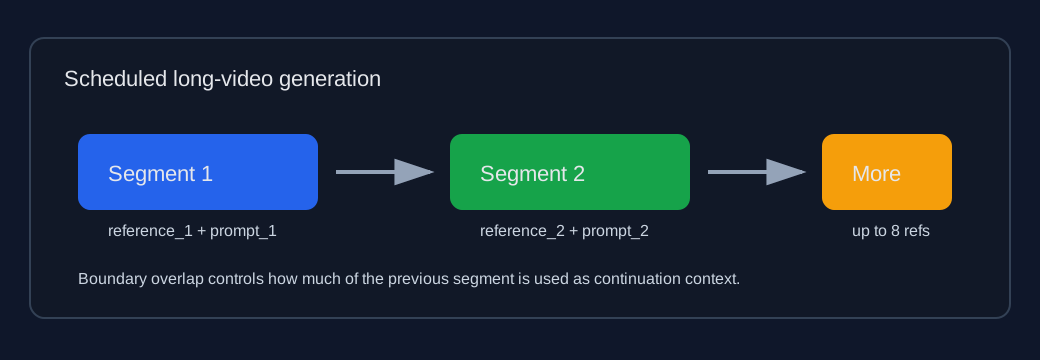
This custom node package wraps the native SCAIL2 long-video pattern into a cleaner scheduler:
- split a long video into planned segments;
- assign each segment its own prompt and reference image;
- keep native SCAIL2 chunking under the recommended 81-frame window;
- preserve continuation with
previous_frames; - optionally reduce cross-reference inertia with
boundary_overlap; - provide dynamic UI controls for segment and reference counts.
Nodes
SCAIL-2 Segment Plan Builder
Use this node to create a segment plan without hand-writing JSON.
Each segment has:
frames: final frame count for this segment;reference: whichreference_Nimage to use;prompt: positive prompt for the segment;negative: negative prompt for the segment;boundary_overlap: optional overlap override for the first chunk after a reference change.
Set segment_count, then click Update segment inputs to hide unused segment controls.
SCAIL-2 Scheduled Long Video
Runs the scheduled generation by repeatedly calling native ComfyUI SCAIL2 nodes internally.
Set reference_count, then click Update reference inputs to hide unused reference_N inputs.
The same button also updates the matching reference_N_mask inputs.
Recommended replacement setup:
driving_track_data + reference_N_track_data -> SCAIL-2 Multi Reference Colored Mask
                                            -> pose_video_mask + reference_N_mask
Connect one shared pose_video_mask to the scheduler and connect each segment
reference to its matching reference_N_mask. The scheduler does not run SAM
internally; person selection stays in upstream SAM tracking and the multi-mask
helper where it can be previewed.
The node also outputs used_pose_video_mask and used_reference_mask_timeline.
Both are aligned to the final generated frame timeline after chunk overlap is
discarded, so they can be previewed beside the generated video.
SCAIL-2 Scheduled Long Video (Internal SAM)
Convenience version of the scheduler. It keeps the same segment/chunk/video
generation logic as SCAIL-2 Scheduled Long Video, but builds the masks inside
the node:
pose_video + sam_model + sam_conditioning -> internal SAM3 driving track
reference_N + sam_model + sam_conditioning -> internal SAM3 reference tracks
tracks -> native SCAIL-2 colored masks -> scheduled long video generation
Use this node when you want a simpler workflow. Use the external-mask scheduler
when you want to preview or manually adjust SAM tracks/masks before generation.
In animation mode, the node skips internal SAM tracking because SCAIL
replacement masks are not used; sam_model and sam_conditioning are only
required for replacement mode.
The internal SAM node supports:
object_indices: driving-video object indices after sorting;reference_object_indices: reference-image object indices, empty = all;sort_by:none,left_to_right, orarea;- SAM controls: detection threshold, max objects, detect interval.
For single-person reference images, keep reference_object_indices empty. If
you fill object_indices = 1 to select the second person in the driving video
and the reference image only has one person, also filtering the reference by 1
would make the reference mask empty.
SCAIL-2 Face Detail Refinement
Adds a second-pass face refinement path without replacing either long-video scheduler. The intended workflow is:
SCAIL-2 Scheduled Long Video / Internal SAM.frames  # full-body pass
  -> SCAIL-2 Head Track Crop
  -> SCAIL-2 Scheduled Long Video / Internal SAM    # face crop pass
  -> SCAIL-2 Face Composite Back
  -> VHS_VideoCombine
SCAIL-2 Head Track Crop crops a stable square head video from the generated
full-body frames. Connect a head_masks MASK when available. If your ComfyUI
build exposes SAM3 tracking, you can instead connect sam_model and
head_conditioning. The node first tries to extract the SAM3 face/head mask from
that conditioned track data, then falls back only to ComfyUI nodes that output a
regular MASK. It does not use SCAIL colored-mask fallback for face detail
cropping, and it does not estimate a smaller head box from a larger body mask.
The SAM/input mask is treated as the source of truth: if it returns a face mask,
the crop follows the face; if it returns an upper-body mask, the crop will expose
that mask problem instead of hiding it.
The output face_crop_video is the square face-neighborhood crop. The output
crop_masks is the original face/head mask cropped into that square, without
inner bbox clipping. crop_manifest.frames[].bbox records the square's
full-body paste position, crop_manifest.frames[].mask_bbox records the mask
bbox used for crop placement, and crop_manifest.frames[].detected_mask_bbox
records the direct detected bbox when that frame had mask pixels. For full-body
9:16 videos, start with crop_padding_ratio around 0.35 to 0.5.
Keep square_align at 32 for SCAIL-2 face-detail passes. The crop node keeps
the square side on that alignment even near the frame edge; for example, on a
720-wide source the largest aligned crop is 704, so the second SCAIL pass can
use the crop resolution exactly instead of silently flooring it from 720 to 704.
mask_component_mode defaults to largest, which keeps only the largest
connected mask region per frame before bbox calculation, so small body fragments
do not expand the crop canvas. Use all only when you need to inspect the raw
mask exactly as it came from SAM or the external mask input.
crop_mode controls how the square crop is placed:
center_follow: keeps the crop size fixed from the first tracked frame, then follows the face center frame by frame.fixed_canvas: computes the smallest padded square that covers the tracked face/head region across the whole clip, then uses that same fixed full-body bbox for every frame. Use this when the second pass should refine a stable local camera region while the head moves inside it.
For the face crop pass, use either existing long-video scheduler:
- external-mask scheduler if you want to preview/adjust masks;
- internal-SAM scheduler if you want the crop video tracked inside the node.
Optional reference pre-alignment:
SCAIL-2 Head Track Crop.face_crop_video + high-res face reference
  -> SCAIL-2 Align Reference Face To Crop
  -> aligned_reference_image
  -> face crop pass reference_N
Thanks to Aiwu (爱屋) for pointing out that the second-pass face-detail video is
more stable when the high-resolution reference face is aligned to the crop
video before generation. The SCAIL-2 Align Reference Face To Crop node was
added for that step: it matches the reference face position and face size to the
first selected crop frame while preserving as much original reference resolution
as possible.
SCAIL-2 Align Reference Face To Crop uses a face detector to compare the first
selected crop frame with the high-resolution reference image. It then builds a
new reference image whose aspect ratio matches the crop frame and whose face
position/face width matches the crop frame. The node does not shrink the
reference pixels to the crop resolution. It crops the reference at original
pixel density. By default, window_fit_mode=shift_inside_reference moves the
computed crop window back inside the reference image when that window can fit,
so a large enough reference image will not get artificial padding. Padding is
used only when the requested window is larger than the available reference
image, or when window_fit_mode=strict_alignment is selected to preserve exact
relative face placement. This keeps the reference as sharp as possible while
giving the second SCAIL pass a face reference whose layout already matches the
crop. Use face_scale only for intentional small corrections: values above
1.0 make the reference face larger inside the output window, and values below
1.0 make it smaller.
face_detector_backend defaults to auto. In auto mode the node tries
InsightFace first, then falls back to MediaPipe if InsightFace is not installed
or fails to load/detect a face. Use insightface when you want the strongest
detector and already have insightface plus onnxruntime-gpu installed. Use
mediapipe when you want the easiest install path:
python -m pip install mediapipe
For InsightFace, install insightface plus onnxruntime-gpu for CUDA or
onnxruntime for CPU. The recommended model is buffalo_l; buffalo_s is
available when a smaller model is preferred. The MediaPipe backend uses the
built-in face detection solution, so it does not require a separate .task
model file.
Connect face_crop_video to the second scheduler's pose_video, and reuse the
same segment_plan, max_chunk_frames, overlap_frames, and
boundary_overlap settings as the full-body pass. Connect high-resolution face
references to reference_N; if the whole clip should use one face, point every
segment at reference 1.
SCAIL-2 Face Composite Back pastes the refined crop back into the original
full-body frames using the crop manifest and mask. color_correction can be
enabled or disabled. When enabled, local_mean_std matches the refined face
crop to the target paste area before feather blending; when disabled, the node
only blends by mask. The node keeps crop_masks in the original crop canvas
recorded by the manifest, applies mask cleanup there, then fits the refined
face video back to that same crop canvas before blending and pasting the crop
back to the full-body frame. face_fit_mode controls how refined face frames
whose resolution changed are matched back to the manifest bbox: center_crop
keeps aspect ratio and crops the center, pad keeps aspect ratio and pads, and
stretch directly resizes to the bbox. The crop manifest also includes
CropAndStitch-style coordinate fields such as crop_to_canvas_bbox and
canvas_to_original_bbox; the composite node reads crop_to_canvas_bbox first
and falls back to the legacy bbox field for old workflows.
frame_mismatch_mode controls tail-frame mismatches between the full-body
video, refined face video, crop masks, and crop manifest. trim_to_shortest
is the default and trims all inputs to the shortest available frame count,
discarding extra trailing frames. error keeps the old strict validation.
For edge cleanup, feather_px blurs the stitch mask, mask_contract_px pulls
the mask edge inward, and stitch_mask_expand_px can grow it outward before
feathering. stitch_mask_resize_mode defaults to bilinear so soft feathered
masks stay soft when the refined crop is resized back to the original bbox;
nearest is available only for hard-mask debugging. stitch_offset_x_px and
stitch_offset_y_px apply a final pixel-level paste offset; use negative
stitch_offset_x_px if the pasted face appears a little too far right.
SCAIL-2 Multi Reference Colored Mask
Builds SCAIL-2 colored masks for multiple reference tracks in one place.
Connect one driving_track_data, set reference_count, and connect
reference_N_track_data inputs. The node calls the native SCAIL-2 colored-mask
logic for each connected reference and outputs:
pose_video_mask;- dynamic
reference_N_maskoutputs matchingreference_count.
Set reference_count, then click Update reference track inputs to hide unused
track-data inputs and mask outputs.
The node keeps the native Create SCAIL-2 Colored Mask controls:
object_indices: comma-separated object indices such as0,2; empty means all;sort_by:none,left_to_right, orarea.
These settings are applied to both driving and reference tracks before the masks are rendered, matching the official SCAIL-2 behavior.
SCAIL-2 Segment Planner
Debug/helper node. It prints the resolved segment and chunk plan before generation.
SCAIL-2 Chunk Keyframe Extractor
Pre-processing helper for extracting frames from a loaded reference/action video before generation. Use it when you want to build manually aligned reference images for chunk boundaries.
Modes:
planner_summary: connectSCAIL-2 Segment Planner.summary; the extractor follows the exact resolved chunk plan;standard_long_video: no planner input required; the extractor derives chunk boundaries from the video length,max_chunk_frames, andoverlap_frames.
contact_sheet_columns and contact_sheet_thumbnail_width control the labeled
browser sheet layout.
Outputs:
boundary_anchor_frames: the first frame, then each continued chunk's previous kept-frame anchor. Use these when aligning reference structure to the old video boundary;new_chunk_start_frames: the first final frame owned by each chunk;paired_keyframes: original-size keyframes in the same visual order as the browser sheet, alternating boundary/start pairs;contact_sheet: one labeled table image for preview only. It uses resized thumbnails and text labels, so usepaired_keyframeswhen saving usable source images;summary: JSON with zero-based indices, one-based frame numbers, chunk ranges, and the safe continued keep size.
SCAIL-2 Keyframe Matrix Viewer
Output/frontend node for browsing extracted keyframes as a clickable matrix.
Connect SCAIL-2 Chunk Keyframe Extractor.paired_keyframes and summary to
this node. When it runs, it saves each original-size keyframe as an individual
PNG and renders a labeled matrix in the node UI.
Each matrix cell shows the chunk/type/frame metadata and links to the original
PNG with Open, Download, and Copy URL actions. This is different from
contact_sheet, which is only a rendered preview image.
Workflow
flowchart LR
    A[Driving video] --> B[SAM3 video track]
    C[Reference images] --> R[SAM3 reference tracks]
    B --> M[SCAIL-2 Multi Reference Colored Mask]
    R --> M
    C --> D[SCAIL-2 Scheduled Long Video]
    M --> D
    E[Segment Plan Builder] --> D
    D --> F[Generated frames]
    F --> G[Interpolation / Video Combine]
Inside each chunk:
flowchart TD
    P[Prompt + negative] --> S[WanSCAILToVideo]
    R[Reference image + CLIP Vision] --> S
    M[Reference / pose masks from Create SCAIL-2 Colored Mask] --> S
    V[Previous frames] --> S
    S --> K[SamplerCustom]
    K --> D[VAEDecode]
    D --> T[Discard overlap]
    T --> O[Append to output frames]
Segment Planning
Recommended UI path:
- Add
SCAIL-2 Segment Plan Builder. - Set
segment_count. - Fill the visible segment controls.
- Connect
segment_plantoSCAIL-2 Scheduled Long Video.segment_plan.
Example plan generated by the builder:
# frames | reference | prompt | negative | boundary_overlap
77 | 1 | character enters the room wearing a coat | | 5
141 | 2 | character removes the coat, inner clothes visible | | 5
Meaning:
- frames
1-77usereference_1; - frames
78-218usereference_2; - the transition into
reference_2usesboundary_overlap = 5.
Boundary Overlap
overlap_frames is the global continuation overlap in video/image frames.
For stable same-reference continuation, 5 is a good default.
For a reference change, boundary_overlap can override the global value for the first chunk of the new segment:
| Value | Behavior |
| --- | --- |
| -1 | Use global overlap_frames |
| 0 | No previous-frame anchor at the boundary |
| 1 | Minimal continuity, faster reference switch |
| 5 | Strong continuity, slower reference switch |
There is intentionally no reference_strength control. SCAIL2 does not expose a true reference-weight input. Pixel-blending a reference image into previous_frames can create static-image ghosting, so this package uses overlap control instead.
When planning chunks manually, remember that max_chunk_frames is the full
native generation window, including overlap frames. If max_chunk_frames=81
and overlap_frames=5, a continued chunk can only keep 76 new frames before
another chunk is required. Segment lengths near the full chunk size can create
tiny follow-up chunks, such as 81 -> 76 + 5. Use max_chunk_frames - overlap_frames as the safe boundary for ordinary continued segments. For the
first chunk after a reference change, use that segment's boundary_overlap
instead of the global overlap when calculating the boundary.
In SCAIL-2 Chunk Keyframe Extractor.standard_long_video mode, the same rule
is used. With max_chunk_frames=81 and overlap_frames=5, boundary anchors
progress as 1, 81, 157, 233..., not 1, 81, 162....
Installation
Copy this folder into ComfyUI custom_nodes:
ComfyUI/custom_nodes/scail_multi_cond
Restart ComfyUI.
If the dynamic UI buttons do not appear, hard-refresh the browser page. The package includes:
web/js/scail_multi_cond_dynamic.js
The browser console should show:
[SCAIL Multi Cond] dynamic UI extension loaded
Requirements
This package expects a recent ComfyUI build that includes:
WanSCAILToVideo;SamplerCustom;VAEDecode;ColorTransfer.
Replacement workflows should use upstream ComfyUI nodes such as SAM3_VideoTrack
and SCAIL-2 Multi Reference Colored Mask to prepare pose_video_mask and
reference_N_mask before this scheduler node.
The package itself does not depend on KJNodes. A workflow may still require KJNodes if it uses unrelated KJNodes nodes such as resize helpers.
Included Workflows
workflow/SCAIL2_scheduled_long_video_template.json
workflow/SCAIL2_long_video_sample.json
workflow/comfyui_scail2_multi_cond_sample_external.json
workflow/comfyui_scail2_multi_cond_sample_internal.json
examples/workflows/Wan21_SCAIL2_00_key_frame_capture.example.json
examples/workflows/Wan21_SCAIL2_01_full_body_pause.example.json
examples/workflows/Wan21_SCAIL2_02_face_detail_resume.example.json
examples/workflows/Wan21_SCAIL2_combined_full_body_to_face_detail.example.json
examples/workflows/Wan21_SCAIL2_two_stage_guide.md
The sample workflow uses placeholder media names such as:
your_driving_video.mp4
reference_1.png
reference_2.png
reference_3.png
Replace them with your own ComfyUI input files.
The Wan21 examples are split into a practical two-stage face-detail workflow:
Wan21_SCAIL2_00_key_frame_capture.example.jsonextracts chunk keyframes for reference preparation;Wan21_SCAIL2_01_full_body_pause.example.jsonruns the full-body pass first, so you can inspect and approve the action transfer result;Wan21_SCAIL2_02_face_detail_resume.example.jsonresumes from that approved full-body video, crops the stable face region, aligns the high-resolution face reference withSCAIL-2 Align Reference Face To Crop, runs the face-detail pass, and composites the refined face back;Wan21_SCAIL2_combined_full_body_to_face_detail.example.jsonkeeps the same idea in one combined reference workflow, but the two-stage files are safer for expensive runs because you can stop after the full-body pass.
Recommended Settings
For SCAIL2 long video:
max_chunk_frames = 81
overlap_frames = 5
For Plan Builder reference changes:
boundary_overlap = 5
For manual experiments, lower values are still available when you intentionally want a faster reference switch:
boundary_overlap = 0 or 1
Privacy
This repository does not include model files, generated videos, input images, private paths, or uploaded media.