
Inspect Image Overlay
ComfyUI node that opens generated images in a fullscreen inspector overlay.
ComfyUI Inspect Image Overlay
A ComfyUI custom node that opens the latest rendered image batch in a fullscreen inspector overlay.
It is meant for workflows where you want the visual behavior of inspecting an output asset without having to leave the graph or manually open the output assets panel.
Screenshot
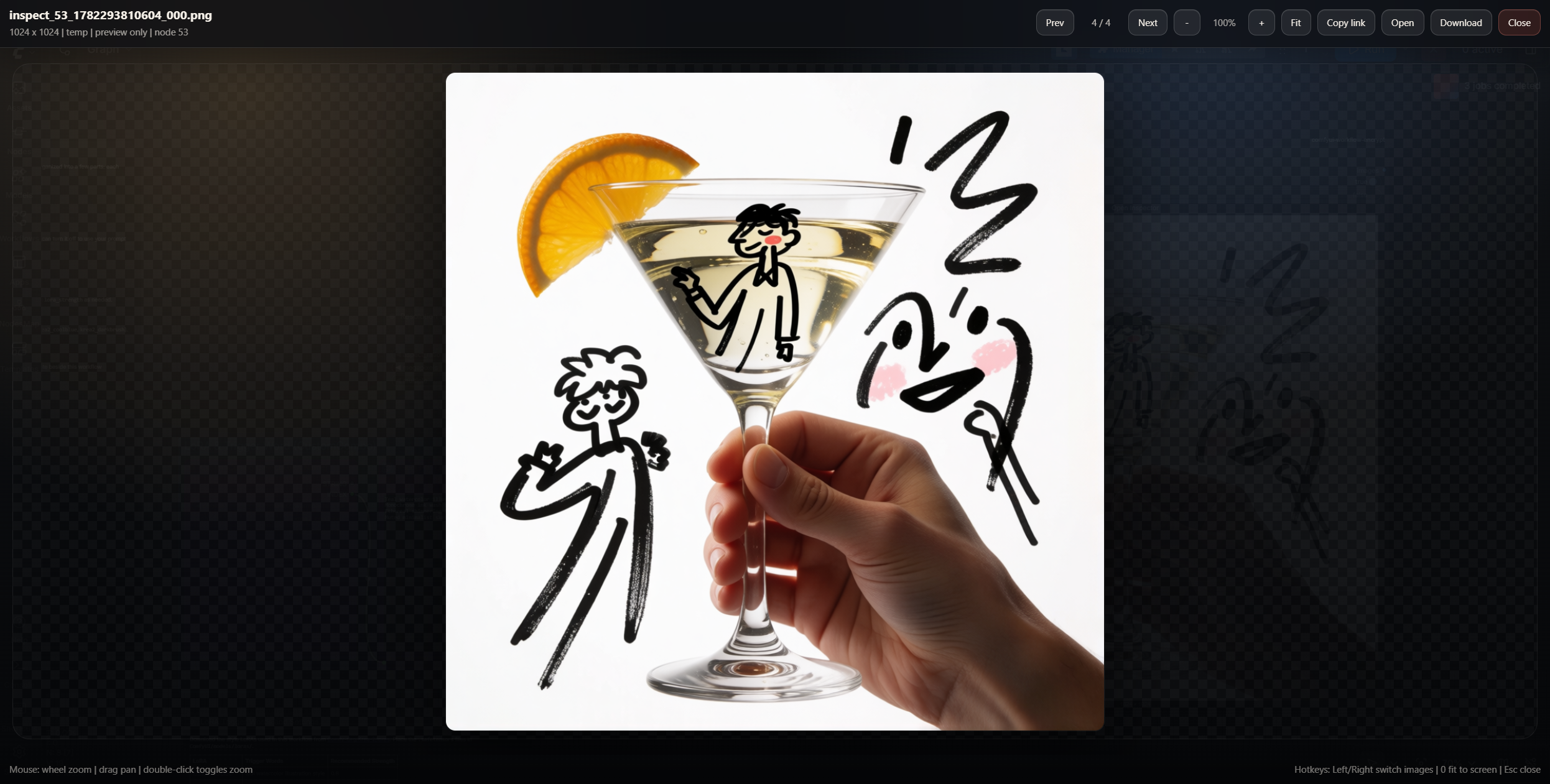
Features
- Fullscreen image inspector overlay
- Auto-opens when the node runs, if enabled
- Updates in place when a new image batch is generated
- Recent-image navigation for the current browser session
- Wheel zoom, drag pan, double-click zoom, keyboard shortcuts
- Optional save-to-output toggle
- Pass-through
IMAGEoutput so it can sit inline in a workflow
Installation
Clone this repository into your ComfyUI custom_nodes directory:
cd ComfyUI\custom_nodes
git clone https://github.com/TK22-26/comfyui-inspect-image-overlay.git
Restart ComfyUI after installation.
Usage
Add the node:
image > Inspect Image Overlay
Connect an IMAGE input to it and queue the workflow.
The overlay keeps up to 64 recent inspected images per node in the current browser session. New renders open on the newest image, and the arrow controls move through that recent history.
The node passes the input image batch through unchanged, so it can be placed inline before another image node.
Node Options
auto_open
Automatically opens or updates the fullscreen inspector when the node executes.
save_to_output
When disabled, images are written only to ComfyUI temp storage for previewing.
When enabled, the node still uses temp images for the live overlay, and also saves PNG copies to:
output/InspectImageOverlay/
Saved output PNGs include ComfyUI prompt metadata when metadata is enabled.
Controls
Mouse wheel: zoomDrag: pan while zoomedDouble-click: toggle zoom
Keyboard Hotkeys
Esc: close inspectorArrowLeft/ArrowRight: previous or next image+/-: zoom in or out0: fit image to screen
Notes
- Preview-only images are stored in ComfyUI temp storage and may be cleaned up by ComfyUI.
- Recent-image navigation is browser-session state, not permanent history.
- Enable
save_to_outputif you want persistent PNG files in the output folder.
License
MIT