
Sonder Editor
Timeline video editor for ComfyUI in a single node. Arrange video, images, and audio on tracks, set first and last frames, schedule prompts over time, transfer motion from a pose video, and regenerate any section in place. Work is organized into projects, and every result lands in a searchable asset gallery.
Nodes (21)
Turns a driver reference into the frames your generator needs
'is there a driver this run?' without decoding a frame
A timeline video editor that lives inside one ComfyUI node
Skip the branch, don't just mute the wire
The loop-close that decides when the guides are done
The loop-open node that feeds each guide into your workflow
One selector, several independent router lanes
The node you add to prove lazy evaluation is real
An N-way router that only runs the branch you pick
Freeze the audio while you edit the video (or vice versa)
Stamp your generation settings onto every asset
The autogrowing collector for modern ComfyUI
See your frames as video without saving a project asset
Your timeline prompt lanes, handed to kijai's PromptRelay
Voice and sound references, trimmed, decoded, and parked on their own sockets
The Sonder Reference Image Bridge turns timeline references into model input
The text that rides along with your references
The Sonder Reference Selector decides whether your reference branch runs at all
Let any save node write into your project, then claim the results
The save node that knows about color drift, takes, and presets
A dropdown that hands your graph the label and the number
ComfyUI-Sonder-Editor
Version 0.7.8 — see the CHANGELOG for release notes.
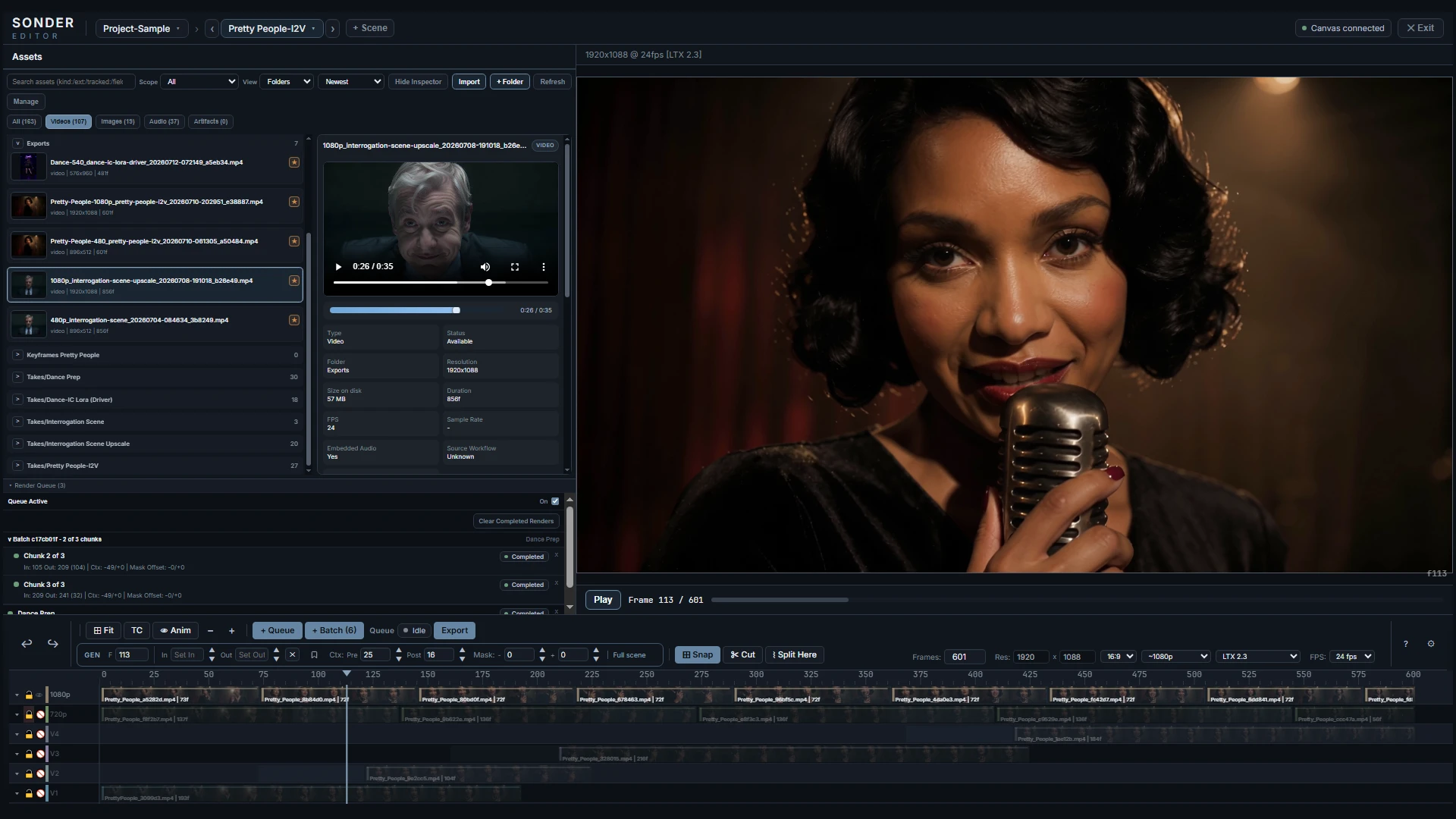
Sonder Editor is a timeline-based video editor for ComfyUI, built for iterative long-form generation. Arrange scenes, clips, audio, guide frames and prompts on a multi-lane timeline, then select the range you want to process.
Your Reference Library keeps a character, a location, an outfit or a voice in one place. Mark where on the timeline each one applies and point your prompts at them by name. Render any range and the right images, video, audio and wording reach your graph for that range.
Generation stays in ComfyUI — send the selection through the connected graph, then review or place the result back on the timeline. Sonder's generation capabilities and constraints depend on the diffusion model, nodes, and workflow connected to it.
▶ Watch the 90-second overview
What it is
Sonder Editor adds a timeline-based editing surface to ComfyUI without taking generation out of the node graph. You import media into a project, lay clips, audio, guides, and prompts onto a multi-lane timeline, select a range (or stage a batch of render jobs), and hand that off to the generation workflow you've wired up downstream. Outputs come back as project assets you can review, compare, and place back on the timeline.
A project holds everything; scenes hold timelines; timelines hold lanes:
Project
├── Asset gallery       everything you import or generate
├── Reference Library   the characters, locations, props and voices it reuses
└── Scenes              each with its own length, resolution and frame rate
    └── Timeline        the lanes you arrange, shown in the viewport
        ├── Video and audio lanes
        ├── Prompt lanes      text that changes along the timeline
        ├── Guide lane        still images pinned to exact frames
        ├── Driver lanes      video that steers without appearing
        └── Reference lanes   when each Reference applies
See it work
Three techniques from the same project, run through the same workflow. Each clip shows the timeline alongside the result it produced. You can explore those scenes in Project-Sample, listed under Project Sample — LTX 2.3 on Hugging Face, using the LTX 2.3 Playground below.
Prompt Relay
Prompt sections are cut along the timeline, each applying to its own range, so a single clip moves through a whole beat instead of holding one prompt for its entire length. Sonder Prompt Relay Bridge exports the generation window's prompt lanes as ComfyUI-PromptRelay payload strings. Compatible with LTX and Wan.
https://github.com/user-attachments/assets/3c1643f7-3944-4949-b7da-a47ad9c5fa5b
Guides
Guide frames sit on the timeline where you place them — first and last, or any frame in between — and the model fills what falls between them. Guides have their own lane and an animatic preview mode; Sonder Guides Bridge Start / End wrap the generation body to inject them per frame.
https://github.com/user-attachments/assets/31e013a7-7e34-4f8d-8dc2-9114fe157165
IC-LoRA motion transfer
An OpenPose clip on a Driver lane drives the generation frame for frame. Sonder Driver Selector and Sonder Driver Bridge resolve and decode that lane for the generation window.
https://github.com/user-attachments/assets/7c8459fb-6d10-4b84-9bc6-a1e98308c3f1
Models
Sonder generates nothing itself, so what a project can do depends on the model and workflow wired underneath it. Model templates carry each model's legal frame counts, FPS and resolution rules, so the timeline snaps to what your graph can actually render.
Built in: No Model Template (Free), LTX 2.3, MiniMax H3, Wan 2.1 / 2.2 (14B), Wan 2.2 (TI2V-5B), HunyuanVideo 1.5, CogVideoX 1.5 (T2V) and CogVideoX 1.5 (I2V). Create your own in Settings ▸ Model Templates, edit any built-in, or pick Free to lift every constraint.
A template only describes a model's frame and size rules. Whether a particular feature works — masked regeneration, guide frames, joint audio — depends on what the model itself can do, and Generating lists which feature needs which capability.
Highlights
- Multi-lane timeline — edit the way you would in any NLE: drag clips along the timeline, trim them, split one in two, mute an item, lock or hide a lane. Video lanes are composited for the render output.
- Reference Library — the characters, locations, props and outfits a project reuses. Each holds image, video or audio members you can crop and trim in place, name, tag, and give prompt text, including how closely the model should preserve them.
- Reference lanes — say when each Reference applies. Drop members onto a lane
over the frames they cover, then pick the lane's recipe: a named preset —
MiniMax H3 Pictures,LTX IC-LoRA Ingredients— that packages your members the way that model wants them. A queued job keeps whichever References were live when you queued it. - Prompt sections — cut prompts along the timeline so each applies to its own
range. A project chooses what fields a prompt has: one box of prose, or
separate ones for visuals, speech and sound. A section can carry Context
chips: a shot number, the timestamp relative to the generation window, a
Reference's descriptive text, a piece of speech or song, a link to an earlier
section, or custom text. Every chip resolves for the range you render, so you
never count
<Picture 2>orr03by hand. - Guide frames — per-frame reference images for conditioning, on their own lane, each with its own strength. Animatic mode plays them as a rough storyboard, so you can judge a sequence before generating it.
- Drivers — a video that steers a generation without appearing in it. Put an OpenPose clip, a camera move, or reference footage on a Driver lane, and your graph can use it to condition motion, composition or look across the frames it covers.
- Selections & context — saved in/out ranges with pre/post context frames and mask offsets for generation overlap. The Sonder Masks Bridge compiles that window into hard video and audio latent noise masks, so a section regenerates in place while the frames around it are kept exactly.
- Render queue + batch render — stage several jobs and run them unattended, or split one long range into consecutive chunks so a sequence renders shot by shot.
- Asset gallery — every file saved to the project, imported or generated, in one place. Inspect any image, video or audio, or put two of the same kind side by side in compare mode; generated takes carry the settings that produced them, so you can curate the best iteration onto your timeline.
- Timeline export — export video and audio straight from the timeline. It composites frame by frame instead of loading the whole thing, so length is bounded by disk space rather than memory.
The node in your graph
You add one node, Sonder Editor. Every control on it is a widget the editor sets for you. It only has outputs for wiring.
The first time you add it, pick + Create New in its project selector and give the project a name, frame rate and size; that creates the project folder. After that the selector lists your projects and you pick one.
The node has three faces. On the ComfyUI canvas it sits as a dormant card using minimum resources — project selector, plus Assets, Preview and Queue panels you can expand without leaving the graph. Open Editor expands the full editing surface over the browser window. Mount in Tab moves that surface to its own browser tab, so the editor and the node graph are visible at once.
What comes out:
| Output | Type | What it carries |
|---|---|---|
| project | SONDER_PROJECT | A handle to the project. Every other Sonder node takes this. |
| rendered_frames | IMAGE | The timeline's own frames for the generation window. |
| prompt | STRING | The compiled prompt for that window, chips resolved. |
| audio | AUDIO | The mixed timeline audio for that window. |
| guide_images | IMAGE | Every guide frame in the window, as one batch. |
| guide_idx / guide_strengths | STRING | Comma-separated frame positions and strengths, aligned with that batch. |
| frame_count · fps · width · height | INT · FLOAT · INT · INT | The window's geometry, for your sampler and latents. |
| mask_start_time / mask_end_time | FLOAT | Where the regenerated span begins and ends. |
A text-to-video graph needs only three of them and no bridge nodes at all:
Sonder Editor ──prompt────────> your text encoder ──> sampler ──> VAE Decode
              ──frame_count───>                                        │
              ──width/height──>                                        ▼
                                                               Sonder Save Video
The bridge nodes below are how you feed the other outputs — guides, masks, Drivers, References — to graphs that can use them. Add them as needed; none is required.
Selection and generation window are two things. The Selection is the In/Out range you drag on the timeline. The generation window is what a render actually covers — the Selection plus any context frames — and the toolbar's GEN block always shows it.
Nodes
Sonder Editor is the only node you always add — the rest are optional pipeline
adapters, grouped under the Sonder, Sonder/IO, and Sonder/Logic menus in
ComfyUI.
Editor & generation bridges — Sonder
| Node | What it does |
|------|--------------|
| Sonder Editor | The main editor and output node: timeline, scenes, gallery, and render queue. |
| Sonder Guides Bridge Start / End | Paired loop nodes that wrap a generation body to inject per-frame guide images. |
| Sonder Driver Selector | Resolves a selected Driver lane without decoding media and exposes a has_driver presence flag for lazy routing; pass its reference to the Driver Bridge. |
| Sonder Driver Bridge | Decodes the selected Driver lane's frames from a Driver Selector reference, emitting driver images, local start index, and conditioning strength for the generation window. |
| Sonder Reference Selector | Resolves several compatible Reference lanes for the active editor window without decoding media, preserving lane-index order and stable per-lane slot reservations while exposing has_reference for lazy branch routing plus the effective conditioning strength. |
| Sonder Reference Image Bridge | Decodes image-serving references from the selected lanes according to their shared recipe. Payloads concatenate by lane index: slot recipes grow as r01–r16, while each assembled batch, sheet, or temporal sequence contributes one output. MiniMax H3 Video lanes also use this bridge and emit 24 fps IMAGE sequences on the 17n+5 frame grid. Per node, unused_slots defaults to black placeholders; choose nothing manually when the connected consumer inputs are optional, and the canvas marks any proven-required connection. |
| Sonder Reference Audio Bridge | Concatenates up to 16 trimmed audio members from the selected compatible lanes as homogeneous a01–a16 outputs. Per node, unused_slots defaults to silent placeholders; choose nothing manually when the connected consumer inputs are optional, and the canvas marks any proven-required connection. |
| Sonder Reference Prompt Bridge | Exports a lane-ordered aggregate reference_prompt, reference_names, and per-member p01–p16 strings from the selected compatible lanes. |
| Sonder Masks Bridge | Exposes the editor's generation-mask window as separate video/audio mask-time pairs, each gated by an Edit/Freeze toggle (a frozen channel emits a zero-width window, so nothing is generated for it). Feed a downstream temporal mask node, or wire each latent together with its VAE and take the compiled hard 0/1 MASK outputs straight to Set Latent Noise Mask. |
| Sonder Prompt Relay Bridge | Exports the generation window's prompt lanes as ComfyUI-PromptRelay payload strings (no model patching). |
Save & preview — Sonder/IO
| Node | What it does |
|------|--------------|
| Sonder Save Video | Encodes an IMAGE tensor to a project video asset, optionally muxing audio; previews the first frame. Auto-corrects accumulated VAE color drift against the render's protected context frames (color_drift_correction, on by default). |
| Sonder Save Bridge | Creates a prompt-isolated output target in the project cache — external save nodes write there, then the bridge registers the results into the Sonder asset system after the prompt settles. |
| Sonder Preview Video | Encodes frames to a temporary video for in-UI preview playback. |
| Sonder Metadata Collector / Sonder Metadata Collector Nodes 2.0 | Both collect explicitly wired upstream widget values into a generated asset's tracked metadata. Wiring a subgraph output records the subgraph by name with its interface values. The established collector keeps manually shaped workflow sockets; the Nodes 2.0 entry uses native heterogeneous V3 Autogrow sockets when the installed ComfyUI supports them. |
Routing & logic — Sonder/Logic
| Node | What it does |
|------|--------------|
| Sonder Selector | Selects one label from a newline-delimited list and outputs its text plus zero-based index. |
| Sonder Switch | Routes any one data type across N branches; evaluates only the selected branch on ComfyUI 0.40+ (older-core limitation). |
| Sonder Cluster | Routes a shared branch selection across multiple lanes, each lane carrying its own type (lazy). |
| Sonder Gate | Per-lane lazy gate: each lane's condition decides whether its value is evaluated and passed on or skipped entirely, emitting nothing. Place it directly in front of an optional input — for example after a resize fed by a Reference Bridge slot set to nothing. |
Sonder Switch, Sonder Cluster, Sonder Gate, Sonder Reference Selector, the three Sonder Reference Bridges, and Sonder Metadata Collector Nodes 2.0 use ComfyUI's newer V3 node API and load only on recent ComfyUI builds. V3 registration is schema-validated before it changes discovery: older or incompatible builds keep the complete V1 node set under the normal Sonder Metadata Collector name. When V3 is available, it appears separately as Sonder Metadata Collector Nodes 2.0. Automatic migration is not enabled: frontend v1.45.21 only offers replacements for missing node types and does not transfer links into dotted Autogrow inputs. Use V3 for new collectors until ComfyUI can preserve those links.
Requirements
- ComfyUI — 0.7.8 was validated on ComfyUI 0.40.0 with frontend
1.55.17. That is what this release was tested against, not a minimum;
other versions are expected to work. The V3 nodes noted above load only on
builds that provide
comfy_api, and the complete V1 set loads otherwise. - Python 3.10+ (matching your ComfyUI environment; validated on 3.12).
- FFmpeg 7.0+ — required for video/audio decode, encode, and export. Audio
processing verifies the binary it selected and refuses an older one by name
rather than mixing incorrectly. The
imageio-ffmpegdependency (0.6.0 or newer) bundles a suitable ffmpeg automatically, and a system-wideffmpegon yourPATHis recommended for the widest format support — but note that a system ffmpeg takes precedence over the bundled one, so an older system install must be updated or removed fromPATH. torchis provided by ComfyUI and is not installed by this pack (see Troubleshooting).
Installation
Option A — ComfyUI-Manager (recommended)
Search for Sonder Editor in ComfyUI-Manager and install, then restart ComfyUI.
Option B — Manual (git clone)
cd ComfyUI/custom_nodes
git clone https://github.com/SonderSaid/ComfyUI-Sonder-Editor.git
cd ComfyUI-Sonder-Editor
pip install -r requirements.txt
Then restart ComfyUI. The pack registers its nodes and serves its web UI automatically.
Quickstart
- Add the Sonder Editor node to your graph.
- Click Open Editor on the node card.
- Import media — drag files or a folder into the asset gallery. Skip this for a first text-to-video run: an empty timeline renders as black frames, so run a full denoise (1.0) on that pass.
- Build a timeline — drag clips onto lanes; trim/arrange them; add guide frames and prompt sections as needed.
- Choose what to render — set an in/out Selection on the timeline, or stage jobs in the Render Queue.
- Wire the handoff — connect the outputs you need into your generation workflow, plus a downstream Sonder Save Video (or Sonder Preview Video) node. See The node in your graph for what each output carries and a minimal text-to-video wiring.
- Run the prompt. The editor renders the selected window (or queued snapshots) into your workflow, and outputs return as project assets.
Example workflows
Two ready-wired generation graphs. Drop either onto the ComfyUI canvas.
Sonder LTX 2.3 Playground — prompt relay, multi-pass upscaling, image guides, and driver-controlled generation. Its matching project is Project-Sample, listed under Project Sample — LTX 2.3 on Hugging Face.
Sonder MiniMax H3 References — References driving MiniMax H3: Reference lanes reaching the model through the Reference Selector and the Image and Audio bridges, first- and last-frame guides through the Guides Bridge, separated AV latents, and the Masks Bridge writing latent noise masks so a window can be regenerated in place. Its matching project is Project Sample: MiniMax H3 References on Hugging Face, and needs Sonder Editor 0.6.0 or newer.
Documentation
- Getting Started — install to first generated take, starting with pure text-to-video.
- Editor Basics — layout, timeline, item types, gestures, and shortcuts.
- Generating — the generation window, model templates, guides, Drivers, References, the render queue, and what's frozen vs. live in queued jobs.
- Prompts — how a prompt is composed, Channel Templates, prompt formats, Context chips, and the Prompt Management panel.
- Assets & Gallery — asset lifecycle, tracked metadata, inspect/compare, timeline export, and audio fidelity.
- References — the Reference Library, Reference lanes and recipes, derived prompts, and the Reference nodes.
- Troubleshooting — installation and environment problems, project storage and Windows path limits, and playback.
Example projects
Explore complete Sonder Editor projects on Hugging Face. Each project entry includes its matching workflow, showcase video, tested editor version, and opening instructions.
Start with Project-Sample, listed under Project Sample — LTX 2.3. It includes four scenes with their media, prompts, guides, and generated takes. Project Sample: MiniMax H3 References is the project behind the western showcase, with its reference assets staged on the timeline; it needs 0.6.0 or newer.
Security & metadata
- Sonder Editor stores projects as local files under ComfyUI's configured output area. Do not expose a ComfyUI instance running this pack to untrusted networks unless you have put ComfyUI behind your own authentication and network controls.
- Generated files can embed ComfyUI prompt/workflow metadata when Embed Metadata is enabled on Sonder Save Video. Turn that off before sharing files if your graph, prompts, paths, model names, or node settings are private.
- Project
media/,cache/, and generated output folders are user data, not source distribution files. Do not commit them to a public repository. - External Project Links is off by default. Enabling it in Editor Settings makes this ComfyUI installation follow project and media symlinks/junctions wherever the editor resolves files. Treat every linked folder as readable by anyone who can reach your ComfyUI server.
Troubleshooting
Installation, project storage and playback fixes are in Troubleshooting.
License
ComfyUI-Sonder-Editor — Copyright (C) 2026 SonderSaid
This program is free software: you can redistribute it and/or modify it under the terms of version 3 of the GNU General Public License as published by the Free Software Foundation.
This program is distributed in the hope that it will be useful, but WITHOUT ANY WARRANTY; without even the implied warranty of MERCHANTABILITY or FITNESS FOR A PARTICULAR PURPOSE. See the GNU General Public License for details, or visit https://www.gnu.org/licenses/.