
ComfyUI-Telegram-Sender
Does the same thing as comfyui_image_metadata_extension but is slightly more modern, sending the output to Telegram and downloading unnecessary metadata at the same time.
Nodes (3)
ComfyUI Telegram Sender 📤
A custom node for ComfyUI that automatically sends generated images to Telegram channels or chats.
Can be broken on latest versions
✨ Features
- 🔐 Secure token storage - token is saved in config file, not in workflow
- 📝 Automatic metadata extraction - generation parameters from workflow (seed, steps, CFG, model, LoRA)
- 🖼️ Automatic image resizing
- 🗜️ Compression of large files to comply with Telegram limits
- 📄 Support for sending originals as documents (without compression)
- 🔞 NSFW detection by keyword in prompt
- 🔄 Asynchronous sending (doesn't block workflow)
- 🔁 Automatic retries on errors
- 💾 Saving prompt to PNG metadata in A1111 format
- 📦 Optional channel for unsorted images
- 🌐 Compatibility with Civitai and other metadata recognition services
📥 Installation
Method 1: Via ComfyUI Manager (recommended)
- Open ComfyUI Manager
- Click "Install Custom Nodes"
- Find "ComfyUI-Telegram-Sender"
- Click Install
- Restart ComfyUI
Method 2: Manual installation
- Open terminal in the
ComfyUI/custom_nodesfolder
cd ComfyUI/custom_nodes
- Clone the repository:
git clone https://github.com/Sergey004/ComfyUI-Telegram-Sender
- Install dependencies:
pip install requests pillow
- Restart ComfyUI
🤖 Telegram Bot Setup
Step 1: Creating a bot
- Find @BotFather in Telegram
- Send the command
/newbot - Enter a name for your bot (for example, "My ComfyUI Bot")
- Enter a username for the bot (must end with "bot", for example, "mycomfyui_bot")
- Copy the received token (looks something like this:
123456789:ABCdefGHIjklMNOpqrsTUVwxyz)
Step 2: Getting Chat ID
For personal chat with the bot:
- Start a dialog with your bot
- Send any message
- Open in browser:
https://api.telegram.org/bot<YOUR_BOT_TOKEN>/getUpdates - Find
"chat":{"id":— this is your Chat ID (for example,123456789)
For a channel:
- Create a channel or open an existing one
- Add the bot to the channel as an administrator
- Send any message in the channel
- Open in browser:
https://api.telegram.org/bot<YOUR_BOT_TOKEN>/getUpdates - Find
"chat":{"id":— for channels ID starts with-100(for example,-1001234567890)
Step 3: (Optional) Setting up automatic LoRA routing
If you want to automatically send images to different channels based on used LoRA:
- In ComfyUI Settings (⚙ → Telegram Sender), fill in the LoRA to Channel Mapping field
- Format: one line = one rule
lora_name:chat_id
Example:
anime:-1001111111111
realistic:-1002222222222
fantasy:-1003333333333
Now:
- If LoRA with "anime" in the name is used in workflow → sends to channel
-1001111111111 - If LoRA with "realistic" in the name is used → sends to channel
-1002222222222 - And so on.
Note: Mapping works by partial match. If LoRA name contains the keyword (for example, anime_style_v2.safetensors contains anime), the rule will trigger.
🎨 Usage
Initial setup (one time)
Method 1: Using ComfyUI Settings (Recommended) ⭐
- Open ComfyUI settings menu (gear icon in bottom left)
- Find the "Telegram Sender" section
- Enter your bot_token (received from @BotFather)
- Enter default_chat_id (optional, can be specified in each node separately)
- (Optional) Configure LoRA to Channel Mapping - one line per rule:
lora_name:chat_id - (Optional) Configure NSFW Channel ID and Unsorted Channel ID
- Settings are saved automatically
Note: If you have an old TelegramConfig node in your workflow, the settings will be automatically migrated to the new format on first startup.
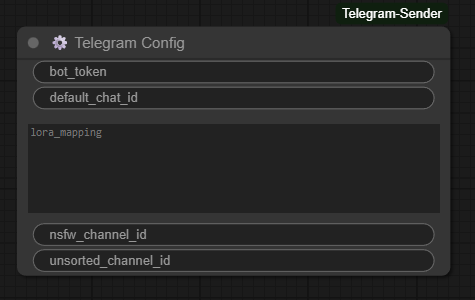
Method 2: Using TelegramConfig Node (Legacy)
- Add the ⚙️ Telegram Config node to the workflow
- Enter your bot_token (received from @BotFather)
- Enter default_chat_id (optional, can be specified in each node separately)
- (Optional) Configure lora_mapping for automatic LoRA routing
- Run the workflow once - configuration will be saved to file
config/telegram_config.json - After saving, you can remove the
Telegram Confignode from the workflow
Important: The token is stored locally in the extension folder and is NOT saved in the workflow file. This means you can safely share workflows with others without revealing your token.
⚠️ Note: The
TelegramConfignode is deprecated. Please use the ComfyUI Settings menu instead. The node will be removed in a future version.
Basic workflow
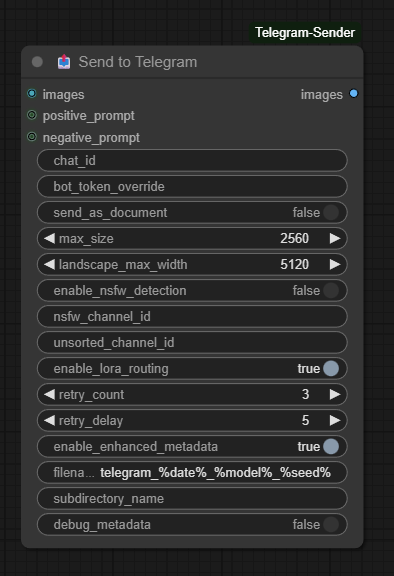
- Add the 📤 Send to Telegram node to your workflow
- Connect the output of the image generation node to the images input
- Specify chat_id (or leave empty to use default from config)
Example of simple workflow:
KSampler → VAE Decode → Send to Telegram
Example with prompt and metadata:
CLIP Text Encode (Positive) ──┬─→ KSampler → VAE Decode → Send to Telegram
                              │       ↓                        ↑
CLIP Text Encode (Negative) ──┘       └─ (seed, steps, cfg) ─┘
The node will automatically extract from workflow:
- ✅ Positive and Negative prompts
- ✅ Seed, Steps, CFG scale
- ✅ Sampler, Scheduler
- ✅ Model name
- ✅ LoRA names and weights
- ✅ VAE name
All this data is saved in PNG metadata in A1111 format.
⚙️ Parameters
TelegramSender (main node)
Required parameters:
| Parameter | Type | Description | |-----------|------|-------------| | images | IMAGE | Input images to send |
Optional parameters:
| Parameter | Type | Default | Description | |-----------|------|---------|-------------| | chat_id | STRING | from config | Chat/channel ID (if empty - uses default) | | bot_token_override | STRING | "" | Override token from config | | positive_prompt | STRING | "" | Positive prompt (connect CLIP Text Encode) | | negative_prompt | STRING | "" | Negative prompt (connect CLIP Text Encode) | | send_as_document | BOOLEAN | False | Send as file instead of photo | | max_size | INT | 2560 | Max size for portrait/square images (px) | | landscape_max_width | INT | 5120 | Max width for landscape images (px) | | enable_nsfw_detection | BOOLEAN | False | Enable NSFW detection in prompt | | nsfw_channel_id | STRING | "" | Channel ID for NSFW content | | unsorted_channel_id | STRING | "" | Channel ID for uncategorized images | | enable_lora_routing | BOOLEAN | True | Enable automatic LoRA routing from config | | retry_count | INT | 3 | Number of retries on error | | retry_delay | INT | 5 | Delay between retries (seconds) |
Note: Generation parameters (seed, steps, CFG, model, LoRA) are automatically extracted from workflow through hidden inputs prompt and extra_pnginfo.
📋 Usage Examples
1. Initial setup
Setup workflow (run once):
TelegramConfig
  ↓ bot_token: "123456789:ABCdefGHIjklMNOpqrsTUVwxyz"
  ↓ default_chat_id: "123456789"
  ↓ lora_mapping: """
    anime:-1001111111111
    realistic:-1002222222222
    character:-1003333333333
    """
After running, token and mapping will be saved to config/telegram_config.json
2. Basic sending with metadata
CLIP Text Encode (+) ──┬─→ KSampler → VAE Decode → TelegramSender
                       │                              ↑           ↑
CLIP Text Encode (-) ──┘                              │           │
                                                      │           │
                           Connect prompts: ────────┴───────────┘
                           positive_prompt and negative_prompt
The node will automatically extract from workflow seed, steps, CFG, model, LoRA and save to PNG metadata.
3. Sending to different channels
Option A: Manually through different nodes
KSampler → VAE Decode → TelegramSender (channel 1)
                     ↓→ TelegramSender (channel 2)

TelegramSender (channel 1):
  - chat_id: "-1001234567890"

TelegramSender (channel 2):
  - chat_id: "-1009876543210"
Option B: Automatically by LoRA (recommended)
CheckpointLoader → ...
LoRA Loader (anime_style.safetensors) → ... → TelegramSender
                                                   ↓
                                        automatically determines channel
                                        by mapping from config
If mapping is configured in config:
anime:-1001111111111
realistic:-1002222222222
And LoRA anime_style_v2.safetensors is used in workflow, the image will automatically be sent to channel -1001111111111.
4. With NSFW filtering
TelegramSender settings:
- chat_id: "123456789" (main channel)
- enable_nsfw_detection: True
- nsfw_channel_id: "-1001234567890" (NSFW channel)
- positive_prompt: connect CLIP Text Encode (positive) output
- negative_prompt: connect CLIP Text Encode (negative) output
If the word "nsfw" is found in the positive prompt (and not in negative), the image will be sent to nsfw_channel_id instead of the main channel.
5. With unsorted channel
TelegramSender settings:
- chat_id: "" (leave empty)
- unsorted_channel_id: "-1001234567890"
All images will be sent to the "unsorted" channel.
6. Sending original in high quality
TelegramSender settings:
- send_as_document: True
- max_size: 10240
- landscape_max_width: 10240
The image will be sent as a file without additional Telegram compression.
🎯 Automatic LoRA Routing
The extension can automatically send images to different channels based on LoRA used in workflow.
How to set up:
- In ComfyUI Settings (⚙ → Telegram Sender), fill in the LoRA to Channel Mapping field:
anime:-1001111111111
realistic:-1002222222222
character:-1003333333333
style_modern:-1004444444444
- Make sure in TelegramSender the parameter
enable_lora_routing=True(enabled by default)
How it works:
- The extension automatically finds all LoRA nodes in workflow
- Extracts names of used LoRA files
- Compares them with mapping from config (by partial match)
- Sends image to corresponding channel
Match examples:
| LoRA file | Key in mapping | Result |
|-----------|----------------|--------|
| anime_style_v2.safetensors | anime | ✅ Match |
| realistic_vision_xl.safetensors | realistic | ✅ Match |
| character_lora.safetensors | character | ✅ Match |
| landscape_photo.safetensors | anime | ❌ No match |
Channel determination priority:
- Explicitly specified chat_id in TelegramSender node (highest priority)
- NSFW detection - if
enable_nsfw_detection=Trueand "nsfw" found in prompt - LoRA routing - if
enable_lora_routing=Trueand match found with mapping - Default chat_id from config
- Unsorted channel - if
unsorted_channel_idis specified
Disabling LoRA routing:
If you want to use only explicit chat_id without automation, set enable_lora_routing = False in TelegramSender node.
🔧 How size logic works
-
Landscape images (width ≥ height):
- If width >
landscape_max_width, resize tolandscape_max_width
- If width >
-
Portrait/square images:
- If the largest side >
max_size, resize tomax_size
- If the largest side >
-
Compression:
- If file > 10MB (Telegram limit for photos), automatically compress with gradual JPEG quality reduction
🔞 NSFW detection
When detection is enabled (enable_nsfw_detection: True), the node checks for the presence of the word "nsfw" in prompts:
- ✅ Redirected to NSFW channel: if "nsfw" is in positive_prompt
- ❌ Ignored: if "nsfw" is in negative_prompt
Example:
Positive: "beautiful girl, nsfw, detailed"
Negative: "ugly, low quality"
→ Will be sent to NSFW channel
Positive: "beautiful landscape"
Negative: "nsfw, nude"
→ Will be sent to regular channel
📝 Metadata
The node automatically extracts the following information from workflow:
From connected inputs:
- Positive prompt (via
positive_promptinput) - Negative prompt (via
negative_promptinput)
Automatically from workflow (via hidden inputs):
- Seed - from KSampler
- Steps - number of steps
- CFG scale - CFG value
- Sampler - sampler name (euler, dpmpp_2m, etc.)
- Scheduler - schedule type (normal, karras, etc.)
- Denoising strength - denoising strength (if not 1.0)
- Model - checkpoint name (from CheckpointLoader)
- VAE - VAE name (from VAELoader)
- LoRA - LoRA names and weights (from all LoRA nodes in workflow)
All metadata is saved in A1111 format:
beautiful girl, detailed
Negative prompt: ugly, low quality
Steps: 20, Sampler: euler, Schedule type: normal, CFG scale: 7, Seed: 123456, Model: realisticVision.safetensors, Lora: add_detail: 0.8
This format is compatible with:
- ✅ Civitai (automatic LoRA detection)
- ✅ Stable Diffusion WebUI (A1111)
- ✅ PNG Info viewers
- ✅ Any A1111 metadata reading tools
🐛 Troubleshooting
Node doesn't appear in menu
- Check that the folder is in
ComfyUI/custom_nodes/ - Check ComfyUI console for loading errors
- Make sure dependencies are installed:
pip install requests pillow - Restart ComfyUI
"No bot token configured" error
- Open ComfyUI Settings (⚙ → Telegram Sender)
- Enter your bot_token (received from @BotFather)
- Enter default_chat_id (optional)
- Settings are saved automatically
Note: If you have an old config/telegram_config.json file, it will be automatically migrated to the new format on first startup.
Settings not saving
- Check write permissions to ComfyUI user directory
- Look at console for errors during saving
- Settings are stored in
<user_directory>/settings/Telegram.json
"Invalid bot token" error
- Check that the token is copied completely
- Make sure the token doesn't contain extra spaces
- Token should be in format
123456789:ABCdefGHIjklMNOpqrsTUVwxyz
"Chat not found" error
- For channels Chat ID must start with
-100 - Make sure the bot is added to the channel as administrator
- For personal chats send the bot a
/startmessage before use
Images not sending
- Check ComfyUI console for errors
- Make sure the bot has permission to send messages
- Check internet connection
- Increase
retry_countandretry_delay
Want to use different tokens for different workflows
Use the bot_token_override parameter in TelegramSender node - it will override the token from settings for that specific node.
🆚 Differences from AUTOMATIC1111 version
| AUTOMATIC1111 | ComfyUI | |---------------|---------| | Automatic hook on save | Explicit node in workflow | | Settings in UI | ComfyUI Settings menu | | Token in UI settings | Token in ComfyUI settings | | LoRA mapping | Same | | Unified global settings | Each node is independent |
🔒 Security
- Token is stored locally in
<user_directory>/settings/Telegram.json - Token is NOT saved in workflow - can safely share workflow files
- Settings are managed through ComfyUI native Settings API
- Recommended to use
--user-directoryflag for portable setups
📝 License
MIT License
🤝 Contributing
Pull requests are welcome! For major changes, please open an issue first to discuss.
🙏 Acknowledgments
Based on https://github.com/Sergey004/sd_telegram_sender
Based on a heavily modified https://github.com/edelvarden/comfyui_image_metadata_extension + https://github.com/Santodan/revived_comfyui_image_metadata_extension
📞 Support
If you encounter any issues or have suggestions, create an issue on GitHub.