
Clean Slate
Clear current image selections, conventional previews and prompts without deleting history.
ComfyUI Clean Slate
A standalone, connection-based ComfyUI node to clear current images and/or prompts without deleting your image library or saved prompt history.
Developer: RebelTortuga
Release: v0.1.0
Platform: Windows 10/11, ComfyUI (including Stability Matrix)
License: MIT
Price: Free; no payment required
An independent ComfyUI extension, not an official ComfyUI product.
Preview
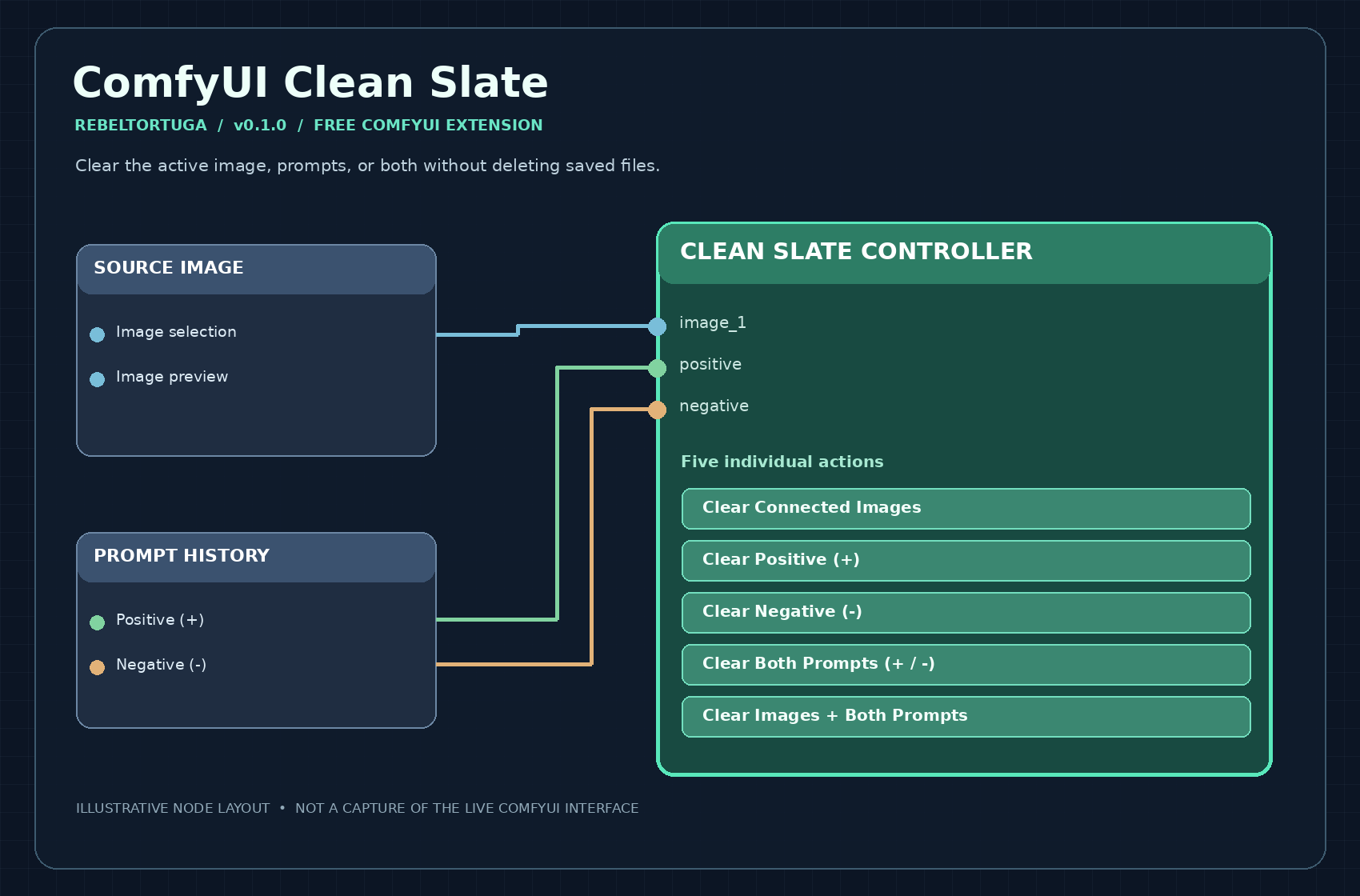
Illustration of the controller's connections and five buttons; not a live ComfyUI screenshot.
Features
- Provides a separate Clean Slate Controller node under RebelTortuga / Utilities. It does not add buttons to any existing node.
- Connect up to eight image outputs, four mask outputs, and positive/negative STRING prompt outputs to identify exactly which sources it controls.
- Five individual controls: Clear Connected Images, Clear Positive (+), Clear Negative (−), Clear Both Prompts, and Clear Images + Both Prompts.
- Confirms before making changes.
- Clears image-selection fields and cached previews in connected source-image nodes, alongside positive/negative fields of connected Prompt History nodes. Also guards against a previously cached preview reappearing when a workflow tab reloads.
- Keeps node positions, all connections, models, sampler settings, and non-prompt controls intact.
- Never deletes or archives files. Existing images, dropdown history, and prompt-history files stay untouched.
- Does not automatically save the reset workflow; save manually if desired.
Installation
-
Stop ComfyUI in Stability Matrix.
-
Extract the
comfyui-clean-slatedirectory into your ComfyUI installation'scustom_nodesdirectory:ComfyUI/custom_nodes/comfyui-clean-slate/ -
Restart ComfyUI and refresh the browser with Ctrl+Shift+R.
-
Right-click the canvas, search Clean Slate Controller, and add it near your source images and prompt-history node.
-
Connect each Load Image → IMAGE output to a controller
image_1throughimage_8input. These are additional branches; existing connections stay connected. -
Connect Prompt History → positive to controller
positive, and Prompt History → negative to controllernegative. -
Click one of the five controller buttons and confirm. Only linked source nodes are affected.
No extra Python dependencies, credentials, or paid services are required.
Important behavior and limitations
The image-selection value is set to an empty string. That state is not a valid source for image generation: select/upload a new image before running. ComfyUI may restore an old thumbnail in node.imgs while switching tabs even when the selected filename remains blank. Clean Slate checks the active canvas every 250 ms and removes such stale previews; it skips images with a selected filename. Save with Ctrl+S to persist changed widget values.
ComfyUI extensions and image nodes have different preview implementations. This release clears conventional LiteGraph node.imgs previews and known image-loader widgets, but some third-party nodes may store images in private caches or draw separate preview elements. Those require compatibility testing and possibly a node-specific adapter. The controller affects only connected sources on the active canvas, not every node automatically.
Testing: The standalone controller was previously tested in ComfyUI 0.42.1. The active-tab stale-preview watcher passed isolated JavaScript tests but requires a fresh live ComfyUI test. Compatibility with all third-party image-preview implementations is not established. Back up your workflow JSON before first use.
Frequently asked questions and troubleshooting
Where is the controller after installation? Restart ComfyUI, hard-refresh the browser (Ctrl+Shift+R), then search for Clean Slate Controller under RebelTortuga / Utilities.
Why didn't a particular image or prompt clear? The controller only operates on connected source nodes on the active canvas. Check the extra IMAGE/STRING connections. Some third-party preview widgets may require compatibility work.
Did clearing delete my image files? No. It clears current selections and known cached previews, not saved images, prompt-history files, or the image library.
Why can't I run generation immediately after clearing? An image-loader field may now be empty. Select or upload a new image first.
Why do cleared values return after restarting ComfyUI? Save the workflow after clearing if you want the empty state persisted. Back up your workflow JSON before first use.
🔗 Related Free RebelTortuga Projects
Explore other free tools and workflows:
- comfyui-free-local-qwen-image-edit
- comfyui-free-local-sdxl-inpainting
- comfyui-free-local-wan-video-quality
- comfyui-free-local-wan-video-high-resolution
Browse all RebelTortuga projects
🐢 Support RebelTortuga
Clean Slate is completely free to use. No payment or donation is required!
If this node has helped you, consider supporting its development.
☕ Help this turtle get a new shell! 🐢💚
Your support helps me continue improving Clean Slate, developing new ComfyUI tools, and sharing free projects with the community.
No pressure. No paywalls. Just one rebellious turtle with big ideas!
License
MIT; see LICENSE.
<!-- BEGIN REBELTORTUGA SAFETY -->
Privacy & Software Safety
Read the project safety guidance before use. It covers local workflows, dependencies, saved files, and security warnings. See SECURITY.md for vulnerability reporting and the license for terms.
Privacy & Software Safety · Project Licenses
Do not upload passwords, access tokens, browser profiles, private backups, or unredacted diagnostic reports to public issues.
<!-- END REBELTORTUGA SAFETY --> <!-- rebeltortuga-official-links:start -->