
ComfyUI Extension
ComfyUI_AutoTag
A sophisticated multi-line text node for ComfyUI that provides weighted autocompletion, interactive pill-based tag management, and smart randomization features.
QuigleyDown/ComfyUI_AutoTag
Nodes1
On cloudLocal install
CategoryCustomNodes
Stars1
Updated5 months ago
Readme
ComfyUI AutoTag Node
A sophisticated multi-line text node for ComfyUI that provides weighted autocompletion, interactive pill-based tag management, and smart randomization features.
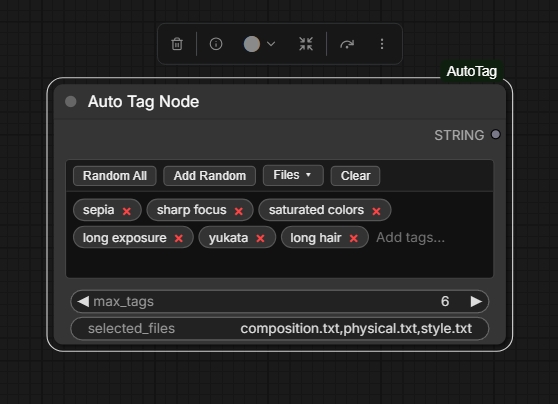
Features
🚀 Smart Autocomplete
- Weighted Suggestions: Tags are sourced from weighted text files. As you type, the most relevant and high-priority tags appear at the top of the list.
- Seamless Entry: Press
Enteror,to instantly convert your typed text into a tag pill. - Keyboard Navigation: Use
Arrow Up/Downto navigate suggestions andEnterto select.
💊 Pill-Based Tag Management
- Interactive UI: Every tag is displayed as a "pill" with an
×button for quick removal. - Double-Click to Edit: Double-click any tag pill to edit it inline. Autocomplete remains active during editing.
- Drag-and-Drop Reordering: Simply click and drag a tag pill to change its position in the list.
- Quick Delete: Press
Backspacewhen the input is empty to delete the last tag. - Visual Clarity: Easily see and manage long lists of tags without the clutter of raw text.
🎲 Powerful Randomization
- Random All: Instantly replaces your current tags with a fresh set of random tags.
- Add Random: Appends a new set of unique random tags to your existing list.
- Density Control: Use the
max_tagsinput to set a limit (1–100) on how many tags are generated or added. - Category Scoping: Randomization respects your selected tag files.
🧹 Quick Actions
- Clear All: A dedicated "Clear" button to wipe your entire tag list in one click.
- Flexible Filtering: Autocomplete treats spaces and underscores as interchangeable, making it easy to find tags regardless of how you type them.
📁 Multi-File Library
- File Selection Menu: Click the "Files ▾" button to choose exactly which tag files to use for suggestions and randomization.
- Category Scoping: Organize your tags into specialized files (e.g.,
style.txt,physical.txt,settings.txt). - Easy Customization: Add your own
.txtfiles to thetags/folder to instantly expand your library.
🔌 External Input Support
- Input Text: The node accepts an optional
input_textstring. Any tags passed this way are automatically processed and merged with your manual tags, ensuring no duplicates.
Installation
- Clone this repository into your ComfyUI
custom_nodesfolder:cd ComfyUI/custom_nodes git clone https://github.com/QuigleyDown/ComfyUI_AutoTag.git - Restart ComfyUI.
How to Use
- Add Node: Search for "Auto Tag Node" in the ComfyUI node menu (Category:
CustomNodes). - Type Tags: Click inside the text area and start typing. Use the autocomplete list to find tags quickly.
- Manage Files: Click the Files ▾ button to toggle specific categories on or off.
- Randomize: Use Random All to replace your tags, or Add Random to append to them based on the
max_tagsvalue. - Clear: Use the Clear button to quickly empty the tag list.
- Connect: Plug the
STRINGoutput into any node that accepts text (e.g., CLIP Text Encode).
Customizing the Tag Library
The node loads all .txt files from the tags/ directory.
Tag File Format
Each line should contain a tag followed by a comma and a numeric weight:
cyberpunk, 5000
masterpiece, 4500
neon lights, 3000
- Higher Weights appear first in the autocomplete list.
- Weights can be any integer.
Default Categories Provided
style.txt: Artistic mediums, aesthetics, and art styles.physical.txt: Character traits, clothing, and expressions.settings.txt: Environments, locations, and backgrounds.composition.txt: Camera angles, lighting, and technical details.
License
MIT