
ComfyUI Queue Manager
An extension supporting more streamlined prompt queue management.
ComfyUI Queue Manager
An extension supporting more streamlined prompt queue management.
Table of Contents
- Quickstart
- Important
- Features
- Compatibility
- Roadmap
- Manual
- Troubleshooting
- Tips and words of wisdom
- Development
- Have fun!
Quickstart
- Install ComfyUI.
- Install ComfyUI-Manager if it is not already installed (recent versions come with it already).
- Look up this extension in ComfyUI-Manager (ComfyUI Queue Manager). If you are installing manually, clone this repository under
ComfyUI/custom_nodes. - Restart ComfyUI.
Note
- As of October 2026 I consider this project to be completed.
- All intended features work as expected and no new major features are planned.
- Fixes and compatibility adjustment will happed as needed.
- New features might appear whenever I deem them useful for managing the queue.
Features
- Persist queues across ComfyUI restarts.
- Archive jobs and run them later.
- Export and import queues.
- Pause and resume the queue.
- Rename pending and archived jobs individually or as a selected group.
- Select multiple queued jobs to act on them.
- Reorder pending and archived jobs individually or as a selection
- Filter by workflow or by exact workflow name.
- Gallery mode – easily preview rendered jobs (images and videos) in a comprehensive viewer
Compatibility
- This extension requires the new ComfyUI menu.
- When this extension is enabled then the native queue will no longer display pending queue items. However, history will still be there.
- This extension hijacks several native queue processes from ComfyUI and front end and alters / disables some of them to provide a more streamlined experience.
- This extension might be incompatible with other extensions that directly manipulate or read the native queue object.
- Other than that an effort was made to retain compatibility as much as possible (internal events, messages, queue api endpoints still work as before).
IMPORTANT! Multiple accounts / users are not supported
- This extension does not support multiple accounts / users.
- If you intend your ComfyUI instance to be used by multiple users logged in to Comfy.org at the same time then this extension will produce unexpected results.
- It's highly recommended to avoid using this extension in such multi-user scenarios as users will see each other's jobs, might unintentionally end-up using each other's Comfy Cloud credits etc.
- Let me reiterate: this extension is NOT intended to be used to manage queues in multi-account ComfyUI deployments.
- If there is enough demand for multi-user support I will consider adding it in future releases.
Roadmap
As of October 2026 no new major features are planned. This might change if I come up with a good idea or with something specific while working with ComfyUI
Manual
Pause / Resume Queue
Click the blue pause button in ComfyUI's extension controls to pause the queue. Currently running workflow will finish, but no new workflows will be started until you resume the queue.
Enable Settings → Queue Manager → Basic → Clean caches on Pause to request ComfyUI's model and execution-cache cleanup whenever you click Pause. This option is off by default. Cleanup waits for the current workflow to finish; resuming may require models to reload and nodes to recompute.

Click the blue play button to resume the queue.

Stop / Clear Queue
Click the red square button beside Pause/Resume to clear pending jobs. It is disabled when the queue is empty.
Running and main Queue Manager window
You can start running jobs as usual using the Run button in the main ComfyUI window.
To view the Queue Manager window, click the Queue Manager button in the sidebar menu.
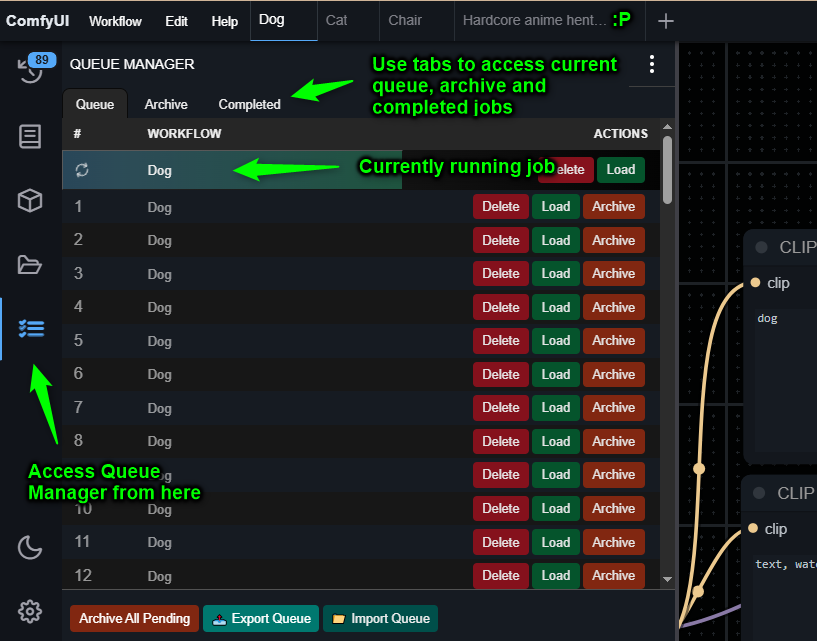
On the right you have action buttons like Delete, Load, Archive, Run which are applicable to a single item in the queue.
On the bottom you have buttons like Archive All, Export Queue etc. which are applicable to all items in the current tab.
When button on the bottom has a asterisk * next to it, it means that the action will be applied to the items in filtered view only (see Filter by workflow below).
Archive
Archive is a place where you can park your queue items to play them later.
When in the Queue tab you can archive individual items by clicking the Archive button in the actions columns or you can archive all items in the queue by clicking the Archive All button on the bottom of the window.
In Queue mode hold Shift while clicking Archive, Archive Selected, or Archive All to place the jobs at the start of the Archive. A hint in the Queue header confirms this while Shift is held.
Similarly, when in Archive tab you can play archived items by clicking the Run button in the actions column or you can play all archived items by clicking the Run All button on the bottom of the window.
Run at front of the queue
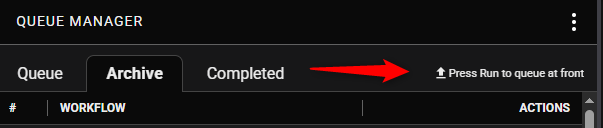
You can run an item, entire archive or filtered out list of jobs at the front of the queue by pressing and holding the Shift while clicking the Run or Run All buttons.
When holding Shift pressed a small indicator message will appear on top of the window to confirm that the action will run at front of queue.
Export and Import
You can export items from any tab (Queue, Archive, Completed) to a file by clicking the Export Queue/Archive/Completed button on the bottom of the window. You can import items from a file to the Queue or to the Archive by clicking the Import Queue/Archive button on the bottom of the window.
Filter by workflow or name
Click a name in the Workflow column to filter the list. Above the active filters, use Filter by: Workflow / Workflow name to switch modes:
- Workflow shows jobs with the same workflow ID, including jobs that have been renamed.
- Workflow name matches the selected saved name exactly, including case, across workflows.
Note: renaming a job can remove it from an exact-name view if it no longer matches.
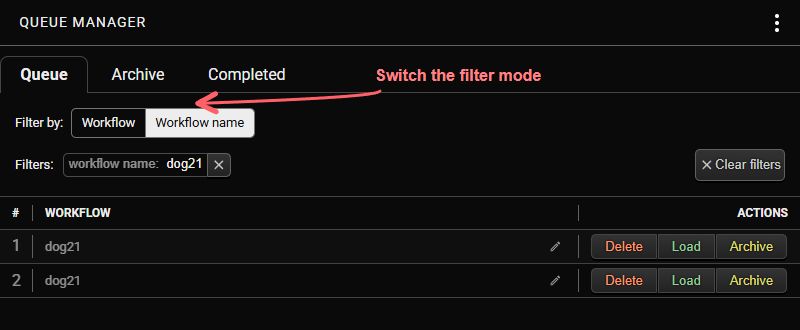
Once filtered out the group actions on the bottom of the window (like Archive All *, Run All *, Delete All *) will only apply to the filtered items.
Asterisk * next to the button label indicates that the action will be applied to the filtered items only.
Select queue items
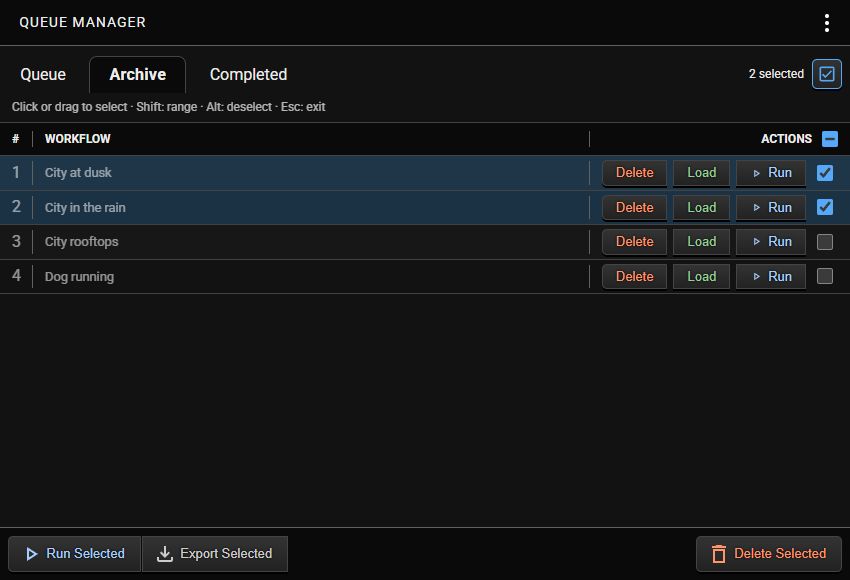
Click the checkbox icon to the right of the Queue / Archive / Completed tabs, or start dragging across the job list with your mouse, to enter selection mode. Outside selection mode, a normal click still filters the list or opens the gallery; dragging across rows selects them instead.
The hints below the tabs can be dismissed with Don't show again. To restore them, enable Settings → Queue Manager → Basic → Show selection mode hints.
- Click a row or its checkbox to select or deselect it.
- Shift-click selects a range from the last row clicked without Shift; Shift+Alt-click deselects that range.
- Drag a rectangle to add every row it touches. Hold Alt while dragging to deselect those rows.
- Use the checkbox in the column header to select or clear all items on page.
- Press Escape or click the selection toggle again to exit.
While selecting, filters are disabled. Footer actions become Archive Selected, Run Selected, Export Selected, and Delete Selected, as appropriate for the current tab. They stay disabled until at least one job is selected.
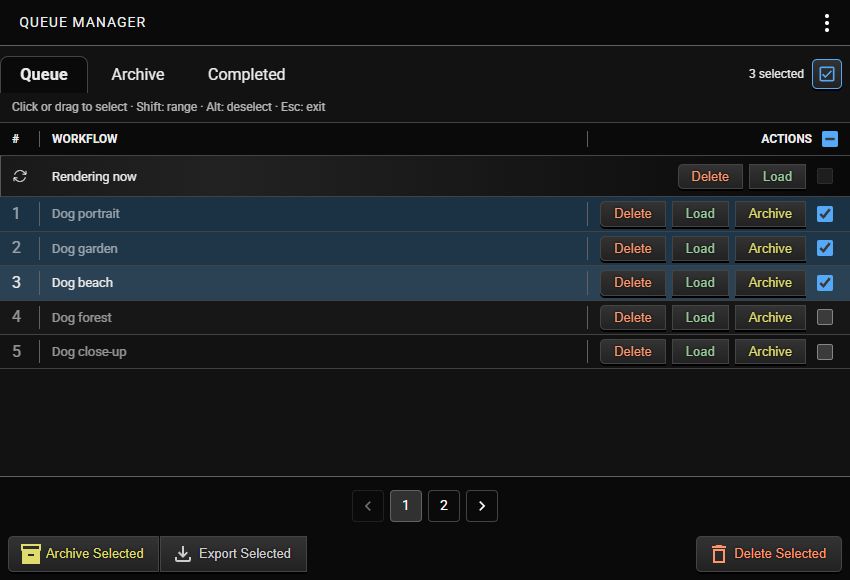
Selection mode stays on until you click its toggle, press Escape, or reload the browser.
In Archive, Run moves an individual job to the queue while the remaining visible selections stay selected. Run Selected applies to the selected group.
Reorder workflows
Drag the handle in the far-right column of the Queue or Archive tab to move a job within that tab. A blue line marks the drop position. Releasing the handle saves the order immediately; press Escape while dragging to cancel.
Dragging up places the jobs immediately after the row above the drop position; dragging down places them immediately before the row below. The anchor row is lightly highlighted with faded arrows: downward arrows on the upper anchor and upward arrows on the lower anchor. At the very top or bottom, jobs go before the first or after the last available row.
In selection mode, dragging a handle moves the selected jobs together, keeping their existing queue order. Dragging an unselected job adds it to that group. You can also focus a handle and press Up or Down to move a job or selected group one step.
With jobs selected, a - Move selection to - movement controls appear below the list: Start of queue / Top of page on the left, and Bottom of page / End of queue on the right. In Archive, the start/end buttons refer to the archive. Start/end use the full tab, including jobs hidden by filters and jobs on other pages. Top/bottom of page move the group before the first or after the last unselected job on the visible page;
Drag reordering is available in Queue and Archive, within the current page;
Rename queued workflows
Click the pencil at the right edge of a pending or archived job's Workflow cell to edit its name. Moving focus outside the editor saves a changed name. You can also press Enter or click the checkmark to save; press Escape or click the cross to cancel. Empty names are rejected.
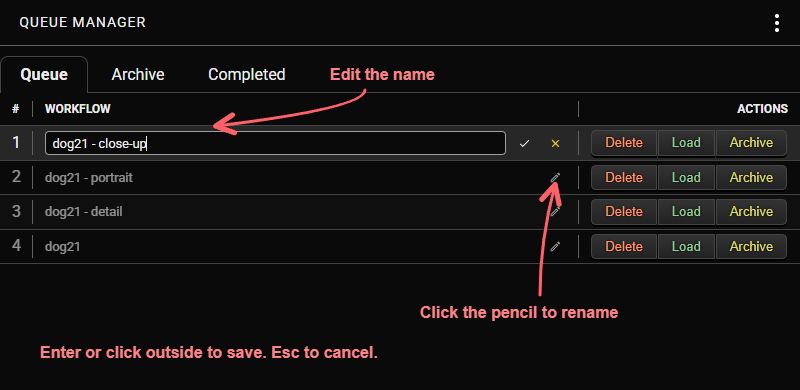
Names use the same filename sanitization as the Workflow Name node.
In selection mode, clicking a pencil renames the selected group. If that row was not selected, it is added to the group. Clicking outside the input saves a changed name. Enter or the checkmark also saves. Escape or the cross cancels the whole edit. Enter/checkmark can also apply the source name unchanged to the group.
Jobs that have started running, disappeared, or moved to another tab are skipped. As with an individual rename, jobs may leave an exact-name filtered view after saving.
Restore client focus
When you restart ComfyUI or browser, you might lose the client focus. When that happens the progress of running renders in ComfyUI will no longer update (no progress view, no previews, no highlights which nodes is being executed).
To restore the client focus, click the three vertical dots menu and select Take over focus. The effect will take place after currently running job (if any) finishes.

Workflow Name node
Use Workflow Name to name queue entries and supply a filename prefix to other nodes. Type a value in text or connect a string to that same input. Custom values are sanitized for filenames; empty values fall back to the workflow filename, then an empty string if no filename is available.
Non-exhaustive list of typical use cases:
Name a queue entry
Enter a custom name such as Hello. The output can remain disconnected: Queue Manager still reads the node when queuing and uses the name for the queue entry.
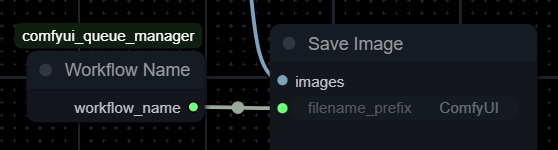
Save images using the workflow filename
Leave text empty and connect workflow_name to Save Image's filename_prefix to use the workflow filename as the prefix for saved images.
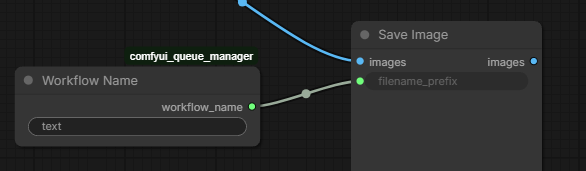
Supply a custom name from another node
Connect a string to text to supply the name from another node. In this example, Hello names the queue entry and provides the filename prefix for Save Image. A connected value replaces the manually entered text.
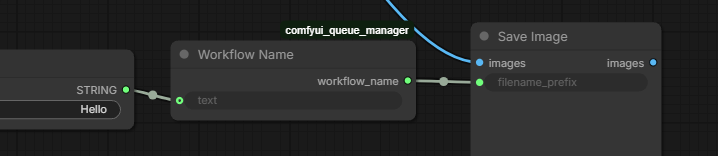
Queue Manager uses the first active Workflow Name node in the submitted prompt, ignoring muted or bypassed nodes. Connected values are read when available at queue time and may differ from the values produced during rendering. See the node documentation for sanitization and fallback details.
API-submitted jobs
For available endpoints and request/response examples, see the API guide.
Jobs submitted through ComfyUI's /prompt API are managed alongside jobs from the GUI.
Unnamed submissions receive an API job + short prompt ID label. Each submission has its own workflow identity unless the caller provides one, so filtering by workflow does not combine unrelated API jobs. Renaming or replaying a job retains its identity.
API callers can optionally include this extra_data field in their /prompt request:
{
  "extra_data": {
    "queue_manager": {
      "name": "Batch render",
      "workflow_id": "my-api-workflow"
    }
  }
}
Both fields are optional. Reuse workflow_id to group submissions in the workflow filter. These fields describe the Queue Manager entry; they do not change node inputs or the runtime output of a Workflow Name node.
Load uses the saved GUI workflow when available. Otherwise it uses ComfyUI to reconstruct the nodes and connections with an automatic layout. Original positions, groups, and other canvas-only information cannot be recovered from an API prompt.
Comfy API / Partner Nodes
- This extension supports usage of Comfy API (Partner Nodes) in queued workflows.
- To use Partner Nodes in queued workflows you must be logged in to Comfy.org using Comfy API Key (https://docs.comfy.org/account/login#logging-in-with-an-api-key).
- When your Comfy API Key is deleted or revoked then all jobs in the queue that were queued with that key and used Partner Nodes, will fail. To run such jobs you need to requeue them; the best way to do it is to export them, log-in with your new Comfy API Key and then import the exported items back.
- IMPORTANT! When you queue jobs while logged in with Comfy API key then those jobs will get through (and use your credits if you used Partner nodes) even if you log out from ComfyUI or Comfy.org.
- Conversely, if you queue jobs with Partner nodes while NOT logged in with Comfy API key then those jobs will NOT be able to use Partner nodes even if you log in later before running them. (See point 3. above for export-import workaround).
Gallery / output previews
- In the Completed tab you can view outputs (images and videos) of finished jobs.
- Completed tab can display results in 3 different modes: List, Cover, Grid.
- In List no media previews are shown, only job details. In Cover mode a first image is shown in the table. In Grid mode all media outputs (depending on settings) are shown in a grid layout.

- In every mode a small indicator next to the workflow name shows how many media outputs were produced by the job.
- Clicking on a thumbnail or outputs indicator opens the Gallery view.
- In Cover and Grid modes you can adjust size of the thumbnails using the slider on the bottom right of the window.
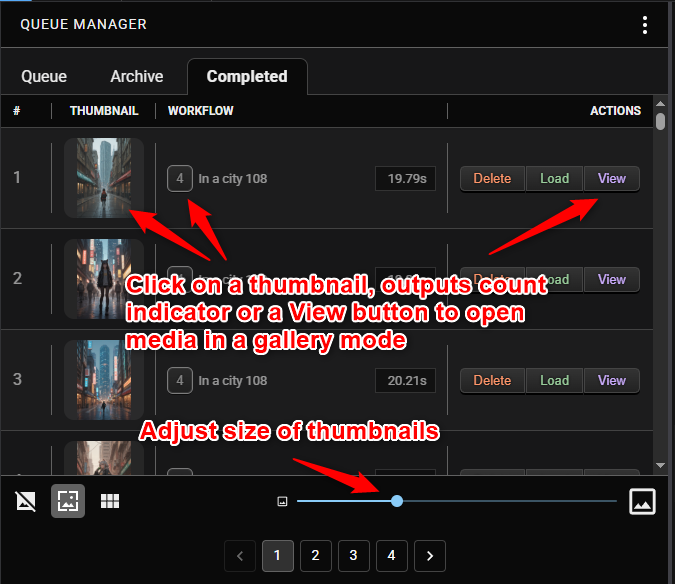
Gallery view
- In the Gallery view you can see all media outputs from the currently displayed Completed page. This is important to note: only outputs from jobs on current page will show in the gallery i.e. if there are 100 jobs per page then only outputs from those 100 jobs will be displayed in the gallery.
- You can cycle through media items individually or skip through entire jobs to quickly navigate through results.
- In the Gallery view several keyboard shortcuts are available:
- Arrow Left / Right: go to previous / next media item
- Arrow Up / Down: go to previous / next job
- Home: go to first media item
- End: go to last media item
- Escape: close Gallery view
- T: toggle thumbnails on / off
- On the bottom of the Gallery is a progress bar showing your current position in the list of media items. You can also use it to quickly skip to a specific media item by clicking on it.
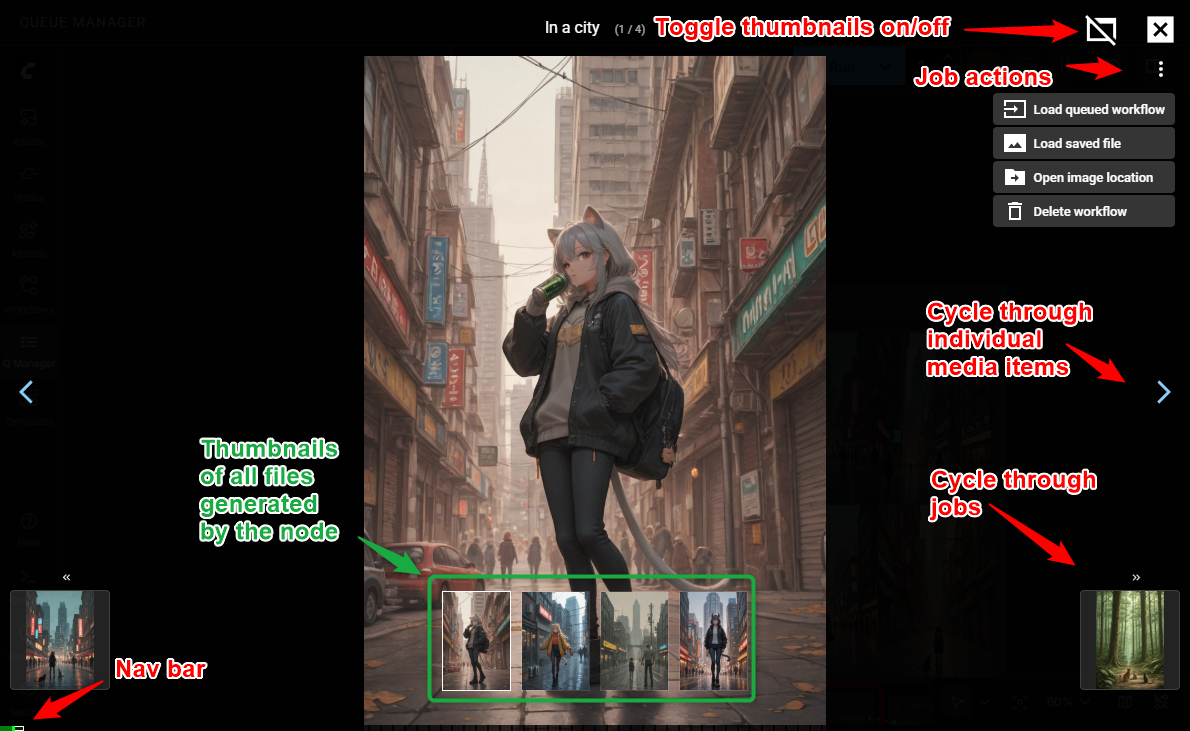
- By default videos are played automatically. You can change that in extension settings (see below).
- When workflow produces both images and video outputs then images are hidden by default to reduce clutter (since most of the time these will be individual frames of the video). You can toggle visibility of these images in extension settings (see below).
Extension Settings
- Several aspects of the Queue Manager extension can be configured in the ComfyUI Settings window.
- ComfyUI Menu -> Settings -> Queue Manager
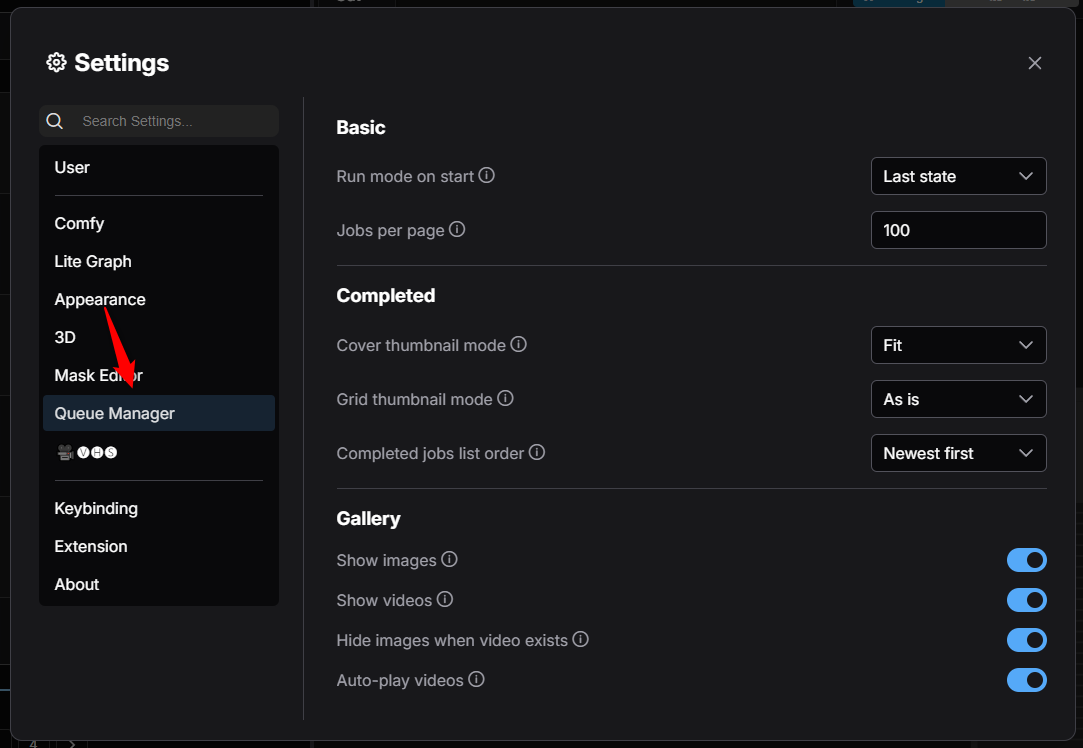
- ComfyUI Menu -> Settings -> Queue Manager
Troubleshooting
I updated custom nodes and can no longer load items from queue or play from Archive or items imported from file.
Sometimes updates to custom nodes introduce breaking changes to the node's internals that are incompatible with that node's old version. When that happens trying to play workflows with old version of the affected custom node will fail.
There is no permanent fix for this. You can either re-create the affected workflows with the updated version of the custom node or downgrade the offending custom note to the same version as the node used to queue the workflow that failed.
I updated ComfyUI and Queue Manager is no longer working properly.
In rare cases updates to ComfyUI introduce breaking changes that affect Queue Manager functionality. Report the issue on the extension's GitHub page and I will try to address it as soon as possible.
I exported queue to file and imported on another device but I can't play it there
Similarly to points above, if the target device has different versions of custom nodes or different versions of ComfyUI they might be incompatible. There is no fix for that other than ensuring source and destination devices have same versions of ComfyUI and affected custom nodes. Check the error message in the ComfyUI terminal to identify the affected custom nodes.
Tips and words of wisdom
- Before updating ComfyUI or custom nodes it's best to finish all queued and archived jobs to avoid potential incompatibility issues with new versions of ComfyUI or custom nodes.
- While the ComfyUI Queue Manager offers data persistence between restarts and crashes as well as import/export functionality, it's not intended to provide a long term storage for queue jobs. Updates to ComfyUI and custom nodes might introduce breaking changes that will affect queued and archived jobs and make them unplayable. Run your queued and archived jobs as soon as possible to avoid such issues.
Queue Manager API
See API.md for more details about all available endpoints and parameters.
Development
TLDR:
/webis the front end part of the extension.- The
.guifolder holds the built Queue Manager app. Its leading dot prevents ComfyUI from loading it automatically; the sidebar iframe loads it explicitly when opened.
- The
- The core front end functionality of the Queue Manager is a React web app loaded in an iframe (from
.guifolder). It communicates with loading part of the extension by postMessage API. - Server side (python) part of the extension is in
/src/comfyui_queue_manager - Source code for the React app is in
/src/gui. I use bun to build it but you can as well use npm. - database is in
/data/(sqlite files are created automatically on first run after installation)
See DEVELOPMENT.md for more detailed setup, builds, checks and contribution steps.
Release Notes
For detailed release notes please see CHANGELOG.md.
Have fun!
Queue all the way to the moon.