
ComfyUI-PepeUtils
Small utility nodes for ComfyUI including Anime PromptGen, Load Image Cropped, Pepe Scale Image By, and Stride Scale Size.
Nodes (15)
A tiny GPT-2 that writes your danbooru prompts for you
Spin your 360° panorama around without leaving ComfyUI
Your equirectangular pano, unwrapped into a tileable cubemap strip
Wrap a panorama around a cylinder and unroll it, seam-free
Draw a crop box on the image instead of doing the math
Ctrl+V a screenshot straight into your img2img workflow
A mute switch for any branch of your workflow
Print from inside your workflow, right where the logs live
Pause the queue and hand-pick which images keep going
Pick one of eight branches and only run that one
Load images from any local folder as synchronized lists
The one node for resize, pad, crop and pillarbox — without wrecking the pixels
Block every route except one — including the Save nodes
Photoshop's Bicubic Sharper, reverse-engineered into a ComfyUI node
The tiny math node that keeps your resolutions divisible
ComfyUI-PepeUtils
Small utility nodes for ComfyUI.
Currently included:
- Anime PromptGen - generates anime prompt text with the FredZhang7 GPT-2 prompt generator or a compatible local GGUF file through Transformers.
- Pepe Equirectangular Preview - interactively previews LDR Lat-Long panoramas with mouse rotation, wheel zoom, and fullscreen viewing.
- Pepe Equirectangular to Cubemap Strip - converts a panorama into a horizontally tileable strip of configurable perspective faces; four sides produce a cubemap.
- Pepe Equirectangular to Cylindrical - reprojects a panorama onto a constant-radius cylinder and unrolls it into a seamless image.
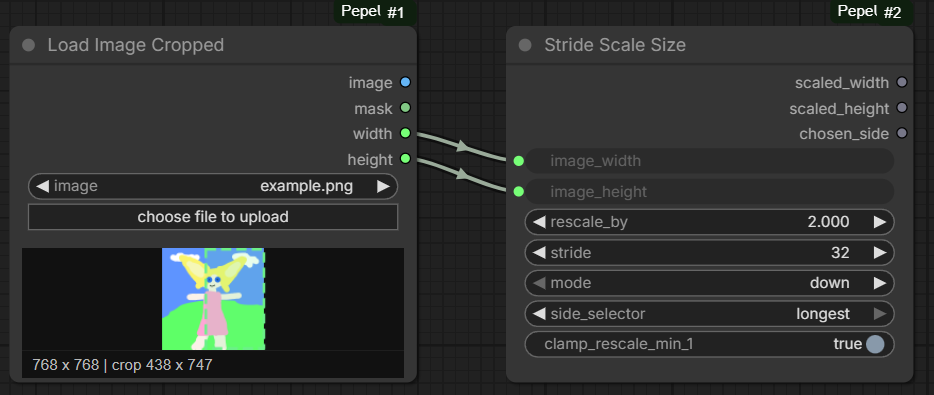
- Load Image Cropped - loads an image and returns a cropped image + mask, with an interactive crop preview in the ComfyUI frontend.
- Pepe Paste Image - pastes a clipboard image into a selected node and keeps it only in ComfyUI's temporary storage.
- Pepe Break - toggles a workflow branch between lazy passthrough and cleanly blocked execution.
- Pepe Console Print - prints a configurable message to the ComfyUI server console and passes any input through unchanged.
- Pepe Image Filter - pauses a workflow and lets you select which images from a batch continue, with matching latent and mask passthrough.
- Pepe Lazy Route - selects one of eight inputs without evaluating the unselected branches.
- Pepe Load Images From Folder - loads arbitrary local folders as synchronized image, mask, and filename lists for per-file workflows.
- Pepe Route Split - starts one of eight routes and blocks the other routes, including independent Save/Preview paths.
- Pepe Resize Image - resizes, crops, pads, or pillarboxes images with automatic Lanczos upscale and Pepe Bicubic Sharper downscale selection.
- Pepe Scale Image By - scales images with a Photoshop Bicubic Sharper style approximation based on configurable cubic resampling.
- Stride Scale Size - computes width/height snapped to a chosen stride after scaling.
Node Screenshots
Installation
Option 1: Git clone
Clone this repository into your ComfyUI/custom_nodes directory:
git clone https://github.com/Pepehoschi/ComfyUI-PepeUtils.git
Option 2: Download ZIP
Download this repository as a ZIP, extract it, and place the folder here:
ComfyUI/custom_nodes/ComfyUI-PepeUtils
Then restart ComfyUI.
Pepe Image Filter
Connect an image batch and queue the workflow. The node opens an interactive image grid where you can select one or more images, zoom for inspection, and send the selection onward. When provided, matching latent samples and masks are selected with the images. The three optional extra text values are also editable in the selection popup.
Enable equirectangular_projection to open still-image candidates directly in an interactive panorama viewer. Drag to look around, use the mouse wheel to adjust the field of view, and use the arrow buttons or keyboard arrows to compare candidates while keeping the same viewing direction. Select/Unselect (or Enter) toggles the current candidate, Grid or Esc returns to the flat overview, Reset restores the default view, and the fullscreen button expands the projection. Grouped video previews (video_frames > 1) continue to use the existing flat animated view.
pick_list bypasses the popup with comma-separated image indices. pick_list_start controls the numbering returned by the indexes output, and video_frames groups consecutive frames into selectable clips. The timeout action can cancel processing or send all, the first, or the last item.
For interactive flow control, enter up to eight button labels in the multiline choices input, one per line. It defaults to a single Proceed choice. Clicking a choice sends the selected images and returns both its zero-based choice_index and its choice_name. If choices is cleared, the popup keeps its original Send behavior. default_choice is used by timeout, pick_list, identical-image autosend, and other automatic sends.
Connect choice_index to Pepe Lazy Route, then connect each possible branch result to the correspondingly numbered choice_0 through choice_7 input. The router asks ComfyUI to evaluate only the selected input, so expensive unselected branches such as an additional sampling pass are skipped. All branch results connected to one router should have compatible types.
Use Pepe Route Split instead when routes end independently—for example, when each route has its own Save Image, Preview Image, or other output node. Connect the selected image (or other shared value) to input, connect the Image Filter's choice_index, and start each branch from the matching choice_0 through choice_7 output. The split passes only the selected output and sends silent execution blockers through all others. A lazy merge alone cannot suppress a Save/Preview node elsewhere in the graph because ComfyUI schedules every output node as a separate terminal path.
This node is derived from cg-image-filter by Chris Goringe. Its Apache-2.0 license and attribution are retained under third_party/cg-image-filter.
Requirements
No extra setup is currently documented beyond a normal ComfyUI installation.
This node relies on libraries that are typically already present in ComfyUI environments:
torchnumpyPillow
The Anime PromptGen node also needs:
transformersggufwhen loading.gguffiles through Transformers
Place local GGUF models in one of these folders:
ComfyUI/models/gguf
ComfyUI/models/llm_gguf
ComfyUI/models/LLM/GGUF
After restarting ComfyUI, files in that folder appear in the gguf_model dropdown. You can also paste an absolute .gguf path into gguf_file_path.
Included Nodes
Pepe Equirectangular Preview
Category: image
Inputs:
imageview_widthview_height
Outputs:
image(unchanged pass-through)view(the current perspective view, rendered when connected)
What it does:
- Interprets a regular ComfyUI LDR
IMAGEas an equirectangular/Lat-Long panorama. - Renders an interactive perspective view directly inside the node using WebGL 2.
- Dragging rotates the view horizontally and vertically.
- The mouse wheel changes the field of view.
- Reset restores the default yaw, pitch, and field of view.
- The fullscreen button expands the interactive view to the browser display; press Esc or the button again to exit.
- Batch navigation buttons appear when the input contains multiple images.
- The hidden yaw, pitch, and FOV values track the interactive camera and are used to render the
viewoutput atview_width×view_height.
Notes:
- Rotation and zoom do not alter the original
imageoutput; they define the perspective rendered byview. - Perspective rendering is skipped when the
viewoutput is not connected. - The viewer state is stored with the node in the workflow.
- The input should normally use a 2:1 equirectangular image for correct spherical proportions.
- The preview is encoded through ComfyUI's temporary image directory and is not saved persistently.
Pepe Equirectangular to Cubemap Strip
Category: PepeUtils/image
Inputs:
imageface_size(width of each face;0divides the panorama width byside_count)side_count(number of faces around the horizon; defaults to4)vertical_fov(vertical field of view; defaults to90°)
Outputs:
cubemap_strip
What it does:
- Converts an equirectangular panorama into perspective faces arranged around the horizon.
- With four sides, produces the familiar 90-degree
front,right,back,leftcubemap strip. - With more sides, uses a narrower
360 / side_countdegree horizontal field of view for each face, approximating a smooth cylinder with progressively smaller direction changes at the boundaries. - Calculates the face height from
vertical_fovso increasingside_countdoes not crop the top and bottom of the selected view. - Omits the top and bottom and produces an image whose final and first edges meet continuously when tiled horizontally.
Notes:
- Automatic sizing keeps the complete strip at the panorama width by dividing it evenly among the faces.
- Four sides at the default 90° vertical FOV still produce the original 4:1 cubemap strip.
- At higher side counts, faces become taller than they are wide. This preserves vertical coverage and equal pinhole-camera pixel scale instead of stretching the image.
- The input should normally use a 2:1 equirectangular layout.
Pepe Equirectangular to Cylindrical
Category: PepeUtils/image
Inputs:
imageoutput_width(0preserves the panorama width)output_height(0calculates square distances on the unrolled cylinder surface)max_latitude(north/south coverage; defaults to approximately 57.52°)
Outputs:
cylindrical
What it does:
- Projects the panorama onto the side of a vertical, constant-radius cylinder.
- Unrolls the cylinder into one continuous image with seamless left/right wrapping.
- Uses longitude for horizontal position and physical cylinder height for vertical position.
- Keeps equal horizontal and vertical surface distances per pixel when
output_heightis0.
Notes:
- The default latitude and automatic sizing preserve the dimensions of a normal 2:1 panorama.
- Increasing
max_latitudeincludes more of the poles and increases the automatically calculated height. - A finite cylindrical image cannot include the exact north and south poles because their cylinder height approaches infinity.
Pepe Break
Category: PepeUtils/flow
Inputs:
value(any connected ComfyUI data type)enabled(CONTINUEpasses the value;BREAKblocks the branch)
Output:
value
What it does:
- Passes its input through unchanged in
CONTINUEmode. - Uses ComfyUI's silent execution blocker in
BREAKmode, so downstream nodes on that route do not execute or report an error. - Treats
valueas a lazy input. If its upstream nodes are used only by this branch, they are not evaluated while the break is active.
Notes:
- The break affects only nodes downstream of its output. Independent workflow branches continue normally.
- Place it before the first node of the section you want to disable.
Pepe Console Print
Category: PepeUtils/utils
Inputs:
value(any connected ComfyUI data type)message(the text to print)color(terminal text color, including standard and bright variants)
Output:
value(the exact input value, unchanged)
What it does:
- Prints
messageto the terminal or CMD window running the ComfyUI server. - Executes on every queued workflow instead of letting ComfyUI reuse a cached print.
- Routes images, latents, conditioning, strings, numbers, and other connected types through unchanged.
Anime PromptGen
Category: utils/text
Inputs:
promptmodel_id_or_pathtokenizer_id_or_pathgguf_modelgguf_file_pathmax_lengthnum_return_sequencesdo_samplerepetition_penaltytemperaturetop_kearly_stoppingseeddtypedevicelocal_files_onlystrip_input_prompt
Outputs:
promptsfirst_prompt
What it does:
- Wraps the Hugging Face text-generation pipeline.
- Exposes the generation arguments from the original
outs = nlp(...)snippet as node widgets. - Loads the normal Hugging Face model by default.
- Can load a compatible local
.ggufmodel with Transformers usinggguf_file.
Notes:
- Transformers loads GGUF checkpoints by dequantizing them into PyTorch weights, so memory use is closer to the selected
dtypethan to the GGUF file size. - For GGUF workflows, the node first tries tokenizer metadata from the GGUF or adjacent files before falling back to
tokenizer_id_or_path. - If a custom node changes Hugging Face hub settings and you see requests to mirrors such as
hf-mirror.com, enablelocal_files_onlyor settokenizer_id_or_pathto a local tokenizer folder.
Load Image Cropped
Category: image
Inputs:
image
Outputs:
imagemaskwidthheight
What it does:
- Loads an input image from ComfyUI.
- Lets you define a crop rectangle.
- Returns the cropped image and cropped mask.
- Also returns the crop width and height as integers.
Frontend behavior:
- Includes an interactive crop preview.
- Internal crop coordinates are updated from the preview.
- Supports dragging a file onto the node to upload/select an image.
- Includes a Clear Crop context-menu action.
Notes:
- If the crop is invalid or empty, it falls back to the full image.
- Crop coordinates are clamped to the image bounds.
Pepe Paste Image
Category: image
Outputs:
imagemask
What it does:
- Select the node and press
Ctrl+Vto paste an image from the system clipboard. - Alternatively, click Paste image from clipboard.
- Shows a preview and the pasted image dimensions.
- Uploads clipboard images only to
ComfyUI/temp/pepeutils/paste-image.
Notes:
- Pasted files are removed by ComfyUI when it starts and when it shuts down normally.
- A saved workflow retains the temporary filename, not the image itself. Paste the image again after restarting ComfyUI.
- The clipboard button depends on browser clipboard permission.
Ctrl+Vremains available when direct clipboard access is unavailable. - Exactly one Pepe Paste Image node must be selected for the
Ctrl+Vshortcut.
Pepe Load Images From Folder
Category: Pepe Utils/image
Inputs:
folderimage_load_cap(0loads every image)select_every_nth
Outputs:
images(list)masks(list)file_name(list, including each original extension)image_count
What it does:
- Loads supported images from an arbitrary local folder without routing absolute paths through ComfyUI's restricted annotated-file resolver.
- Sorts filenames case-insensitively so image, mask, and filename lists remain deterministic and synchronized.
- Emits list outputs so downstream ComfyUI nodes process each file independently instead of receiving one tensor batch.
- Supports BMP, GIF, JPEG, PNG, TIFF, and WebP files.
For sidecar captions, send file_name through a regex replacement such as \.[^.]+$ → an empty string, then connect the result and generated text to a text-saving node configured for .txt.
Pepe Scale Image By
Category: utils/image
Inputs:
imagescale_bysnap_to_stridestridesnap_mode(nearest,down,up)clamp_intermediate
Outputs:
imagewidthheight
What it does:
- Scales a ComfyUI image batch by
scale_by. - Uses a NumPy separable resampler approximating Photoshop CS5.1 Bicubic Sharper behavior from Jason Summers' ResampleScope notes.
- For each axis, applies an integrated box prepass when scale is below
0.25, then a cubic pass withB=0,blur=1.05, and scale-dependentC. - Processes X first, then Y, and clamps after cubic passes when
clamp_intermediateis enabled. - Uses a box blur of
0.33and source-space phase0.3999for the large-downscale prepass. - Uses cubic filter scale derived from the active cubic pass: direct downscales use
scale; large downscales below0.25prebox to4x target, so the final cubic pass uses0.25. - Equivalent cubic filter scale rule:
max(scale, 0.25).
Notes:
- This is not guaranteed to be pixel-identical to Photoshop. Boundary handling, rounding, and exact clamping behavior are reverse-engineered approximations.
- Manual ring-pattern tests matched Photoshop closely from scale
0.3upward with this derived math. Below0.25, minor differences remain around Photoshop's exact box prepass/crop behavior. - Very large images or batches may be slower than ComfyUI's built-in GPU scaling because this node runs the custom resampler on CPU.
Pepe Resize Image
Category: utils/image
Inputs:
imagewidthheightkeep_proportion(stretch,resize,pad,pad_edge,pad_edge_pixel,crop,pillarbox_blur,total_pixels)pad_color_rpad_color_gpad_color_bcrop_position(center,top,bottom,left,right)divisible_bymask(optional)
Outputs:
imagewidthheightmask
What it does:
- Provides KJNodes-style resize, pad, crop, pillarbox, and total-pixel geometry modes.
- Automatically uses Lanczos when enlarging.
- Automatically uses the existing Pepe Photoshop-style Bicubic Sharper path when reducing.
- Handles mixed-axis
stretchby shrinking first, then enlarging. - Applies the same geometry to optional masks with mask-safe bilinear interpolation.
- Aligns final dimensions downward to
divisible_by.
Notes:
- Width or height may be
0; missing dimensions are derived from the source aspect ratio. pad_edgefills padding from average edge colors.pad_edge_pixelextends actual edge pixels.pillarbox_bluruses a blurred cover background plus a sharp fitted foreground.
Stride Scale Size
Category: utils/math
Inputs:
image_widthimage_heightrescale_bystridemode(down,up,nearest)side_selector(shortest,longest)clamp_rescale_min_1
Outputs:
scaled_widthscaled_heightchosen_side
What it does:
- Scales an input size.
- Snaps the result to a stride.
- Returns the scaled width, height, and either the shortest or longest side.
Folder Structure
ComfyUI-PepeUtils/
├─ LICENSE
├─ __init__.py
├─ AnimePromptGen.py
├─ assets/
│  └─ nodes.png
├─ EquirectangularPreview.py
├─ LoadImageCropped.py
├─ PasteImage.py
├─ PepeImageFilter.py
├─ pepe_image_filter_messaging.py
├─ PepeResizeImage.py
├─ PepeScaleImageBy.py
├─ StrideScaleSize.py
├─ examples/
│  └─ minimal_workflow.json
├─ third_party/
│  └─ cg-image-filter/
│     ├─ LICENSE
│     └─ NOTICE.md
└─ web/
   ├─ equirectangular_preview.js
   ├─ panorama_renderer.js
   ├─ load_image_cropped.js
   ├─ paste_image.js
   └─ pepe_image_filter/
      └─ image_filter.js (plus supporting UI assets)
Example Workflow
A minimal example workflow is included at:
It places both included PepeUtils nodes into a small ComfyUI workflow:
LoadImageCroppedStrideScaleSize
Notes:
- Set the image filename in the workflow to a file that exists in your ComfyUI input folder.
- The two nodes are intentionally shown as simple standalone examples;
StrideScaleSizeuses numeric widget values rather than being wired from another node.
Development Notes
Files that should not be published as source artifacts are ignored in .gitignore, including:
__pycache__/*.pyc.omx/
License
GNU GPL v3