
ComfyUI-AI-VideoAnalysis
A minimal ComfyUI workflow that turns local videos into clear, human-readable analysis by sampling frames and sending them to Gemini Flash multimodal Video Language Model.
ComfyUI Video Analysis (Gemini Flash)
What it is
A minimal ComfyUI workflow that turns a local video into a clear, human-readable analysis by sampling video frames and sending them to Gemini Flash (multimodal Video Language Model).
You get a practical “what is happening in this clip?” description without building a separate app, backend, or UI.
How it works
Pipeline (in ComfyUI):
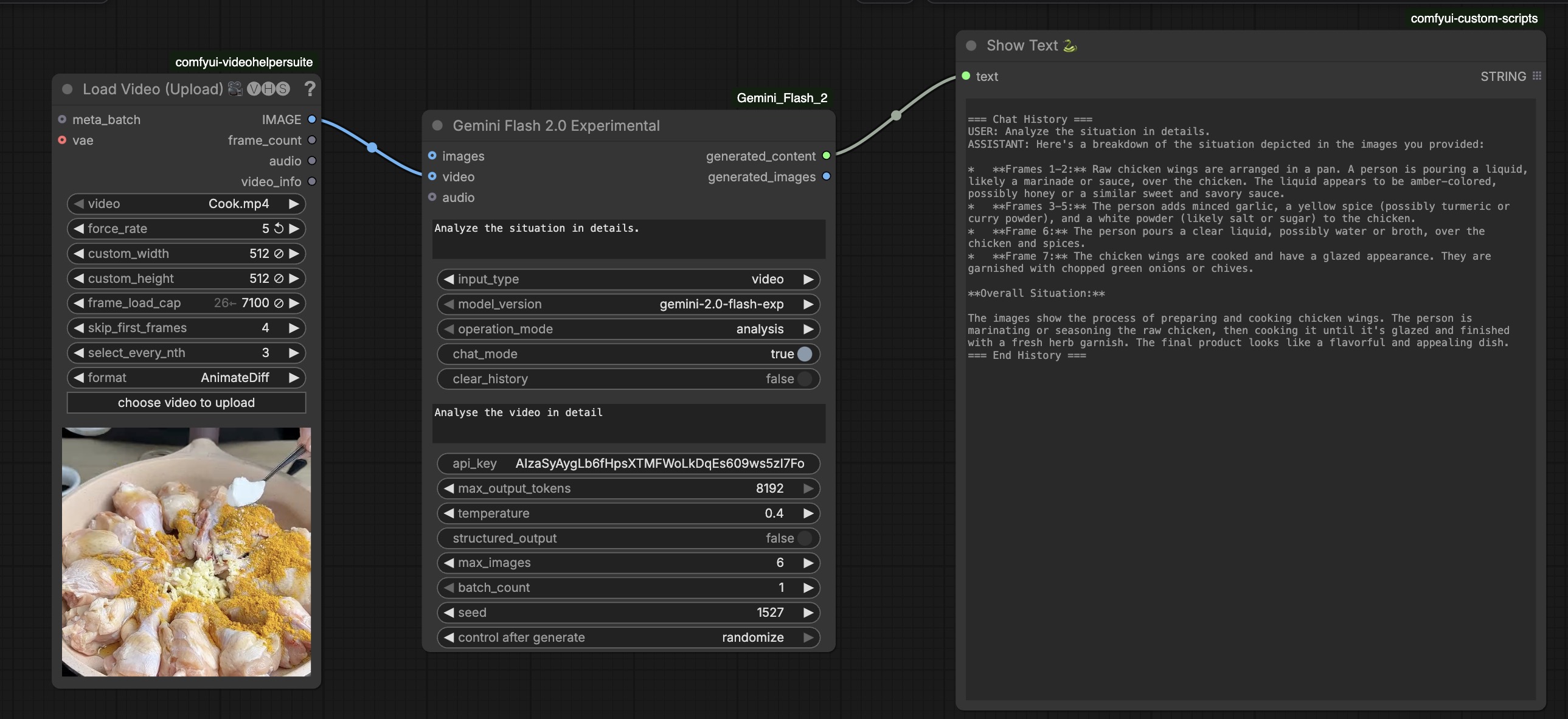
VHS_LoadVideo → frame sampling → Gemini Flash (video) → ShowText
- Load video from
ComfyUI/input/using VideoHelperSuite (VHS_LoadVideo). - Sample frames (more than 6; configurable with
frame_load_capandselect_every_nth). - Send frames to Gemini with a task prompt (e.g., “Analyze the situation in details.”).
- Display the analysis inside ComfyUI using a text viewer node.
Why it matters
This pattern is a reusable building block for real systems:
- Anomaly detection + temporal segmentation (next step): extend from whole-clip summaries to time-windowed analysis (e.g., 15-second chunks) and export per-segment JSON with timestamps.
- Training & compliance: convert video into structured summaries for healthcare, industrial, and other professional training workflows (SOP adherence, safety audits, incident reviews).
- Video analytics systems engineering: a concrete, end-to-end example of video ingestion → sampling → multimodal reasoning → outputs, ready to evolve into scalable pipelines (batch jobs, caching, evaluation, monitoring).
Scope:
- ✅ Load video
- ✅ Sample more than 6 frames (configurable)
- ✅ Send frames to Gemini and returns understanding of the video frames in text output
- ✅ Show understanding of the video per segment in ComfyUI
- ✅ Show results in ComfyUI

What you get
A ComfyUI workflow like:
VHS_LoadVideo → Gemini Flash (video) → Shows understanding of the video in text
Example output:
The image frames extracted from the video show someone preparing raw chicken wings… liquid poured… diced garlic added…
Requirements
- ComfyUI Desktop (tested with ComfyUI 0.9.1 on macOS)
- VideoHelperSuite (VHS) for
VHS_LoadVideo - Gemini Flash custom node (the Gemini repo node)
- A Gemini API key (Google AI Studio / Gemini API)
Install
1) Install the custom nodes
Put these folders into:
ComfyUI/custom_nodes/
comfyui-videohelpersuiteComfyUI-Gemini_Flash_2.0_Exp(or your fork)
Restart ComfyUI.
If you are using ComfyUI-Manager, install both from Manager and restart.
2) Install Python dependencies (must be in ComfyUI’s venv)
Use the same Python executable ComfyUI runs, e.g.:
/Users/<you>/Documents/ComfyUI/.venv/bin/python -m pip install -U google-genai google-generativeai pillow
API Key Configuration
Two valid approaches:
Option A — config.json (recommended)
Create config.json inside the Gemini node folder:
{
  "GEMINI_API_KEY": "YOUR_KEY_HERE"
}
Option B — enter key in the node UI
Some setups are more reliable when the key is entered directly in the node.
Workflow Setup
1) Put your video in ComfyUI input directory
Copy video into:
ComfyUI/input/
2) Load the workflow JSON
Load from:
workflows/gemini_video_analysis.json
3) Configure VHS_LoadVideo (important)
Key settings to avoid typical VHS errors and improve coherence:
force_rate: 8 (do not leave empty / null)custom_width/custom_height: 512 (or 640)frame_load_cap: 24–48 (increase frames vs default “6” behavior)select_every_nth: 1–4 (controls sampling density)skip_first_frames: optional (e.g., 0–10)
Recommended presets:
- Short clips (10–30s):
frame_load_cap=24,select_every_nth=1 - Longer clips (60–120s):
frame_load_cap=32–48,select_every_nth=2–4
4) Configure Gemini Node
input_type:video- prompt example:
Analyze the situation in details.
- set
max_output_tokens: 512–1200 (don’t leave it at 8192 unless needed)
Screenshot
Troubleshooting (common issues)
1) “Cannot execute because a node is missing the class_type property (Node #48)”
Cause: The workflow node "type" doesn’t match the backend NODE_CLASS_MAPPINGS key. This happens when a workflow was built with a different node name than what your installed node registers.
Fix (fastest):
- Delete the Gemini node on canvas
- Add the Gemini node again from the node menu (so it uses the correct registered name)
- Reconnect links
Fix (alternative):
- Edit workflow JSON: change node
"type"to the exact registered key (visible via:http://127.0.0.1:8000/object_info)
2) 429 quota exceeded
Cause: Your Gemini project/API key has zero available quota or you exceeded rate limits.
Fix:
- Enable billing/quota for the project (AI Studio usage page)
- Reduce:
- frames (
frame_load_cap) - output tokens (
max_output_tokens) - request frequency (avoid repeated runs)
- frames (
3) VideoHelperSuite error: could not convert string to float: 'null'
Cause: VHS force_rate is blank/null.
Fix: Set force_rate to a number (e.g., 8).
4) Where to check logs (ComfyUI Desktop)
ComfyUI writes logs to:
/Users/<you>/Documents/ComfyUI/user/comfyui.log
You can also run ComfyUI from terminal to see live stdout.
Pankaj Somkuwar - AI Engineer / AI Product Manager / AI Solutions Architect
- LinkedIn: Pankaj Somkuwar
- GitHub: @Pankaj-Leo
- Website: Pankaj Somkuwar
- Email: [email protected]