
Gallery Prompt Manager (GPM)
ComfyUI nodes for scanning image folders, browsing prompt metadata, and building reusable prompts.
Nodes (7)
The node that browses your image folder like a tiny app
Three strings in, one clean prompt out (and that's the whole trick)
Run this the moment the scanner refuses to work
The one-dropdown node that hands your scan recipe to the Saver
The node that rewrites how your scanner thinks
Caption a whole image folder with a local GGUF and get sidecar JSON back
Three prompt families, one model load, real runtime knobs
Gallery Prompt Manager
Gallery Prompt Manager (GPM) is a ComfyUI custom-node pack for turning image folders into reusable prompt assets. It scans images with a local vision-language model, stores prompt metadata next to each image, browses those assets visually, and combines selected prompt parts into a generation prompt.
Release status: public-release candidate. The internal scanner is validated with Qwen2.5-VL GGUF model/mmproj pairs. Qwen3.x/Qwen3.5 and other multimodal families remain blocked until their image-input behavior is validated.
License
GPM is licensed under the Apache License 2.0. You may use, modify, distribute, and use it commercially. Forks and redistributed versions must preserve the copyright, license, and attribution notices in NOTICE, which credits Robert Scott as the original creator.
Features
- Recursively scan supported images and write sibling JSON metadata.
- Keep person/subject and scene/environment prompt parts separate.
- Browse image folders inside ComfyUI and load metadata from selected images.
- Select assets manually, sequentially, or through a non-repeating random cycle.
- Combine prompt halves with optional LoRA tags.
- Edit built-in prompt presets, create user presets, and maintain ban lists.
- Isolate local GGUF scans in a worker process so VRAM is released when scanning ends.
Included workflows
The workflows/ directory contains importable ComfyUI examples. Click an image to open its workflow file.
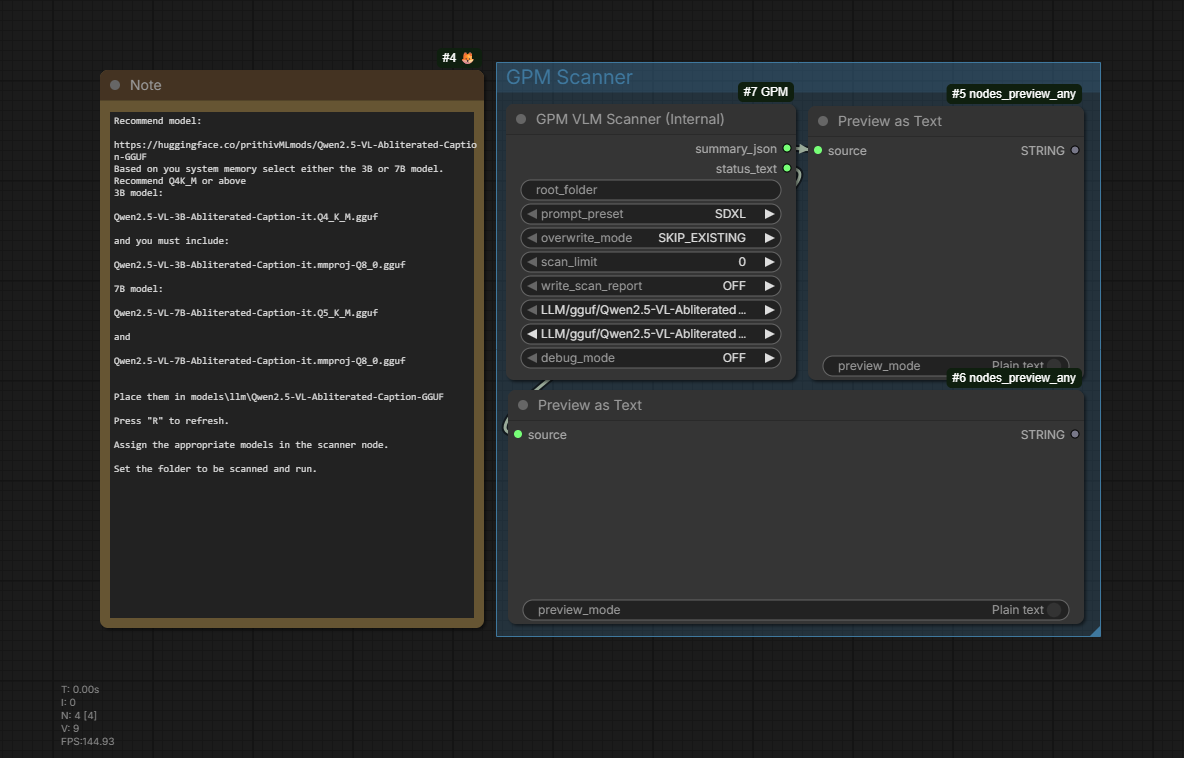
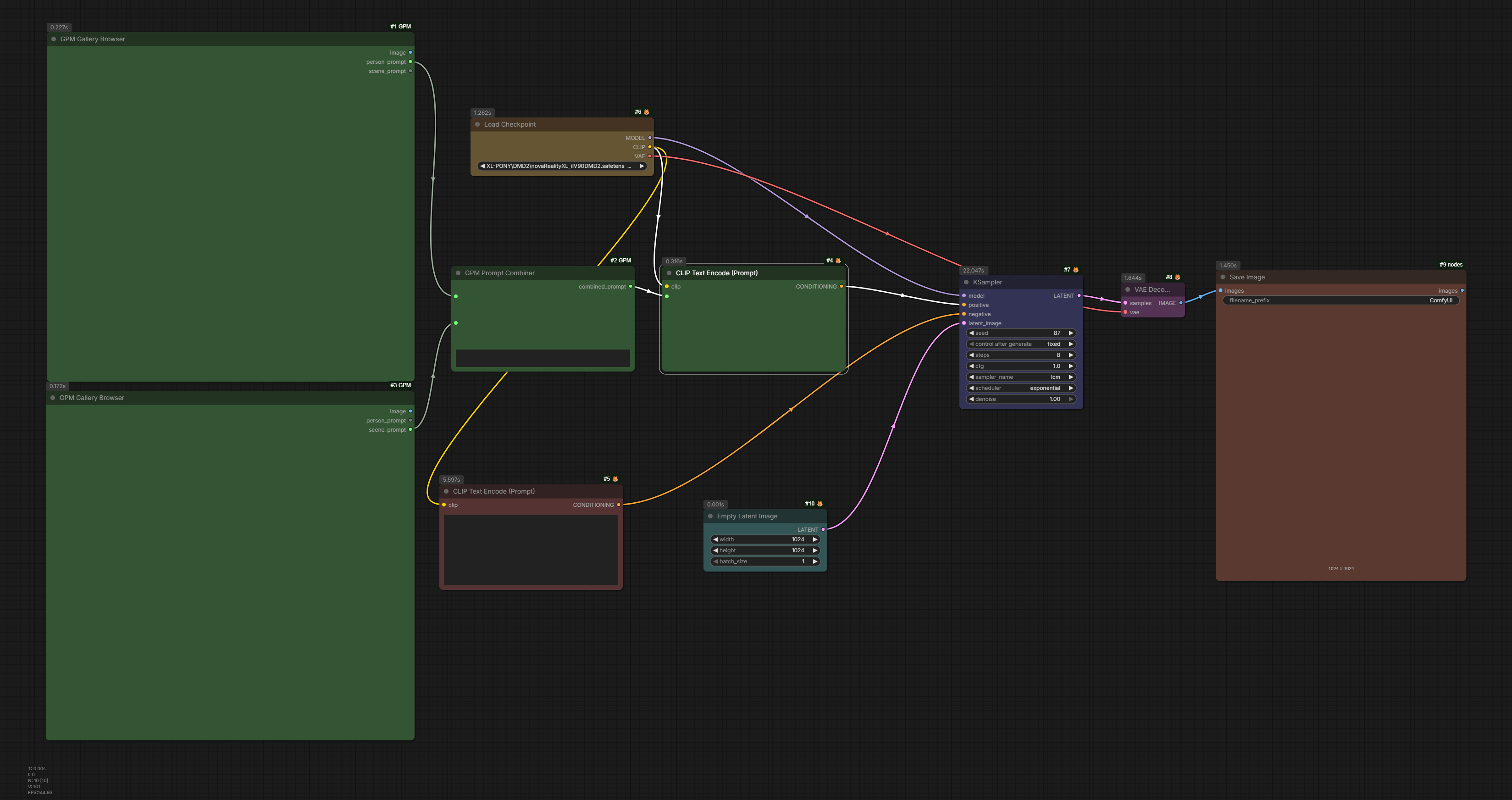
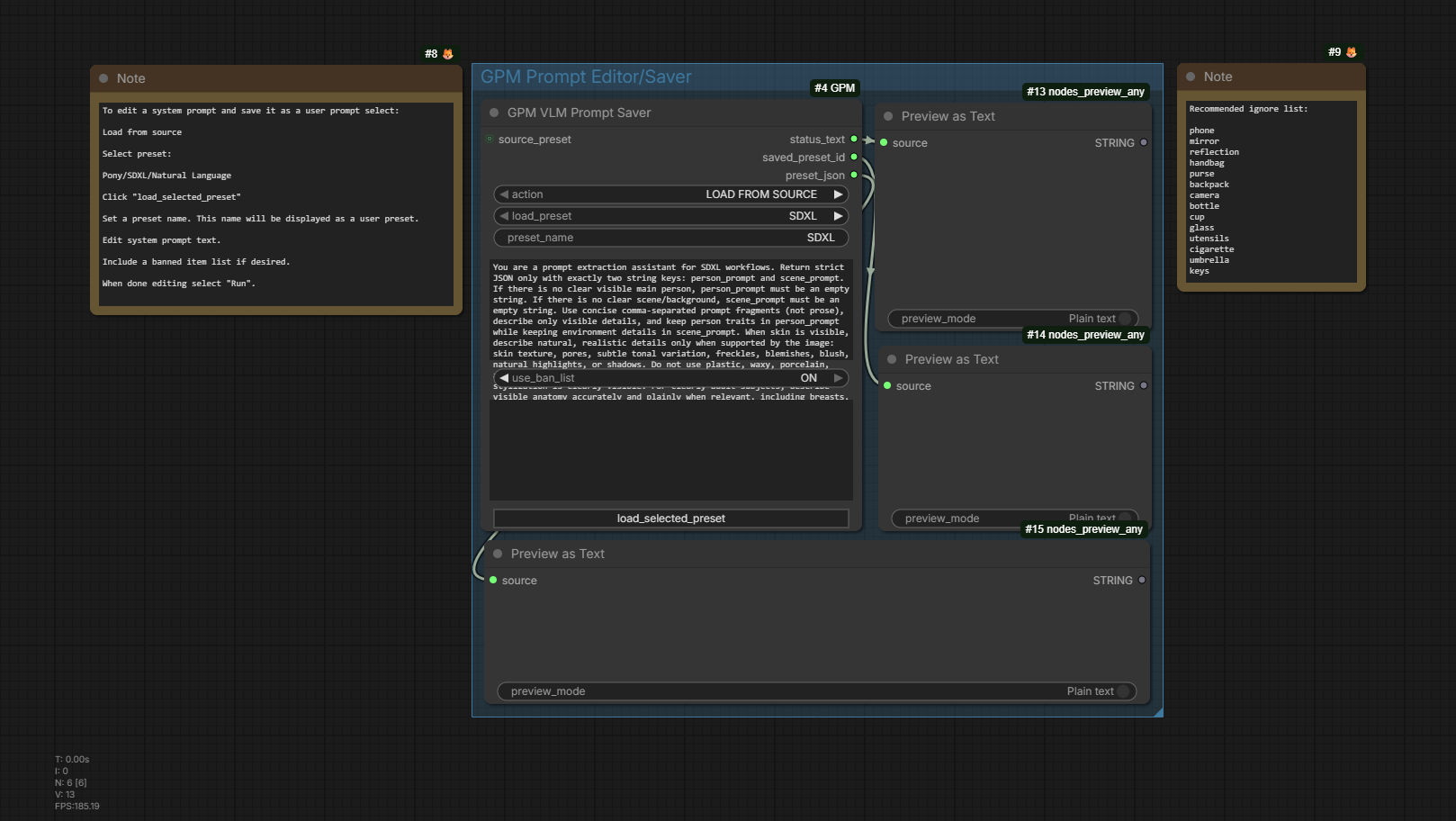
| Workflow | Purpose | | --- | --- | | Scanner | Configure the internal scanner and inspect its summary. | | Browser and generation | Pick two prompt assets, combine them, and use the result in a generation graph. | | Prompt editor / saver | Load a preset into editable fields and save a user preset. |
Scan a folder
Browse assets and generate
Edit and save a prompt preset
Install
ComfyUI Manager
Gallery Prompt Manager is packaged for the Comfy Registry as gallery-prompt-manager. After its first Registry release is published, install it from ComfyUI Manager and restart ComfyUI.
The Registry installs the normal Python requirements. The optional internal VLM scanner additionally needs a compatible llama-cpp-python runtime; follow the manual setup guide to install the validated runtime for your hardware.
Manual install
-
Clone or copy this repository to
ComfyUI/custom_nodes/GPM. -
Open a terminal in the GPM folder using the same Python environment ComfyUI uses.
-
Install normal dependencies:
python -m pip install -r .\requirements.txt -
Run the GPM installer for its special
llama-cpp-pythonhandling:python .\install.py -
Restart ComfyUI.
The installer leaves a working llama-cpp-python install alone. See docs/setup.md for CUDA wheel, CPU fallback, and advanced install details.
Validated scanner model
GPM’s internal scanner is currently validated with the Qwen2.5-VL captioning GGUF family. The included scanner workflow uses this family:
Use a matching model and mmproj from the same release. Place both under one of these directories, then refresh ComfyUI:
ComfyUI/models/llm/ComfyUI/models/llm/GGUF/ComfyUI/models/GGUF/
Fresh scanner nodes prioritize detected Qwen2.5-VL files in the model dropdown. Qwen3.x/Qwen3.5 entries may appear if installed, but are not approved for internal scanning yet.
Quick start
- Import GPM_Scanner_workflow.json.
- Choose the Qwen2.5-VL model and matching
mmproj. - Set
root_folderto your image folder. - Leave
overwrite_modeonSKIP_EXISTINGfor a non-destructive first run. - Queue the workflow. GPM writes a JSON sidecar beside each successful image.
- Import GPM_browser_workflow.json, point the Gallery Browser nodes at your scanned folders, and select images.
The scanner keeps the model loaded for a normal scan. A parent-side watchdog observes sidecar progress instead of asking you to guess a full-folder timeout. If an image stalls after scanning has started, it is deferred for that run and remains eligible for a later SKIP_EXISTING rescan.
Nodes
| Node | Use |
| --- | --- |
| GPM VLM Scanner (Internal) | Scan one selected prompt preset with the validated local GGUF runtime. |
| GPM VLM Scanner (Internal Advanced) | Scan one or more prompt families with advanced runtime controls. |
| GPM Gallery Browser | Browse image folders and load prompt sidecars. |
| GPM Prompt Combiner | Join person, scene, and optional LoRA tags into a clean prompt. |
| GPM VLM Prompt Saver | Load, edit, create, update, or delete user prompt presets. |
| GPM VLM Prompt Loader | Emit a preset bundle for connected Saver workflows. |
| GPM VLM Internal Diagnostics | Report local llama_cpp, model discovery, and multimodal-handler readiness. |
Metadata format
GPM writes prompt data in a JSON file beside the scanned image, preserving unrelated keys already present.
{
  "sdxl_person": "subject description",
  "sdxl_scene": "environment description",
  "pony_person": "subject description",
  "pony_scene": "environment description",
  "natural_person": "subject description",
  "natural_scene": "environment description"
}
SKIP_EXISTING skips an image only when the selected prompt family already has data. OVERWRITE_FAMILY replaces only the selected family’s two fields.
Prompt presets
Built-in presets are available for SDXL, Pony, and Natural Language. They are read-only templates. User presets are stored separately at:
ComfyUI/user/default/GPM/vlm_prompt_presets.json
Use Load selected preset into fields on GPM VLM Prompt Saver, edit the visible fields, then select a save action and queue the node. Dropdowns display readable preset names; older workflows that saved raw preset IDs remain compatible.
Troubleshooting and support
- Start with
GPM VLM Internal Diagnosticswhen model orllama_cppsetup does not behave as expected. - Confirm the model and
mmprojcome from the same Qwen2.5-VL release. - Use
debug_mode=ONwhen investigating unexpected captions; it writes runtime trace data to sidecar metadata. - Read docs/troubleshooting.md for known setup and scanner issues.
- Include your ComfyUI version, GPM commit/version, selected model/mmproj names, and relevant scanner summary when opening a bug report.
Development
Run project checks from the repository root:
.\scripts\verify.ps1
pytest
Additional documentation:
Before publishing a release
The code, workflows, screenshots, documentation, and verification instructions are prepared for a public release. See docs/public-release-checklist.md before creating the first public tag or GitHub release.