
comfyUI-Civit-Integration
A demonstration custom node that showcases how to integrate Vue as a frontend framework within ComfyUI, complete with PrimeVue components and vue-i18n support.
ComfyUI Frontend Vue Basic
(Important: Make sure to install this latest version of ComfyUI Frontend - 1.24.4!!!)
A demonstration custom node that showcases how to integrate Vue as a frontend framework within ComfyUI, complete with PrimeVue components and vue-i18n support.
Overview
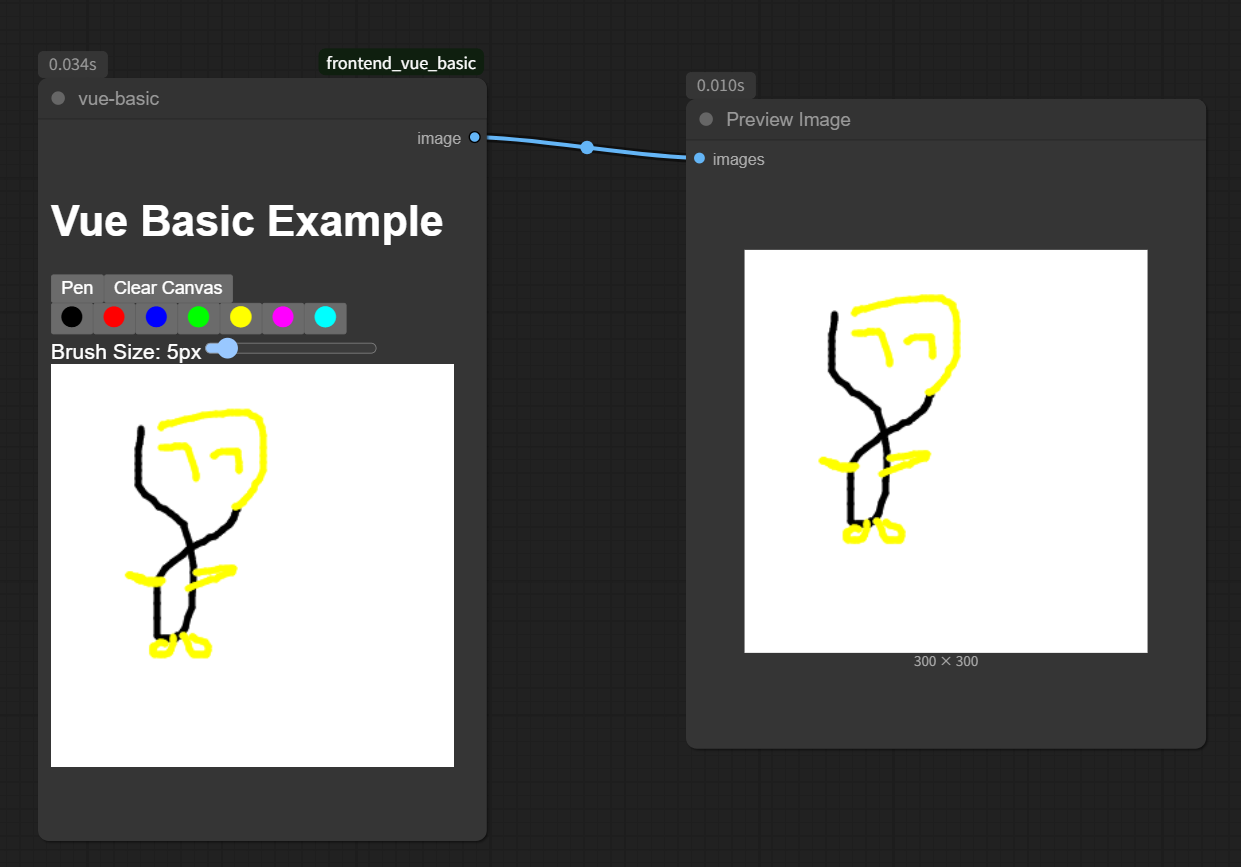
ComfyUI Frontend Vue Basic provides a working example of how to build interactive UI components for ComfyUI custom nodes using modern web technologies. It features a basic drawing board inside a custom node that outputs the created image as a result.
Technologies
- Vue.js - Progressive JavaScript framework for building user interfaces
- PrimeVue - Rich UI component library for Vue
- vue-i18n - Internationalization plugin for Vue.js
Features
- Interactive drawing board within a custom node
- Modern UI components with PrimeVue
- Multi-language support via vue-i18n
- Integration with ComfyUI's API system
Installation
⚠️ Important ⚠️
This demonstration node is not designed to be installed directly via git clone. For proper functionality, please install through:
Development Setup
If you want to learn how to develop this custom node or modify it, you can set up a local development environment. Follow these steps:
- Clone the repository in your ComfyUI custom nodes directory:
git clone https://github.com/jtydhr88/ComfyUI_frontend_vue_basic - Navigate to the project directory:
cd ComfyUI_frontend_vue_basic - Install dependencies:
npm install - Build the project:
npm run build - Refresh ComfyUI to load.
Usage
After installation:
- Add the "vue-basic" node under examples to your workflow
- Use the drawing interface to create your image
- Connect the output to compatible nodes (Preview Image, for example) that accept image inputs
- Run your workflow to process the drawn image
Development
For those interested in understanding how Vue can be integrated into ComfyUI custom nodes:
- Review the code structure to see how Vue components are mounted
- Examine the ComfyUI API integration patterns
- Note how PrimeVue components and i18n are initialized and used
Contributing
Contributions are welcome! If you have ideas for improvements or have found bugs, feel free to:
- Open an issue
- Submit a pull request with proposed changes