
Majoor OmniCam
Camera authoring, motion-scene editing, and model-native monitor pipeline for ComfyUI.
Nodes (3)
New layouts and imported scenes use Graybox (Clay Blockout) by default. Saved workflows preserve their explicit render mode.
In ComfyUI App Builder, select the Director's majoor_omnicam_director_shell
widget as an input to expose its viewer. The App viewer uses the same scene and
timeline as the workflow editor, with a vertically resizable canvas area and
the existing OPEN DIRECTOR action for a larger workspace. Builder preview
can disable interaction; use View app to edit. Select a video output
separately to display an executed playblast in the results area.
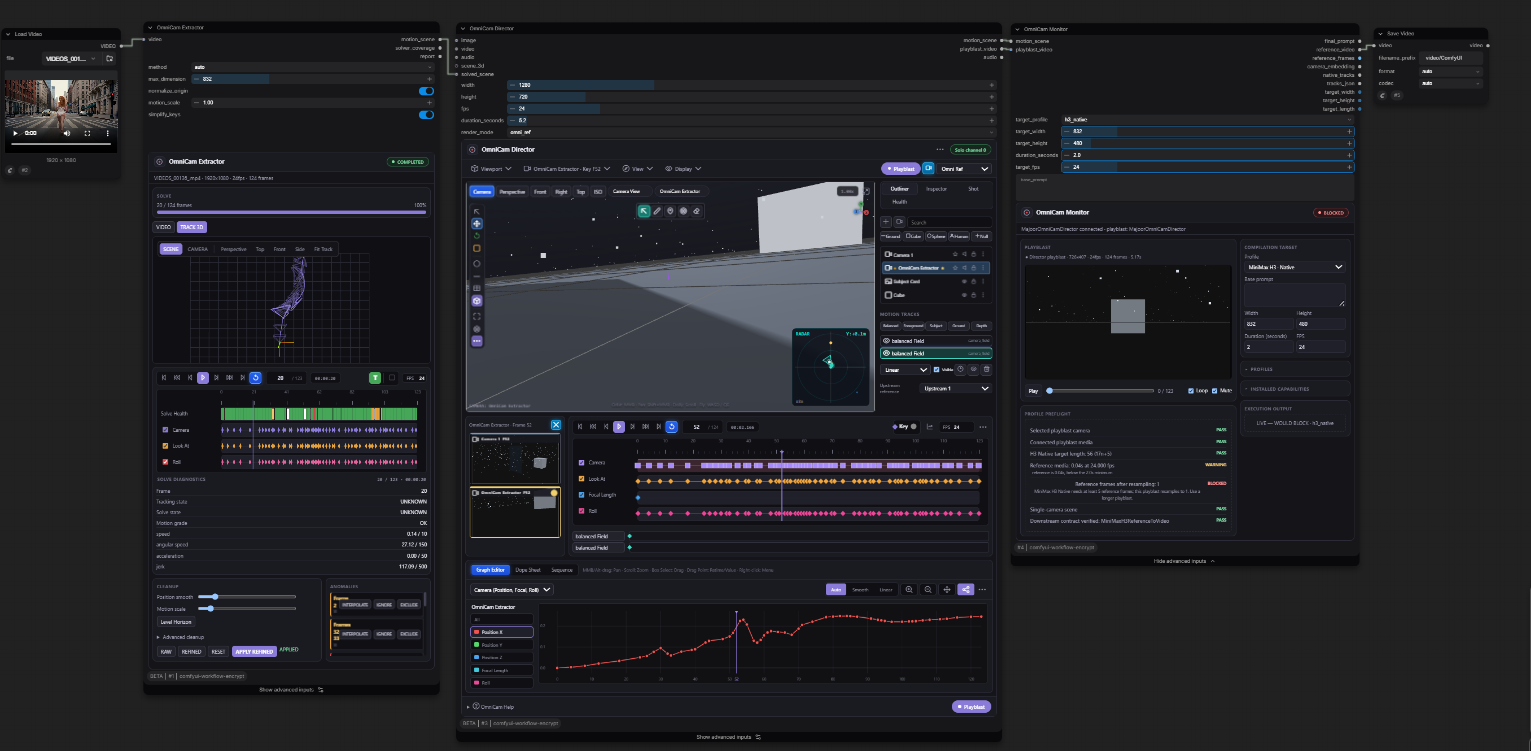
Video models do not agree on how to be told about motion. One wants camera extrinsics, another wants 2D trajectories, a third wants a reference video and a prompt. OmniCam separates the two halves of that problem: you describe the motion once, and a compiler translates it per model.
Extractor ─┐
           ├─> OMNICAM_MOTION_SCENE ─> Monitor ─> camera embedding
Director ──┘        + playblast                   trajectory JSON / TRACKS
                                                  reference video + prompt
A MotionScene is the canonical model-independent authoring document: cameras, objects, motion layers, cuts and an authoring timeline. Motion layers and cuts use time-based scene semantics; camera and object tracks in v1 still retain authoring-grid information (canvas size, authoring fps, duration) where required, and compile to any model resolution or frame rate. It is what travels between the nodes.
Install
Requires ComfyUI 0.31+ and Python 3.10–3.13. After installing, restart ComfyUI; the nodes appear in the node menu under Majoor › OmniCam.
ComfyUI Manager (recommended)
Open Manager -> Custom Nodes Manager, search for Majoor OmniCam, and click Install. This pulls the published Comfy Registry release with its prebuilt frontend bundle.
For normal users, ComfyUI Manager is strongly recommended. Use the source
checkout path only for development or when intentionally following main.
Manual - source checkout (git clone)
cd ComfyUI/custom_nodes
git clone https://github.com/MajoorWaldi/ComfyUI-Majoor-OmniCam.git
Then restart ComfyUI. The generated frontend bundle (web/omnicam.js,
web-chunks/) is committed to the repository, so a plain clone is enough --
no Node.js or local build step required.
The stable CI target is ComfyUI 0.37.0, with live coverage for both classic and Vue nodes. The three workbenches adapt to the browser window and use ComfyUI theme colors. French labels and parameterized status messages are included; the locale check rejects missing translations and dynamic translation keys.
Rebuild it only if you are changing frontend source under web-src/:
cd ComfyUI-Majoor-OmniCam
npm ci
npm run build
CI fails the frontend job if a fresh Linux build of web-src/ doesn't
byte-for-byte match what's committed, so a source change without a rebuild
never merges silently.
There are no mandatory Python packages beyond OmniCam's declared ComfyUI frontend compatibility dependency. Extractor solver backends and advanced reconstruction providers remain optional; see the User Guide.
Nightly builds
The nightly GitHub Release
carries a packed archive of main as of last night's build, with its frontend
already compiled. It is unreviewed and moves every day; use it only to test an
unreleased fix, not for normal use. It is never published to the Comfy
Registry -- only a tagged version release is.
The three nodes
All three nodes are marked experimental in ComfyUI. Camera authoring and the playblast are stable in practice; the Monitor profile set and the Director Motion Tracks surface may still change before a stable release.
OmniCam Director
The viewport opens in Perspective view with the Simple navigation profile and
mini-map enabled by default. It also supports Maya/Blender navigation profiles, selection-preserving
navigation gestures, display-scale-aware pan and normalized wheel zoom. Press
F to fit the entire selection in perspective or orthographic views, and
Escape to cancel a drag. See controls and shortcuts.
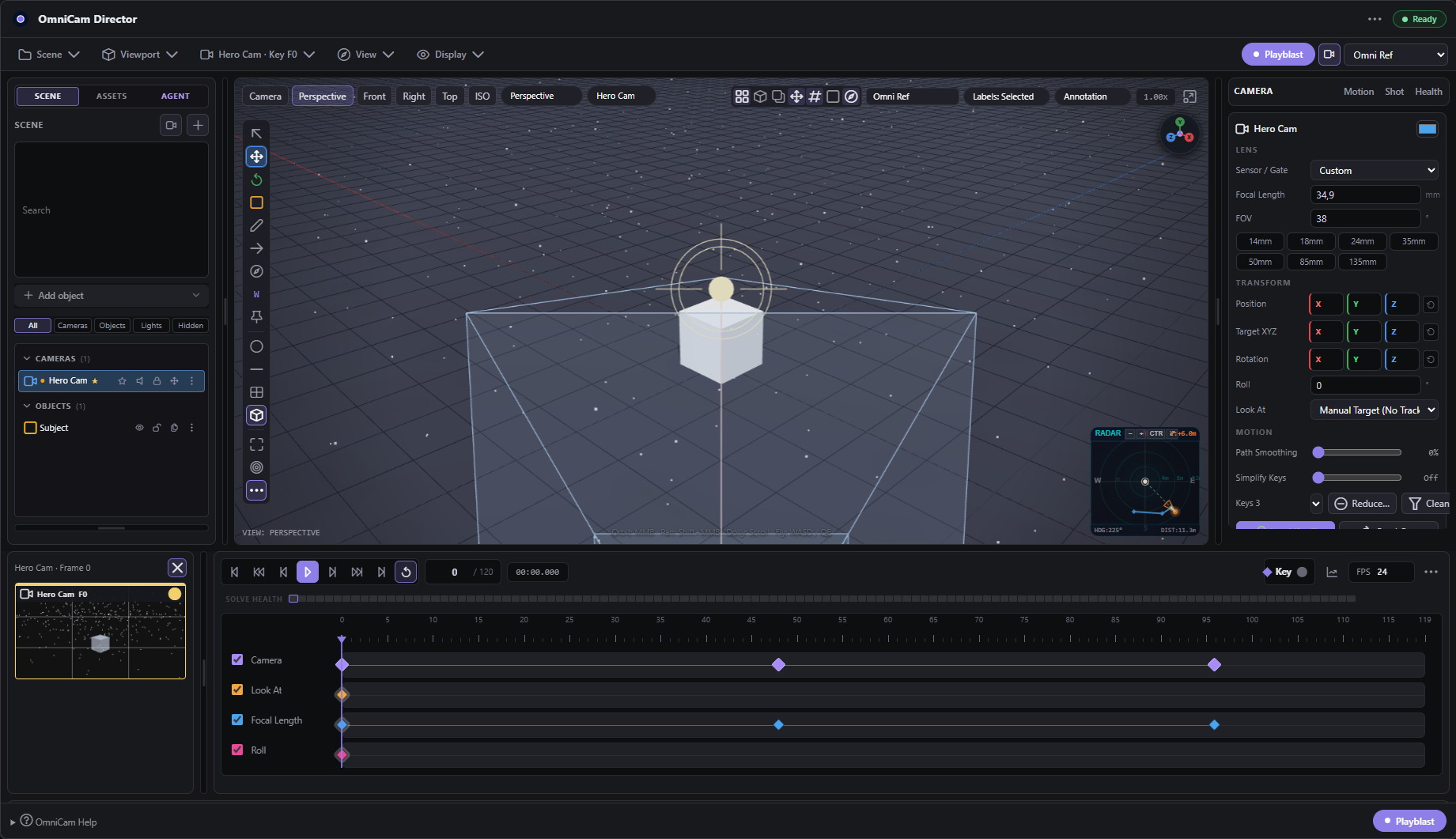
The node itself carries a live mini view -- viewport, path drawing, Look At, Quick Camera angles, Key/Auto-Key and a key timeline -- OPEN DIRECTOR expands that same editor to the full window, and ● REC records the playblast right from the node, with its progress on the card.
A small shot-layout tool in a live 3D viewport. Animate cameras and scene references, draw motion layers over the frame, cut between cameras, and record a neutral proxy playblast. This is where a MotionScene is authored:
- 3D Scene Primitives: Instant creation of Card (media billboard), Cube, Sphere, Cylinder, Torus, Null, and an authentic procedural low-poly Human mannequin (faceted torso, limbs in relaxed A-pose, grounded at $y=0$ for realistic human scale cues).
- Viewport HUD & Tool Rail Ergonomics: On-screen Camera HUD (Lens mm, FOV, target distance, Camera Lock
🔒, roll leveler⮑), readable 1-click World/Local coordinate space toggle (W/L) and Snapping (OFF/GRID) on the tool rail, quick-toggle overlay cluster, and fullscreen floating transport. - Graph Editor & Animation Curves: 12 easing interpolation modes (
ease,smooth,bezier,linear,ease_in,ease_out,hold,sine,cubic,quintic,expo,back) and 6 Bézier tangent modes (auto,clamped,vector,free,aligned,flat) with dynamic aspect-ratio canvas scaling. - Dynamic Layout Splitters: Drag-resizable Outliner list, Camera Previews column, Right Inspector / Side Panel, and Graph Editor — all persistent in saved workflows and fully keyboard-operable (
role="separator"). - Interactive Camera Authoring: Freehand Draw Camera Path in Top View with automatic keyframe timing, Follow Path orientation, Look At targets, and editable 3D spatial Bézier control handles. A real Three.js
TransformControlsgizmo drives every transform — objects, cameras, camera targets, single/multi-selected path keys and the whole path — with multi-select, double-click insert /Deleteremove, Position/Target editing per key, per-key Timing Weight with Redistribute Timing, editable path Presets (Dolly, Truck, Orbit, Spiral, …), and read-only path diagnostics. - Inspector & Quick Controls: Axis scrubbing, vector reset buttons (
⟲), lens presets (14mm–135mm, including18mm), and Camera Health analysis. - Unified Asset Library & Characters: a SCENE / ASSETS left panel with a filtered thumbnail grid over one semantic catalog (characters, props, environments, vehicles). Double-click to instantiate. Rigged characters map any Mixamo / generic-GLTF rig to
OMNICAM_HUMANOID_V1, with an FK Pose editor (canonical-joint overlay + X/Y/Z rotation + source-independent presets) and Motion clips (timeline-driven, speed / loop / range, Bake current frame to pose). Objects carry semantic tags and visible viewport Labels (Off / Selected / All). A fresh install ships no heavy models; runpython scripts/bootstrap_asset_library.py --preset starter --downloadonce for a ~30–45 GLB CC0 starter set (Kenney only, licence-gated, nothing vendored in Git). See Asset Library and Characters.
OmniCam Extractor
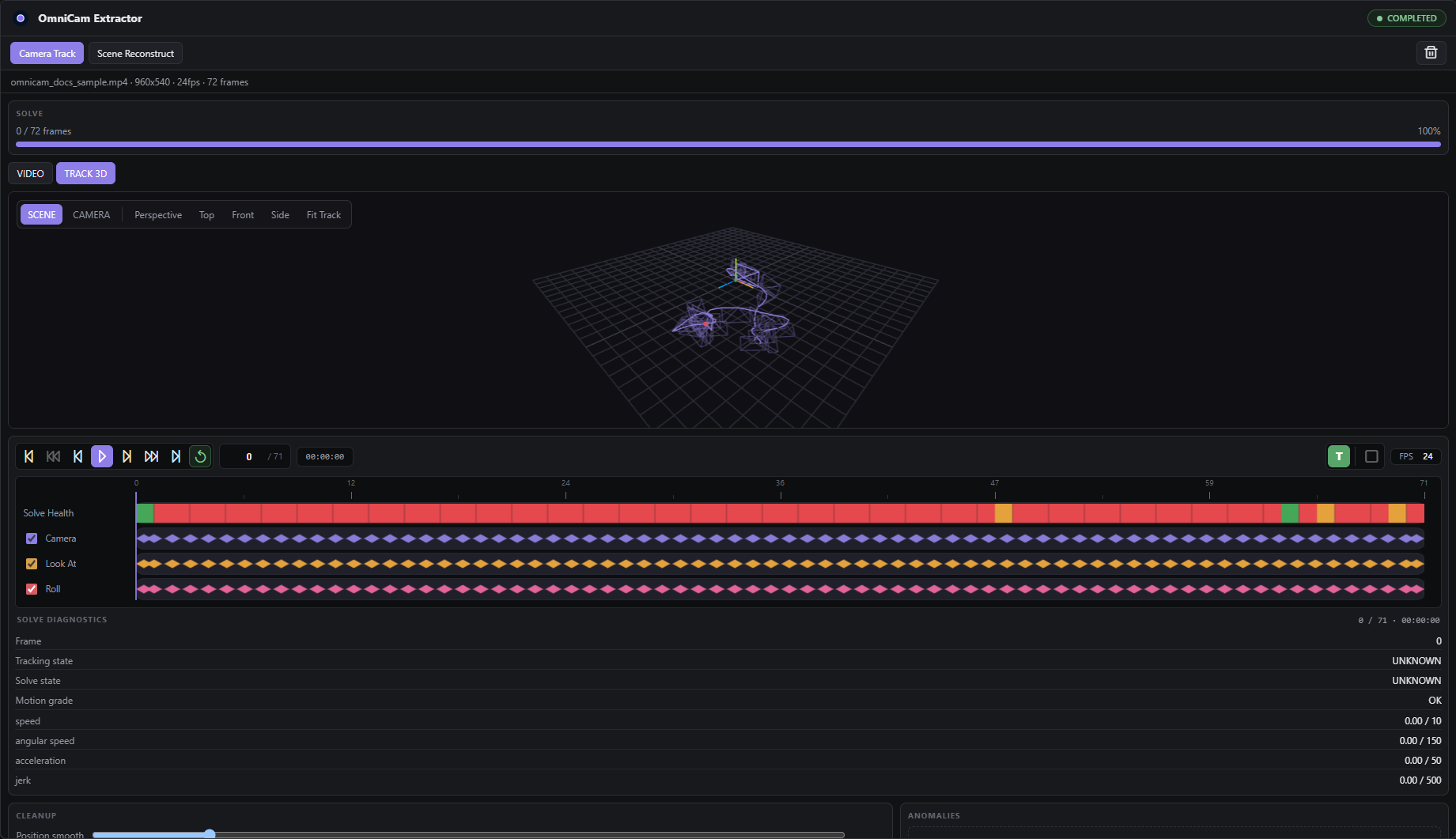
Two extraction modes:
- Camera Track: Recover a relative 6DoF camera track from one continuous reference shot and hand it on as a solved MotionScene. Connect it to the Director's
solved_sceneinput to keep editing the recovered move, or take it straight to Monitor. - Scene Reconstruct: Turn a still image or a scan into an editable 3D blocking scene, adopted directly into Director with lock controls, confidence badges, and neutral/textured playblast rendering.
- Depth Mesh: visible-surface MoGe reference proxy.
- Blockout: MoGe + native ComfyUI SAM3.1 → closed, editable MotionScene primitives + an oriented room shell (no holes on a 90° orbit).
- Hybrid: blockout primitives plus an independently toggleable dense reference.
- Scan: VGGT multi-view / video scene blocking with a single camera trajectory and cross-view object fusion.
- Optional SAM 3D Objects completion refines weak hidden dimensions (Linux + ≥ 32 GB VRAM; absence does not affect the other modes).
- Optional asset library: swap each fitted box for a real CC0 GLB prop (interior / exterior furniture + posed humans). Populate once with
python scripts/fetch_blockout_library.py --download(23 CC0 Kenney props, ~0.5 MB); see docs/BLOCKOUT_ASSET_LIBRARY.md.
TRACK and Scene Reconstruct run through ComfyUI's prompt queue as a partial
execution ending at the Extractor output node. ComfyUI therefore owns queue
ordering, cancellation, caching and high-level progress, while downstream
Director / Monitor / diffusion or video-generation nodes are not executed.
Browser-side /source and /frame routes only inspect/preview managed footage;
/refine rebuilds a track from the immutable raw solve and does not run the
solver again. Preview uses native browser video first and falls back to a
server-decoded frame when a container will not decode in the browser.
OmniCam Monitor
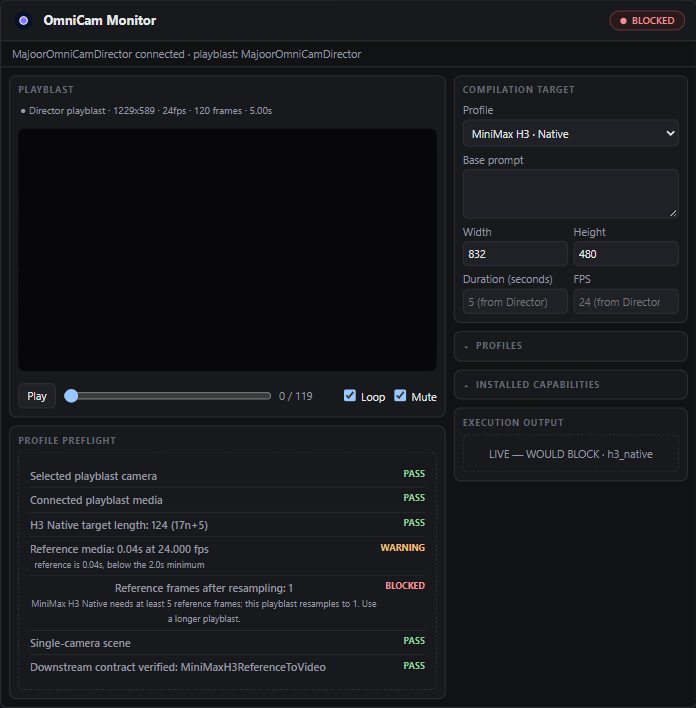
The model compiler. Pick a target profile; Monitor resolves the timeline, compiles the MotionScene into that model's representation, and runs a preflight that reports what will and will not survive the translation.
Preflight is binding, not decorative: for every named model profile, a downstream
node that is missing or whose socket contract has changed blocks the run rather
than producing a payload with nowhere to go. external_reference_video is the
one exception, by design -- see below.
Profiles
| Profile | Semantic | Monitor output | Connect to |
|---|---|---|---|
| external_reference_video | reference_video | reference_video + final_prompt | any destination model's own reference-video input |
| wan_camera_native | camera_embedding | camera_embedding | WanCameraImageToVideo.camera_conditions |
| wan_move_native | screen_tracks | native_tracks | WanMoveTrackToVideo.tracks |
| wan_track_native | screen_tracks | tracks_json | WanTrackToVideo.tracks |
| wanvideo_ati | screen_tracks | tracks_json | WanVideoATITracks.tracks |
| ltx25_motion_track | screen_tracks | tracks_json | LTXVDrawTracks.tracks |
| h3_native | reference_video | reference_frames + final_prompt | MiniMaxH3ReferenceToVideo.ref_videos |
| h3_scene_coverage | prompt_options | final_prompt + h3edit_options | TextEncodeH3Edit.compiled_prompt / .options |
| h3_api | reference_video | reference_video + final_prompt | MinimaxHailuo03ReferenceNode.reference_video |
| seedance25_reference | reference_video | reference_video + final_prompt | ByteDance2ReferenceNodeV2.reference_videos.video_N |
external_reference_video is the Monitor default and the odd one out: it names
no upstream node, imposes no frame grid or fps conversion, and never blocks on
a missing or unrecognized downstream. Use it for a model OmniCam has no named
profile for. Every other profile is strict on purpose -- it encodes one real
model's contract, and a payload that contract cannot satisfy is a bug worth
stopping the queue for.
Switching profile never changes the MotionScene. It does change which Monitor output carries the result, so connect the output this table lists for the profile you selected.
h3_scene_coverage compiles the authored 6DoF camera directly into an H3
scene-coverage prompt and H3EDIT_OPTIONS; unlike the other H3 profiles it
needs no playblast. It is for one continuous, target-centric orbit/arc around
a fixed subject. Moving targets, cuts, or significant roll/lens animation are
blocked with a recommendation to use h3_native instead.
Start here
- Add OmniCam Director and compose a shot. Press
Iat each pose to key it. - Connect
motion_sceneandplayblast_videoto OmniCam Monitor. - Choose the profile your downstream model needs, and queue.
- Read the preflight, then connect the output named in the table above.
To start from footage instead, put OmniCam Extractor in front and wire its
motion_scene output to the Director's solved_scene input. To start from a still image, use Extractor in Scene Reconstruct mode to create a 3D proxy environment and open it in Director.
Complete runnable graphs are in examples/workflows/:
the model starters adapt official Comfy-Org or Lightricks templates with their
motion source replaced by OmniCam. Model, LoRA and sampler choices follow
upstream; the Layout to Render starter uses a documented smaller smoke test.
Direct MiniMax starter: 07_minimax_h3_native_global_example.json.
LTX-2.5: 09_ltx25_motion_track.json
drives Lightricks' Motion Track IC-LoRA from the Director's camera and motion
layers; versions, weights and limits are in docs/LTX.md.
LTX-2.5 Layout to Render: 10_ltx25_layout_to_render.json
uses an OmniCam playblast plus a separate art-directed reference image through
the Monitor's generic video profile. It does not require motion layers. See
the tested setup and bundled assets. To run it from a
script, without opening ComfyUI, use the Comfy SDK launcher in
examples/sdk/.
What OmniCam will refuse to do
These are preflight results, not bugs:
- A multi-shot edit on a single-camera profile is blocked. One camera embedding, or one projection basis, cannot describe an edit that cuts to a second camera. Reference-video profiles accept it — the playblast carries the cuts — and drop the single-camera prompt in favour of a neutral one.
- Trajectories the JSON track formats cannot carry are reported. A layer hidden on the first sample cannot be expressed and is dropped; one that disappears and returns is cut at the gap. Monitor names the affected layers instead of quietly encoding less than you authored.
- A missing or changed downstream node blocks the run, per profile, so a missing LTX install never blocks a Wan Camera compile.
Agent integration
The official Comfy Agent side panel is not yet wired to OmniCam's live Director API. A versioned discovery contract, exact document/session targets, idempotent transaction recovery and a local example client prepare that future adapter. See integration status and acceptance checks.
- Generic workflow automation: the official Comfy MCP discovers and runs OmniCam's three nodes like any other ComfyUI node.
- Live Director semantic control: the OmniCam Agent Contract v1 lets an
external Agent process reach a specific, already-open Director instance
through a loopback-only broker (
docs/AGENT_INTEGRATION.md). - Built-in Director Agent (v1, GO for Ollama; GO for OpenAI/Anthropic/custom endpoints after the final hardening pass): the Director's own AGENT tab — describe a shot, a bounded planner proposes a Preview through the same Semantic Director API, then explicit Apply. Provider network policy, credential storage, and error redaction are covered in Security.
- Local-only external control in v1 — see Security.
- Agent edits use the same Semantic Director API and undo history as manual edits: bounded, validated, one undo step.
Documentation
- Node Guide — inputs, outputs, profiles and workflow contracts.
- User Guide — authoring, playblasts, extraction, installation.
- In-app help — contextual help from each node.
- Shortcuts — viewport, timeline and editing controls.
- Asset Library — the unified catalog, routes, Semantic API, limits.
- Characters —
OMNICAM_HUMANOID_V1, Rig Mapper, FK poses, motion clips. - Technical Reference — runtime behaviour, DPVO, validation, development.
- Security — managed files, upload limits, request boundaries.
- Agent Integration — headless MCP vs. live Director Agent control.
- LTX-2.5 — version matrix, weights, length/size rules, limits and licences.
- Comfy SDK launcher — run the LTX-2.5 Layout to Render workflow from a script.
License
MIT. See LICENSE. This covers OmniCam's code only: each model, LoRA and third-party node an example uses keeps its own licence (for LTX-2.5, see docs/LTX.md). OmniCam redistributes no model weights.