
LVO Node Aligner
ComfyUI layout toolbar with exact node spacing, reference alignment, move and resize snapping, edge snapping, collapsed and pinned node support, and horizontal/vertical fill tools.
LVO Node Aligner
A standalone ComfyUI layout toolbar by LVOcode, built on work from Tenney95 and Pixaroma. Align nodes, set exact gaps, snap while moving or resizing, and arrange collapsed or pinned nodes with predictable spacing.
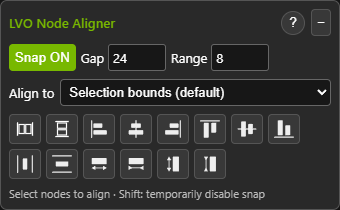
This is an editor toolbar, not an executable node. It adds no generation steps and does not need to be placed in a workflow.
Installation
- Download this repository as a ZIP and extract it.
- Place its folder in
ComfyUI/custom_nodes/ComfyUI-LVO-Node-Aligner.__init__.pyandweb/must be directly inside that folder. - Restart ComfyUI, then refresh the browser with Ctrl+F5.
- Find the LVO button in the upper-right toolbar, near the settings controls.
No additional Python packages are required. Neither ComfyUI-Pixaroma nor ComfyUI-NodeAligner needs to be installed.
Quick start
- Select at least two nodes; the panel opens automatically.
- Set Gap to the space you want between visible node edges.
- Use the alignment buttons, Row: exact Gap, or Column: exact Gap.
- Enable Snap to apply the same gap while dragging or resizing nodes.
- Hold Shift to temporarily bypass snapping.
Select a node in Align to to keep it stationary while aligning the others to it. Reference selection also applies to Row and Column. The reference must remain selected. Equal-size and Fill operations do not use the reference.
The panel normally hides when fewer than two nodes are selected. The upper-right LVO button can also open it manually. Drag the panel by its title to move it; its position is remembered in this browser. − collapses the controls, and ? opens detailed English help for every action.
LVOcode additions and changes
Compared with the supplied upstream starting points, this version adds or reworks the following behavior:
- Configurable exact edge-to-edge gaps for rows and columns.
- Move snapping and resize snapping, with a separate screen-space range.
- Snapping of a selected group while preserving its internal arrangement.
- Correct visible bounds for collapsed nodes, rather than their hidden body sizes.
- Alignment, row/column arrangement, sizing and Fill actions for pinned nodes, preserving their pin state.
- Fill horizontal space and Fill vertical space: equal node sizes inside the selection's outer bounds while retaining the requested gap.
- An Align to reference selector, including reference-aware rows and columns.
- Manual toolbar activation combined with automatic selection-based visibility.
- Remembered panel position and Gap/Range/Snap settings, with viewport clamping.
- Undo transactions for toolbar operations, English help, and LVOcode styling.
These are modifications and integrations by LVOcode, not a claim that all underlying alignment ideas originated in this project.
Controls
| Control | Behavior | | --- | --- | | Gap | Spacing in workflow coordinates; default 20. | | Range | Snap capture distance in screen pixels; default 8. | | Snap | Enables move/resize snapping; off by default. | | Align to | Selection bounds or a stationary selected reference node. | | Six edge/center buttons | Align left, horizontal centers, right, top, vertical centers or bottom. | | Row / Column | Preserve spatial order and apply the exact Gap. | | Equal width / height | Match the largest or smallest selected expanded node. | | Fill horizontal / vertical space | Give expanded nodes equal dimensions within the existing outer span. |
With no reference selected, Row anchors the leftmost node and Column anchors the topmost node. With a reference, nodes are arranged before and after it. Collapsed nodes participate in alignment and spacing. Size-changing actions skip collapsed nodes; Fill requires all selected nodes to be expanded.
Toolbar actions can move pinned nodes intentionally. Interactive dragging and resize snapping do not drag pinned nodes; pinned nodes can still be snap targets. Node minimum sizes are respected. Fill reports insufficient space instead of forcing nodes below those limits.
Compatibility and limitations
- Includes handling for Classic canvas and Nodes 2.0 pointer behavior.
- Custom nodes and future ComfyUI frontend versions may impose additional sizing or toolbar limitations. No universal frontend-version guarantee is made.
- Snap does not create permanent links between nodes or resize neighboring nodes.
- Group-frame snapping is not supported.
- Disable competing snapping features in other extensions while using this one.
- Panel settings are stored in browser local storage; node positions are stored normally in the workflow. Use ComfyUI undo for toolbar edits.
The standalone copy passed geometry and Chromium browser regression checks for alignment, pinned/collapsed nodes, exact spacing, reference handling, Fill, move/resize snapping, selection behavior and saved panel position. Browser checks use mocked ComfyUI services; they are not full integration tests on every release.
Thanks and attribution
Thank you, Tenney95, for ComfyUI-NodeAligner. Its toolbar functionality and SVG icons provided a foundation for this extension.
Thank you, Pixaroma, for ComfyUI-Pixaroma. Its Align implementation informed the pointer-event approach and collapsed-node geometry; this package also retains a small renderer-detection helper derived from its shared helpers.
Their work made this adaptation possible. This is an independent LVOcode project; it is not an official release or endorsement by either upstream author.
License
The combined extension is distributed under GNU GPL version 3 (GPL-3.0-only). See LICENSE. Pixaroma-derived portions retain their original MIT notice.
See THIRD_PARTY_NOTICES.md for source attribution and LICENSING.md for distribution notes. Keep these files with the source.