
ComfyUI-ImagePathSelector
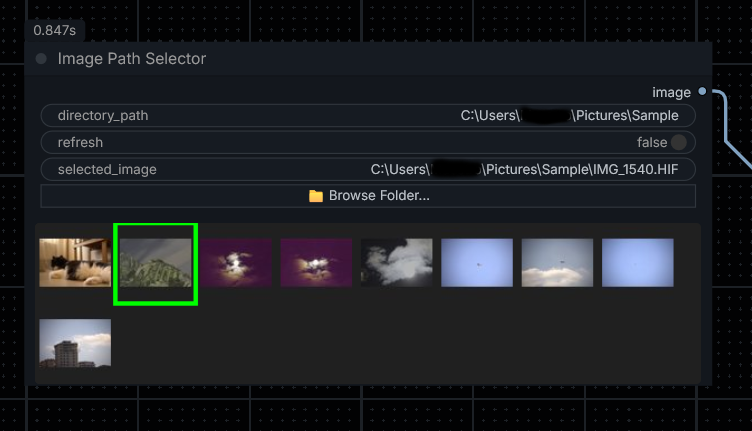
This node loads all images from the selected folder and displays them in a grid. The user can click any image to automatically execute the ComfyUI workflow. Additionally, it supports many RAW image formats as well as HEIC formats.
ComfyUI-ImagePathSelector
A custom ComfyUI node that lets you visually browse a folder of images and select one to feed into your workflow — directly from the node's thumbnail grid.
Features
- 🖼️ Visual thumbnail grid — displays all images in a chosen directory as a scrollable grid inside the node
- Large hover preview - move the cursor over any thumbnail to show a larger, higher-quality preview, then move away to hide it instantly
- 🖱️ Click to select — click any thumbnail to instantly queue and run the workflow with that image
- 📁 Browse Folder button (Windows only) — opens a native folder picker dialog
- ✅ Green border highlight on the currently selected image
- 🔄 Refresh toggle — force-reload the image list from disk (only processes new/removed files, not the whole folder)
- 🗂️ Right-click → Reload Images context menu option
- 💾 Selection persists across workflow saves and reloads
- ⚡ SQLite thumbnail cache — thumbnails are stored in a
.ImagePathSelector.dbfile inside the image folder, making subsequent loads near-instant - 🛠️ PNG metadata fallback — PNG files with problematic embedded text metadata can still be loaded by stripping metadata during fallback decoding
Supported Formats
| Format | Notes |
|---|---|
| JPEG, PNG, BMP, GIF, WebP | Always supported. PNG files with invalid/problematic text metadata are retried with metadata stripped. |
| HEIC / HEIF / HIF | Requires pillow-heif |
| CR2, CR3, NEF, ARW, DNG, ORF, RW2, RAF, RAW, PEF, SRW | Requires rawpy |
Installation
Via ComfyUI Manager (recommended)
Search for ComfyUI-ImagePathSelector in the ComfyUI Manager and install.
Manual
cd ComfyUI/custom_nodes
git clone https://github.com/KursatAs/ComfyUI-ImagePathSelector
Optional dependencies
For RAW camera format support:
pip install rawpy
For HEIC/HEIF support:
pip install pillow-heif
Usage
- Add the Image Path Selector node to your workflow (
image/selectioncategory). - Set the
directory_pathto the folder containing your images. - Run the workflow — the node will scan the folder and display a thumbnail grid.
- Hover over a thumbnail to inspect a larger preview, or click a thumbnail to select it. The workflow will automatically re-queue and pass the selected image downstream.
- The selected image path is shown below the grid. The selected thumbnail is highlighted with a green border.
Inputs
| Name | Type | Description |
|---|---|---|
| directory_path | STRING | Absolute path to the image folder |
| refresh | BOOLEAN | Toggle to force a rescan of the directory |
| selected_image | STRING | Path of the currently selected image (set automatically on click) |
Outputs
| Name | Type | Description |
|---|---|---|
| image | IMAGE | The selected image as a tensor, ready for use in your workflow |
Note: If no image has been selected yet, the node will block workflow execution and wait for the user to click a thumbnail.
Tips
- On Windows, use the 📁 Browse Folder... button to open a native folder picker instead of typing the path manually.
- Use right-click → Reload Images or toggle the Refresh checkbox to pick up newly added files without restarting ComfyUI. On refresh, only new/removed files are processed — existing cached thumbnails are reused.
- Hover previews use a larger cached preview image, while the grid itself stays compact with 64px thumbnails.
- Because preview images are cached at a larger size,
.ImagePathSelector.dbmay be larger than in older versions. Existing caches are rebuilt automatically when needed. - The thumbnail cache is automatically invalidated when the directory path changes, the thumbnail size changes, or the internal cache format version changes.
- The first load of a folder generates thumbnails and saves them to
.ImagePathSelector.dbinside that folder. Subsequent loads read directly from the cache and are much faster. - On Windows,
.ImagePathSelector.dbis automatically hidden so it doesn't clutter your folder. - If the database file becomes corrupt it is automatically deleted and rebuilt from scratch.
- If ComfyUI does not have write permission to the image folder, thumbnail caching is silently skipped and thumbnails are generated in memory as before.
- RAW image formats load more slowly because they usually have larger file sizes. It is not recommended to load a folder containing more than approximately 50–100 images.
Requirements
- ComfyUI
- Python packages:
Pillow,torch,numpy - (Optional)
rawpy— for RAW camera formats - (Optional)
pillow-heif— for HEIC/HEIF formats
License
See LICENSE.
Changelog
1.0.7
- PNG metadata fallback - PNG files that fail normal loading because of problematic embedded text metadata are retried after stripping PNG text metadata chunks.
- Thumbnail cache versioning - the
.ImagePathSelector.dbthumbnail cache now stores an internal cache version and is rebuilt automatically when the cache format changes. - Version bump - package metadata updated to
1.0.7.
1.0.5 (2026-06-12)
- Large hover previews - hovering over a grid thumbnail now shows a larger preview image that updates immediately as the cursor moves between thumbnails.
- Higher-quality preview cache - cached preview images are stored at a larger size so hover previews stay sharp while the grid remains compact.
- Existing thumbnail caches are rebuilt automatically when the cached preview size changes, so older 64px caches will be upgraded without manually deleting
.ImagePathSelector.db. if you want to force an immediate upgrade, simply delete the existing.ImagePathSelector.dbfile from the image folder and it will be rebuilt with the new preview size on the next load.
2026-06-01
- SQLite thumbnail cache — thumbnails are now persisted to a
.ImagePathSelector.dbfile inside the image folder (hidden on Windows). Subsequent loads read from the database instead of re-generating thumbnails, making folder loads near-instant. - Smart refresh — toggling Refresh now only processes files that are new or have been removed; existing cached thumbnails are reused, making refresh much faster for large folders.
- Auto-recovery — a corrupt database file is automatically detected, deleted, and rebuilt from scratch.
- Graceful fallback — if the image folder is read-only, caching is silently skipped and thumbnails are generated in memory as before.
1.0.1
- Bumped version, updated Comfy Registry link.
1.0.0
- Initial release.