
ComfyUI Extension
Color-Light-FineTune
Color & light grading node for ComfyUI with a built-in live preview, color wheels, per-zone color balance, tone curves, film grain and picked-color adjustments; works with images and videos (frame batches).
Konstantin-Raw-Fantasy/ComfyUI-Color-Light-FineTune
Nodes1
On cloudLocal install
Category🎨 Color-Light-FineTune
Stars3
Updated22 days ago
Readme
🎨 Color-Light-FineTune
A color and light grading node for ComfyUI with a built-in live preview, color wheels, per-zone color balance, tone curves, film grain and targeted (picked color) adjustments. Works with images and videos (frame batches).
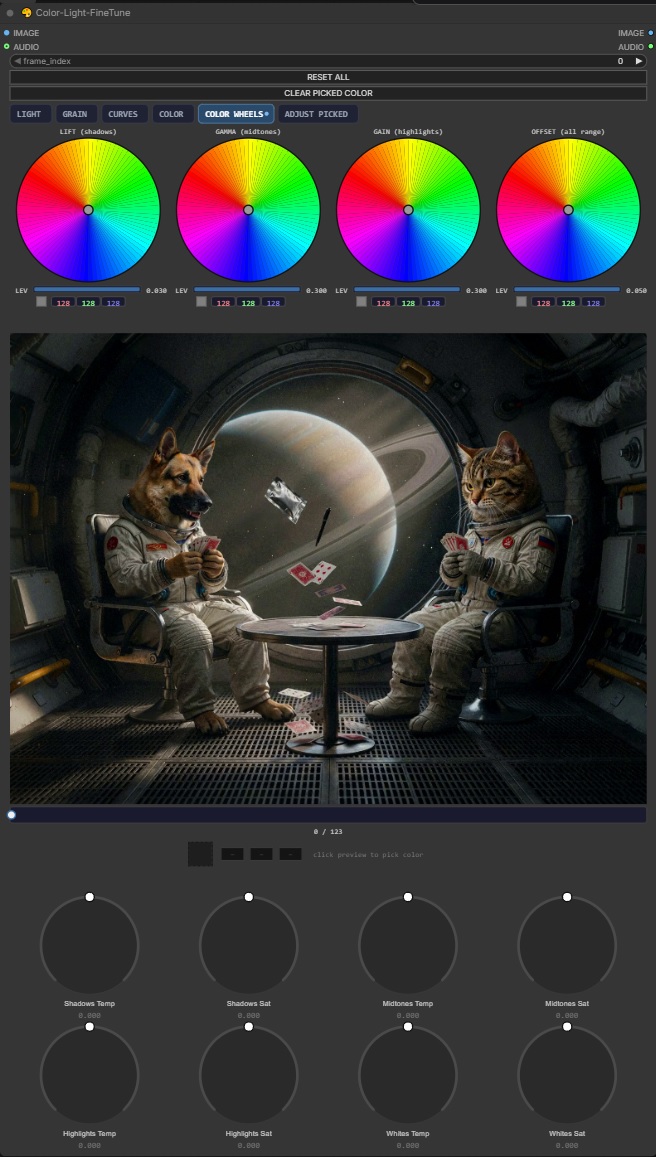
Features
- Live in-node preview — updates in real time while you drag controls, no Queue needed
- Color wheels — LIFT (shadows) / GAMMA (midtones) / GAIN (highlights) / OFFSET (all range): full hue disc, per-wheel intensity (LEV) bar, live RGB readout
- Adjust Picked — click a color on the preview to target only that color: tolerance / hue / saturation / luma, sliders stay gray until a color is picked
- Per-zone color balance — temperature + saturation for Shadows / Midtones / Highlights / Whites (8 knobs under the preview)
- Tone tools — Brightness, Contrast, 3-point tone curve, Vibrance
- Highlight Ceiling / Shadow Floor — soft shoulder and toe: highlights bend toward white instead of clipping, the black point lifts while keeping shadow texture
- Film grain — built-in preset look with Strength / Size / Softness; deterministic (the same frame always gets the same grain, no flicker)
- Video support — frame slider under the preview for scrubbing; processing progress is reported to the ComfyUI terminal every 16 frames (cpu rendering)
Installation
- Copy this folder into
ComfyUI/custom_nodes/ - Restart ComfyUI
Requirements
- No extra packages — uses only torch (and PIL/aiohttp already bundled with ComfyUI)
Usage
- Connect an image (or a video → frame batch). AUDIO is an optional passthrough for video.
- All controls are neutral by default → identity output.
- The final result is produced by Queue as usual.
- Picking a color: click on the preview (a crosshair marks the point) → the ADJUST PICKED sliders become active.
- Example workflows: image · video
License
MIT