
Style Grid
Grid/gallery-based style selector for ComfyUI. Browse and apply prompt styles from a searchable visual card grid.
Style Grid for ComfyUI
Searchable, categorized visual card grid for browsing and applying prompt styles in ComfyUI. A ComfyUI node port of the WebUI extension with the same idea: search, favorites, presets, and a visual grid instead of a flat dropdown.
Features
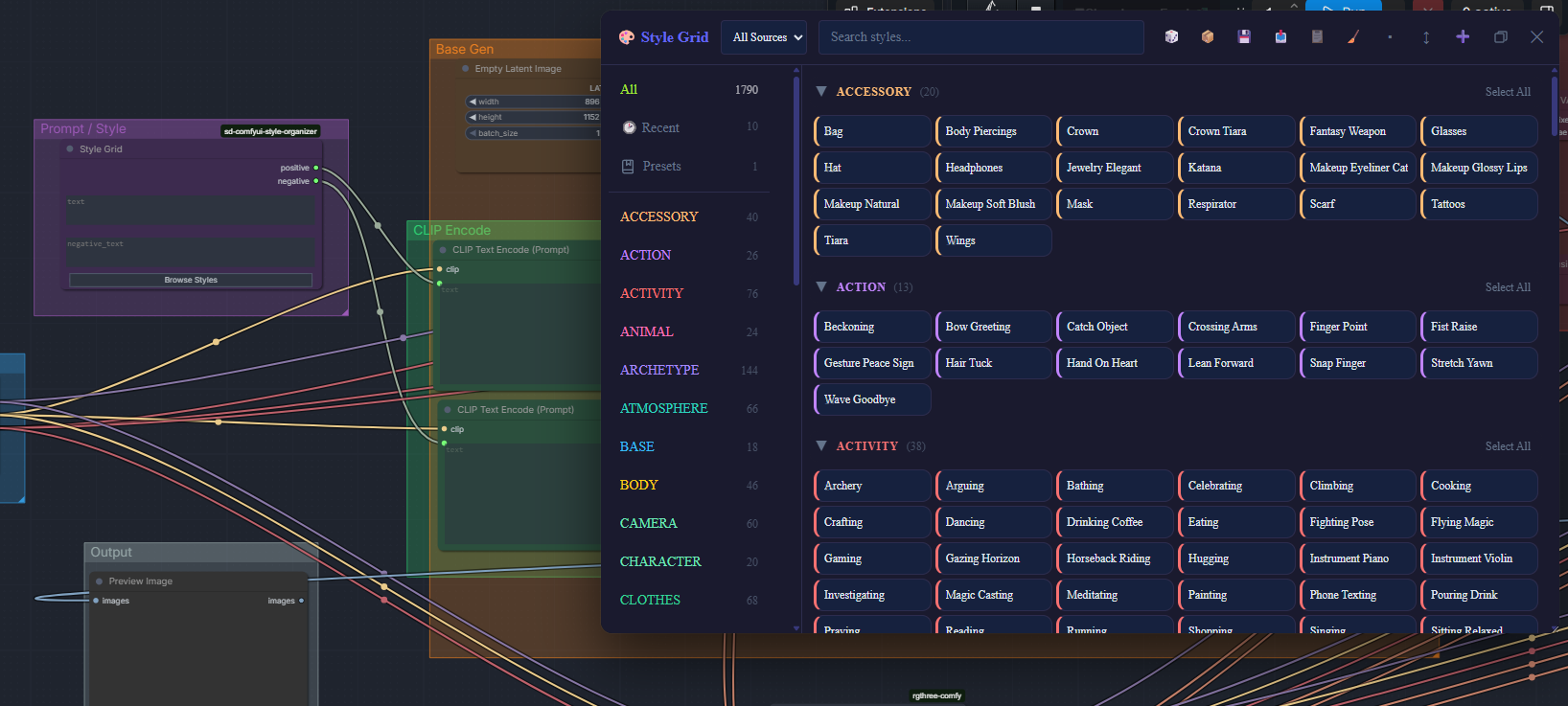
- Search and category filtering across your style packs
- Multi-select with conflict detection
- Favorites and recently used
- Presets: save and load groups of styles at once
- Create, edit, duplicate, and delete styles from the grid
- Move styles between categories
- Thumbnail previews with manual upload
- Import and export styles and presets as JSON
- Manual Backup: zip snapshot of user-dir CSVs + presets under
user/style_grid/backups/ - Wildcard support:
{sg:category}picks a random style from that category at node execution;{sg:category:spec}limits the pool to a slice (include / exclude / glob). Shuffle wildcards{sgd:category}/{sgd:category:spec}draw without repeats, one step per queue run - Keyboard shortcuts:
/focuses search; Escape closes dialogs/menus, clears search, or closes the panel; arrow keys move in the grid; Enter/Space toggles the focused style - Combos: styles can list related names in their description (
Combos: …); the card shows clickable “Works with” chips to select those styles or jump to a category
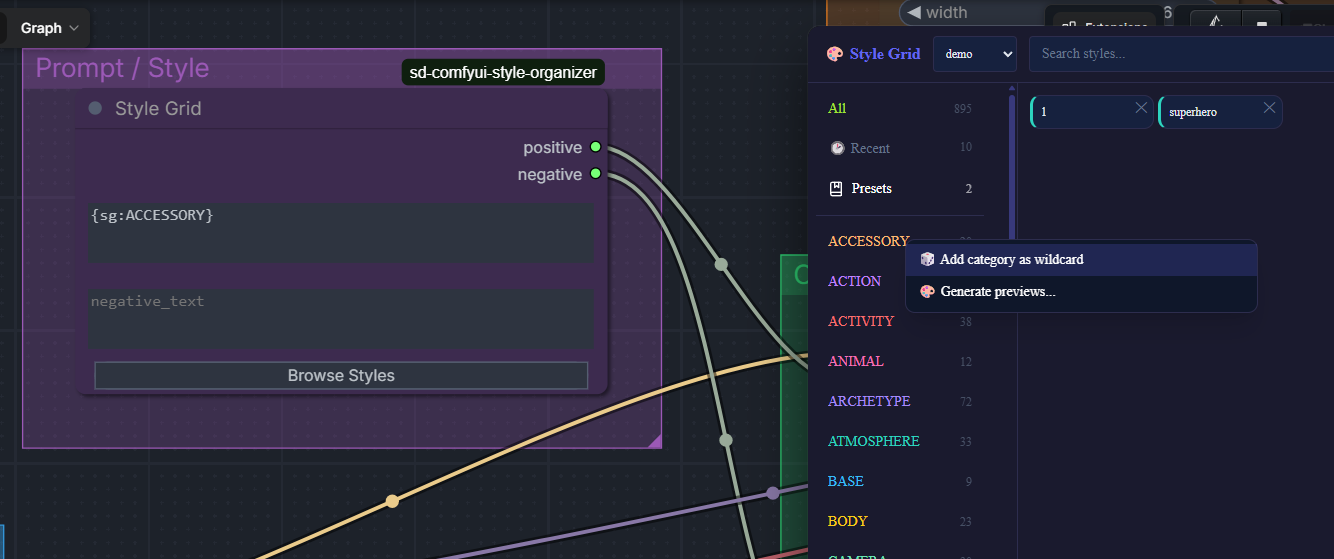
Right-click a category in the sidebar for wildcard actions, in two groups: random ({sg:…}, can repeat) and shuffle ({sgd:…}, no repeats between queue runs):
| Item | What it does |
|---|---|
| Whole category (random) | Inserts {sg:<category>} into the active text field |
| Pick styles… (random) | Opens slice-selection mode: tick styles (search and source filter still apply; Select all covers the currently visible list). Add as wildcard inserts a compact {sg:<category>:<spec>} for that selection |
| Whole category (shuffle) | Inserts {sgd:<category>} |
| Pick styles… (shuffle) | Same slice selection, but Add as shuffle wildcard inserts {sgd:<category>:<spec>} |
How {sg:…} works
- Whole category:
{sg:body}— category match is case-insensitive - Slice:
{sg:body:Tanned,Shortstack}— comma-separated suffixes without the category prefix (notBODY_Tanned). Leading-excludes ({sg:body:-Tanned}); trailing*is a prefix glob ({sg:body:Male_*}) - Resolution: includes are unioned, then excludes subtract. If every listed name is missing, the token falls back to the whole category instead of vanishing. The UI writes the shortest correct form; the resolver understands all forms
- Chips: each active
{sg:…}appears as a chip in the selected bar. A slice chip shows the resolved pool size (how many styles the token can pick from), with those style names in the tooltip — not the number of raw spec entries - When / what: expanded when the Style Grid node runs. A wildcard in the positive field (
pos) pulls the style’sprompt; in the negative field (neg) it pullsnegative_prompt - Nesting depth: nested
{sg:…}tokens resolve in up to 3 passes. Leftovers after that are stripped with a warning - Empty fields: an empty chosen field resolves to an empty string (the token is not kept), on both the positive and negative sides
- Source filter: a specific CSV limits the pool to that pack; All Sources uses the merged library
- Unknown / empty category: the raw token is left in place through nested passes, then stripped with a warning
You can also type or paste {sg:…} tokens by hand.
Shuffle wildcards {sgd:…}
A shuffle wildcard draws styles without repeats. Where {sg:category} may pick the same style on consecutive runs, {sgd:category} uses every style in the category once before any style comes back.
-
Syntax:
{sgd:category}for a whole category,{sgd:category:spec}for a slice. The spec grammar is identical to{sg:…}(names,-excludes,Prefix_*globs), and the order of entries does not matter -
Insert: use the shuffle group of the category menu, or type the token by hand. Shuffle chips have their own icon and are removed and saved in presets like any other wildcard
-
One queue run, one draw: the node resolves its text once per run, so every image of a single latent batch shares the same draw. To step through the deck, queue several runs (Batch count in the queue controls), not a larger batch size
-
Deck strip: while a shuffle chip is active, the panel shows
seed N, next draw #Mnext to the chips. Restart goes back to the first draw, New deck picks a new random seed and starts from the first draw. The position advances by itself after every queue run -
Range: a deck has up to 9,999 positions per seed. When you run out, press New deck
-
Several tokens: repeating the same token in one prompt draws a different style for each occurrence
-
Positive and negative: the same shuffle token in both fields resolves to the same style, as long as it appears the same number of times in each
-
Duplicates across packs: styles with identical prompt and negative prompt count once
-
Random wildcards are unchanged. Mixing
{sg:…}and{sgd:…}in one prompt is fine, they do not influence each other -
Presets: shuffle chips are saved in presets and restored as shuffle chips
-
Existing workflows: the seed and position are stored in two optional inputs that stay hidden on the node and are saved with the workflow. Workflows saved before load as before
-
Works with multiple CSV sources at once, or filtered to one
-
Theme: the panel follows the ComfyUI color palette (light / dark) automatically
Installation
Via ComfyUI-Manager (recommended):
Open ComfyUI-Manager → Custom Nodes Manager → search "Style Grid" → Install. Restart ComfyUI when prompted.
Manual / development install:
cd ComfyUI/custom_nodes
git clone https://github.com/KazeKaze93/sd-comfyui-style-organizer
Restart ComfyUI. The Style Grid node will be available under the node search.
Updates: Manager installs update through Manager's own Update /
Check for updates flow. Manual git installs update via git pull
inside the extension folder.
Publishing to Comfy Registry
comfy node publish does not pick up CHANGELOG.md automatically. The registry Updates section is filled only if you pass changelog text:
comfy node publish --changelog-file notes-<version>.md
(or --changelog "..." / COMFY_NODE_CHANGELOG). GitHub Release notes alone do not appear there. After bumping pyproject.toml and cutting CHANGELOG.md, publish with that flag; if a version was uploaded without it, delete the version on the registry and republish.
Usage
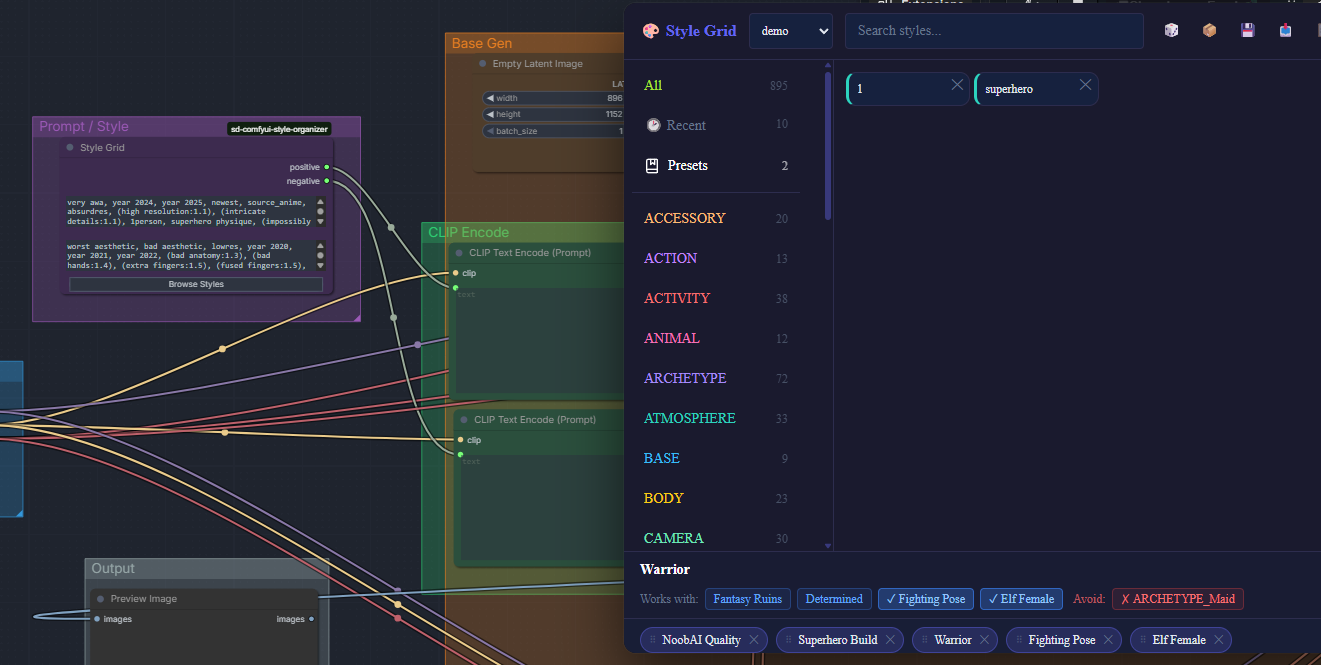
Add the Style Grid node to your workflow. It outputs two STRING values, positive and negative, meant to feed directly into your text encode nodes. Click Browse Styles to open the grid, search or browse by category, and apply styles to the node's text fields directly.
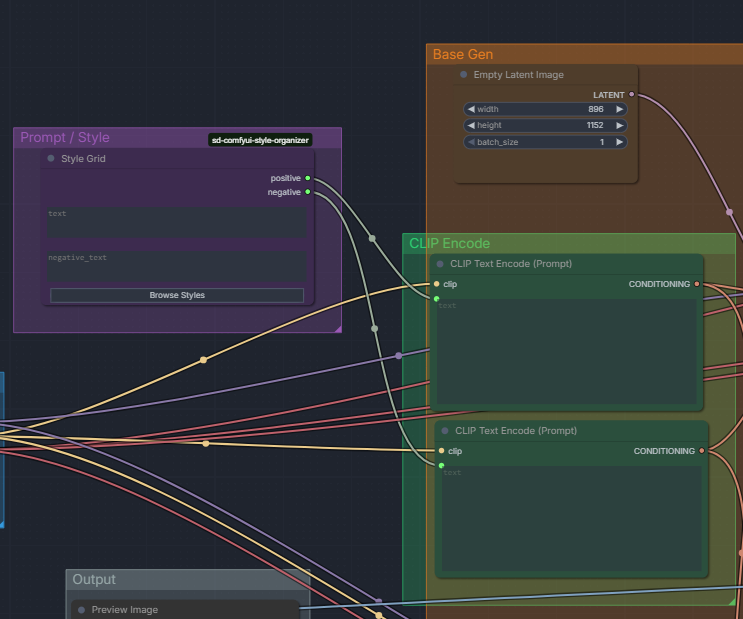
The two STRING outputs feed the text encode nodes' text inputs.
In current ComfyUI, drag a STRING output onto the text widget (or its
socket) to convert that widget into an input — you no longer need a
separate "Convert text to input" menu step.
Working with styles
The toolbar (icon buttons with tooltips) includes Backup, Import/Export, Clear all selected styles, Compact mode, Expand/Collapse all, New style (needs a writable CSV source), fullscreen, and close. When multi-select finds conflicts, a red warning badge with a count appears — click it to open a popover listing each conflict; you can remove the conflicting style from there.
Favorite styles show a star on the tile; selected styles show a check badge. Right-click any style card for Select/Deselect, Add/Remove Favorites, Copy prompt, Edit, Duplicate, Move to category, Upload preview image, Delete preview (when one exists), and Delete. Delete asks for confirmation in a dialog before removing the CSV row.
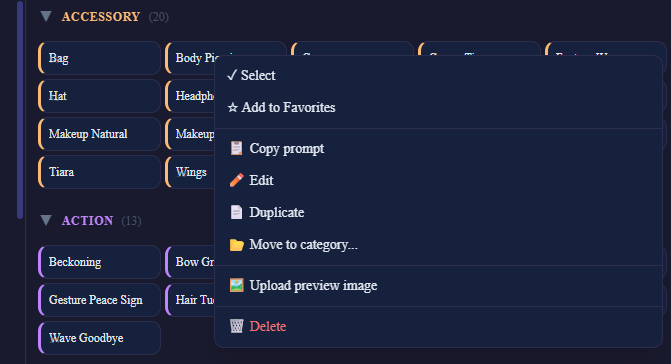
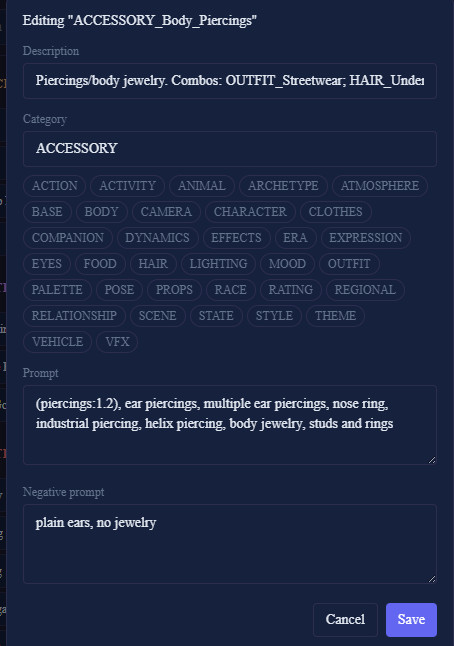
Edit opens a form for the style's description, category, prompt, and negative prompt (the name itself isn't editable here — renaming is Duplicate-then-delete-the-original, kept separate to avoid orphaning CSV rows).
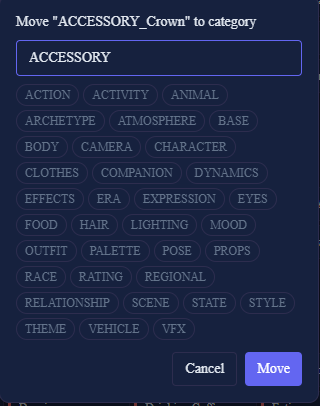
Move to category offers existing categories as quick-pick chips.
Duplicate works on any style, including ones from the read-only
sample pack — it's the way to turn a demo style into your own editable
copy. Edit, Move, and Delete are blocked on styles from samples/:

Presets let you save and reload a set of selected styles at once. Clicking an already-loaded preset unloads it.
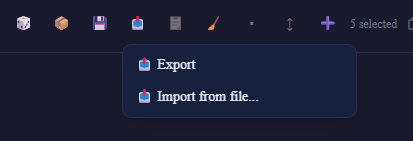
Import/Export (toolbar import icon) opens a small menu with Export and Import from file…. Export downloads styles and presets as JSON. Import accepts that JSON, or a Backup zip (CSVs + presets). Importing a preset whose name already exists overwrites the existing preset with the imported definition.
Backup (toolbar save icon) writes a manual zip snapshot of your
user-dir CSVs (style_grid/ and style_grid/imports/) plus presets.json
into style_grid/backups/ (bundled samples/ is excluded). It is not
automatic, and it is separate from Export.
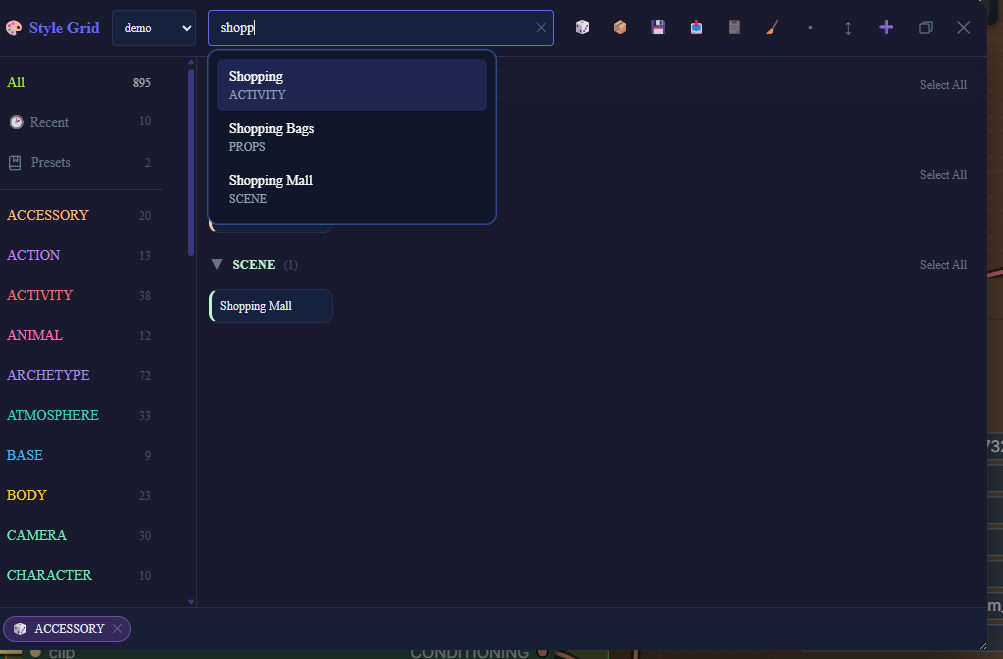
Search with autocomplete suggestions as you type:
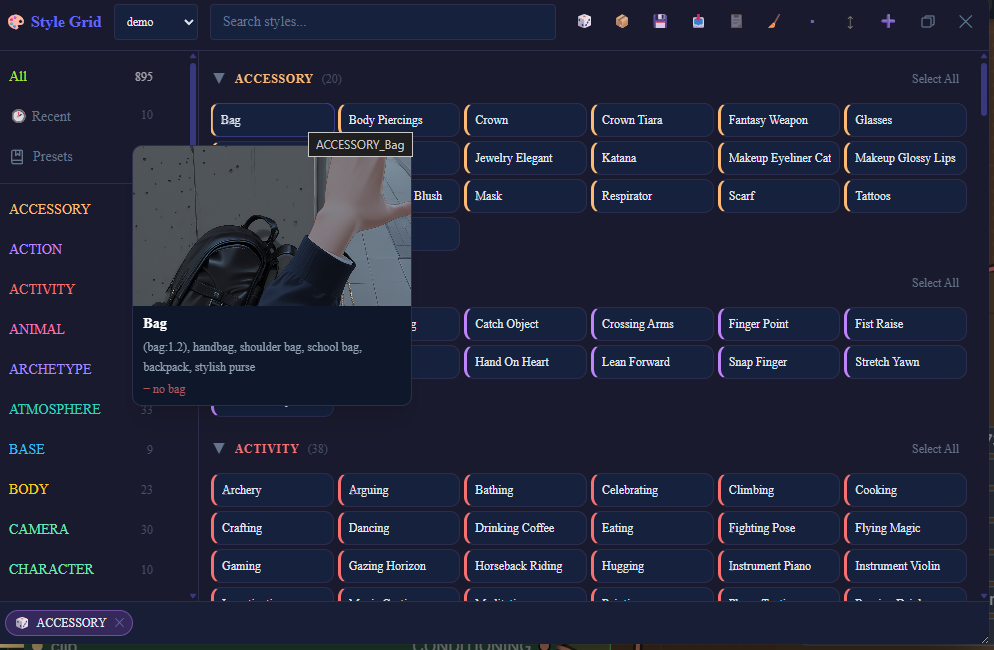
Thumbnails show on hover once uploaded via the card menu. Preview files are keyed by style name + source CSV, so the same UNIVERSAL name in two packs keeps independent previews. Older name-only files migrate when the name maps to one pack, or when every pack that shares the name has byte-identical prompt and negative_prompt. If the same name appears in multiple packs with diverging content, regenerate each preview.
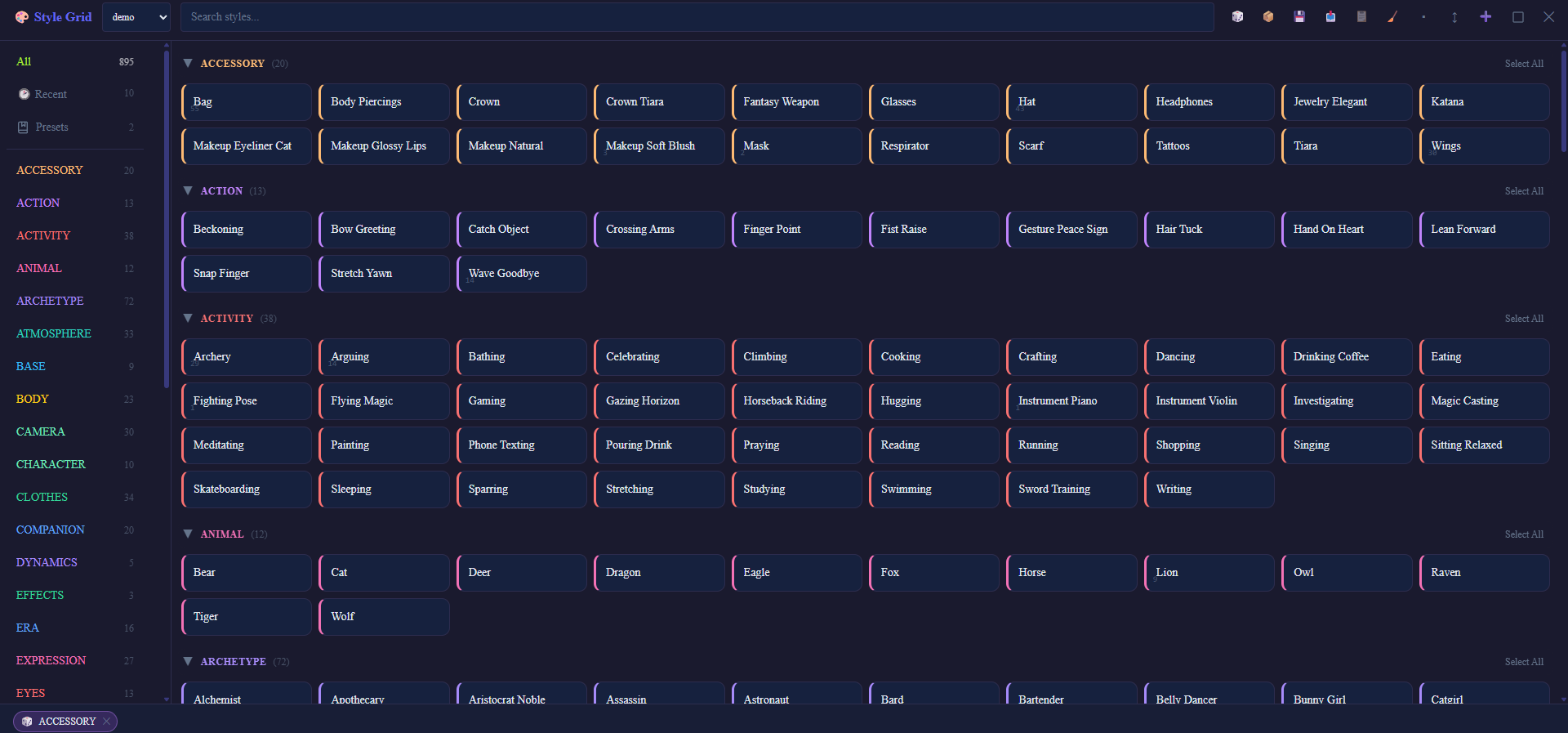
The panel supports fullscreen for browsing large packs:
Style packs
Style Grid ships with one small sample pack (demo.csv) so the grid isn't empty on first install. Full style packs are distributed separately on CivitAI. Drop CSV files into ComfyUI's user/style_grid/ folder to add more.
BREAK and prompt chunking
Style Grid does not insert or manage BREAK tokens itself. If your styles or prompts use BREAK, ComfyUI's built-in CLIP Text Encode node treats it as a literal word rather than a chunk separator. Use a BREAK-aware text encoder such as CLIPTextEncodeBREAK if you rely on BREAK in your prompts.
Generated files and cleanup
Data survives reinstall since this version. User CSVs, presets, thumbnails, and backups live under ComfyUI's user directory (
user/style_grid/), not inside the extension folder. Uninstalling or reinstalling the node via ComfyUI-Manager no longer wipes that data.
Style Grid writes runtime data under ComfyUI's
folder_paths.get_user_directory()/style_grid
(typically ComfyUI/user/style_grid/):
| Path | What it is | Safe to delete? |
|------|-----------|------------------|
| user/style_grid/*.csv | Your own style packs (created via New style, or Duplicate/Move/Edit on non-protected styles) | Only if you don't need them — this is your data |
| user/style_grid/imports/*.csv | Style packs created by the Import feature (including restore from a Backup zip) | Yes, anytime |
| user/style_grid/backups/ | Manual Backup .zip archives (CSVs + presets.json; Backup button). Oldest auto-pruned past 20 | Yes |
| user/style_grid/presets.json | Saved presets. Corrupt/unreadable JSON returns HTTP 409 and is not overwritten — restore from sibling .bak (atomic writes keep .bak / .bak.2 / .bak.3). | Only if you don't need them |
| user/style_grid/category_order.json | Persisted sidebar category order | Yes — order falls back to defaults |
| user/style_grid/thumbnails/ | Uploaded preview images | Yes, previews just won't show until re-uploaded |
Migration from older installs: On first startup, if user/style_grid/
is empty and the extension still has files under its legacy data/
folder, Style Grid copies (never moves) that content into the new
location and writes a marker file. The old data/ folder inside the
extension is not auto-deleted — remove it yourself once you confirm
the copy looks right.
samples/demo.csv (the bundled demo pack) stays inside the extension and
is read-only by design — Edit, Move, and Delete are blocked on styles from
this file. Use Duplicate to create an editable copy in user/style_grid/
first.
Security note
Mutating /style_grid/* HTTP routes have no authentication. If you
run ComfyUI with --listen (or otherwise bind it beyond localhost),
those endpoints are reachable from the network — the same trust model
as ComfyUI itself. Do not expose ComfyUI to untrusted networks.
Development
Quality checks run locally via a Git pre-push hook (no GitHub Actions CI).
After clone, enable repo hooks once:
git config core.hooksPath .githooks
pre-push runs an EOL guard (no CRLF in the index/working tree text files, no CR bytes in committed web/ui), then pytest (pinned minimum pass count), UI typecheck/lint/vitest (pinned minimum), then npm run build in ui/ and fails if web/ui differs (git diff --exit-code -- web/ui).
# Python (from repo root; needs pytest)
python scripts/run_pytest_min.py

# UI (from ui/)
npm ci
npm test
npx tsc --noEmit -p tsconfig.app.json
npx tsc --noEmit -p tsconfig.node.json
npx tsc --noEmit -p tsconfig.test.json
npm run lint

# Rebuild the committed panel bundle into web/ui/
npm run build
git diff --exit-code -- web/ui
License
AGPL-3.0. See LICENSE.