
Kisekae 👘
Character prompts from reusable JSON presets: chained section nodes (hair, outfit, scene...) with per-field overrides, preset references, LoRAs and templates, plus Tansu, a preset organizer and editor tab.
Nodes (13)
Stop retyping 'thick thighs' in every prompt
So that's why that tag is in my prompt
Read the prompt before you spend the render
The dropdown that adds the negative for you
Change the expression, keep the face
Who the character is, and why its dropdowns start empty
Where every character in this pack begins
Pick a dress, it clears the skirt for you
Tags for the body, prose for the vibe
One node, two prompt strings, and three ways to load a LoRA
Turn a lucky graph tweak into a character you keep
Framing, light and background, without the rewrite
Quality tags that match the checkpoint you're actually running
👘 comfyui-kisekae
着せ替え (kisekae, "dress-up"): character prompts for ComfyUI, built from reusable JSON presets.
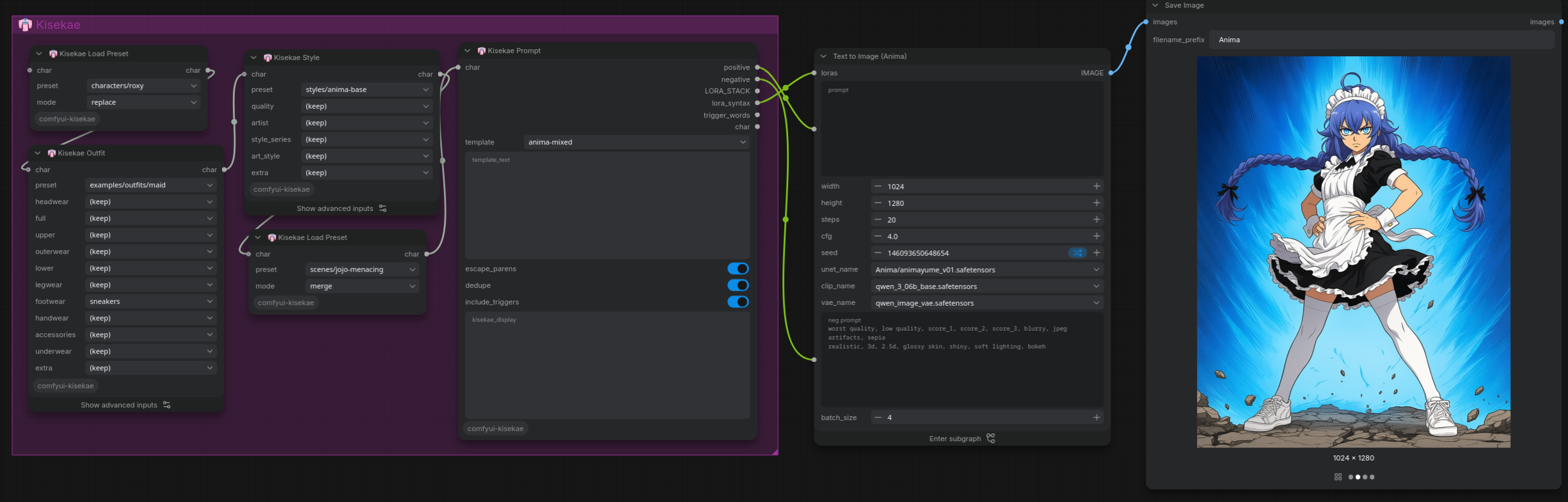
Describe a character once: hair, eyes, body, outfit, LoRA. Then swap outfits, scenes and styles with dropdowns, without retyping the prompt. Each section (Identity, Head, Hair, Body, Outfit, Style, Pose, Scene) is its own node. The nodes chain together and pass the character along, and a Prompt node at the end turns it into positive and negative prompts plus LoRAs.
Features
- Presets that reference each other. A character's outfit can be
{"$ref": "outfits/school-uniform"}. Change the outfit file and every character wearing it changes. Swap it and only the outfit changes. - Chained section nodes. Each node can load a section preset, then override single fields with a dropdown or typed text, replacing or appending.
- Tags and prose in one prompt. Templates decide the layout. The default mixes booru tags with natural-language lines, which suits Anima-style models.
- LoRAs live in presets. The character's LoRA comes with the character. The
Prompt node outputs a standard
LORA_STACKand<lora:name:strength>text, so it works with LoRA Manager and other stack loaders without depending on any of them. - Smart dropdowns. Picking
dressclears the incoming top and skirt. Pickingshort hairaddslong hairto the negative prompt. - Save Preset. Tweak a character in the graph and save it as a new preset. Unchanged sections are saved as references.
- Debug nodes. See the character data or the rendered prompt at any point in a chain, including where each value came from.
- Tansu 箪笥, a preset organizer and editor in its own browser tab: browse presets as picture cards, filter by tags, edit with a live prompt preview, and rename or move presets with every reference updated.
- No extra Python dependencies.
Install
Clone into ComfyUI/custom_nodes and restart ComfyUI:
cd ComfyUI/custom_nodes
git clone https://github.com/Kagejitsu/comfyui-kisekae
It is also published to the Comfy Registry as
comfyui-kisekae, so ComfyUI-Manager can install it.
The nodes appear under the kisekae category, all named "👘 Kisekae …".
Quick start
- Add 👘 Kisekae Load Preset and pick
examples/characters/aoi. - Connect its
charoutput to a 👘 Kisekae Outfit node and pickexamples/outfits/maidas that node's preset. - Add 👘 Kisekae Load Preset again with
examples/scenes/dramaticandmode: merge. This adds a pose, lighting and an expression on top of the character. - End with 👘 Kisekae Prompt. Connect
positiveandnegativeto thetextinputs of your two CLIP Text Encode nodes. - Queue. The Prompt node shows the finished prompt in its text box.
A Prompt node can attach anywhere in a chain, and a chain can branch: one character can feed two different Outfit nodes.
Example workflow
examples/workflows/anima-kisekae.json
is a complete text-to-image workflow for Anima. It has a Kisekae chain (Load
Preset → Outfit → Style → Load Preset in merge mode → Prompt) feeding a
"Text to Image (Anima)" subgraph. Drag the file onto ComfyUI, then:
- Pick a character on the first Load Preset (e.g.
examples/characters/aoi). - Optionally pick an outfit, a style and a scene (
examples/scenes/dramatic). - Check the model names in the subgraph match your files, then queue.
The subgraph loads LoRAs with LoRA Manager's LoRA Text Loader, so this workflow needs LoRA Manager. The Kisekae nodes themselves don't.
Nodes
| Node | What it does |
|---|---|
| Load Preset | Loads a whole preset. replace: exactly the preset. overlay: its sections replace whole sections. merge: its fields replace single fields, and its LoRAs and negatives are added. |
| Identity, Head, Hair, Body, Outfit, Style, Pose, Scene | One node per section. Optionally pick a preset for the whole section, then override single fields. |
| Prompt | Renders the character with a template. Outputs positive, negative, LORA_STACK, lora_syntax, trigger_words and char. |
| Save Preset | Writes the character to your preset folder. |
| Debug JSON | Shows the character data: resolved values, sources (where each value came from) or trace (what each node did). Passes char through. |
| Debug Prompt | The Prompt node's output as a report: the prompts, a per-placeholder breakdown, removed duplicates, escaped brackets, LoRA status and a token count. Passes char through. |
Section nodes
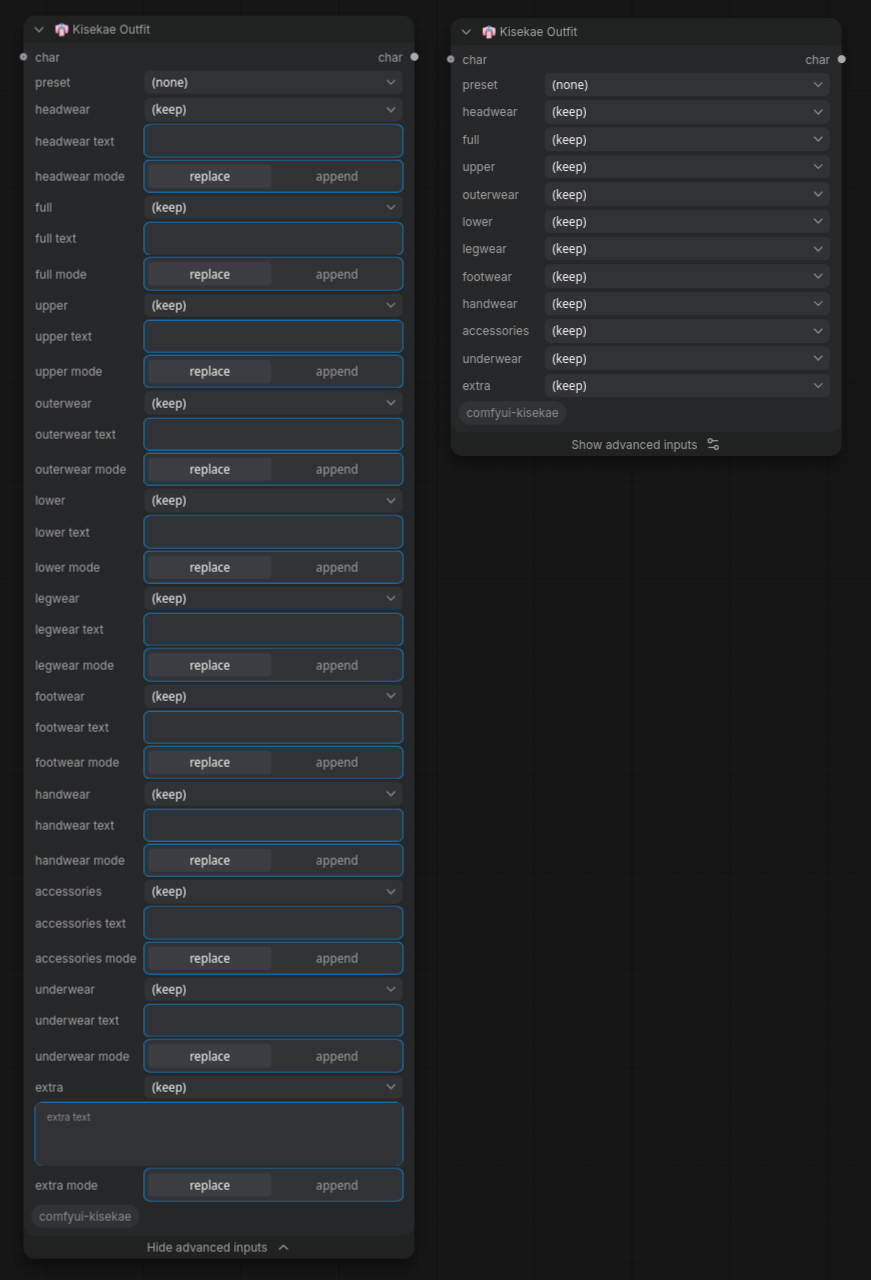
Each field has a dropdown:
(keep)passes the incoming value through unchanged.(clear)removes the value.- Any other choice replaces the value.
Click Show advanced inputs at the bottom of the node to show, for each field:
- text: typed override. It wins over the dropdown, and weights such as
(red eyes:1.3)work. - mode:
replaceorappend. Append adds to the incoming value and skips exact duplicates.
A node saved with typed text or append on opens its advanced inputs when the
workflow is loaded, so an override is never hidden.
The node applies its changes in this order: incoming character, then the section preset (which replaces the whole section, LoRAs included), then field overrides.
| Section | Fields | |---|---| | identity | who, series, gender, age, species, skin | | head | face, eyes, eyebrows, ears, mouth, expression, makeup, eyewear, accessories | | hair | color, length, style, bangs, accessories | | body | body_type, proportions, height, bust, waist, hips, thighs, muscle, extras | | outfit | headwear, full, upper, outerwear, lower, legwear, footwear, handwear, accessories, underwear | | style | quality, artist, style_series, art_style | | pose | pose, hands, action, prose | | scene | composition, lighting, background, effects |
Every section also has a multiline extra field for anything else. Outfit
fields run head to toe, so hats swap together with the outfit.
Presets
Your presets live in ComfyUI/user/default/kisekae/presets/. Subfolders are
fine, and a preset's name is its path without .json (e.g.
characters/aoi). The shipped examples appear as examples/… and are read-only.
Updating the node pack never touches your folder. After adding or editing a
file, press R in ComfyUI to refresh the dropdowns.
There is one file format for everything: an outfit preset is just a preset with
only an outfit section.
{
  "kisekae": 1,
  "name": "Aoi",
  "description": "Quiet library girl",
  "sections": {
    "identity": {
      "fields": { "gender": "1girl, solo", "age": "young adult" },
      "loras": [
        { "name": "characters/aoi.safetensors", "strength": 0.8, "trigger": "aoi" }
      ]
    },
    "hair": {
      "fields": {
        "color": "black hair",
        "length": { "value": "long hair", "weight": 1.1 },
        "bangs": "blunt bangs, hime cut"
      }
    },
    "outfit": { "$ref": "examples/outfits/school-uniform" }
  },
  "negative": "short hair"
}
- Fields are a string, or
{"value": …, "weight": …}. - LoRAs:
nameis the path inside yourlorasfolder. If the file has moved, a file with the same name elsewhere in the folder is used instead.clip_strengthdefaults tostrength.triggeris optional.
- Negatives can sit on a section (
"negative"next to"fields") or on the whole preset.
References
| Form | Meaning |
|---|---|
| "outfit": {"$ref": "outfits/maid"} | Use the outfit section of preset outfits/maid |
| "outfit": {"$ref": "characters/aoi#outfit"} | Use a section from another character |
| "$ref" plus "fields" | Load the reference, then apply the local fields on top |
| "extends": "characters/aoi" | Start from a whole preset and change only what this file sets |
For example, examples/characters/ren uses the shrine outfit but swaps its
footwear:
"outfit": { "$ref": "examples/outfits/shrine", "fields": { "footwear": "geta" } }
References can chain. A loop (a → b → a) is reported with the full chain
instead of hanging.
A section node's preset dropdown only takes that node's own section. To
bring in every section a preset defines, e.g. a scene preset that sets the pose,
lighting and an expression, use Load Preset with mode: merge.
Saving
Save Preset writes the character to path (e.g. characters/aoi-summer)
inside your preset folder:
- With
keep_refson, a section that still matches its preset is saved as a$ref, so the outfit stays linked to the outfit file. - It never overwrites an existing file unless
overwriteis on. Re-queuing the same workflow just reportsUNCHANGED. - It only writes inside the preset folder.
.., absolute paths,examples/and symlinks pointing elsewhere are refused.
Tansu: the preset organizer
Tansu (箪笥) is the chest that kisekae clothes come out of. Click 👘 Tansu
in ComfyUI's top bar (Shift+click for a separate window) to open your preset
library in its own tab, at http://<your ComfyUI>/kisekae.
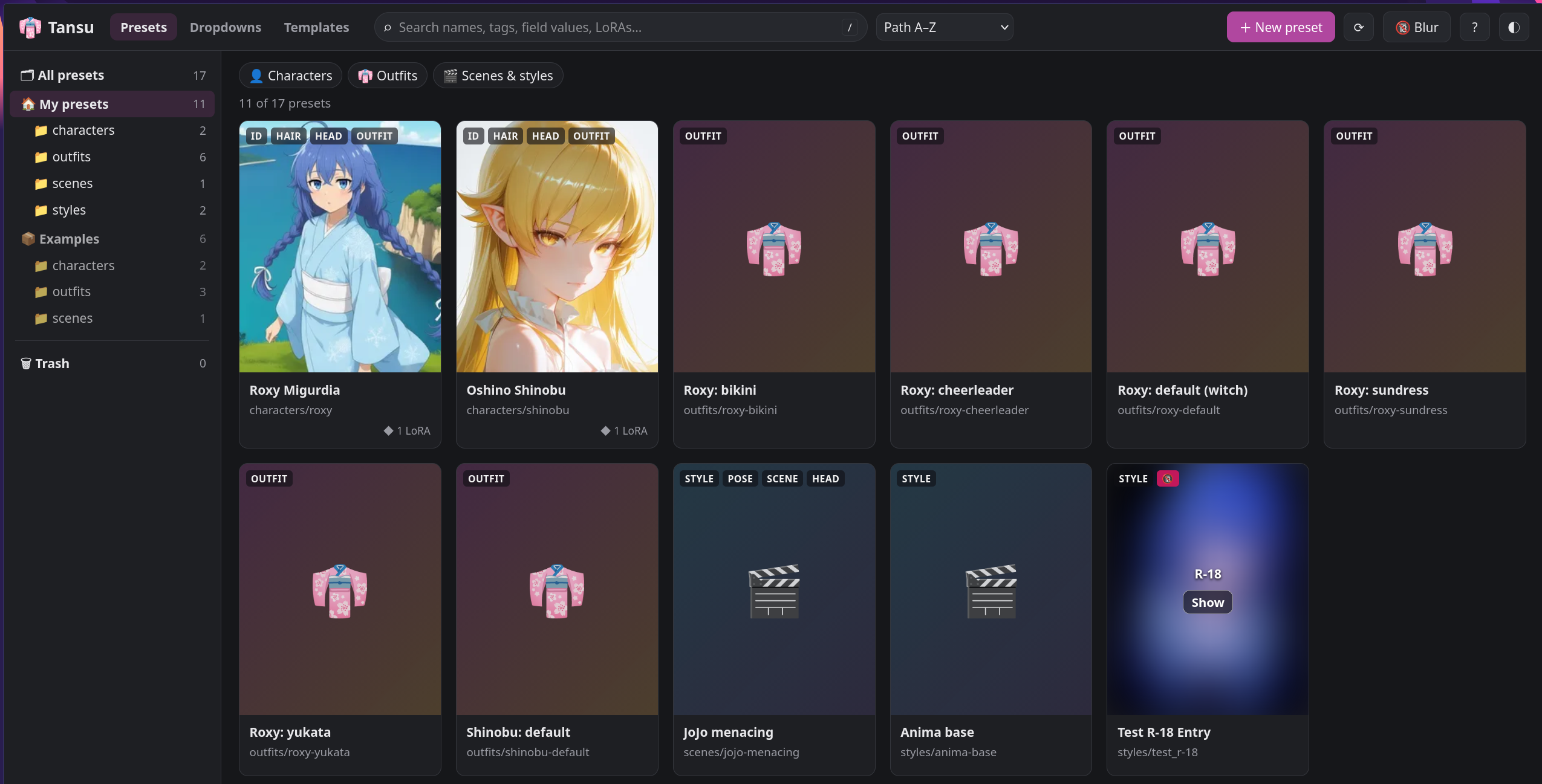
Organizer
-
Picture cards:
- Each card shows the preset's own picture,
roxy.webp(or.png,.jpg) next toroxy.json. - Without one, it shows the preview of the preset's LoRA, taken from LoRA Manager's files.
- Without either, it shows the picture of the preset it
extends.
- Each card shows the preset's own picture,
-
Setting a picture: 🖼 Picture… in the detail panel or the editor (or click the picture) lets you:
- pick one of your recent generations, newest first, from ComfyUI's output folder;
- upload a file, drop one, or paste one with Ctrl+V.
You can also drop an image straight onto a card, including one dragged from ComfyUI's own queue or gallery. Replaced and removed pictures go to
presets/.trash/. -
R-18 presets:
- Mark a preset with 🔞 R-18 in its detail panel or in the editor. This
saves
"nsfw": truein its file; the nodes ignore it. - A LoRA preview that LoRA Manager rates R or above counts as R-18 too.
- The 🔞 button in the top bar cycles Blur (the default; click Show on a card to reveal it), Hide and Show.
- Mark a preset with 🔞 R-18 in its detail panel or in the editor. This
saves
-
Finding presets:
- a folder tree;
- search across names, tags, field values and LoRA names;
- kind filters (characters, outfits, scenes & styles, broken);
- tag chips: click once to require a tag, again to exclude it, again to clear.
-
Details: click a card to see its rendered prompt, its LoRAs (found or missing), what it uses and what it is used by.
-
Rename / move first lists every preset whose
$reforextendswill be updated, then moves the file and rewrites those references. -
Delete moves a preset to a Trash folder (
presets/.trash/, which node dropdowns ignore). Restore puts it back. -
Shipped examples are read-only: Duplicate copies one into your folder.
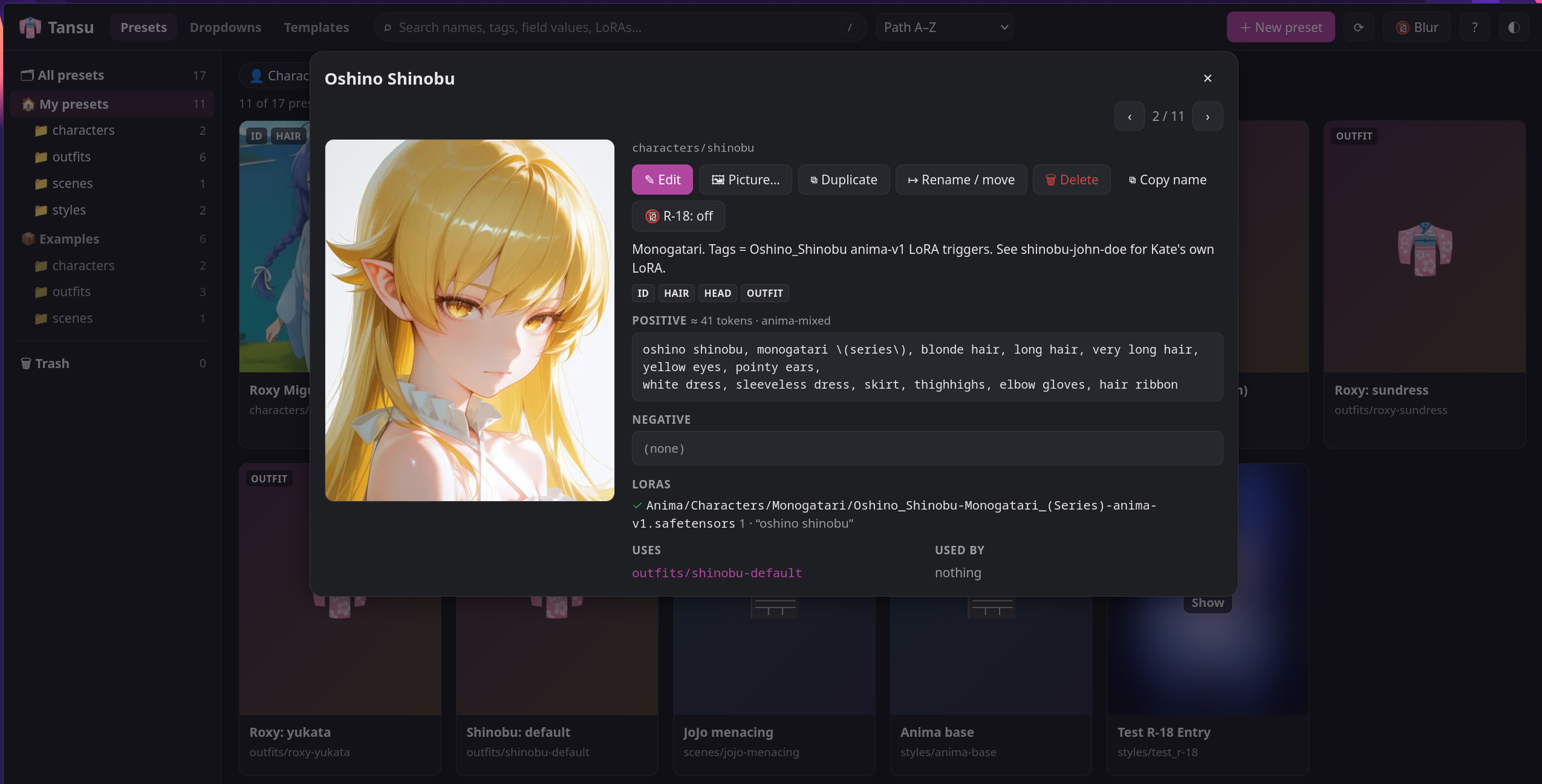
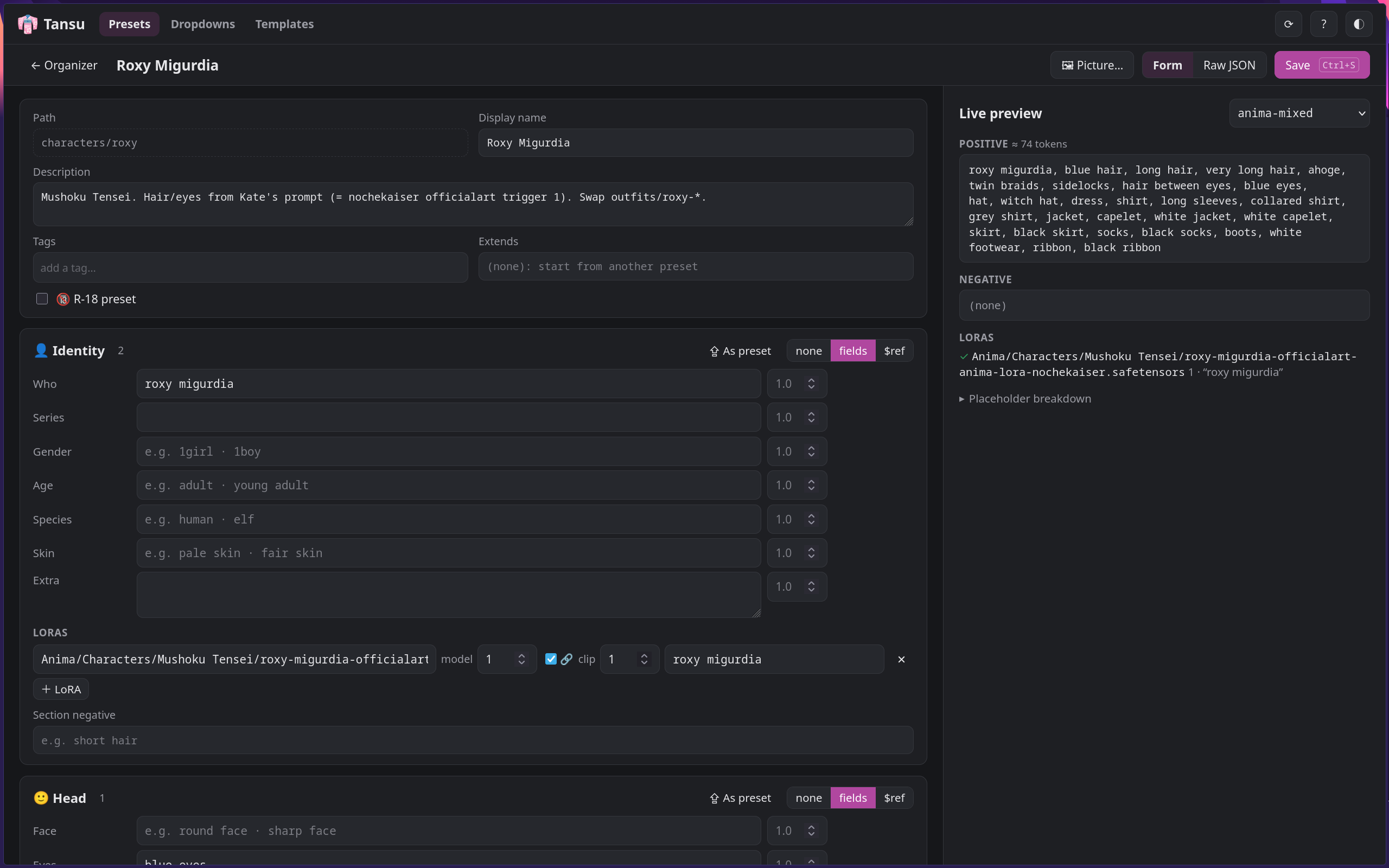
Editor
- Opening it: ✎ Edit, a double-click on a card, or + New preset.
- Sections: each one is none (or inherit when the preset extends another), fields written here, or a $ref to another preset with optional fields on top. Empty fields show in grey what the reference or parent provides.
- Fields suggest the node dropdown values and take an optional weight. + dropdown adds a new value to the nodes' dropdowns, via your vocab overlay.
- LoRAs: search your
lorasfolder. Trigger words fill in from LoRA Manager when available. - Tags, description, extends and the 🔞 R-18 mark are set in the header.
- ⇪ As preset moves a section into its own preset and references it. For
example, it turns a character's outfit into
outfits/<name>so other characters can wear it. - Raw JSON tab for anything the form doesn't cover.
- The live preview renders the prompt as you type, with any template.
- Saving: Ctrl+S saves. If the file changed meanwhile (for example, the Save Preset node wrote it), you choose between reloading their version and overwriting with yours.
Dropdowns page
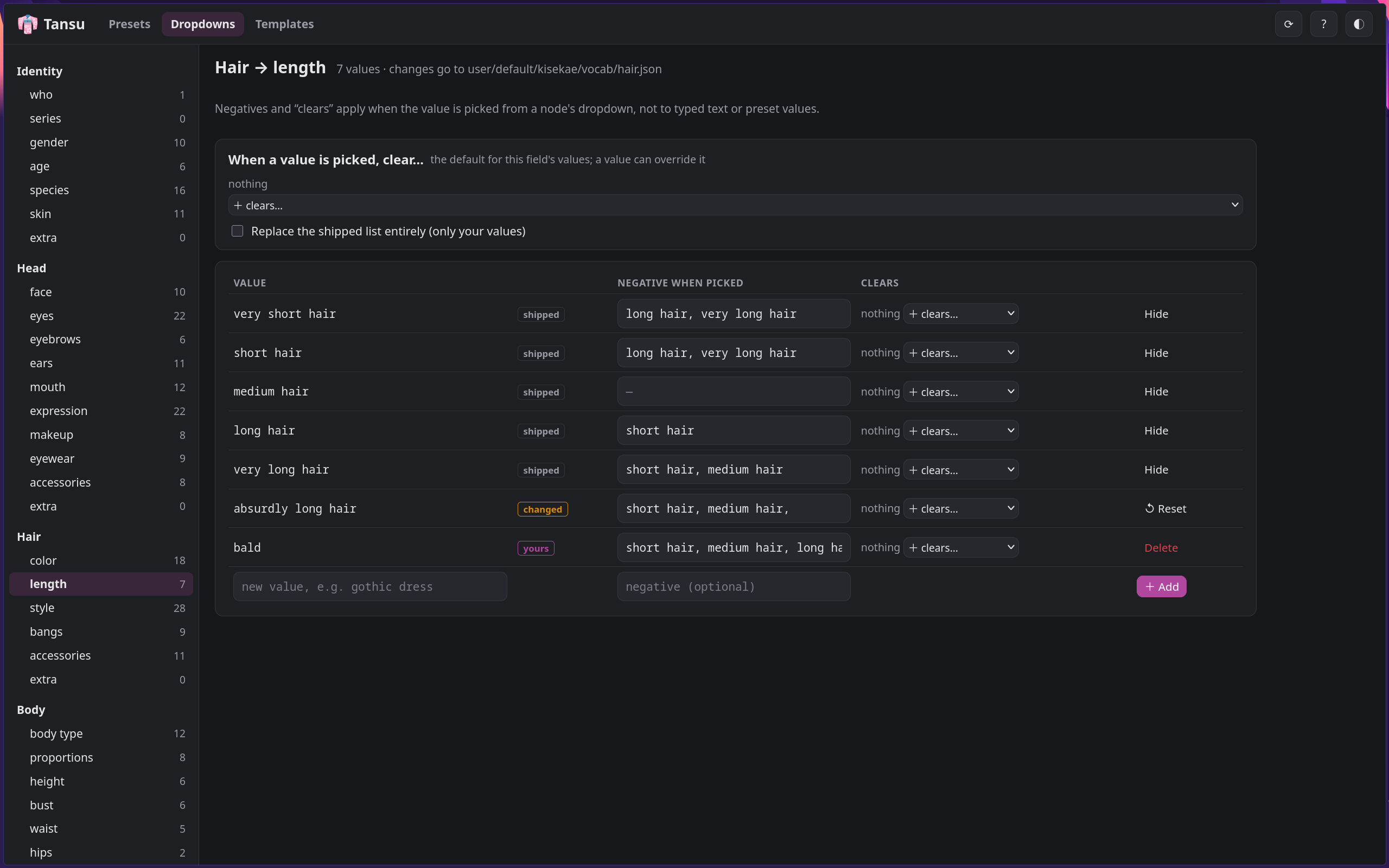
- Pick a field on the left, e.g. Outfit → full.
- Each value shows whether it is shipped, yours or changed, with its negative and the fields it clears when picked.
- Add values, give them negatives, change what they clear, hide shipped values you never use, or reset a changed one.
- Changes go to your vocab overlay files; the shipped files are never touched.
Templates page
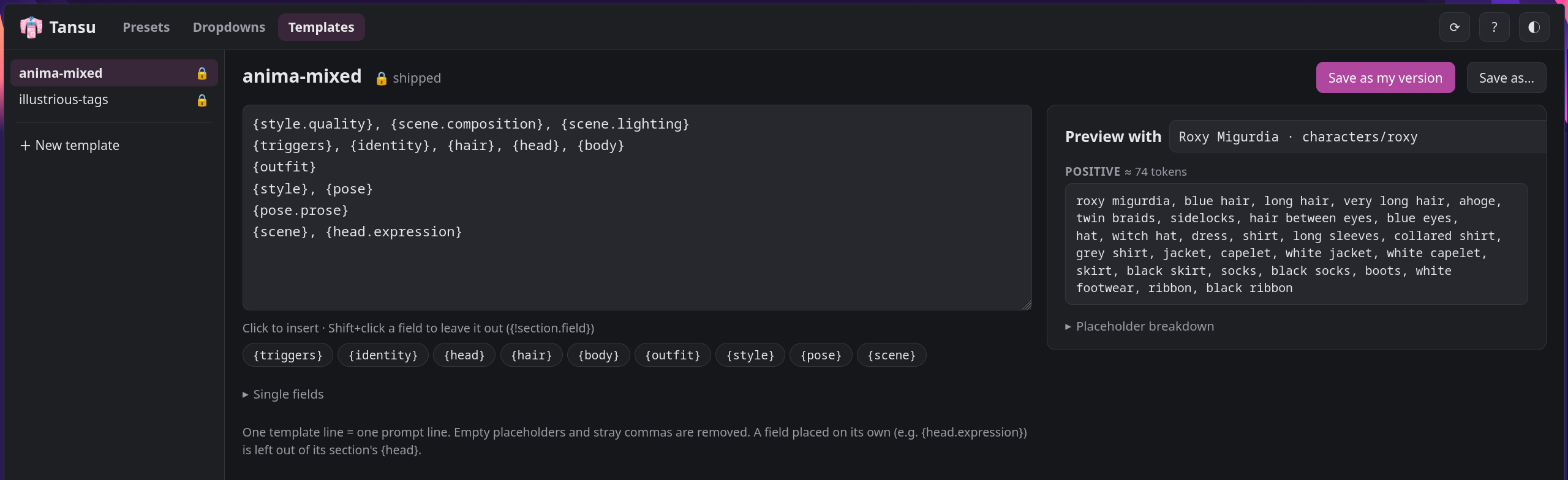
- Edit prompt layouts in a text box. A palette inserts placeholders: Shift+click
a field to insert
{!section.field}, which leaves it out. - The preview renders any preset with the template as you type, and flags misspelled placeholders.
- Save as my version on a shipped template makes yours replace it in the Prompt node. ↺ Back to shipped undoes that.
- Deleted templates go to
templates/.trash/.
Save Preset in the graph keeps the tags, description and R-18 mark you set in Tansu. After changing presets, dropdowns or templates in Tansu, press R in ComfyUI to refresh the node dropdowns. Press ? in Tansu for its keyboard shortcuts.
Templates
A template decides the order and line breaks of the prompt. Pick one on the
Prompt node, or type your own in template_text.
| Placeholder | Meaning |
|---|---|
| {hair} | Every field of a section, in the order above |
| {head.expression} | One field. It is then left out of {head}, so nothing appears twice. |
| {!pose.prose} | Leave a field out entirely |
| {triggers} | LoRA trigger words |
One template line becomes one prompt line, and empty placeholders and stray
commas are removed. The default, anima-mixed:
{style.quality}, {scene.composition}, {scene.lighting}
{triggers}, {identity}, {hair}, {head}, {body}
{outfit}
{style}, {pose}
{pose.prose}
{scene}, {head.expression}
illustrious-tags is the same layout without the prose line. Make your own on
Tansu's Templates page, or put .txt files in
ComfyUI/user/default/kisekae/templates/. A file with the same name as a
shipped template replaces it.
The Prompt node also:
- escapes brackets inside tags. ComfyUI reads
menacing (jojo)as emphasis, so it becomesmenacing \(jojo\). Weights like(tag:1.2)are kept. - removes repeated tags, keeping the first one.
- drops a negative that also appears in the positive. Debug Prompt lists what it dropped.
Dropdown values
The dropdown options come from data/vocab/<section>.json. The easiest way to
change them is Tansu's Dropdowns page (see below). It writes the same overlay
files you can also write by hand: a file with the same name in
ComfyUI/user/default/kisekae/vocab/, e.g. outfit.json:
{
  "fields": {
    "legwear": ["fishnet thighhighs"],
    "footwear": { "replace": true, "options": ["boots", "sneakers", "geta"] },
    "lower": { "remove": ["hakama"] },
    "full": {
      "hides": ["outfit.upper", "outfit.lower"],
      "options": [
        "gothic lolita dress",
        { "value": "apron", "hides": [] },
        { "value": "plugsuit", "hides": ["outfit.upper", "outfit.lower", "outfit.legwear"] }
      ]
    }
  }
}
- A plain list adds values. Use
"replace": trueto replace the shipped ones, or"remove"to hide single shipped values. negative: added to the negative prompt while that value is picked.hides: picking the value clears those fields of the incoming character, unless the same node sets them itself.- A
hidesnext tooptionsis the default for the whole field. - Values you add inherit the shipped default: a new
fulloutfit clears upper and lower likedressdoes, unless you set your ownhides.
- A
- Listing a shipped value again (e.g.
{ "value": "dress", "negative": "pants" }) changes it.
negative and hides apply only to dropdown picks. Typed text and preset
values are never pruned, so a preset with white dress and skirt keeps both.
LoRAs
The Prompt node gives you the character's LoRAs in two forms:
lora_syntax: e.g.<lora:aoi:0.8>. Connect it to LoRA Manager's LoRA Text Loader (lora_syntaxinput).LORA_STACK: a standard list of(file, model_strength, clip_strength). It works with LoRA Manager's loaders (lora_stackinput) and other stack appliers, such as Easy-Use's Apply LoraStack.
Use one of the two, not both, or the LoRA is applied twice. The loader's clip
input is optional. Connecting it, as in the screenshot below, is needed for LoRAs
that also trained the text encoder. LoRAs that only patch the diffusion model
(common for Anima) leave CLIP unchanged.
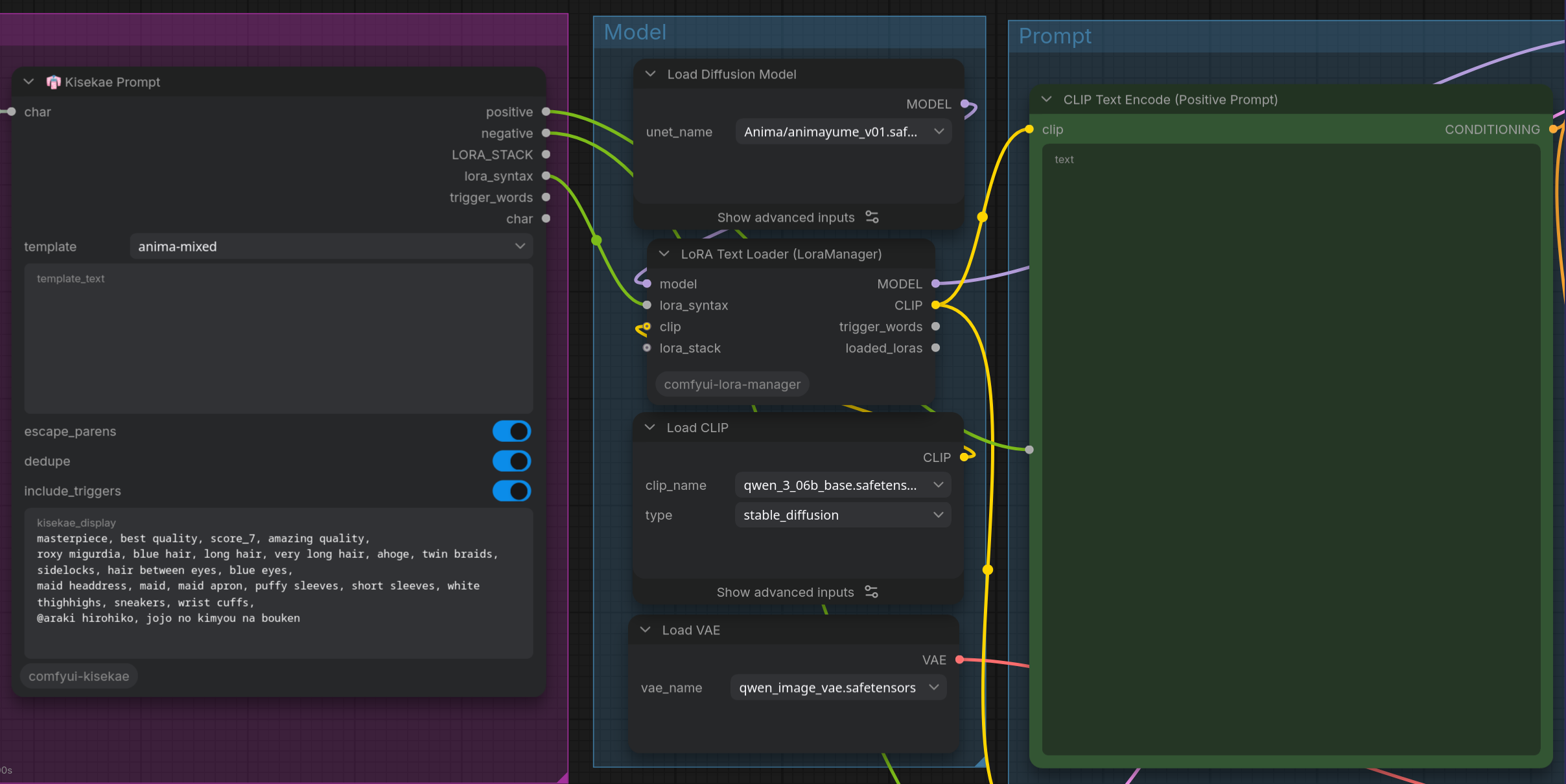
A LoRA file that can't be found is left out, with a warning on the Prompt node and in Debug Prompt. The workflow still runs.
Debugging
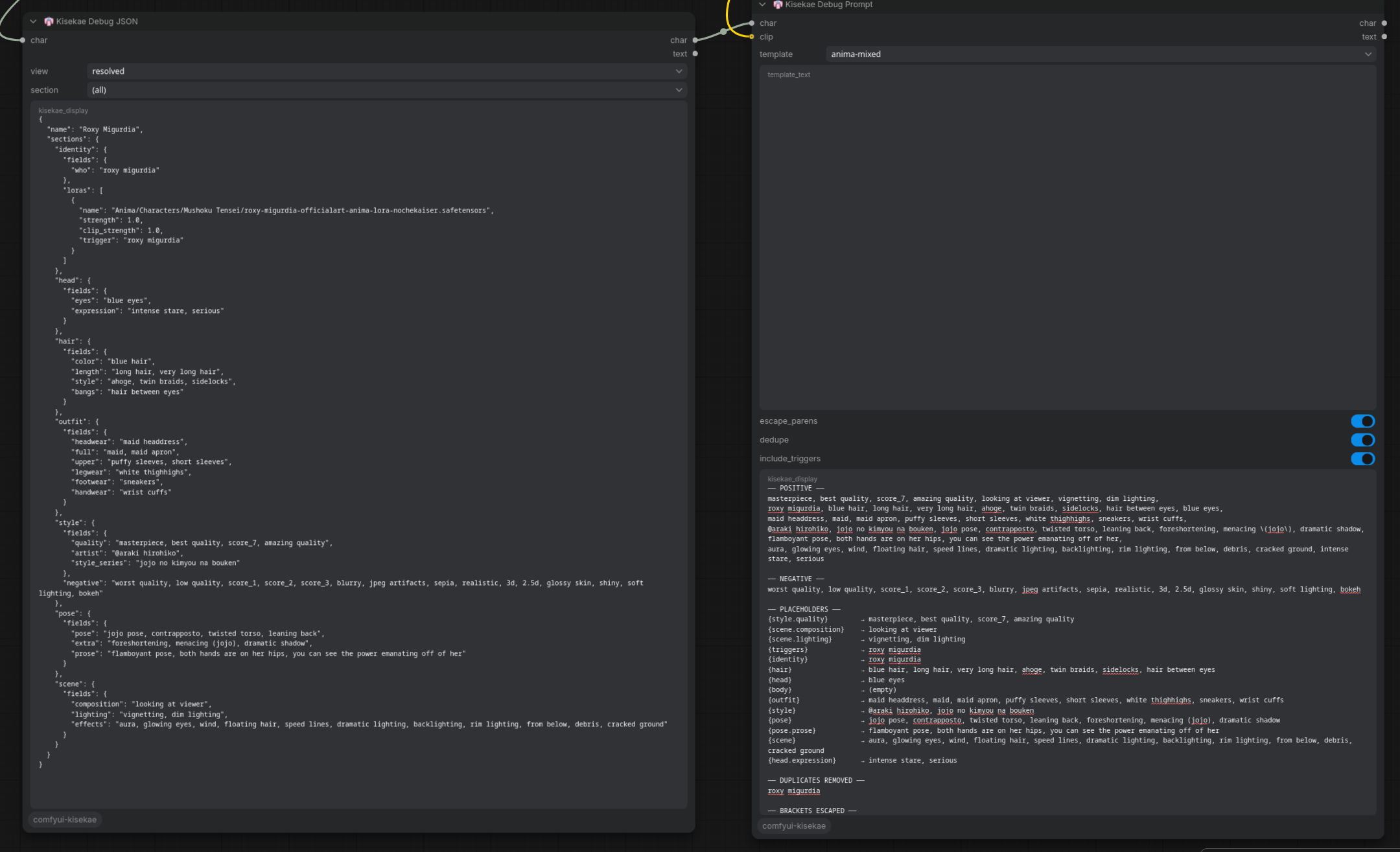
Both debug nodes pass the character through, so you can drop them into the middle of a chain to check the state at that point.
- Debug JSON →
traceanswers "why is this value here?" It lists each step, such asOutfit#12: section ← examples/outfits/maidoroutfit.upper cleared (hidden by outfit.full = dress). - Debug Prompt gives a rough token estimate. Connect your CLIP or text
encoder to its optional
clipinput for exact counts per encoder (e.g.clip_landclip_gwith 75-token chunks, orqwen3_06bfor Anima).
Development
The core in kisekae/ is plain Python with no ComfyUI imports. The tests use
only the standard library:
python -m unittest discover -s tests -t .
For a dev setup, symlink the repo into ComfyUI/custom_nodes/. Python changes
need a ComfyUI restart. Preset, vocab and template edits only need R.