
H3 OBVPM Director
Backend-agnostic two-pass scene directing and H3 Ref2VA prompt composition for ComfyUI, with optional OBVPM timeline integration
OBVPM Director
Direct the scene. Keep control of the prompt.
OBVPM Director adds a practical directing layer to MiniMax H3 Ref2VA in ComfyUI. Describe a scene in natural language, supply reference images, and develop it into a structured H3 prompt with recognizable characters, coherent environments, purposeful action, and shot-to-shot continuity.
The workflow is built for hands-on directing: inspect the visual analysis, refine the shot, edit the resulting prompt, and freeze an approved version for consistent video generations and Seed Hunt.
Quick start · Open the example workflow · Release notes
What you can do
- Direct in your own words. Describe gestures, intent, blocking, camera movement, dialogue, and atmosphere. The Director translates the direction into H3's structured prompt format.
- Use visual references. Build scenes around specific characters, locations, and objects, with automatic picture-role analysis and optional explicit assignments.
- Maintain continuity. Use OBVPM's Extend, Prepend, and Bridge context to keep identities, spaces, and unfolding action coherent between shots.
- Refine before generating. Review the analysis and validator feedback, then edit the final prompt directly.
- Freeze a good shot. Keep the analysis while trying another composer, or preserve the approved prompt across multiple seeds.
- Work with OBVPM Recipes. Save and restore a shot's literal generation prompt through a dedicated Recipe Prompt node, independently of the Director workspace.
The Director handles scene semantics, reference roles, dialogue, camera logic, continuity reasoning, and H3 prompt composition. OBVPM handles the timeline, generation, takes, editing, Recipes, Motion Context, and provenance. Your preferred compatible LLM nodes perform the two inference passes.
From direction to H3 prompt
Your Direction + Reference Pictures + optional OBVPM context
                         │
                Director Request Builder
                         │
             Generate #1 — visual analysis
                         │
                   Analysis Snapshot
                         │
                   Analysis → Compose
                         │
             Generate #2 — H3 composition
                         │
                   Response Validator
                         │
                Editable Shot Editor
                         │   Auto-copy / Apply
                         ▼
                Literal Recipe Prompt ──→ H3 / OBVPM generation
The first pass examines image references and scene intent. The second composes the H3 prompt from the analyzed scene. Both Generate stages use external LLM/VLM nodes; the Director supplies their instructions and validates the result.
A short direction, a complete scene
With reference images of a young man, his father, and their living room, a Direction can be as simple as:
A young man enters the room and joins his father sitting on the sofa,
saying "Hi dad, how are you doing?"
The Director associates the references with the people and location, develops blocking and camera language, and produces the six-section H3 prompt. Quoted user dialogue is preserved exactly. You can also explicitly ask the Director to write dialogue for a scene.
Open the result in H3 Director Shot Editor (obvpm), adjust anything you wish, and materialize the approved version. That prompt remains available for later seed trials and shot generation.
Quick start
1. Install the Director
Clone into ComfyUI's custom_nodes directory, keeping the folder name h3-prompt-composer:
cd /path/to/ComfyUI/custom_nodes
git clone https://github.com/Jinx138/obvpm-h3-director.git h3-prompt-composer
Restart ComfyUI and refresh your browser. The nodes appear under obvpm/director and use the (obvpm) suffix in their names.
Requirements: ComfyUI with Python 3.10+, a vision-capable Generate node for Pass #1, and a text Generate node for Pass #2. The Director uses the normal ComfyUI Python environment. OBVPM adds timeline continuity and Recipe integration when you use those features.
2. Load the example workflow
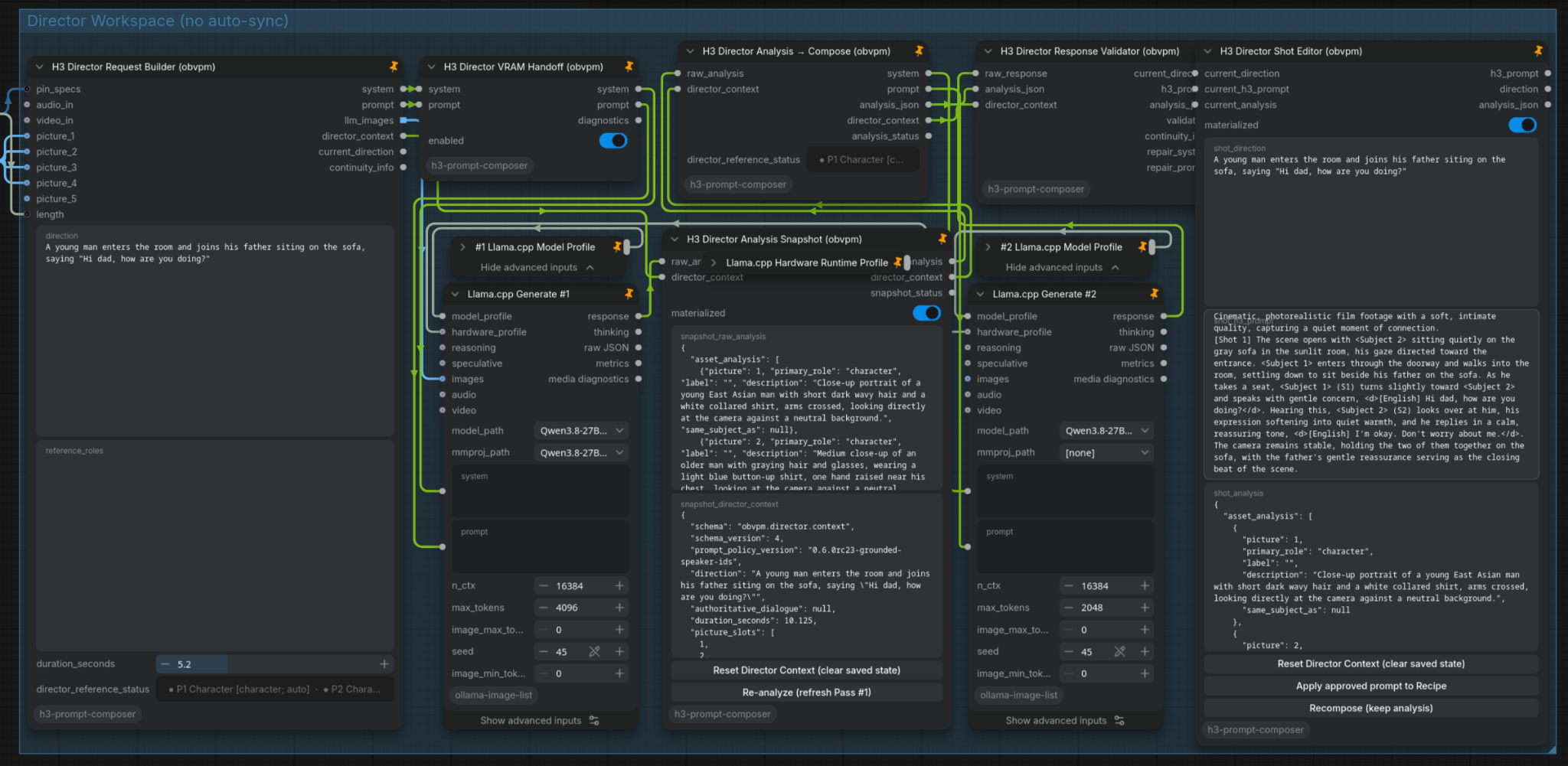
Open examples/H3-Director-Recipe-MVP.json in ComfyUI. The example demonstrates both analysis and composition stages, materialized shot editing, and the separate Recipe Prompt.
Its Generate nodes use the external ollama-image-list llama.cpp integration. Configure that integration, or connect your own compatible LLM nodes:
- Generate #1 — Vision: connect
system,prompt, and reference images. For a compatible llama.cpp VLM, select the correspondingmmprojprojector. - Generate #2 — Composition: connect
systemandpromptto your text model.
Choose your locally available models and hardware profiles. The two-pass interface also supports other compatible ComfyUI inference backends.
3. Add references and describe the shot
Connect your characters, environments, and objects to the Request Builder's Picture inputs. The current UI supports up to nine numbered Picture inputs, adding slots as needed. Write the action and desired camera behavior in Direction.
The vision pass resolves picture roles automatically. For precise or ambiguous assignments, use the optional reference_roles field:
Picture 1: Alex (character)
Picture 2: his father (character)
Picture 3: living room (location)
The accepted mappings appear in the reference status. Location references provide spatial and visual grounding while your Direction controls framing.
<img src="docs/images/obvpm-director-reference-pictures.png" alt="Character and location reference images connected through OBVPM Picture inputs" width="560">In standalone mode, set duration_seconds for the intended shot length. With OBVPM Timeline 0.5.2, connect its Unbundle length (24-fps frame count) to the Request Builder's optional length input. Leave the Timeline's own duration_seconds widget available to Regenerate.
4. Analyze, compose, and approve
Execute the Shot Editor output, review the visual analysis and prompt, and check the validator feedback. The Analysis Snapshot and Shot Editor can materialize their text into the saved ComfyUI workflow.
- Re-analyze: refresh visual/semantic analysis and compose a new prompt.
- Recompose (keep analysis): generate another prompt from the same saved analysis, for example with different Generate #2 settings.
- Materialized Shot Editor: reuse the approved prompt for seed comparisons and repeated generation.
- Reset Director Context: clear stored Director analysis and shot text when starting a different project from a copied workflow. The Recipe Prompt maintains its own saved text.
OBVPM Recipe integration
With OBVPM Timeline 0.5.2, a H3 Director Recipe Prompt (obvpm) node holds the literal H3 prompt associated with a planned or generated take. OBVPM can save and restore this prompt as you navigate the timeline, while the Director workspace remains available for working on the next shot.
<img src="docs/images/obvpm-director-recipe-prompt.png" alt="H3 Director Recipe Prompt in its dedicated restore group" width="420">The Recipe example arranges these responsibilities into two groups:
| ComfyUI group | Contents | Role |
|---|---|---|
| Director Workspace (no auto-sync) | Request Builder, both Generate passes, Analysis Snapshot, Validator, Shot Editor | Current shot development |
| Director Prompt [restore] | H3 Director Recipe Prompt (obvpm) | Shot-specific prompt restored by OBVPM |
Keep only the Recipe Prompt node inside a group whose title contains [restore]. Connect the Recipe Prompt's prompt output directly to the H3 conditioning prompt input in your OBVPM generation workflow. OBVPM can then capture the approved text with the queued take.
Preparing and generating a new shot
- Choose a new NEXT RUN. A fresh Extend, Prepend, or Bridge reservation—or the next Root after a newly appended Root take—prepares a new Recipe destination and releases the Director's analysis/shot freeze gates. Existing shot states remain available in their respective timeline records.
- Queue the Director. Run the two-pass Director branch and materialize the approved prompt in Shot Editor. For a fresh reservation with exactly one Recipe Prompt node and an empty Recipe field, the completed prompt is copied there automatically.
- Review the Recipe. Edit the literal text directly, or select Apply approved prompt to Recipe in Shot Editor to transfer a chosen version. Automatic transfer operates on an empty Recipe field; manual Apply lets you deliberately replace its contents.
- Queue H3 generation. Once the Recipe contains the desired text, run your H3/OBVPM generation workflow. OBVPM records the literal prompt with the queued take.
The two-stage queue sequence gives you an opportunity to approve the direction before video generation. For Seed Hunt, materialize a single prompt and keep its Recipe text fixed while trying different seeds.
Selecting historical clips restores their saved Recipe prompts through OBVPM while preserving the independent Director workspace for new creative work.
Continuity, dialogue, and viewpoint
Extend, Prepend, Bridge. The Director uses OBVPM's START boundary for Extend, TARGET boundary for Prepend, and both endpoints for Bridge. Boundary frames provide visual context; H3 Picture numbers continue to identify the explicit reference inputs. Stable people, settings, and spatial relationships carry forward as new action unfolds.
Dialogue authority. Exact lines supplied in Direction retain their wording and order. When you explicitly request new spoken lines, the Director can compose them. Speaker-attributed text such as Alex says: "..." helps preserve the correct voice assignment.
POV. The reserved viewer represents the first-person camera viewpoint. Hands, arms, and direct physical interaction can be described from that viewpoint. Camera distance and perspective follow your current Direction and established scene context.
Target references. target_perspective guides the composition toward a desired later viewpoint; end_keyframe represents a concrete final-frame anchor. The generation workflow determines the actual image-conditioning behavior.
Validation. The validator checks H3 structure, reference assignments, dialogue attribution, and continuity contracts. Its diagnostics help you catch inconsistencies before approving a shot. Visual quality and motion remain dependent on the generation model and settings.
Workflows and compatibility
- ComfyUI / Python: Python 3.10+ with suitable external vision and text Generate nodes.
- Example backend:
ollama-image-listllama.cpp with local model and hardware configuration; other compatible backends can be connected. - OBVPM integration: Recipe synchronization and timeline continuity were developed with OBVPM Timeline 0.5.2.
- Example workflows: H3 Director — Recipe MVP is the recommended starting point. The older Analysis / Freeze / Recompose example is retained as a reference for the original workflow layout.