
ComfyUI-TD
A custom node for ComfyUI designed to facilitate the real-time transmission of rendered images, videos, or 3D models to TouchDesigner.
Nodes (12)
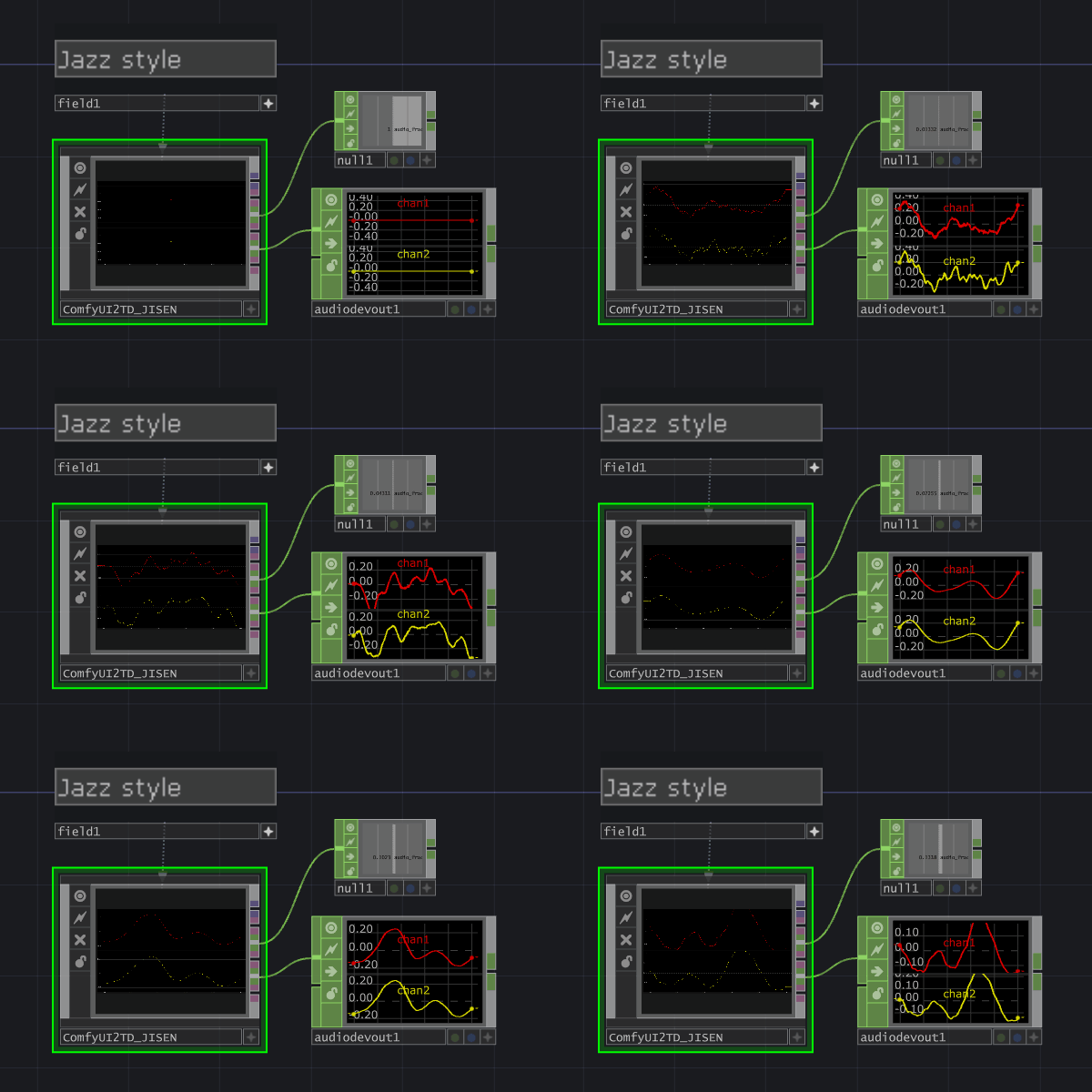
Ship audio out of ComfyUI into TouchDesigner without ever touching a file
Take a 3D-Pack mesh into TouchDesigner as a point cloud
Stream Gaussian Splats from ComfyUI into TouchDesigner as live point data
Stream Hunyuan3D models into TouchDesigner as point clouds
The node that makes ComfyUI and TouchDesigner feel like one program
The ComfyUI→TouchDesigner node for cloud GPUs and slow links
Send labeled image streams to TouchDesigner for layered compositing
The reverse bridge that feeds TouchDesigner content into ComfyUI
Send prompts, seeds, and metadata from ComfyUI to TouchDesigner
Tripo3D GLB models into TouchDesigner, no API key needed
Fast single-image 3D that lands in TouchDesigner as a point cloud
Replace Video Combine with VideotoTD and stream whole videos into TouchDesigner
ComfyUI-TD
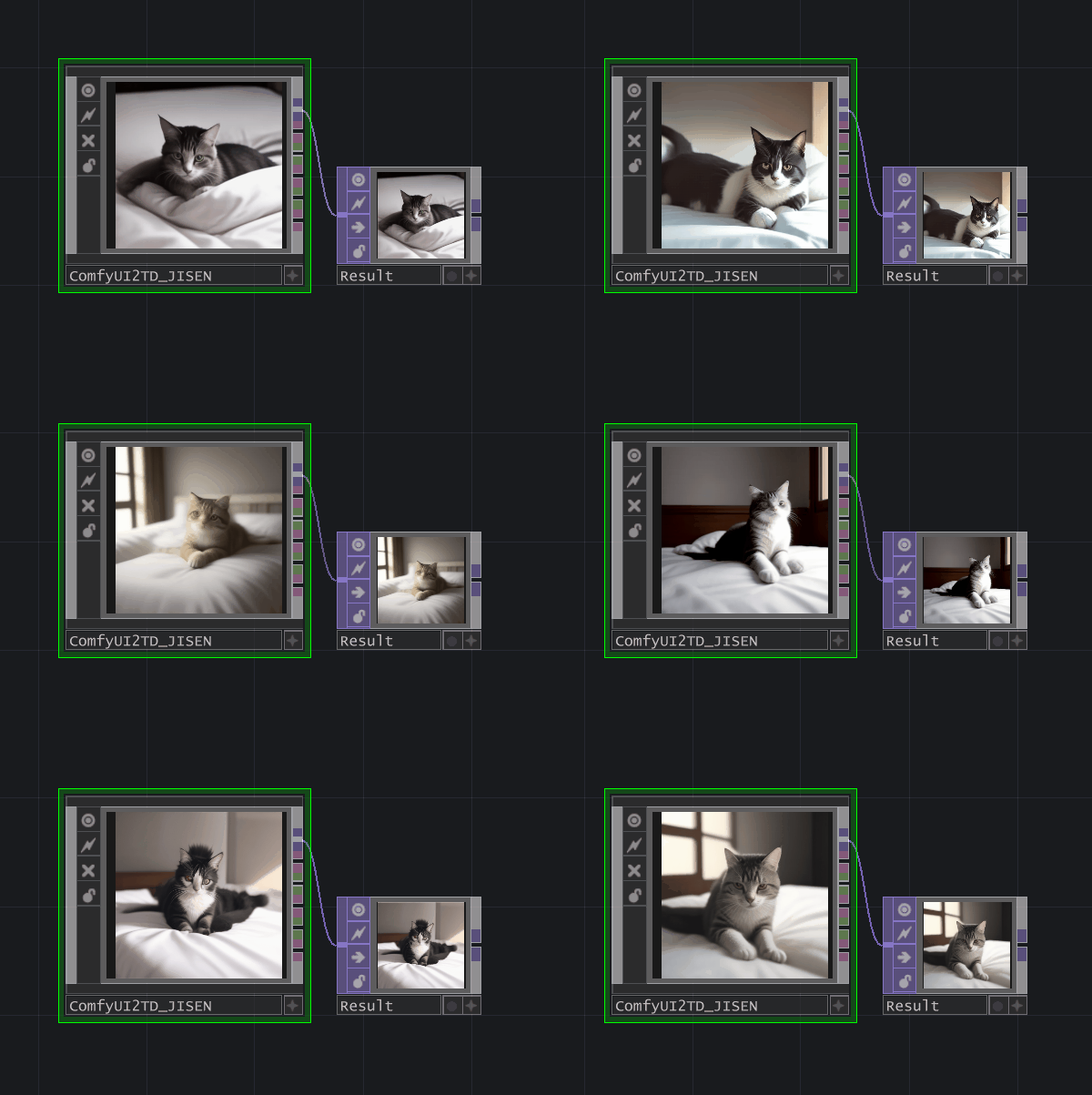
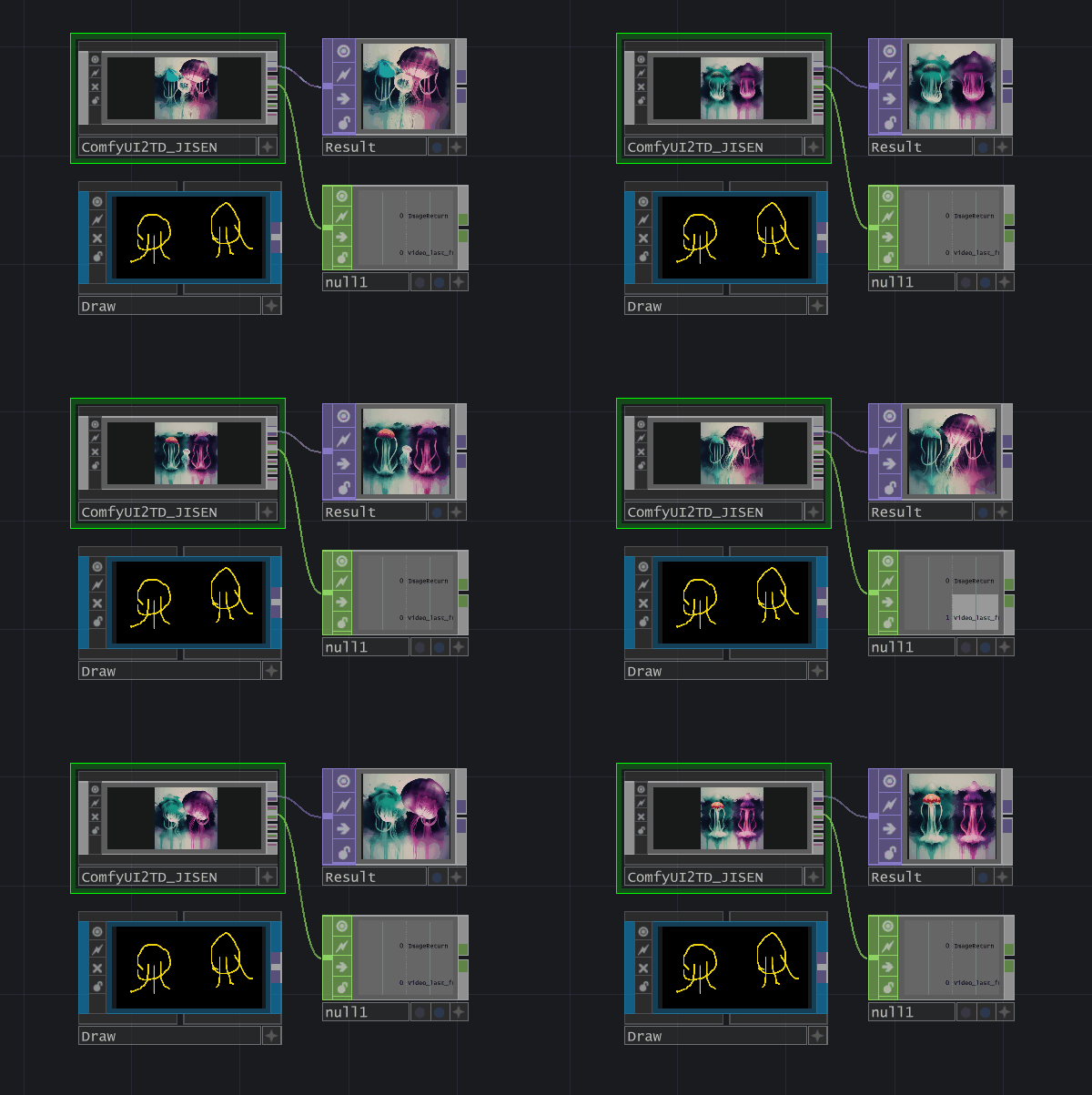
ComfyUI-TD is a ComfyUI to TouchDesigner custom node for real-time streaming of generated data.
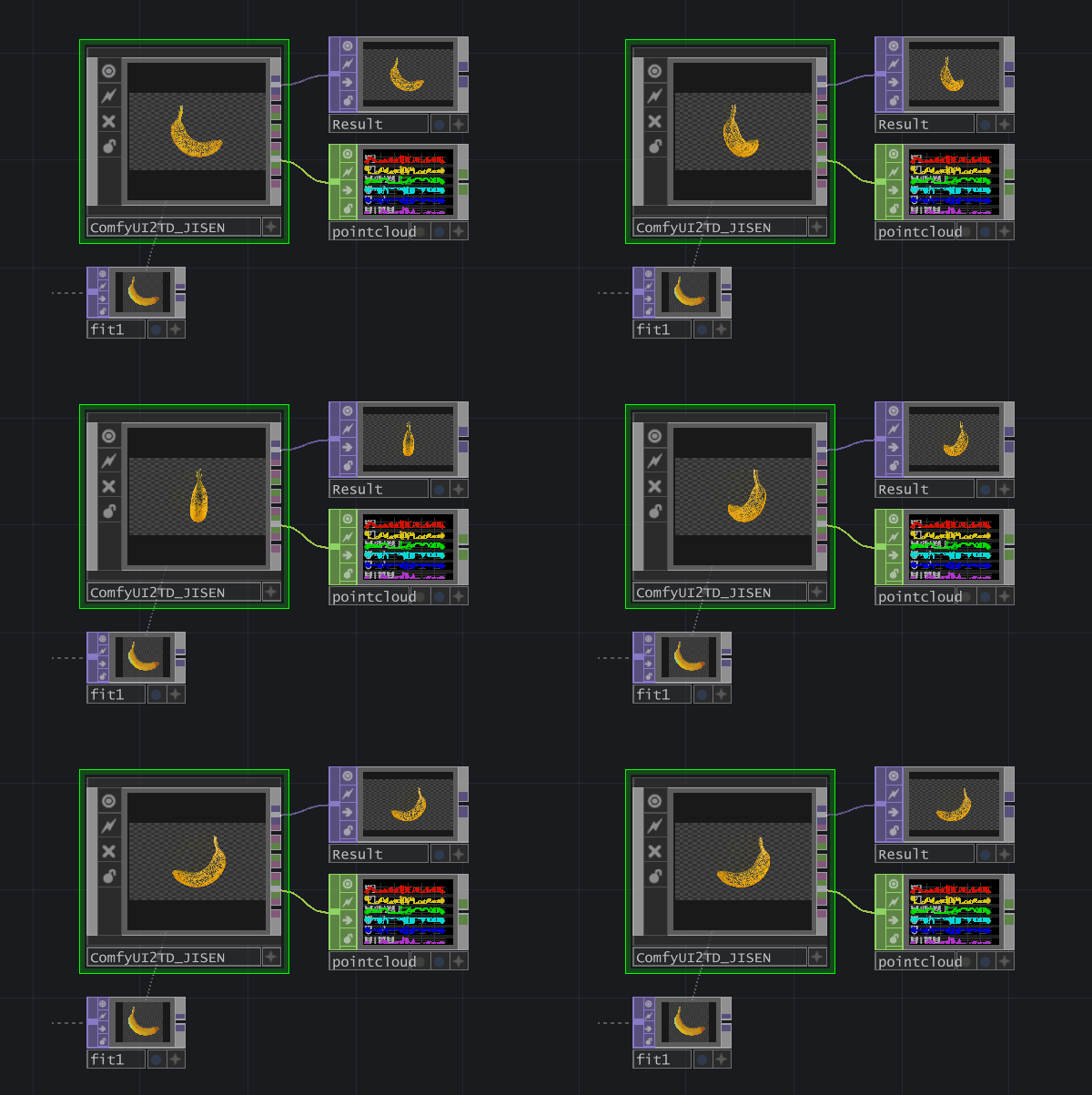
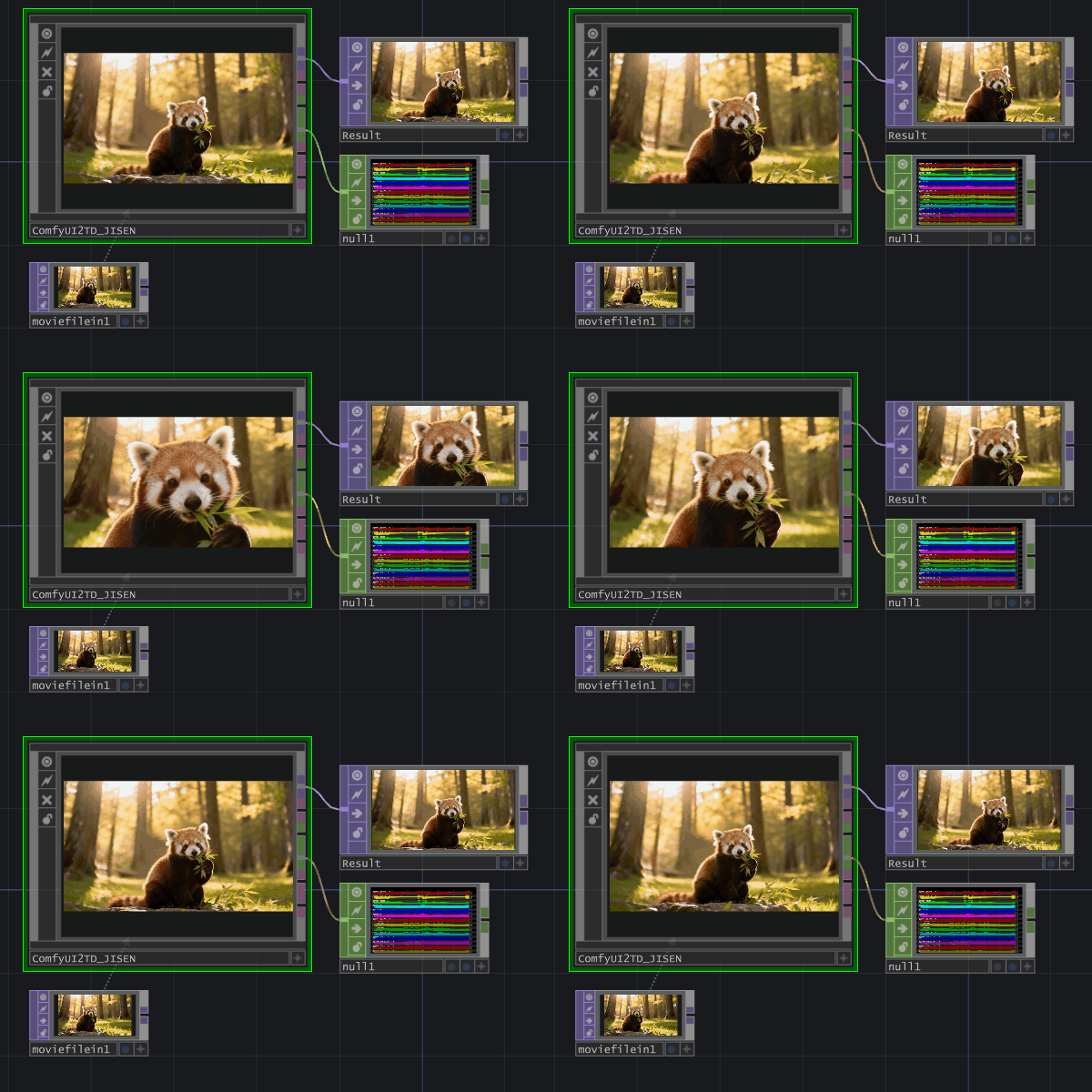
It supports sending images, videos, point clouds (traditional PLY / Gaussian Splatting PLY), and audio from ComfyUI into TouchDesigner.
- Chinese README: README_zh.md
|  |
|  |
|:-------------------------:|:-----------------------------------:|
|
|
|:-------------------------:|:-----------------------------------:|
|  |
|  |
|
|
|  |
|  |
|
🇨🇳 中文 README
User Notice
- Some nodes in ComfyUI-TD are ported and optimized based on ComfyUI-Tooling-Nodes.
- ComfyUI-TD must be used in conjunction with the ComfyUI2TD.tox component (the plugin has been uploaded to the
toxfolder). - Please ensure the ComfyUI2TD.tox component is updated to v_5.1.x or higher.
- This version features a complete code refactor, supporting video and 3D model (point cloud) data transmission.
- The WebSocket interface has been rewritten to effectively resolve issues where data (images) might not return properly when using cloud-based ComfyUI under poor network conditions.
- Starting from v_5.1.x, the ComfyUI2TD.tox component's preset workflows use ComfyUI-TD nodes and no longer rely on ComfyUI-Tooling-Nodes.
- The legacy ComfyUI2TD.tox component was developed based on the TDComfyUI project. Thanks to olegchomp!
- If you need to use cloud-based ComfyUI, you can choose Xiangongyun servers; the matching image is ready.
Instructions
Video Tutorials
Please watch the following videos in order (Videos are in Chinese):
- ComfyUI2TD_v 5.1 New Version Tutorial Must Watch (Bilibili)
- ComfyUI2TD Basic Tutorial (Bilibili)
- Cloud Deployment ComfyUI Xiangongyun Tutorial (Bilibili)
Installation
Method 1: Manager Installation
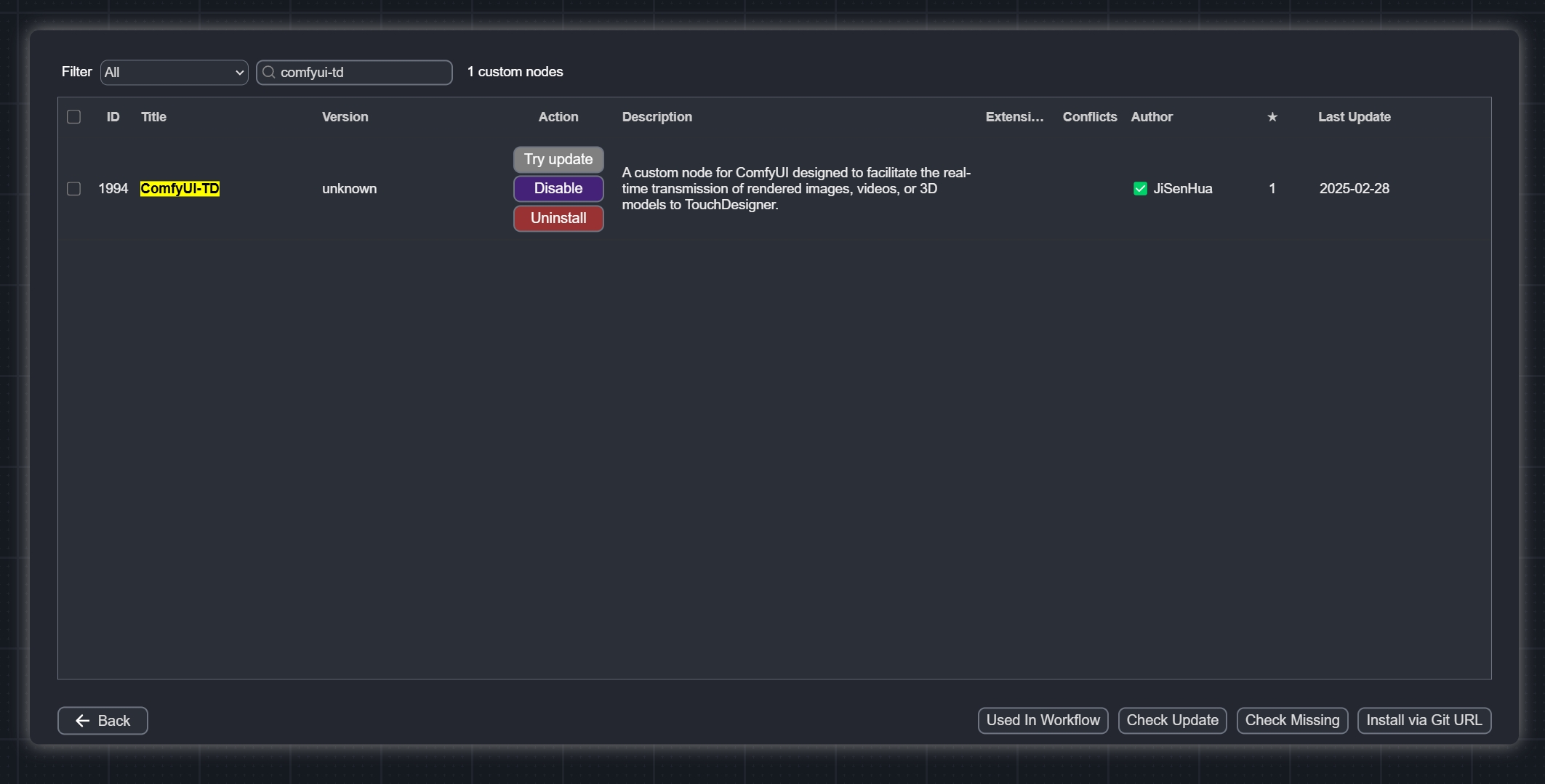
Use ComfyUI-Manager to search for ComfyUI-TD and install it directly.
Method 2: Manual Installation
Download and unzip this project into X:\ComfyUI_windows_portable\ComfyUI\custom_nodes.
Method 3: Git Clone
Install using the git command:
cd custom_nodes
git clone https://github.com/JiSenHua/ComfyUI-TD.git
Method 4: Injection Installation
In conjunction with the ComfyUI2TD.tox component, use the InjectFile function to automatically inject nodes into X:\ComfyUI_windows_portable\ComfyUI\custom_nodes.
Node Descriptions
| <img src="Image/Hy3DtoTD.png" width="1000"> |
|:----------------------------------------------------------------------------------------------------------------------------------------------------------------------------------------------------------------------------------------------------------------------------------------------------------------------------------------------------------------------------------------------------------------------------------------------------------------------------------------------------------------------------------------------------------------------------------------------------------------------------------------------------------------------------------------------------------------------------------------------------------------------------------------------------------------------------------------------------------------------------------------------------------------------------------------------------------------------------------------------------------------------------------------------------------------------------------------------------- |
| Hy3DtoTD |
| - This node supports converting GLB models generated by Hunyuan3D_V2 into point cloud data and returning it to TD for parsing, generating the corresponding CHOP component.<br>- Requires ComfyUI-Hunyuan3DWrapper node.<br>- If you encounter difficulties installing, consider using the cloud Xiangongyun image.<br>- The ComfyUI2TD.tox preset workflow Hunyuan3DV2_PointCloud provides a basic usage example for this node; the corresponding .js workflow file is in the workflow folder.<br>- The latest ComfyUI-Hunyuan3DWrapper has changed all model workflows to trimesh.<br>- It is recommended to install ComfyUI_essentials to avoid errors when running preset workflows.<br>- broadcast parameter (default off): When enabled, generated point cloud data will be broadcast to all connected WebSocket clients. |
| <img src="Image/Tripo3DtoTD.png" width="1000"> |
|:----------------------------------------------------------------------------------------------------------------------------------------------------------------------------------------------------------------------------------------------------------------------------------------------------------------------------------------------------------------------------------------------------------------------------------------------------------------------------------------------------------------------------------------------------------------------------------------------------------------------------------------------------------------------- |
| Tripo3DtoTD |
| - This node supports converting GLB models generated by Tripo3D into point cloud data and returning it to TD for parsing, generating the corresponding CHOP component.<br>- Requires ComfyUI-Tripo node.<br>- API Update: Now supports calling Tripo services directly via the official ComfyUI interface. You NO LONGER need to register on the Tripo website or apply for an API Key separately. The legacy API configuration method is deprecated.<br>- broadcast parameter (default off): When enabled, generated point cloud data will be broadcast to all connected WebSocket clients. |
| <img src="Image/TripoSRtoTD.png" width="1000"> |
|:------------------------------------------------------------------------------------------------------------------------------------------------------------------------------------------------------------------------------------------------------------------------------------------------------------------------------------------------------------------------------------------------------------------------- |
| TripoSRtoTD |
| - This node supports converting GLB models generated by TripoSR into point cloud data and returning it to TD for parsing, generating the corresponding CHOP component.<br>- Requires ComfyUI-Flowty-TripoSR node.<br>- broadcast parameter (default off): When enabled, generated point cloud data will be broadcast to all connected WebSocket clients. |
| <img src="Image/Comfy3DPacktoTD.png" width="1000"> |
|:------------------------------------------------------------------------------------------------------------------------------------------------------------------------------------------------------------------------------------------------------------------------------------------------------------------------------------------------------------------------------------------------------------------------------------------------------------------------------------------------------------------------------------------------------------------------------------------------------------------------------------------------------------------------------------------------------------------------------------------------------------------------------------------------------------------------------------------------------------------------------------------------------------------------------------------------------------------------------------------------------------------------------------------------------------------------------------------------------------------------------------------------------------------------------- |
| Comfy3DPacktoTD |
| - This node supports converting GLB models generated by 3DPack into point cloud data and returning it to TD for parsing, generating the corresponding CHOP component.<br>- Requires ComfyUI-3D-Pack node.<br>- If you encounter difficulties installing, consider using the cloud Xiangongyun image.<br>- The ComfyUI2TD.tox preset workflow 3DPack_xxx_PointCloud provides a basic usage example for this node; the corresponding .js workflow file is in the workflow folder.<br>- Hunyuan3D_V2 in 3DPack and Hunyuan3DWrapper are not interchangeable; please ensure you use the corresponding transmission node.<br>- broadcast parameter (default off): When enabled, generated point cloud data will be broadcast to all connected WebSocket clients.<br>- Note: Currently, the Xiangongyun cloud image has only been tested with TRELLIS, Hunyuan3D_V2, TripoSR, and StableFast3D. Other 3D models have not been verified. Please report any issues in the Issues section. |
| <img title="" src="Image/3DGStoTD.png" alt="" width="1000"> |
|:----------------------------------------------------------------------------------------------------------------------------------------------------------------------------------------------------------------------------------------------------------------------------------------------------------------------------------------------------------------------------------------------------------------------------------------------------------------------------------------------------------------------------------------------------------------------------------------------------------------------------------------------------------------------------------------------------------------------------------------------------------------------------------------------------------------------------------------------------------------------------------------------------------------------------------------------------------------------------------------------------------------------------------------------------------------------------------------------------------------------------------------------------------------------------------------------------------------------------- |
| 3DGStoTD |
| - This node supports returning PLY model data generated by 3DGS (Gaussian Splatting) to TD for parsing, thereby generating the corresponding CHOP components.<br/>- Please ensure that the ComfyUI2TD.tox component has been updated to v_5.3.x or later.<br/>- To use this node, you must install the ComfyUI-Sharp node.<br/>- If you encounter difficulties during installation, you can choose to use the cloud-based Xiangongyun image.<br/>- The 3DGS Gaussian Splatting preset workflow in ComfyUI2TD.tox provides a basic usage example for this node. The corresponding .js workflow file has been uploaded to the workflow folder.<br/>- broadcast parameter (default off): When enabled, generated video data will be broadcast to all connected WebSocket clients.<br/>- The preview component for Gaussian Splatting in ComfyUI2TD.tox was created using Tim Gerritsen’s work; special thanks. The plugin can be downloaded via this link. |
| <img src="Image/VideotoTD.png" width="1000"> |
|:--------------------------------------------------------------------------------------------------------------------------------------------------------------------------------------------------------------------------------------------------------------------------------------------------------------------------------------------------------------------------------------------------------------------------------------------------------------------------------------------------------------------------------------------------------------------------------------------------------------------------------------------------------------------------------------------------------------------------------------------------------------------------------- |
| VideotoTD |
| - This node supports converting video to data and returning it to TD for parsing.<br>- Replace the Video Combine 🎥🅥🅗🅢 node from ComfyUI-VideoHelperSuite in your workflow with this node.<br>- frame_rate: Affects the synthesis frame rate of the video; 8 is recommended.<br>- quality: Controls video compression quality; 75 is recommended for a good balance between data size and image quality.<br>- Data will be parsed by ComfyUI2TD.tox, and an .MP4 file will be generated and saved in the VideoOutput folder in the local root directory.<br>- broadcast parameter (default off): When enabled, generated video data will be broadcast to all connected WebSocket clients. |
| <img src="Image/ImagetoTD.png" width="1000"> |
|:------------------------------------------------------------------------------------------------------------------------------------------------------------------------------------------------------------------------------------------------------------------------------------------------------------------------------------------------------------------------------------------------------------------------------------------------------------------------------------------------------------------------------------------------------------------------------------------------------------ |
| ImagetoTD |
| - Secondary development based on ComfyUI-Tooling-Nodes Send Image (WebSocket) node.<br>- This node supports returning images generated by ComfyUI to TD for parsing, generating the corresponding TOP component.<br>- broadcast parameter (default off): When enabled, generated image data will be broadcast to all connected WebSocket clients.<br>- Starting from v_5.1.x, ComfyUI2TD.tox preset workflows use ComfyUI-TD nodes instead of ComfyUI-Tooling-Nodes. |
| <img src="Image/AudiotoTD.png" width="1000"> |
|:------------------------------------------------------------------------------------------------------------------------------------------------------------------------------------------------------------------------------------------------------------------------------------------------------------------------------------------------------------------------------------------------------------------------------------ |
| AudiotoTD |
| - This node supports returning audio generated by ComfyUI to TD for parsing, generating the corresponding CHOP component.<br>- format: Supports selecting output format as wav or mp3.<br>- bitrate_kbps: Sets the audio bitrate to adjust output audio quality and size.<br>- broadcast parameter (default off): When enabled, generated audio data will be broadcast to all connected WebSocket clients. |
| <img src="Image/ImagetoTD(JPEG).png" width="1000"> |
|:------------------------------------------------------------------------------------------------------------------------------------------------------------------------------------------------------------------------------------------------------------------------------------------------------------------------------------------------------------------------------------------------------------------------------------------------------------------------------------------------------------------------------------------------------------------------------------------------------------------------------------------------------------------------------------------------------------------------------------------------------------------------------------------------------------- |
| ImagetoTD(JPEG) |
| - JPEG Transmission Mode: This node encodes the image generated by ComfyUI into JPEG compressed format and returns it to TD via WebSocket for parsing into a TOP component.<br>- Performance & Scenario: Compared to the standard ImageToTD method, JPEG format significantly reduces transmitted data size. This speeds up transmission and parsing, making it especially suitable for Cloud ComfyUI users to reduce bandwidth requirements.<br>- Quality: Due to compression, image quality will be lower than ImageToTD. Please balance according to actual needs.<br>- quality: Controls image compression quality; 85 is recommended.<br>- broadcast parameter (default off): When enabled, generated image data will be broadcast to all connected WebSocket clients. |
| <img src="Image/LoadTDImage.png" width="1000"> | |:----------------------------------------------------------------------------------------------------------------------------------------------------------------------------------------------------------------------------------------------------------------------------------------------------------------------------------------------------------------------------------------------------------------------------------- | | LoadTDImage | | - Secondary development based on ComfyUI-Tooling-Nodes Load Image (Base64) node.<br>- This node supports using TOP components sent from TD as image input sources for ComfyUI.<br>- Starting from v_5.1.x, ComfyUI2TD.tox preset workflows use ComfyUI-TD nodes instead of ComfyUI-Tooling-Nodes. |