
GENKAI Nodes
PromptSync video tools, MiniMax H3 media references, prompt utilities, and video comparison nodes for ComfyUI.
Nodes (15)
Stop retyping 1.5 into six boxes
Walk a folder of clips, one file per run
A form editor for a prompt format that's basically a form
Crop and pad in a panel instead of doing arithmetic in your head
Nine reference slots instead of nine Load Image nodes
A thumbnail wall for your reference images, no wires attached
Stop re-typing the same style block into five workflows
The separator field is the whole trick
18 sockets and one rule you must not break
A slot machine that also fixes ComfyUI's seed trap
Settle which seed was actually better
Two clips, one wire, one shared prompt
Did the model actually hit your 2.5-second beat?
The reviewer that also writes the file
Change the aspect ratio without touching a single pixel of the original
PromptSync
https://github.com/user-attachments/assets/b0ac1e71-b139-49ce-98a5-c3e015adcd86
Watch a generated video alongside its timed prompt, with the current scene highlighted. See which actions the model followed, skipped or shifted in time.
<details> <summary>Description, features and settings</summary>Watch a generated video alongside its original timed prompt. Check whether actions, camera cuts, and dialogue happen at the intended moments.
- Left: video player, clickable timeline markers, and an audio waveform.
- Right: the original prompt, preserving its order, spacing, and line breaks. Markdown remains part of the original text.
- The current timed section is highlighted; general camera, style, lighting, and sound directions use a separate color treatment.
- Choose a reading style from Style beside Auto-scroll. The selection is saved with the workflow and can be changed without restarting playback.
- Optional auto-scroll follows playback.
- Click a time marker or the waveform to seek through the video.
- Drag the node's bottom-right corner to make more room for the player and prompt.
Supported timing syntax and prompt examples
Reading styles
Available in both PromptSync versions:
| Style | Appearance | | --- | --- | | Spotlight · Serif (default) | Full-width warm highlight for the active scene, serif text, and a timestamp in the left margin. | | Cards · Sans | Separate scene cards, a sans-serif font, and a gold border around the active card. | | Script · Mono | Compact monospaced text with a blue active-scene background. | | Classic · Inline | Original serif layout with gold highlighting behind active text lines. |
Styles change the presentation, keeping the original prompt text and timing intact.
Connections
Connect text to prompt and one video source:
| Input | Source | Behavior |
| --- | --- | --- |
| video | A VIDEO output, such as Load Video | Creates a temporary MP4 preview, using the source video's audio. |
| images | An IMAGE frame batch | Creates a temporary MP4 at the selected fps; connect audio to include sound. |
| filenames | VHS Video Combine's Filenames output | Reuses the saved video without encoding it again. |
fps only applies to images. In this version, the separate audio input is used when assembling image frames; video and filenames play the audio already present in the video.
The waveform is decoded locally from the actual audio. A missing audio track and a silent track are labeled separately. Temporary previews may become unavailable after the temp directory is cleared.
PromptSync + Save
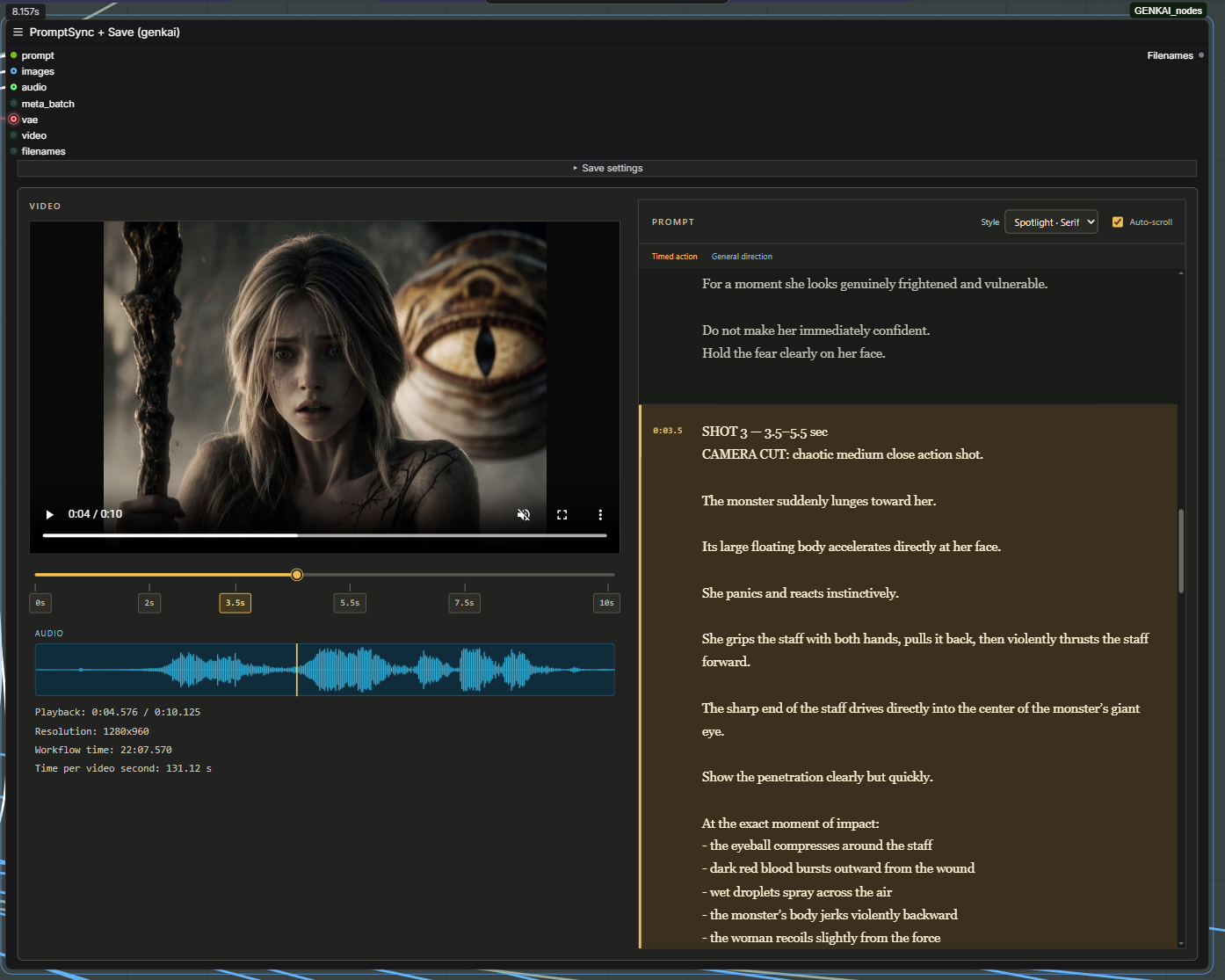
Preview your video with a synchronized prompt, then save it with audio and optional workflow metadata. Includes an audio waveform and workflow execution statistics.
<details> <summary>Description, features and settings</summary>A separate output node that combines the PromptSync viewer with video saving through VHS Video Combine.
Includes the same four reading styles, auto-scroll, and audio waveform, plus Obsidian: a near-black theme with graphite controls, cool scene highlights and a sans-serif font. See supported timing syntax and examples.
Connect prompt and one source: images, video, or filenames. For latents on images, also connect vae. The audio input adds sound to image frames or overrides the source video's audio.
Each completed save keeps one final MP4. Metadata is embedded when save_metadata is enabled (the default): no separate metadata PNG or silent intermediate remains alongside the result. If neither the source nor the audio input provides sound, the result has no audio track.
The Filenames output is compatible with VHS_FILENAMES and contains only the final video's path. Previously saved results are not deleted.
Playback and workflow statistics
- Collapsible Save settings: expand to adjust encoding and playback options, then hide them to give the viewer more room. The open/closed state is saved with the workflow.
- Autoplay and repeat: a newly received video starts automatically. Repeat preview → Loop is the default and repeats until you pause it; choose Once for a single playback. This does not add repetitions to the saved file.
- Remembered volume: starts at 25%. Your selected level persists between generations and is saved with the workflow.
- Sound only on hover: the default Hover mode enables sound over the video preview. Choose Always to keep sound on away from the preview. This setting affects playback only. Browsers may require an initial interaction before allowing audible autoplay.
- Labeled details below the waveform: playback position and duration, video resolution, time until the video reaches this node, and time per second of video, in a larger, left-aligned font.
The built-in timer measures from ComfyUI's execution start until the finished video reaches this node, including video saving but excluding queue waiting time and any later nodes. Time per video second = video ready time ÷ video duration. It measures the current run, so cached work can make the result faster; it does not isolate the model's generation time. Keep the interface connected during the run to capture the timing. Results are retained when you save the workflow; older previews without a recorded measurement show a dash. No separate timer node or extra timer package is required.
Save settings
Open Save settings above the viewer to reveal these controls:
| Setting | Purpose |
| --- | --- |
| frame_rate | Output FPS. Match an existing video's original FPS to preserve its speed and prompt timing. |
| loop_count | Additional repetitions in the saved file. 0: no extra repeat; 1: play the sequence twice. |
| filename_prefix | Filename and subfolder relative to output or temp. Date tokens such as GENKAI/%date:yyyy-MM-dd%/%date:hhmmss% work when queued from the ComfyUI interface. |
| format | MP4 with H.264 or H.265. H.264 is preferred for browser playback compatibility. |
| pix_fmt | yuv420p or yuv420p10le; supported combinations depend on the codec and FFmpeg build. |
| crf | Compression level. Lower values mean higher quality and larger files. Default: 19. |
| save_metadata | Enabled by default; can be switched off. Embeds the available workflow, generation parameters, and original timed prompt when enabled. |
| trim_to_audio | Trims the video to audio using VHS. |
| pingpong | Adds reversed frames after the forward sequence in the saved video (boomerang). Audio is not reversed. |
| save_output | true: save in output; false: save in temp. |
| Sound only on hover | Preview sound: Hover (default) or Always. |
| Repeat preview | Preview playback: Loop (default) or Once. |
When metadata saving is enabled, the original timed prompt is stored as genkai_timed_prompt metadata. Existing videos are decoded and encoded again when saved. Looping and pingpong change the duration without automatically rewriting the prompt's timestamps.
VHS Batch Manager
The meta_batch input supports processing image/latent batches in parts. Set loop_count=0 and pingpong=false.
Automatic requeue requires support in VHS. In VHS versions where requeue_workflow in videohelpersuite/utils.py only counts VHS_VideoCombine output nodes, add GenkaiVideoPromptViewerSave to that list. This package does not patch VHS automatically. Ordinary saves without meta_batch do not need this change. Check compatibility again after updating VHS.
Video Compare Loader + PromptSync Video Compare
https://github.com/user-attachments/assets/1c1792dc-1597-48b5-816c-4c7cc20ec643
Compare two videos in sync: stacked one above the other or overlaid with a draggable vertical divider. Add a shared timed prompt and control each video’s sound independently.
<details> <summary>Description, features and settings</summary>Compare two videos generated from the same prompt: different seeds, models, settings, or an original and an upscaled version. Video Compare Loader sends both videos and an optional shared prompt to PromptSync Video Compare through one connection.
Two comparison modes
- Stacked A / B: the videos play one above the other.
- Wipe A / B: the videos overlap, with a vertical divider you can drag left and right to compare the same area in each version.
Both modes use synchronized playback, pause, seeking and optional looping. Switching modes keeps the current playback position. If the videos have different lengths, the shorter one holds its last frame until the longer one ends. Videos retain their aspect ratios.
Loader and shared prompt
- Load or drag a video into each of the two slots and give the variants readable names.
- Enter the common timed prompt in PROMPT · OPTIONAL, below the videos. The field grows up to 12 lines, then scrolls internally.
- Click + Add PromptSync Video Compare to create and connect the comparison node automatically.
- Run the workflow and press Play. The comparison node has a single videos input carrying both videos and the prompt.
- A nonempty prompt appears on the right, with the current timed scene highlighted and optional auto-scroll. Leave the prompt empty to give the videos the full panel width.
Timeline, audio and appearance
- A PromptSync-style slider and time markers let you seek both videos together. Markers sit at their corresponding times, with the active scene highlighted.
- Separate AUDIO A and AUDIO B waveforms share the same time scale. Click or drag either waveform to seek; both playheads follow playback. Waveforms remain visible when sound is muted.
- Enable each video's sound independently and adjust its volume under Audio tracks. Both start muted, with volume set to 25%. A missing audio track is labeled.
- Choose Obsidian or Gold, and resize the node to make room for the videos and prompt. Playback loops by default; turn off Loop for a single pass.
- Names, prompt, comparison mode, divider position, theme and audio settings are saved with the workflow.
Both nodes are in GENKAI/Video. Use browser-compatible files, such as MP4 with H.264 video and AAC audio. Uploaded files remain local to your ComfyUI installation and must be available when reopening the workflow.
Example workflow · More details · Supported timing syntax
</details>H3 Media Loader + H3 Reference Splitter
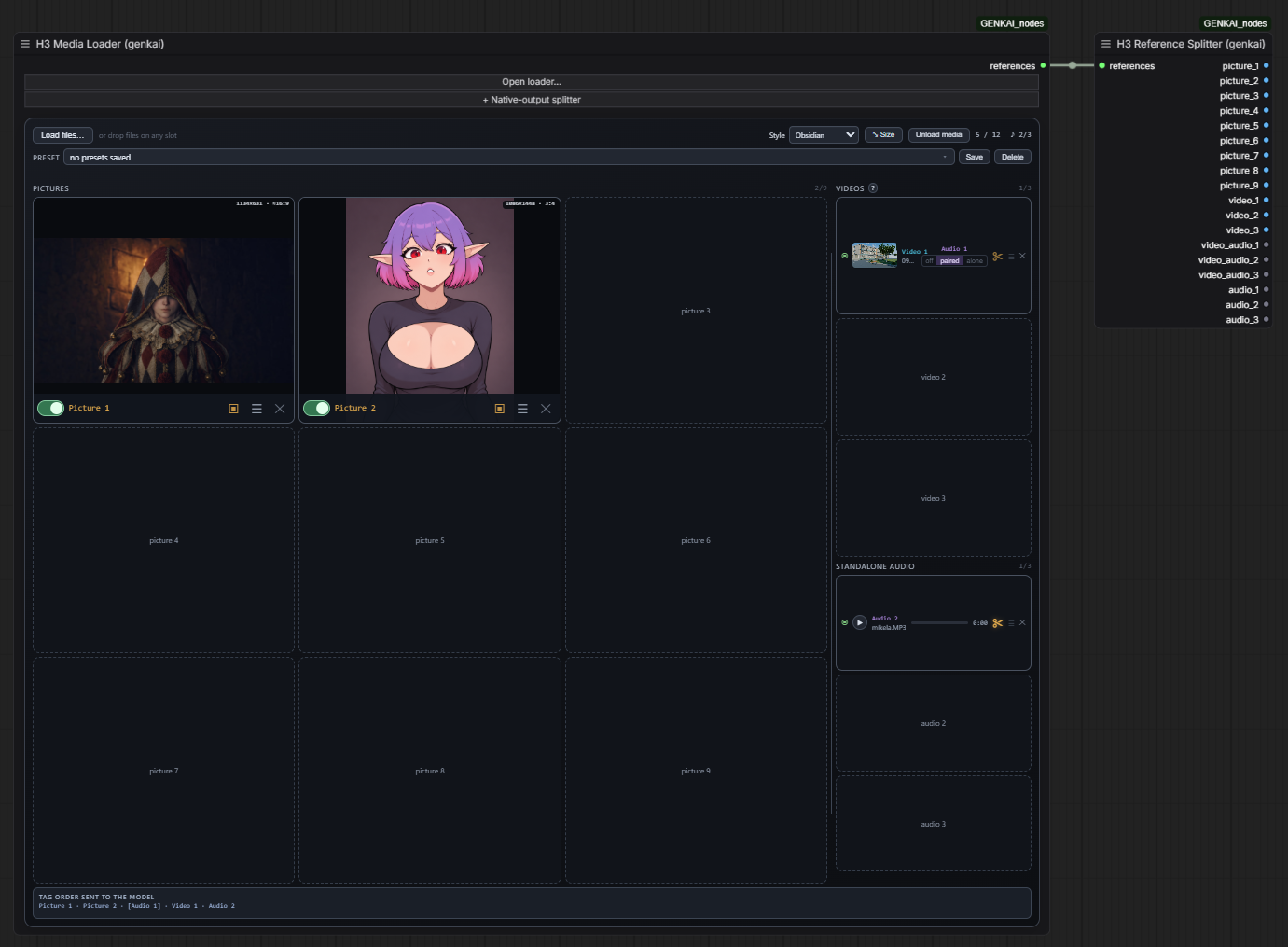
Organize images, videos and audio references in one panel, then pass them to your workflow through separate outputs. Includes media editing, drag-and-drop ordering and saved presets.
<details> <summary>Description, features and settings</summary>Keep your image, video and audio references together in one panel. Connect H3 Media Loader to H3 Reference Splitter with a single link to use the media as separate outputs in your workflow.
- Nine image slots, three video slots and three standalone audio slots, with previews and individual enable switches.
- Load files through the file picker or drag-and-drop. Hover over a slot and press Ctrl+V to paste an image.
- Drag references between slots: an occupied slot swaps with the source; an empty slot receives the reference and leaves its previous position empty. Moving media does not change its data type.
- Crop, rotate or mirror pictures; trim video/audio, capture frames and extract audio. Video sound can be off, paired with the video or used separately.
- Open a video clip's edit window and click Download MP4 to export its current trim, crop, rotation, mirror and size at 24 FPS. Audio is included by default when the source has a soundtrack; uncheck it for a silent export. The original stays unchanged, and a copy is also saved in
ComfyUI/output/genkai_h3_exports. - Save named media presets and restore reference sets later.
- Choose Original, Gold (default), Obsidian, Light Studio or High Contrast. Large image switches and aligned action buttons make the slots easier to use.
- Drag the divider to give either column more space. Resize contents with node is enabled by default in Size, so the panel follows the node's size.
- Click + Native-output splitter to add and connect the second node automatically.
The loader outputs an H3_REFS bundle. The splitter provides picture_1–picture_9 and video_1–video_3 as IMAGE data, plus video_audio_1–video_audio_3 and audio_1–audio_3 as AUDIO. Disabled references are skipped; references of each type follow the visual slot order. The original H3 reference/audio limits still apply.
Based on the MIT-licensed media nodes by Adudeguyman, with GENKAI interface additions. All required loader and splitter code is included in this pack; the original pack does not need to be installed.
Example workflow · More details
</details>H3 Prompt Studio
Write long MiniMax H3 prompts with automatic visual sections, timing markers and highlighted references. Connect H3 Media Loader to see thumbnails for the pictures and videos actually mentioned in the text; the output is an ordinary STRING prompt.
H3 Prompt Studio (genkai) automatically recognizes category headings such as AUDIO and REFERENCE USAGE, H3 section names, shot/time lines, <Picture N> / <Video N> / <Audio N> labels, and film terms such as HARD CUT and RACK FOCUS. It changes only their presentation; the saved prompt and text output remain plain text.
- Connect the optional references input directly to H3 Media Loader. The editor follows the loader's enabled slot order, shows used image/video previews in its sidebar, and marks references that are no longer active. This authoring link does not require decoding media when only the prompt text is executed.
- Use the Sections and References menus to insert headings and the loader's current reference labels. The outline jumps to recognized headings and timed shots. T2VA, I2VA, FL2VA, L2VA and Ref2VA templates are available; section diagnostics are optional in Free mode.
- Hover over highlighted editing/camera terms for short explanations. Choose Russian or English under Settings; the selected language changes hints, not the prompt text.
- ↶ / ↷ undo and redo prompt edits;
Ctrl+Z,Ctrl+YandCtrl+Shift+Zwork in the editor too. Timed shot lines use a narrow marker instead of a solid highlight across the whole paragraph. - Choose Obsidian, Filmstrip, Signal Lab or Screenplay. The four styles vary the treatment of section bands, timing and the editor itself. Rich highlighting can be switched off while retaining the same text.
- Rich highlighting remains visible while editing. The decorations and caret share one editable surface, so clicking, selecting and deleting use the same character positions.
- Prompt text, style, mode, hint language and font size are saved with the workflow. Resize the node to give the editor and reference sidebar more room.
Find the node under GENKAI/Text. It is implemented in this pack and does not depend on H3 Prompt IDE.
</details>Media Folder
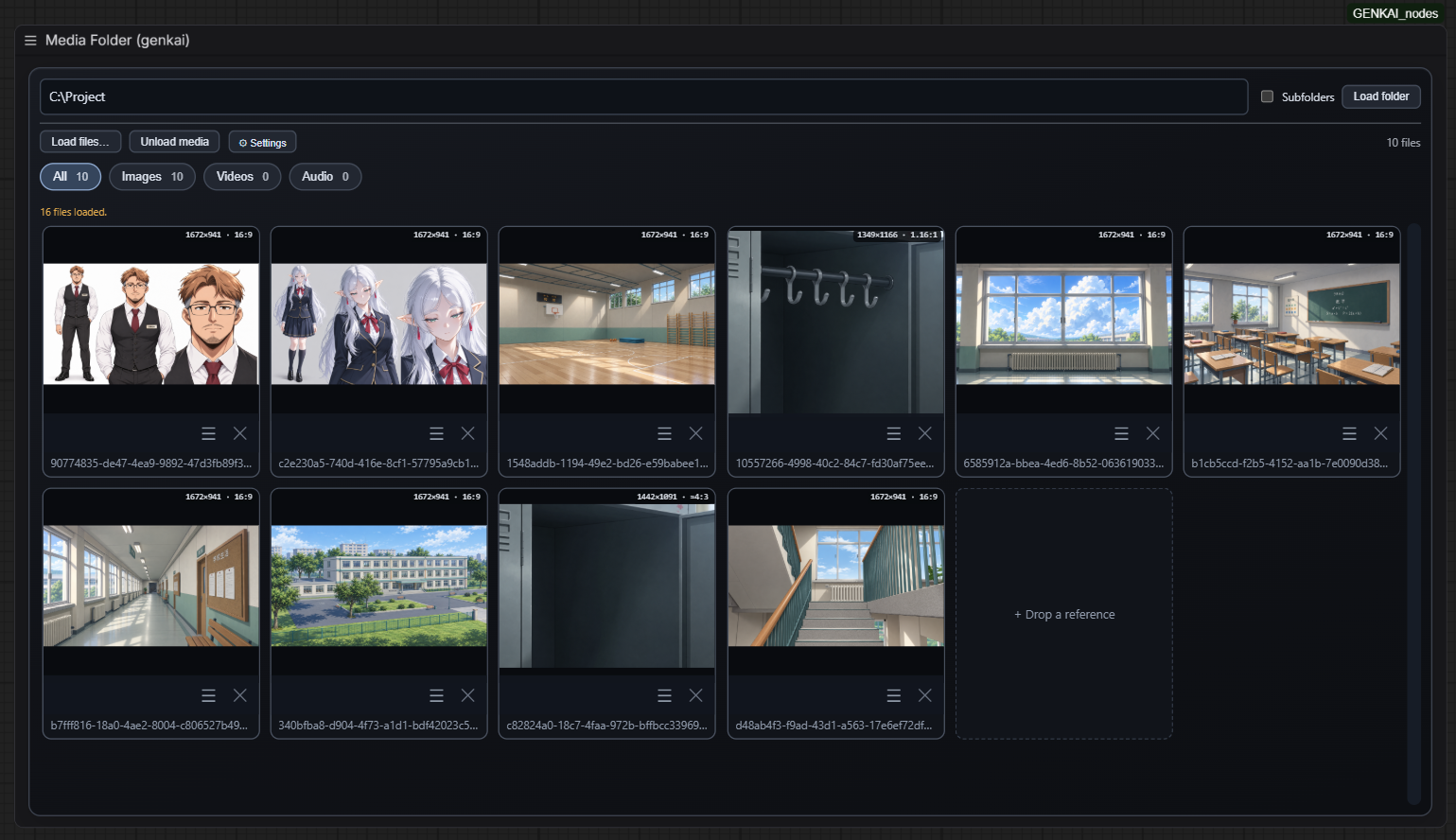
Browse images, videos and audio from a folder as a thumbnail gallery. Drag files between Media Folder and H3 Media Loader in either direction.
<details> <summary>Description, features and settings</summary>- Paste a folder path and click Load folder, or press Enter. Enable Subfolders to include nested folders. Load files… adds individual files.
- Filter the gallery with All / Images / Videos / Audio tags and file counts. Filtering changes only what is displayed.
- Click pictures for a larger preview. Video and audio cards include playback controls and duration; double-click a video to enlarge it.
- Drag a thumbnail or its drag handle into H3 Media Loader, or drag a reference back into Media Folder. Transfers copy the reference and its processing settings; the source remains in place. Within one node, drag to reorder or swap references. Dropping onto an occupied slot replaces its reference when transferring between nodes.
- 30 files per page by default, with a visible scrollbar. In Settings, change the page size or enable Unlimited files per page to show everything together.
- Obsidian is the default style. Settings also include other styles, text size and resizing with the node.
- The folder path, gallery contents, filter and settings are saved with the workflow. Removing a thumbnail or choosing Unload media does not delete the original files.
Media Folder is a browsing panel with no workflow output, splitter or presets. To use a reference in a workflow, drag it into H3 Media Loader and use H3 Reference Splitter. The loader's reference limits still apply.
Folder paths refer to the computer running ComfyUI. External media is cached in ComfyUI/input/genkai_media_folder; browser playback depends on the file's codec.
Example workflow · More details
</details>Prompt Bank + Prompt Merge
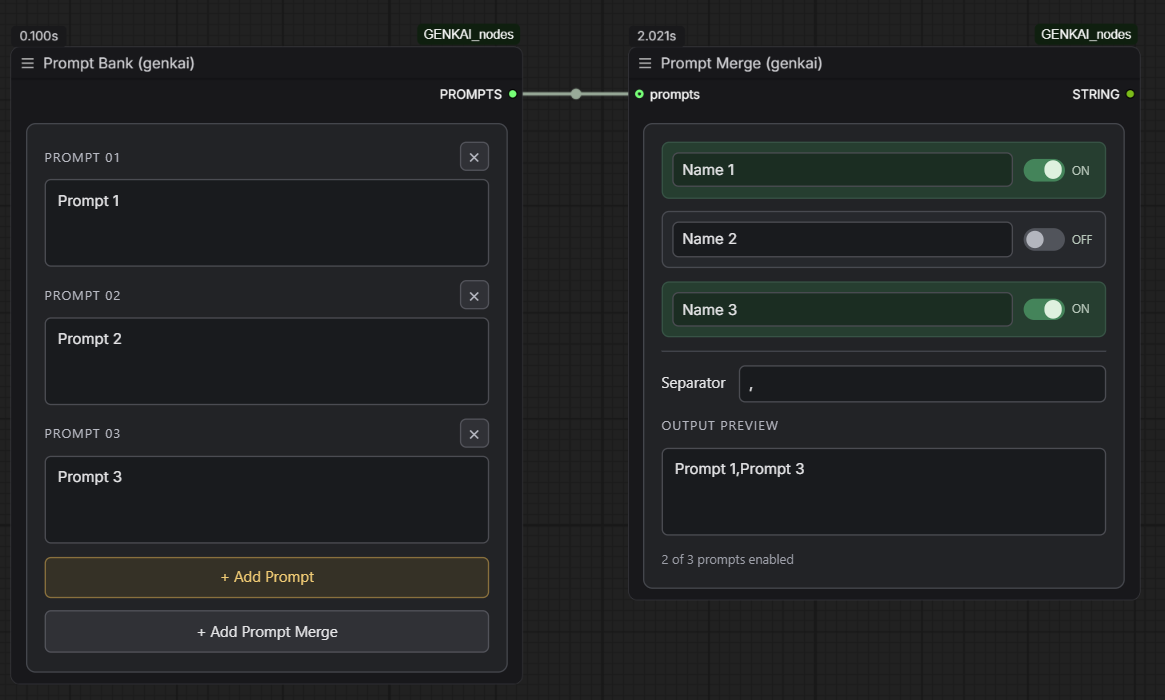
Build prompts from reusable pieces: store them in Prompt Bank, then choose which ones Prompt Merge combines. Toggle individual parts and set your own separator.
<details> <summary>Description, features and settings</summary>Build a prompt from reusable pieces: keep the subject, camera, lighting or style in separate fields, then choose which pieces to include without deleting or copying text.
Prompt Bank stores your prompts in order. + Add Prompt adds a field, × removes it, and fields start at three lines and grow with their contents. A single PROMPTS connection sends the whole collection to Prompt Merge, including prompts added later. + Add Prompt Merge creates and connects the second node automatically.
Prompt Merge lets you name each row and switch it on or off. Enabled rows are green; disabled rows are gray. Rows show only your labels and switches, keeping the panel compact. Labels do not become part of the output text.
- The single STRING output joins enabled, nonblank prompts in their Bank order.
- Separator accepts any text, a real line break or an empty value. The default is exactly
,, with no extra space. Enter,if you want a space after each comma. - OUTPUT PREVIEW updates while you edit, so you can check the complete prompt before using it.
- Row names and switches stay attached to their prompts when other entries are removed. Text and settings are saved with the workflow.
- Connect ordinary text inputs to Merge's STRING output; Bank's PROMPTS output carries the collection between these two nodes.
No extra models or custom node packs are needed. Find both nodes under GENKAI/Text.
Example workflow · More details
</details>Folder Search
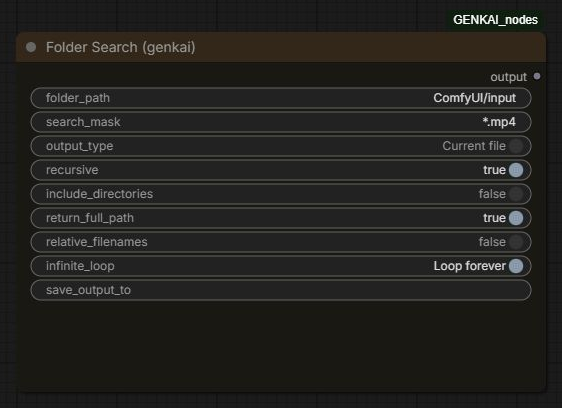
Find images, videos or other files in a folder and pass their paths to your workflow. Return the full list or process files one at a time.
<details> <summary>Description, features and settings</summary>Find files in a directory and pass the results to the next node. Useful for processing a collection of images, videos, or other files one at a time.
folder_path: directory to search.search_mask: a pattern such as*.mp4,*.png, or*.*.output_type: return the entire list (Full file list) or one path per execution (Current file).recursive: include subfolders.include_directories: include directories in the results.return_full_path: return absolute paths.relative_filenames: return paths relative to the search directory when full paths are disabled.infinite_loop: immediately return to the first file after the last result in single-file mode.save_output_to: optional text file for writing the found paths.
The output contains a list or a string, depending on the mode. Without infinite_loop, the node returns an empty string after the last result; the next execution starts a new pass. It advances when executed, but does not queue ComfyUI runs by itself. Results follow filesystem traversal order without additional sorting.
Image Expand With Fill
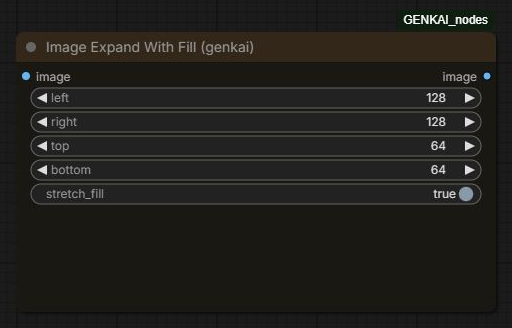
Add space around an image without resizing the original. Fill the new borders with stretched edge pixels or black.
<details> <summary>Description, features and settings</summary>Expand the canvas by adding pixels on the left, right, top, and bottom. Works with individual images and IMAGE batches.
stretch_fill=true: extend the image's border pixels outward.stretch_fill=false: fill the added area with zeros, producing black borders for ordinary RGB images.imageoutput: the expanded image.
The original image area is not resized. This node does not perform generative outpainting or invent new details. Expansion converts through an 8-bit image; with all padding values set to zero, the input is returned without this conversion.
</details>Image Canvas Expand
Load an image and crop or enlarge its canvas visually. Open Crop / expand to drag any edge or corner inward to crop or outward to expand. You can also enter exact edge values in pixels: negative values crop, positive values expand. The editor shows the original and output dimensions before applying.
Choose black, white or a custom hex color for any added area. The node returns the edited IMAGE; the uploaded file stays unchanged. Find Image Canvas Expand (genkai) under GENKAI/Image.
Float Presets
Pick a saved FLOAT value with one click. Use two copies to control megapixels and video length independently.
The frameless Obsidian layout gives all number tiles equal size. They grow in width and height when the node widens and wrap into more rows when needed. The selected number is green. Click a tile to select its value; click the number itself to edit it. + adds a new value, and a small × appears on hover to remove one. The selected value and presets are saved with the workflow. Clicking a tile changes the value for the next run; it does not queue a run.
Connect the FLOAT output to a numeric input. If the target setting is shown only as a widget, expose it as an input first.
Seed Slots
https://github.com/user-attachments/assets/5607fd79-25a7-4cc7-8aac-1713e3511ed5
Add a little fun to ComfyUI: spin a slot machine to choose your generation seed. Collect combinations and points, with animated lights and confetti for big scores.
<details> <summary>Description, features and settings</summary>A slot-machine seed generator made to add a little fun to ComfyUI. Spin the reels, collect combinations and use the resulting seed in your generation.
- Outputs an
INTseed from 0 to 9,999,999,999. Connect it to the sampler's seed input. - Each workflow execution draws a new seed while Lock seed is off. Turn the lock on to reuse the displayed number.
- SPIN and the lever let you try a draw without running the workflow. Lock a number you like before generating; otherwise the next execution draws again.
- Combinations earn points, with a score for the current draw and a running total. Open COMBINATIONS & POINTS to see the scoring rules.
- Animated perimeter lights celebrate combinations; new draws scoring more than 50 also launch confetti. Optional sound is off by default.
- Expand RECENT SEEDS to see the last 50 results, their date/time and score. Click one to restore and lock it, or enter a seed manually.
- Seed, lock state, history and total score are stored with the workflow. The animation does not delay generation.
The score is just for fun and does not affect image or video quality.
Example workflow · Controls and scoring details
</details>Installation
Run this inside ComfyUI/custom_nodes:
git clone https://github.com/GENKAIx/Genkai-ComfyUI-Nodes.git
Restart ComfyUI and refresh your browser with Ctrl+F5. Search for the nodes by name. Viewers are in GENKAI/Video, H3 media nodes in GENKAI/Media, Prompt Bank / Prompt Merge in GENKAI/Text, Seed Slots in GENKAI/Seeds, and Folder Search / Image Expand With Fill in GENKAI nodes.
Use a current ComfyUI installation with VIDEO and comfy_api.latest support. The pack uses PyTorch, NumPy, PyAV, and aiohttp from the ComfyUI environment. Float Presets is in GENKAI/Utilities.
For PromptSync + Save, also install ComfyUI-VideoHelperSuite and its dependencies. VHS Video Combine handles encoding, and FFmpeg must support the selected codec. The standard PromptSync viewer only needs VHS when using a VHS_FILENAMES source.
If you already have the pack installed as GENKAI_nodes, update or replace that installation. Do not keep two active copies: they register the same node identifiers.
Supported timing syntax
Both viewers share the same parser. It recognizes common MiniMax H3, Seedance, and other video prompt structures through explicit time cues, independently of the model's name.
Examples:
0.0–2.5 sec: A character enters the room.
2.5–6.0 sec: The camera moves closer.

Camera:
Soft cinematic light, slow movement.
SHOT 1 (00:00–00:04) — Opening
A flame appears.

SHOT 2 (00:04–00:08) — Orbit
The camera circles the character.
[
  {"start": 0, "end": 4, "prompt": "A flame appears."},
  {"start_time": "00:04", "duration": 4, "prompt": "The camera circles the character."}
]
Other supported forms include MM:SS and HH:MM:SS timestamps, decimal seconds with a dot or comma, Markdown headings and tables, numbered shots, At / From cues, H3 [Shot N] blocks, and JSON timestamp / time_range fields.
General sections such as Camera, Lighting, Style, Effects, Audio, overall_soundscape, and non_diegetic_music are separated from actions using the text's structure. For predictable results, introduce a global section after a blank line at the same indentation level as the shot headings. Indented directions inside a shot remain part of that shot.
Parsing is rule-based: ambiguous text without clear boundaries can be misclassified. A model name alone does not guarantee support for every prompt it produces. Untimed prompts are displayed in full without invented scene durations.
Updates and troubleshooting
Run git pull inside the installed pack directory, restart ComfyUI, and refresh your browser with Ctrl+F5.
- NaN or shifted fields after loading an old workflow: the current version fixes settings serialization. If previous values have already been lost, defaults are restored with a notification. Check FPS, filename prefix, and encoding settings before running.
- Video does not play: try H.264 with
yuv420pand check that the source file still exists. - No waveform: check that the resulting video contains an audio track.
- Video source error: connect only one of
images,video, orfilenames. - Save error: check VideoHelperSuite, codec availability, and that
filename_prefixstays insideoutput/temp.
More details: PromptSync technical notes.
Credits
-
ComfyUI: runtime, graph, and data types.
-
ComfyUI-VideoHelperSuite: video encoding for PromptSync + Save.
-
ComfyUI-Fantastic-MiniMaxH3-PromptBuilder by Adudeguyman: the bundled H3 media loader and splitter; MIT license.
Pack author: GENKAI · GitHub