
Floyo Sticky Note
Rich-text sticky notes for the ComfyUI canvas. Document your workflow right next to the nodes it explains — headings, lists, code blocks, images, videos, links, 5 colour themes and a pointer notch. Pure annotation: no inputs, no outputs, never runs.
📝 Floyo Sticky Note
Beautiful, rich‑text sticky notes for ComfyUI — document your workflow right on the canvas.




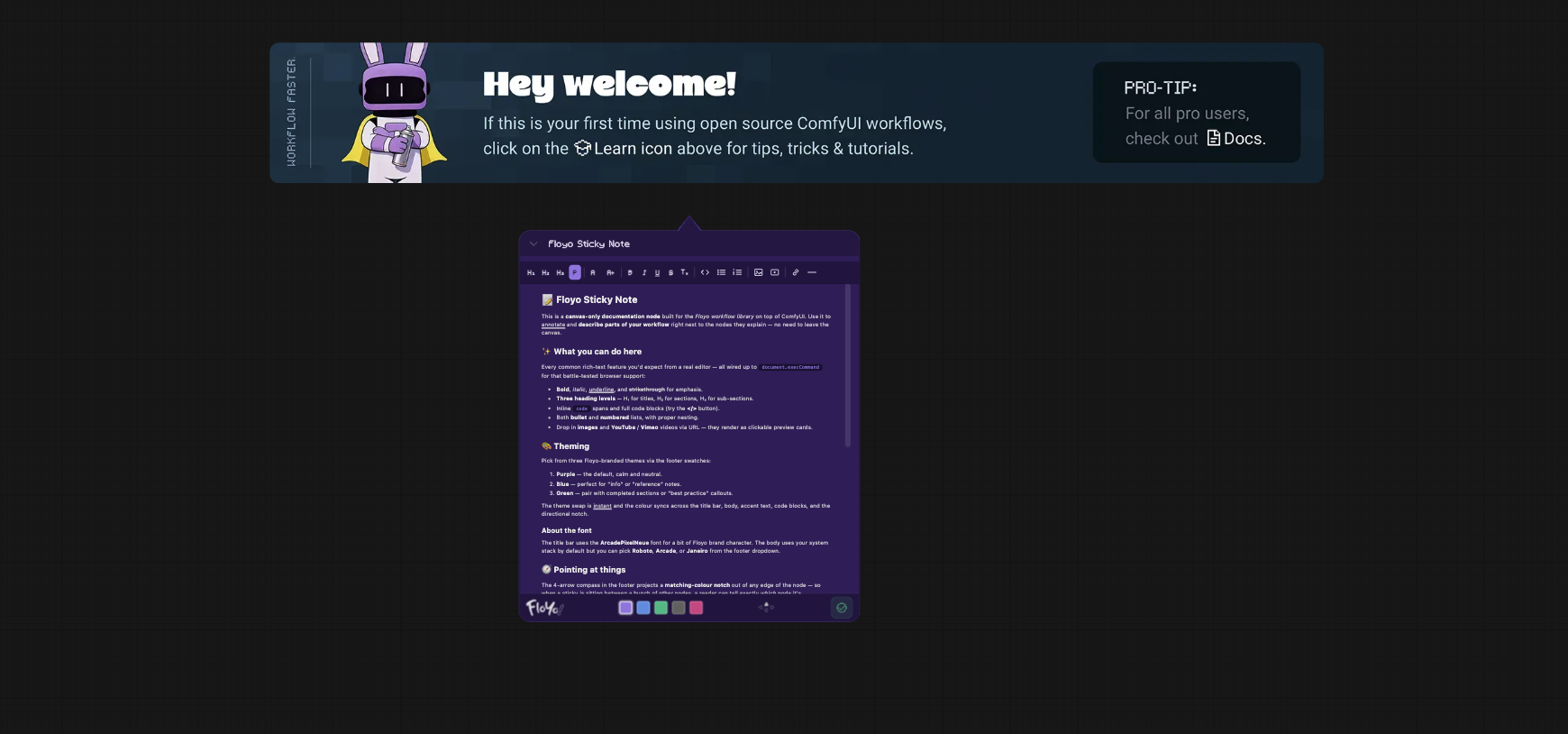
TL;DR — Drop a gorgeous note next to your nodes to explain what a workflow does and why. It has no inputs and no outputs, so the prompt queue skips it — it never runs, it just makes your graph readable. Think of it as a comment block for ComfyUI, with full rich‑text, themes, media and direction pointers.
Why you'll want it
- 🧭 Make workflows self‑explaining — annotate steps so anyone (including future‑you) gets it at a glance.
- 🎨 On‑brand & pretty — 5 polished themes, pixel‑art title font, clean typography.
- 🖊️ Real rich text — headings, lists, code, links, images and videos — not just plain text.
- 🎯 Point at things — a direction notch shows which node a note is talking about.
- 💾 Zero‑friction & safe — autosaves into the workflow JSON, and never touches execution (no inputs/outputs, nothing to slow your runs).
✨ At a glance — everything this node does
| Area | Options | | --- | --- | | States | Display • Editor • Collapsed | | Headings | H₁ • H₂ • H₃ • P (back to paragraph) | | Text size | A− • A+ (shrink / grow selected text) | | Inline style | Bold • Italic • <u>Underline</u> • ~~Strikethrough~~ • Tₓ (clear formatting) | | Blocks | Code block • Bullet list • Numbered list | | Insert | Image (URL) • Video (YouTube / Vimeo) • Link • Divider | | Themes | 🟣 Purple (default) • 🔵 Blue • 🟢 Green • ⚫ Grey • 🍓 Raspberry | | Pointer | Direction notch — up / down / left / right | | Title | Inline rename | | Layout | Collapse / expand • Drag to move • Resize • Scroll inside note | | Clipboard | Copy keeps the note's colour • Paste cleans to plain text | | Persistence | Title, content, theme, pointer — all saved with the workflow |
Each option is explained in its own short section below. 👇
📦 Install
Git (recommended)
cd /path/to/ComfyUI/custom_nodes
git clone https://github.com/FloyoAI/Floyo-Sticky-Note.git
Restart ComfyUI, then add it via Add Node → Floyo → Notes → 📝 Floyo Sticky Note.
Manual — download the repo ZIP, extract into ComfyUI's custom_nodes/, restart.
Update
cd custom_nodes/Floyo-Sticky-Note && git pull
Restart ComfyUI and hard‑refresh the browser (Cmd/Ctrl + Shift + R) so the latest front‑end loads.
🚀 Quick start
- Add the node to the canvas.
- Double‑click the body — or click the ✎ pencil at the bottom‑right — to enter the editor.
- Type, format with the toolbar, pick a theme.
- Save with the green ✓ — or just click anywhere outside the note.
That's it. Your note is saved with the workflow.
🧰 Editor toolbar — what each button does
Open the editor (double‑click the body) and the toolbar appears at the top. Select text first, then click; for block buttons (headings, lists, code) just place the cursor on the line.
| Button | Does |
| --- | --- |
| H₁ / H₂ / H₃ | Turn the current line into a heading (large / medium / small). |
| P | Turn a heading back into a normal paragraph (paragraph font). |
| A− / A+ | Shrink / grow the selected text size, in small steps. |
| B | Bold the selection. |
| I | Italic the selection. |
| U | <u>Underline</u> the selection. |
| S | ~~Strikethrough~~ the selection. |
| Tₓ | Clear inline formatting from the selection. |
| </> | Wrap the line in a code block (monospaced). |
| • ≡ | Bullet list. |
| 1 ≡ | Numbered list. |
| 🖼️ | Insert an image by URL. |
| ▶️ | Insert a YouTube / Vimeo video (lazy preview — the player loads only on click). |
| 🔗 | Turn the selection into a link (opens in a new tab). |
| ➖ | Insert a horizontal divider line. |
Tip: clicking an active heading toggles it back to a paragraph too — the P button just makes that explicit.
Working with media
Hover any inserted image/video to get a mini toolbar: − smaller, + bigger, × Remove. A fresh paragraph is auto‑added below media so you can keep typing.
Safe delete: pressing Backspace at the start of the line below an image/video/divider selects it first; press Backspace again to actually delete it — so you never wipe out media by accident.
🎛️ Footer controls
The footer shows in editor mode, left → right:
- Floyo logo — opens floyo.ai in a new tab.
- Theme swatches — switch between Purple (default), Blue, Green, Grey, Raspberry. The whole note (title bar, body, accent, code, notch) re‑tints together.
- Direction notch (compass) — click up / down / left / right to project a triangular pointer from that edge, so readers know which node the sticky annotates. Click the same arrow again to remove it.
- Save ✓ — saves your edits and returns to display mode.
🎨 Theme colours
| Theme | Fill | Outline |
| --- | --- | --- |
| 🟣 Purple (default) | #3A206B | #543294 |
| 🔵 Blue | #192765 | #2E419E |
| 🟢 Green | #002514 | #01341C |
| ⚫ Grey | #222222 | #333333 |
| 🍓 Raspberry | #550027 | #790038 |
Display mode (after saving)
The colour palette and the ✓ are editor‑only — once you save, the note shows a clean bottom strip instead:
- Floyo logo stays at the bottom‑left (no bar behind it — it sits straight on the note).
- ✎ Edit pencil at the bottom‑right — one click re‑opens the editor.
- Resize grip in the very corner next to the pencil.
🪟 States & gestures
| Action | Result | | --- | --- | | Double‑click the body | Enter the editor. | | Click the ✎ pencil (bottom‑right, display mode) | Enter the editor. | | Click the chevron in the title bar | Collapse to just the title bar (▼ ↔ ▶) — great when the canvas is crowded. | | Double‑click the title bar | Rename the note inline. | | Drag the title bar | Move the note (standard LiteGraph). | | Drag the resize grip (bottom‑right corner) | Resize; the content reflows. | | Scroll inside the note | Scrolls the note's content instead of zooming the canvas. | | Click outside the note | Saves and exits the editor. |
Clipboard
- Copy from a note keeps the note's text colour, so it stays readable when pasted into other rich‑text apps (instead of turning black).
- Paste into a note is cleaned to plain text, so it picks up the note's styling instead of dragging in foreign formatting.
- Copy / cut / paste stays inside the editor — it never reaches the canvas, so pasting text can't accidentally duplicate nodes.
💾 Saving & persistence
- Everything autosaves into the workflow JSON — nothing extra to manage.
- Saved per note: title • content • theme • pointer direction.
- Reload the workflow and the note returns exactly as you left it.
🧩 What it doesn't do
This node is purely documentation. It has no inputs, no outputs, contributes nothing to the prompt queue, and produces no images/latents/tensors. It's the ComfyUI equivalent of a code comment — for the humans, invisible to the run‑time graph.
🛠️ Troubleshooting
| Problem | Fix |
| --- | --- |
| Node missing from the Add‑Node menu | Make sure the folder is a direct child of custom_nodes/, then check ComfyUI's terminal for import errors. |
| Note looks plain / unstyled or behaves oddly | Your browser cached old front‑end JS. Hard‑refresh (Cmd/Ctrl + Shift + R). |
| Video shows "unavailable" | That video disabled embedding — open the original URL on YouTube/Vimeo. |
🤝 Contributing
Issues and PRs are welcome — keep changes focused, test in a real ComfyUI canvas, and hard‑refresh the browser before verifying.
📄 License
Released under the MIT License — see LICENSE.
<div align="center">
Built with care by Floyo 💜
Copyright © Floyo — floyo.ai
</div>