
Prompto
Retired (no longer developed; see ComfyUI-Model-Librarian). ComfyUI side of the Prompto Chrome extension: Prompto Recipe, Character, Snippet, Wildcards, Profile and LoRAs nodes, a Prompto library sidebar, load recipes into the workflow, add snippets at the cursor, Save to Prompto on nodes and images, and auto-capture of saved images.
Nodes (6)
One cast member, every outfit, zero retyping
Stop rebuilding your LoRA stack by hand
The node that knows each model wants a different prompt
One saved prompt, nine wires into your KSampler
The boring node that saves your best negative prompt
`{a|b}` that finally uses your own snippet library
Retired. ComfyUI-Prompto is no longer developed and this repository is archived (read-only). Recipes from images, CivitAI pages and your own runs now live in Model Librarian. An installed copy keeps working as it is; workflows using Prompto nodes need it installed to run.
The ComfyUI half of Prompto, a Chrome extension for collecting and organizing Stable Diffusion prompts, image recipes and character tags. Prompto keeps your library in the browser so you can capture ideas even when ComfyUI isn't running. This extension brings that library into ComfyUI: a Prompto tab in the sidebar loads recipes straight into your workflow, and anything you make in ComfyUI can go back to Prompto's inbox. Open it from the Prompto icon in ComfyUI's sidebar.
<p align="center"><img src="docs/images/sidebar.png" width="360" alt="The Prompto sidebar in ComfyUI"><br><sub>The Prompto sidebar in ComfyUI. Screenshot uses sample data.</sub></p>⚠ Needs the Prompto Chrome extension. The library lives there; this extension shows and fills it. Prompto isn't published yet. Load it in Chrome from its folder with chrome://extensions → Developer mode → Load unpacked.
✨ Key Features
- 🎟️ Prompto sidebar — your recipes, snippets and cast, synced from Chrome and searchable inside ComfyUI.
- 🧩 Prompto nodes — Prompto Recipe, Character, Snippet and Wildcards put your library straight into a workflow, rolled fresh on every queue; Prompto Profile writes any prompt for a model, and Prompto LoRAs applies a recipe's or character's LoRAs.
- ⚡ Load into workflow — one click writes a recipe's prompt and negative into the open workflow, plus its seed, steps, CFG, sampler, scheduler, model, size and LoRAs where they match.
- ➕ Add to a prompt box — click into any prompt box and add a snippet, a character's tags or an outfit right at the cursor, or append to the text nodes you've selected.
- 🖱️ Save to Prompto — right-click any text node or image node to send its prompt or picture to the Prompto inbox.
- 📥 Auto-capture — an optional setting sends every image from a Save Image node to the inbox, with the prompt that made it.
- 🕒 Waits for you — captures queue on the ComfyUI server (up to 100) until Prompto collects them, so nothing is lost while Chrome is closed.
- 🧬 Recipes from Model Librarian — with Model Librarian installed, Send to Prompto on any of its recipes puts it in the inbox, with the models' hashes and Civitai version ids.
- 🔌 A stable bridge — Prompto talks to ComfyUI through this extension instead of ComfyUI's internals, so ComfyUI updates are less likely to break it.
🎬 From booru tag to image
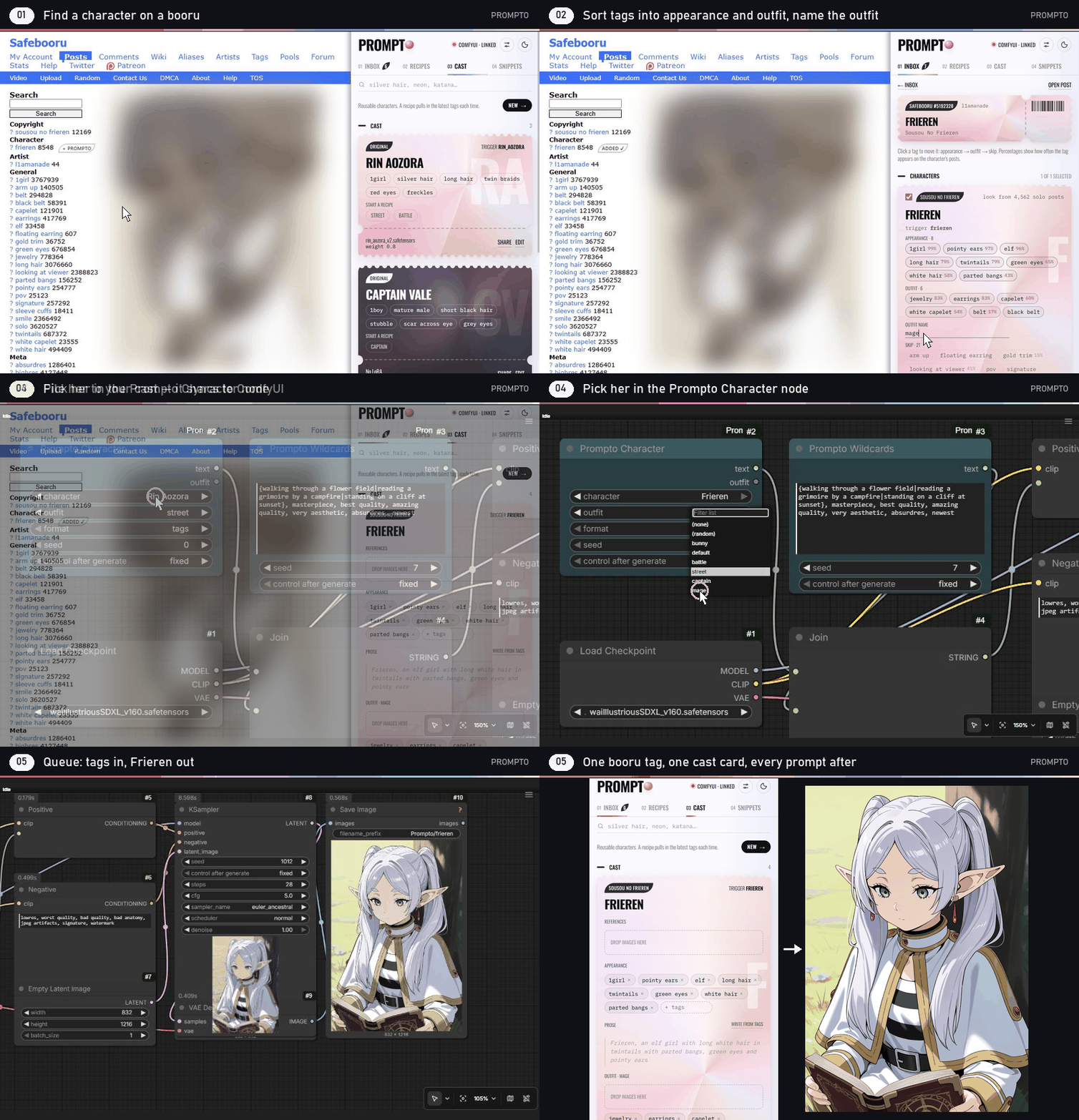
In Chrome, + Prompto on a booru post drafts a cast card and File to cast saves it. Prompto syncs the cast here, so the character is in the Prompto Character node's list (press R if the node was already open), with its outfits, ready to queue.
<sub>Recorded with Prompto 0.16 and ComfyUI-Prompto 0.4 on an Illustrious checkpoint. The post's artwork is blurred.</sub>
🧩 Example workflows
<p align="center"><img src="docs/images/workflow.png" alt="An Illustrious workflow built from Prompto nodes"><br><sub>Both images made with an Illustrious checkpoint and Prompto's sample library.</sub></p>Prompto - Illustrious ships in example_workflows/ and shows the nodes two ways:
- A recipe straight to an image — Prompto Recipe drives everything: prompt, negative, seed, steps, CFG, sampler, scheduler and size.
- Composing a prompt — Prompto Wildcards rolls the scene, Prompto Character adds a cast member in an outfit, and Prompto Snippet adds the lighting, joined with ComfyUI's Concatenate Text. It reuses the recipe's negative and sampler settings.
Prompto - Anima composes a prompt the same way, then runs it through Anima with a finishing chain:
- Generate through Prompto Profile set to Anima: it puts the model card's quality tags in front of the prompt and supplies Anima's negative and settings (896×1152, 30 steps, CFG 4, er_sde). The character comes in as tags + prose, because Anima's Qwen3 text encoder reads plain sentences as well as tags.
- Resample twice: scale ×1.25 then ×1.2, re-encode, and sample again at 0.25 then 0.2 denoise. That cleans up line work and eyes without moving the composition, and stays under Anima's 1536² limit.
- Upscale with a 4× model, then scale back down to ×2 (2688×3456) and save. Set the last scale to 1.0 to keep the full ×4.
- Compare with two slider comparers: the generated image against the resampled one, and the resampled image against the upscale.
The Resample, Upscale and Save groups end in ~, so the Fast Groups Bypasser in the generate group turns each one on or off. Switches in front of the upscaler and the save node pick the latest stage that's still on: turn off Resample and the generated image is upscaled, turn off Upscale and the resampled image is saved.
The comparers, switches and bypasser come from rgthree-comfy; everything else is core ComfyUI plus Prompto. Put qwen_3_06b_base.safetensors in text_encoders, qwen_image_vae.safetensors in vae, an Anima model in diffusion_models and an upscale model such as 4x_foolhardy_Remacri.pth in upscale_models.
Open either workflow from ComfyUI's Templates browser under ComfyUI-Prompto, or drag the JSON onto the canvas, then pick your own model. Both run before you've synced anything: Prompto's sample library ships with the nodes.
📦 Installation
Option 1: Manual Installation (Recommended)
cd ComfyUI/custom_nodes
git clone https://github.com/EY4O/ComfyUI-Prompto.git
Restart ComfyUI. There are no Python dependencies beyond ComfyUI itself.
Option 2: Copy the folder
Download or copy the ComfyUI-Prompto folder into ComfyUI/custom_nodes/ and restart ComfyUI.
Custom nodes go in the package's own folder, for example C:/StabilityMatrix/Data/Packages/ComfyUI/custom_nodes/. Restart the package from Stability Matrix afterwards (Stop, then Launch).
🚀 Getting Started
- Install ComfyUI-Prompto and restart ComfyUI.
- Open ComfyUI in Chrome and open the Prompto side panel next to it. The panel's header changes to ComfyUI · linked within a few seconds.
- Click the Prompto icon in ComfyUI's sidebar. Your recipes, snippets and cast are there.
- Press Load into workflow on a recipe. The prompt, negative and settings are written into the open workflow, ready to queue.
- Right-click a Save Image node → Save image to Prompto. The image and its prompt arrive in Prompto's Inbox.
- Optional: turn on Settings → Prompto → Send every saved image to the Prompto inbox.
📖 How It Works
<details> <summary><b>🧩 Prompto nodes</b></summary>Find them under Prompto in the node menu. They read the library Prompto last synced, so after adding things in Chrome press R in ComfyUI (or refresh the page) to see them in the dropdowns.
| Node | Outputs |
|---|---|
| Prompto Recipe | positive, negative, seed, steps, cfg, width, height, sampler, scheduler: wire them into a KSampler and latent. roll picks the wildcards. Set profile to write the recipe for another model: that profile's prompt and sampler settings, with the recipe's seed. |
| Prompto Character | text: a cast member's tags, prose, or both, plus an outfit (a fixed one, (none) or (random), chosen by seed), and outfit, the one used |
| Prompto Snippet | text: a snippet's tags or prose |
| Prompto Wildcards | text: any text with {a\|b} choices and __snippet__ names rolled by seed |
| Prompto Profile | positive, negative, steps, cfg, width, height, sampler, scheduler: wire any text into text and get it back the way that Prompto model profile writes it (quality tags first, artist tags as @name or bare), with the profile's negative and settings |
| Prompto LoRAs | model, clip: a recipe's LoRAs and/or a cast member's LoRA applied, matched to your loras folder by file name in any subfolder, each at Prompto's weight times strength; loras says what was applied and what's missing |
Wildcards follow Prompto's rules: __name__ is one tag from the snippet of that name, or one snippet from that category. Put seed or roll on randomize for a new roll every queue; roll starts on fixed, so a saved workflow keeps the roll it had. Renaming a recipe, snippet or cast member in Prompto doesn't break saved workflows: the node still finds it under the name it was saved with (the dropdown shows the new name after R). If the item was deleted, the node says so when it runs instead of failing validation.
Prompto's sample library ships in samples.json. Until Prompto syncs a library, the dropdowns offer the samples, and a workflow that names a sample (like the example workflows) still runs after you've removed the samples from Prompto. Model profiles sync from Prompto 0.24; with an older Prompto the Profile node offers the four starting profiles.
The frontend extension installs window.PromptoBridge in the ComfyUI page:
| Method | What it does |
|---|---|
| info() | Returns the bridge version, so Prompto knows it's installed. |
| loras() | Lists the installed LoRAs, for Prompto's LoRA autocomplete. |
| queue() | Presses Queue once, for Prompto's Queue variants (several wildcard rolls on one seed). |
| apply(payload) | Writes a recipe into the workflow, or text into the selected node. |
| syncLibrary(snapshot) | Saves the library snapshot that the sidebar shows. |
| takeCaptures() / ackCaptures(ids) | Hands queued captures to Prompto, then removes the ones it saved. |
Prompto calls these through the open ComfyUI tab. Without this extension it falls back to editing the graph directly, which works but relies on ComfyUI internals.
</details> <details> <summary><b>⚡ How a recipe is loaded</b></summary>- The prompt node is found by following the sampler's positive and negative inputs back to the node holding the text, through ControlNet and guidance nodes, switches, text joins and regex replaces. Flux-style workflows are found through their Guider node. A text box wired to another node is skipped (ComfyUI ignores what's typed in it), and Impact's wildcard processor gets the prompt as both its template and its rolled text.
- Muted and bypassed nodes are never changed. A setting whose box on the sampler is wired to another node (an Input Parameters node, a primitive, a "show any" passthrough) is written where it comes from, and the size goes to the empty latent's inputs the same way.
- Seed, steps, CFG, sampler and scheduler go to the first sampler, so a hires-fix pass keeps its own steps.
- Dropdown settings (sampler, scheduler, model) are only changed when the value is one of that dropdown's options. A model is matched by file name even if it sits in a subfolder.
- Size goes to the first node with both width and height.
- LoRAs fill the existing LoRA loader nodes in order, matched by file name, with the weight on both model and CLIP. Loaders the recipe doesn't use, or whose LoRA isn't installed, are bypassed. No nodes are added; you're told when more loaders are needed.
- Models are matched by file name, with or without folder and extension (Civitai names models without them).
- Missing models: when the recipe's model or LoRAs aren't installed and Model Librarian is, a notice offers Get them with Model Librarian. The recipe is handed over in the shared
recipe/1format with the hashes and Civitai version ids Prompto captured, so Model Librarian downloads exactly those files into the right folders, then can fill the workflow (adding loaders when it needs more).
- The prompt box you last clicked or typed in: the text goes in at the cursor, with commas added where needed, and the cursor moves past it so several snippets go in in order. Clicking the canvas forgets the box.
- Otherwise, every selected node with a text box: the text is appended.
Any text box counts: CLIP Text Encode, SDXL and Flux encoders (both of their prompt boxes), string primitives, wildcard nodes, and other multiline text widgets. Load into workflow writes the prompt into every prompt box of an encoder, so Flux's clip_l and t5xxl both get it.
- While a ComfyUI tab is open, Prompto pushes a snapshot of your library every few seconds after a change. Prompts are rendered by Prompto first, so the sidebar shows exactly what Prompto would copy.
- Captures are resolved in ComfyUI right away: the image is loaded, its prompt is read from the PNG, and a thumbnail is made. That way temporary previews survive a restart.
- Prompto collects captures on its next check, saves them to its inbox, and only then asks ComfyUI to delete them.
ComfyUI/user/prompto/library.jsonholds the last synced snapshot, read-only on the ComfyUI side, plus the earlier names of anything renamed since (up to 500 per kind) so saved workflows keep working.ComfyUI/user/prompto/captures.jsonholds captures waiting for Prompto, capped at 100.- Your real library stays in the Chrome extension. Deleting these files loses nothing that Prompto has already collected.
- It never queues a prompt by itself. Loading a recipe only fills in the workflow; you press Queue.
- It makes no network requests outside your ComfyUI server.
- Its routes (
/prompto/...) only read and write the two files above, and reject anything over 25 MB for the library or 4 MB per capture.
🧪 Development
Tests, local installs and releasing are described in docs/DEVELOPMENT.md.
🤝 Contributing
Issues and pull requests are welcome. Please run the test suite before opening a PR.
🙏 Credits
- ComfyUI: the extension and sidebar APIs this builds on
☕ Support
If Prompto saves you from retyping the same prompts, you can support its development:
