
Deno Custom Nodes
Korean-friendly practical custom nodes for ComfyUI
Nodes (28)
When your reference images live outside ComfyUI's input folder
Let a local LLM decide what actually gets saved
Turns Gemma's acoustic-analysis rambling into the five lines your prompt needs — and frees the VRAM
Whisper transcription inside ComfyUI — no API key, no pasting text around
Bernini wants instructions, not captions — this node speaks its language
(Deno) Film Grain — the cheapest way to stop your output looking AI-generated
Ideogram 4's JSON prompt format, drawn on a canvas instead of typed by hand
A/B two images on the canvas without exporting a single file
Run a local LLM from inside ComfyUI — no API key, nothing leaves your PC
Three ways to load LTX 2.3, one node that stops you picking the wrong one
High-resolution LTX 2.3 second passes, tiled so your GPU doesn't tap out
It doesn't download anything — the (Deno) Easy Model Download Helper explained
Stack LTX LoRAs with separate video and audio muscles
LTX prompts with the frame rate baked into the conditioning
Put reference images exactly where you want them in the LTX timeline
The tiled latent upscaler that makes LTX 2.3's second pass actually fit
The node that lets MiniMax H3 sample in 8 steps without the conversion dance
MiniMax H3 reference images, up to nine at once, without the size-mismatch trap
MiniMax H3 reference-to-video, with the messy image slots replaced by one ordered cable
A batch image loader that doesn't turn into a 3000-pixel-tall node
The generic multi-LoRA stacker — the one you'll actually use every day
Text in, text out, zero drama
Pick a resolution once, wire it everywhere, stop doing the math
NVIDIA's Video Super Resolution inside ComfyUI, minus the Python archaeology
RTX Video Super Resolution, but for the whole video — two passes and done
(Deno) Text Encoder Unload, decoded
A/B your videos on the canvas, not in two separate players
A preview that shows what you'll actually get — before you commit to the encode
Deno Custom Nodes
<p align="center"> <img src="docs/images/deno-custom-nodes-banner.jpg" alt="Deno Custom Nodes" width="100%"> </p>English | Korean | Japanese | Simplified Chinese | Spanish | Portuguese (Portugal) | Portuguese (Brazil) | Indonesian
Practical ComfyUI nodes for loading and resizing images, comparing video results, and building model workflows.
- Prepare your media: image loaders, Resize Box, and image/video comparison tools.
- Build a generation workflow: Ideogram, MiniMax H3, LTX, RTX video tools, and local LLM helpers.
- Keep the canvas readable: Visual Fold and optional Floating Tools.
Quick Start · Browse Nodes · Browser Tools · Latest Release · GPL-3.0-only
Quick Start
Start with a working ComfyUI installation.
- Open ComfyUI Manager, search for
Deno Custom Nodes, and install the package. - Restart ComfyUI and refresh its browser page.
- Double-click an empty area of the canvas, search for
(Deno) Resize Box, and add it. - Add a standard
Load Imagenode and choose an image. Connect it to Resize Box and connect Resize Box'simageoutput toPreview Image. Choose a size and run the workflow to see your resized image.
This first example needs no generation model. Individual model and RTX nodes have their own requirements below. If you do not use Manager, see manual installation.
Choose your next step
- Prepare and compare: start with Resize Box, Multi Image Loader, or Video Compare.
- Finish photos or video: add Film Grain after the final resize, before saving.
- Generate with a model: see Ideogram Director, MiniMax H3, or LTX Model Loader.
- Organize or work in a browser: try Visual Fold, Floating Tools, or the no-install Web Tools.
Most Deno nodes include a small green i button in the top-right corner for quick node info without leaving the ComfyUI canvas. If a newer Deno Custom Nodes version is available, the button turns yellow and shows a small ! badge.
External image folders and custom translation servers require permission set on the ComfyUI host. See file and translation access before using these features or reopening workflows with external paths.
The pack also includes lightweight frontend/browser helpers such as Deno Visual Fold, optional Deno Floating Tools for Free VRAM, ComfyUI Stable update checks, and GPT/Gemini-ready Error Help reports, the no-install Video Compare page, the Video to GIF/WebP converter page, and the Discord Media Compressor page (Korean-only interface).
Web Tools
Run these directly in your browser:
- Deno Video Compare - compare two rendered videos with slider, side-by-side, difference, and toggle views.
- Deno Video to GIF/WebP - trim, crop, resize, and export short clips as GIF or smaller WebP files.
- Deno Discord Media Compressor - compress videos or images for sharing on Discord, aiming for files below 10 MB when possible. The tool's interface is Korean-only.
Deno Visual Fold
Watch the Visual Fold demo (recorded with Korean browser controls).

Deno Visual Fold is a visual-only cleanup helper for large ComfyUI graphs. It is enabled automatically when the latest Deno Custom Nodes package is installed or updated.
Select two or more nodes and the native ComfyUI selection toolbar shows a readable green Fold badge. Click it to collapse the selected nodes into one compact visual group; use Unfold to restore them.
You can also select one normal ComfyUI group and use Fold Group to collapse the nodes inside that group while keeping the workflow logic untouched. When two or more groups are selected, the same toolbar adds readable Align badges for left/right/top/bottom alignment and horizontal/vertical spacing.
This is different from ComfyUI Subgraph. Subgraph moves nodes into a child graph, which can be powerful, but it may not be ideal when a workflow depends on keeping Get / Set nodes or parent-child graph structure visible in the main graph. Visual Fold is meant for simple visual organization only. It does not turn the selected nodes into a subgraph or change the workflow logic.
Deno Floating Tools
Deno Floating Tools is an optional helper under Settings > DENO > Tools. It is off by default.
When enabled, it adds a small draggable Deno icon to the ComfyUI screen. The panel can free ComfyUI VRAM through ComfyUI's built-in memory cleanup endpoint, show read-only current/latest status for the ComfyUI Stable core release, and open an Error Help report when a run fails.
Error Help creates a GPT/Gemini-ready report with the current workflow, Python executable and environment type, package versions, GPU details, recent traceback/log context, and custom node summary. It is read-only, opens a report window first, and copies only when you click Copy Report. Common secrets such as tokens, cookies, passwords, private keys, and URL credentials are masked before copy.
Floating Tools does not install, update, restart, repair, or modify workflows.
Deno Resource Monitor
Deno Resource Monitor adds compact CPU, RAM, GPU, VRAM, and GPU temperature meters and a model/cache cleanup button to the ComfyUI top bar. The two features are independent and default to Auto under Settings > DENO > Tools > Resource Monitor.
The meters match Crystools' default horizontal appearance: 60 × 30 px bars, 5 px gaps, the same label/value placement and colors, and a temperature fill that changes from green to red. DENO's cleanup button stays alongside them; narrow windows use the separate compact row without moving existing toolbar controls.
| Existing setup | Resource meters in Auto | Cleanup button in Auto | | --- | --- | --- | | Crystools loaded, existing full-cleanup button visible | Keep Crystools unchanged | Keep the existing button | | Crystools loaded, full-cleanup button missing | Keep Crystools unchanged | Add only the DENO button | | No Crystools, existing full-cleanup button visible | Add DENO meters | Add the DENO button; keep the existing button too | | Neither available | Add DENO meters | Add the DENO button |
When Crystools is absent, the complete DENO bar (meters and cleanup button) is the default, regardless of other cleanup buttons. Only when Crystools is present does Auto use an existing visible full-cleanup button instead of adding DENO's. Explicit Off settings still take priority.
Auto leaves other extensions' settings, elements, and event handlers alone. It also respects Crystools that a user intentionally hid, and does not start DENO hardware polling while Crystools is registered. If extension detection fails, Auto conservatively withholds the meters. Desktop/portable labels and Manager startup flags alone do not decide the result: Crystools presence comes first, then the actual visible top bar. A model-unload-only button is not equivalent to full model-and-execution-cache cleanup.
DENO resource monitor offers Auto / DENO / Off; DENO explicitly replaces Crystools' meters. DENO memory cleanup button separately offers Auto / Show / Off. Set both to Off to disable both additions. Cleanup uses ComfyUI's built-in /free endpoint and is blocked when the queue is busy, its status is unknown, or manual unloading is disabled in ComfyUI settings. The notification acknowledges the request, not a guaranteed amount of released VRAM. It does not delete model files or disk caches.
GPU readings currently use NVIDIA NVML; unsupported or unavailable GPU fields are hidden, while CPU/RAM and cleanup remain usable. On multi-GPU systems the bar shows NVIDIA GPU index 0 (or the first available GPU), not necessarily the GPU selected for generation. The monitor samples only while its browser tab is visible and does not run a permanent broadcast thread. Button-only mode makes no DENO telemetry requests. Resource-monitor behavior and NVIDIA metric selection are adapted from MIT-licensed ComfyUI-Crystools; see Third-Party Notices.
Drag the six-dot handle to move the DENO bar anywhere in the window. While dragging, a Dock to top target appears at its top-bar position; drop there to snap it back. The floating bar's rotation button switches between horizontal and vertical layouts while keeping labels upright. Position and orientation are remembered in this browser. Under Settings > DENO > Tools > Resource Monitor, DENO resource monitor placement offers Top / Floating, including a way to return a misplaced bar to the top.
The vertical layout is a 44px-wide rail, with small labels above centered tabular readings, smaller unit symbols, and thin usage lines. Its handle and cleanup/rotation buttons form one compact column for placing the monitor along a side of the canvas.
In Top mode, narrow or crowded windows move only the DENO controls to a compact row beneath the top bar; existing controls stay in place. Widening the window returns DENO to the top bar when there is room. Floating mode keeps the chosen position and fits the bar inside the window after resizing. Docking always displays a horizontal bar.
Included Nodes
(Deno) Ideogram Director
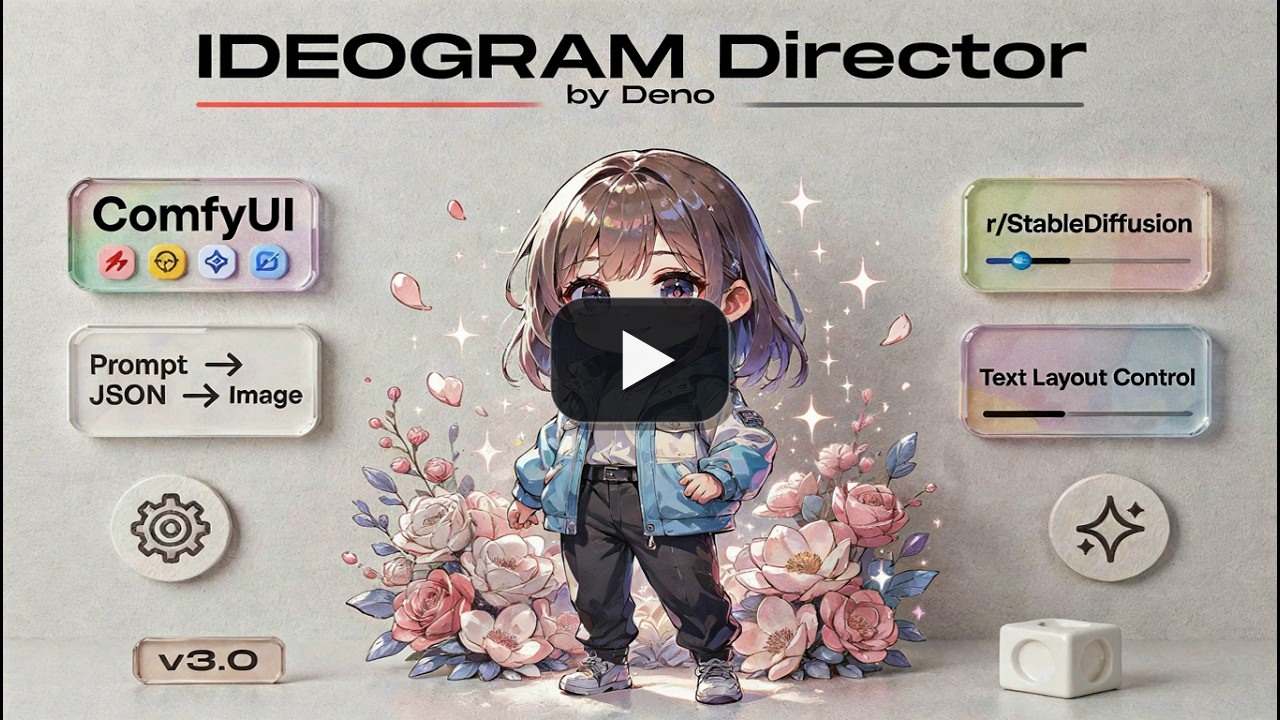
Visual Ideogram 4 prompt builder for structured JSON captions and bbox layout work.
Main features:
- draw and edit bbox regions directly on the ComfyUI canvas
- temporarily disable individual bbox elements without deleting or reordering them
- double-click a bbox to edit beside the pointer, or repeatedly
Alt+click an overlap to cycle through the boxes underneath - import JSON prompts from a Local LLM Loader or other STRING source
- optionally connect Summary and Background STRING inputs to override those two board fields for a run; disconnected inputs continue to use the saved board text
- ask before replacing an existing board, or switch to always replace
- reject malformed JSON clearly instead of passing broken prompt text downstream
- style and layout preset galleries with lightweight preview thumbnails
- Language view for reading and editing board descriptions in your language while final output stays model-ready English. Literal TEXT box words such as signs, logos, and headlines are preserved exactly
- outputs:
prompt,width,height,seed,bboxes - the existing
bboxesoutput connects to both standardBBOXconsumers andBOUNDING_BOXinputs such asIdeogram4_MultiLora_BoundingBoxNode_Fedor; that node's region-row count follows the Director's active boxes without adding saved Director fields. Its current count-only synchronization does not track box identity, so review LoRA row assignments after deleting or reordering a middle box
(Deno) Resize Box
Resolution helper and image resize node for ComfyUI.
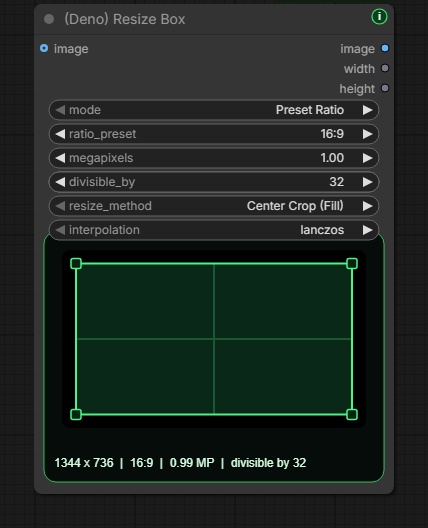
Main features:
Preset RatioandManual Inputmodes- common ratio presets
- megapixel-based size calculation
divisible_byalignmentCenter Crop (Fill), aspect-locked zoomableCrop Position (Fill), andFit (Letterbox/Pillarbox)resize modeslanczosdefault interpolation- live ratio preview;
Crop Position (Fill)shows the full connected source, lets you drag the crop box to reposition it, and lets you drag any corner to zoom while keeping the output ratio and megapixels fixed - outputs:
image,width,height
(Deno) Multi Image Loader
Minor-upgrade multi-image loader designed for batch guide workflows.
Inspired by the original workflow ideas from WhatDreamsCost, then adapted and refined for the Deno workflow style.
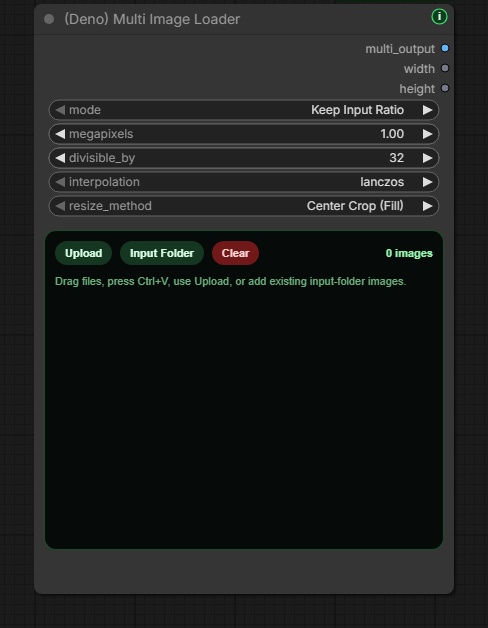
Main features:
- scrollable fixed-height gallery instead of endlessly growing node height
- drag reorder with stable placeholder insertion
- click thumbnails to disable/enable images without deleting them; only enabled images are output, numbered 1, 2, 3… in card order, with counts and numbers updating immediately
- disabled images and their positions remain saved with the workflow; enable at least one image to run
- upload button, drag-and-drop upload, and paste image support
Input Folderbrowser for reusing existing ComfyUIinputimages- input subfolder browsing with folder tiles, double-click navigation, and a
Parentbutton - nested input images can be added while preserving their ComfyUI subfolder paths
- external symlinks or junctions that leave ComfyUI's
inputfolder are skipped for security; use(Deno) Advanced Image Source Loader's External Folder mode for those sources - newest-first input image sorting based on file modified time
- responsive input-folder thumbnails for smoother browsing with many images
Keep Input Ratio,Preset Ratio, orManual Inputsize mode- ratio preset, megapixels, divisible-by sizing, or direct width/height control
- resize method and interpolation selection
- outputs:
multi_output,width,height - optional crop or fit resizing during export
(Deno) MiniMax H3 Multi Reference Image Loader
Reference loader for MiniMax H3 workflows, with one-cable images and individual audio outputs.
Main features:
- the same upload, paste, drag-and-drop, Input Folder, card reorder, and clear workflow as
(Deno) Multi Image Loader - up to 9 ordered reference images through one dedicated socket
- keeps each decoded image's own dimensions and aspect ratio without resize, crop, pad, or letterbox processing
- displays each preview card at the source image's own aspect ratio, so mixed landscape and portrait references stay fully visible without preview cropping
- click thumbnails to disable/enable references; enabled cards are immediately renumbered to match
<Picture 1>,<Picture 2>, and so on, and only those images reach both outputs - disabled images stay saved in their card positions and still occupy one of the 9 gallery slots; enable at least one image or audio reference to run
- connects to the single
ref_imagesinput on(Deno) MiniMax H3 Reference to Video - also exposes the same ordered sources as an
image_listoutput that connects directly to(Deno) Local LLM Loader'simageinput - the H3 node keeps ComfyUI's native reference-video, paired-video-audio, and standalone-audio Autogrow inputs
The collapsible audio section below the image gallery accepts up to 3 audio files through Add audio, Input Folder, or file drop. Each file has a waveform, measured duration, preview playback, a separate Use toggle, reorder handle, and remove control. Playback does not change whether a file is used for generation. Video files are not accepted by this loader.
Each registered audio adds an individual AUDIO output after the two existing image outputs. Connect those outputs to (Deno) MiniMax H3 Reference to Video's growing standalone-audio inputs and connect audio_vae to encode the sound. Only enabled audio cards receive <Audio 1>, <Audio 2>, and so on in card order. For example, with three registered files and the first two disabled, the third file is displayed and encoded as <Audio 1>. Disabled files and their cables remain saved; their ordinary downstream audio branches are skipped. Reordering keeps each cable attached to the same file, and removing a file removes only that file's audio cable. Audio-only loading is also supported.
The node grows automatically as audio files are added so every audio row stays visible without an internal scrollbar. Removing files or collapsing the audio section releases that space. Manually added height and width are preserved, and reopening an older compact workflow expands it enough to show its saved audio rows.
To keep the displayed tags and H3 references identical, connect all enabled audio outputs from one DENO loader to the same DENO H3 node. Turn off files you do not want to connect. When using these DENO audio outputs, other standalone-audio sources and reference-video soundtracks must be disconnected from that H3 node; the node explains a numbering conflict instead of silently assigning different tags. Existing workflows that use only other audio loaders retain their stock input behavior.
Audio files are read from ComfyUI's input folder. Supported extensions are WAV, MP3, FLAC, OGG/OGA, Opus, M4A, AAC, AIF and AIFF, subject to the installed PyAV decoder. Loading is bounded to 256 MiB per file, 128 MiB decoded PCM, and 30 seconds of CPU decoding. Preview failures have a Retry action and do not change the saved files or their connections.
The dedicated H3 socket is intentional: a normal ComfyUI IMAGE batch requires one shared width and height, so it cannot preserve mixed reference sizes. The additional image_list is a list output rather than a same-size batch, so the original dimensions, order, and aspect ratios remain separate when reused by list-aware nodes. MiniMax H3 may still downscale references during its normal ref_image_size processing while preserving their aspect ratio.
On ComfyUI builds that support optional H3 VAEs, (Deno) MiniMax H3 Reference to Video also accepts an unconnected vae or audio_vae input. Connecting both keeps the existing reference-encoding behavior.
- Without
vae, reference images and videos still reach the text/vision encoder, but their VAE-encoded reference latents are omitted. - Without
audio_vae, the actual reference sound is not encoded. The text encoder retains labels such as<Audio 1>, not the audio waveform; connectaudio_vaeto reference a voice or sound. Omitting it does not disable generated audio.
Audio paired with a reference video (ref_video_audio) needs both vae and audio_vae connected to encode the reference video and its sound; standalone reference audio (ref_audio) needs only audio_vae.
These choices apply only to reference encoding in this node. Keep the VAEs needed by the downstream video and audio decoding nodes. Older ComfyUI builds whose native H3 node requires both VAEs still require both connections; update ComfyUI to use optional reference encoding.
These two MiniMax H3 nodes require ComfyUI 0.30.0 or newer. See the portable MiniMax H3 multi-reference workflow for the complete native H3 pipeline with the two stock Load Image nodes replaced by the one-cable Deno loader.
(Deno) MiniMax H3 Acc LoRA Loader
Directly loads Alibaba PAI's official MiniMax-H3-Acc-LoRAs without converting or duplicating the safetensors file.
- Download the official FL2VA or Ref2VA
Acc-8Step.safetensorsfile and place it in either the normalComfyUI/models/loras/folder or the dedicatedComfyUI/models/minimax_h3_acc_loras/folder. - Connect a matching native MiniMax H3 diffusion model to
model; full and Comfy-Org*_pruned_*variants are accepted. - Select the matching Acc-LoRA: FL2VA for FL2VA/T2VA, or Ref2VA for Ref2VA.
- Connect this node's single
modeloutput to the normal guider path. - Build the sampling lane with stock ComfyUI nodes. The recommended starting point is
BasicScheduler: simple, steps: 8andKSamplerSelect: euler, connected toSamplerCustomAdvanced.
The node applies the static LoRA weights and the checkpoint's 32 time-dependent PDD output heads. At sampling time it reads the actual sigma boundaries supplied by ComfyUI and automatically fuses the PDD heads for those intervals. This keeps sampler, scheduler, and step controls in the normal ComfyUI nodes. The official 8-step Simple/Euler setup remains the recommended and trained configuration; users can select any Simple Scheduler step count from 4 through 12 without changing this loader, and other descending schedules or split sigma passes for latent-upscale workflows remain available for experimentation rather than guaranteed quality improvements. Keep the native MiniMax H3 video/audio sigma shifts at 12.0 / 3.0 and LoRA strength at 1.0.
Full non-pruned models, including native ComfyUI INT8 variants, apply the complete adapter through ComfyUI's normal quantization-aware LoRA path. For a curve-pruned model, the loader looks for a matching non-pruned MiniMax H3 checkpoint already present under models/diffusion_models/, reads only its small FP32 time-embedder section, and derives an in-memory bridge that rebases all 50 full-width AdaLN LoRA updates onto the pruned 8-wide curve. It never loads the full checkpoint for this calculation. If no matching full checkpoint is installed, the loader remains usable in compatibility mode: it warns once, skips those 50 AdaLN updates, and still applies every other LoRA update and the PDD heads.
Standard active UI workflows saved with the v0.7.92-v0.7.94 three-output loader are migrated when loaded on the ComfyUI canvas. Existing model links stay in place, and the former sampler and sigmas links move to editable stock KSamplerSelect: euler and BasicScheduler: simple, steps: 8 nodes. Save the UI workflow once after it opens. Current single-output workflows are not changed. Muted/bypassed nodes, unknown customized layouts, and malformed graphs are left untouched rather than guessed. Raw API prompt JSON does not run this frontend migration; export it again from the migrated UI workflow. If a file was already saved after its former sampler/sigmas links disappeared, reconnect those stock nodes manually.
LoRA weights and workflows are not bundled with Deno Custom Nodes. Download the weights from Alibaba and build or adapt your own native ComfyUI workflow.
MiniMax H3 R2V Audio Reference workflow
The beginner audio-reference workflow keeps ComfyUI's stock MiniMax H3 reference-audio path and adds an automatic prompt-direction lane:
(Deno) Audio Transcriptuses local OpenAI Whisper for lyrics or dialogue, segment timing, detected language, and a confidence summary. Optional user-entered lyrics remain the wording authority.(Deno) Audio Analysis Finalizerkeeps only the documented acoustic-analysis fields from ComfyUI'sTextGenerateresult and can unload that CLIP model after the analysis.(Deno) Local LLM Loaderreceives the transcript and acoustic report through its optionalaudio_contextSTRING input. Raw AUDIO is not sent to the local LLM, and upstream analysis is treated as data rather than instructions.- The selected source-audio section is both H3's
<Audio 1>reference and the audio muxed into the final MP4. H3's internally generated audio is not decoded in this workflow.
Requirements:
- current ComfyUI Stable with MiniMax H3 and audio-capable
TextGeneratesupport - ComfyUI-VideoHelperSuite for
Load Audio (Upload) gemma4_e4b_it_fp8_scaled.safetensorsinComfyUI/models/text_encoders/for acoustic analysis- LM Studio with
google/gemma-4-12b-qatloaded and its Local Server running for the final prompt-director step
openai-whisper is installed as a node dependency. The selected Whisper checkpoint downloads from OpenAI on the first (Deno) Audio Transcript run, is checksum-validated by the official Whisper loader, and is cached under ComfyUI/models/stt/whisper/.
(Deno) Text Encoder Unload
An opt-in inline VRAM barrier for the common positive-only or positive/negative prompt flow.
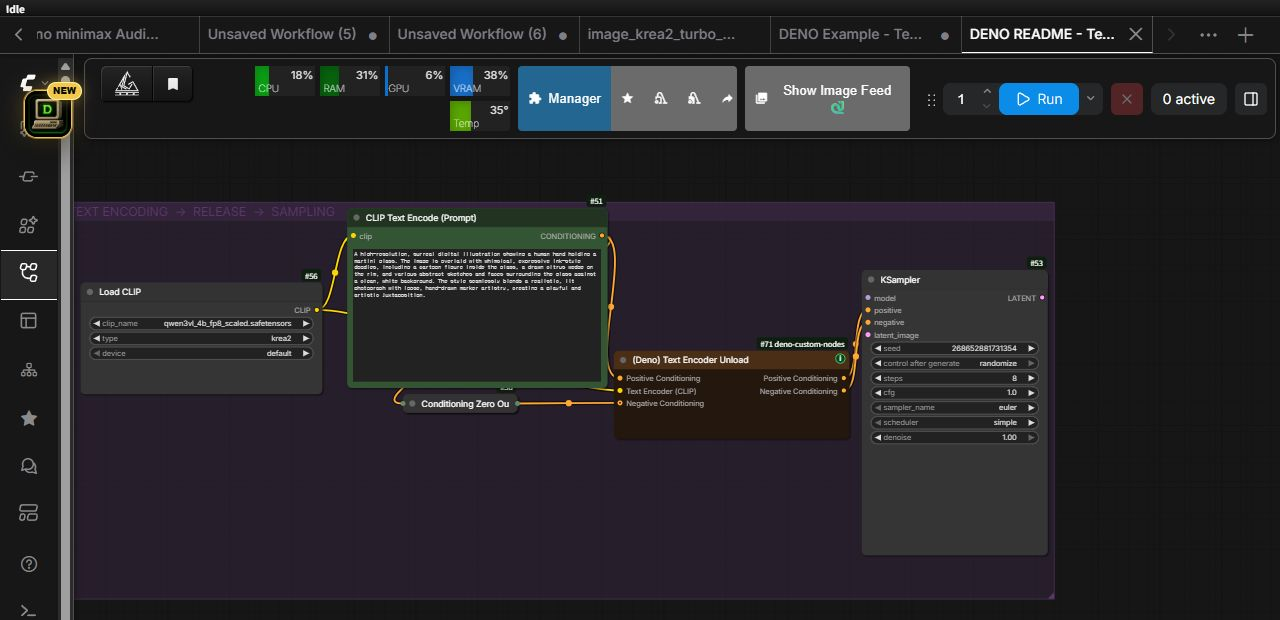
- connect positive conditioning through
Positive Conditioning; it is required and passes through unchanged - optionally connect an encoded negative prompt or
Conditioning Zero OutthroughNegative Conditioning; it also passes through unchanged - connect the exact
CLIPused by the upstream text encoders toText Encoder (CLIP) - leave
Negative Conditioningempty for a positive-only guider workflow - unload only that CLIP/text encoder, its clones, and its managed components through ComfyUI model management; diffusion models, VAEs, and ControlNets are not globally unloaded
- follow normal ComfyUI input caching, so unchanged preview sampling can be reused while changed conditioning or CLIP paths still trigger the unload
Dynamic VRAM moves weights according to memory pressure and may intentionally leave text-encoder pages resident. This node provides a deterministic opt-in release point, but it cannot make the whole process use 0 MiB: CUDA context, conditioning tensors, other models, custom-node allocations, and other applications remain separate. It also does not improve sampling quality by itself; it creates VRAM headroom that can reduce model offloading or avoid an out-of-memory error. A later text encode must reload the model, and --gpu-only cannot move the encoder out of VRAM.
(Deno) Advanced Image Source Loader
Advanced image source loader for workflows that need external folders, local file paths, web image URLs, and mixed-size image-list output.
This is a separate advanced node. The standard (Deno) Multi Image Loader remains the simpler recommended option for normal ComfyUI input folder workflows.
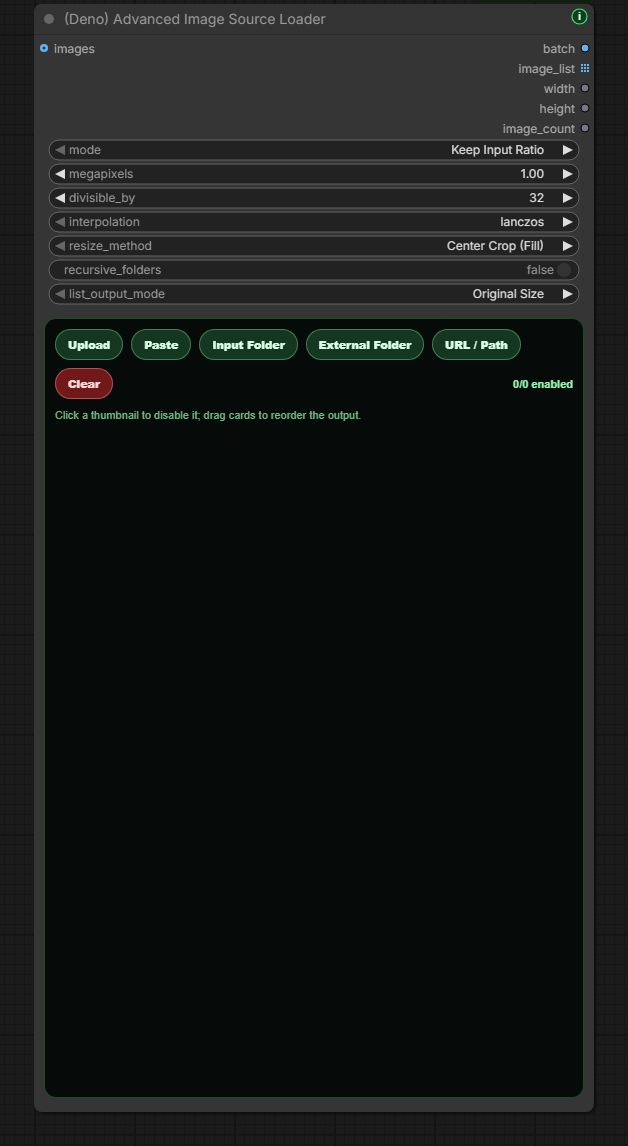
Main features:
- keeps the familiar Deno image-loader gallery workflow
- supports existing ComfyUI
inputfolder browsing - supports external local folder paths approved through the host's
DENO_EXTERNAL_IMAGE_ROOTSsetting - supports folder tiles, nested-folder browsing, and a
Parentbutton - supports
URL / Pathinput for web image URLs, absolute local image paths, and local folder paths - web thumbnails use the same validated server fetch as execution; quoted paths from Windows
Copy as pathare also recognized for previews - use
Refresh previewsto retry thumbnails without changing sources, enabled state, or order; hover a failed preview for help - external local file previews require a localhost connection to ComfyUI and return decoded thumbnails rather than original file bytes
- web image URLs use direct HTTP(S) connections to public addresses; private addresses and environment-proxy routing are not supported
- supports upload, drag-and-drop, paste, and browser folder upload where the browser allows it
- includes a visible
Pastebutton plus normal Ctrl+V image paste - click thumbnails to disable/enable sources without deleting them
- disabled sources stay readable and remain saved with the workflow until re-enabled or removed
- only enabled cards receive sequential output numbers; toggling or reordering updates those numbers immediately
- drag thumbnail cards to reorder output sequence
- the gallery follows the node's available height in both the classic canvas and Nodes 2.0
- thumbnails use a masonry-style flow so mixed portrait/landscape references are easier to scan
Load Pathreads an external folder directly without first importing it into ComfyUIinputUpload Folder...is an optional browser upload/import helper, not required for external path loadingrecursive_foldersoption for loading nested folder imagesKeep Input Ratio,Preset Ratio, orManual Inputsize mode- ratio preset, megapixels, divisible-by sizing, or direct width/height control
- resize method and interpolation selection, including center, top, or bottom crop fill modes
- optional
imagesinput can chain an upstream image batch/list into the same output stream - outputs a resized
batchimage tensor for normal batch workflows - outputs
image_listfor workflows that need per-image list handling Original Sizelist mode can preserve mixed source resolutions inimage_listMatch Batch Sizelist mode makesimage_listmatch the resized batch dimensions- outputs:
batch,image_list,width,height,image_count
(Deno) Film Grain
Adds monochrome film grain to a photo or a decoded video IMAGE batch using CPU processing. No model or additional package installation is needed. The default blends fine and coarse grain at 75:25, softens extreme particles, and reduces grain near pure black and white. Only the grain pattern is blurred; image detail is preserved.
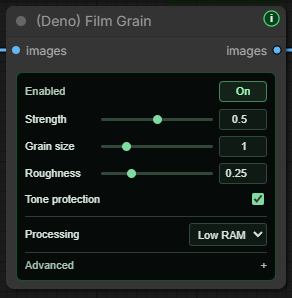
The panel uses English controls and the compact green styling of the other Deno nodes, regardless of ComfyUI's locale. It shows Strength, Grain size, Roughness, Tone protection and one Processing choice. Strength runs from 0 to 1: the selected default 0.50 matches code amount 6, while 1.00 matches amount 12. Low RAM (default) processes one frame at a time, Balanced uses two, and Faster uses four. The grain output is identical; faster processing can use more temporary RAM. Frames at once under Advanced provides the exact 1–4 value, including a preserved custom value of 3. Processing uses CPU and does not change upstream generation VRAM or split saved video into clips. The complete output frame batch still needs RAM; see the Processing tooltip. Seed and video chunk settings are also under Advanced.
Existing workflows retain their saved values and cables. A saved amount above the panel's new maximum remains intact until you deliberately adjust the slider. Connected parameter inputs control their respective settings; the panel disables those controls and keeps their native sockets visible.
New nodes default to Advanced → Grain scale → Match resolution. Grain size is relative to the frame: the node creates the original grain on an aspect-matched grid with a 1536px shorter edge (the selected 2752×1536 reference), then resamples only that monochrome grain to the input size. Strength and the fine/coarse mix are unchanged. At 2752×1536 the result is exactly the original preset. Existing saved workflows retain Fixed pixels and their previous result; choose Match resolution to enable the new behavior. Older API prompts that omit grain_scale_mode also retain the pixel-based result.
The reference pattern is filtered when sampled into smaller frames, rather than amplified back to the same per-pixel variance. This keeps particle size and visible strength more consistent when different resolutions are viewed at the same display size. Very fine grain, codec compression and playback scaling can still differ; identical appearance in every player is not guaranteed. Extremely stretched inputs whose reference grid exceeds 16,777,216 pixels fail before allocating it and can use Fixed pixels instead.
Connect it at the end of the image processing chain:
- Photo: final image / resize → Film Grain → Save Image.
- Native video: decoded frames / final resize → Film Grain → Create Video → Save Video. Keep the original audio and frame rate connected to Create Video.
- Video Helper Suite: decoded frames → Film Grain → Video Combine. Keep its audio and frame-rate settings.
| Setting | Default | Effect |
| --- | --- | --- |
| enabled | on | Off passes through the original input without copying. |
| amount | 6 | Stored/API strength in 8-bit brightness units. Panel strength 0.5 = amount 6, 1 = amount 12; 0 passes through. The larger backend range retains older workflows. |
| grain_size | 1 | Relative fine/coarse size in Match resolution; original 0.45 / 1.15 px sigma at the 1536px reference. Fixed pixels uses these sigmas at the input resolution. |
| roughness | 0.25 | Coarse grain proportion; default fine/coarse mix 75:25. |
| tone_weighted | on | Emphasizes darker midtones and protects the brightest and darkest ends. |
| temporal_mode | changing | Varies the pattern per frame. fixed repeats a pattern for comparison. |
| seed | 2026100701 | Reproduces the same pattern and frame sequence. |
| frame_offset | 0 | First frame's global index when processing video chunks separately. |
| processing_batch_size | 1 | Frames processed together on CPU, from 1 to 4. 1 minimizes temporary RAM. |
| grain_scale_mode | resolution for new nodes | Match resolution samples the reference grain into the frame. pixels preserves the original pixel-based grain; omission in old API prompts uses pixels. |
To compare settings with the same pattern across runs, keep seed unchanged and set ComfyUI's seed control after generate to fixed.
Scratch memory is limited to the selected processing group (1–4 frames), and enabled output is stored on CPU rather than allocating a second full batch in VRAM. Match resolution also needs the reference grain grid, so lower-resolution frames can use more temporary RAM than Fixed pixels; Low RAM keeps this work to one frame at a time. The complete output IMAGE batch still requires RAM, in addition to the upstream input and ComfyUI caches. For float32 RGB, this output uses frames × width × height × 12 bytes: about 23.7 MiB per 1080p frame, or 2.78 GiB for 120 frames. This node does not stream an entire video file or remove upstream cache memory; use shorter batches for long or high-resolution clips. Disabled/zero-strength runs return the same input object.
Size, channel count and dtype are preserved; RGBA alpha is unchanged. The node operates on pixels, while Save Image/Save Video retain responsibility for workflow metadata, encoding and file creation. A native VIDEO socket connects after Create Video, not directly to this node. Video compression may soften fine grain or increase the saved file size.
(Deno) Image Compare
Visual A/B comparison node for quickly checking two images on the ComfyUI canvas.
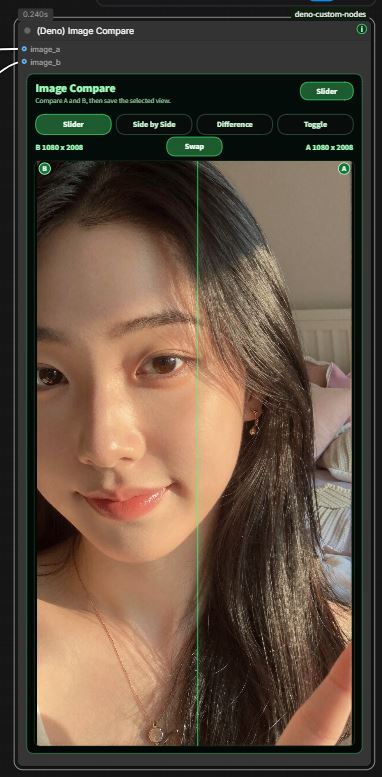
Main features:
- compares
image_aandimage_bdirectly inside the node - modes:
Slider,Side by Side,Difference, andToggle - hover-move slider interaction for fast before/after inspection
- visible A/B labels and a
Swapbutton for checking either direction - resizes the internal preview area with the node so portrait and landscape images stay readable
- visual-only node with no output connection, keeping the graph cleaner when the comparison is just for inspection
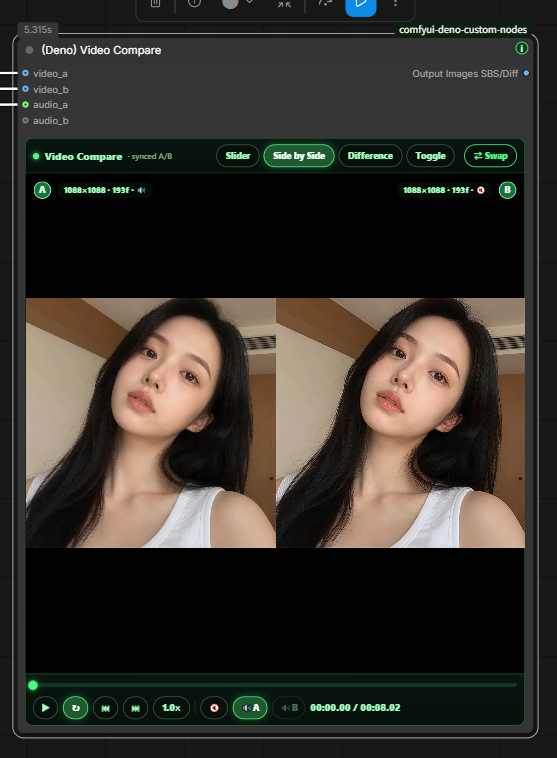
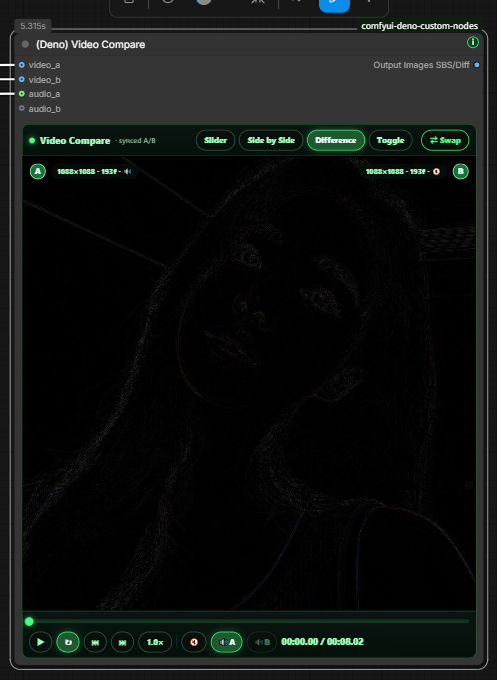
(Deno) Video Compare
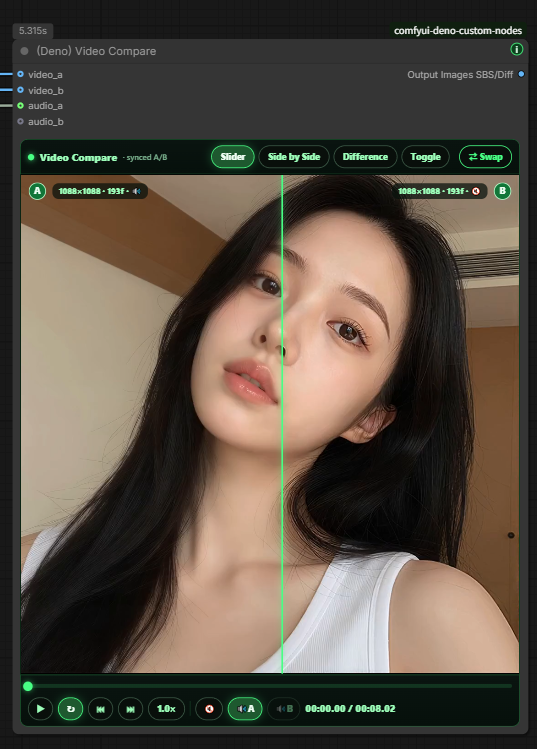
Visual A/B comparison node for videos, built for checking upscale and FPS-interpolation results directly on the ComfyUI canvas. All compositing is pure tensor work — no external encoder. The in-node player draws a downscaled WebP frame sequence on a <canvas> on a virtual clock (so A/B stay frame-exact) and plays audio via WebAudio; the files are written to ComfyUI's temp dir and served by the existing /view route, then auto-cleared on restart.
Main features:
video_a/video_b(IMAGE batches) and optionalaudio_a/audio_b(AUDIO, e.g. from VHS Load Video)- modes:
Slider,Side by Side,Difference,Toggle(freeze-frame A/B flip), plusSwap - hover-move slider, click = play/pause, scrub bar, frame step, speed, loop; hover the preview to hear the selected side
- shared timeline: input A's frame count and selected FPS define the duration (B is used if A is absent). Both preview sides and the saved output use this duration, including after
Swap; B is sampled across its full sequence to match A's output frame count. An FPS-interpolation result can still look smoother in the preview at the same length. - node resizes to the clip aspect; wheel and middle-drag are passed to the ComfyUI canvas
🏷 Output Badgestoggle: optionally adds A/B + resolution badges to the saved output (off by default; the in-node preview always shows them)comparison: full-resolution lossless IMAGE output of the chosen mode (Slider / Side by Side / Difference / Toggle), ready to wire into a save/encode node such as VHS Video Combine at the selected FPS.Toggleoutputs the selected A/B side throughout the sequence.
Too heavy to run the node? Use the no-install browser tool: https://deno2026.github.io/comfyui-deno-custom-nodes/video-compare/ (also linked at the bottom of the node).
(Deno) Video Preview
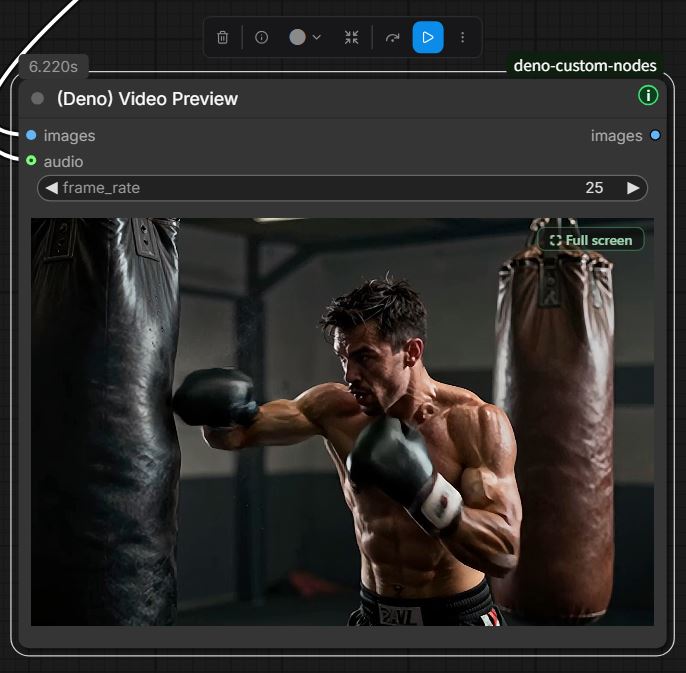
Drop-in, full-resolution preview for checking real encoded output at any point in a graph. It encodes the actual H.264 video at the original resolution in-process with PyAV (no external process is launched) using +faststart so the browser plays it inline reliably, then passes the images straight through — so you can insert it inline at multiple sampling points without branching the wire.
Main features:
images(IMAGE batch) in,imagesstraight-through out,frame_rate, and an optionalaudioinput that is muxed into the preview as AAC (tolerant of dict / object /(waveform, sr)AUDIO and[C,N]/[N,C]shapes; if audio can't be used it is logged and the video still previews)- clean auto-looping in-node player like the VHS preview: no control chrome, hover to hear audio, click = play/pause, a Full screen button, and the wheel is passed through to the ComfyUI canvas
- a compact top-left info badge shows the current preview's resolution, FPS, frame count, and duration
- the node fits the clip aspect and stays fitted as it is resized
- each node reuses one temp file, overwritten every run, so heavy iteration never piles up temp storage
- needs PyAV (
pip install av); if it is missing the node shows a clear one-line install hint instead of failing the graph
(Deno) RTX Video Super Resolution
Optional Windows/NVIDIA RTX Video Super Resolution helper node for users who want to try NVIDIA VFX inside ComfyUI without manually hunting for the right Python environment.
This node is intentionally separate from the core Deno nodes. It only imports NVIDIA VFX during upscale execution, so normal Deno node installs do not require NVIDIA VFX. ComfyUI Manager installs the node pack without auto-installing NVIDIA VFX.
Recommended NVIDIA runtime: nvidia-vfx 0.2.0.0 or later (VFX SDK 1.3); the current installer requires at least this version. In our Windows comparison, 0.2.0.0 avoided the repeated accumulation of NVIDIA update-check processes seen with 0.1.0.1. This is a result from the tested environment, not a guarantee for every PC.
For the current runtime, use Windows 10/11 x64, a supported NVIDIA RTX GPU, and Python 3.10 or later. CUDA 13 or later PyTorch is recommended, matching the current Comfy Org NVIDIA nodes. NVIDIA's x64 Windows driver minimum is 570.65 (595 for TCC devices). The installer checks the NVIDIA effect in your actual ComfyUI environment and does not automatically replace PyTorch or update your driver; follow its instructions if verification fails. The NVIDIA package includes its VFX runtime, so you do not need a separate VFX SDK installer or CUDA Toolkit for this install.
Already using nvidia-vfx 0.1.x? Updating DENO Custom Nodes alone does not update this optional NVIDIA library. Fully close ComfyUI and rerun the latest installer from the same guide below. Existing workflow connections and settings stay the same, but NVIDIA processing results can differ after the library upgrade. Keep your previous environment if you need to reproduce an earlier render exactly.
Beginner install flow:
- Install or update
deno-custom-nodes, then start ComfyUI. - Add
(Deno) RTX Video Super Resolutionand run it once with an image. - Click the node's
How to installbutton if NVIDIA VFX is missing or you want to update an older installation. - Close every ComfyUI window/process before running the installer.
- Follow the visual web install guide: download the ZIP from that page, move it into
ComfyUI\custom_nodes\deno-custom-nodes\tools, chooseExtract Allwith the destination set to thattoolsfolder itself, and runtools\install_rtx_vfx.bat. If Windows created aninstall_rtx_vfx_batsubfolder, move bothinstall_rtx_vfx.batandREADME_RTX_VFX_EASY_INSTALL.mddirectly intotoolsbefore running the BAT. - If the BAT asks
Install RTX VFX here?, typeYonly when the shown Windows path is inside the ComfyUI app you just closed. If it looks wrong, typeNand stop. - Wait for the green
INSTALL COMPLETEmessage. - Restart ComfyUI completely, then use
(Deno) RTX Video Super Resolutionagain.
For the full beginner-friendly visual walkthrough, open the Deno RTX VFX install page.
If a tutorial video tells you to open the tools folder after installing from ComfyUI Manager, open tools/OPEN_INSTALL_GUIDE.txt; it points to the same current install page.
Official NVIDIA references:
- Video Super Resolution filter
- NVIDIA VFX Python bindings
- Current NVIDIA package requirements and release history
- Current VFX SDK Windows requirements
- VideoSuperRes Python API
Mode guide:
| If your image is... | Use |
| --- | --- |
| small, low-res, or compressed | VSR |
| already clean, but needs a larger sharper output | High Bitrate |
| noisy or grainy | Denoise |
| soft, out of focus, or mildly blurred | Deblur |
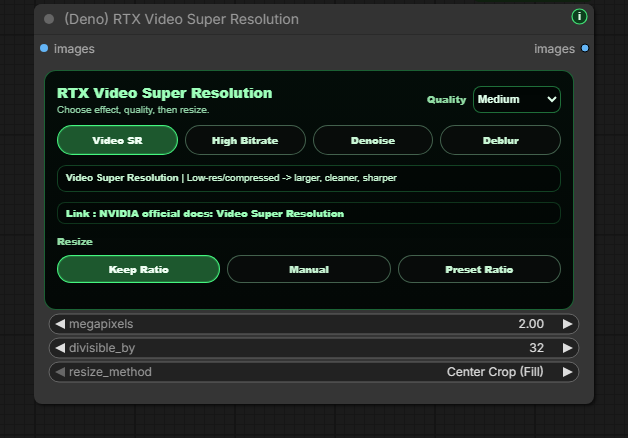
Main features:
- uses NVIDIA's official
nvidia-vfx/nvvfx.VideoSuperRespackage path - links from the node UI to NVIDIA's official Video Super Resolution documentation
- shows a compact RTX panel with effect buttons, a separate quality selector, a mode-coach line, and only the resize controls that apply to the selected effect
- single-pass and 2-pass RTX panels pass mouse-wheel scrolling through to the ComfyUI canvas, so normal canvas zoom still works while the pointer is over the node
- installer targets the Python used by the current ComfyUI install
- installer refuses to continue if ComfyUI is still running with that Python
- installer asks before installing into the detected Python
- installer stops if no NVIDIA GPU is detected unless the user explicitly overrides the check
- installer reinstalls
nvidia-vfx >= 0.2.0.0cleanly when the user confirms the target Python, including upgrades from older0.1.xinstallations - installer first verifies the normal
nvvfxpackage path used by the current ComfyUI Python - installer uses the ASCII Windows runtime fallback only when the normal
nvvfxpath fails verification - node startup prefers the recorded ASCII fallback path only when that fallback was actually selected
- if another NVIDIA VFX native module is already loaded from a conflicting path, the node stops and asks for a full ComfyUI restart instead of trying to reload the native extension
- installer verifies that NVIDIA's
VideoSuperReseffect can actually be created after install - if NVIDIA VFX reports an unsupported runtime feature, the node shows a readable GPU/driver/runtime-path message instead of a raw stack trace
- if NVIDIA Broadcast/NGX VFX DLLs from another RTX node are already loaded, the node reports that native runtime conflict separately from GPU/driver support
- if another Broadcast-based RTX node works while Deno fails, treat it as a native runtime conflict, not proof that the Deno install is broken
- keeps the installer BAT and ZIP on GitHub instead of inside the Manager package, while the node UI provides a
How to installbutton that opens the visual web install page plus aCopy stepshelper - keeps a small
tools/OPEN_INSTALL_GUIDE.txtfile in Manager installs so thetoolsfolder still exists for users following older tutorial videos - exposes four clear effect buttons: Video SR, High Bitrate, Denoise, and Deblur
- shows a compact mode coach line that explains the selected effect in plain language
- keeps Low, Medium, High, and Ultra quality as a separate selector
- for Video SR and High Bitrate, supports
Scale,Keep Ratio,Manual, andPreset Ratioresize choices Keep RatioandPreset Ratiouse target megapixels;Manualuses width and height- exposes
divisible_byalignment for resizable modes, with1as the default so standard video sizes such as 1920x1080 stay exact - higher alignment values such as
32remain available when a workflow specifically needs forced multiple-of-N output - shows
Center Crop (Fill)/Fit (Letterbox/Pillarbox)when a manual, preset-ratio, or aligned keep-ratio resize can change aspect ratio DenoiseandDeblurkeep the original size and hide resize controls, matching NVIDIA's same-size VSR modes- shows resize controls only when they apply to the selected effect
- Easy Upscale outputs:
images - The node shows controls only. Connect its
imagesoutput to Preview Image or Image Compare to view the processed result.
(Deno) RTX Video Super Resolution (2 Pass)
Two-pass RTX finishing node for full video workflows. It can run an optional same-size Denoise or Deblur pass first, then an optional VSR or High Bitrate upscale pass.
Example workflow:
Main features:
- includes both
Low System MemoryandHigh System Memorylanes in the example workflow - the low-memory lane uses VHS Meta Batch so longer videos can be processed in smaller frame chunks
- uses
VHS_VideoInfoSourceto carry the source FPS intoVHS_VideoCombine - preserves source audio through the VHS load/combine path
- useful when finishing actual encoded video outputs, not just testing a single image batch
- outputs:
images
(Deno) LTX Sequencer
LTX guide sequencer tuned for multi-image workflows.
Inspired by WhatDreamsCost's LTX workflow approach, with Deno-side adjustments focused on day-to-day usability.
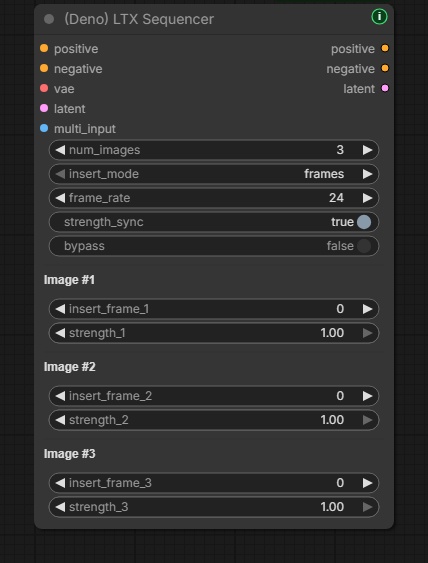
Main features:
- works with the batch output from
(Deno) Multi Image Loader - auto-fills
num_imagesfrom the connected loader when possible - keeps the existing sync-style workflow
- allows only
strengthvalues to break out into manual control when needed bypassswitch passespositive,negative, andlatentthrough unchanged for quick A/B tests
(Deno) LTX Model Loader
One compact loader for the common LTX 2.3 model-loading patterns.
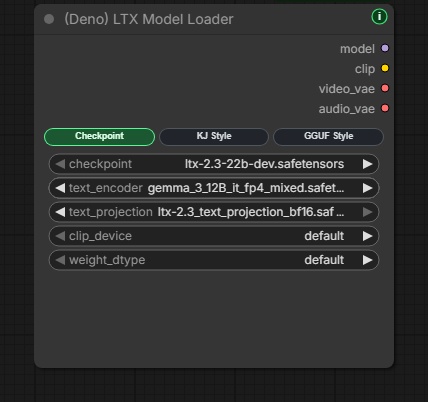
Main features:
Checkpoint Style,KJ Style, andGGUF Stylemodes- outputs:
model,clip,video_vae,audio_vae - uses ComfyUI's built-in checkpoint / diffusion / DualCLIP loading paths where possible
- uses KJNodes
VAELoaderKJfor split video/audio VAE workflows - uses ComfyUI-GGUF UNet loading for GGUF workflows
- includes clearer dependency errors and an audio VAE compatibility fallback for mixed ComfyUI/KJNodes environments
(Deno) LTX Tiled Spatial Upscaler
Helper for high-resolution LTX video-latent second passes. It splits each frame into overlapping spatial tiles, runs the LTX latent spatial upscaler per tile, and blends the result back into one latent.
Use it on video-only LTX latents. If your workflow carries combined video/audio latents, separate the audio path first and rejoin it after the tiled video pass.
(Deno) LTX High resolution Tiled Sampler
Sampler for high-resolution LTX AV refinement passes. It keeps one global sampler trajectory while video predictions are evaluated through overlapping spatial tiles and fused before the sampler update.
The full audio latent is passed to every video tile as context, while the returned audio latent is kept unchanged in freeze mode.
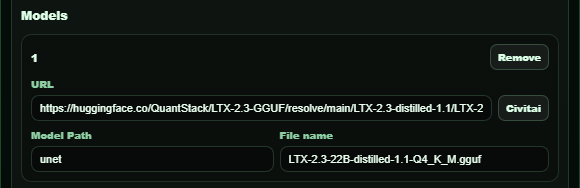
(Deno) Easy Model Download Helper
Preset-based setup helper for recommended model file sets. The built-in presets cover the LTX 2.3 8GB VRAM GGUF starter set and the official LTX 2.5 Distilled INT8 two-stage model set.
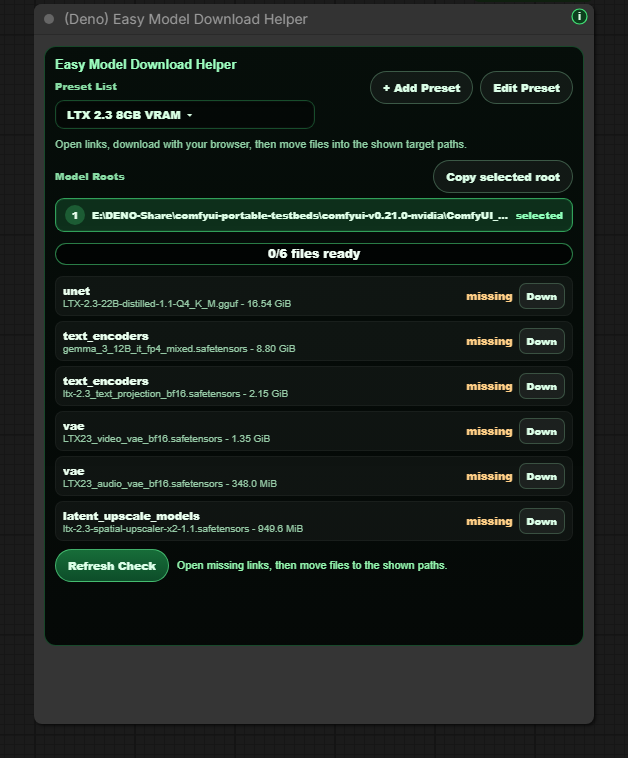
Main features:
- opens official model links in the browser instead of downloading files in Python
- includes the LTX 2.5 diffusion model, projected Gemma 4 text encoder, video and audio VAEs, and x2 spatial upscaler required by the two-stage workflow
- shows detected ComfyUI model roots and lets users copy the selected root
- supports saved creator presets inside the workflow and restores them from browser storage after a page reload
- supports Hugging Face direct links and Civitai page/download links without Python-side network requests
- checks ComfyUI-registered model folders, including custom folder names from
extra_model_paths - checks each preset's exact target path inside those registered model folders without scanning unrelated nested project folders
- shows target ComfyUI model subfolders so viewers know exactly where files should go
The LTX 2.5 repository requires a Hugging Face account and Agree and Access before its files can be downloaded. The helper does not bypass that gate or download files automatically. Review the LTX-2 Community License, request access on the official LTX 2.5 repository, then use the helper's browser links and move each downloaded file into the displayed ComfyUI model folder.
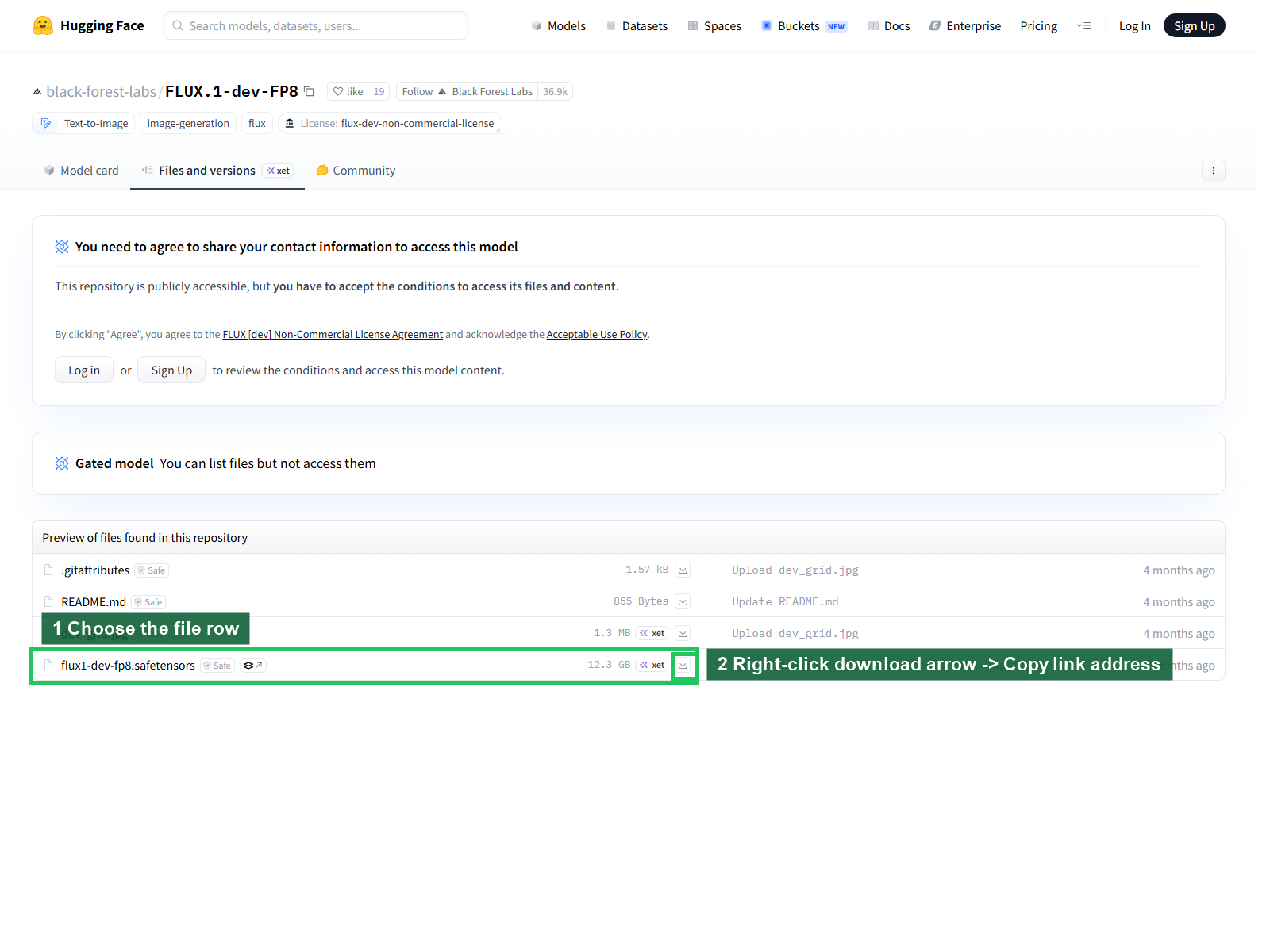
Creator preset link guide:
- Hugging Face: right-click the small download icon next to the target file, choose
Copy link address, then paste that direct file URL into the presetURLfield. - Civitai: copy the model page URL from the browser address bar, paste it into the preset
URLfield, then press theCivitaibutton in the editor to convert it to a direct browser download link. If the filename is not visible in the URL, enter the downloaded filename manually. - For Civitai pages, do not copy the blue
Downloadbutton link unless you intentionally want to provide a direct API download URL. File nameis used only for the target-path check. It should match the downloaded file on disk, especially for Civitai/API links.
Civitai model-page example (includes Chinese model text).

(Deno) Multi LoRA Loader
General-purpose multi LoRA loader for ordinary ComfyUI diffusion workflows.
Main features: apply up to eight LoRAs to a connected MODEL and optional CLIP, enable or disable each saved slot without losing its selection, set separate model and CLIP strengths, keep trigger words and notes beside each LoRA, reorder slots, and pass the patched model and clip downstream.
(Deno) LTX Multi LoRA Loader
Power-LoRA-style multi LoRA loader for LTX workflows.
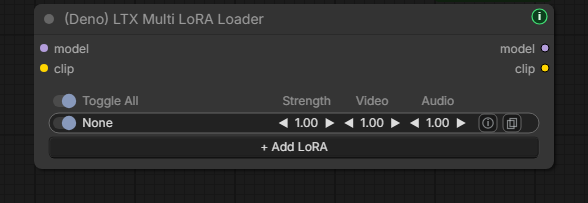
Main features:
- add multiple LoRAs in one compact node
- per-slot enable toggle
- per-slot
strength,video, andaudiostrength controls - per-slot trigger word and LoRA note editor
- copy saved trigger words from the LoRA row
- outputs patched
modelandclip - designed to stay close to the familiar Power LoRA Loader workflow while adding LTX-friendly A/V controls and lightweight LoRA reference notes
(Deno) LTX Prompt Guide
Prompt helper that combines LTX prompt encoding, optional negative prompt handling, built-in LTX conditioning, and dialogue-length planning.
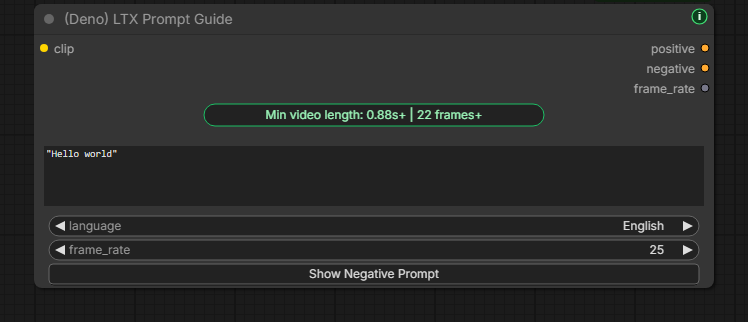
Main features:
- positive prompt text encoding
- optional collapsible negative prompt
- built-in LTX conditioning with
frame_rate - estimates minimum video length from quoted dialogue
- supports Auto, Korean, English, Japanese, and Chinese dialogue estimates
- outputs:
positive,negative,frame_rate
(Deno) Bernini Prompt Guide
KJ-style Bernini prompt helper that combines positive and negative prompt encoding into one beginner-friendly node.
Bernini Prompt Guide screenshot (includes a Chinese negative-prompt example).

Main features:
System Promptselector with readable modes such asText to Video,Image to Video, andReference Video Edit- shows the active system prompt prefix directly on the top of the node
- writes prompts in instruction style, for example
Replace the jacket with the shirt from image0. Keep the camera motion, background, lighting, and shadows unchanged. - reference modes automatically add a short
image0,image1,image2naming hint internally - collapsible negative prompt section
- negative presets fill the visible negative prompt box; edit that box directly to change the final encoded negative prompt
- outputs:
positive,negative
This node prepares text conditioning only. Connect its positive and negative outputs to ComfyUI Stable's native (Bernini) Conditioning node for Bernini visual/context-latent conditioning. Current ComfyUI includes the merged native Bernini backend, so the old preview-backend updater is no longer required; update ComfyUI Stable if the native conditioning node is missing.
(Deno) Prompt Text
A small multiline STRING source for system prompts, user prompts, templates, or JSON text. Use it when a long reusable prompt should stay readable in its own node and connect into Ideogram Director, Local LLM Loader, or another STRING input without changing the text.
(Deno) Local LLM Loader and (Deno) Local LLM Reviewer
Local LLM workflow helpers for calling models that are already running on your PC and using text reviews to control what gets saved.
Main features:
- call local Ollama, LM Studio, llama.cpp, vLLM, Custom OpenAI-compatible, llama-swap, or Unsloth Studio models from ComfyUI
- localhost-by-default server safety: use
127.0.0.1orlocalhost, or explicitly allow one private LANIP:portwithDENO_LOCAL_LLM_ALLOWED_HOSTS - refresh provider-specific model lists from the node
- keeps one detected-model selector across repeated refreshes and provider changes, and removes known duplicate selectors from older frontend sessions while preserving the selected model
- stop a running local LLM request before unloading the model
- use llama-swap's live running-state and management APIs for manual or post-run unload; any configured llama-swap server timeout still owns automatic unloading
- use the
Unslothprovider only with an Unsloth Studio server (defaulthttp://127.0.0.1:8888/v1); if an Unsloth GGUF is running inside LM Studio, selectLM Studioinstead - list Unsloth Studio models, send OpenAI-compatible chat requests without tool-definition or tool-choice fields, and use Unsloth Studio's management API for manual or post-run unload;
Keep for minutesdoes not schedule a timed Unsloth unload - connect prompt batches through one node run so the local model can stay loaded until the batch finishes
- optionally attach an IMAGE to a vision-capable local model call
- preview Thinking and Result text directly on the node
- embed the node's final Result in saved PNG/workflow metadata whenever the Local LLM node executes, so reopening the file restores it inside the node; Thinking/reasoning remains preview-only and is not persisted
- keep named System Prompt presets in ComfyUI user data so they survive browser-profile cleanup; existing browser presets can be imported once while the browser copy stays untouched as a backup
- see the actually applied System Prompt preset name on the node and in the editor; edited unmatched text is shown as
Custom - connect a positive FLOAT to
video secondsto append a sentence such asThis is an 8-second video.to each LLM user prompt without changing the saved Prompt text - use
(Deno) Local LLM Revieweras a gate before Save nodes - pass or block IMAGE and AUDIO outputs from a review text result
- approve the current reviewed result once, or rerun the path before the reviewer
API authentication is read from the environment of the ComfyUI host:
| Provider | API key environment variable |
| --- | --- |
| LM Studio | Optional DENO_LOCAL_LLM_LM_STUDIO_API_KEY; falls back to DENO_LOCAL_LLM_API_KEY when the dedicated key is unset |
| llama.cpp, vLLM, Custom, llama-swap | Optional DENO_LOCAL_LLM_API_KEY |
| Unsloth | Required DENO_LOCAL_LLM_UNSLOTH_API_KEY; the common key is not used |
| Ollama | The common key is not sent |
Set the appropriate variable before starting ComfyUI, and restart ComfyUI after changing it. The key is sent as a Bearer token for model discovery, chat, and provider-supported management requests, including LM Studio unload and llama-swap management. Optional providers keep working without an authentication header when no key is configured. Keys are never stored in workflows or PNG metadata.
For a Docker-hosted LLM server on the same PC, publish the server port on host loopback and use the corresponding local URL. Authentication does not change the localhost/private-LAN URL rules; use only a trusted server because the configured key is sent to the selected supported provider.
Remote LM Studio note: the dedicated LM Studio provider currently uses http://127.0.0.1:1234/v1. To call LM Studio on another PC that you own on the same trusted LAN, enable Serve on Local Network on that PC, set an exact allowlist before starting ComfyUI (for example DENO_LOCAL_LLM_ALLOWED_HOSTS=192.168.1.50:1234), restart ComfyUI, then select Custom and use http://192.168.1.50:1234/v1 as the Custom Server URL. If that server requires authentication, also set DENO_LOCAL_LLM_API_KEY on the ComfyUI host before restarting. The allowlist accepts exact private IP-and-port pairs only and is never stored in workflows or PNG metadata. Custom does not use LM Studio-specific unload helpers, so restrict the server port to the ComfyUI PC with the host firewall and manage the remote model from LM Studio.
LM Studio compatibility note: if LM Studio rejects its optional reasoning-control field before any generated output starts, the node retries once without that field. The selected server and model then decide their default reasoning behavior; the Thinking toggle cannot force a reasoning mode that the server does not expose.
Audio note: the Local LLM Loader does not send raw AUDIO into a local model. Its optional audio_context STRING input can carry an upstream transcript and acoustic report as data while preserving the user's prompt. The Reviewer can gate AUDIO when another text-generation node, including ComfyUI audio-capable text generation, creates the review text.
Why This Exists
These nodes are built to reduce repeated setup friction in actual ComfyUI production work. The goal is not to chase huge feature lists. The goal is to make the workflows people repeat every day feel faster, cleaner, and easier to teach.
Search Tips
- In ComfyUI Manager or Registry, search for
Deno Custom Nodes. - On the canvas, search for
(Deno)or the node name, such asResize Box. - Use Included Nodes to find the tool and its requirements.
Install
For the recommended Manager installation, follow Quick Start.
<details> <summary>Manual installation and updates</summary>For a manual install, clone inside your custom_nodes folder and install dependencies with the same Python executable that starts ComfyUI:
git clone https://github.com/Deno2026/comfyui-deno-custom-nodes.git
cd comfyui-deno-custom-nodes
python -m pip install -r requirements.txt
For a manual update, run git pull --ff-only, reinstall requirements.txt with that same Python, and restart ComfyUI. Manager/Registry installs handle the package dependencies automatically.
License
Deno-owned nodes, docs, examples, workflows, and project-local assets in this repo are released under GNU GPL v3.0 (GPL-3.0-only). You may use, study, modify, and redistribute them, including commercially, under the GPL-3.0 terms. Distributed modified versions must follow GPL-3.0 and preserve the required license and copyright notices.
Third-party models, checkpoints, LoRAs, libraries, tools, and services keep their own licenses and terms. Check the applicable license before using, sharing, or selling outputs from a specific model or asset.
Release Notes
See the latest release and CHANGELOG.md for updates.
Links
- Deno Custom Nodes banner
- YouTube: https://www.youtube.com/@Denoise-AI
- GitHub: https://github.com/Deno2026/comfyui-deno-custom-nodes
- Registry: https://registry.comfy.org/publishers/deno2026/nodes/deno-custom-nodes
