
Save Image Organized
Organized image saving for ComfyUI with model-aware folders and template variables.
Nodes (2)
ComfyUI Save Image Organized
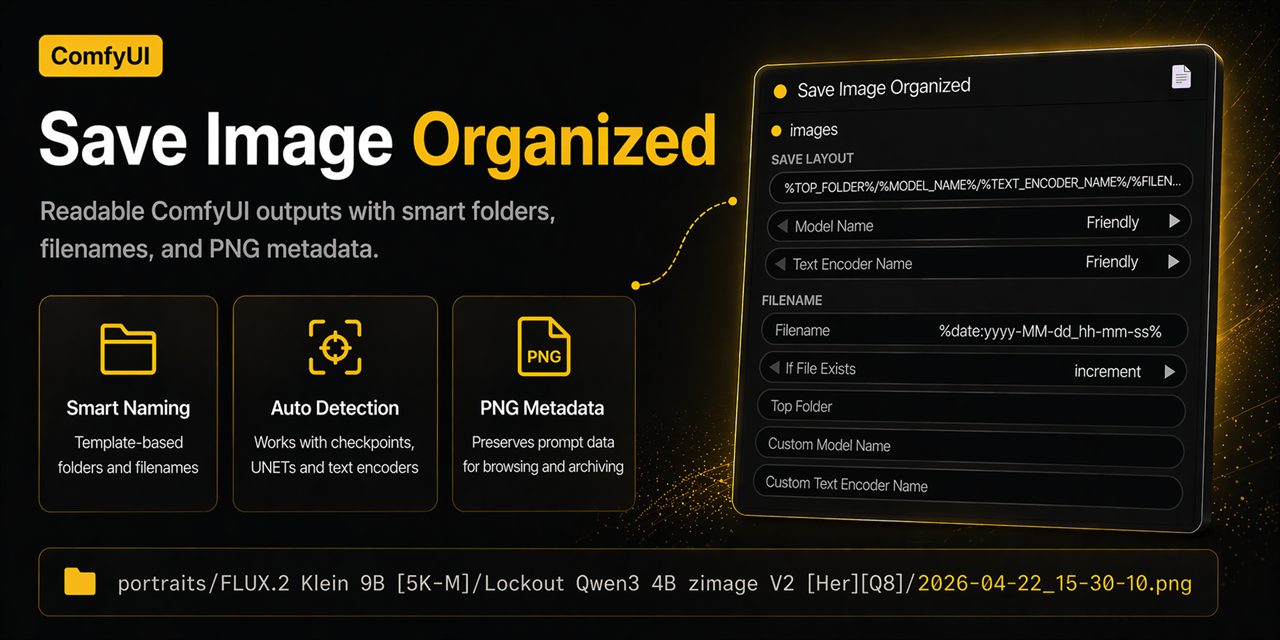
ComfyUI Save Image Organized is a ComfyUI custom node package for organized image saving, filename templates, model and text encoder naming, and PNG workflow metadata export.
It is built for ComfyUI workflows that need readable output folders, predictable filenames, and easier organization across checkpoints, UNETs, CLIPs, GGUF text encoders, and template-driven save paths.
Why Use It
- cleaner
Save Imagebehavior for ComfyUI outputs - readable folder names for models and text encoders
- filename templates with
%date:...%,%strftime:...%,%node.widget%, and small text filters - automatic model and text encoder detection from the active workflow
- PNG, JPEG, or WebP output, with a quality control for the lossy formats
- PNG workflow metadata export that matches ComfyUI's normal
Save Imagebehavior - optional switch to disable embedded workflow metadata export entirely
FILENAME/FILE_PATH/IMAGESoutputs for chaining the saved image into other nodes mid-workflow- a
Build Path/Build Filenamewindow with click-to-insert variable chips, so you don't have to type%TOKEN%by hand - a
Previewmode that shows the result without saving, with a per-imageSavebutton when you're ready - in-node help plus markdown docs for the ComfyUI
Infotab
Included Nodes
Save Image Organized: a ComfyUI save image node with organized naming, template-based layouts, and metadata-preserving PNG outputStrip Model Extension: a small utility node for removing.safetensors,.gguf, and other known model extensions
Quick Start
Recommended install:
comfy node install save-image-organized
Manual install:
- Put the repository into
ComfyUI/custom_nodes/comfyui-save-image-organized - Install the packages from
requirements.txtin the Python environment used by ComfyUI - Restart ComfyUI
- Add
Save Image Organized
Documentation:
Best For
- ComfyUI users who want better output organization without rewriting their workflow
- FLUX, SDXL, checkpoint, UNET, CLIP, and GGUF-heavy setups with messy loader names
- workflows that save many test renders and need searchable folders and filenames
- users who want template-based output paths while keeping full workflow metadata inside PNG files
Save Image Organized
The node is built around four plain concepts:
Top FolderModel NameText Encoder NameFilename
Default save layout:
%TOP_FOLDER%/%MODEL_NAME%/%TEXT_ENCODER_NAME%/%FILENAME%%BATCH%
Default filename:
%date:yyyy-MM-dd_hh-mm-ss%
Example result:
portraits/FLUX.2 Klein 9B [5K-M]/Lockout Qwen3 4B zimage V2 [Her][Q8]/2026-04-22_15-30-10.png
For multi-image batches, %BATCH% automatically adds _1-of-4, _2-of-4, and so on. For single-image saves, %BATCH% is empty.
If Top Folder is empty, no extra folder is added. If a checkpoint loader provides the same file for both the model and the text encoder, %MODEL_NAME% and %TEXT_ENCODER_NAME% collapse into one folder instead of two identical nested ones.
Model Name And Text Encoder
Both dropdowns use the same four choices:
FriendlyFriendly CleanExactCustom
Examples:
Friendlymodel name:FLUX.2 Klein 9B [5K-M]Friendly Cleanmodel name:FLUX.2 Klein 9B [5K-M](same — no packager prefix in this filename)Exactmodel name:flux-2-klein-9b-Q5_K_MFriendlytext encoder:Lockout Qwen3 4B zimage V2 [Her][Q8]Friendly Cleantext encoder:Lockout Qwen3 4B zimage V2 [Her][Q8](same —Lockoutis a creator, not a packager)Exacttext encoder:Lockout-Qwen3-4b-zimage-hereticV2-q8
Friendly Clean uses the same readable formatting as Friendly, but removes known releaser or publisher prefixes such as mradermacher - or Goekdeniz-Guelmez_ when they are only packaging labels. Friendly, Exact, and the raw detected names stay unchanged.
Common descriptor words in Friendly names are shortened into bracket tags:
abliterated->[Ablt]instruct->[Inst]heretic->[Her]uncensored->[Unc]decensored->[Dec]thinking->[Think]reasoning->[Rsn]
Custom Model Name and Custom Text Encoder Name work in two ways:
- directly when the dropdown is set to
Custom - automatically as fallback if detection fails
Main Variables
%TOP_FOLDER%%MODEL_NAME%%TEXT_ENCODER_NAME%%FILENAME%%BATCH%
Convenience Variables
%WIDTH%%HEIGHT%%SEED%%STEPS%%CFG%%SAMPLER%%SCHEDULER%%DENOISE%%BATCH_INDEX%%BATCH_SIZE%
%WIDTH% and %HEIGHT% use the real image size during saving. %SEED%, %STEPS%, %CFG%, %SAMPLER%, %SCHEDULER%, and %DENOISE% use the nearest matching upstream widget value when one is present. %BATCH% is empty for single-image saves and becomes a filename-safe suffix such as _1-of-4 for multi-image saves. %BATCH_INDEX% is 1, 2, 3, and so on for multi-image saves. %BATCH_SIZE% is the total number of images in the current save batch.
Detection Info
Detection Info is optional and only affects the node's UI text output after a run.
Options:
OffSummaryVerbose
Use it when you want to see which model and text encoder names were detected, whether custom fallback was used, and which visible output names were finally selected.
When detection comes from the workflow, the output also includes the upstream loader node label and link distance, such as UNETLoader (node id 3), 2 upstream links, so you can confirm which branch produced the selected name.
If a save node sits on a postprocessing-only branch with no sampler or loader upstream, Detection Info will say that no workflow loader was found on that save branch. In that case the node falls back to the default placeholders unless you provide custom names.
If multiple model or text-encoder loaders are visible upstream, the node still resolves to one active model name and one active text-encoder name. The current design is Primary only: no combined multi-loader names are generated. Which loader wins is controlled by the Loader Priority setting (click the gear icon to open the Advanced Settings panel): Nearest (default) picks the loader with the fewest upstream links, First Used picks the one furthest upstream, e.g. the base model in a base-plus-refiner pipeline.
Workflow Metadata
Export Workflow Metadata controls whether saved PNGs embed prompt and workflow data like the
normal ComfyUI Save Image node.
Options:
On: saves prompt and workflow metadata into the PNGOff: writes a clean PNG without embedded workflow metadata
This only applies to PNG output. JPEG and WebP saves never embed workflow metadata; the node
adds a note to its output text when Export Workflow Metadata is On but the chosen format can't
store it.
Image Format And Quality
Image Format chooses PNG (lossless), JPEG, or WebP (both lossy), shown as a row of buttons
on the node. Image Quality (1-100, shown as a slider) controls JPEG/WebP compression and is
ignored for PNG.
Save And Preview Modes
Save (default) writes every image immediately, exactly as before. Preview stores the result in
ComfyUI's temp folder, like Preview Image does, without writing anything to the final path yet.
A single-image result fills the available node width instead of a small thumbnail; a batch shows
as a compact grid — in both Save and Preview mode. Each image gets its own Save button, shown only in Preview mode (omitted in
Save mode, since that mode already writes every image on its own); clicking it writes that one
image to the path that was already resolved when the node ran. Nothing is written until you click
Save on an image, and a parked preview is dropped the next time the node runs or ComfyUI
restarts — there is no separate "discard" action.
Outputs
FILENAME: file name of the first saved image in the batch (empty string inPreviewmode, since nothing has been written yet)FILE_PATH: absolute file path of the first saved image in the batch (also empty inPreviewmode)IMAGES: the same images that were saved, passed through unchanged so this node can sit mid-workflow instead of only at the end
Building A Path Or Filename By Clicking
Build Path… (next to Folder Structure) and Build Filename… (next to Filename) open a
floating window with click-to-insert chips for every template variable, filter, and date preset
below, plus a live preview of the result. It is a separate, draggable window rather than part of
the node, since the node itself has no room for a full token palette. Clicking a chip inserts it
at the cursor in the corresponding field; typing by hand still works exactly as before.
Detailed Variables
%FRIENDLY_MODEL_NAME%%CLEAN_FRIENDLY_MODEL_NAME%%EXACT_MODEL_NAME%%CUSTOM_MODEL_NAME%%FRIENDLY_TEXT_ENCODER_NAME%%CLEAN_FRIENDLY_TEXT_ENCODER_NAME%%EXACT_TEXT_ENCODER_NAME%%CUSTOM_TEXT_ENCODER_NAME%
Example Layouts
Default:
%TOP_FOLDER%/%MODEL_NAME%/%TEXT_ENCODER_NAME%/%FILENAME%%BATCH%
Model only:
%TOP_FOLDER%/%MODEL_NAME%/%FILENAME%
Exact model + seed:
%EXACT_MODEL_NAME%/%KSampler.seed%/%FILENAME%
%node.widget% Support
Examples:
%KSampler.seed%%Empty Latent Image.width%%Empty Latent Image.height%
Template Filters
Append :lower, :upper, or :slug to template variables or %node.widget% placeholders:
%MODEL_NAME:slug%/%TEXT_ENCODER_NAME:slug%/%KSampler.seed%/%FILENAME%
Filters can be chained, for example %MODEL_NAME:lower:slug%. slug converts text to lowercase path-friendly words separated by hyphens.
Date Formatting
You can choose between:
ComfyUI-stylewith%date:...%Python-stylewith%strftime:...%
Recommended for most users:
%date:yyyy-MM-dd_hh-mm-ss%
Example result:
2026-04-22_21-22-05
%date:...% tokens:
| Token | Meaning | Example |
|---|---|---|
| yyyy | year, 4 digits | 2026 |
| yy | year, 2 digits | 26 |
| MM | month with leading zero | 04 |
| M | month without leading zero | 4 |
| dd | day with leading zero | 22 |
| d | day without leading zero | 22 |
| hh | hour with leading zero | 21 |
| h | hour without leading zero | 21 |
| mm | minute with leading zero | 07 |
| m | minute without leading zero | 7 |
| ss | second with leading zero | 05 |
| s | second without leading zero | 5 |
Example:
%date:yyyy-MM-dd_hh-mm%
-> 2026-04-22_21-22
%strftime:...% directives:
| Token | Meaning | Example |
|---|---|---|
| %Y | year, 4 digits | 2026 |
| %y | year, 2 digits | 26 |
| %m | month with leading zero | 04 |
| %d | day with leading zero | 22 |
| %H | hour with leading zero | 21 |
| %M | minute with leading zero | 22 |
| %S | second with leading zero | 05 |
| %f | microseconds | 123456 |
| %% | literal percent sign | % |
Example:
%strftime:%Y-%m-%d_%H-%M-%S%
-> 2026-04-22_21-22-05
Detection
Model and text encoder names are detected when the workflow runs.
Before the first run, the inline example inside the node uses sample names so the structure stays understandable.
The helper preview also shows %node.widget% placeholders as {node.widget} until the workflow runs, and it warns when the current template contains unknown placeholders.
After a successful run, the helper panel keeps a detection snapshot from the last execution. If you change layout-related widgets afterwards, the preview can still reuse those last detected model/text-encoder values until the next run refreshes them.
The helper now shows an explicit status badge:
Sample Previewbefore the first real runFresh Detectionright after a run with current detected valuesLast Detection Snapshotafter later edits, when the preview is still using the last known detection state
If detection fails:
Custom Model Nameis used as fallbackCustom Text Encoder Nameis used as fallback
Batch Collision Warning
If you use a custom Save Layout without %BATCH%, %BATCH_INDEX%, or %BATCH_SIZE% and save more than one image at a time with If File Exists set to error or overwrite, all images in the batch resolve to the same filename. The node detects this and outputs a warning.
Fix: add %BATCH% after %FILENAME% in your layout, or switch If File Exists to increment.
The default layout already includes %BATCH% and is safe for all collision modes.
Troubleshooting Detection And Preview
If the node still shows default names such as model or text-encoder, the current save branch probably does not expose a supported upstream loader path. This can happen when the save node only receives an image from postprocessing nodes, when the active switch branch bypasses the loader path, or when a custom loader stores model names in an unsupported widget shape.
If the helper badge says Last Detection Snapshot, the preview is using the last known run values after a layout-related edit. Queue the workflow again to refresh the detected names and resolved path.
If the ComfyUI browser still shows old helper behavior after updating the files, hard-refresh the browser page and restart ComfyUI if needed. Frontend JavaScript can be cached by the browser.
Strip Model Extension
Removes one known model file extension from the end of a string.
Example:
my-model.safetensors -> my-model