
ComfyUI GLM-OCR
Load and run GLM-OCR (zai-org/GLM-OCR) locally in ComfyUI. Supports text recognition, formula recognition, table extraction, and general image description. Picks up models from any ComfyUI checkpoint directory.
Nodes (2)
comfyui_glm_ocr
ComfyUI custom node to run GLM-OCR locally. Loads the model straight from your ComfyUI models folder — no Ollama, no API calls.
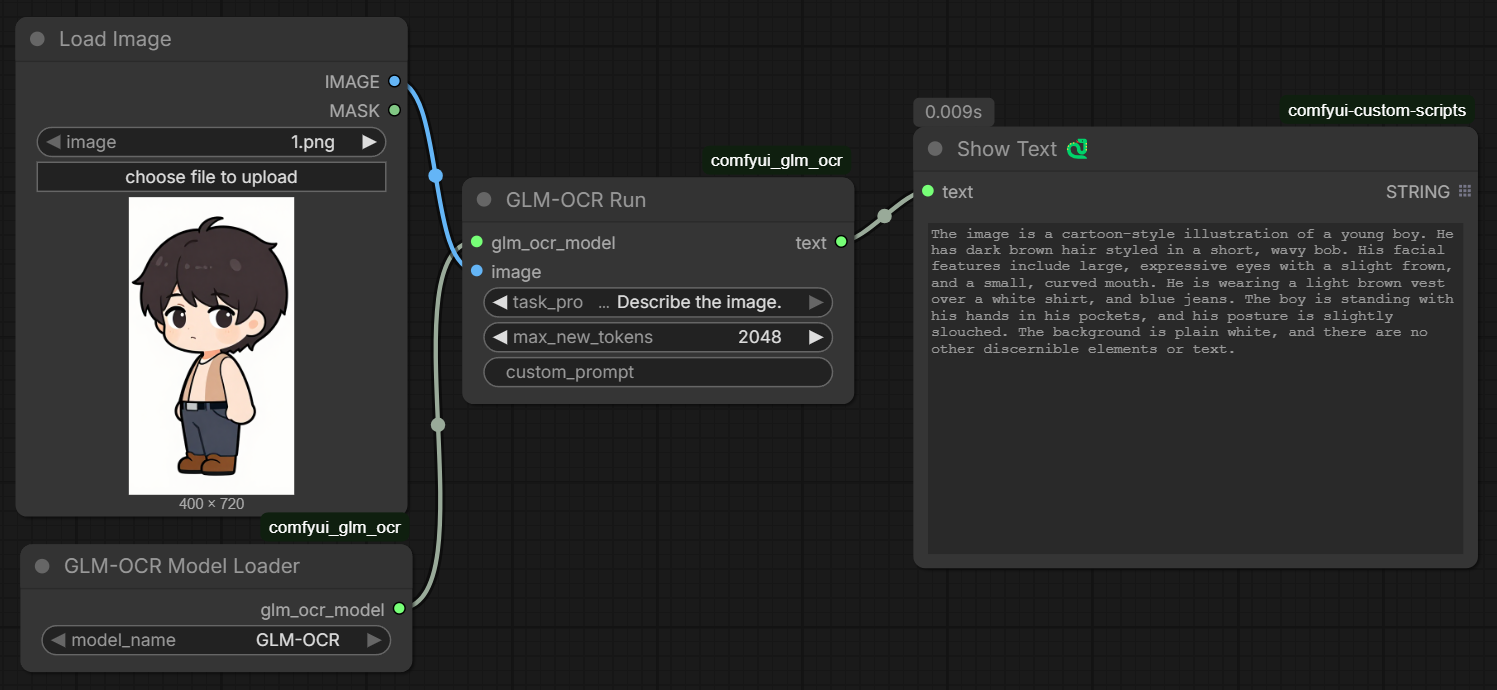
What it does
GLM-OCR is a 0.9B vision-language model built for document understanding. You give it an image and a task prompt, it gives you text back. Works well on:
- Scanned documents and photos of text
- Tables (outputs markdown)
- Math formulas (outputs LaTeX)
- General image description
Nodes
GLM-OCR Model Loader
Scans every checkpoint directory ComfyUI knows about (including paths from extra_model_paths.yaml) and lists any subfolder that contains a config.json. Select your model from the dropdown — no hardcoded paths.
GLM-OCR Run
Takes the loaded model + an image and runs inference.
| Input | Description |
|-------|-------------|
| glm_ocr_model | from the loader node |
| image | any ComfyUI IMAGE |
| task_prompt | preset task — see table below |
| max_new_tokens | max output length (default 2048) |
| custom_prompt | leave empty to use task_prompt, or type anything |
| Task Prompt | Use |
|-------------|-----|
| Text Recognition: | extract all text from the image |
| Formula Recognition: | extract math as LaTeX |
| Table Recognition: | extract tables as markdown |
| Describe the image. | general description |
Output is a STRING — connect it to ShowText or any other text node.
Installation
1. Install the node
Clone into your ComfyUI/custom_nodes/ folder:
cd ComfyUI/custom_nodes
git clone https://github.com/Dangocan/comfyui_glm_ocr
Or use ComfyUI Manager → Install via Git URL → paste the repo URL.
2. Download GLM-OCR
Put the model in any checkpoint directory ComfyUI knows about. Example:
ComfyUI/models/checkpoints/GLM-OCR/
The folder needs to contain config.json, model.safetensors, and the tokenizer files. Download with:
huggingface-cli download zai-org/GLM-OCR --local-dir ComfyUI/models/checkpoints/GLM-OCR
Or download manually from https://huggingface.co/zai-org/GLM-OCR/tree/main
3. Check your transformers version
GLM-OCR requires transformers >= 5.3.0. Run this to check:
python -c "import transformers; print(transformers.__version__)"
If it's below 5.3.0 or you get an error about glm_ocr architecture not being recognized, install from source:
pip install git+https://github.com/huggingface/transformers.git
4. Restart ComfyUI
The nodes show up under the GLM-OCR category.
Extra model paths
If your models are on a separate drive, add it to extra_model_paths.yaml in your ComfyUI root:
comfyui:
    base_path: D:/MyModels/
    checkpoints: checkpoints/
The loader node picks up any registered checkpoint path automatically.
Requirements
- ComfyUI
- Python 3.10+
- PyTorch (CUDA recommended)
transformers >= 5.3.0(install from git — see above)Pillow
Model
zai-org/GLM-OCR — https://huggingface.co/zai-org/GLM-OCR
MIT License