
ComfyUI-Workflow-Tools
A collection of custom nodes for ComfyUI.
Nodes (6)
The Switch node that remembers which side is img2img
Pick Your LoRA by Number Instead of Name
Steal your own workflows back from an old PNG
Booru autocomplete and a shortcut past the CLIP Text Encoder
A preset drawer for latent resolutions
Pick your video frames on a timeline
ComfyUI-Workflow-Tools
A collection of custom nodes for ComfyUI.
Installation
Clone into your ComfyUI custom_nodes folder:
cd ComfyUI/custom_nodes
git clone https://github.com/Danchi93/ComfyUI-Workflow-Tools
Restart ComfyUI.
Language
The UI defaults to English. To switch to Chinese, change const LANG = "en" to "zh" at the top of each .js file in the js/ folder.
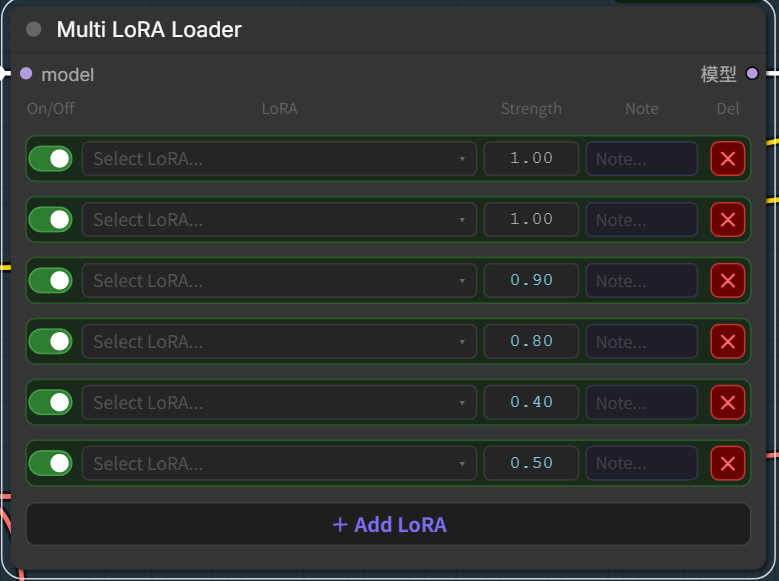
Multi LoRA Loader
Manage multiple LoRAs in a single node.
Features
- Enable/disable each LoRA with a toggle switch
- Adjust weight per LoRA (click or drag)
- Custom trigger words per LoRA with local auto-memory
- Triggers output — concatenates all enabled LoRA trigger words into a single STRING output
- Optional CLIP input/output — connect a CLIP model to also apply text-encoder weights of LoRAs; entirely optional (skip it for model-only LoRAs)
- URL button per LoRA — save a download page link (Civitai, LiblibAI, etc.) and jump to it with one click
- Thumbnail previews — place an image next to your LoRA file (
lora.pngorlora.preview.png) to see a thumbnail in the dropdown; hover to view it larger - Row sorting — click the number at the start of a row and type a target position to move it; keep your frequently used LoRAs on top
- Add notes and remove LoRAs dynamically
Usage
Add the Multi LoRA Loader node, connect the model input, then use the model output as usual. Connect the triggers output to any text input node (e.g. Prompt Segments) to automatically inject trigger words.
Row order
Click the number box at the start of a row and type a target position (e.g. 1 to move it to the top). The row is moved there and the rows in between shift automatically. The triggers output follows the same order.
URL button
- Grey
+— not configured. Click to paste the download page link (saved automatically and remembered per LoRA). - Green
↗— configured. Click to open the link. Hold Shift + click to edit the URL. - Trigger words and URLs are remembered in your browser (localStorage), so you only set them up once — they auto-fill whenever you select that LoRA again.
Thumbnails
Put an image with the same name as your LoRA in the same folder:
models/loras/
  style.safetensors
  style.png            ← shows a small thumbnail next to the name
  style.preview.png    ← also supported
Hover a row to see a large preview next to the dropdown.
Prompt Segments
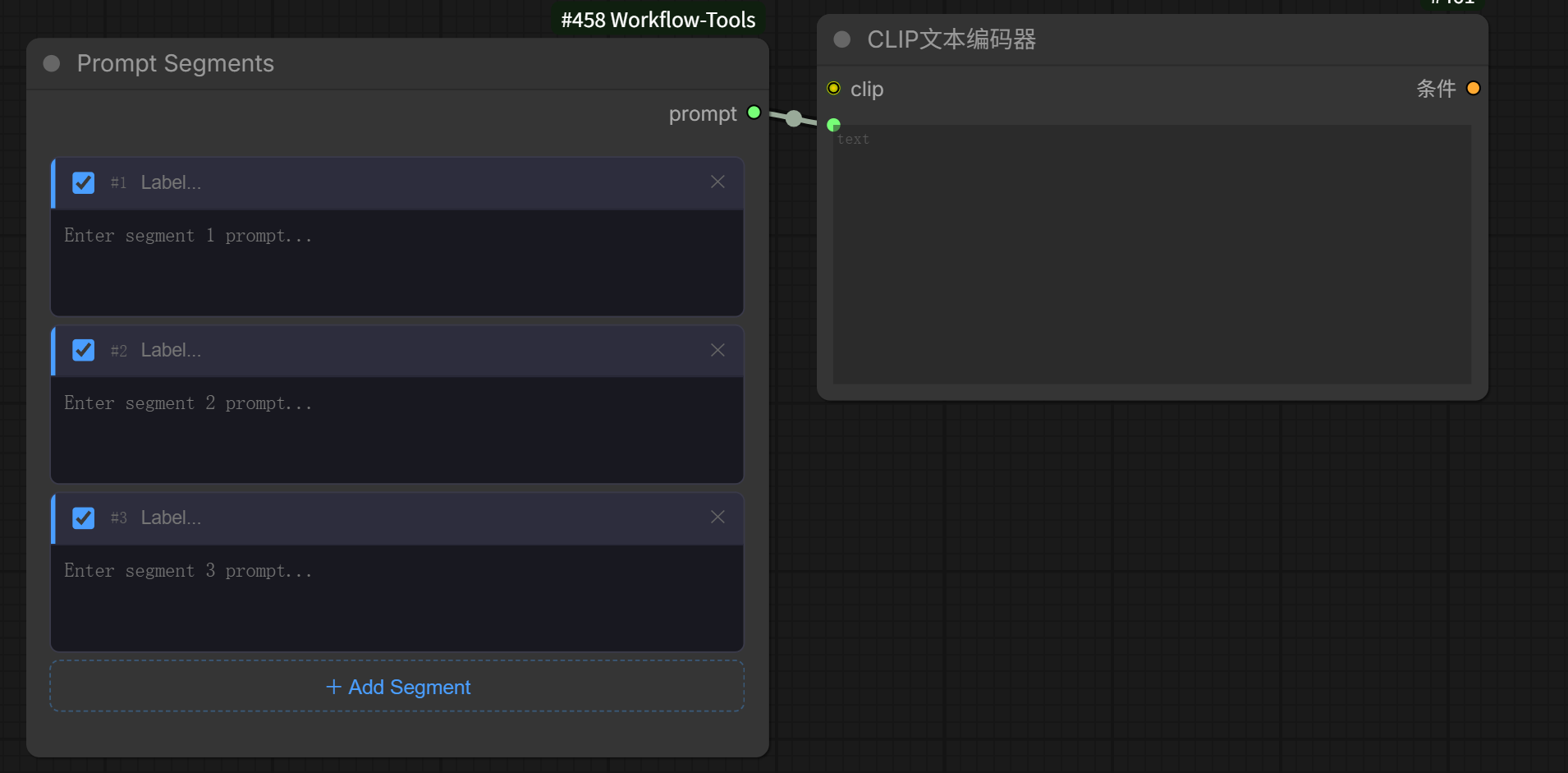
Combine multiple prompt segments into one node with auto-complete, ordered output, and direct CLIP conditioning.
Features
- Add/remove prompt segments dynamically
- Enable/disable each segment individually with a toggle
- Label each segment for quick organization
- Tag auto-complete — type 2+ characters to see suggestions from a 10,000+ Danbooru tag dictionary; click a tag to insert it, or use arrow keys + Tab to navigate with keyboard
- Insert position control — choose where the incoming
prompts_intext is placed (before segment 1, between segments, etc.) - Direct CLIP output — optional CLIP input/output lets you connect straight to the KSampler without a separate CLIP Text Encoder node
- Outputs all enabled segments merged in order
Usage
Add the Prompt Segments node. Connect prompts_out to a CLIP Text Encoder (or any text input), or optionally connect a CLIP model to use the conditioning output directly on a KSampler.
Resolution Switcher
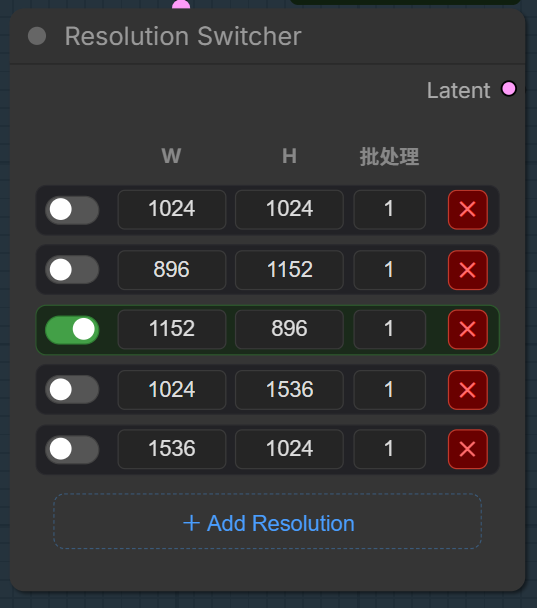
Quickly switch between pre-configured resolutions without manually re-typing dimensions every time. Outputs a blank latent with the selected size.
Features
- Pre-define multiple resolution presets (Width, Height, and Batch Size)
- Switch between resolutions instantly using toggle switches
- Dynamically add or remove resolution presets
- Eliminates the need to repeatedly input dimensions when testing different aspect ratios
Usage
Add the Resolution Switcher node. Pre-set your frequently used dimensions, toggle the one you want, and connect the Latent output to your KSampler or any node that accepts latent input.
Video Frame Extractor
Pick a single frame from a video and export it as an image — with a built-in preview player and timeline.
Features
- Choose a video from the ComfyUI input folder (dropdown), upload one, or paste an absolute path
- Built-in video preview with a draggable timeline — seek to any frame and see it instantly
- Frame number input box — type a frame index directly and the timeline/preview follow
- Upload via the button or by dropping a video file onto the node (large files are chunk-uploaded)
- Outputs the selected frame as an IMAGE; a PNG copy is also saved to ComfyUI's output directory
Usage
Add the Video Frame Extractor node, pick or upload a video, then set the target frame (type the frame number or drag the timeline). Connect the image output to a Preview/Save Image node or any node that accepts an image.