
Prompt Editor
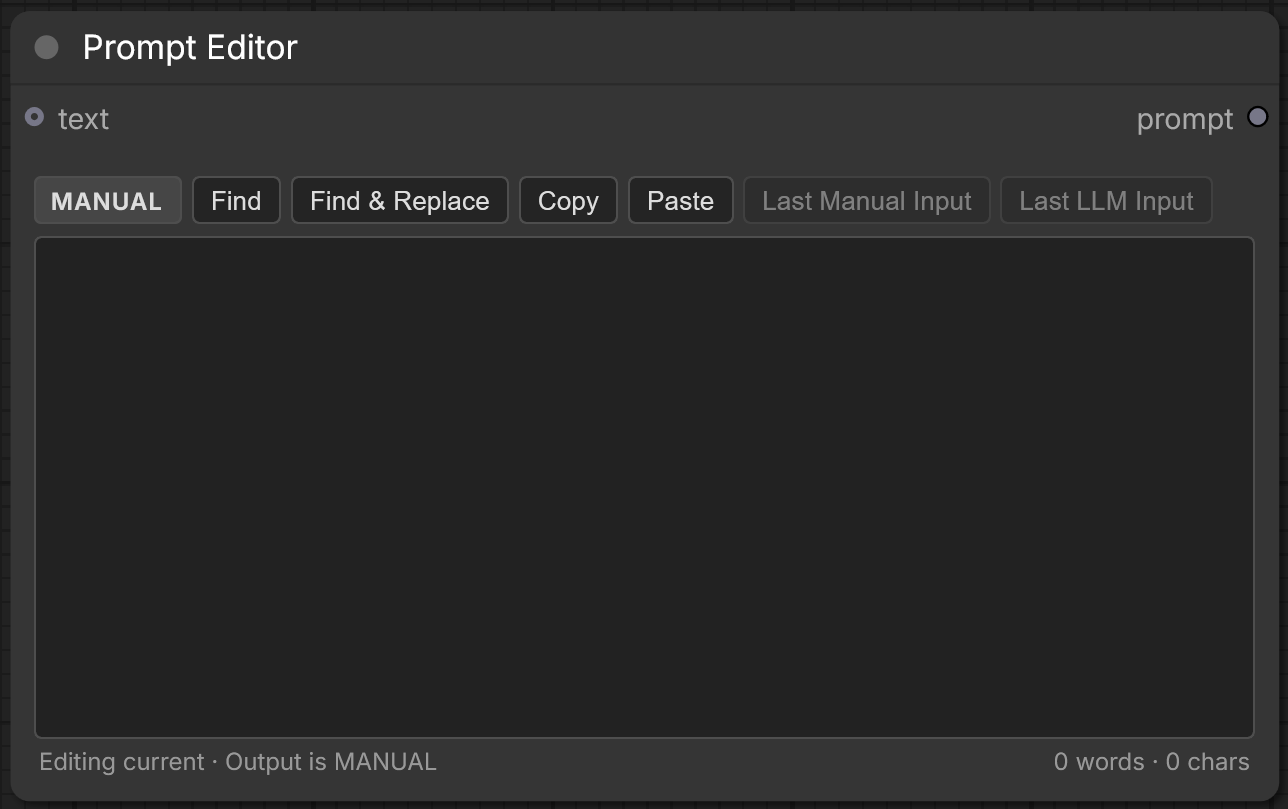
A ComfyUI custom node for writing and inspecting prompts, with MANUAL/LLM status and last-input history.
Prompt Editor
A ComfyUI node for writing and inspecting prompts.
It is a real multiline editor (select, copy, undo, spellcheck), not a fake canvas text box. You can type a prompt by hand, or plug in any upstream STRING (local or cloud LLM) and switch between the two without disconnecting the cable.
v0.1.2 · MIT · no extra dependencies Add node: Prompt Editor · category utils/text
Install
- Clone into ComfyUI
custom_nodes:
cd ComfyUI/custom_nodes
git clone https://github.com/DaemonSK/ComfyUI-PromptEditor.git
- Restart ComfyUI.
- Add Prompt Editor from
utils/text.
Nothing else to install.
Quick start
- Drop Prompt Editor on the graph.
- Type a prompt. Connect the
promptoutput to anything that accepts STRING (CLIP encode, etc.). - Optional: connect any STRING producer into the left
textinput (an LLM node, another editor, …). - Queue the graph. When the upstream STRING resolves, it appears in the editor.
Important: the text you see is not always the text that runs. Peeking at history never changes the graph output unless you click Use as current. The footer always says what you are viewing vs what will run.
Toolbar
Left to right:
[ MANUAL / LLM ] Find Find & Replace Copy Paste Last Manual Input Last LLM Input Use as current
MANUAL / LLM
Clickable mode switch on the far left. It does not disconnect the cable.
| Look | Meaning | |---|---| | MANUAL — no light | Nothing connected. You are writing the prompt that will run. | | MANUAL — hollow green dot | A STRING is still connected, but output is your local text. Click to use the LLM. | | LLM — filled green light | Output is the connected STRING. The live editor is read-only. Click to edit locally without unplugging. |
- Plug in a cable → switches to LLM (light pulses when new text arrives).
- Unplug → switches to MANUAL and keeps the last LLM text on screen.
- History buttons never change this control.
LLM here means “any upstream text node,” not “cloud only.”
Find
Search the text currently on screen. Click again (or Esc) to close.
- Ctrl+F
- Next / Previous and a
3 / 12counter - Enter = next, Shift+Enter = previous
- Optional Case and Word
- Search never edits the prompt
Find & Replace
Ctrl+H. Same search, plus Replace / Replace All.
Replace works only when the text is editable (MANUAL current, or history you unlocked). In live LLM view, find still works; replace stays off so the connected STRING is not silently changed.
Copy
Copies exactly what is on screen, including line breaks — even if you are only viewing history. Brief ✓ Copied.
Paste
Paste inserts clipboard text into the editor. Screenshot file paths are ignored. Browser clipboard security applies:
- Chrome / Chromium: allow clipboard access for the ComfyUI site. Once allowed, the button pastes with one click.
- Firefox: click the node's Paste button, wait for Firefox's separate Paste confirmation to become enabled, then click that confirmation. Firefox does not offer websites a persistent clipboard-read permission, so this is a two-step action.
- Any browser: focus the editor and press Ctrl+V to use normal immediate paste at the caret.
| Action | Result |
|---|---|
| Paste | Replace the displayed text |
| Shift+click Paste | Append at the end |
| Ctrl+V in the editor | Insert at the caret |
| Drop a .txt file on the editor | Replace with the file |
Disabled while live LLM text is locked, or while history is still read-only. These restrictions are imposed by the browser and cannot be bypassed by a normal ComfyUI custom node.
Last Manual Input
Shows the last prompt you typed by hand. Read-only at first. Does not change output or the cable.
Click again to go back to the live prompt. Greyed out until you have stored a manual prompt.
Last LLM Input
Same idea, for the last connected STRING. Greyed out until an LLM value has been stored.
Only one history view at a time. Esc closes Find first; if Find is already closed, Esc leaves history.
Use as current
Appears only while you are in Last Manual or Last LLM.
Means: make this text the live prompt now.
- Switches to MANUAL (cable stays)
- Graph output becomes that text
- Last Manual is updated to match
Until you click this, history is only a peek.
History editing
While viewing Last Manual or Last LLM, double-click the editor to unlock that stored copy.
- You are editing the history buffer, not the live graph prompt
- Output does not change
- Leave history (same history button, Use as current, or Esc) to lock it again
Footer
Left: what you are looking at, and what the graph will output.
Examples:
Editing current · Output is MANUALViewing last manual · Output is LLMViewing current LLM · Output is LLM
Right: 12 words · 80 chars for the text on screen.
Shortcuts
| Key | Action | |---|---| | Ctrl+F | Find | | Ctrl+H | Find & Replace | | Ctrl+Shift+V | Paste (replace all) | | Esc | Close Find, then leave history | | Enter / Shift+Enter | Next / previous match (in Find) |
The editor is a normal textarea: Ctrl+A / C / X / V / Z, Home/End, native spelling suggestions (lang=en). Text is never auto-trimmed or rewritten.
How the three texts relate
| | | |---|---| | Current | Last prompt that was actually active (typed or last resolved LLM) | | Last manual | Last thing you typed (or promoted with Use as current) | | Last LLM | Last resolved connected STRING |
Example: you type A, connect an LLM that produces B then C, then unplug (or click MANUAL):
- Screen stays on
Cand becomes editable - Last manual is still
Auntil you edit - After you change
CintoD: current =D, last manual =D, last LLM =C
The LLM editor updates when this node executes and the connected STRING resolves. Token-by-token streaming from arbitrary LLM nodes is not assumed.
Workflow save
Saved with the workflow: current prompt, last manual, last LLM, MANUAL/LLM mode.
Not saved: find query, “Copied/Pasted” flash, history unlock, Find bar open.
Requirements
- ComfyUI 0.34+ (V3 node API)
- No Python or npm packages beyond ComfyUI
See docs/COMPATIBILITY.md for the support matrix.